A Leave Accrual Cashout request asks to be paid for unused accrued leave hours, such as PTO, instead of taking them as time off. After you submit it, the request follows the configured approval workflow before being approved, rejected, or returned for revision.

Create a Leave Accrual Cashout Request

Prerequisites

Before submitting a Leave Accrual Cashout request:
  • You must have an active employee account.
  • You must have an accrued balance in the selected leave type.
  • You cannot have another cash-out request that is not yet complete. If you do, a message is displayed and the request cannot be added.
1

Navigate to Requests Module.
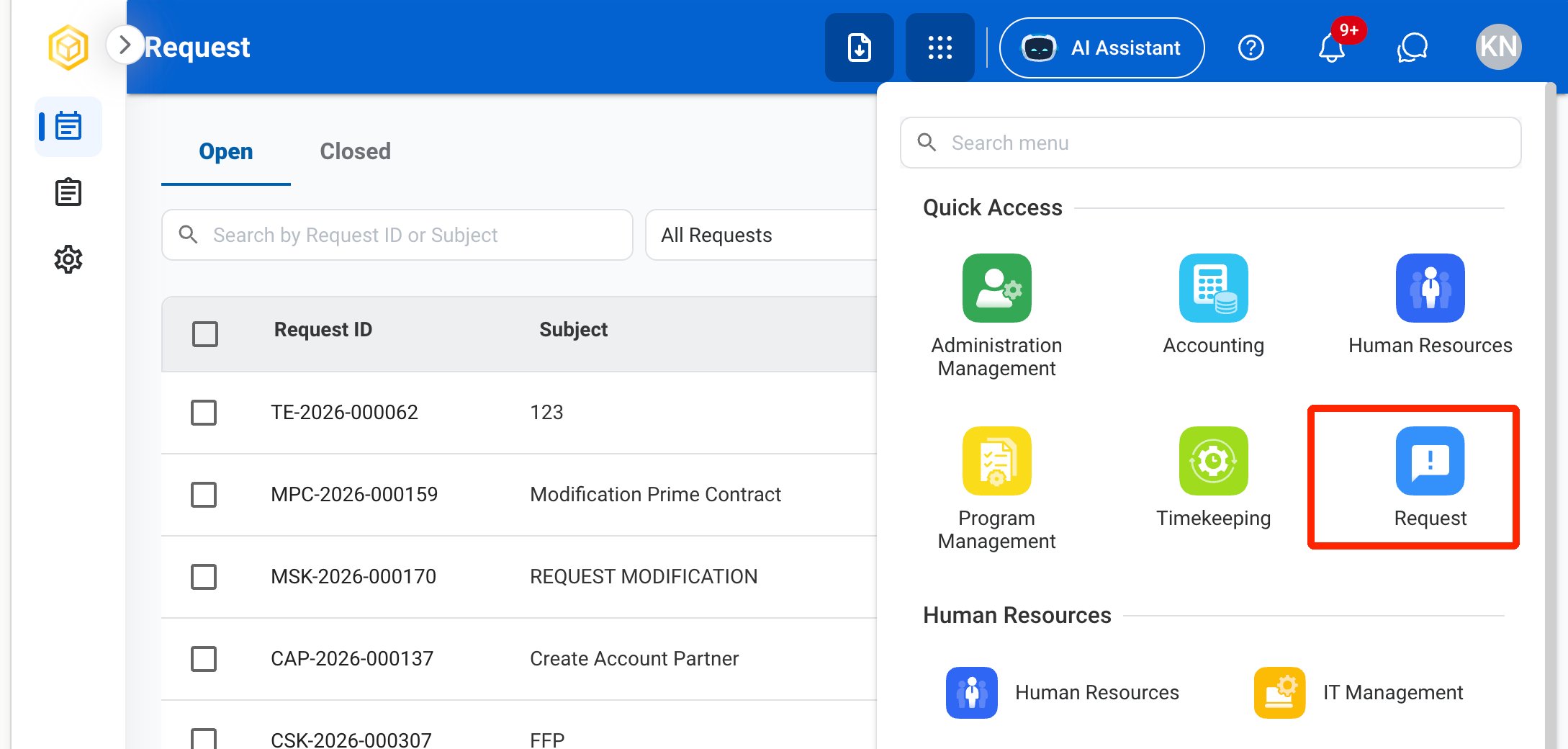
RQ Nav
2

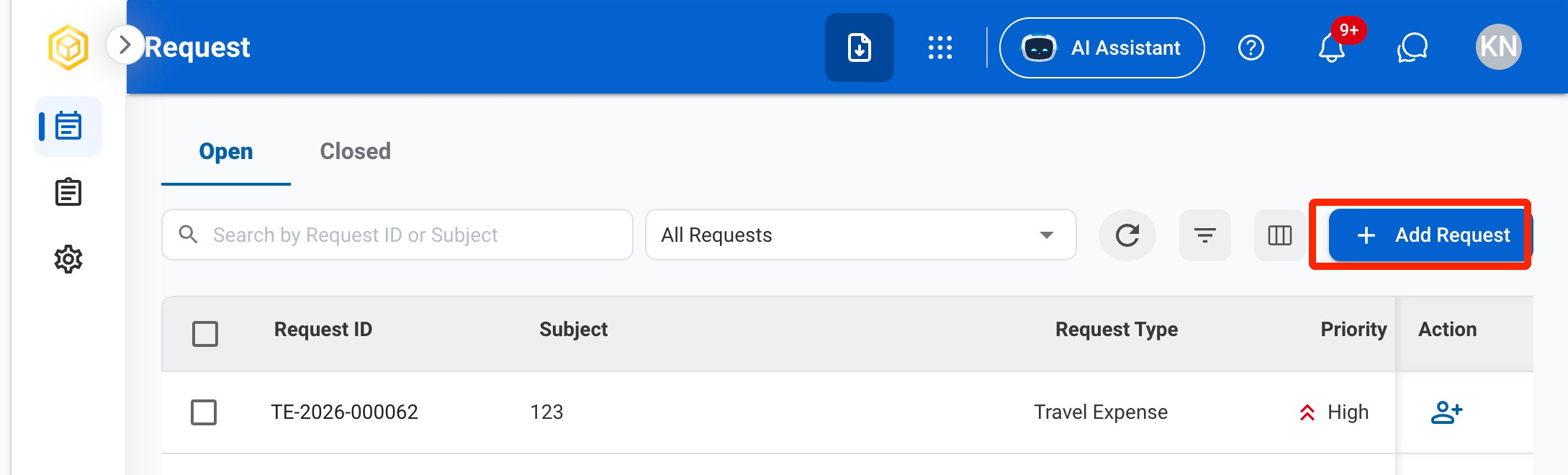
Click Add Request.

RQ Add
3

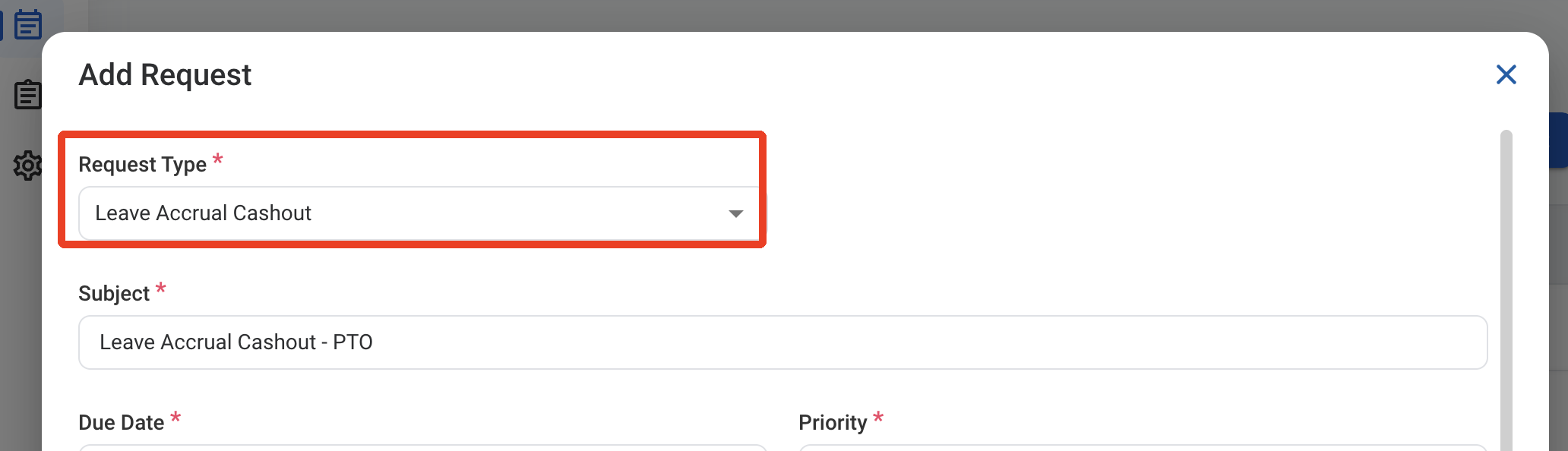
Select Leave Accrual Cashout as the request type.
RQ CO Type
4

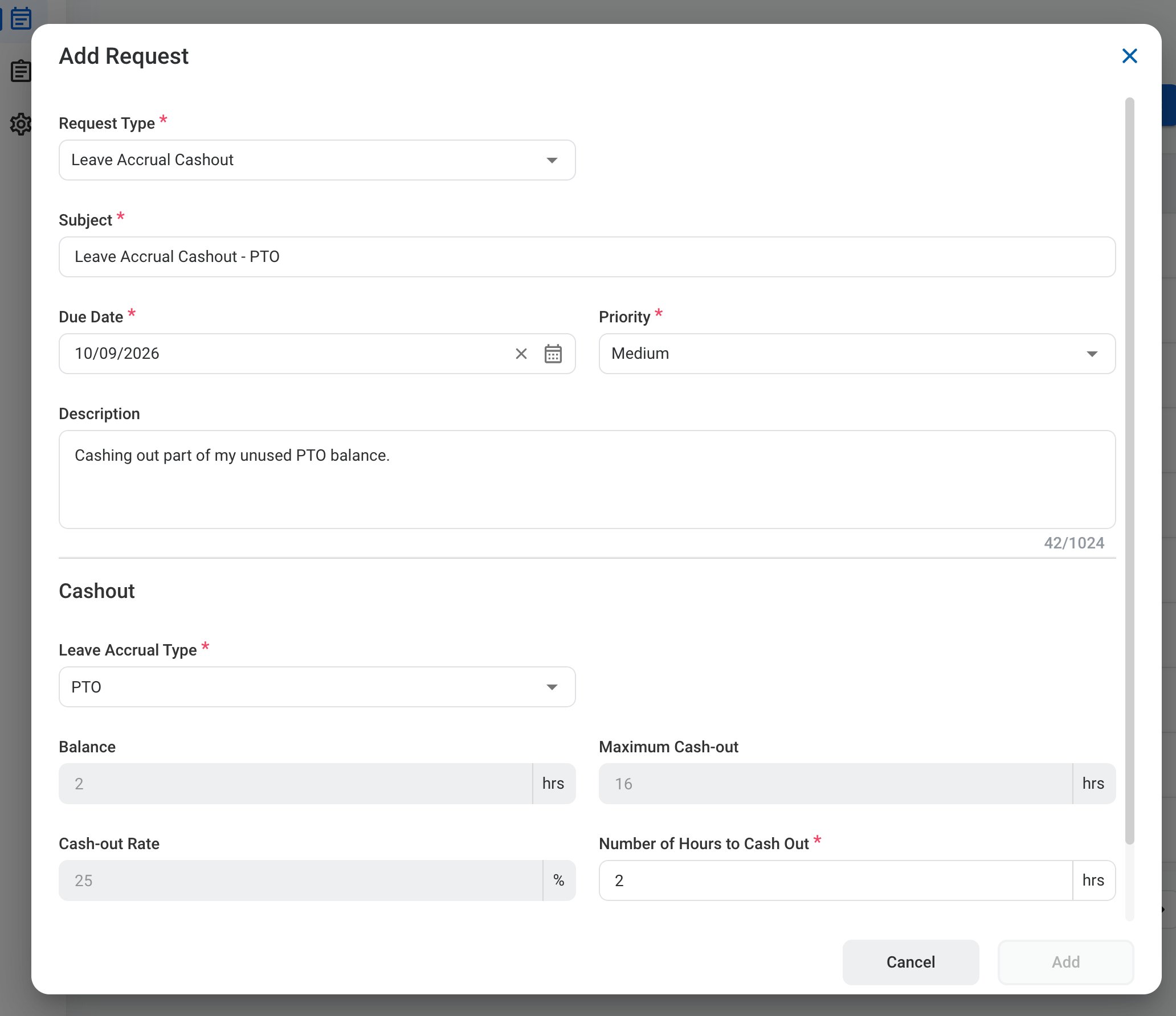
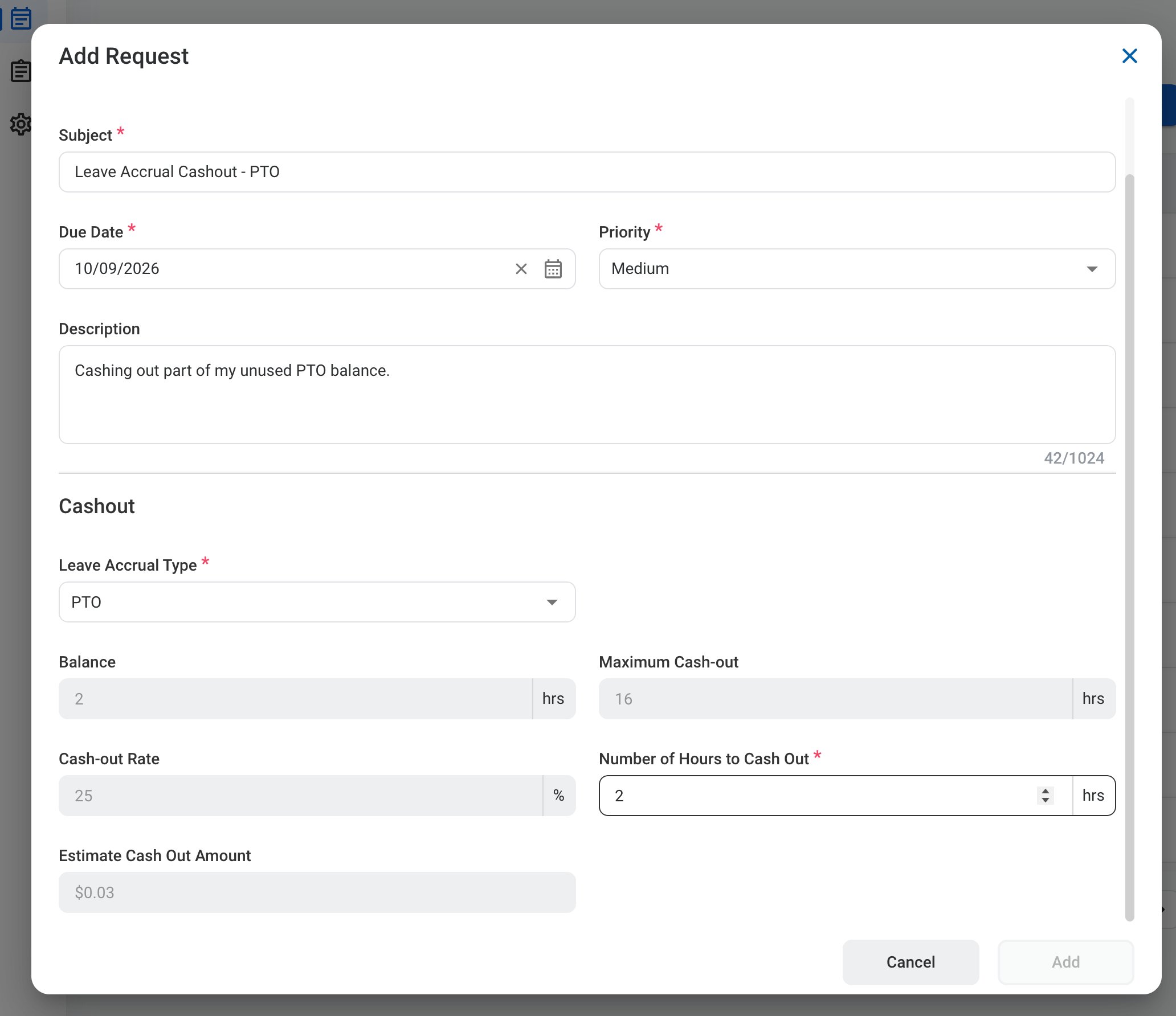
Complete the required information.

RQ CO Form 1

Request Information

RQ CO Form 2

Cashout

5

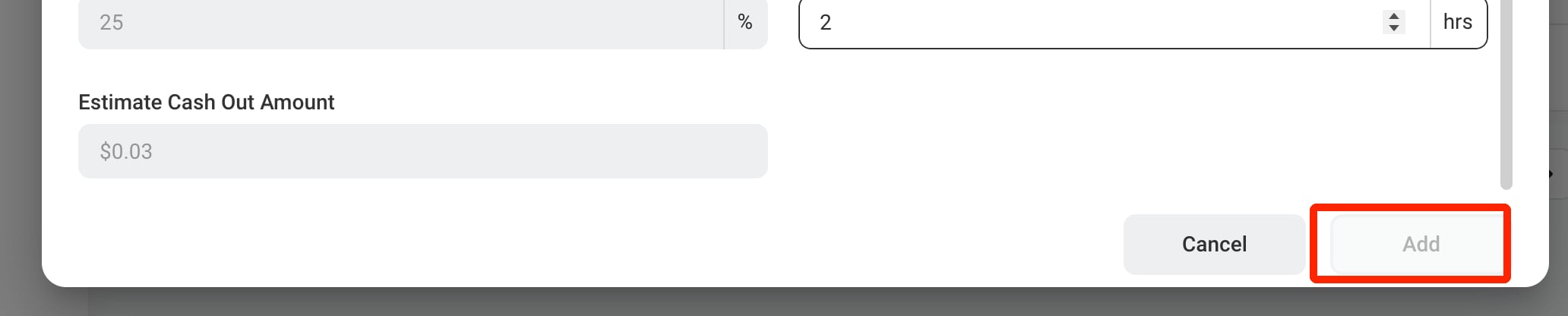
Click Add to send the request for approval.
RQ CO Add
After the request is approved, the hours cashed out are added to the Taken Leave for the leave type in HR, and the Accounting manager creates the journal entry and processes the payment manually.

Review a Leave Accrual Cashout Request

To review a submitted Leave Accrual Cashout request and approve, reject, or discard it, see Payroll > Requests.

Manage the Leave Accrual Cashout Business Process

To manage the workflow for Leave Accrual Cashout requests, see Admin > Business Processes > Business Processes Overview.