System Requirements
System Requirements
- Operating System: Windows 7 SP1 (64‑bit) or newer, or macOS / modern OS (for browser-based use)
- Processor: Intel Core i3 (or equivalent) at least
- Memory: 8 GB RAM (minimum for stable use)
- Storage: Enough disk space for OS + browser; if you store exports or local data, use SSD for faster performance.
- Browser: Version web browser (Chrome, Firefox, Edge, Safari, etc.)** **
- Internet connection: Stable internet access - recommended good bandwidth for smooth data loading (especially if multiple users).
Log In
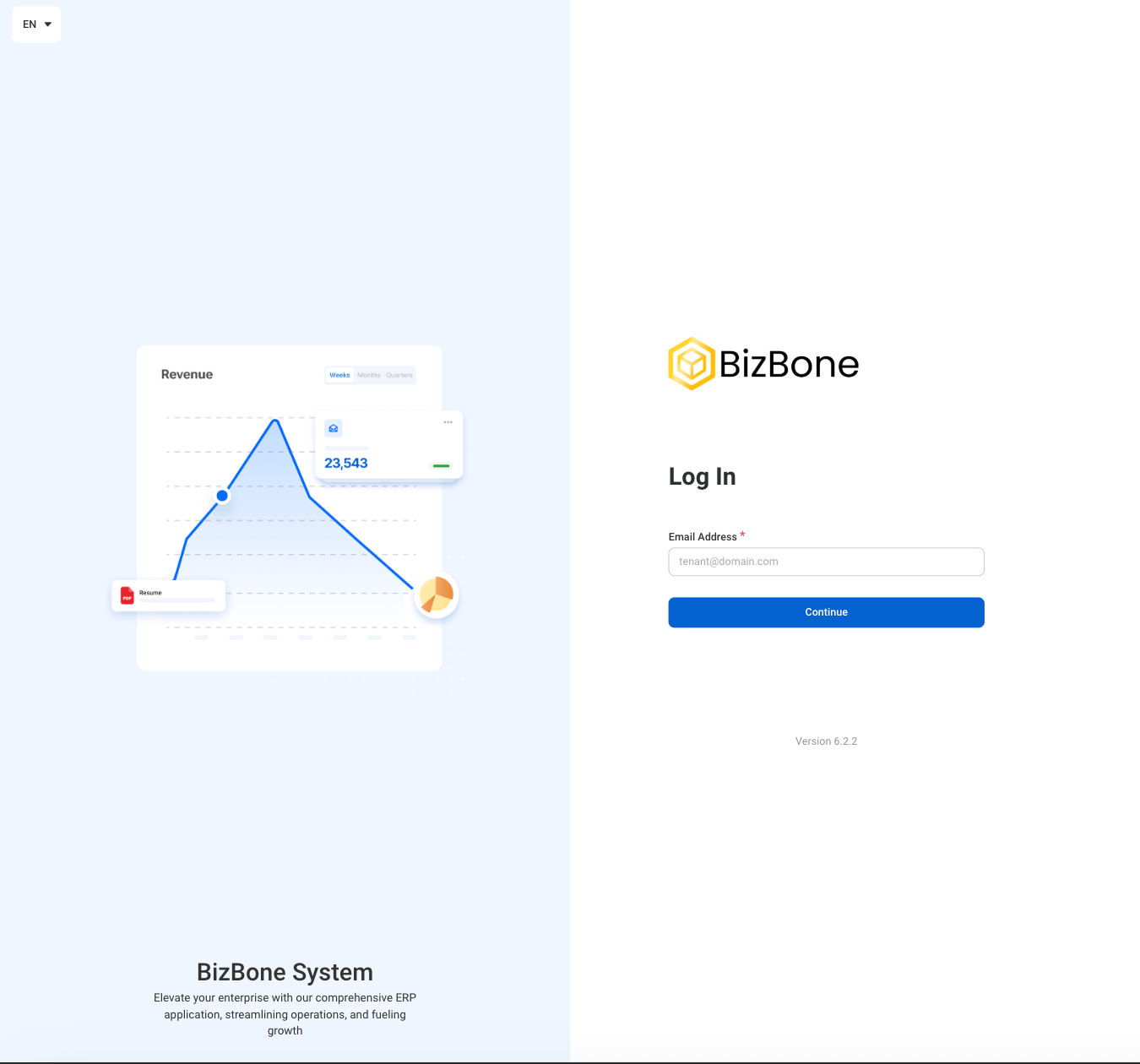
1
Access the login page in browser
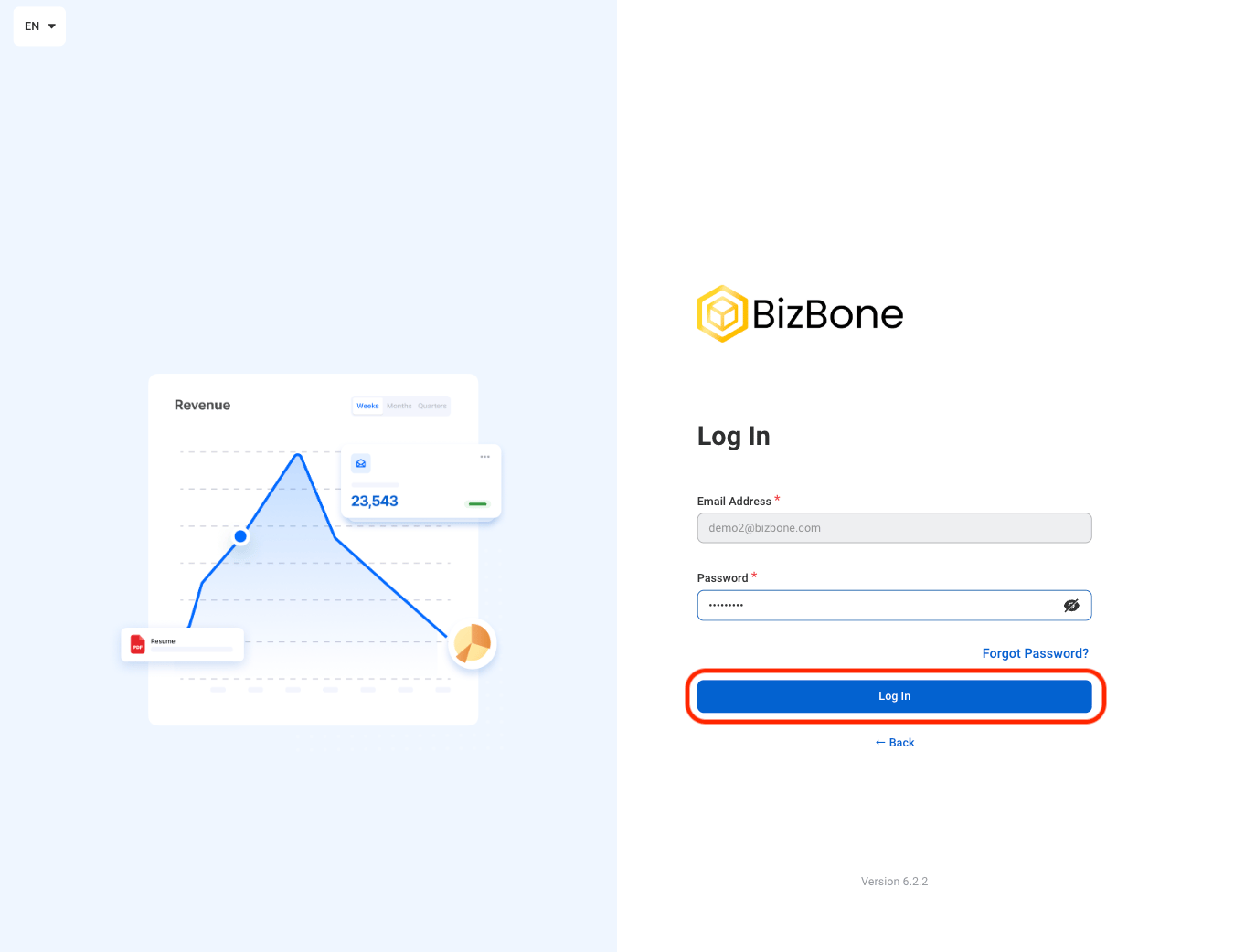
2
Enter your registered email address and password
Forgot password?
Forgot password?
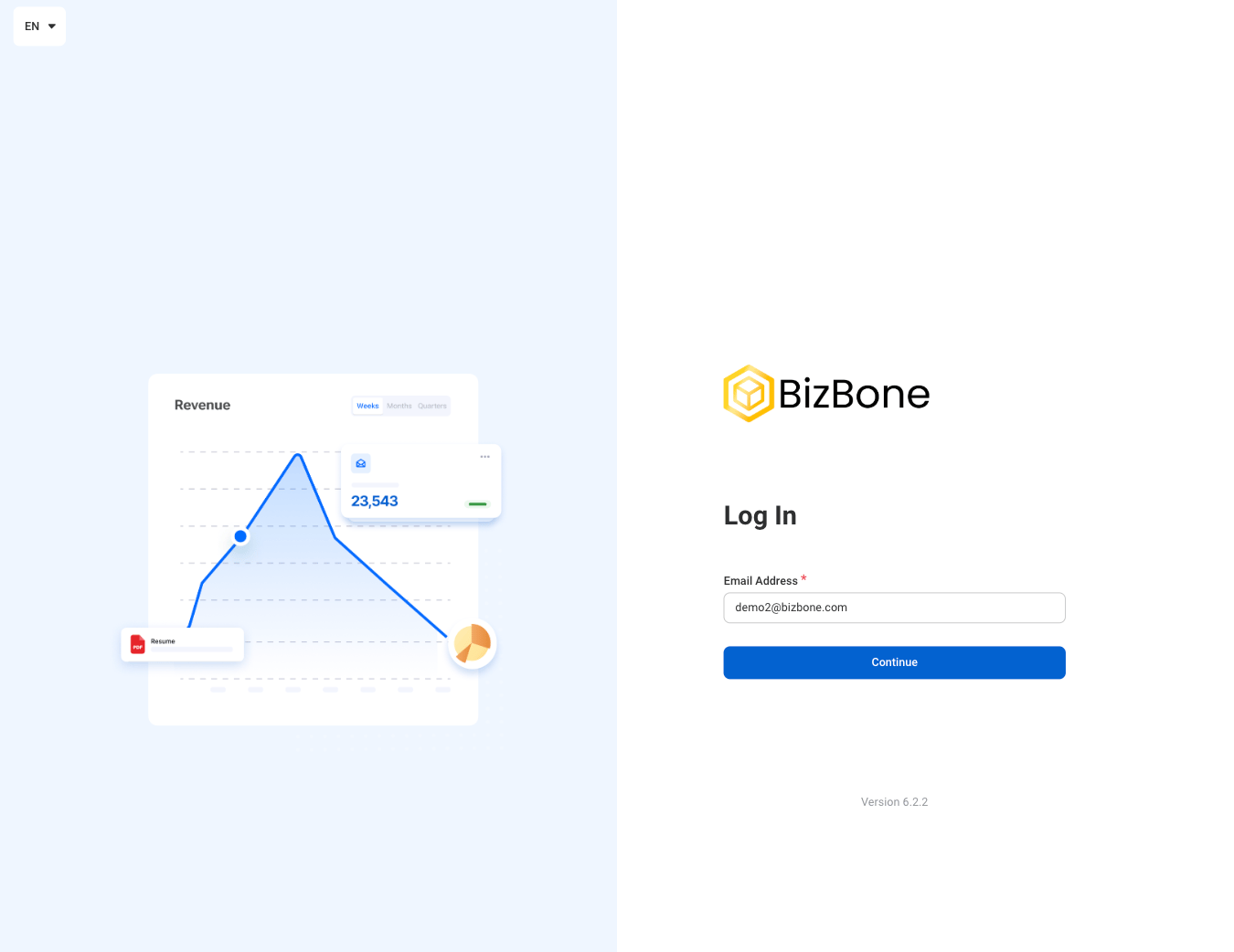
1
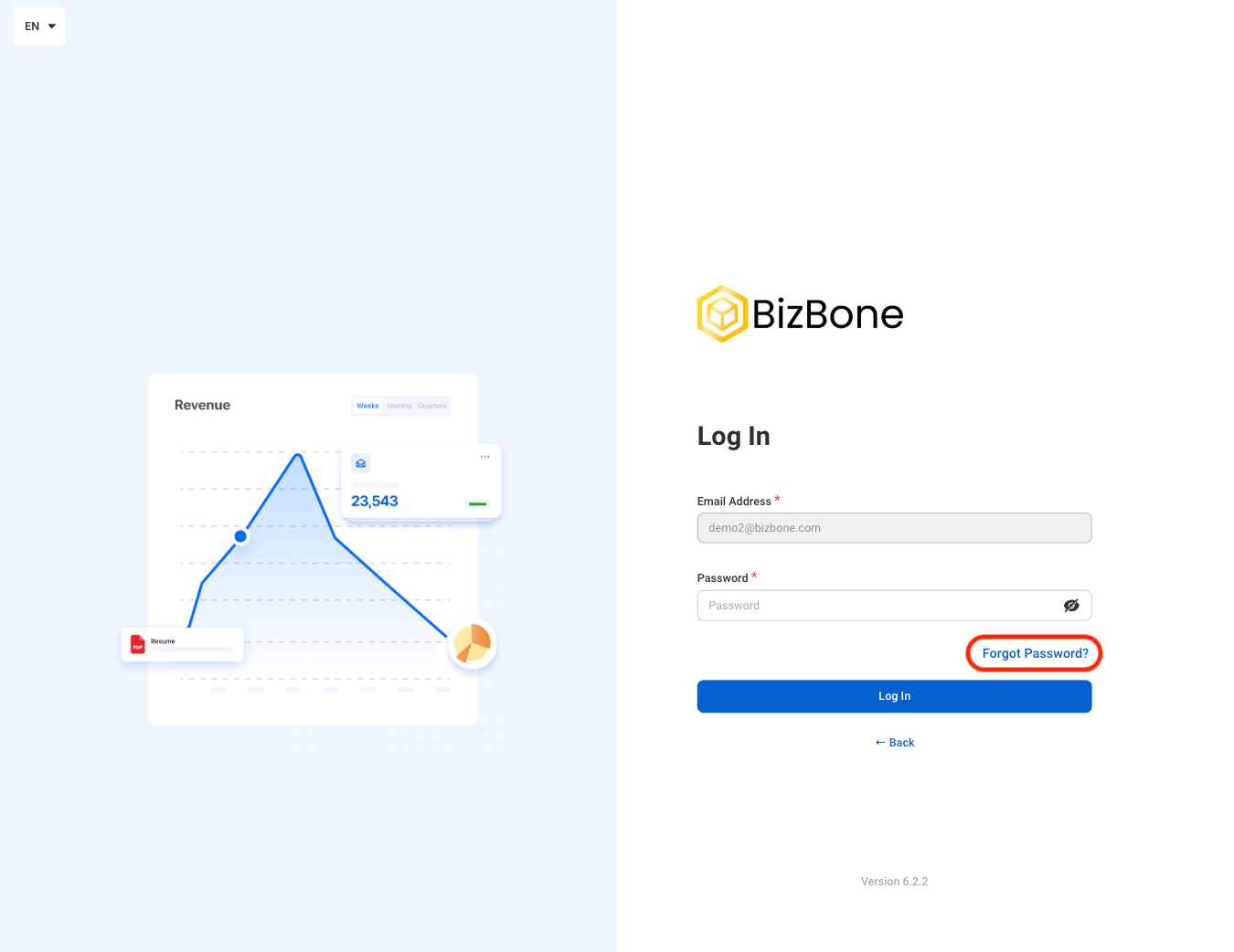
Enter the login email
2
Select Forgot Password?
3
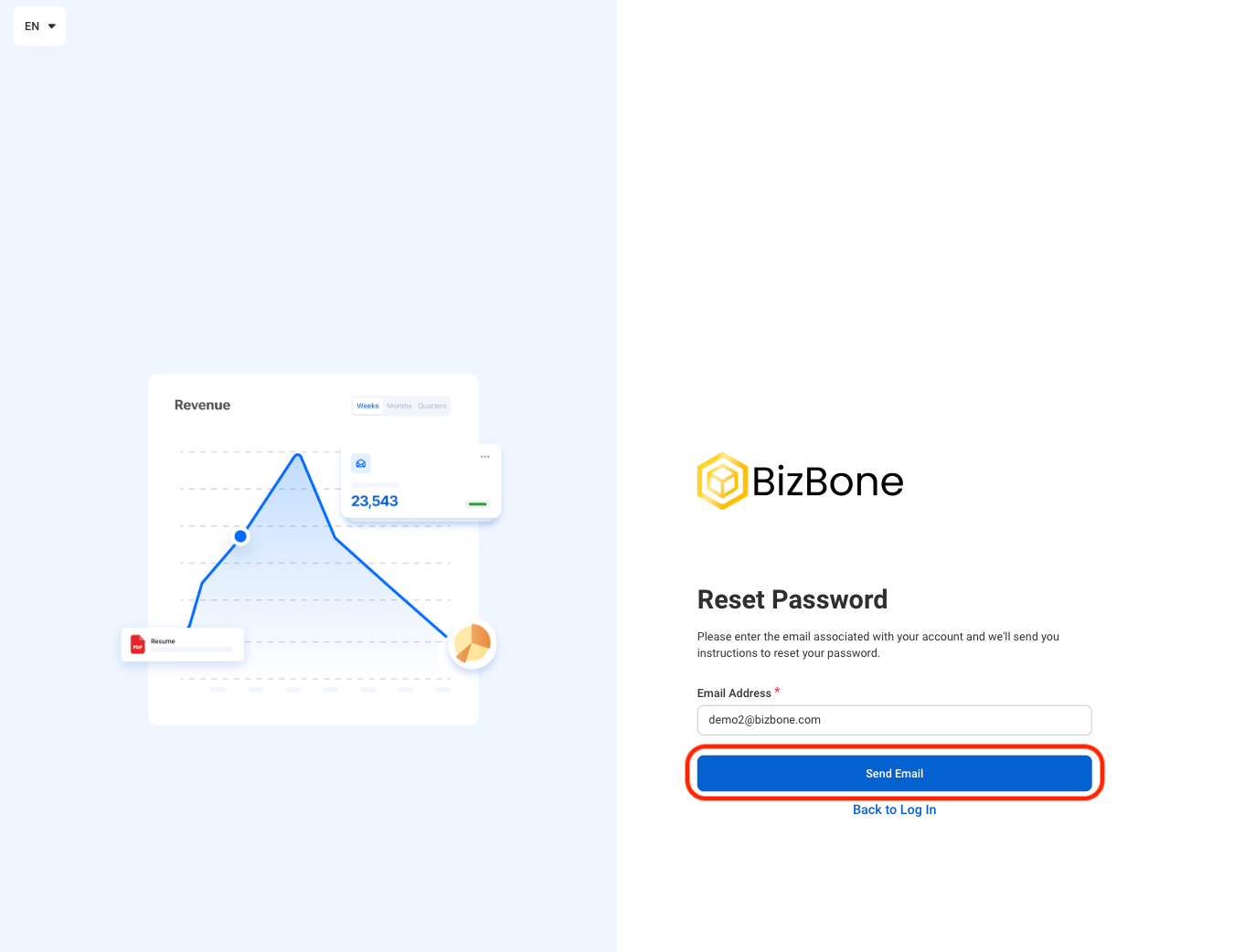
Select "Send Email"
4
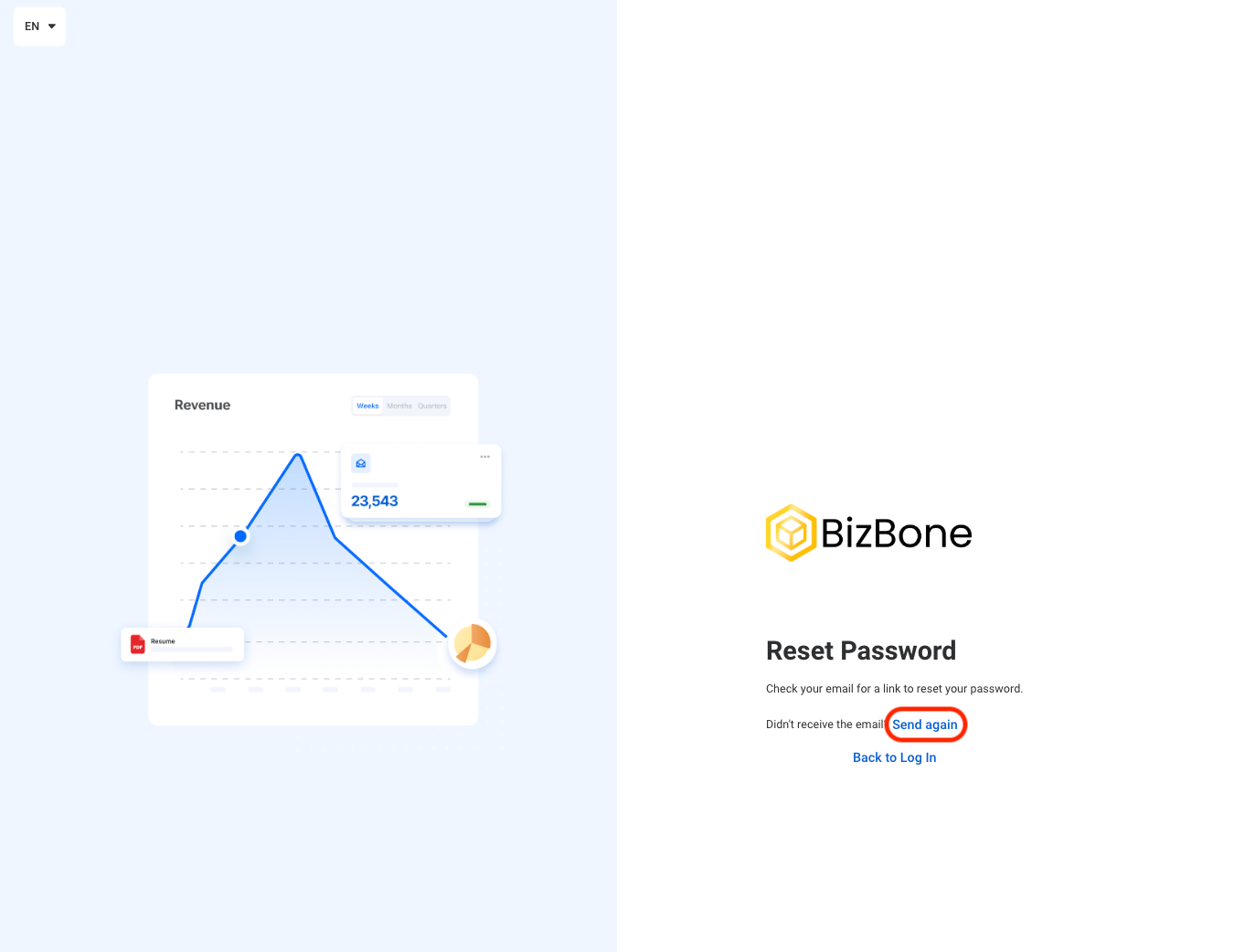
If needed, select Send again to send an additional recovery email
Account Set Up
Navigate to Account Set Up
1
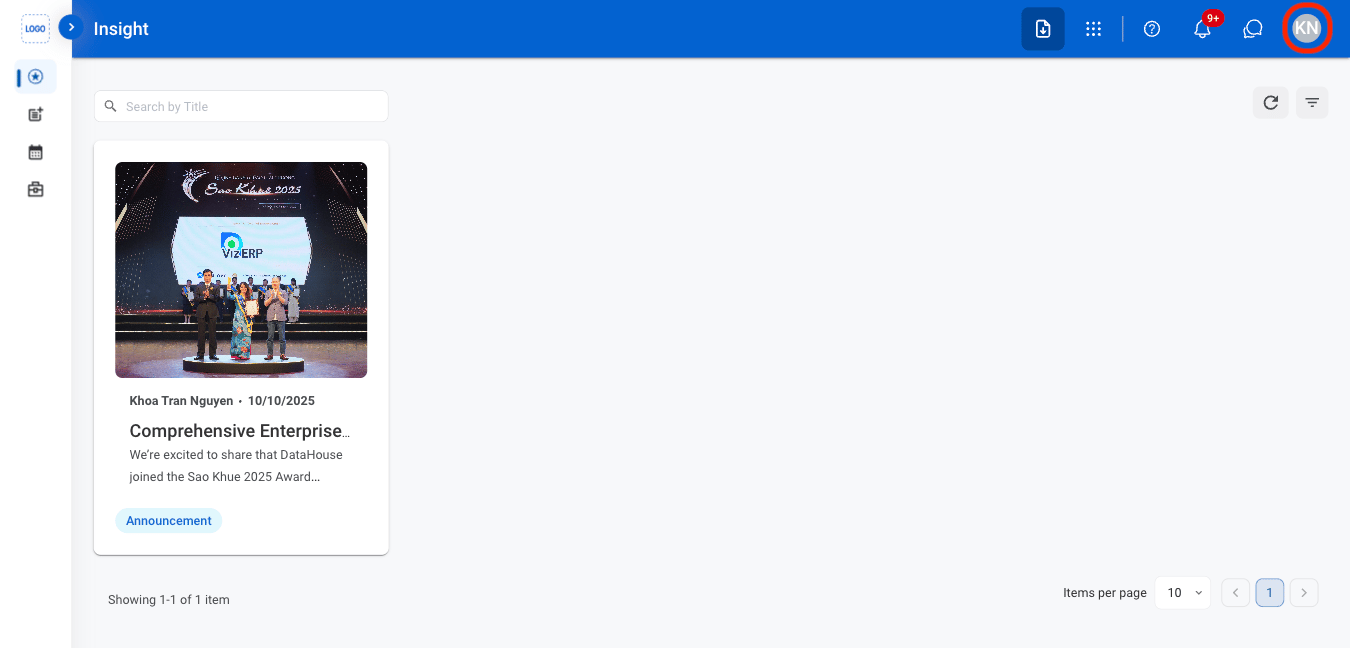
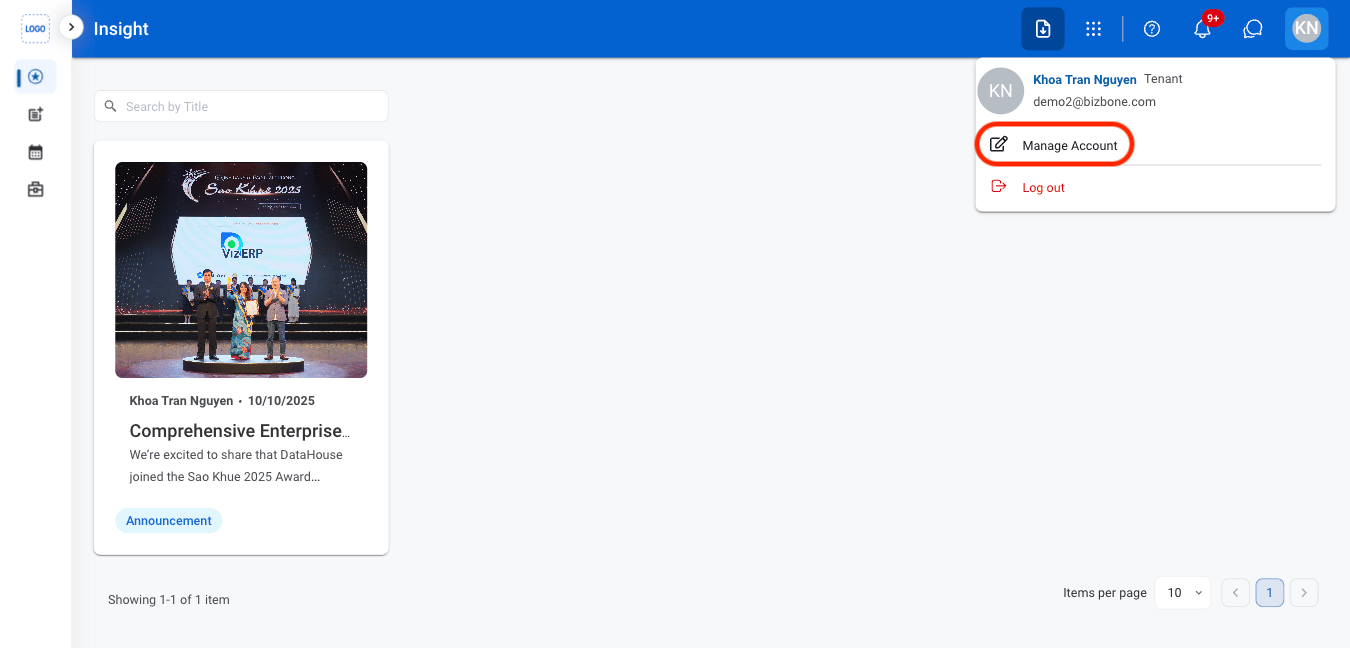
Select the Avatar icon
2
Select Manage Account
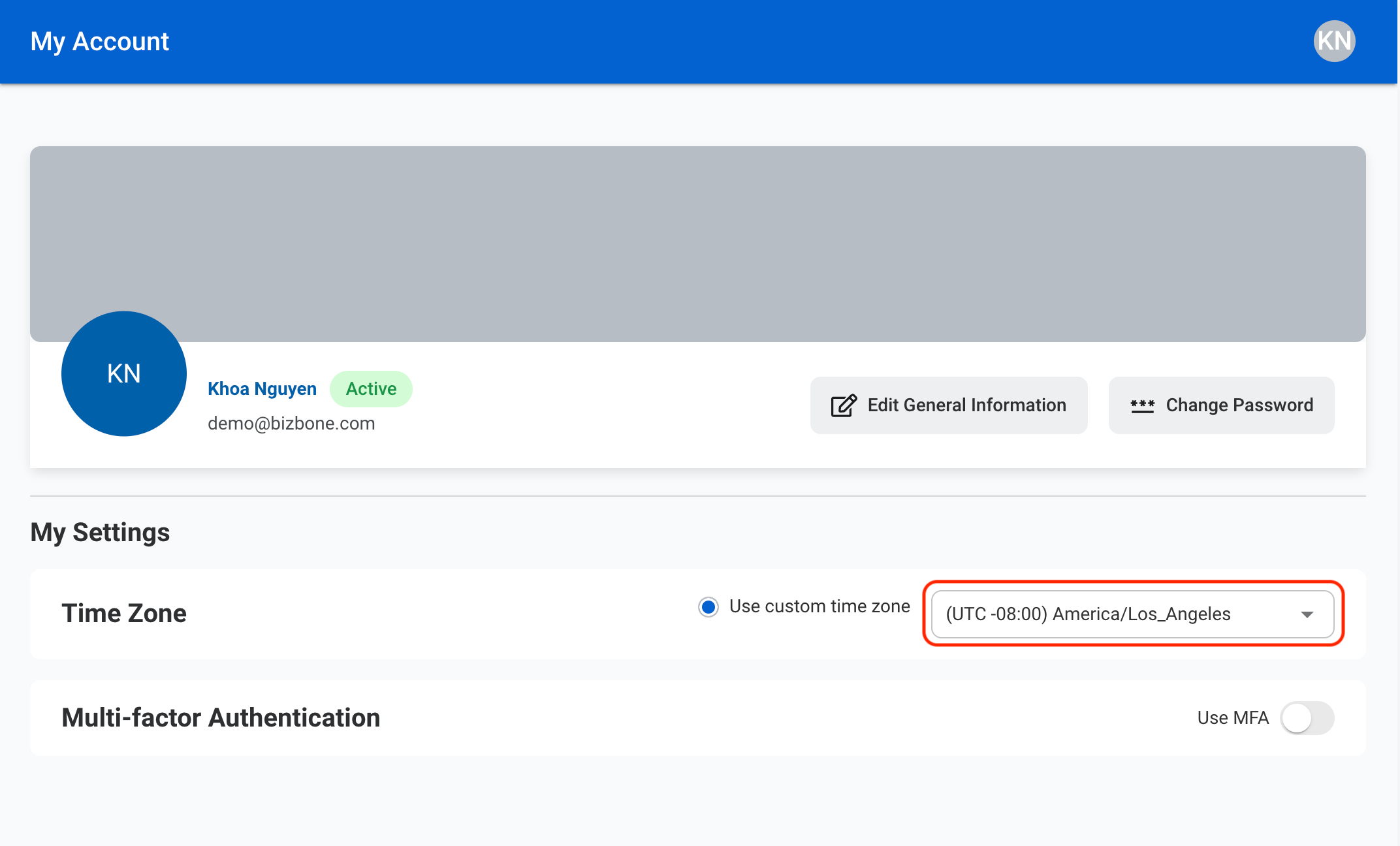
Adjust Time Zone
1
Select the preferred time zone from the drop down menu.
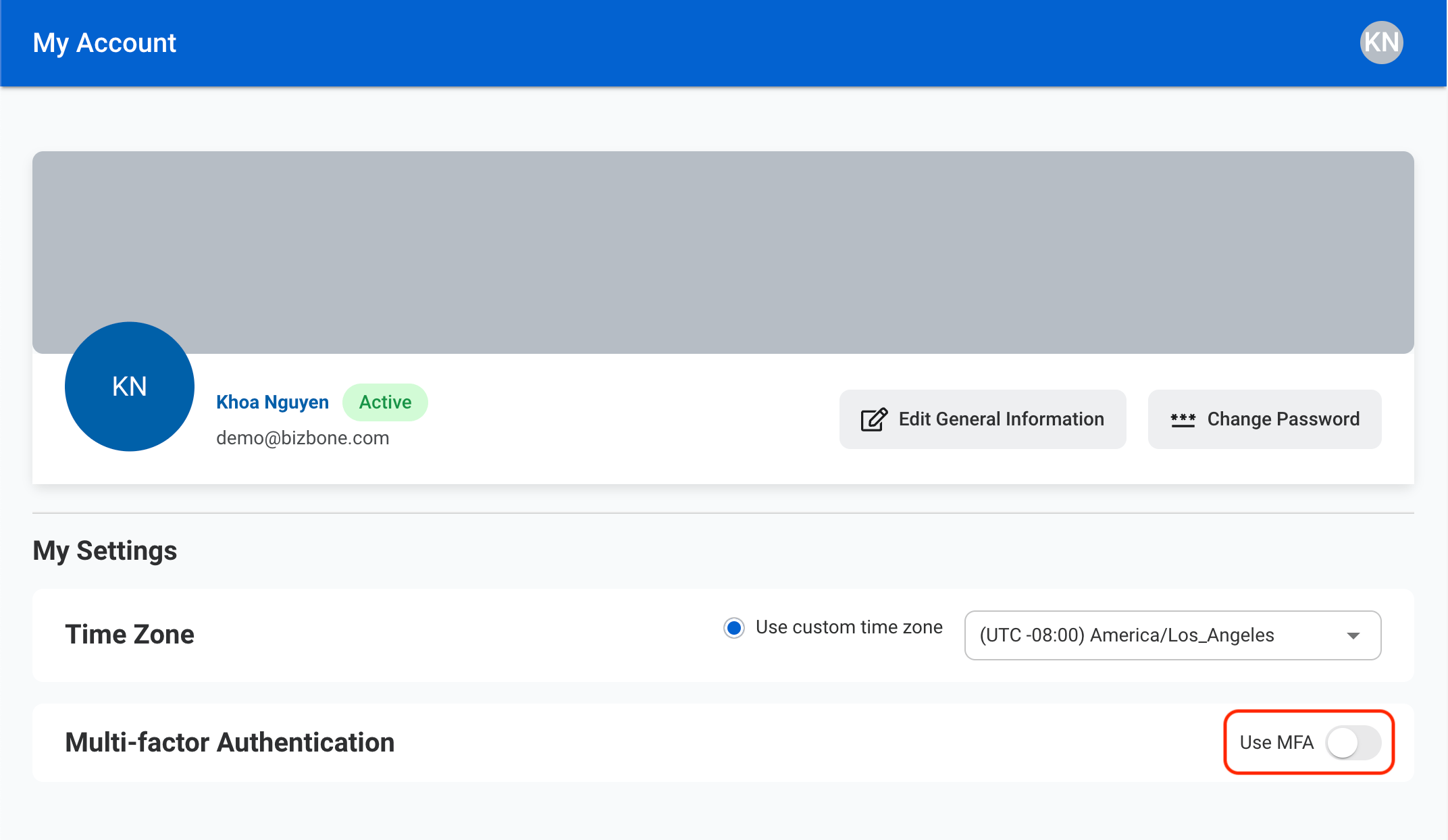
Enable Multi-factor Authentication
1
Toggle Use MFA
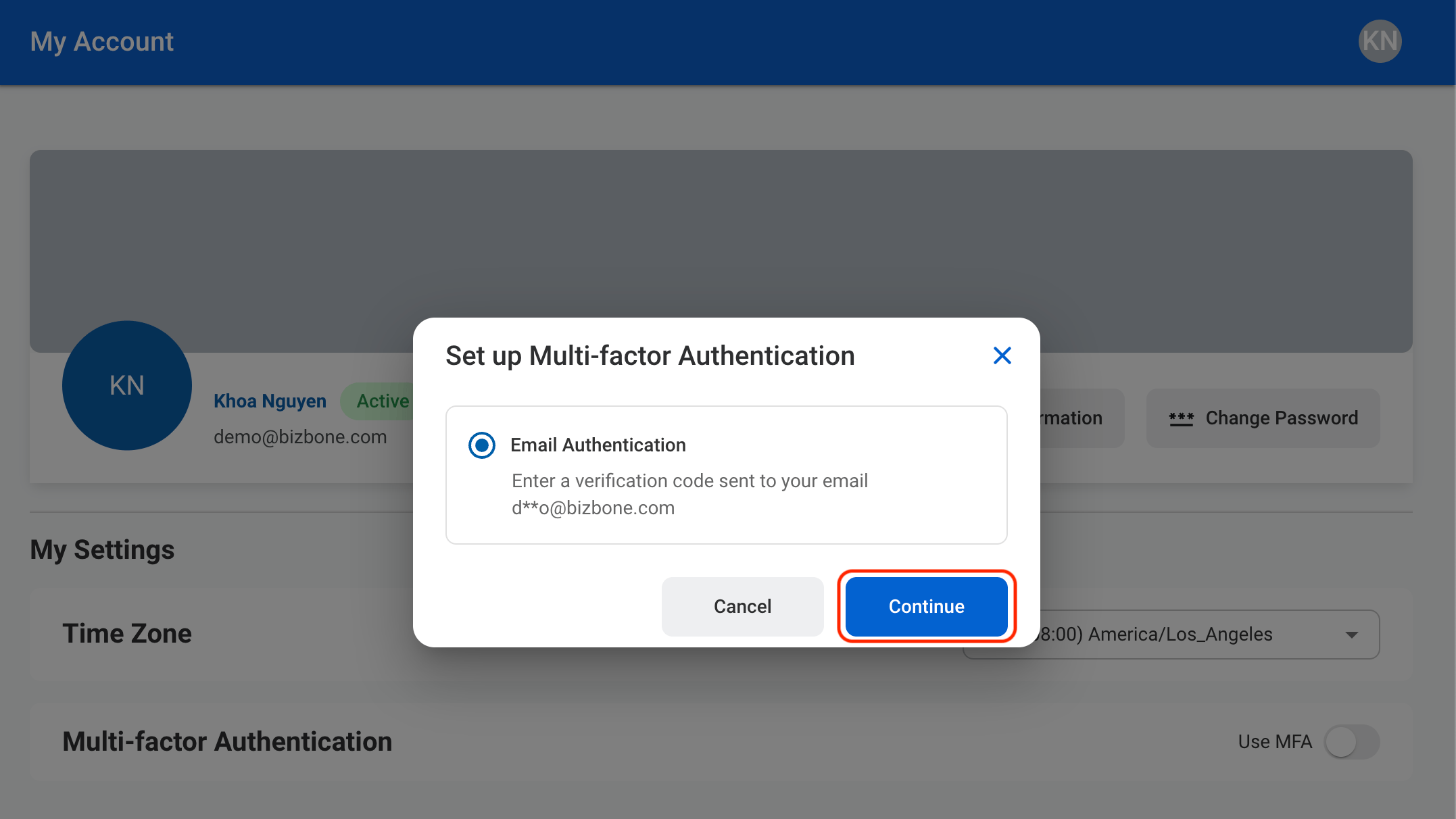
2
Allow email authentication
3
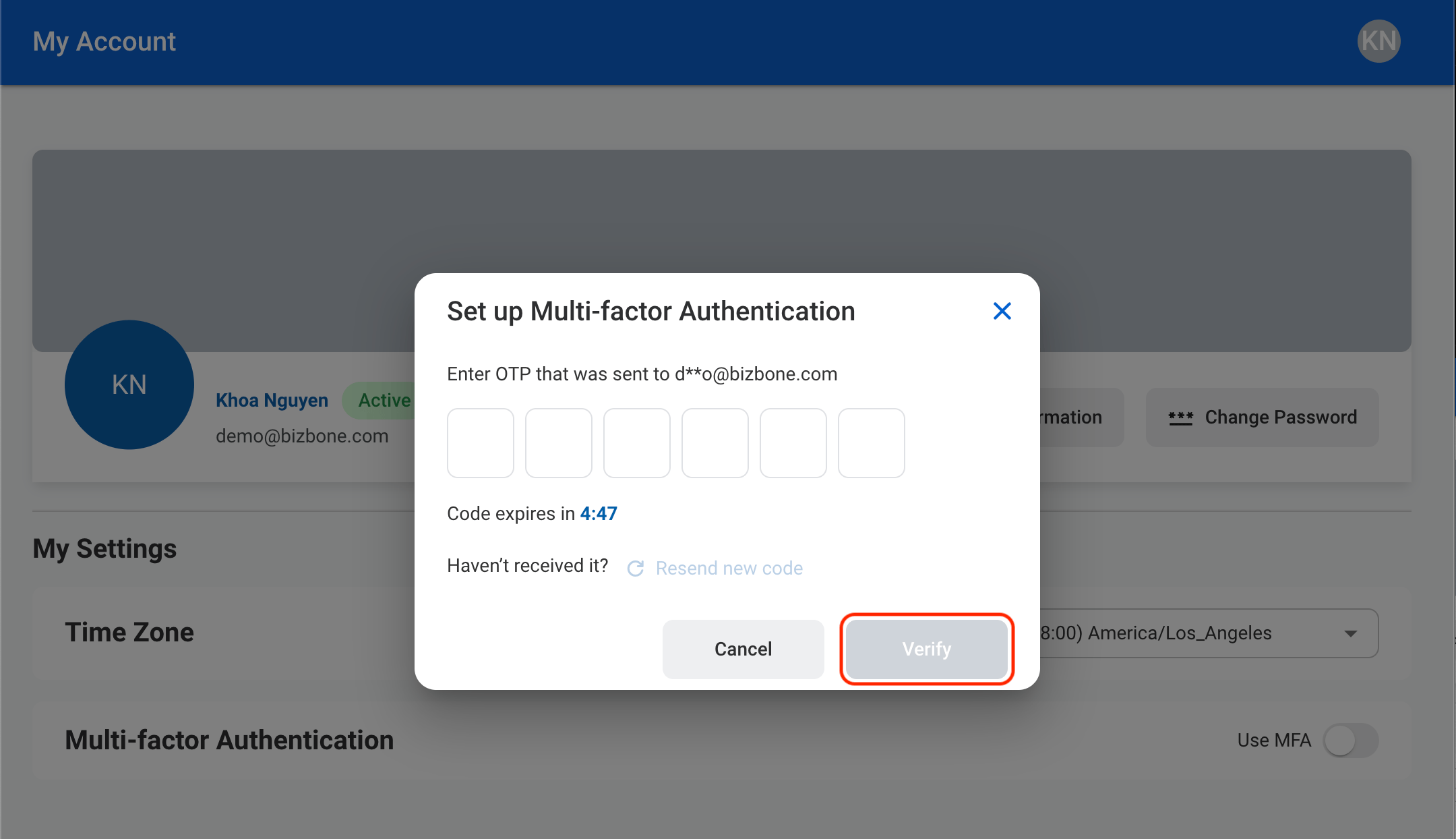
Verify the email address
Edit General Information
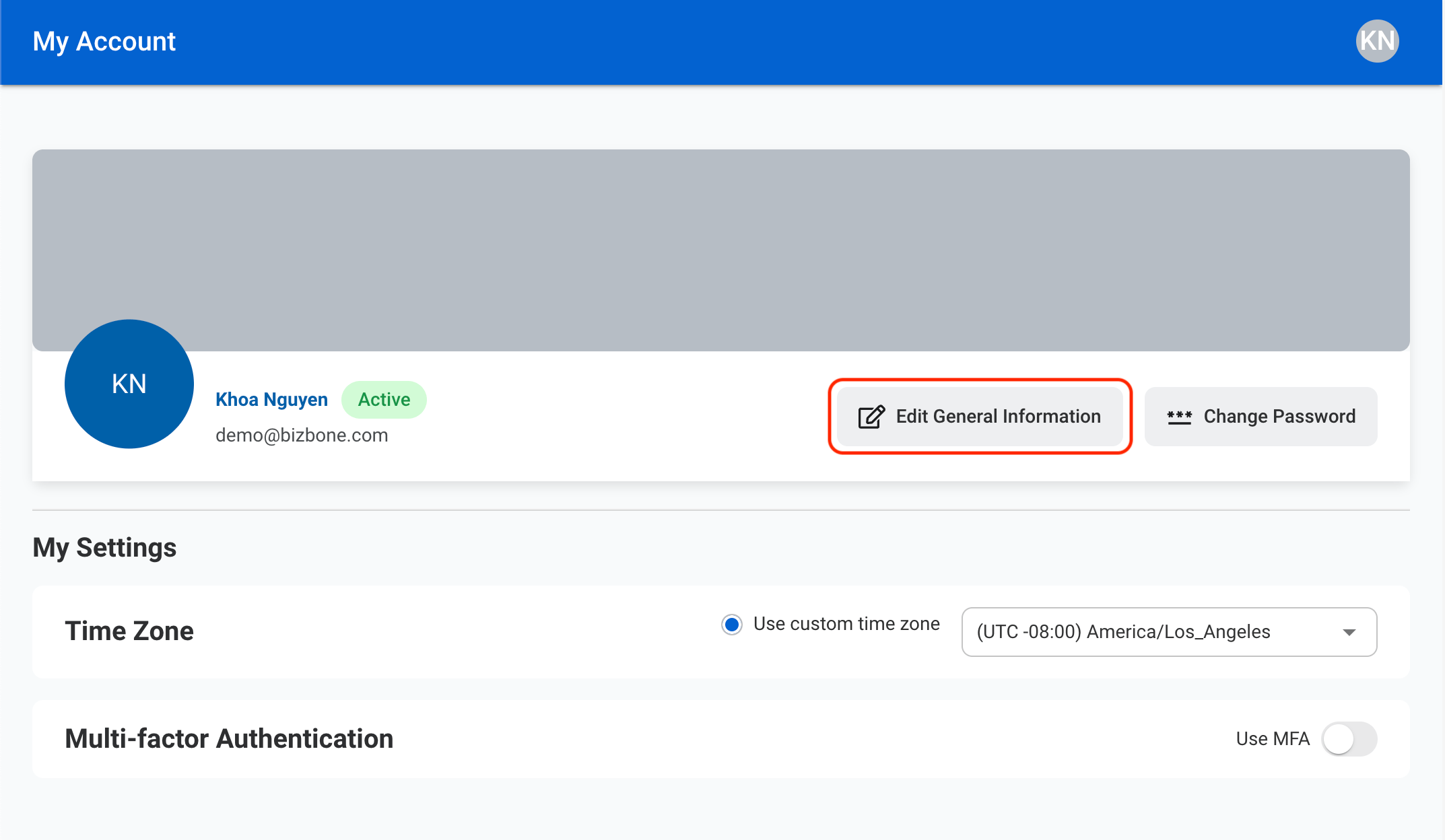
1
Select Edit General Information
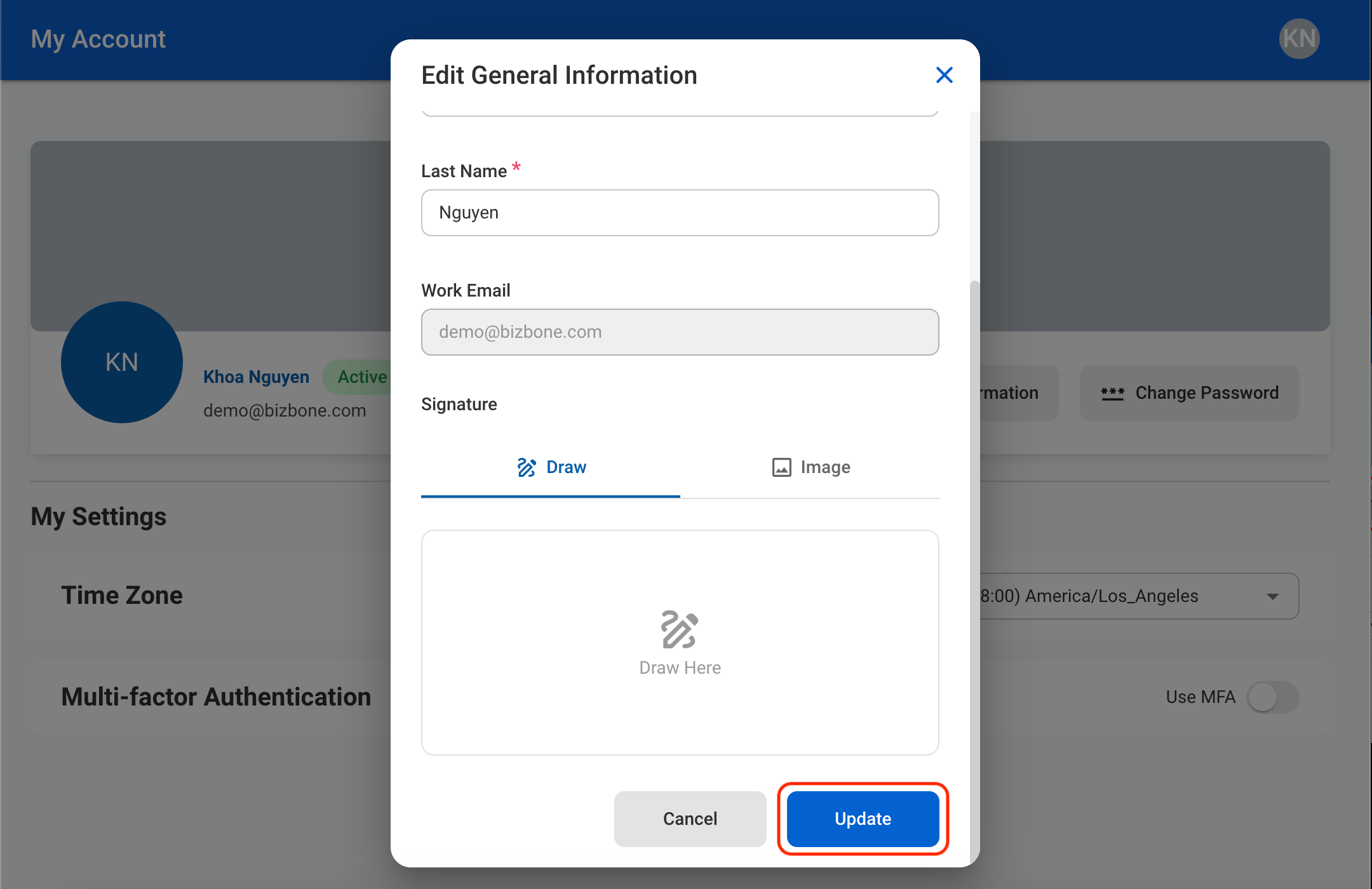
2
Update the required information
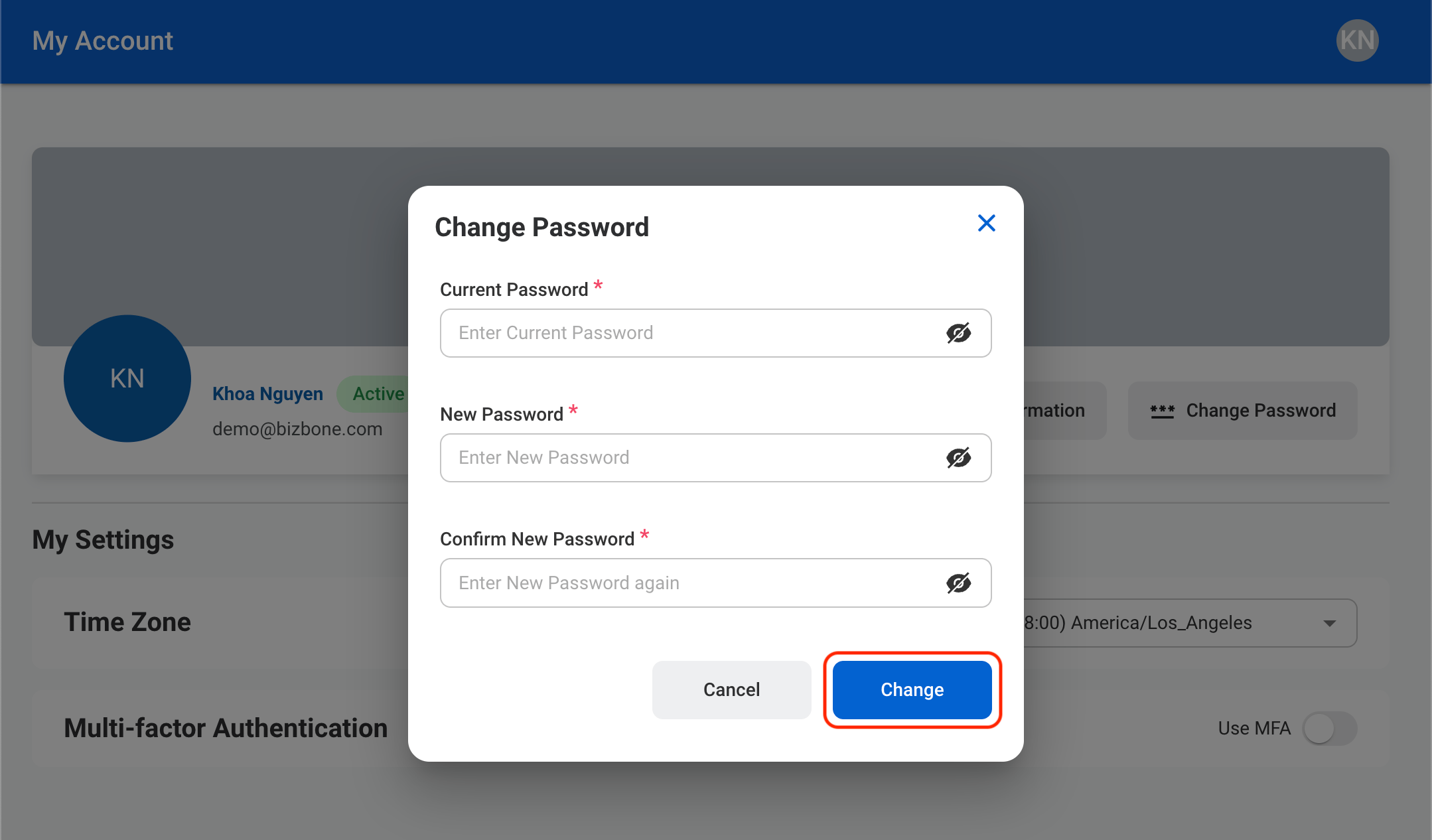
Change Password
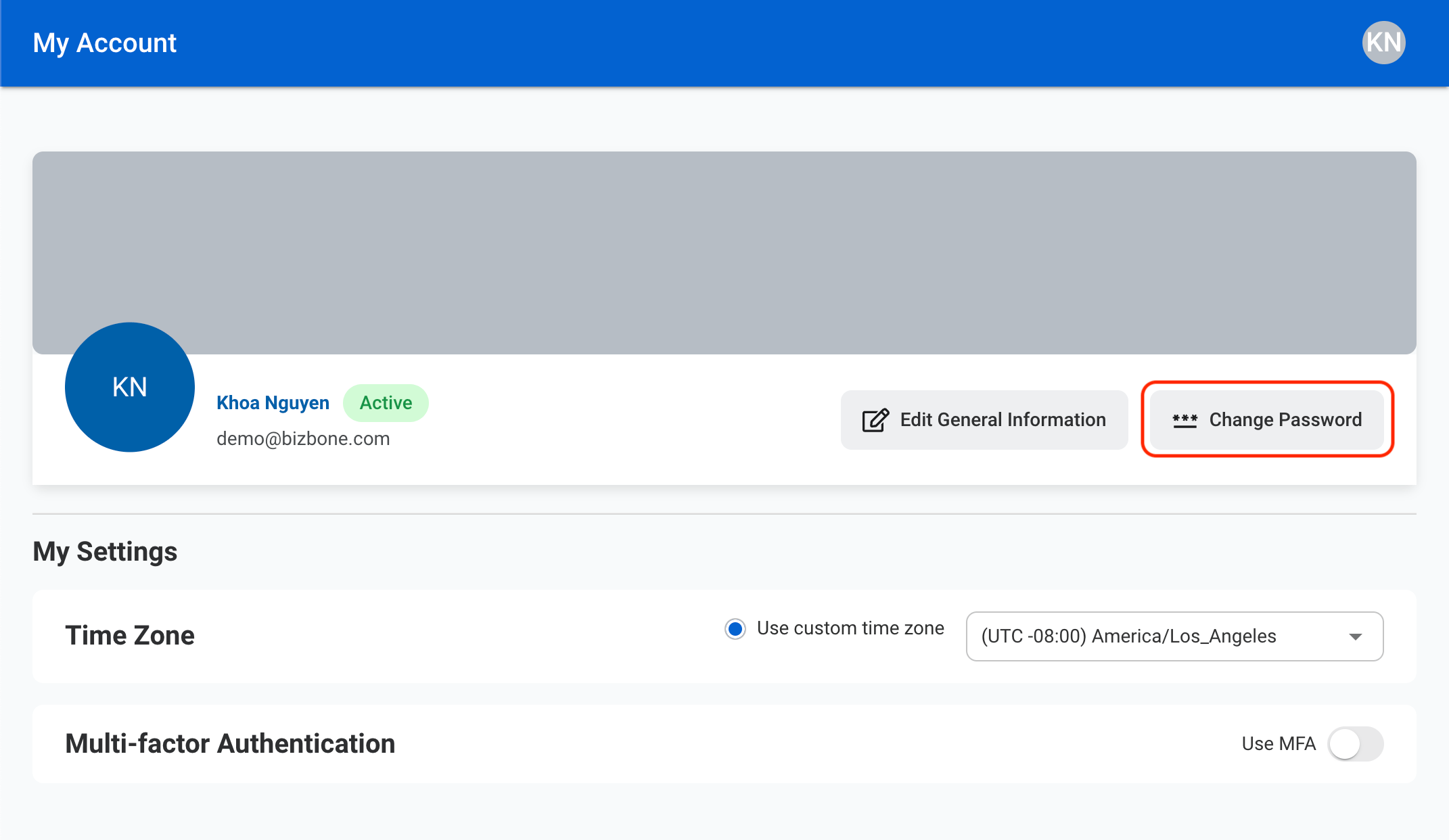
1
Select Change Password
2
Fill in the required information