
Create an Update Information Request
Prerequisites
Before submitting an Update Information request:- You must have an active employee account.
- You can have only one Update Information request waiting for HR review at a time. If one is already pending, a message is displayed and the request cannot be added.
1
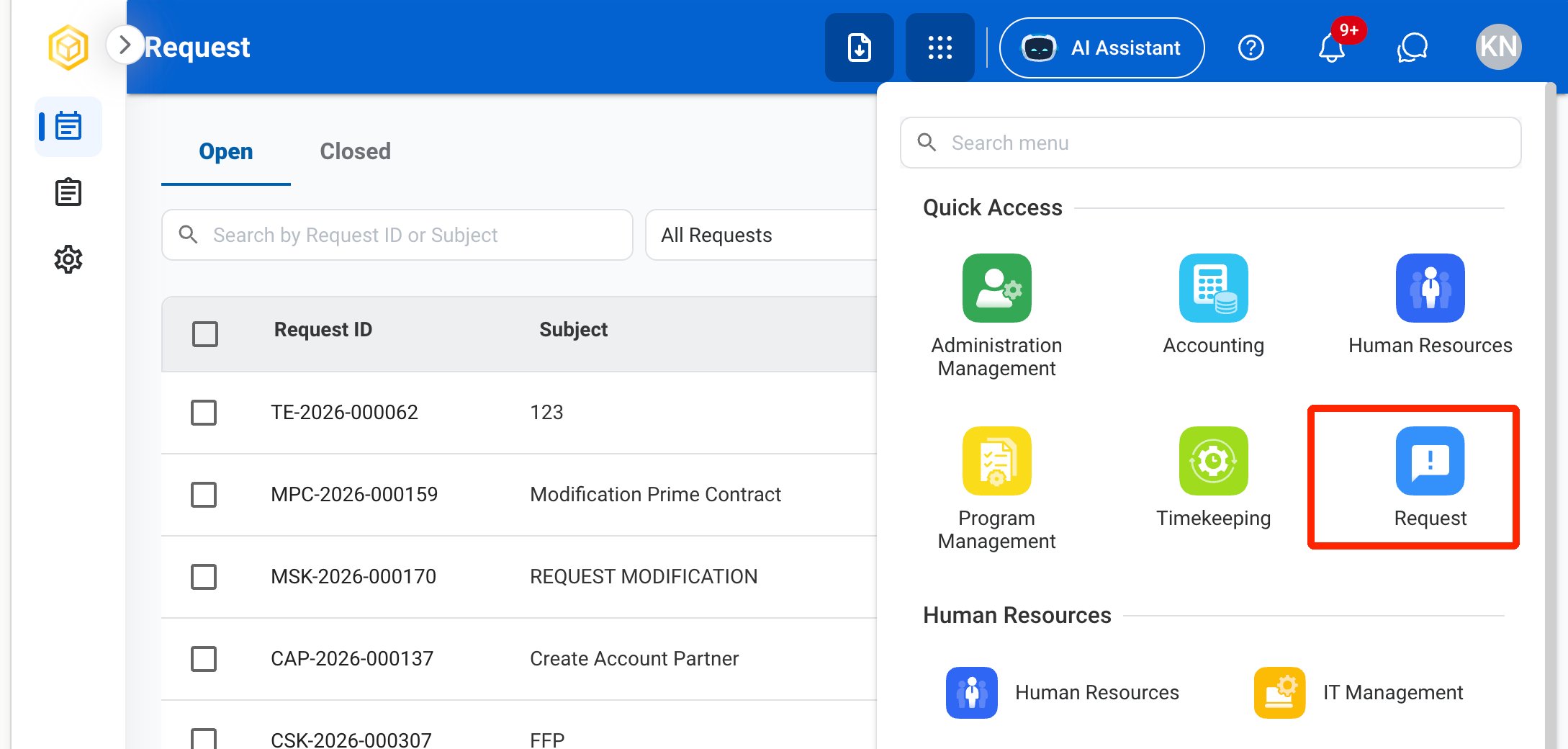
Navigate to Requests Module.
2
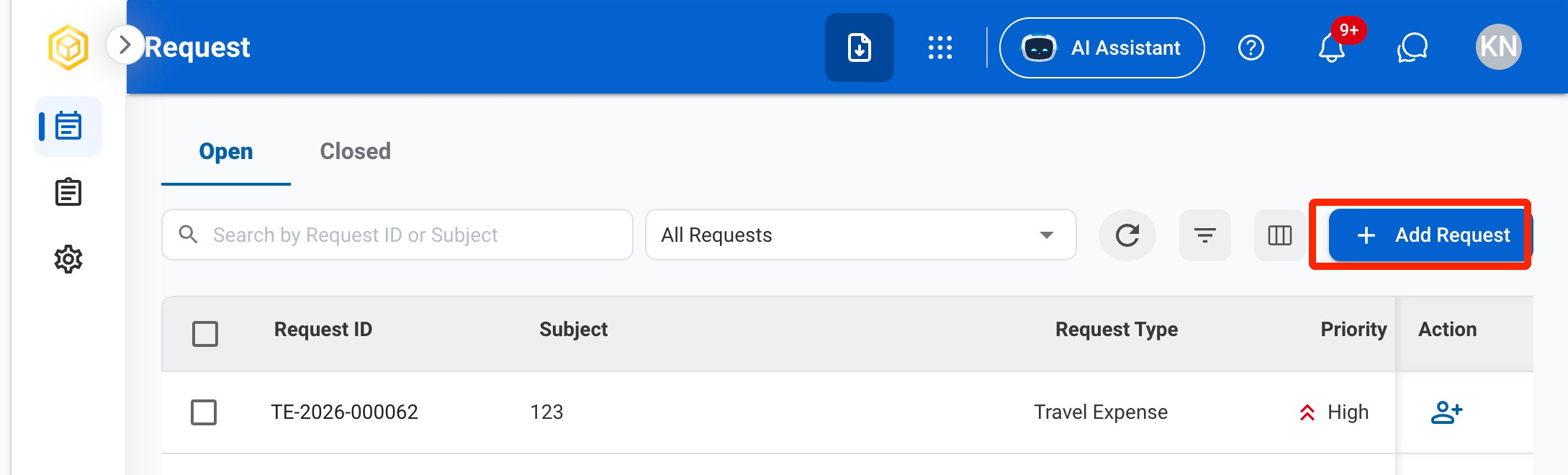
Click Add Request.
3
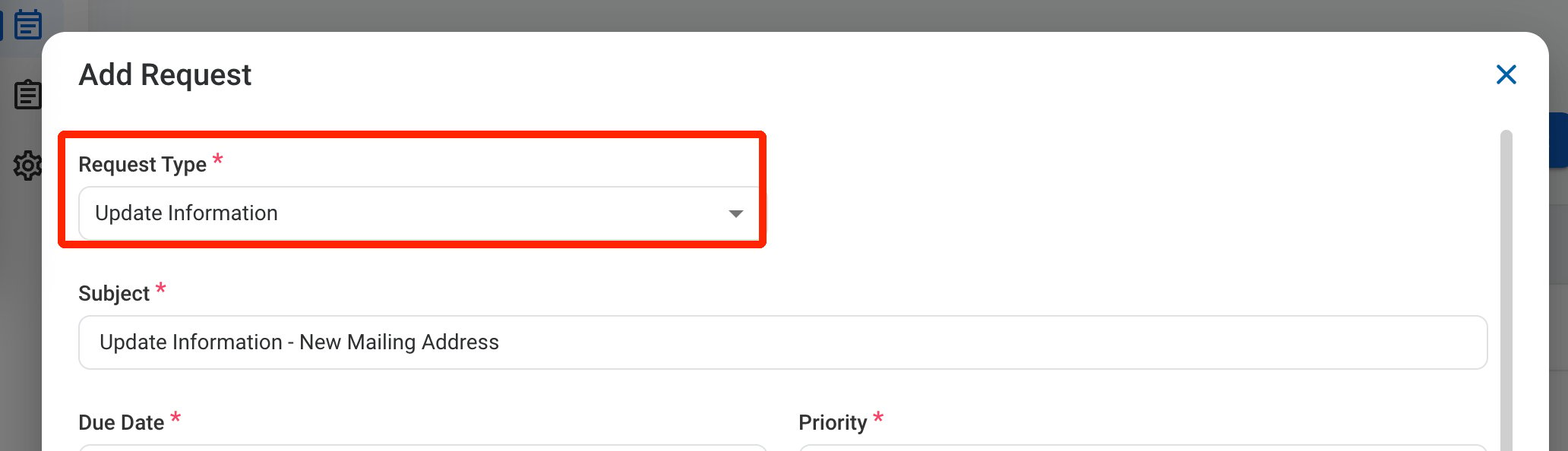
Select Update Information as the request type.
4
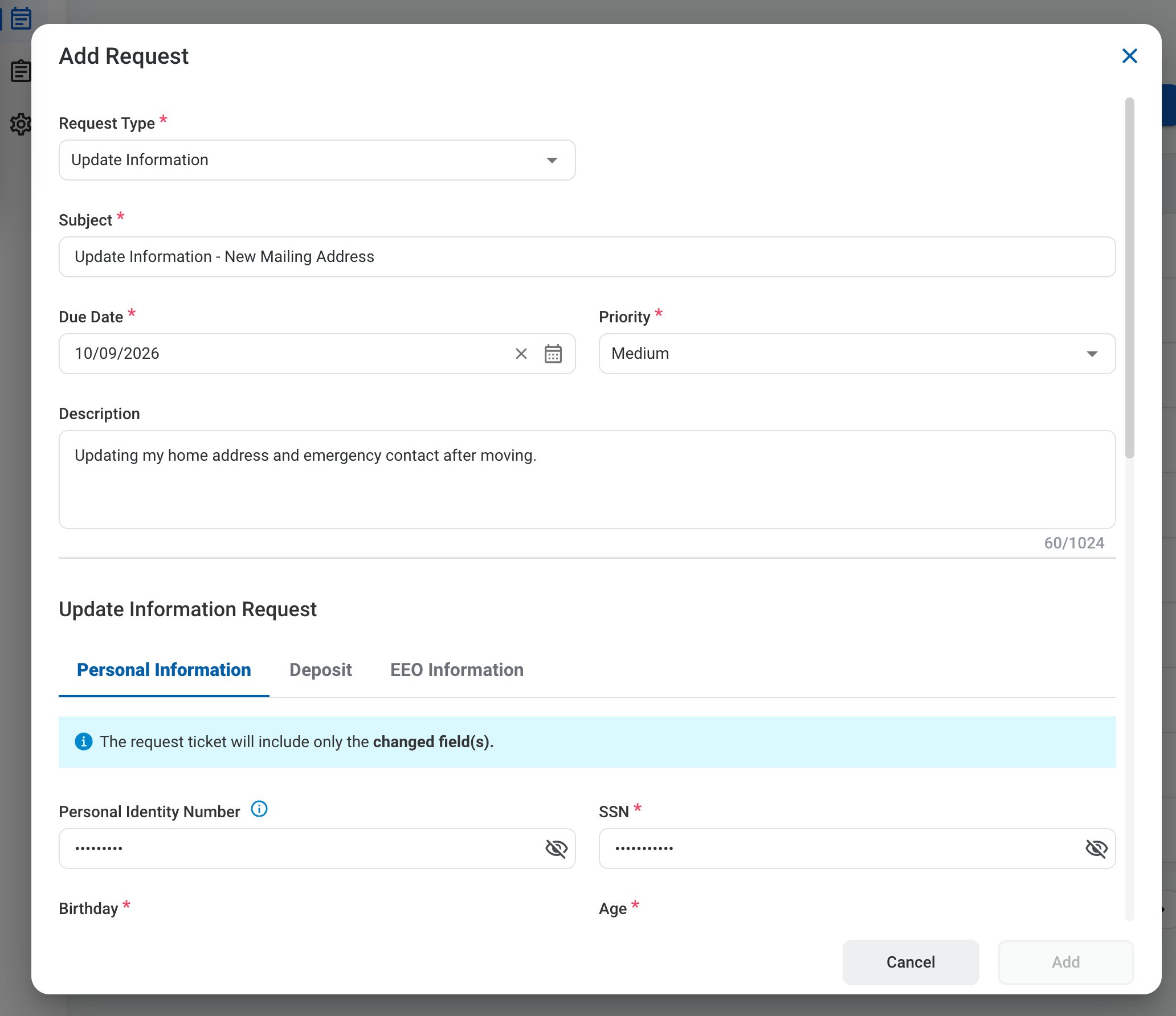
Complete the required information.
Request Information
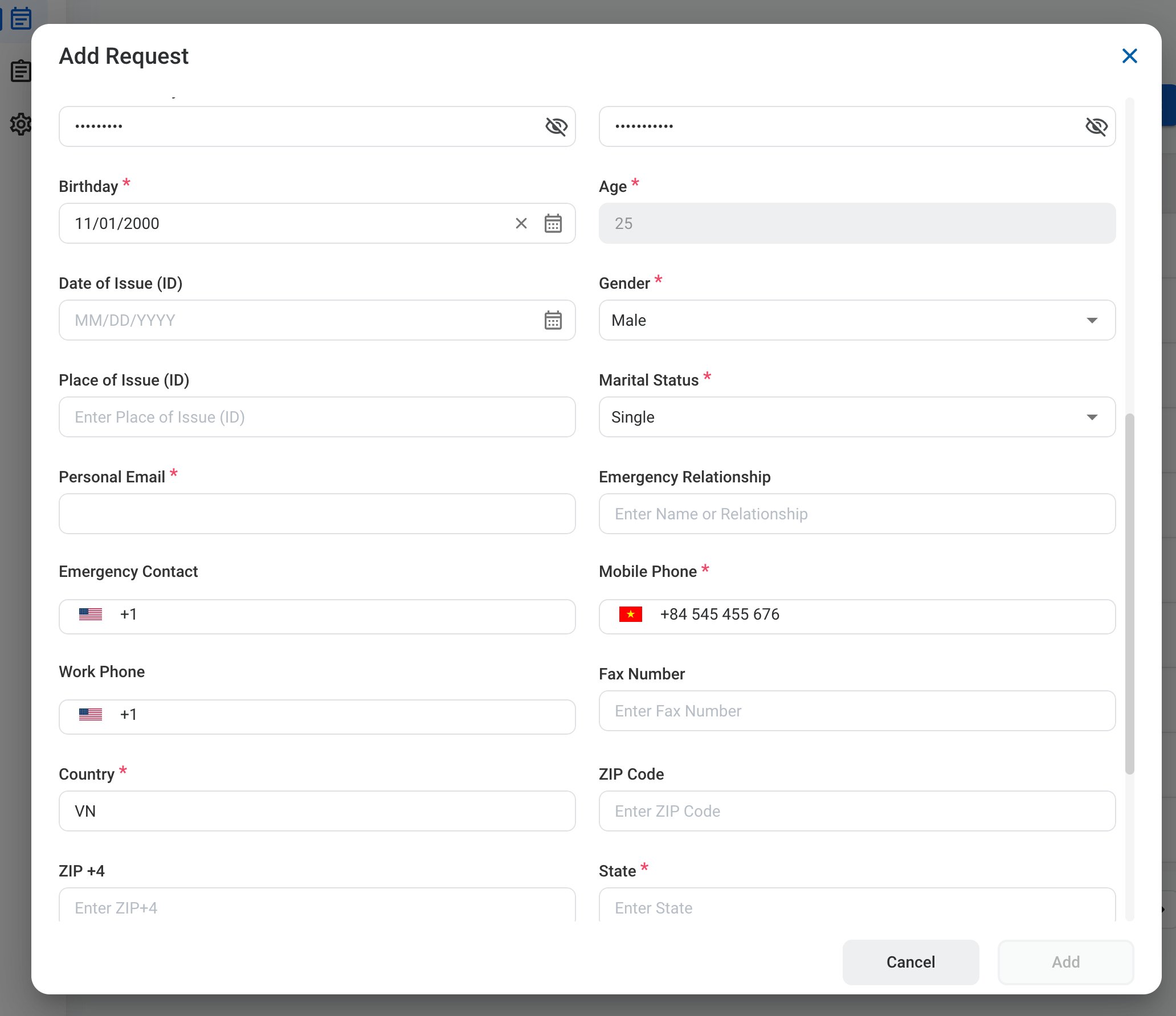
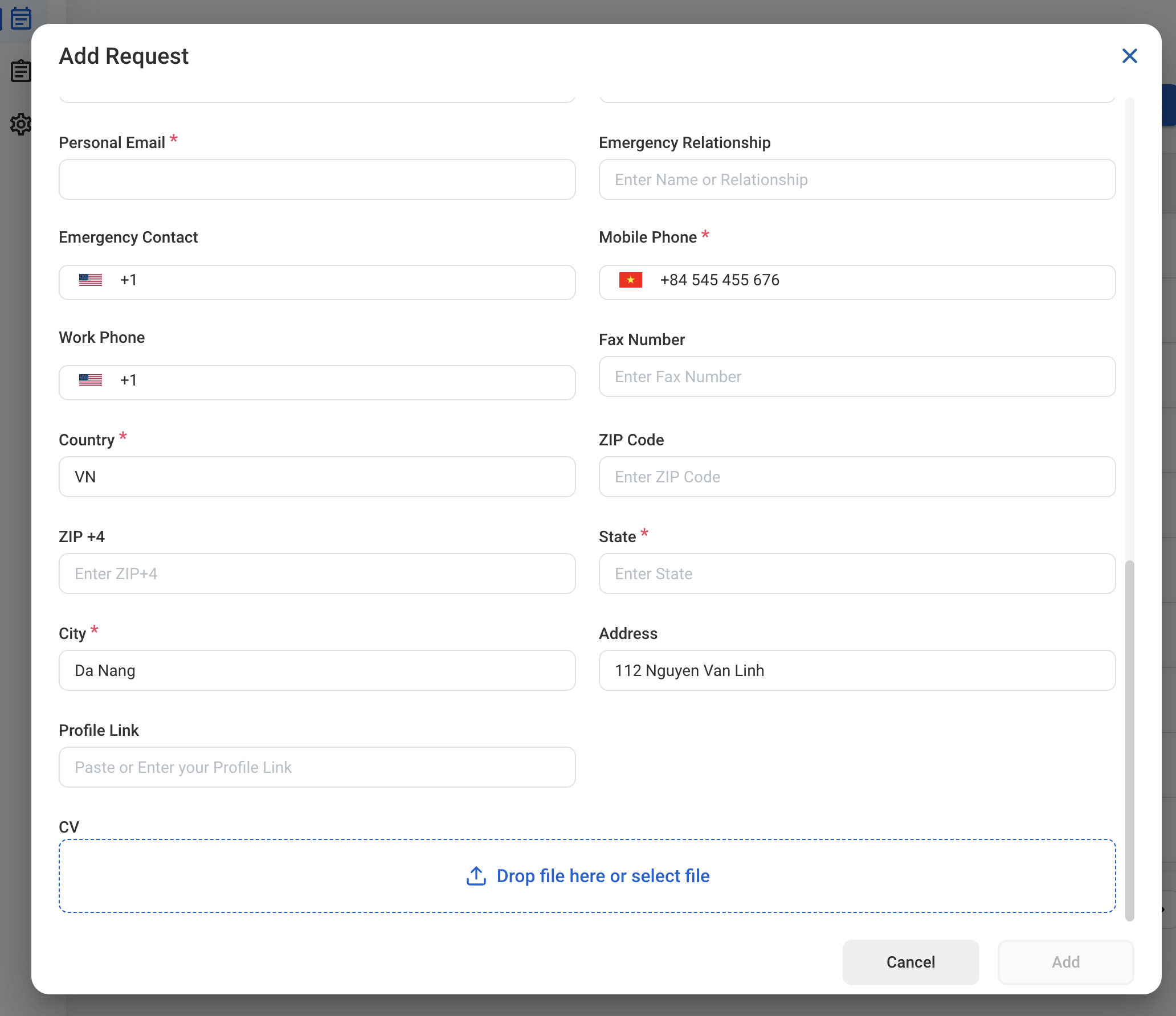
Personal Information
Fields are pre-filled with your current information. Change only the fields that need updating.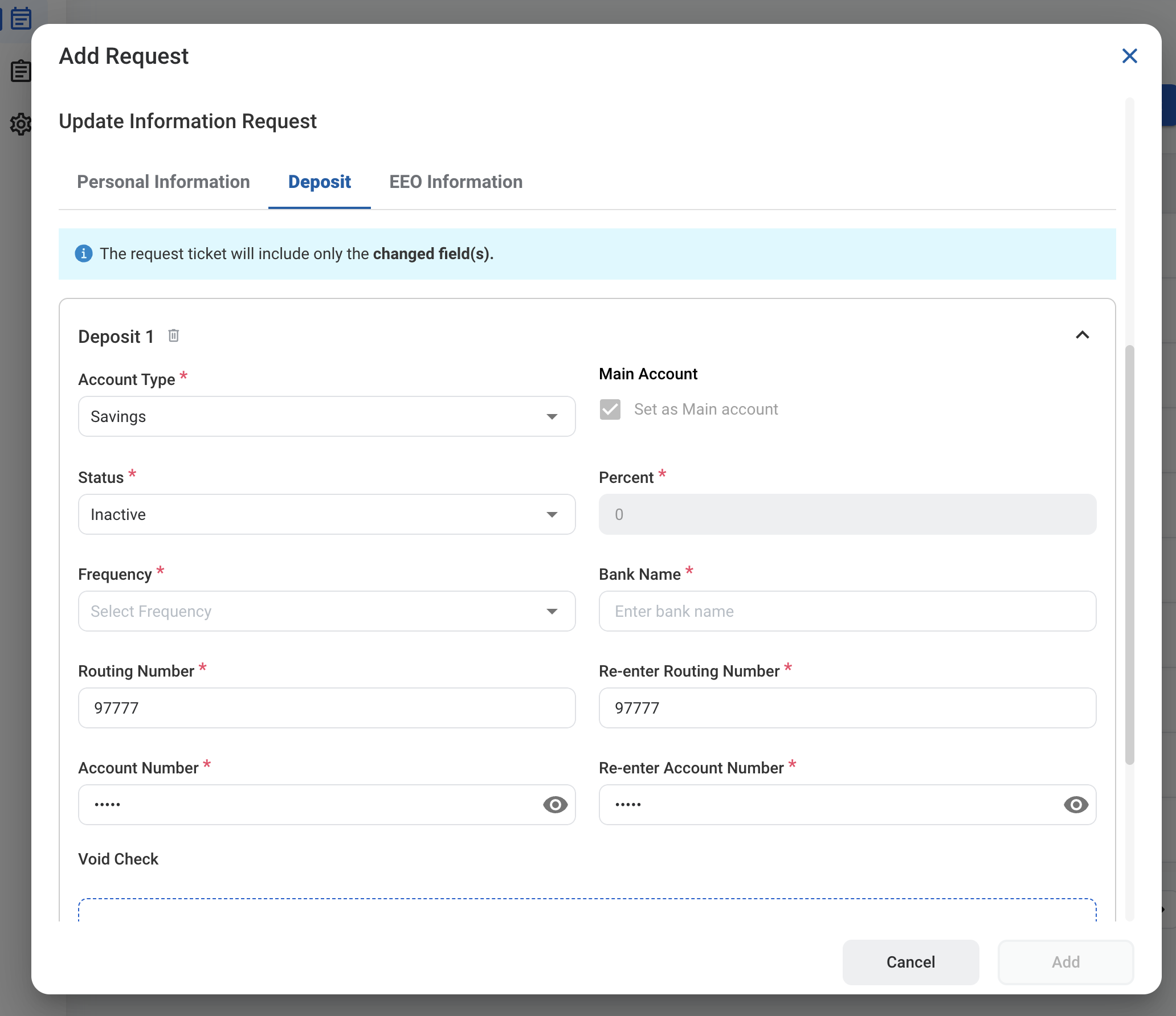
Deposit
Select the Deposit tab to update direct deposit accounts. Select Add Deposit to add another account.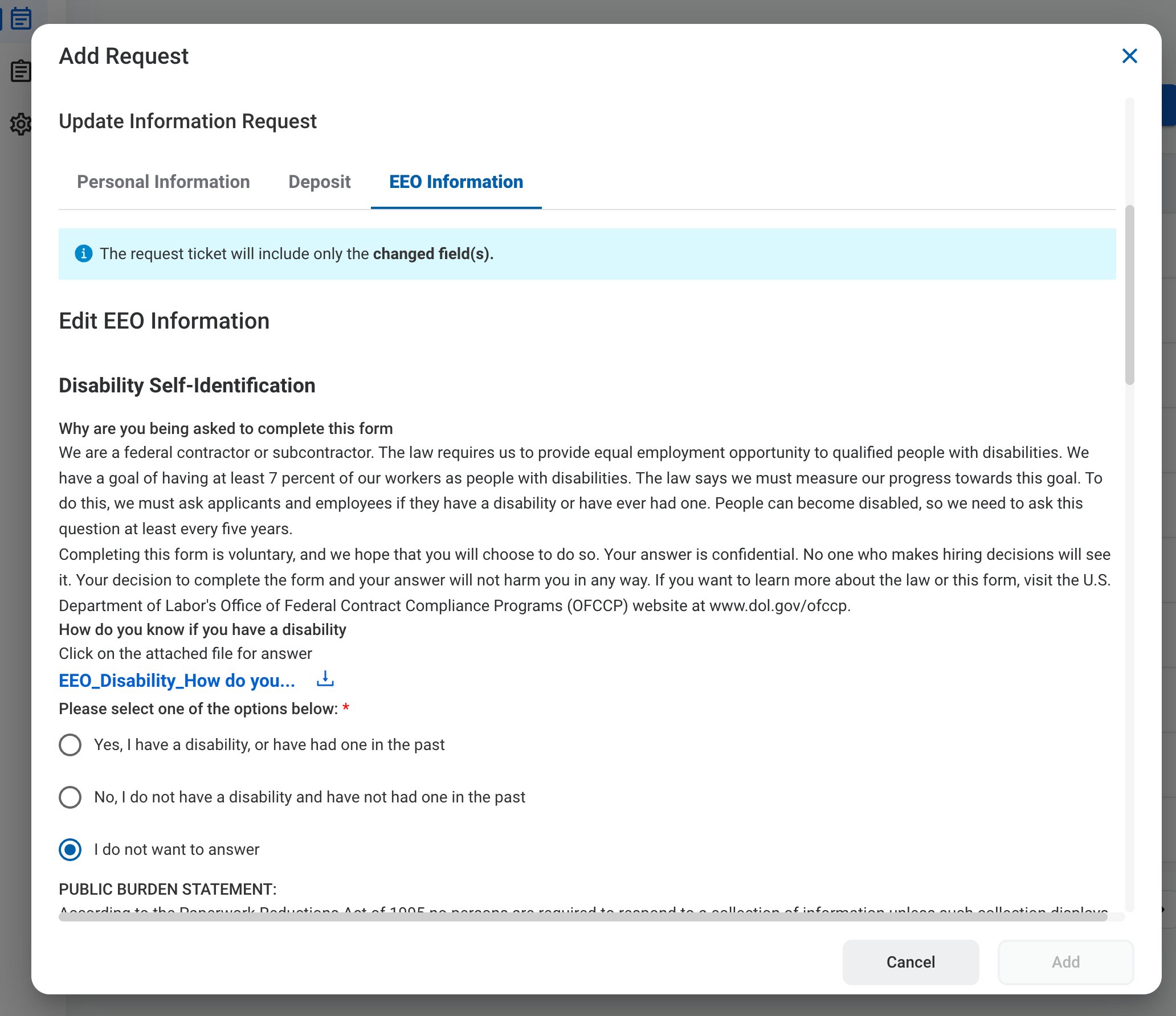
EEO Information
Select the EEO Information tab to update your voluntary Equal Employment Opportunity self-identification, such as the Disability Self-Identification form.5
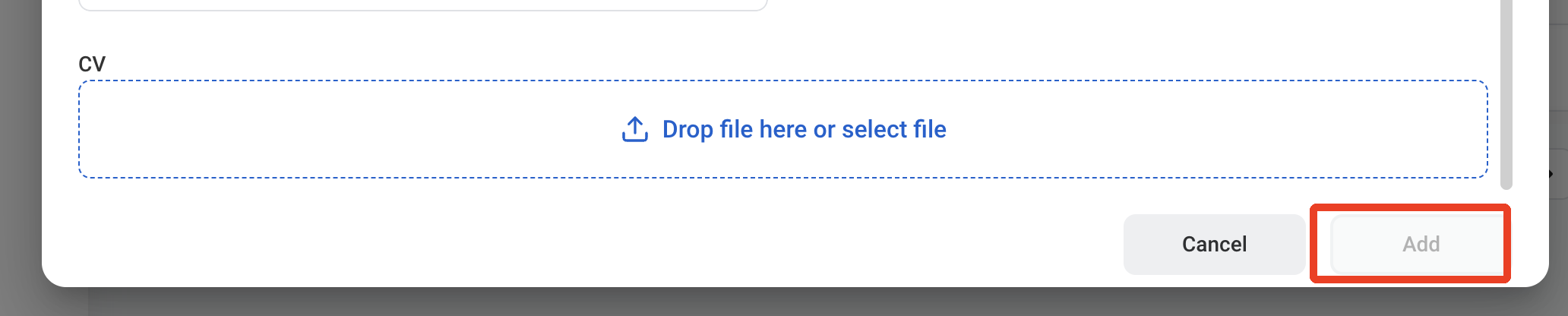
Click Add to send the request for approval.
The request is also displayed in HR > Employees > Request History for the employee.