A Request to Correct asks to reopen a timesheet period you have already submitted so that you can correct it, for example when hours were charged to the wrong charge code. After you submit it, the request follows the configured approval workflow before being approved, rejected, or returned for revision.
Create a Request to Correct Request
Prerequisites
Before submitting a Request to Correct request:
- You must have an active employee account.
- The timesheet for the selected period must already be submitted. Only submitted periods are listed.
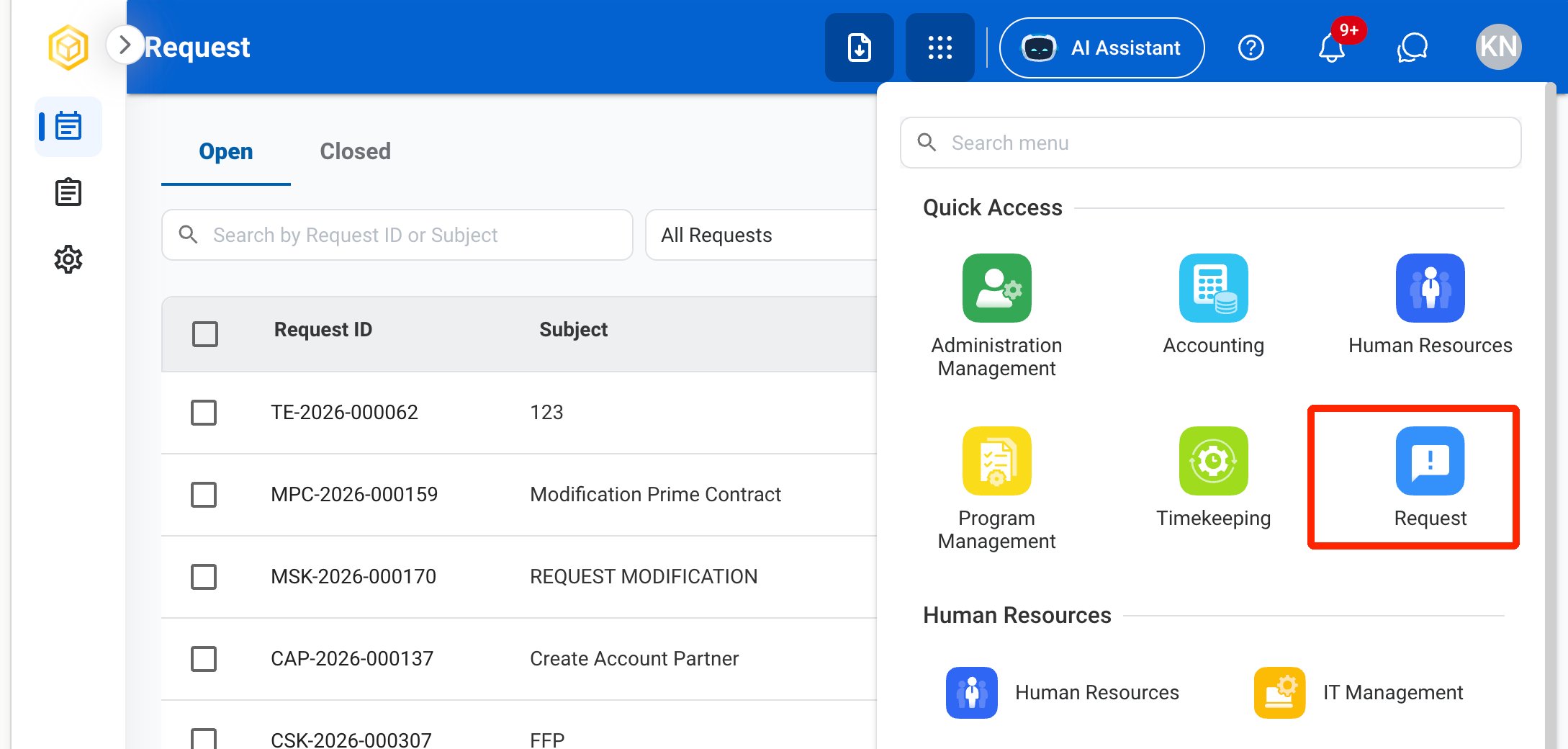
Navigate to Requests Module.
Select Request to Correct as the request type.
Complete the required information.
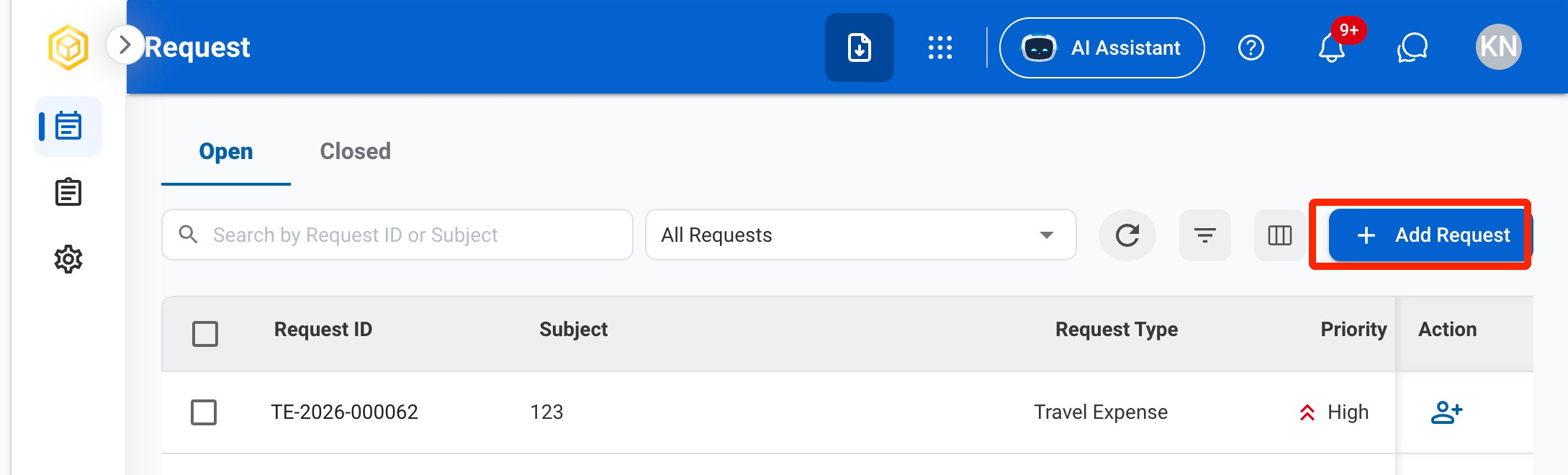
Click Add to send the request for approval.
The request is also displayed in HR > Employees > Request History for the employee.
Review a Request to Correct Request
To review a submitted Request to Correct request and approve, reject, or discard it, see Timekeeping > Request.
Manage the Request to Correct Business Process
To manage the workflow for Request to Correct requests, see Admin > Business Processes > Business Processes Overview.