A Subcontractor’s Member request asks to add staff from one or more subcontractors to a program team, filling positions for a contract line item (CLIN) and labor category. After you submit it, the request follows the configured approval workflow before being approved, rejected, or returned for revision.
Create a Subcontractor’s Member Request
Prerequisites
Before submitting a Subcontractor’s Member request:
- You must have an active employee account.
- The program must have the CLIN and labor category the positions are billed to.
- The subcontractor must have a subcontract (SubK) with the program. See SubK.
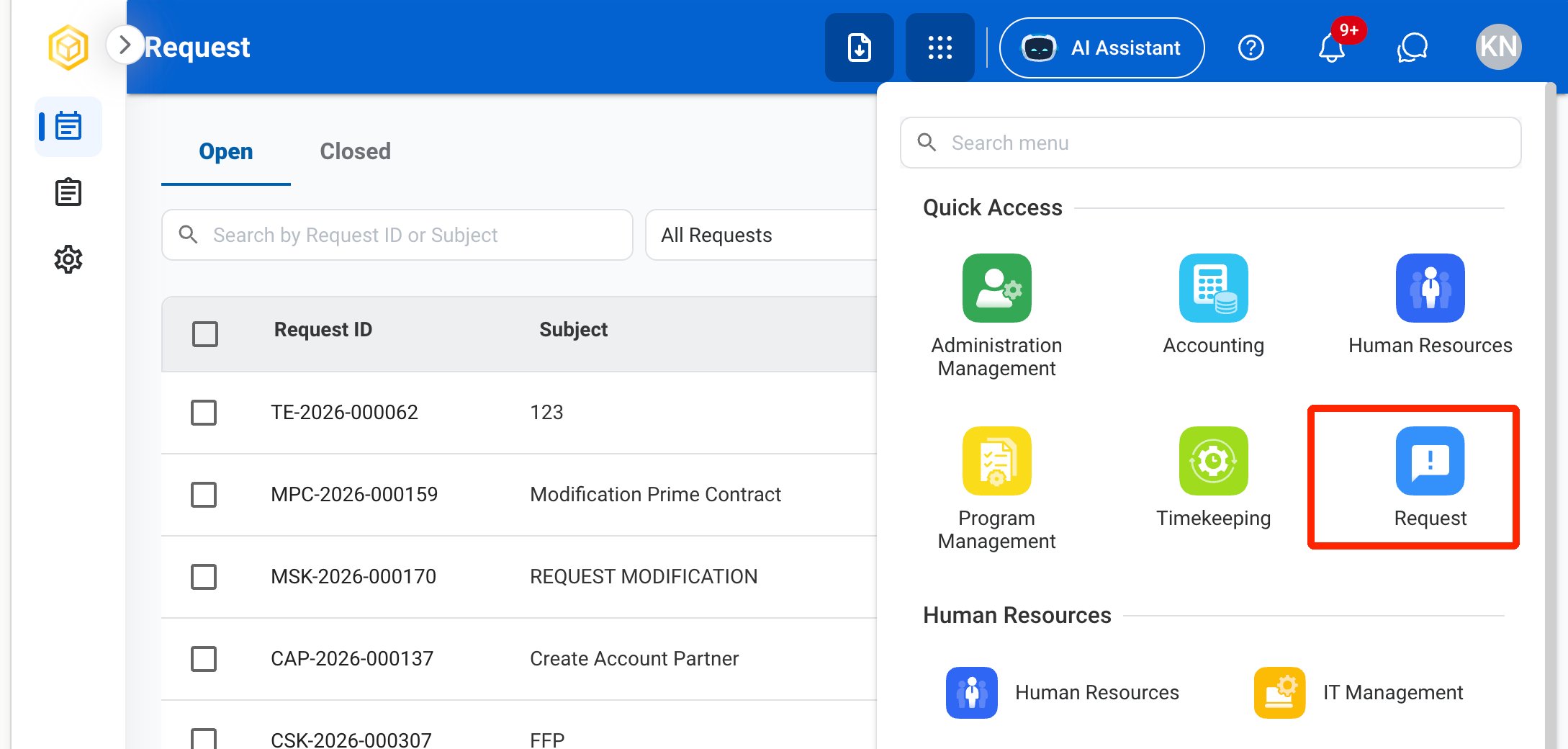
Navigate to Requests Module.
Select Subcontractor's Member as the request type.
Complete the required information.
Request Details
Recruitment Criteria
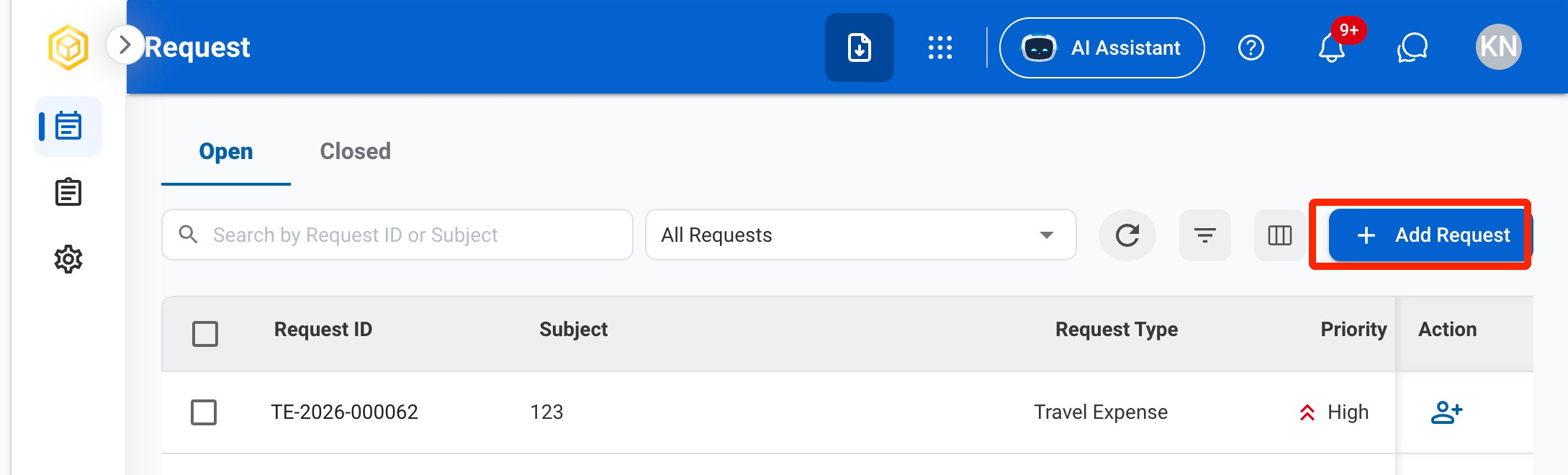
The criteria for the selected labor category are displayed for reference.Click Add to send the request for approval.
The request is displayed in every related module, regardless of where it was created.
Review a Subcontractor’s Member Request
To review a submitted Subcontractor’s Member request and approve, reject, or discard it, see Program Management > Requests.
Manage the Subcontractor’s Member Business Process
To manage the workflow for Subcontractor’s Member requests, see Admin > Business Processes > Business Processes Overview.