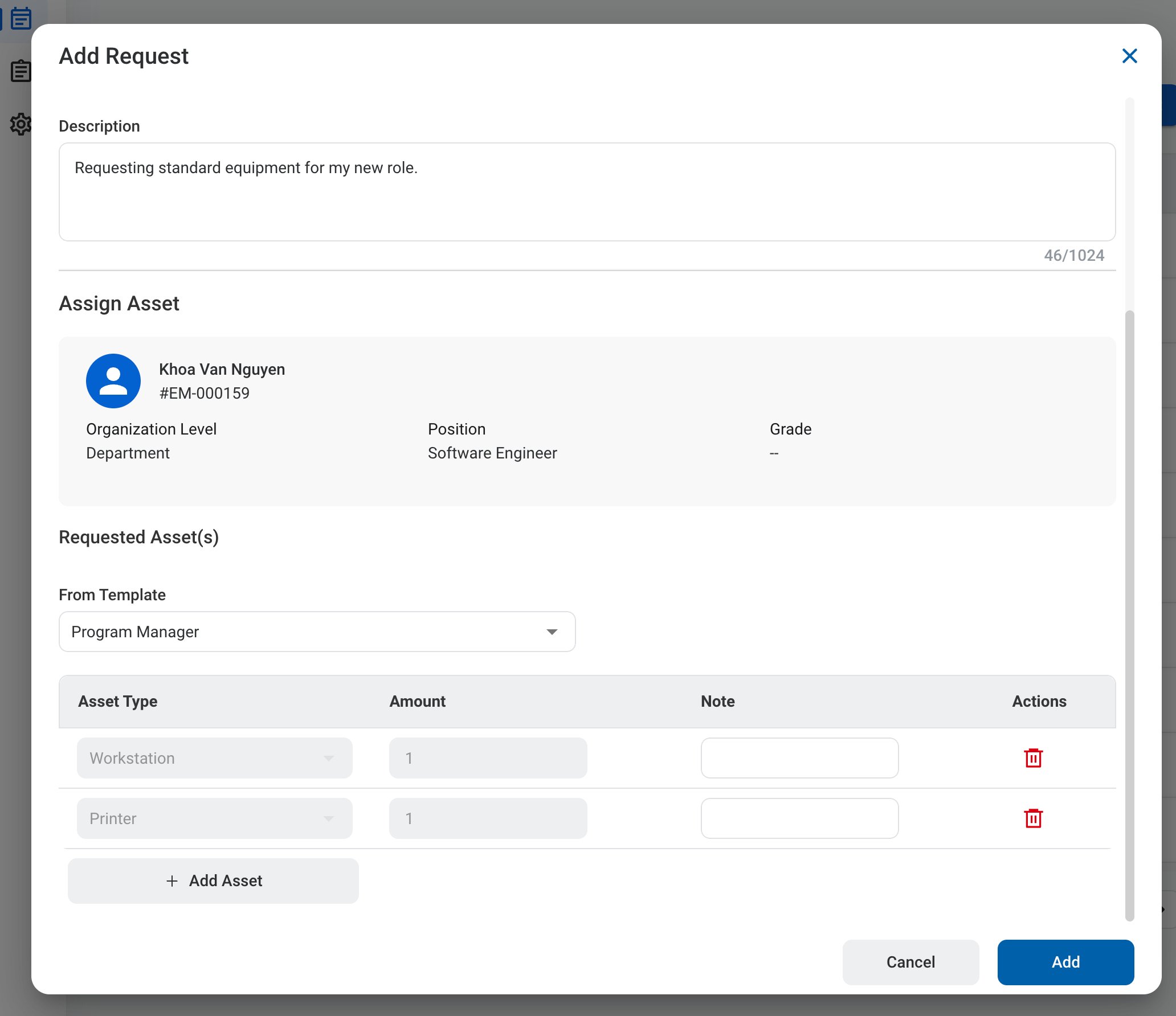
An Assign Asset request asks IT to assign equipment to you permanently, such as a workstation for your role. You can start from an asset template or add assets one at a time. After you submit it, the request follows the configured approval workflow before being approved, rejected, or returned for revision.

Create an Assign Asset Request

Prerequisites

Before submitting an Assign Asset request:
  • You must have an active employee account.
1

Navigate to Requests Module.
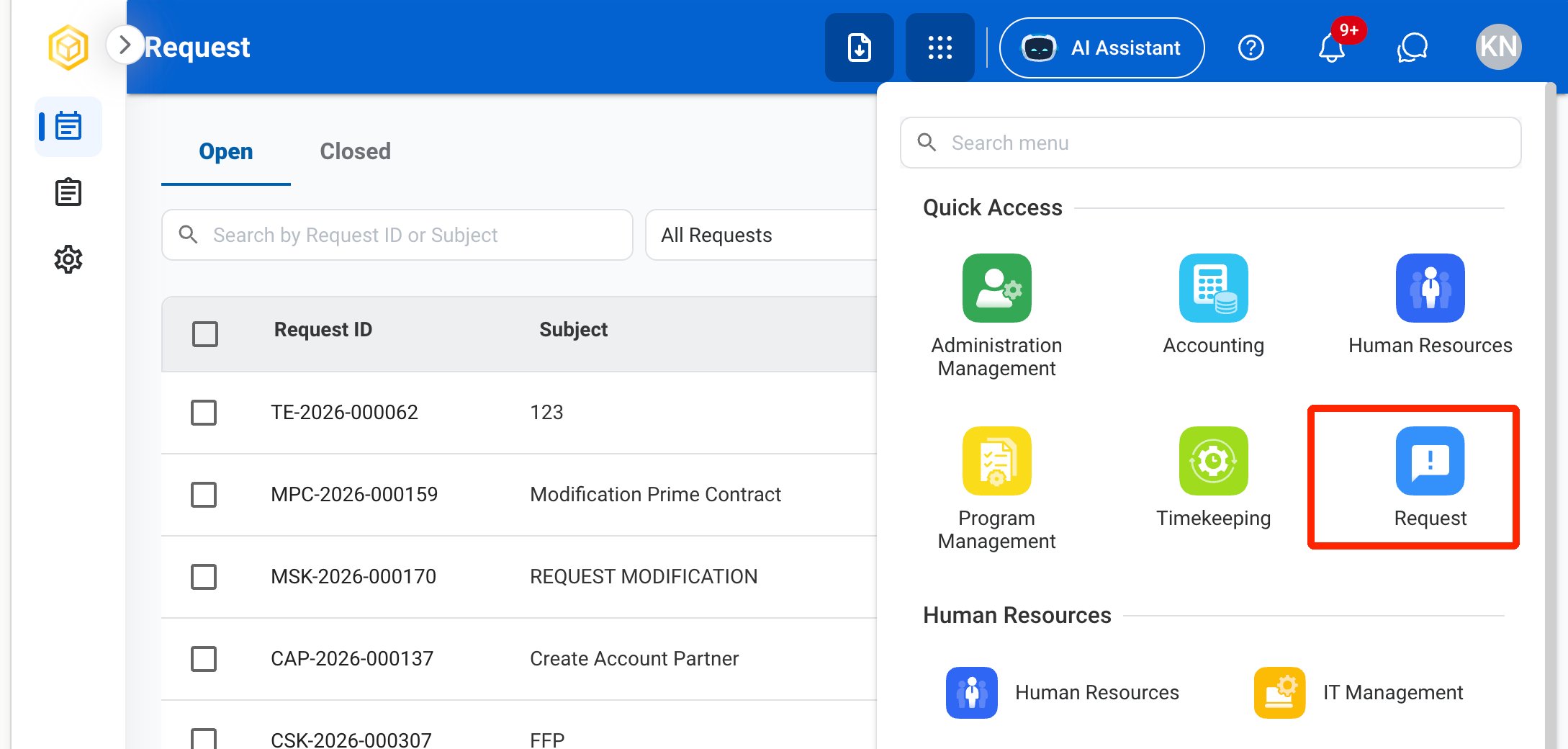
RQ Nav
2

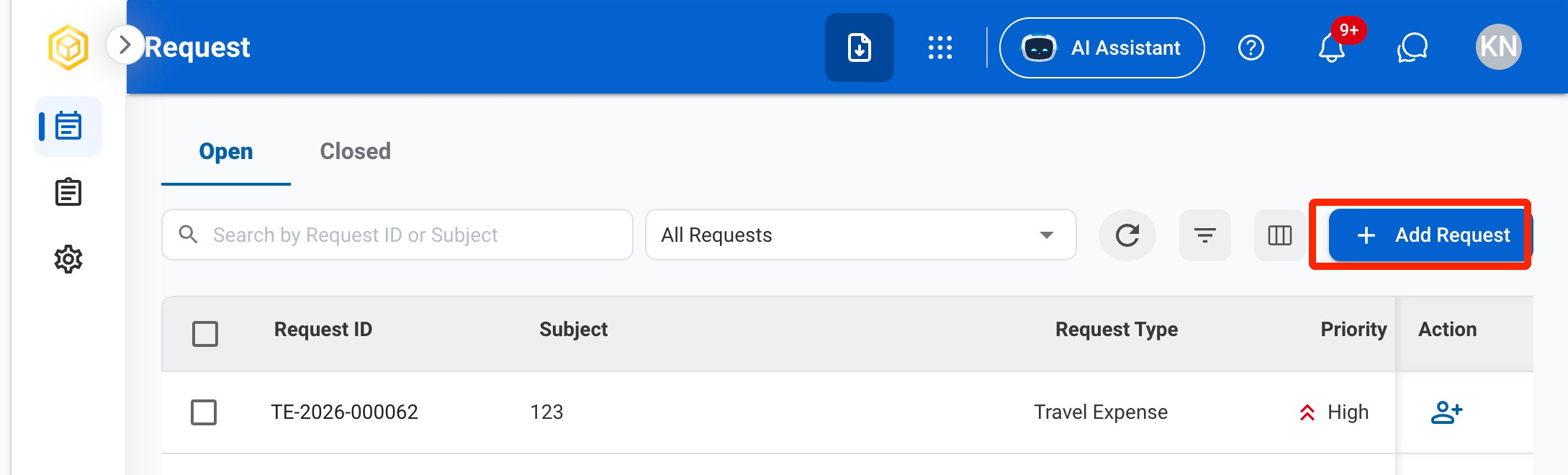
Click Add Request.

RQ Add
3

Select Assign Asset as the request type.
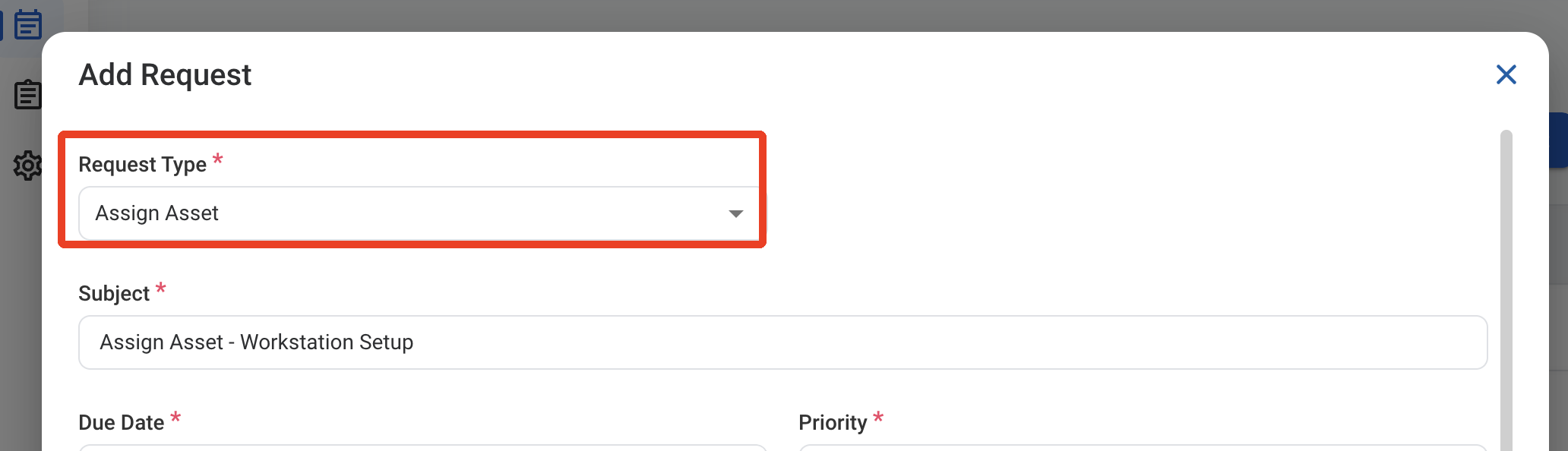
RQ AS Type
4

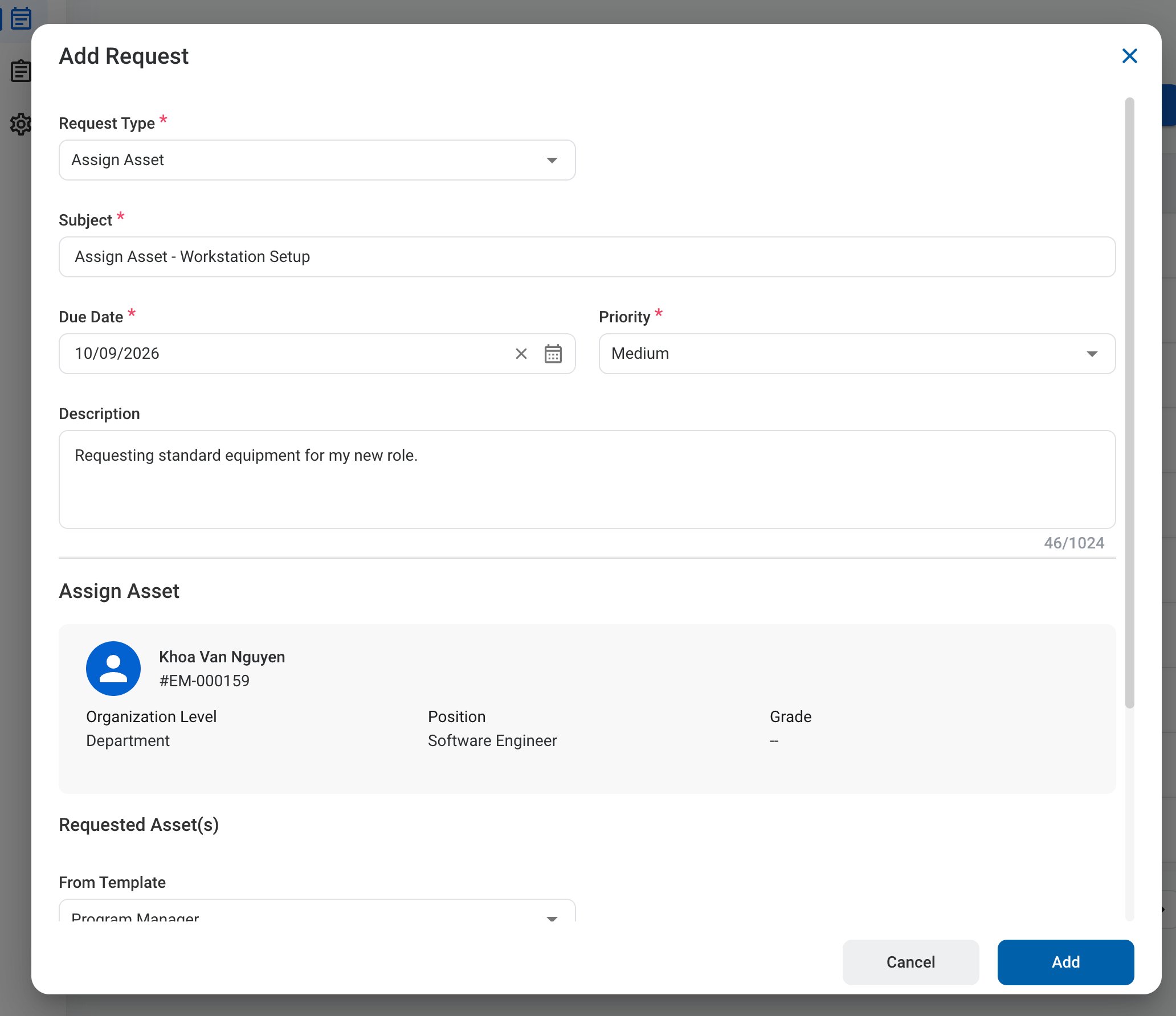
Complete the required information.

RQ AS Form 1

Request Information

RQ AS Form 2

Assign Asset

Your name, employee ID, organization level, position, and grade are displayed at the top of the section.
5

Click Add to send the request for approval.
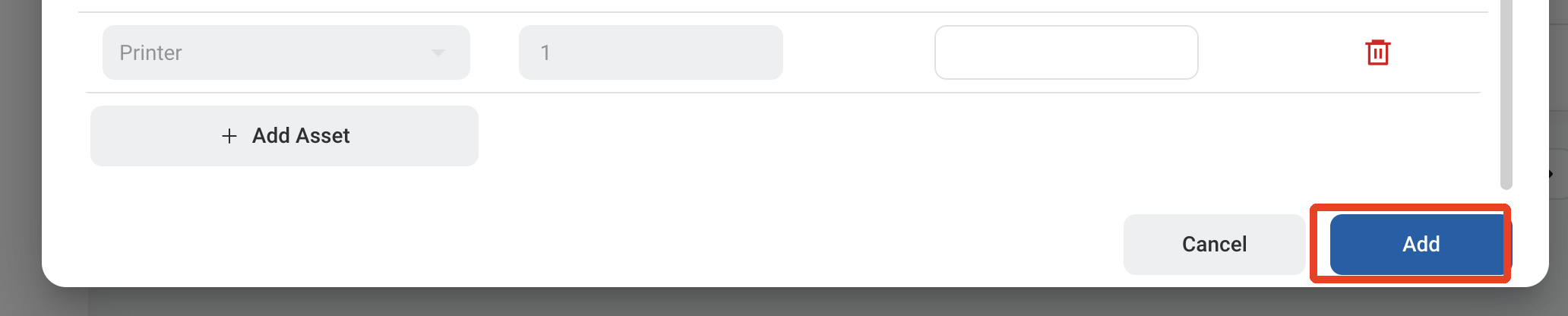
RQ AS Add

Approval Workflow

The request is reviewed by the approvers assigned to the requester, then sent to IT to assign the assets.

Review an Assign Asset Request

To review a submitted Assign Asset request and approve, reject, or discard it, see IT Management > Requests.

Manage the Assign Asset Business Process

To manage the workflow for Assign Asset requests, see Admin > Business Processes > Business Processes Overview.