An Overtime request asks for approval to work, or to be paid for, hours beyond your regular schedule. You can include several overtime periods in one request. After you submit it, the request follows the configured approval workflow before being approved, rejected, or returned for revision.

Create an Overtime Request

Prerequisites

Before submitting an Overtime request:
  • You must have an active employee account.
1

Navigate to Requests Module.
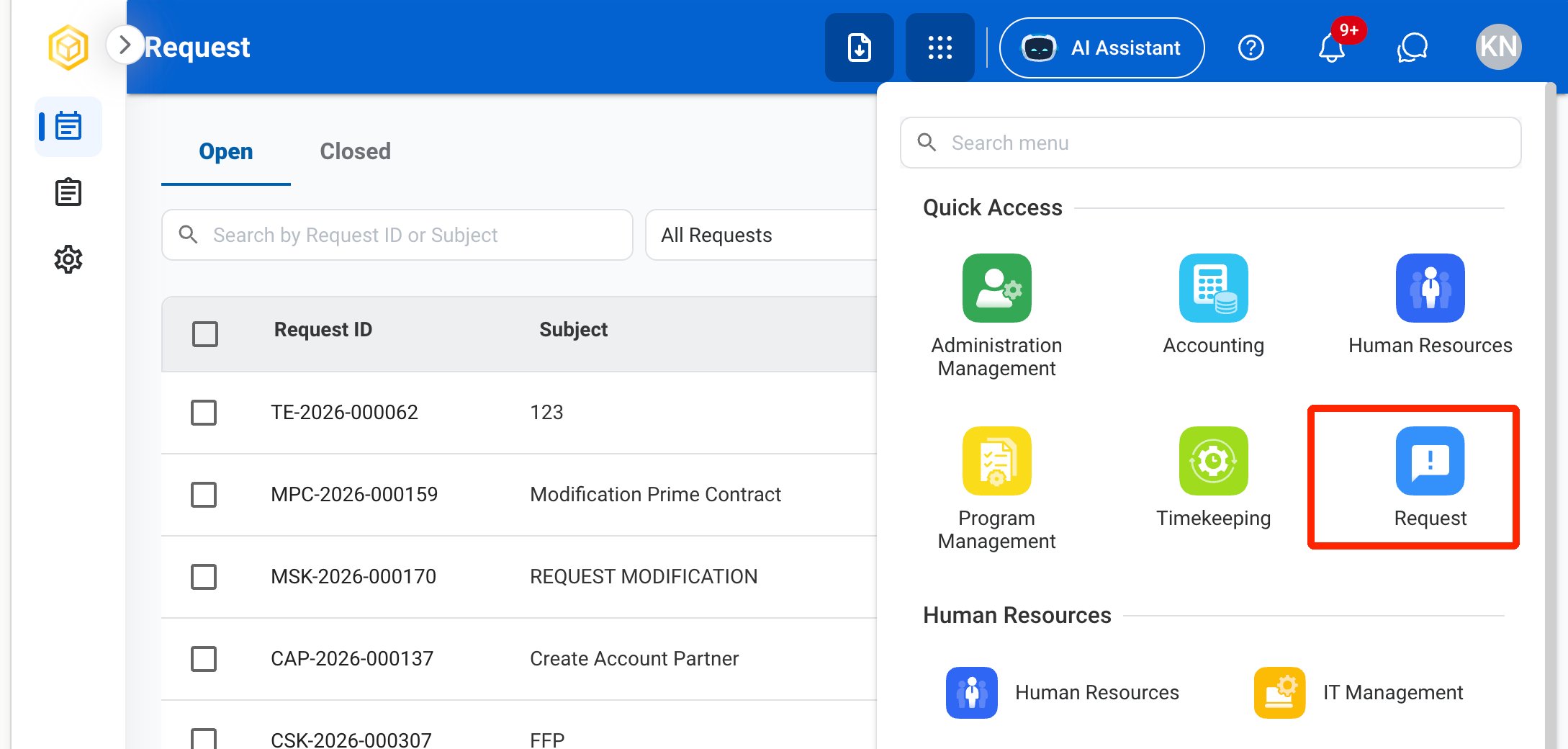
RQ Nav
2

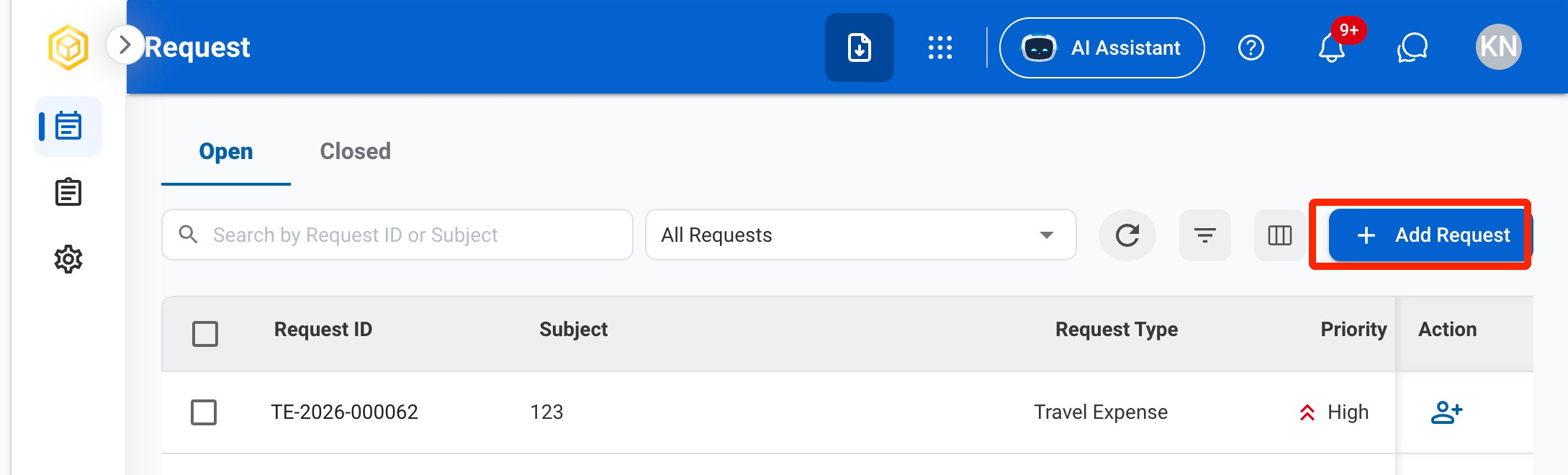
Click Add Request.

RQ Add
3

Select Overtime as the request type.
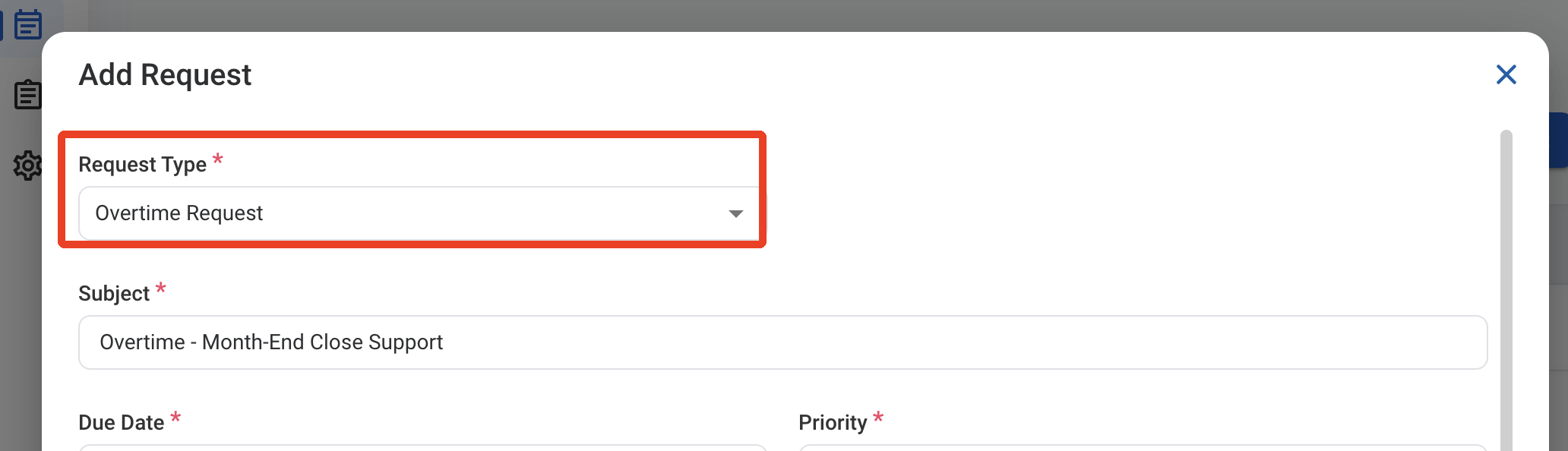
RQ OT Type
4

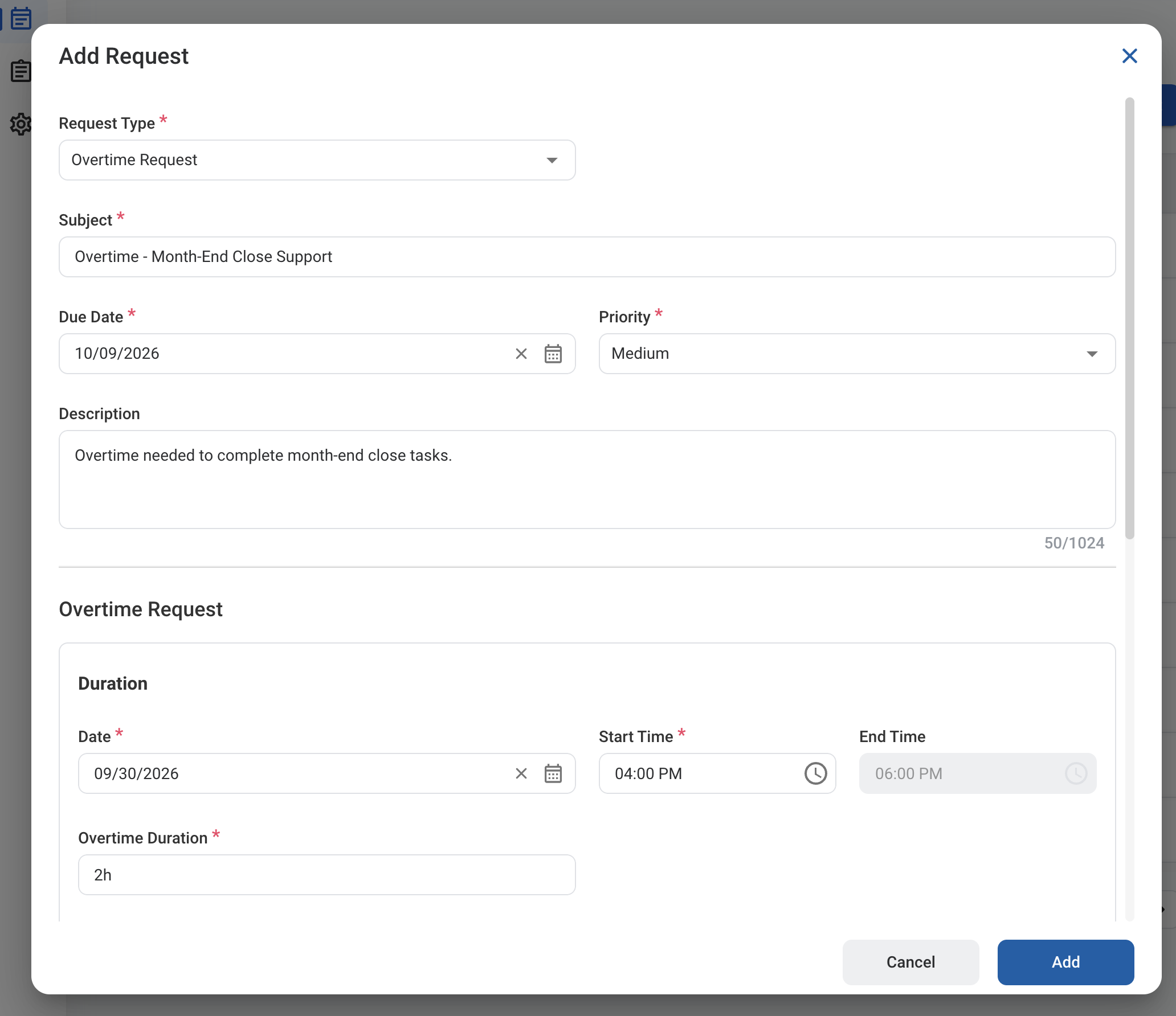
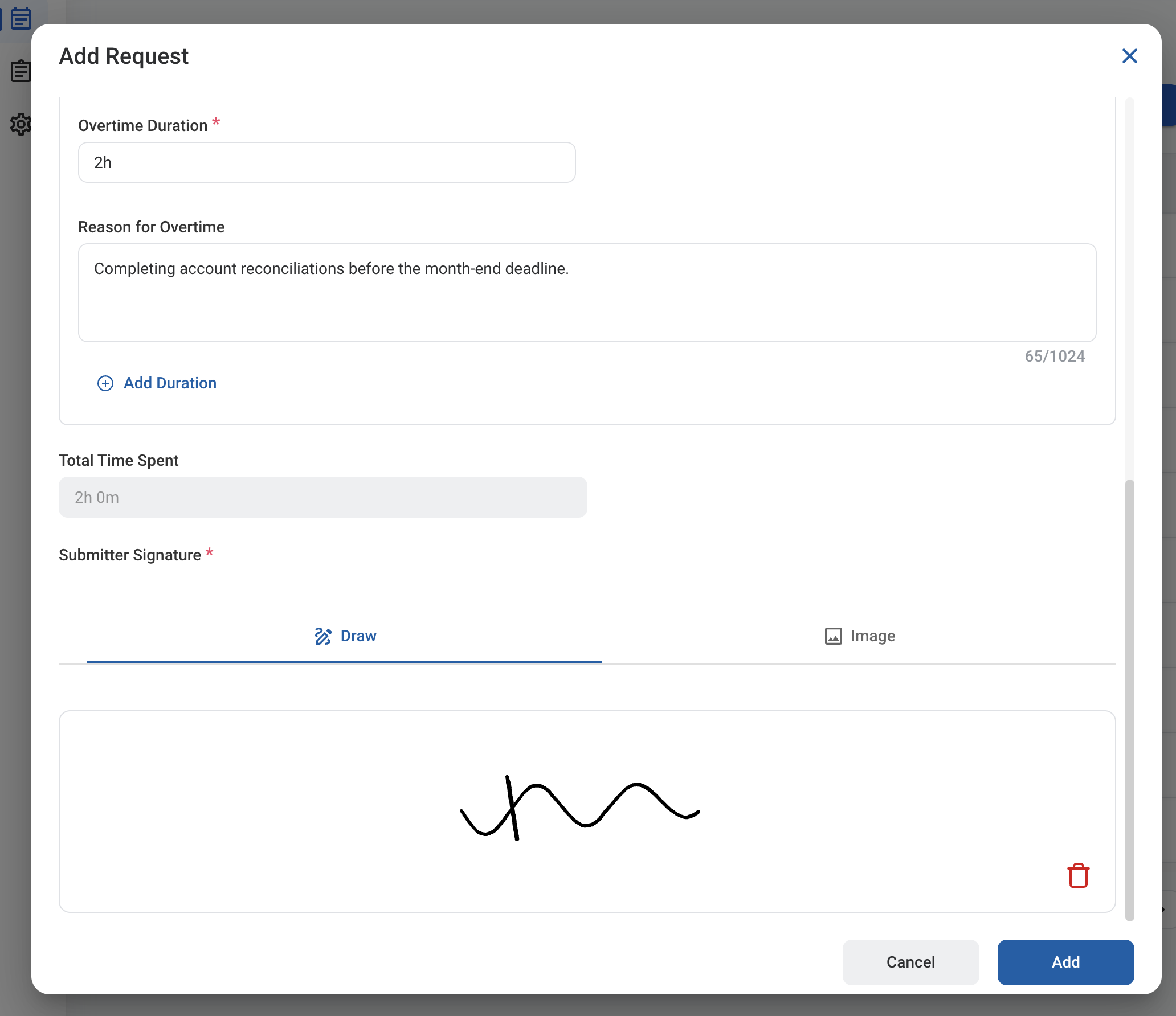
Complete the required information.

RQ OT Form 1

Request Information

RQ OT Form 2

Overtime Request

5

Click Add to send the request for approval.

RQ OT Add

Approval Workflow

The request is reviewed by your Supervisor, then by your L2 Manager.

Review an Overtime Request

To review a submitted Overtime request and approve, reject, or discard it, see Timekeeping > Request.

Manage the Overtime Business Process

To manage the workflow for Overtime requests, see Admin > Business Processes > Business Processes Overview.