
View a Request
1
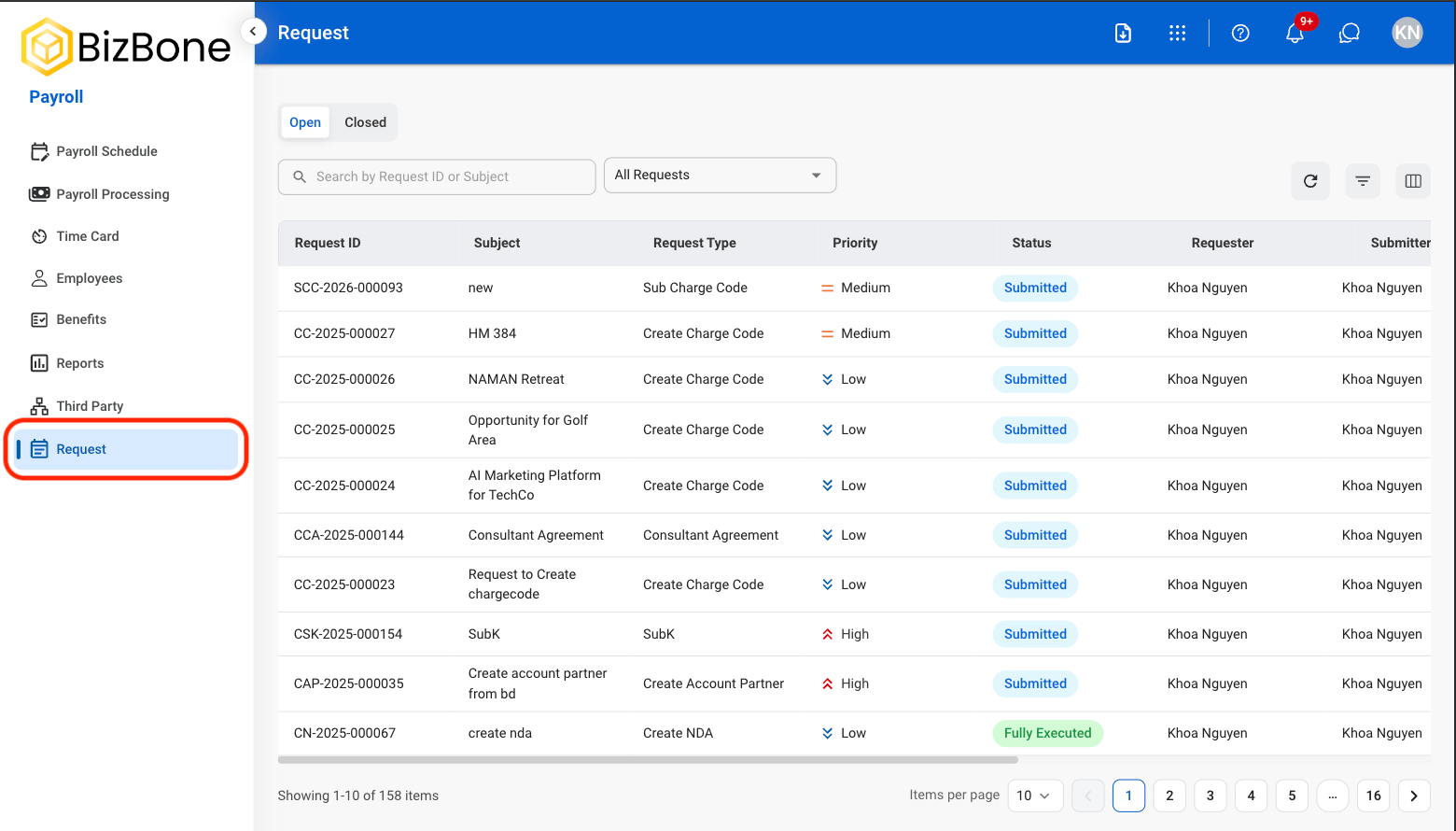
Navigate to Request
2
Select a view
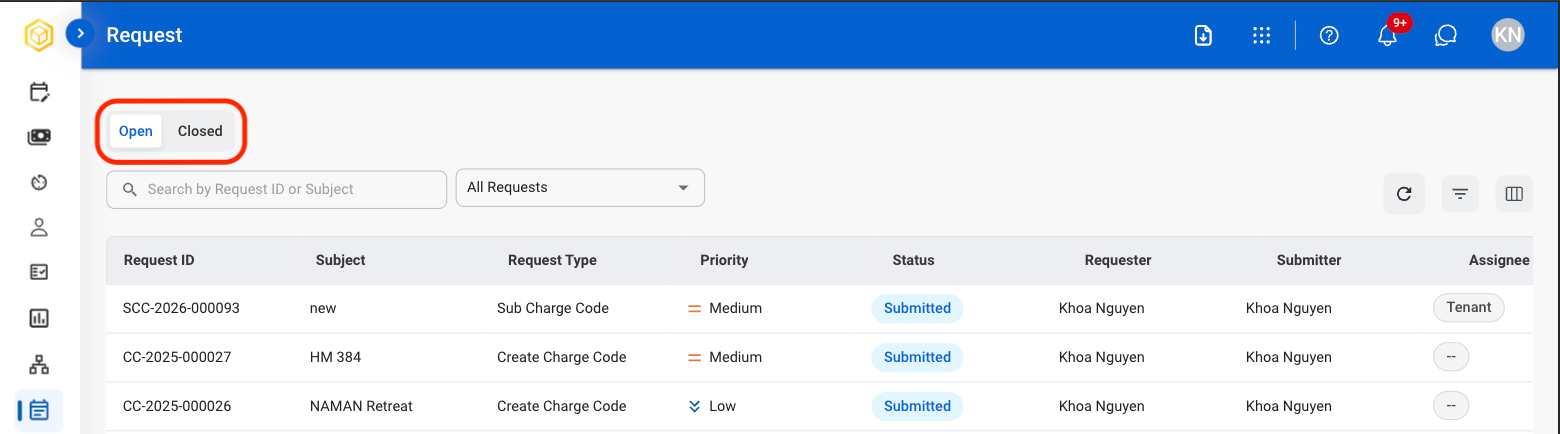
- Open: Ongoing requests
- Closed: Resolved requests
3
Search or filter results
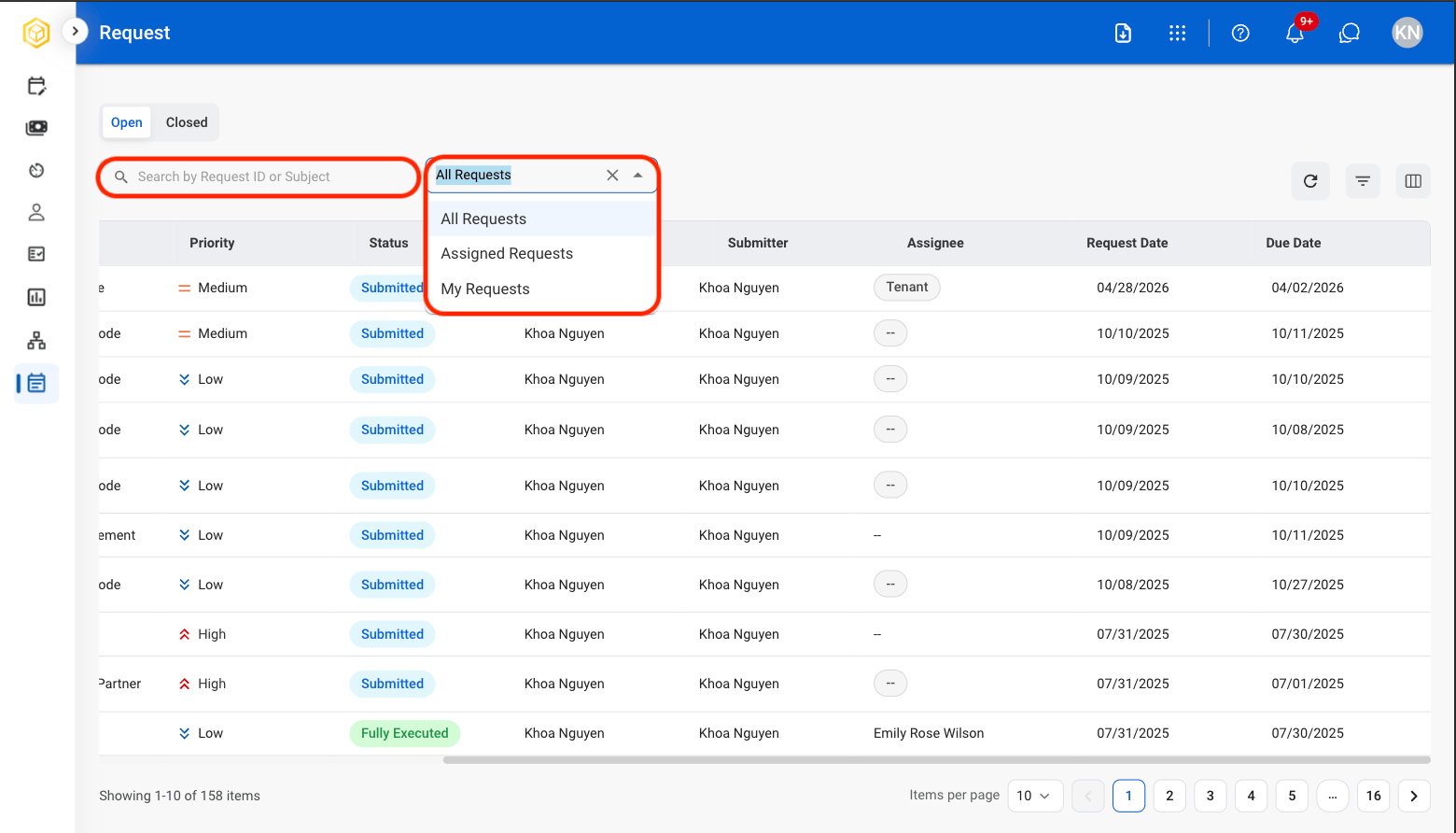
- Use the Search bar to find requests by Request ID or subject.
- Use the filter to sort request results.
- All Requests: Requests assigned to or created by the current account.
- Assigned Requests: Requests assigned for action and processing.
- My Requests: Requests created by the current account.
4
Select a request
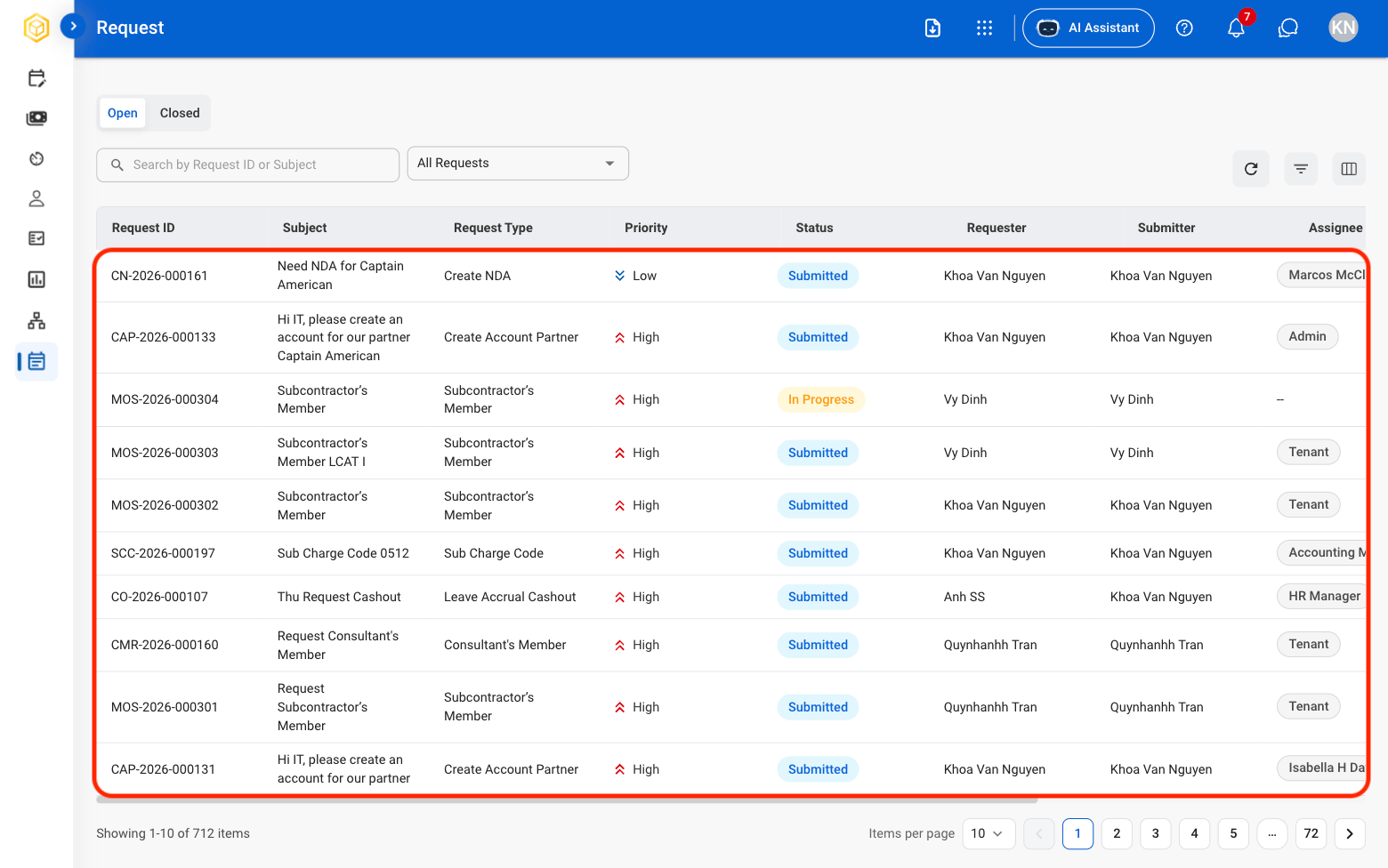
Selecting a request will open the corresponding record in the Requests module
Review a Request
1
In the Open view, Select Assigned Requests
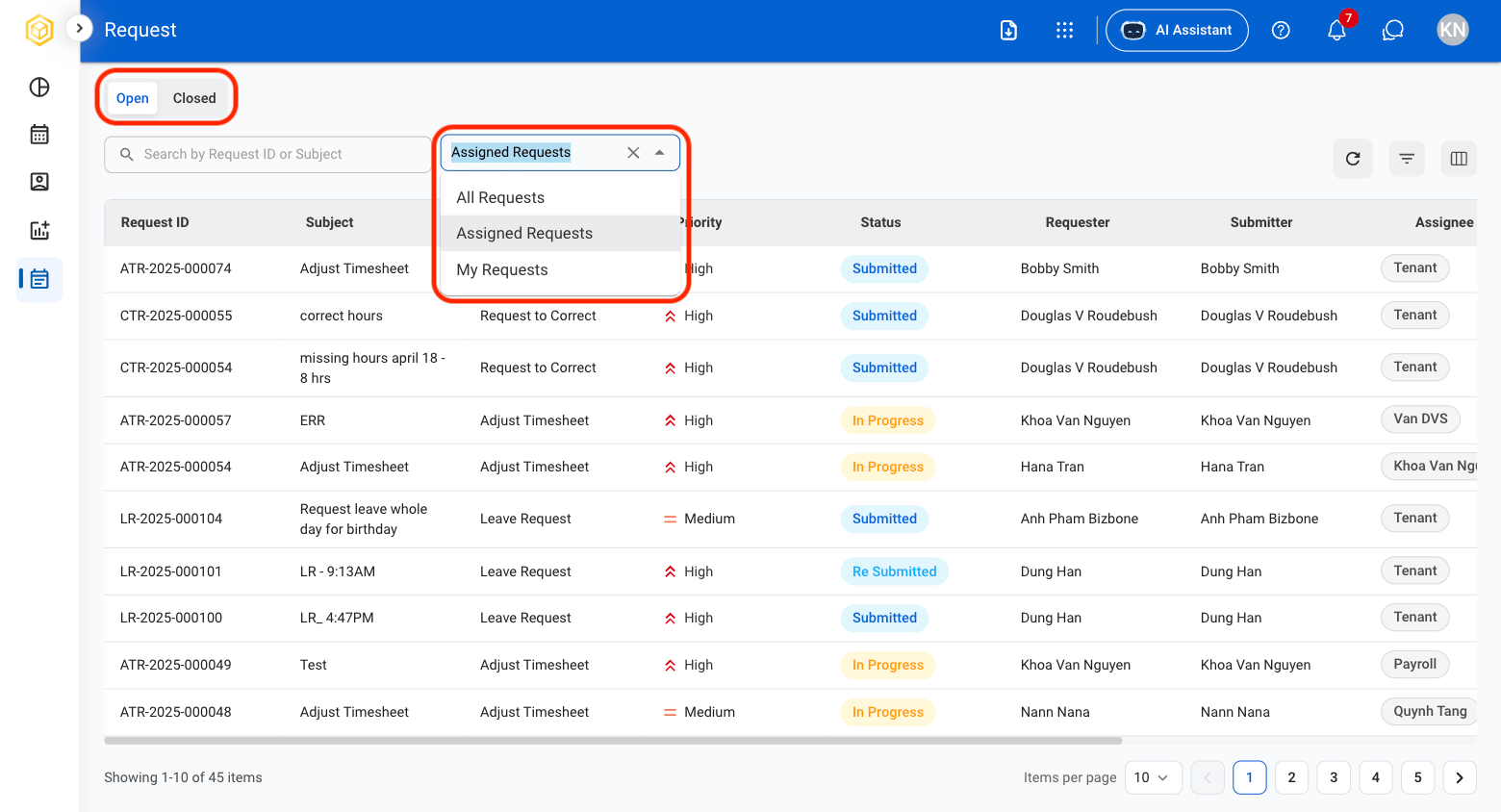
Request must be Open in order to review.
2
Select a request
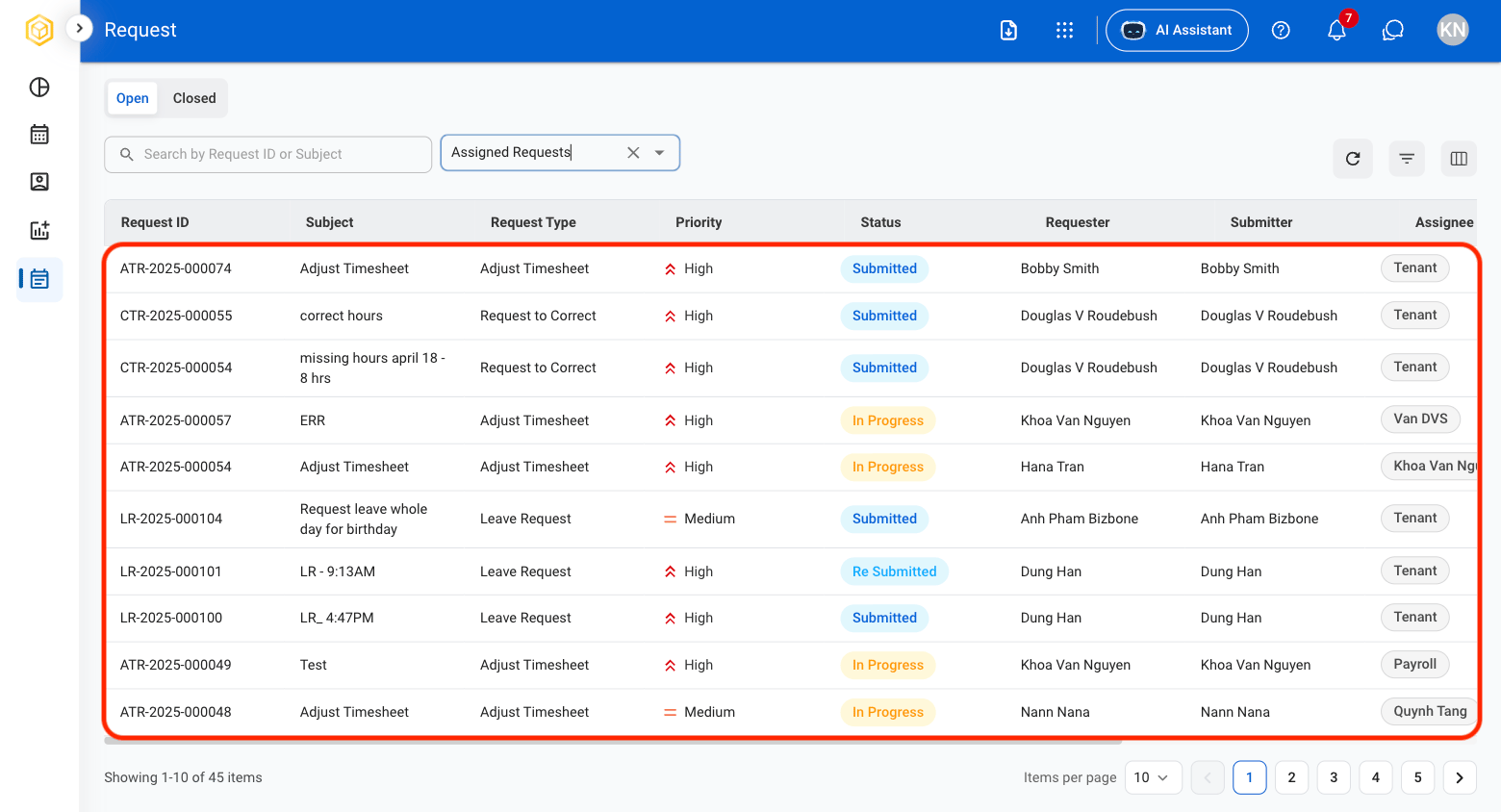
- Use the Search bar to find requests by Request ID or subject.
3
Select the desired action.
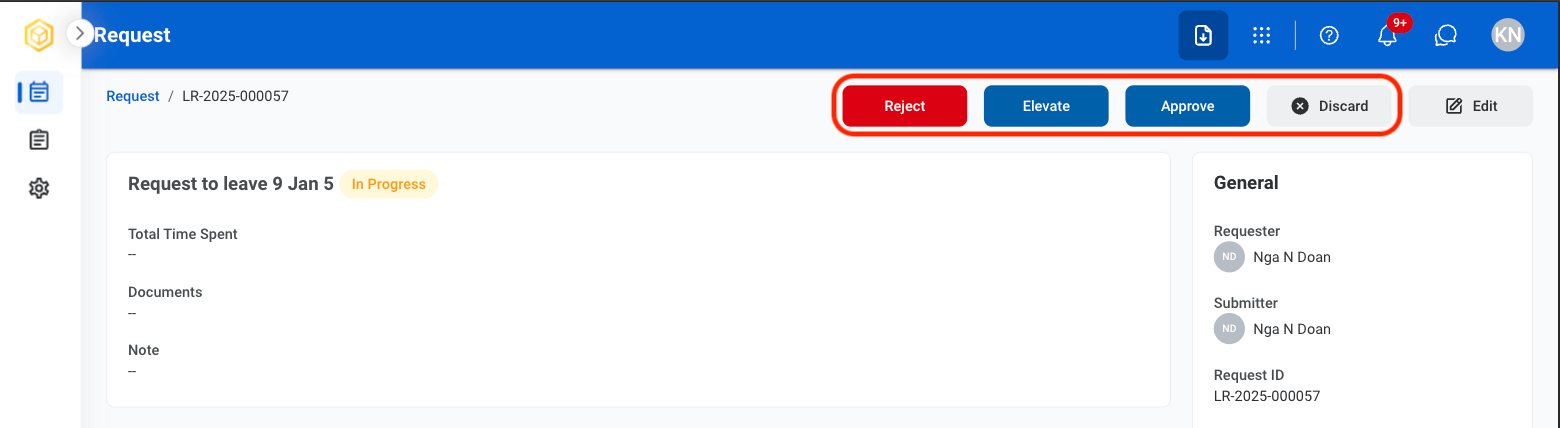
- Approve: Approve the request for further processing.
- Reject: Reject the request.
- Discard: Permanently remove the request from the system.
- Edit: Modify the request information before continuing processing.
4
Confirm the action
- Approve: Select Approve to complete or Cancel to exit without saving changes.
- Reject: Provide a reason for the decision and select Reject to complete or Cancel to exit without saving changes.
- Discard: Select Discard to complete or Cancel to exit without saving changes.
- Edit: Fill the required information and select Save to complete or Cancel to exit without saving changes.