
View the Indirect Cost Report
1
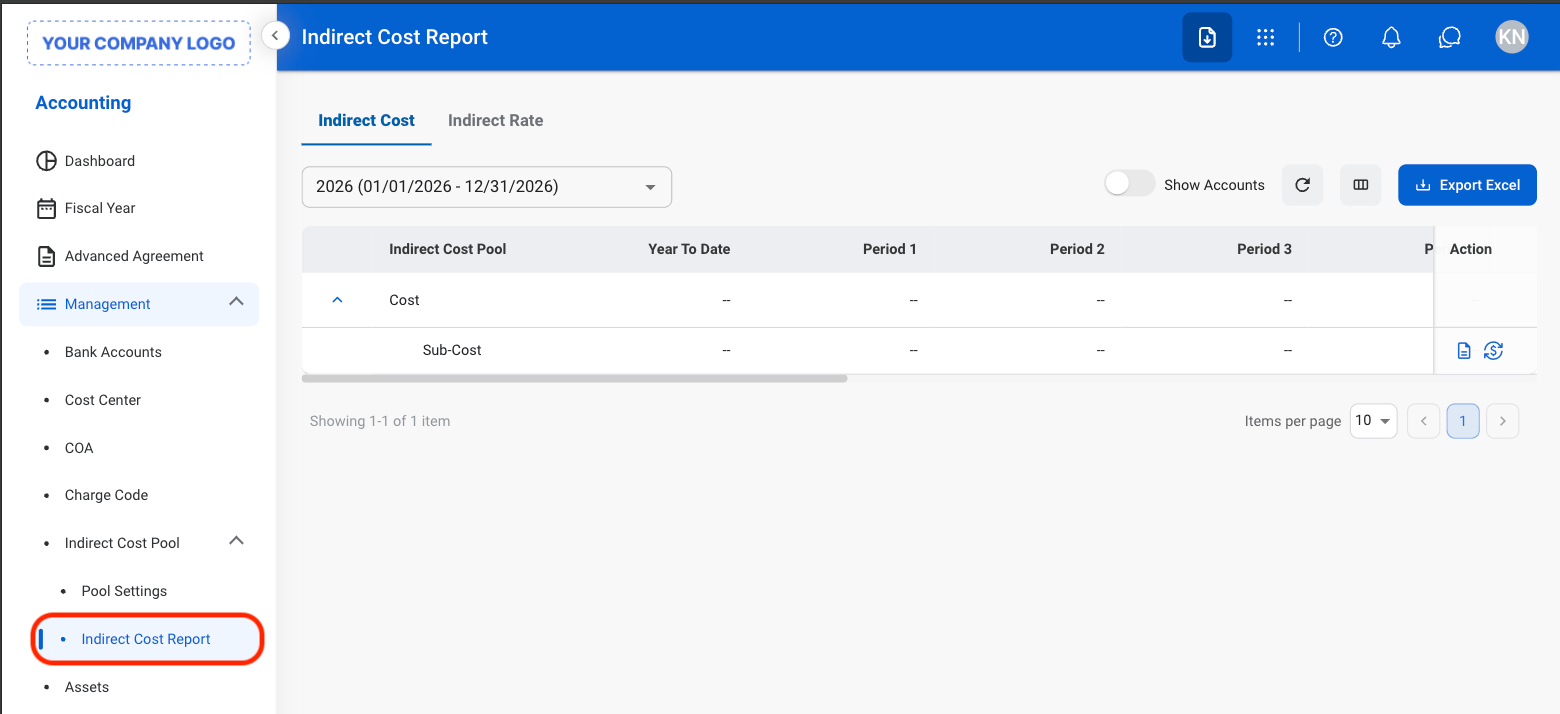
Navigate to Indirect Cost Report
2
Select a tab and fiscal year
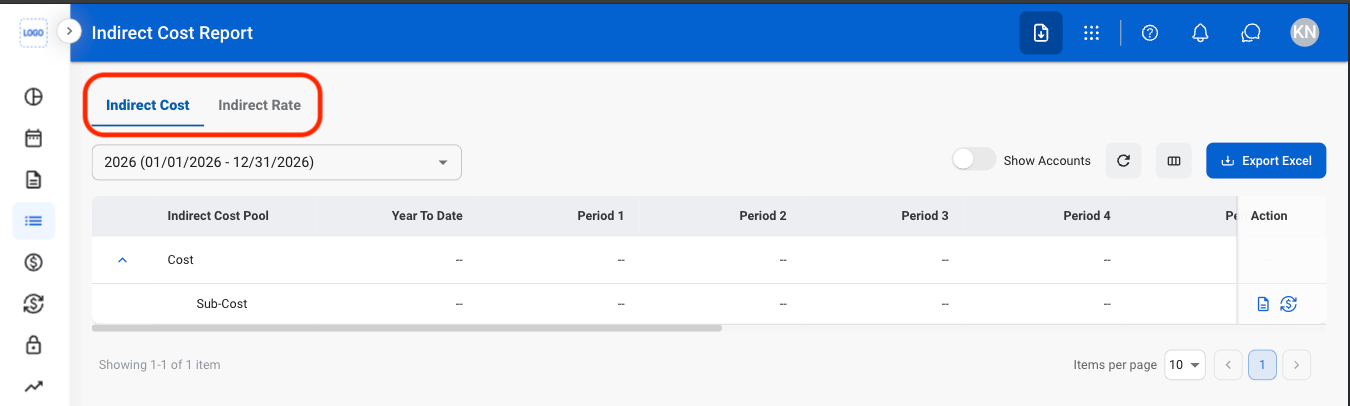
- Indirect Cost: Indirect costs for each pool, year to date and by period.
- Indirect Rate: Indirect rates for each pool, year to date and by period.
Allocate Indirect Costs
1
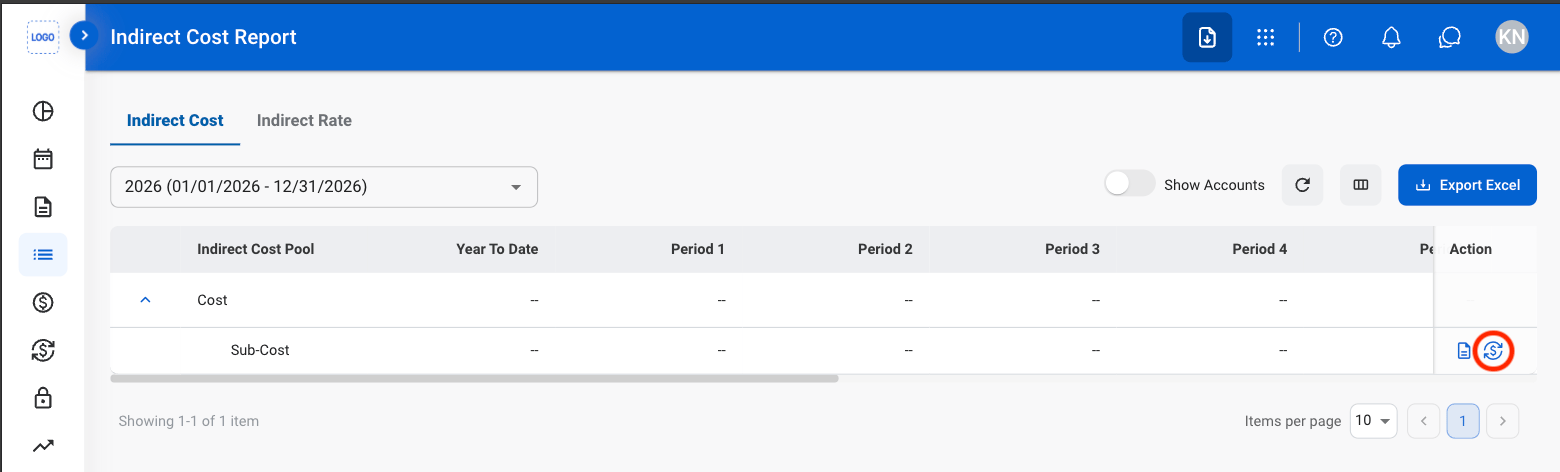
On the Indirect Cost tab, select the Allocate Cost icon for a pool
2
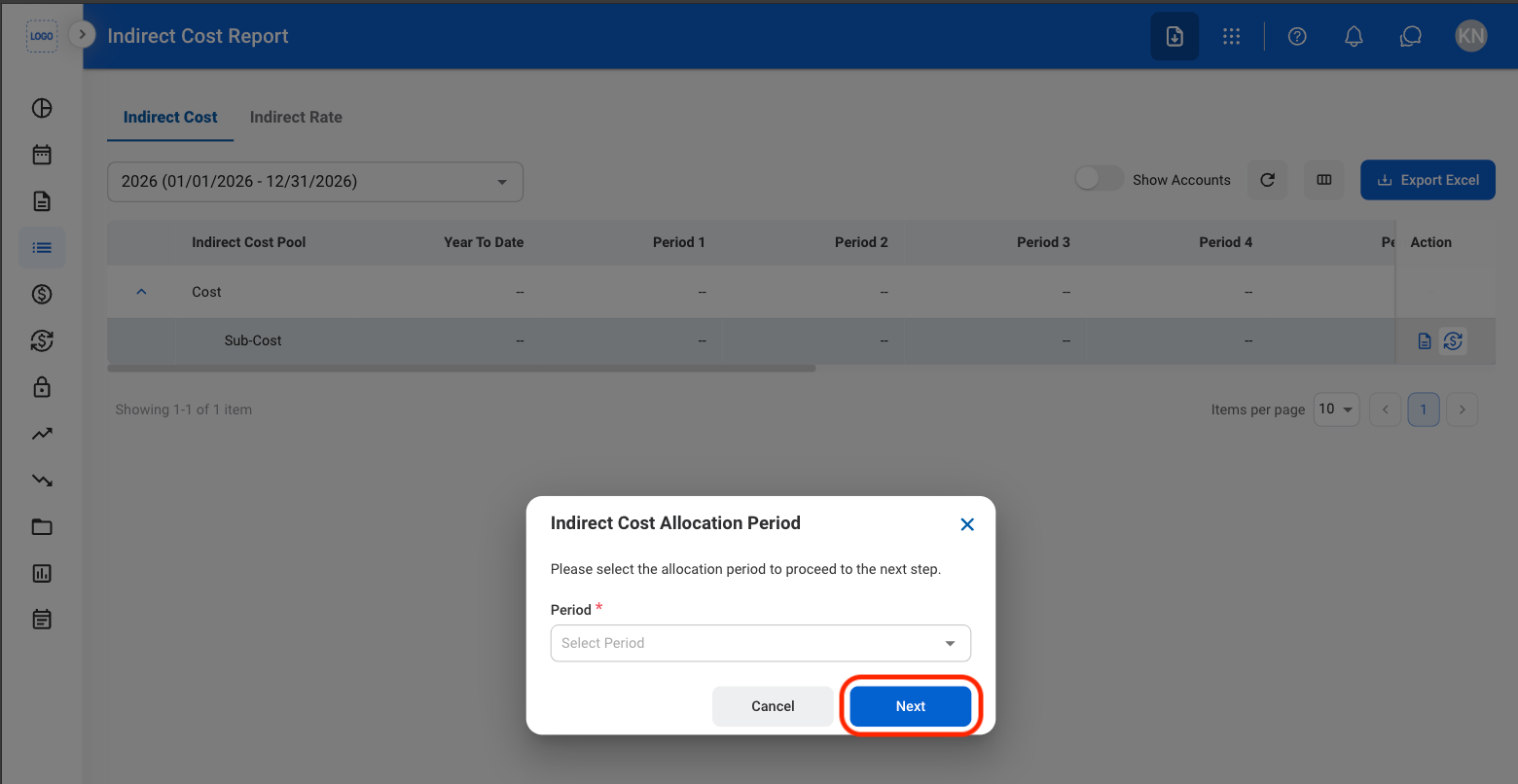
Select a period
3
Select base accounts and enter allocation rates
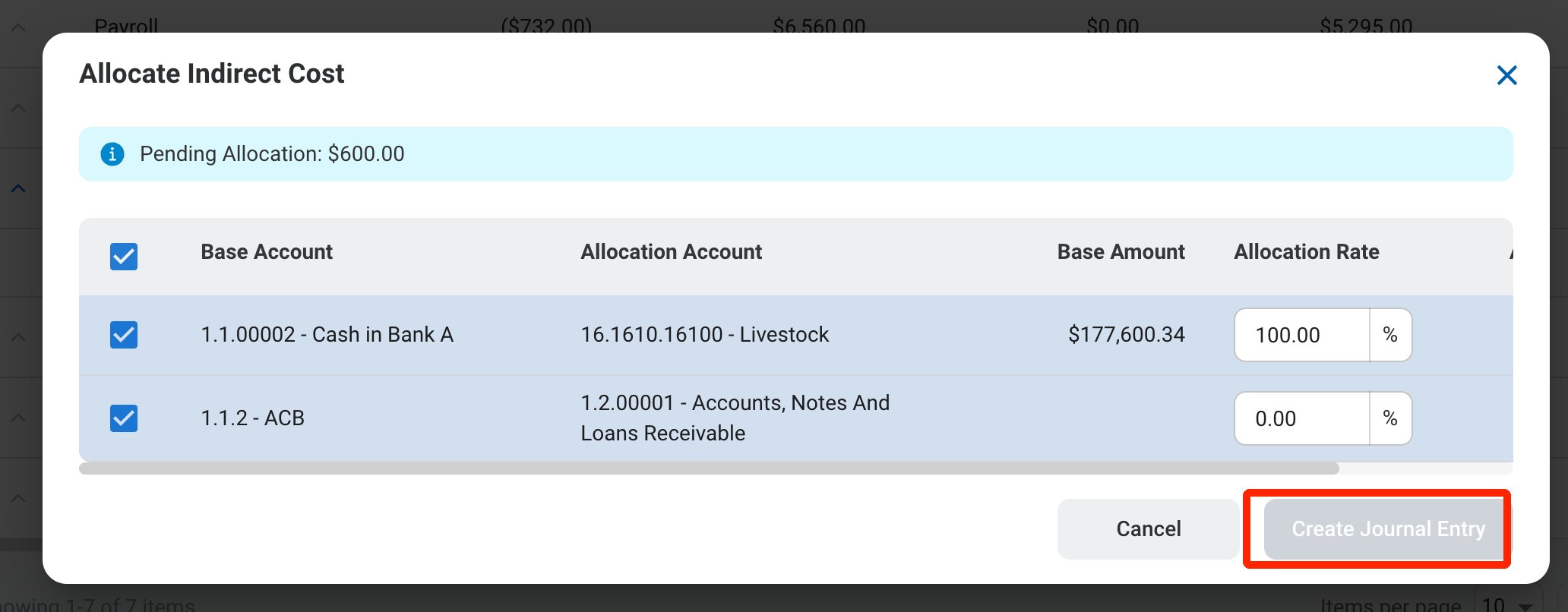
Base accounts and allocation accounts are set on the pool’s Pool Base tab in Pool Settings.
Export Indirect Expense Report
1
Select Export Excel
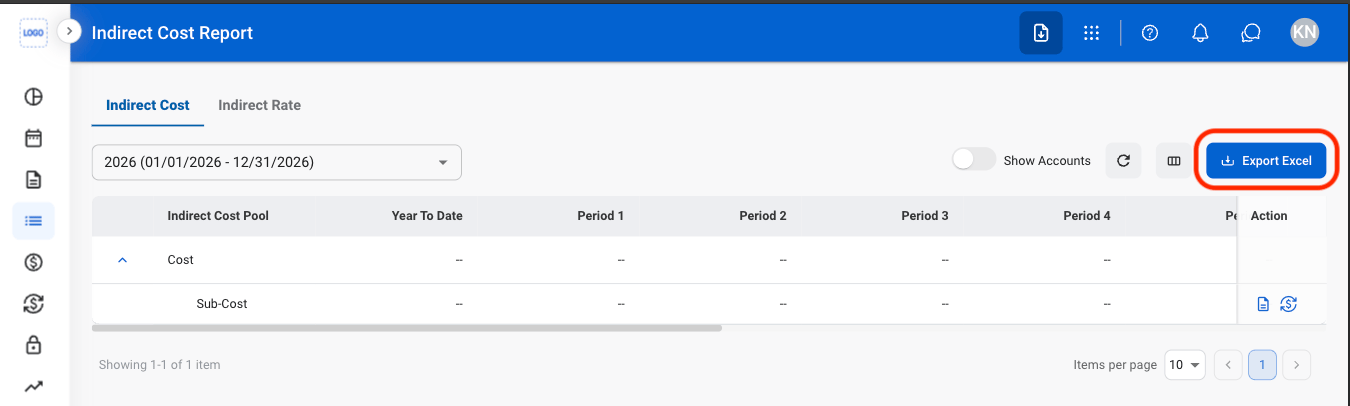
To export the Statement of Indirect Expense for a single pool, select the Statement of Indirect Expense icon for the pool, select a period, and select Export.