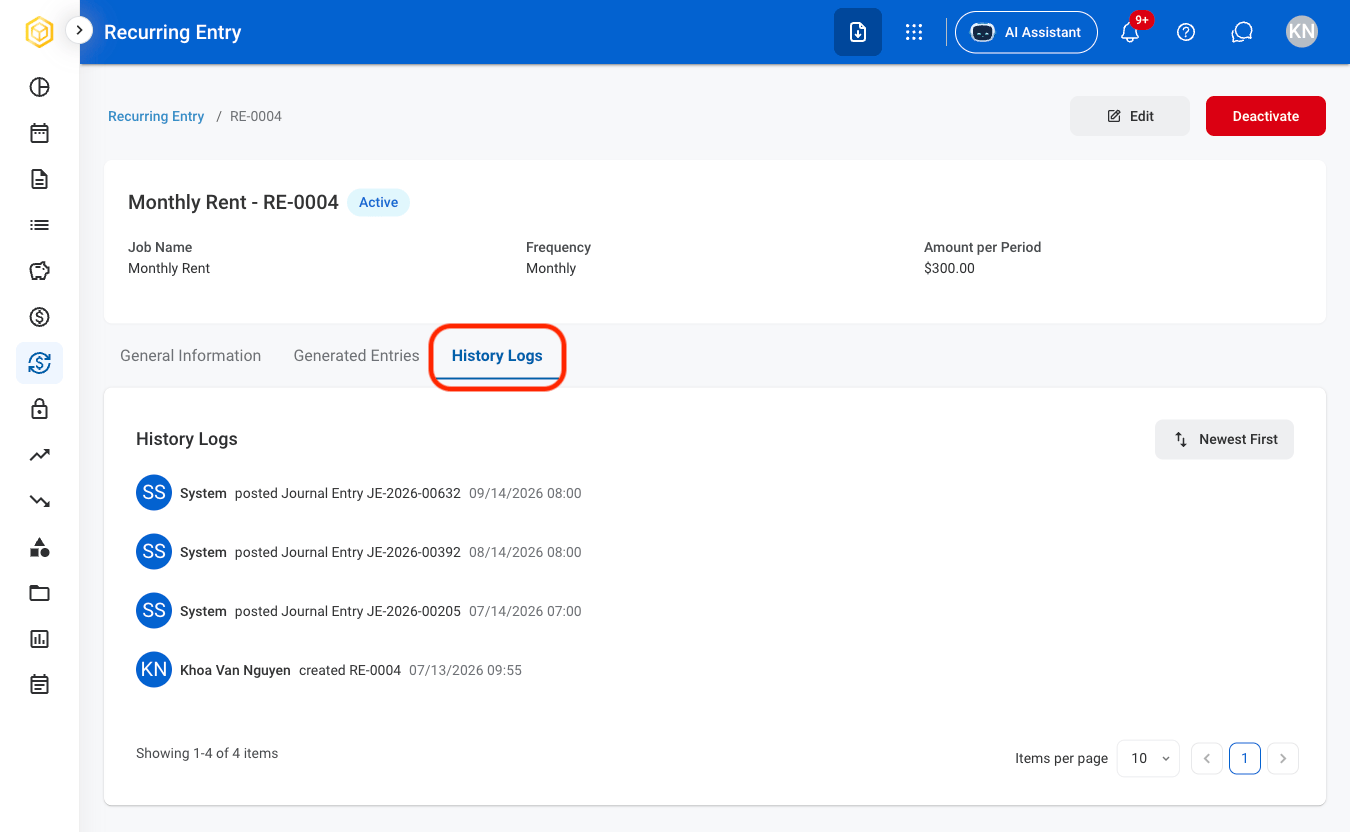
Journal entries generated by recurring jobs are automatically posted on their scheduled dates without requiring approval.
Add a Recurring Entry
1
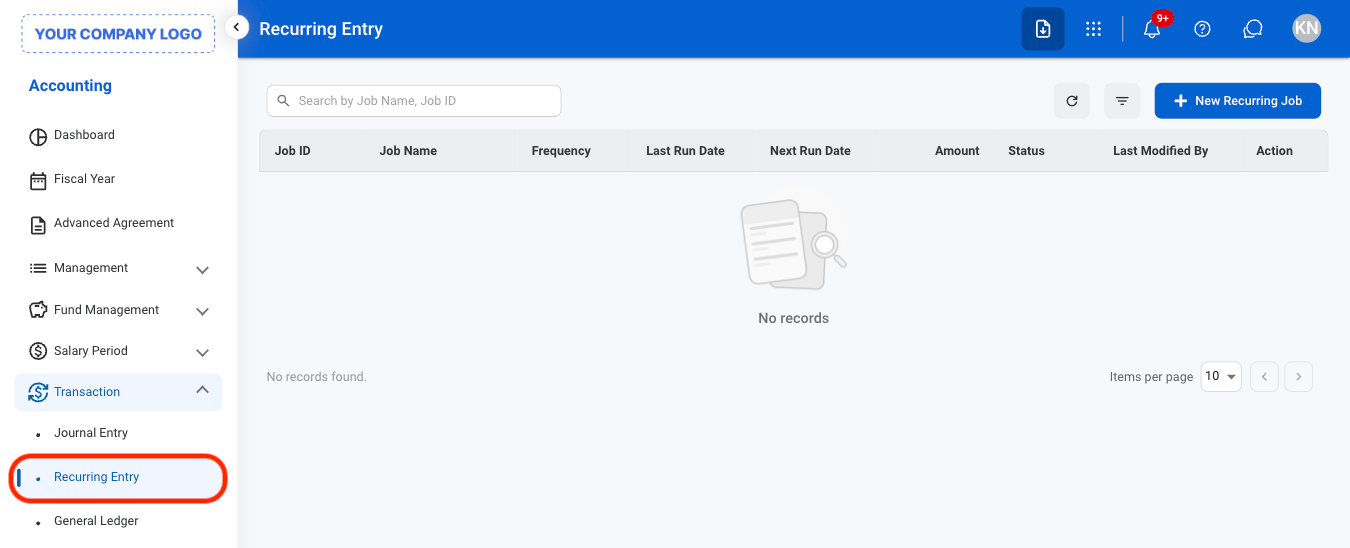
Navigate to Recurring Entry
2
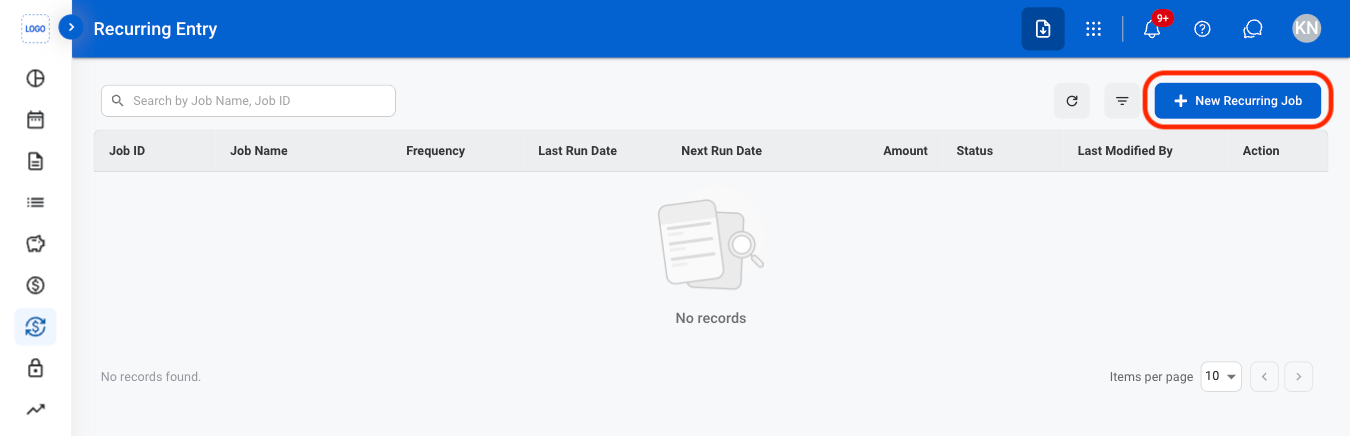
Select New Recurring Job
3
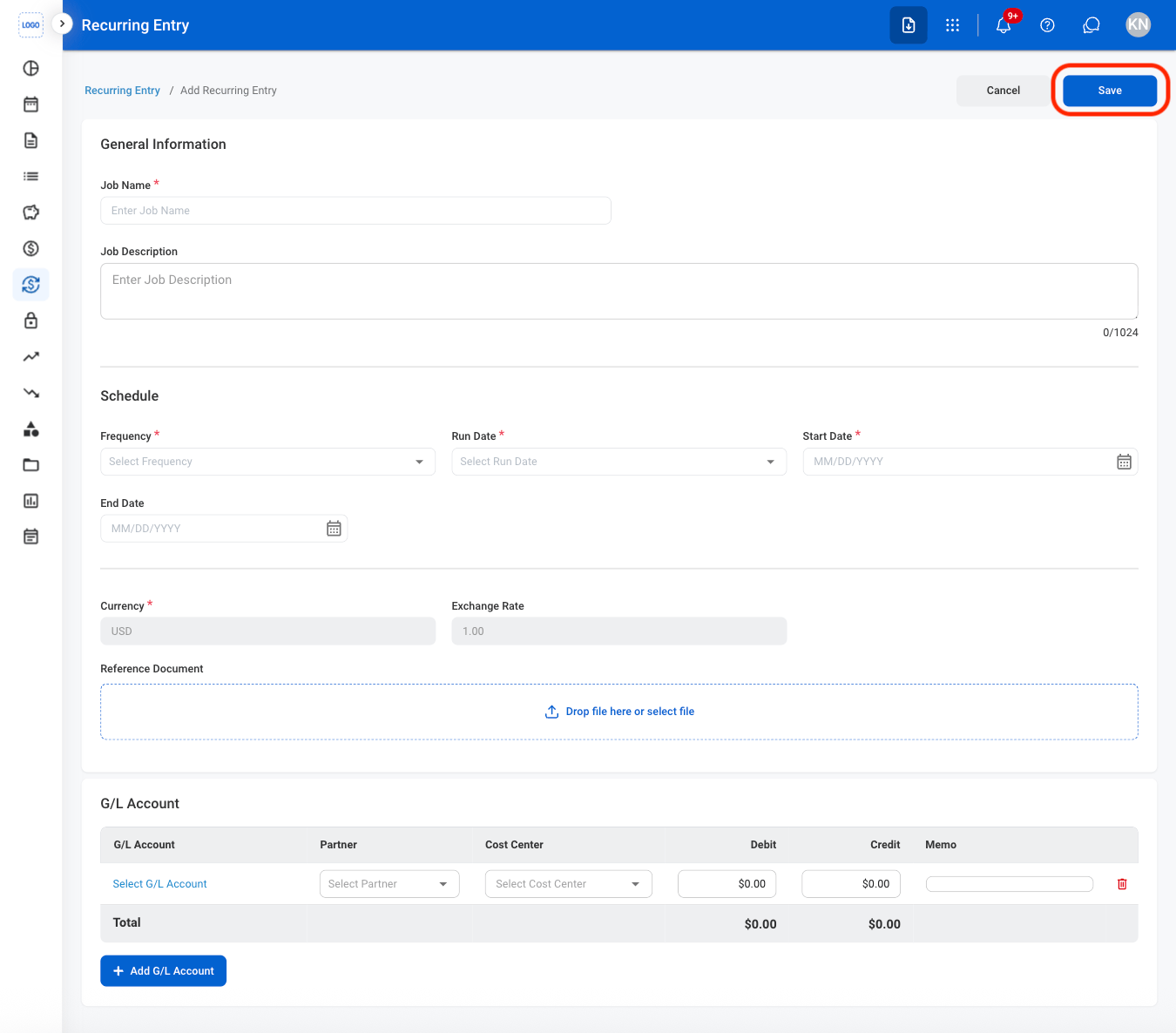
Fill in the required information
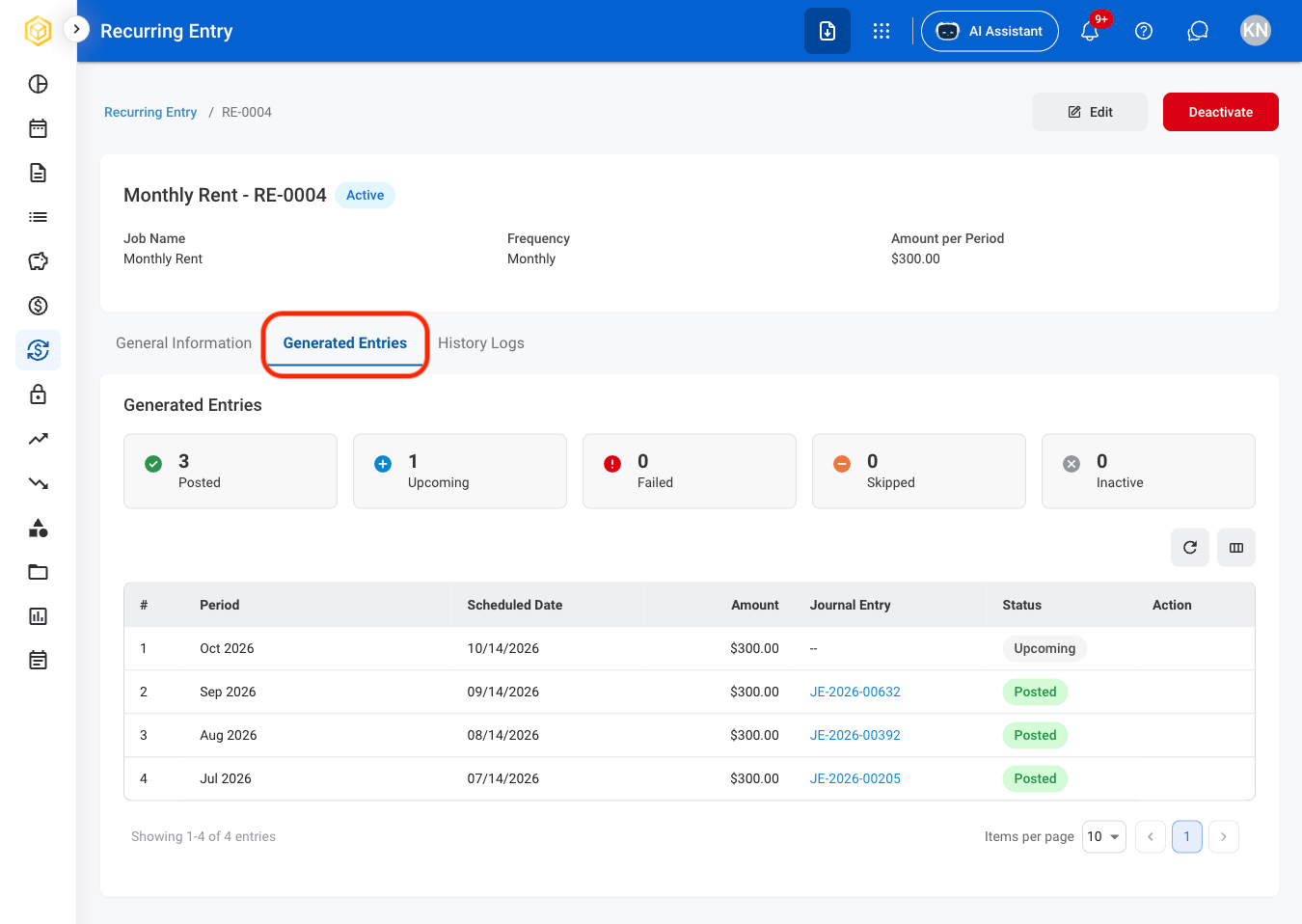
If a recurring entry fails to generate or post, it appears on the Generated Entries Board with an error status. Select Retry to run it again or Skip to bypass the failed entry.
Edit a Recurring Entry
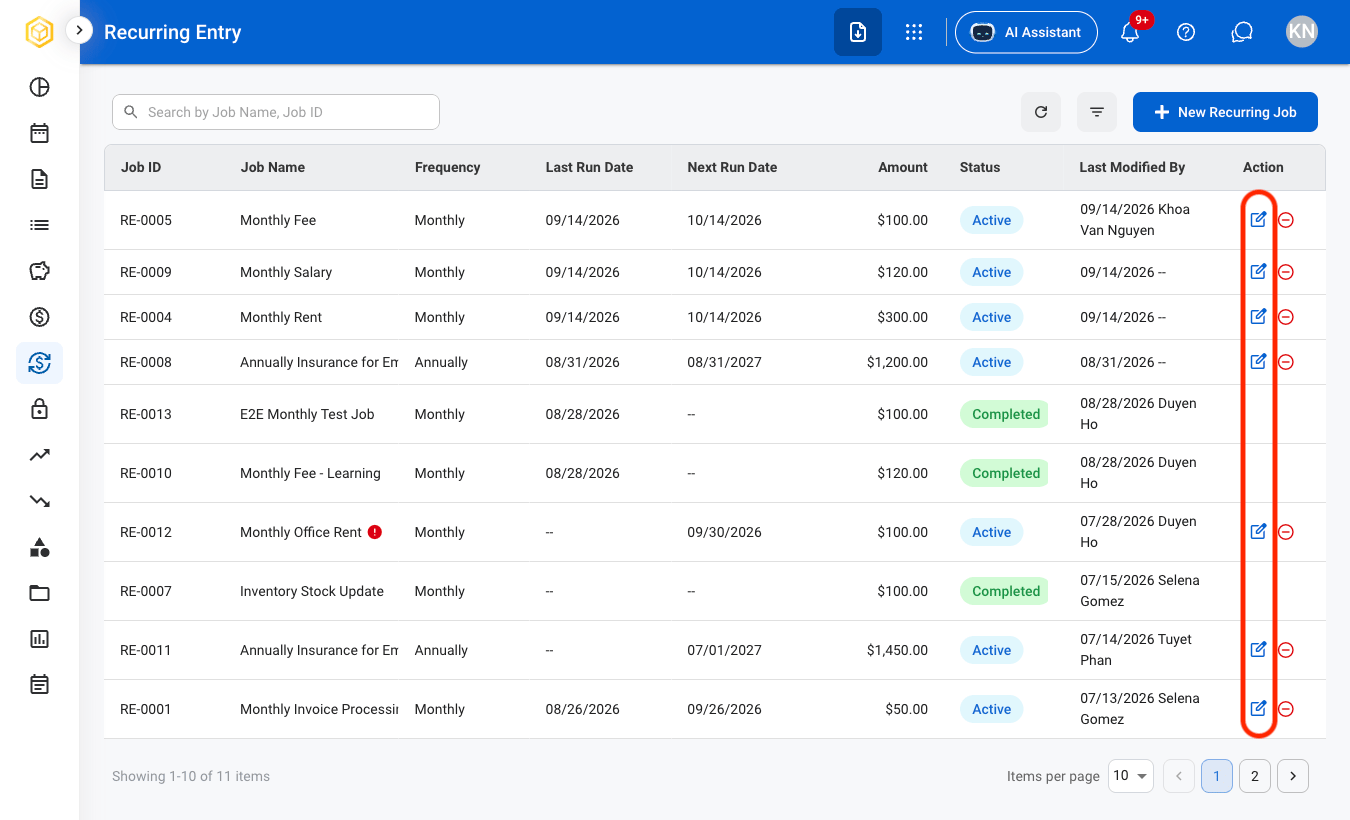
The edit function is only available on Active recurring entries.
1
Select the edit icon
2
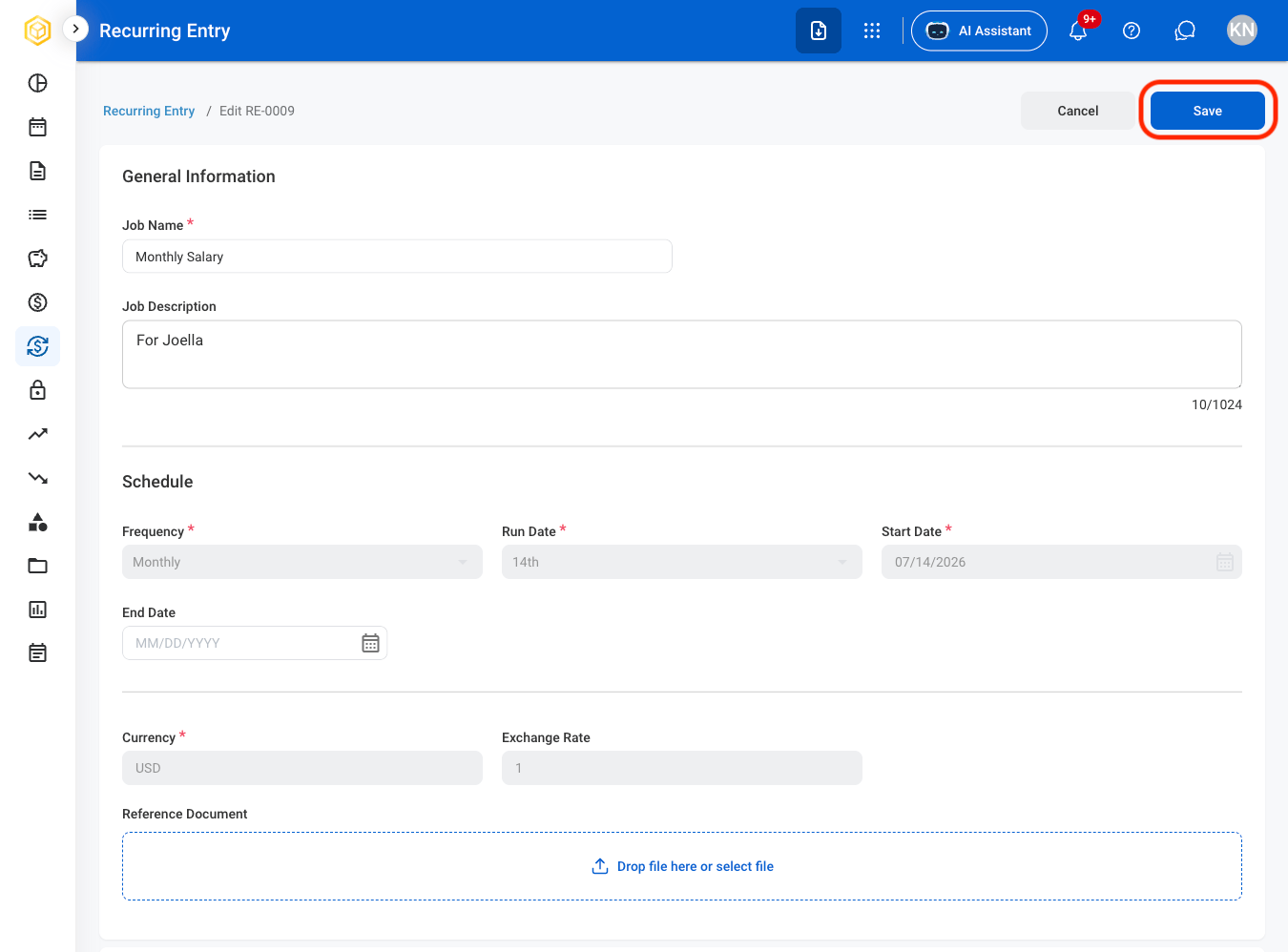
Fill in the required information
Deactivate a Recurring Entry
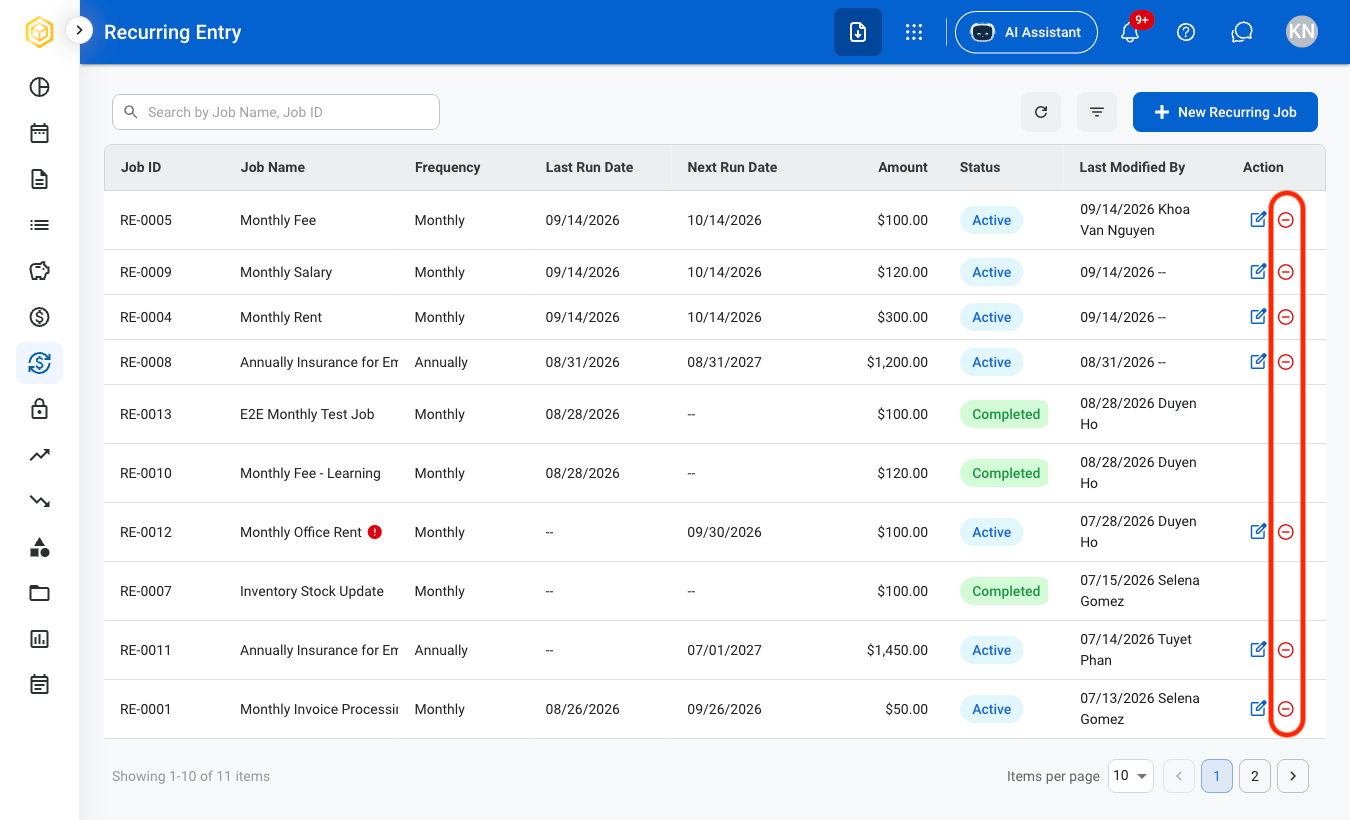
1
Select the Deactivate icon
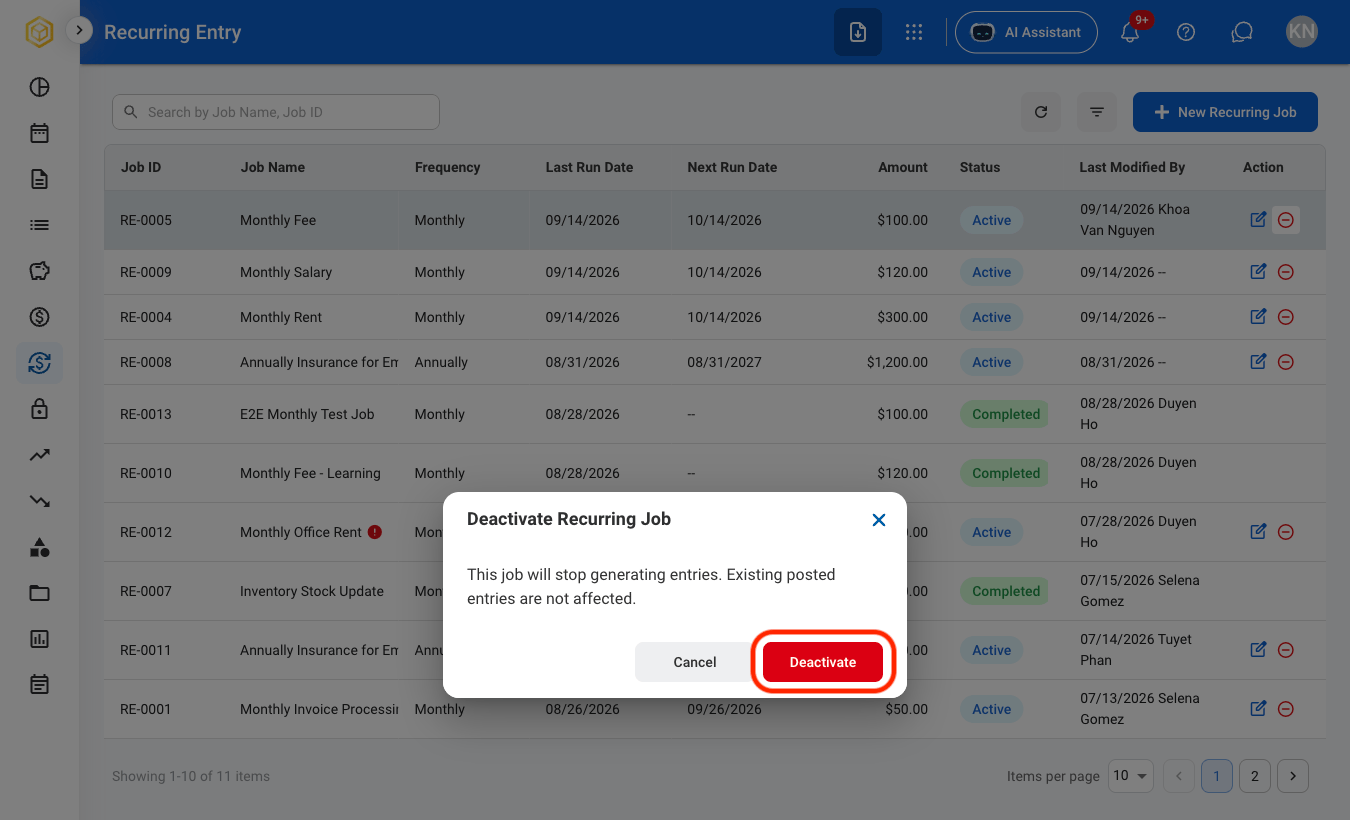
2
Confirm the action
General Information
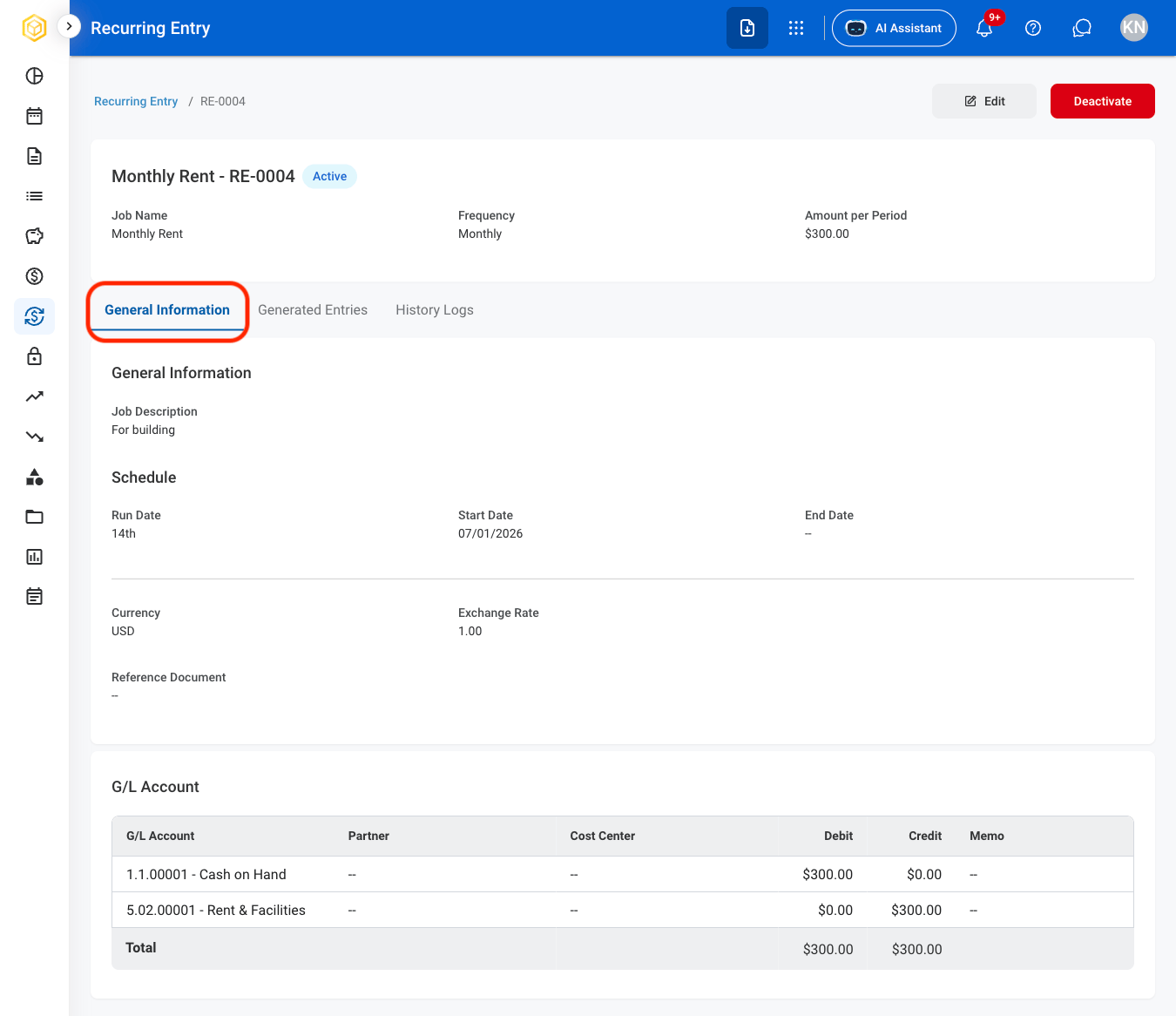
View General Information
1
Select a recurring entry
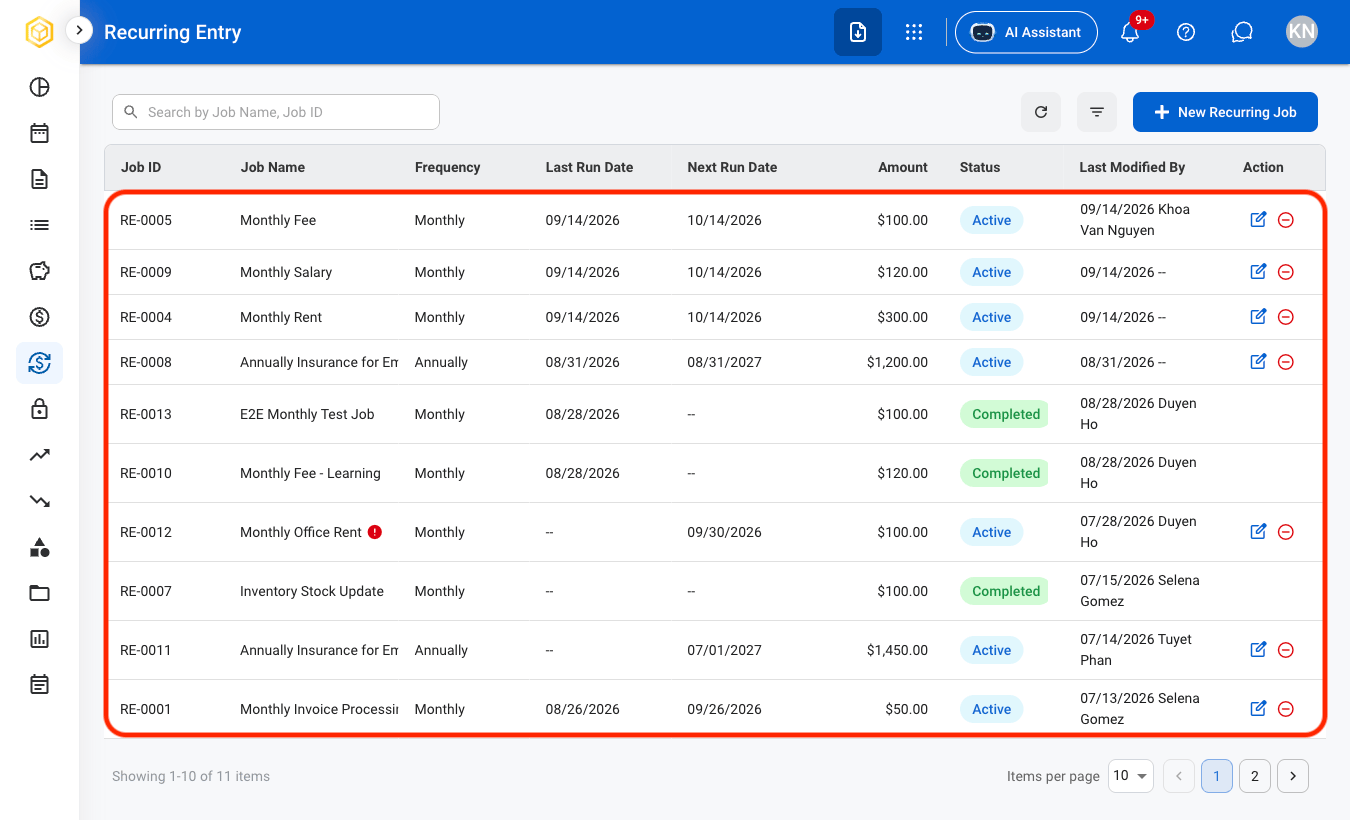
2
Navigate to General Information
Generated Entries
View Generated Entries
1
Navigate to Generated Entries
History Logs
View History Logs
1
Navigate to History Logs