
Add an Encumbrance
1
Navigate to Encumbrance Tracking
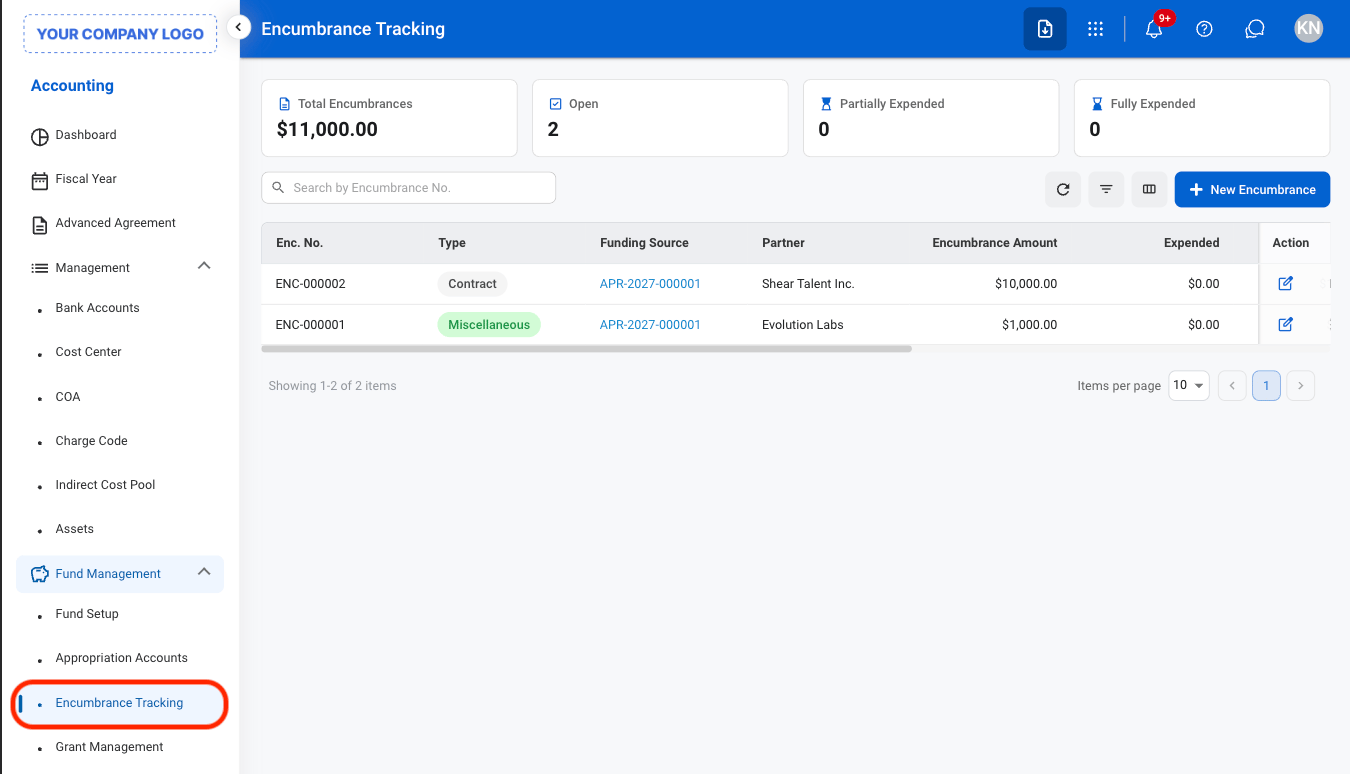
2
Select New Encumbrance
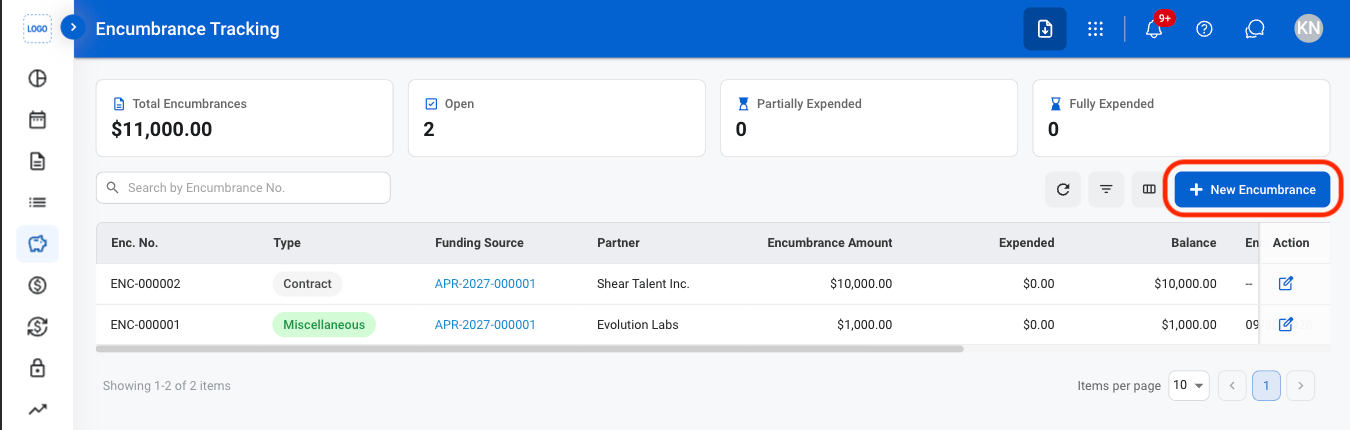
3
Fill in the required information
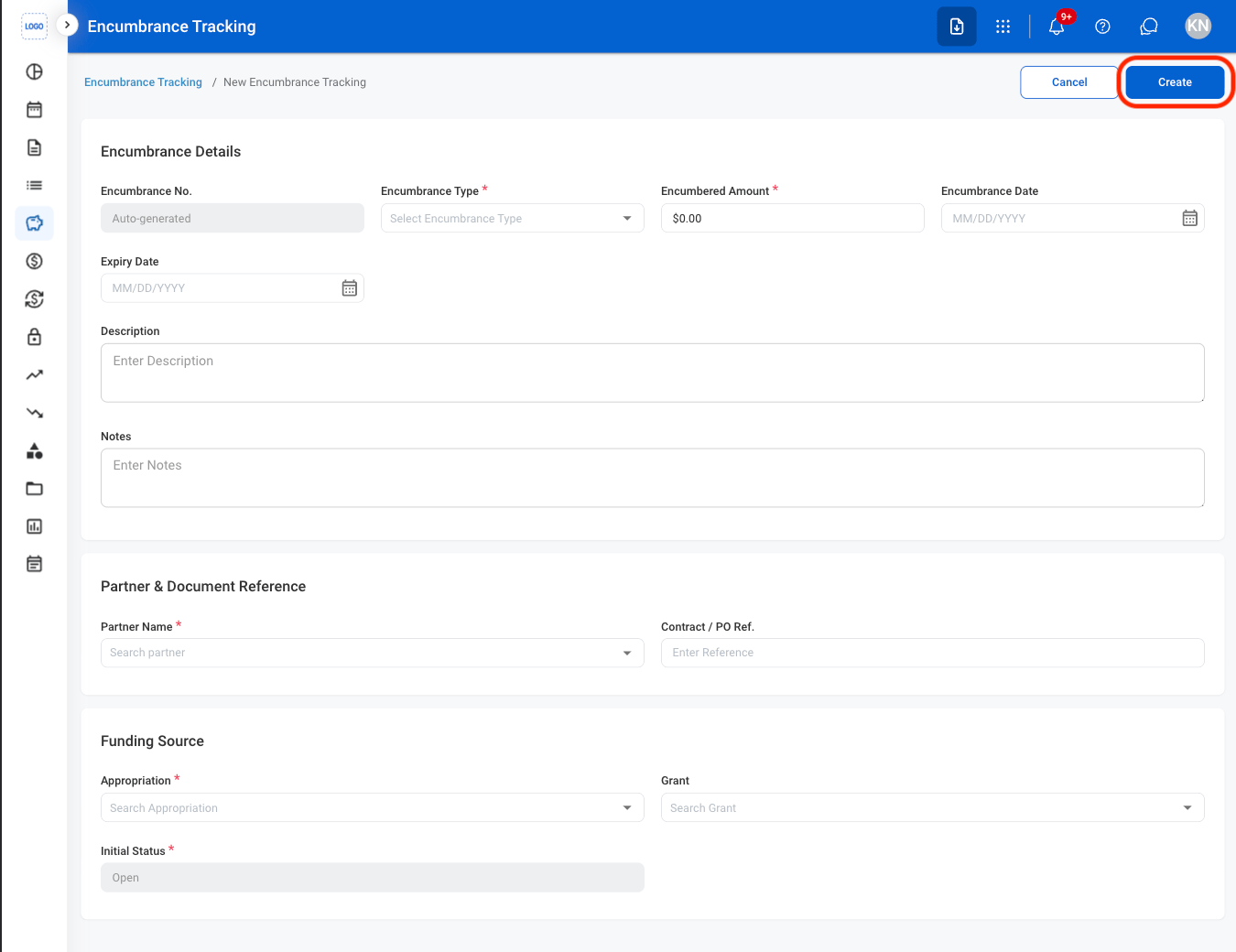
Edit an Encumbrance
1
Select the Edit icon
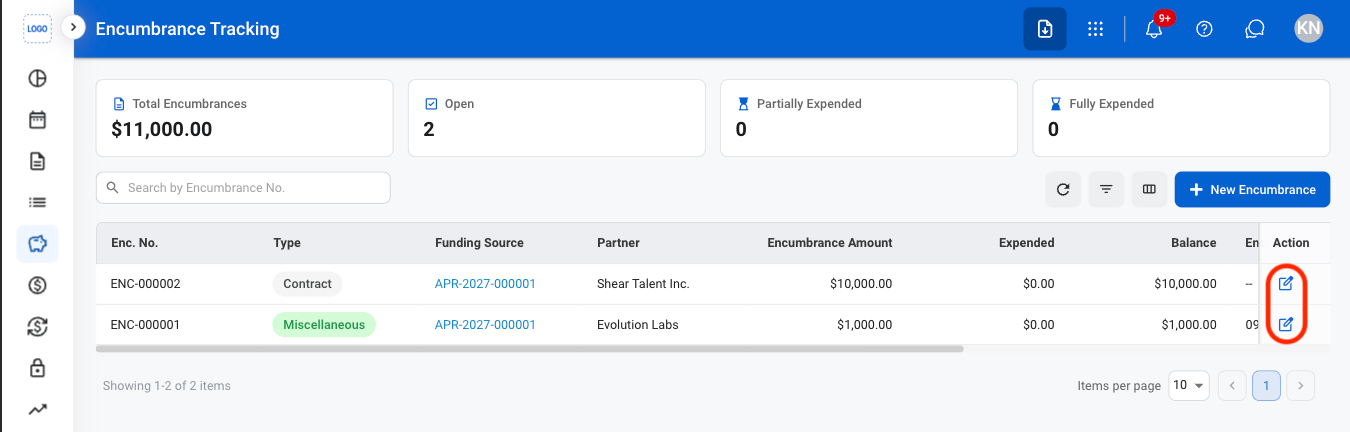
2
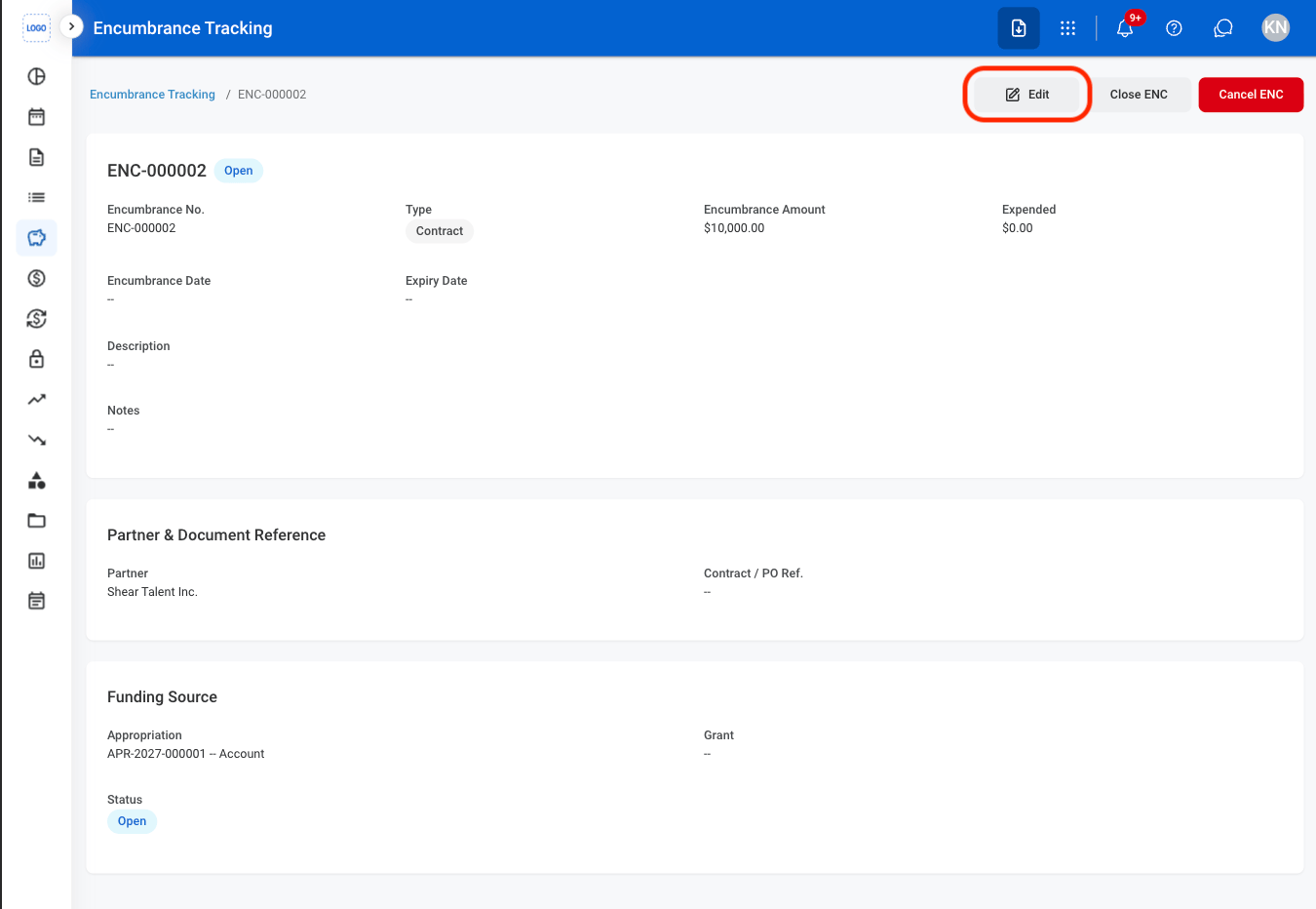
Select the Edit button
3
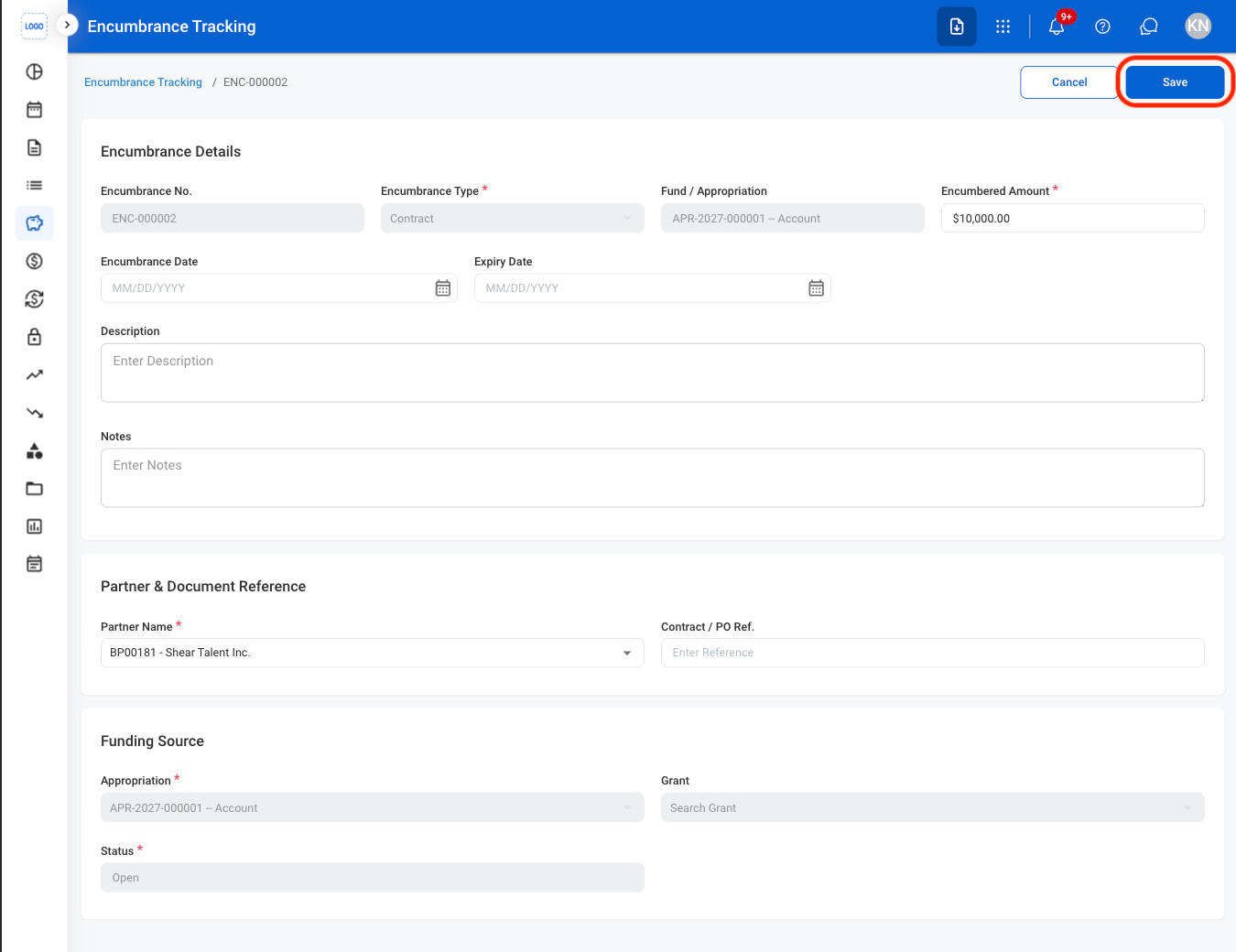
Fill in the required information
Close an Encumbrance
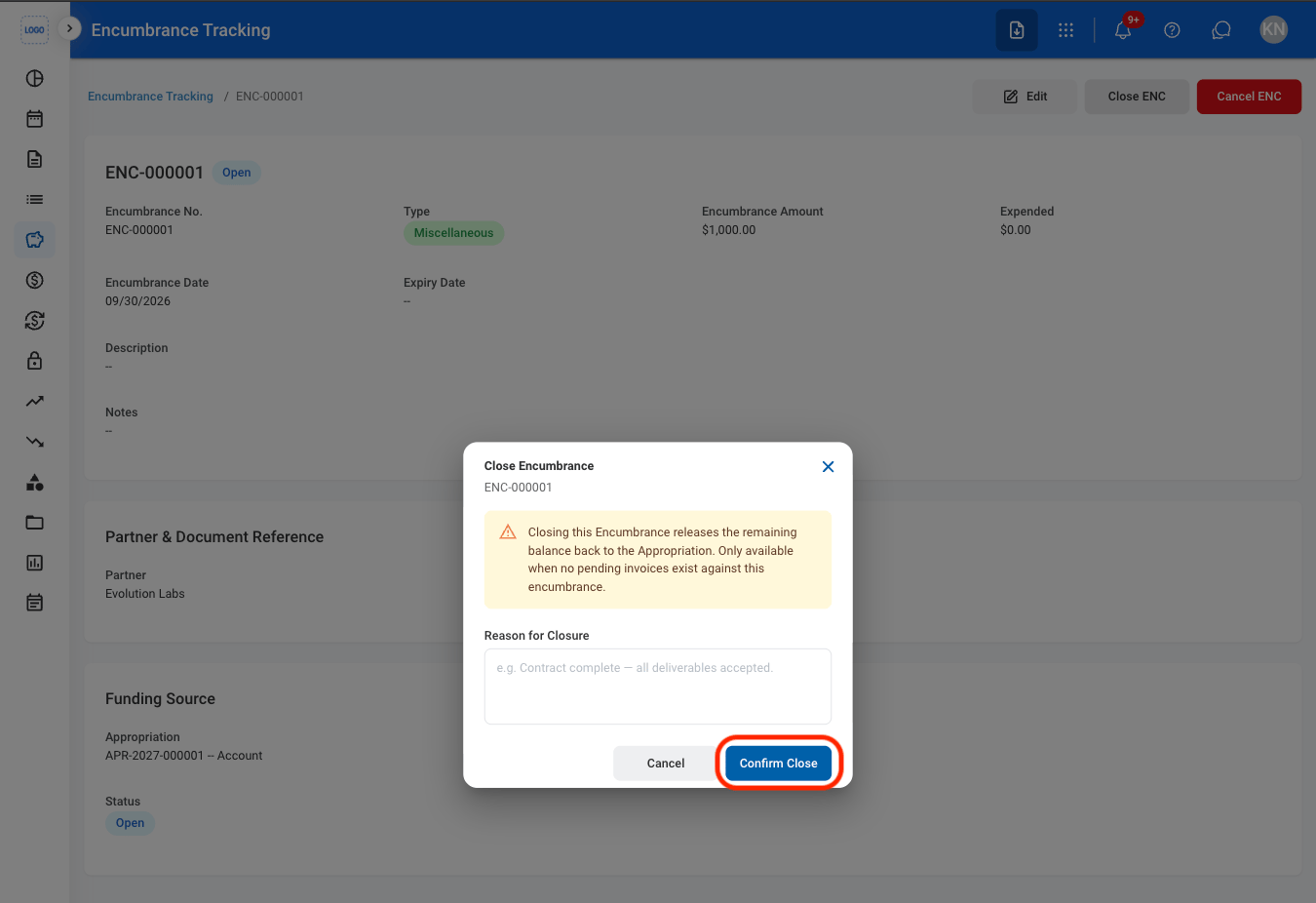
Close the encumbrance and release the remaining balance back to the appropriation.An encumbrance can only be closed when there are no pending invoices associated with it.
1
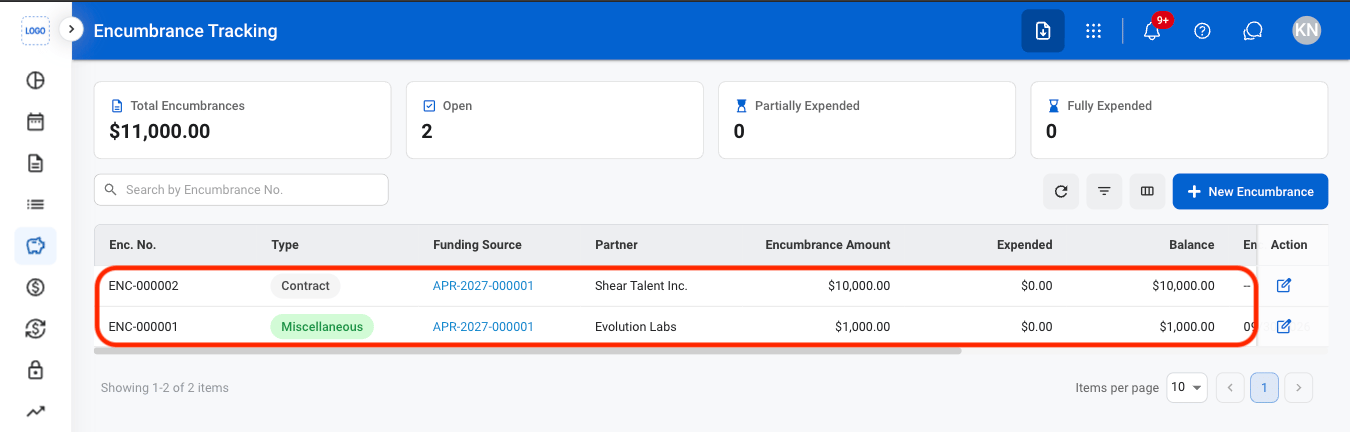
Select an encumbrance
2
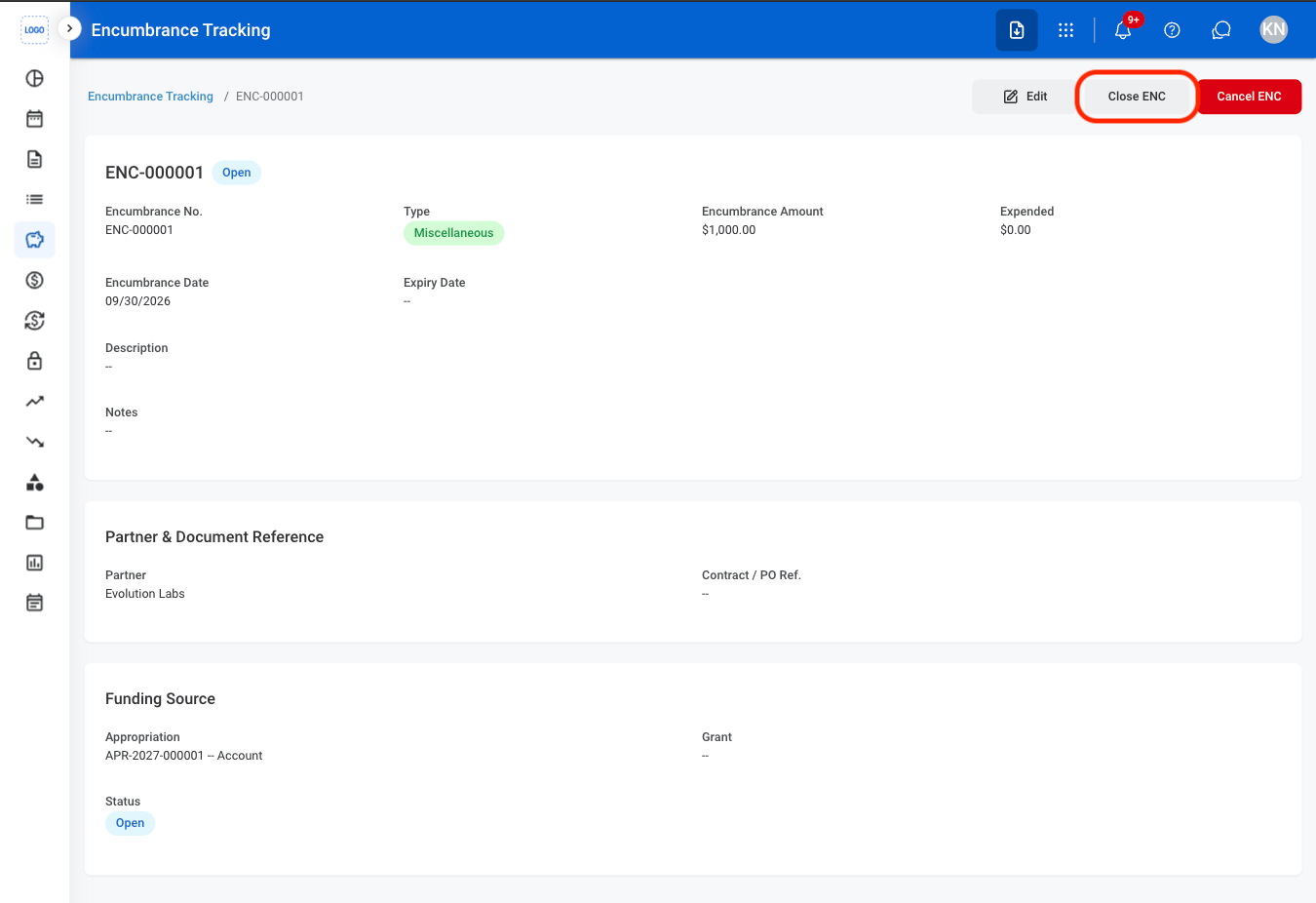
Select Close ENC
3
Fill in the required information
Cancel an Encumbrance
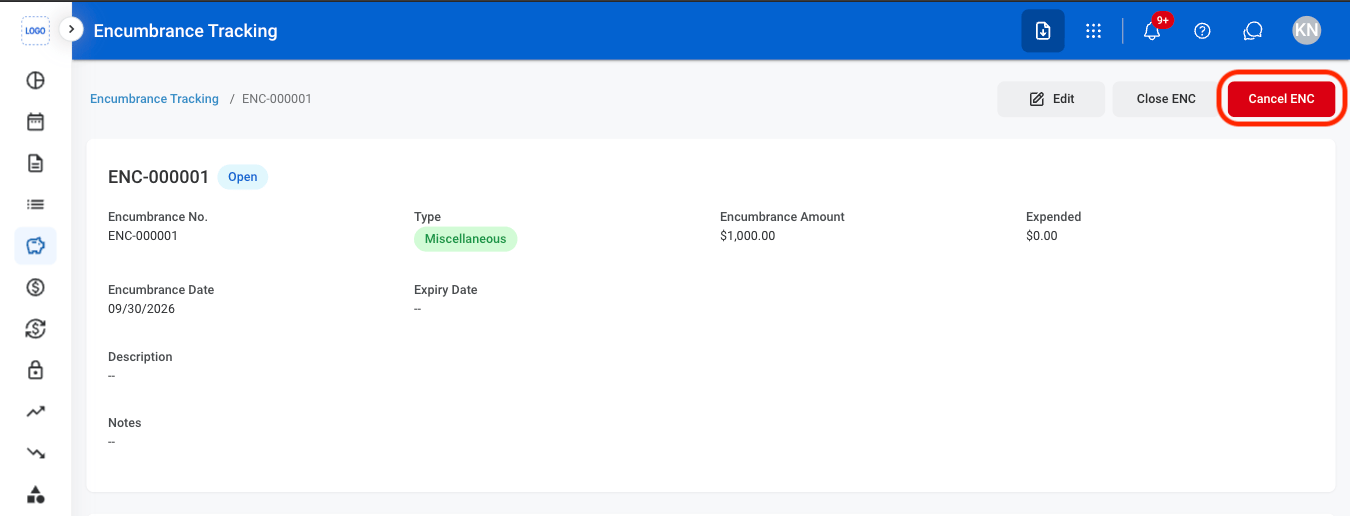
Cancel the encumbrance and release all uncommitted balance back to the appropriation.1
Select Cancel Encumbrance
2
Fill in the required information
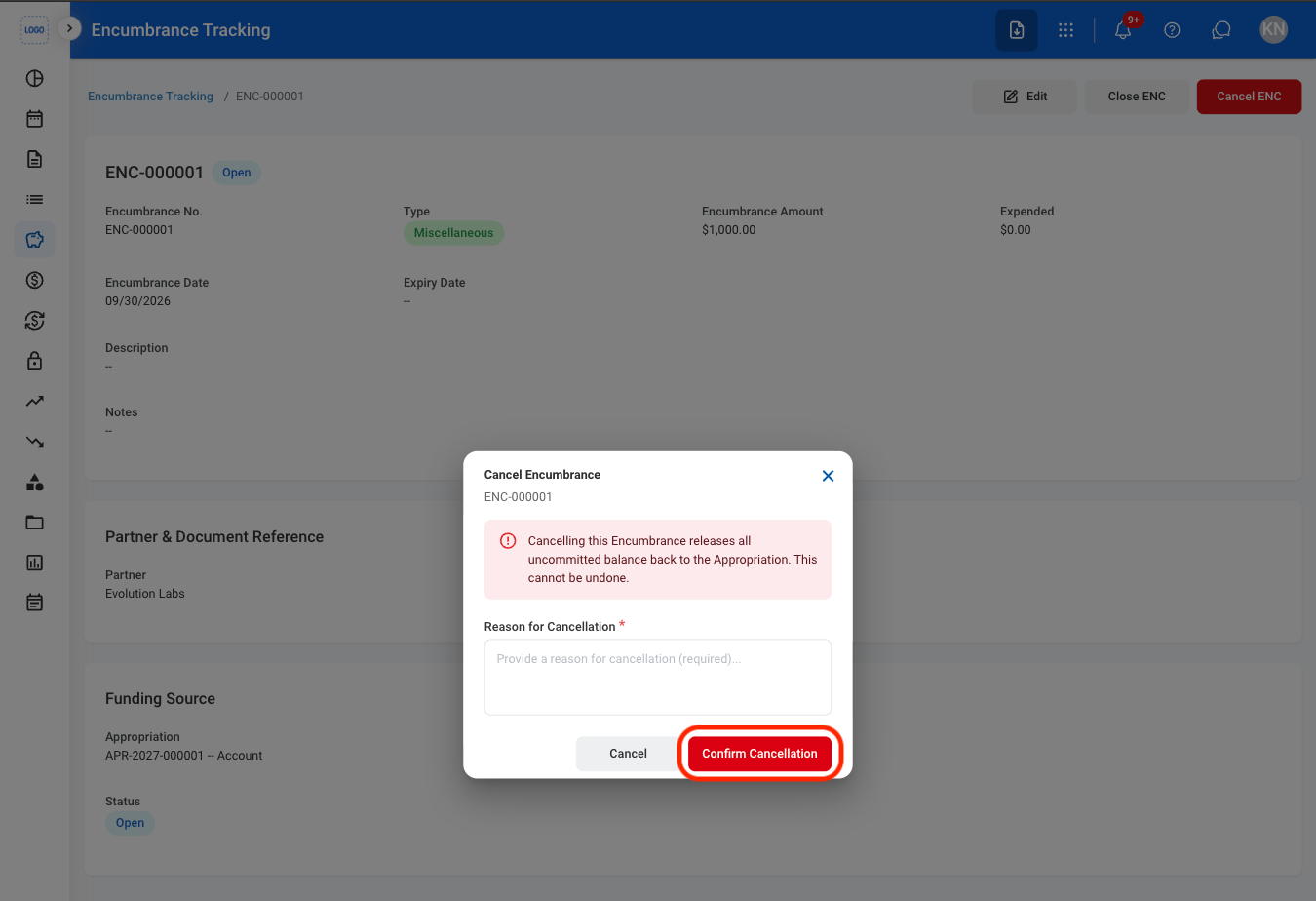
Cancellation is permanent and cannot be undone.