
View Billing Records
1
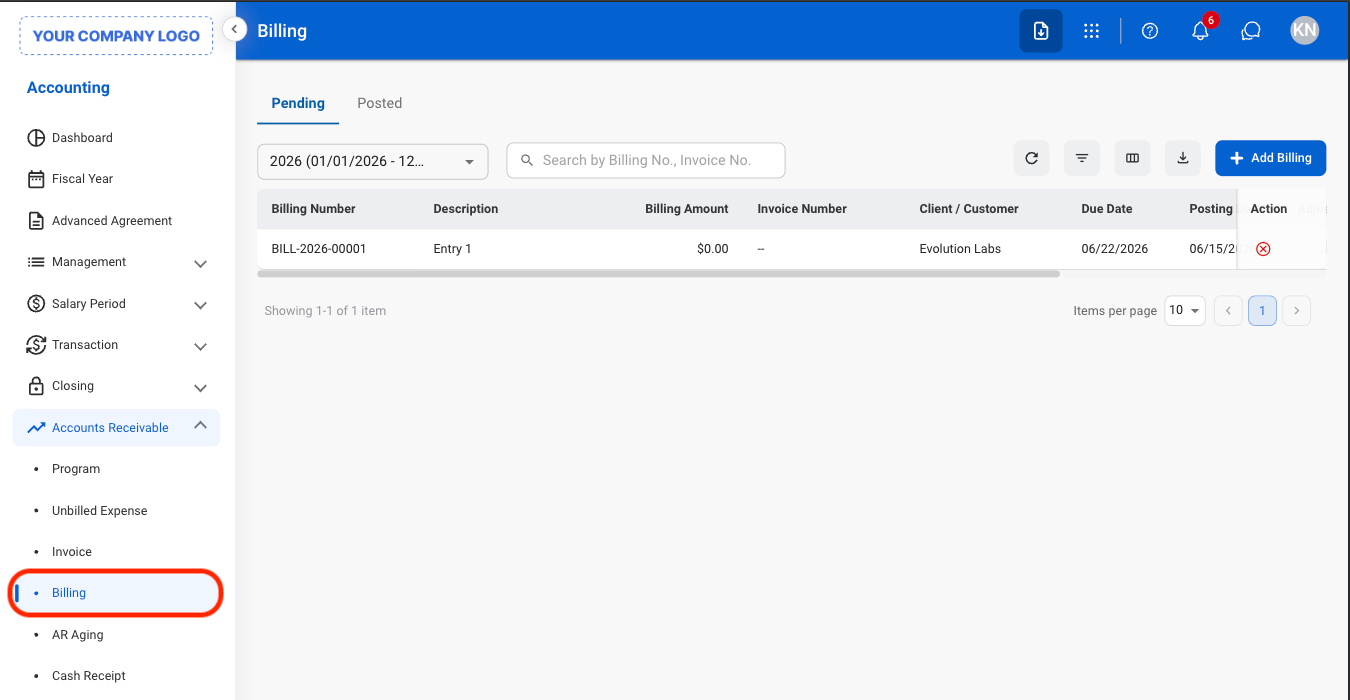
Navigate to Billing
2
Select a tab
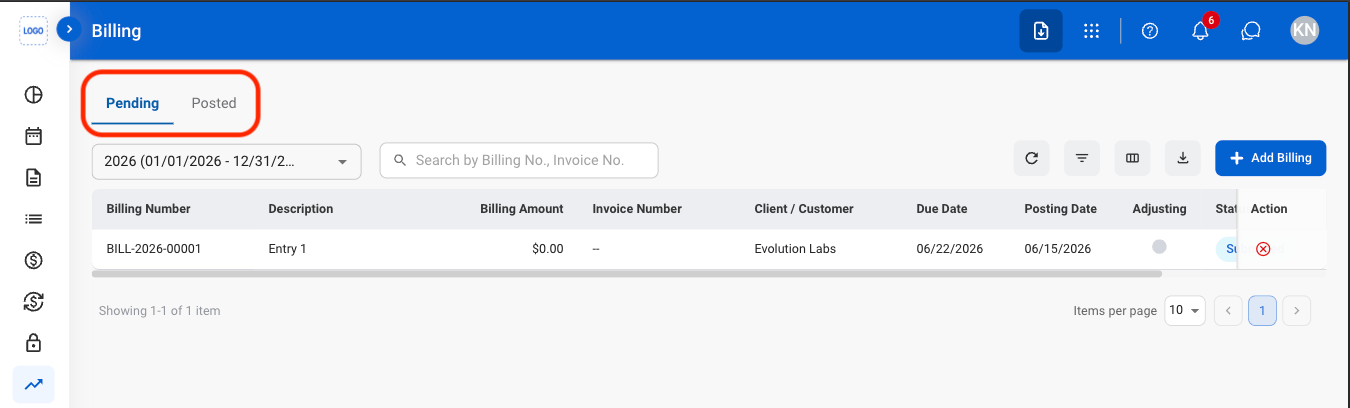
- Pending: Billing records awaiting posting to the General Ledger.
- Posted: Finalized billing records that have been posted to the General Ledger.
3
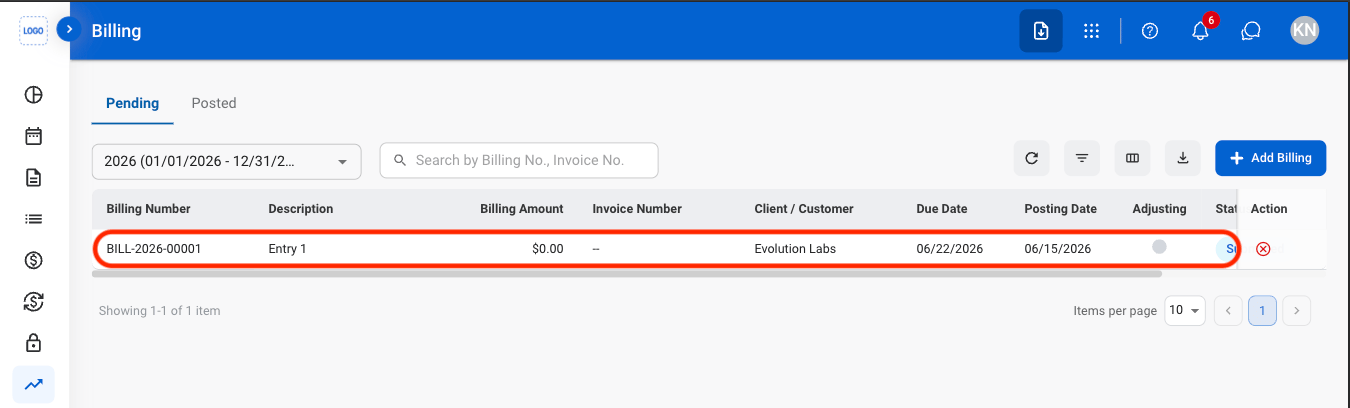
Select a billing record
Add a Billing Record
1
Select Add Billing

2
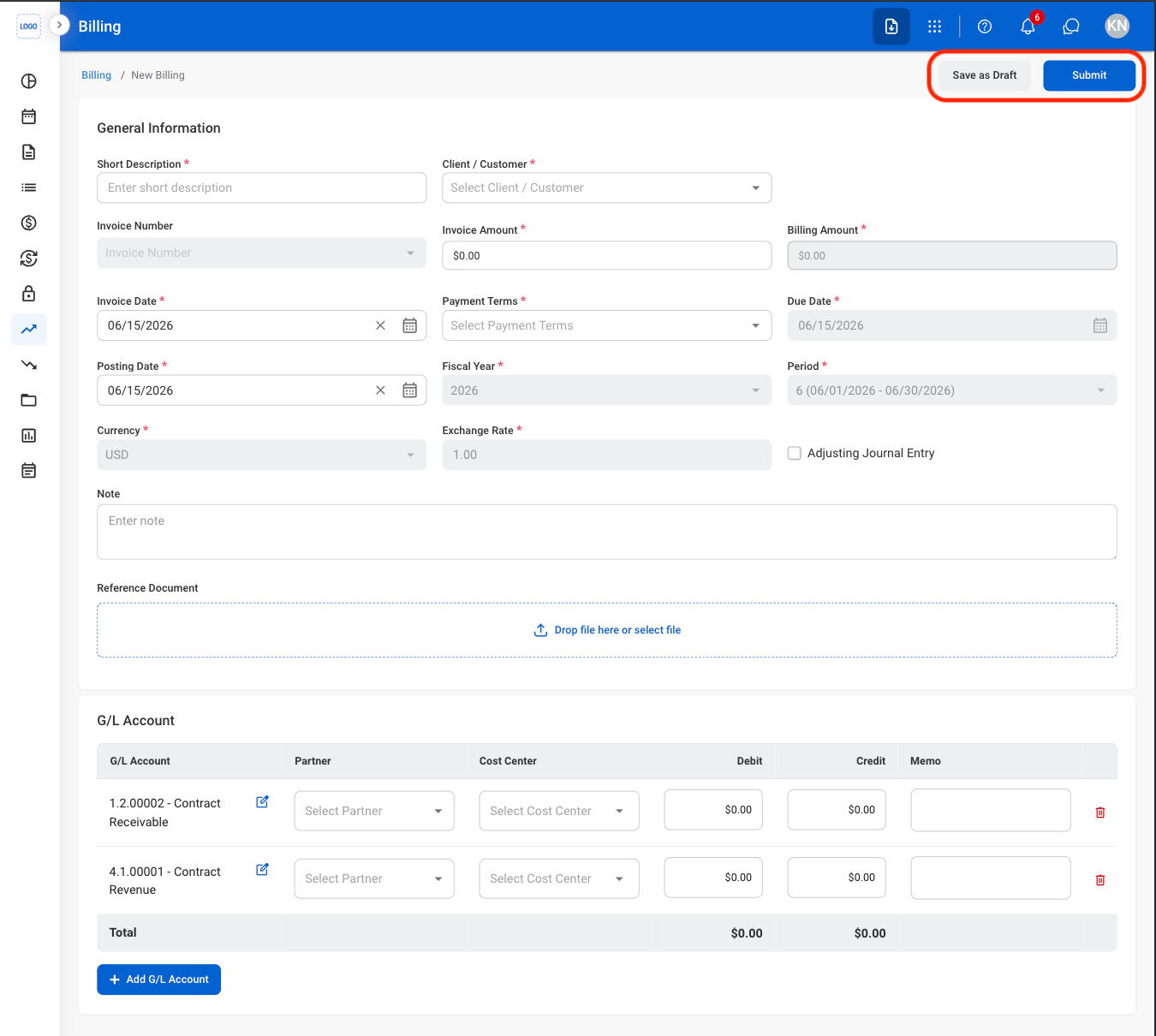
Fill in the required information
Modify a Billing Record
Edit and Cancel actions are only available in the Pending tab
1
Select an action
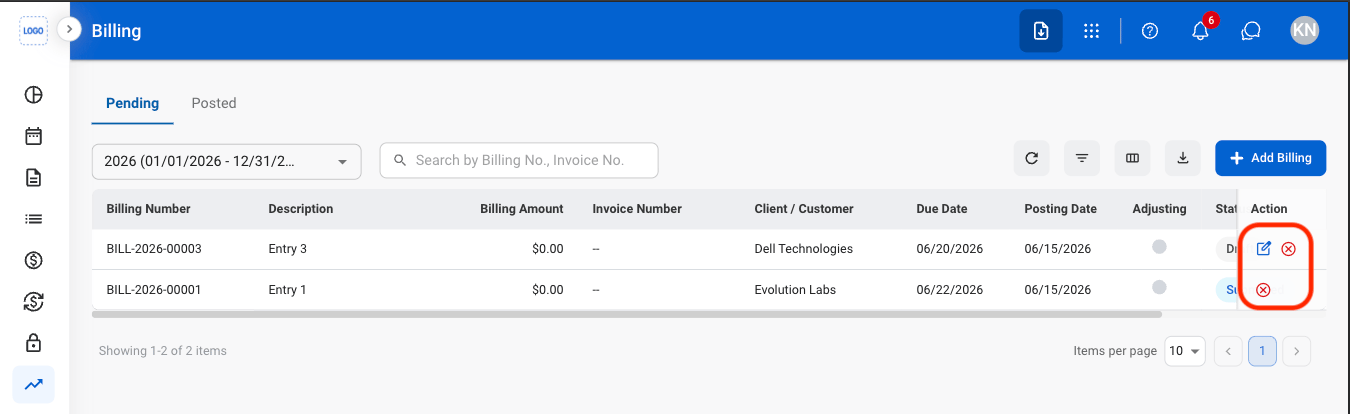
- Edit: Update billing details before the billing record is posted to the General Ledger.
- Cancel: Cancel a pending billing record and stop further processing while preserving its record for audit purposes.
2
Confirm the action
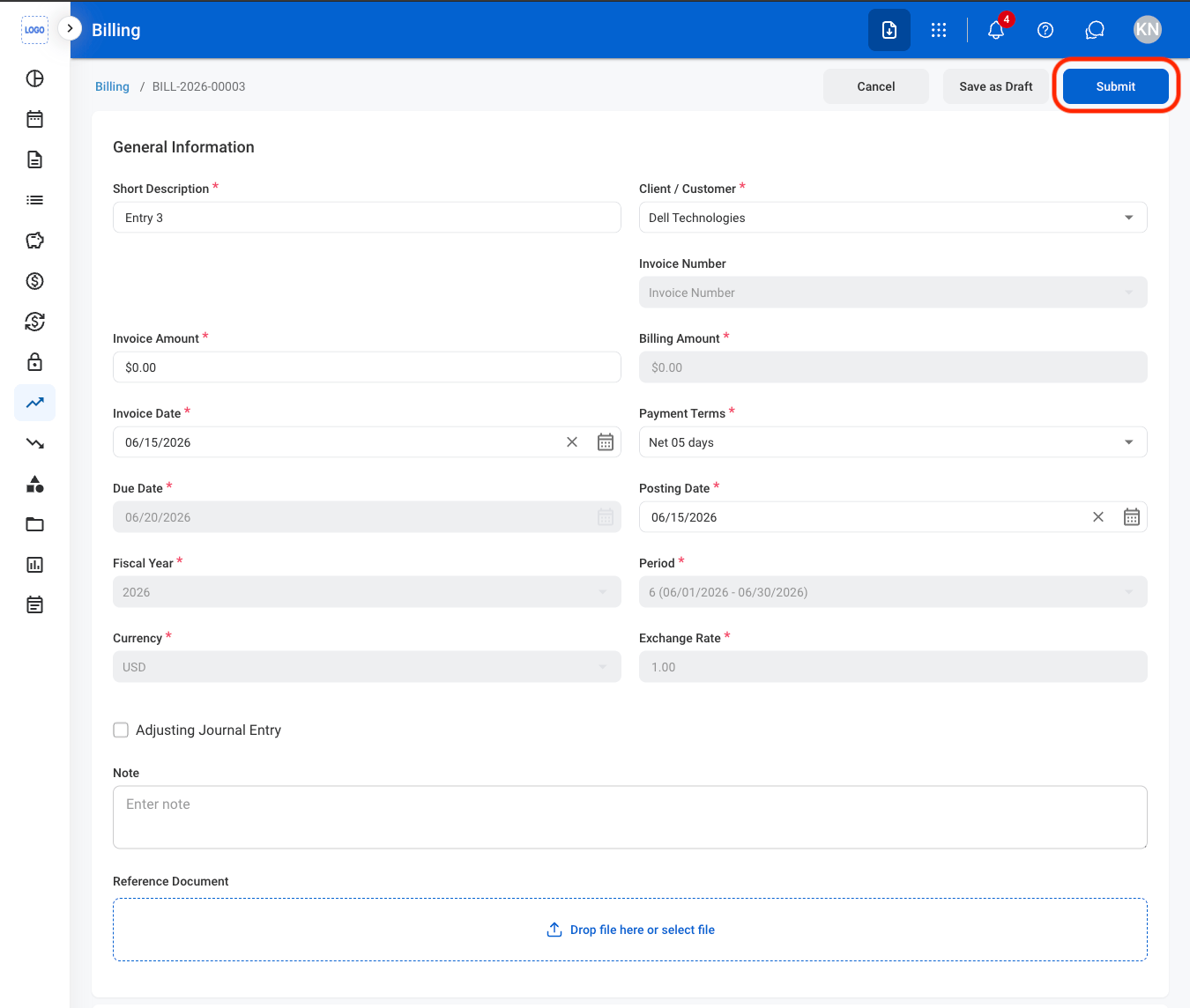
- Edit: Fill in the required information. Select Submit to complete or Save to exit and save as draft.
- Cancel: Select Confirm to complete or Cancel to exit without saving changes.
Review a Billing
Billings must be in Submitted status before they can be reviewed. Submitted vouchers appear in the Pending tab until they are posted.
1
Select a submitted billing

2
Review and process the record
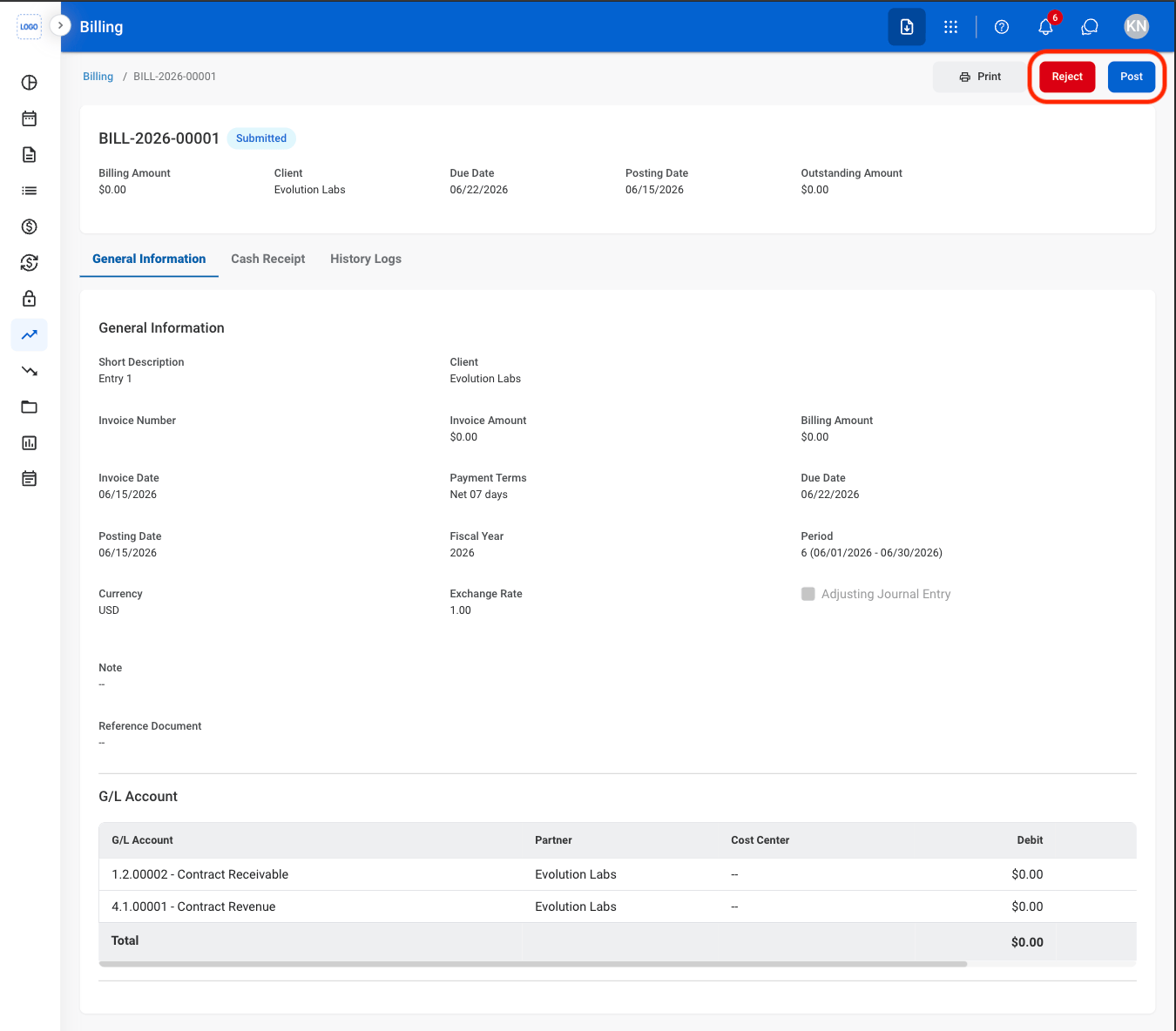
- Reject: The status changes to Rejected and the billing is not posted to the General Ledger.
- Post: The status changes to Posted and the billing is recorded in the General Ledger.
3
Confirm the action
- Reject: Enter a rejection reason. Select Reject to complete or Cancel to exit without saving changes.
- Post: Select Confirm to complete or Cancel to exit without saving changes.
Print a Billing
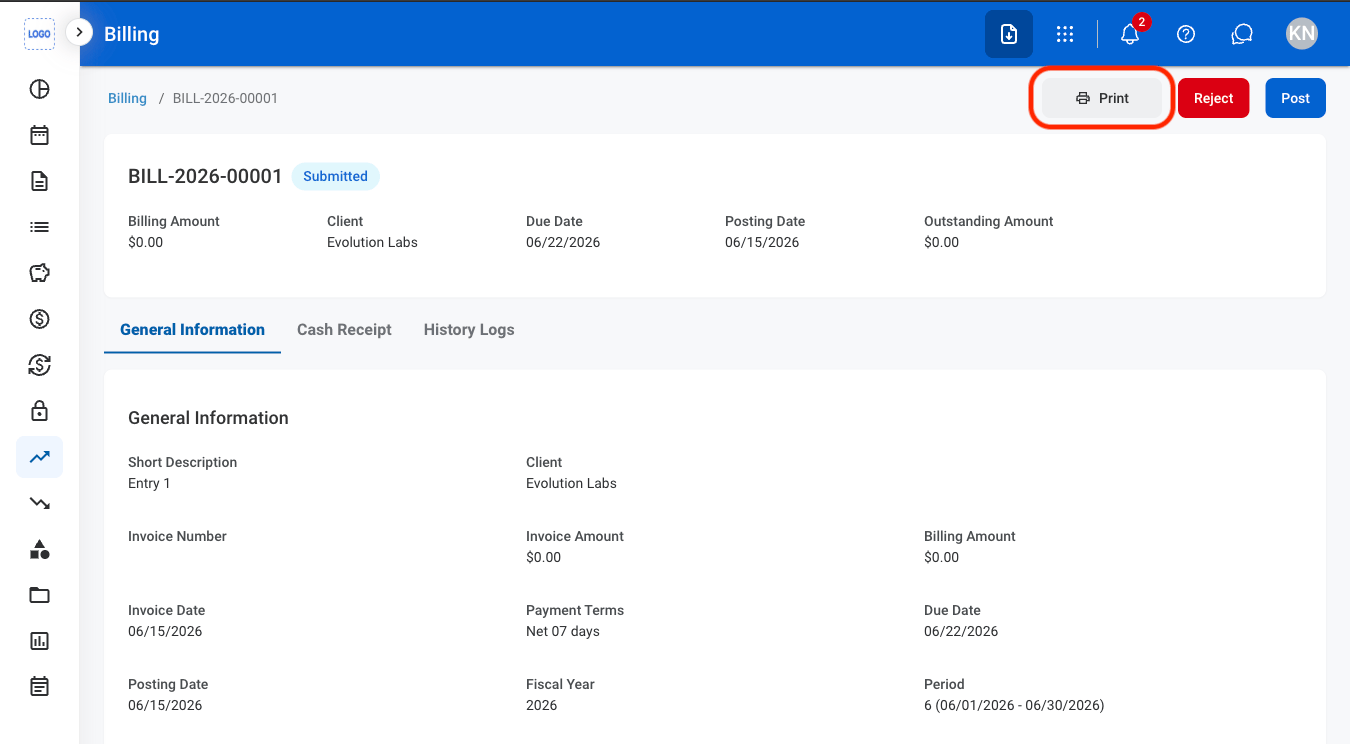
Billings must be in Submitted status before they can be printed.
1
Select a billing record
2
Select print
General Information
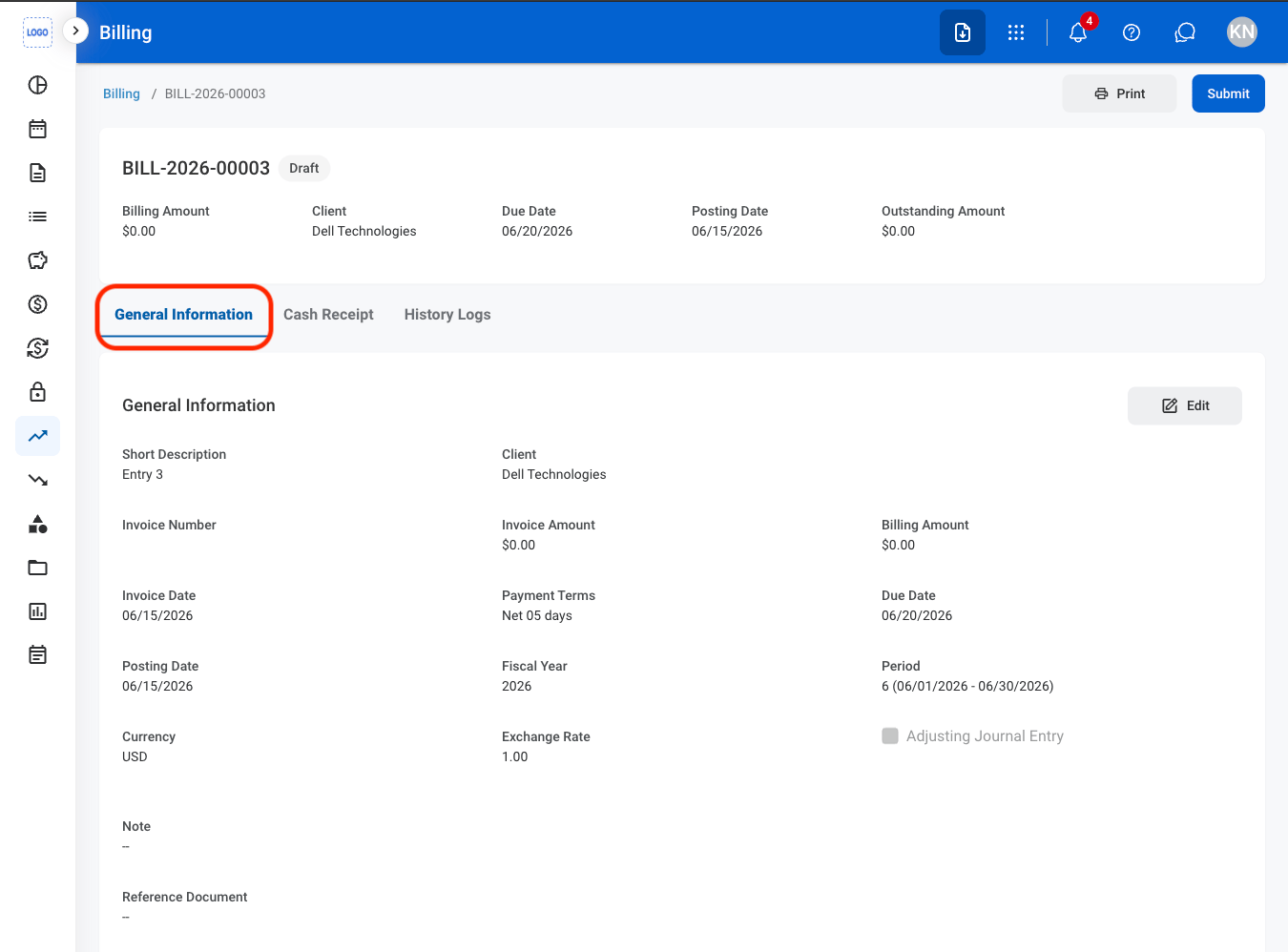
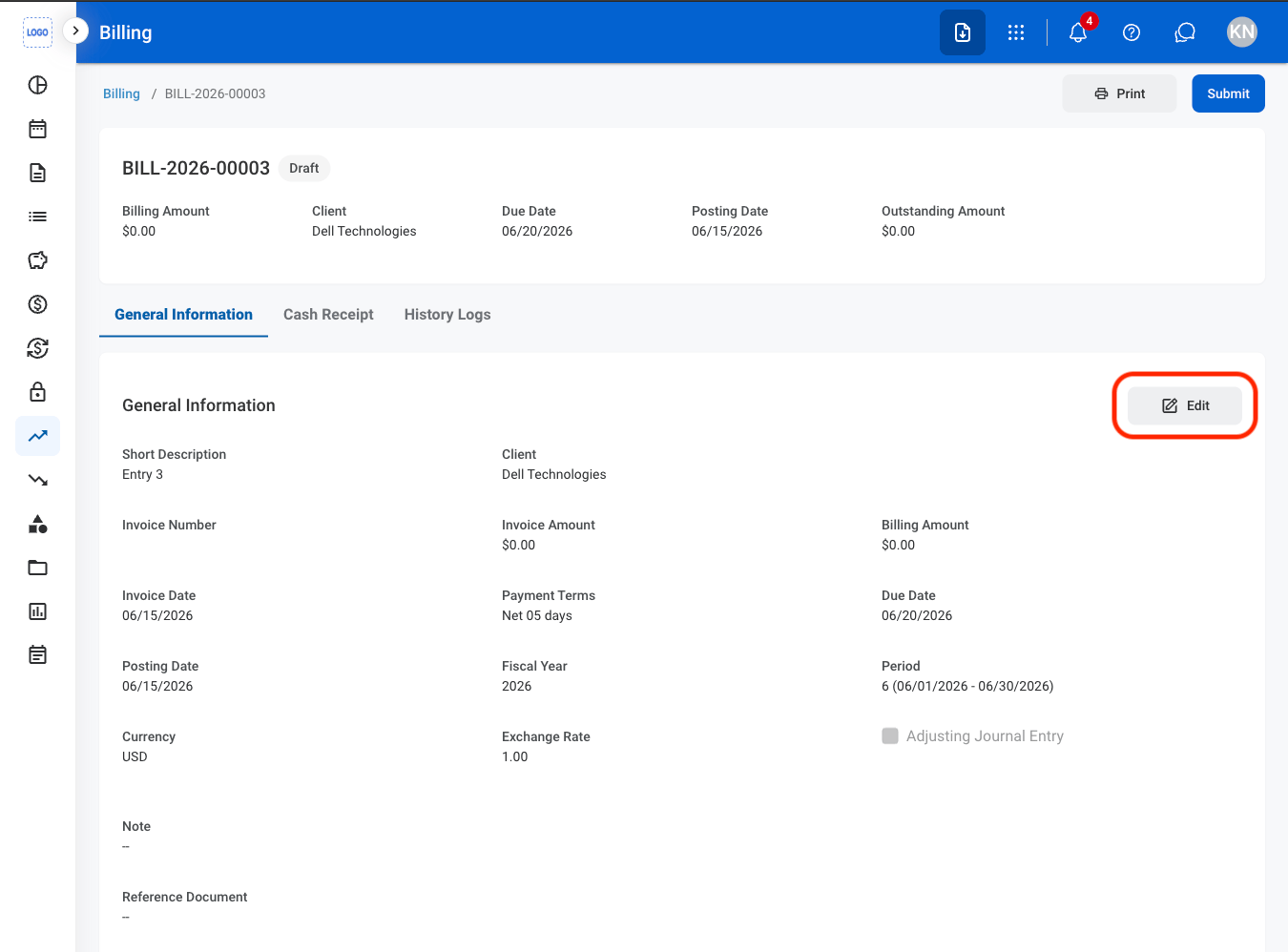
Edit General Information
1
Navigate to General Information
2
Select Edit
3
Fill in the required information
Cash Receipt
Add a Cash Receipt
Add Cash Receipt is only available in the Posted tab
1
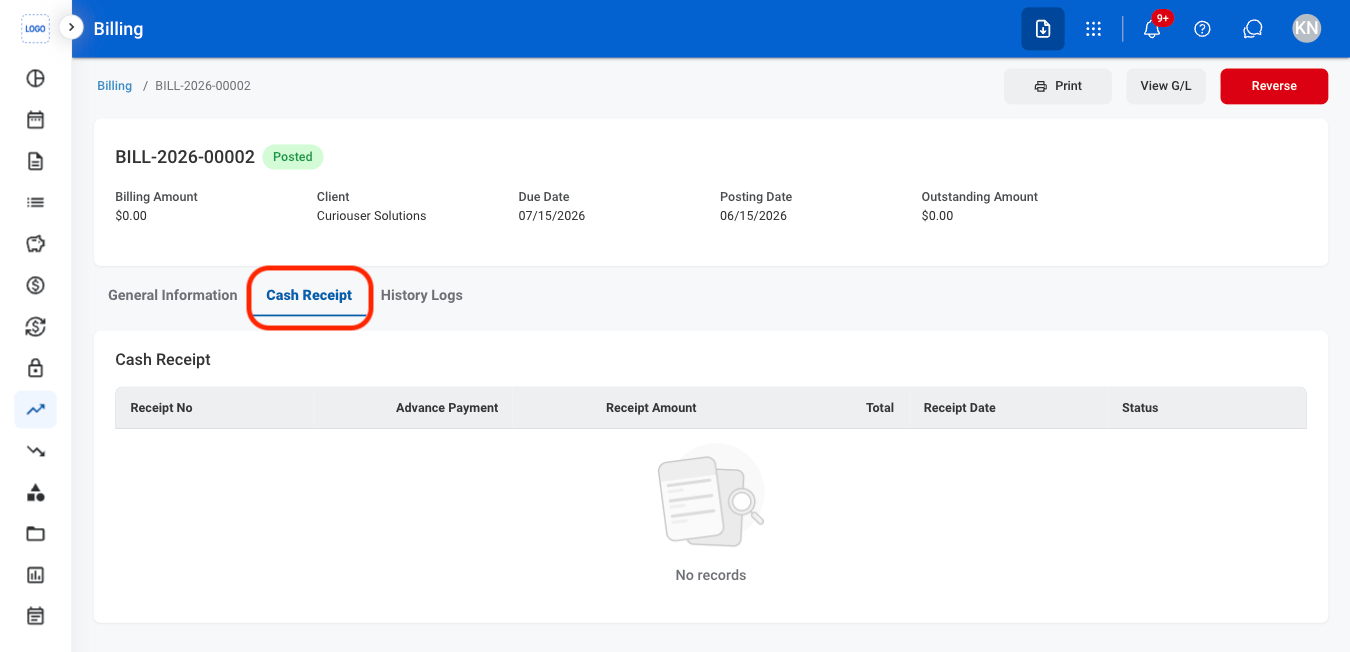
Navigate to Cash Receipt
2
Select Add Cash Receipt
Approver
Only available for Billings that require approval.
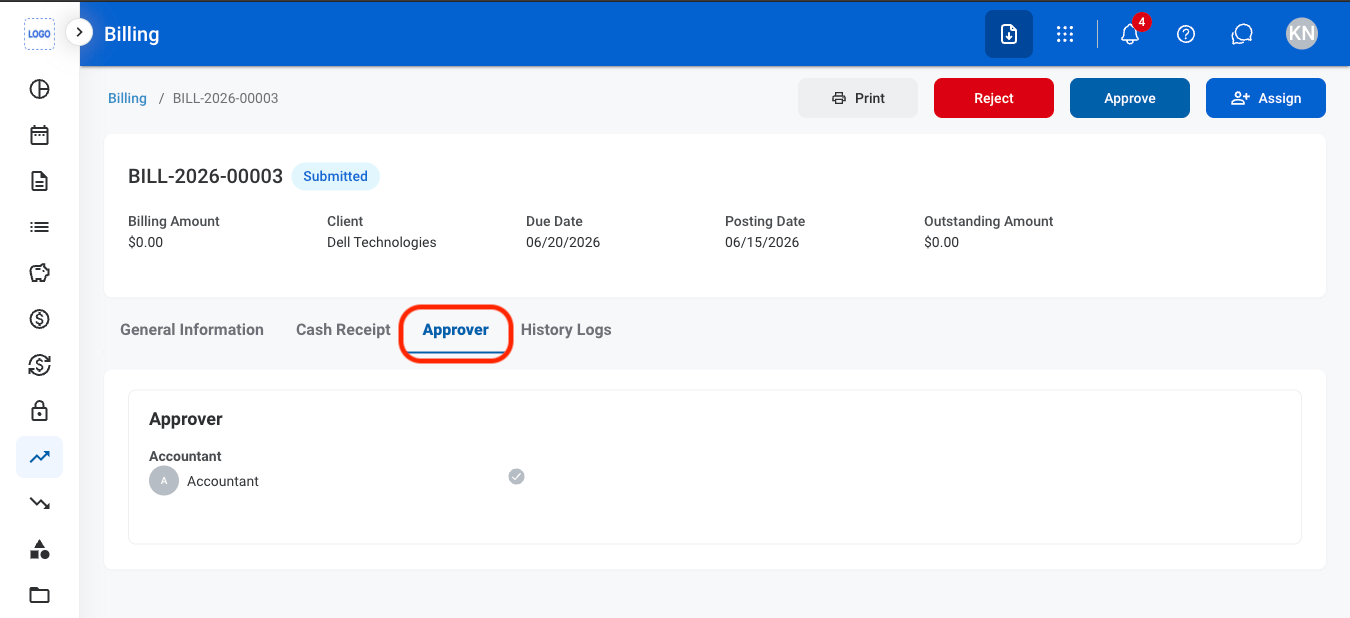
View Approver
1
Navigate to Approver
History Logs
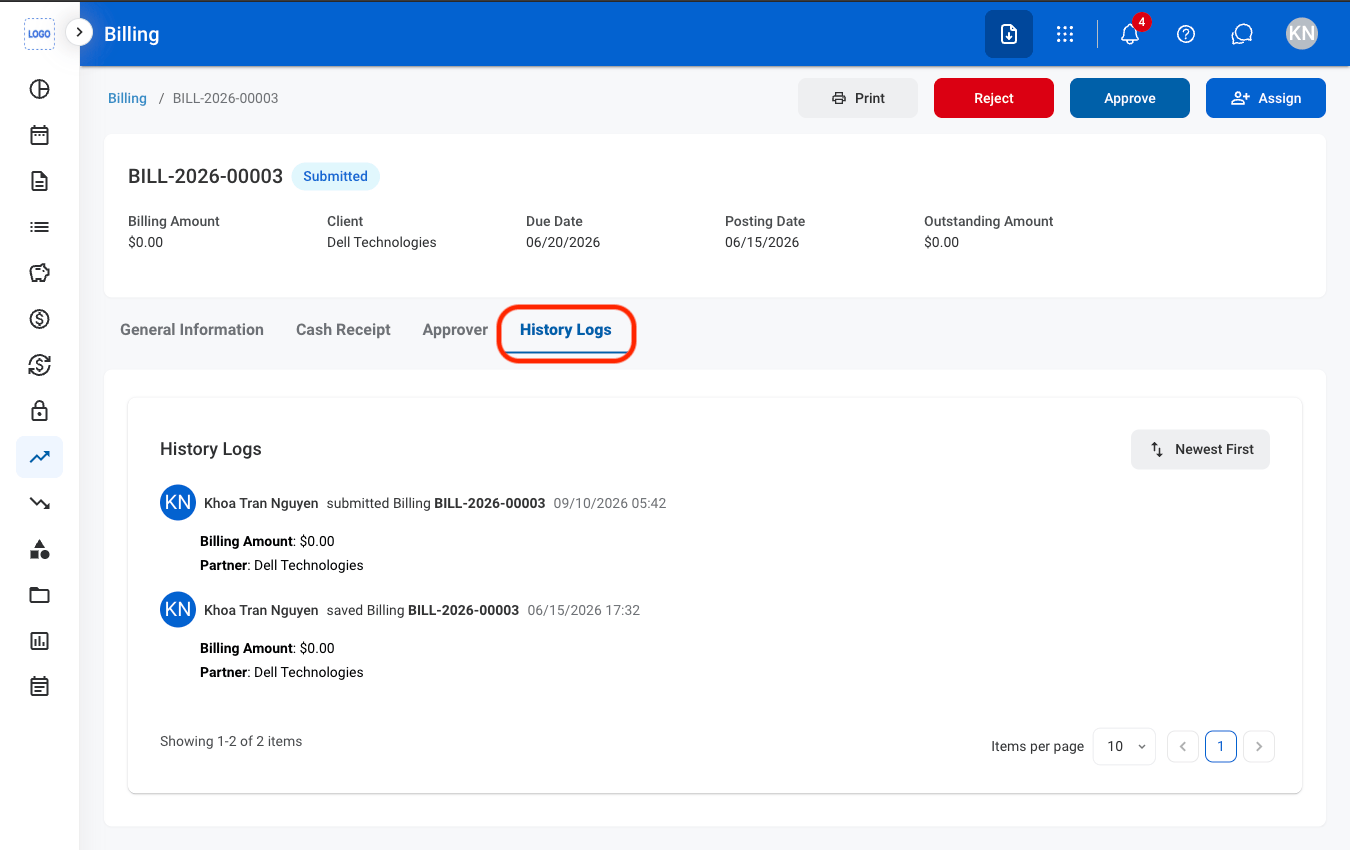
View History Logs
1
Navigate to History Logs
Reverse a Billing
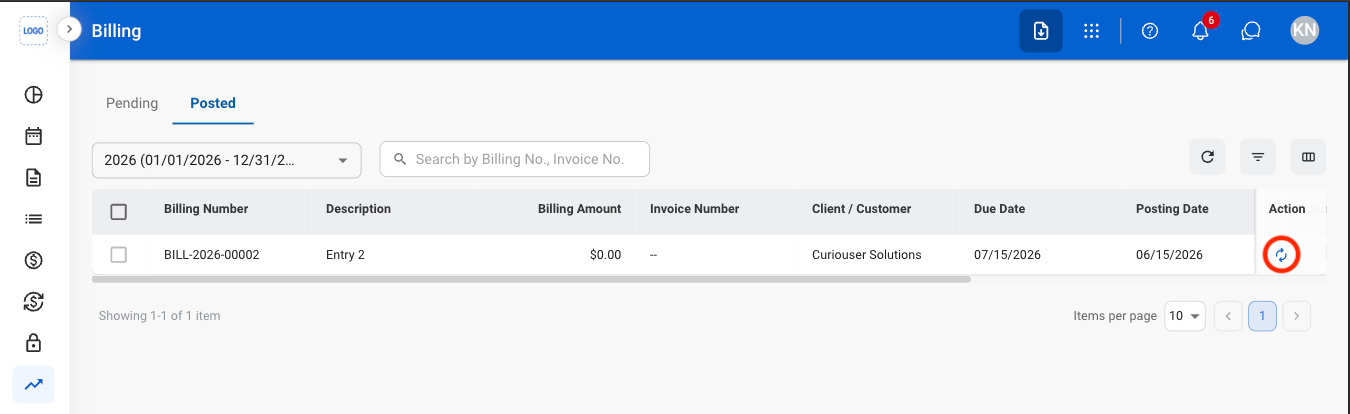
Reverse the billing by creating an offsetting transaction. The original billing record remains in the system and a reversing entry is recorded in the General Ledger.The Reverse action is only available in the Posted tab
1
Select the Reverse icon
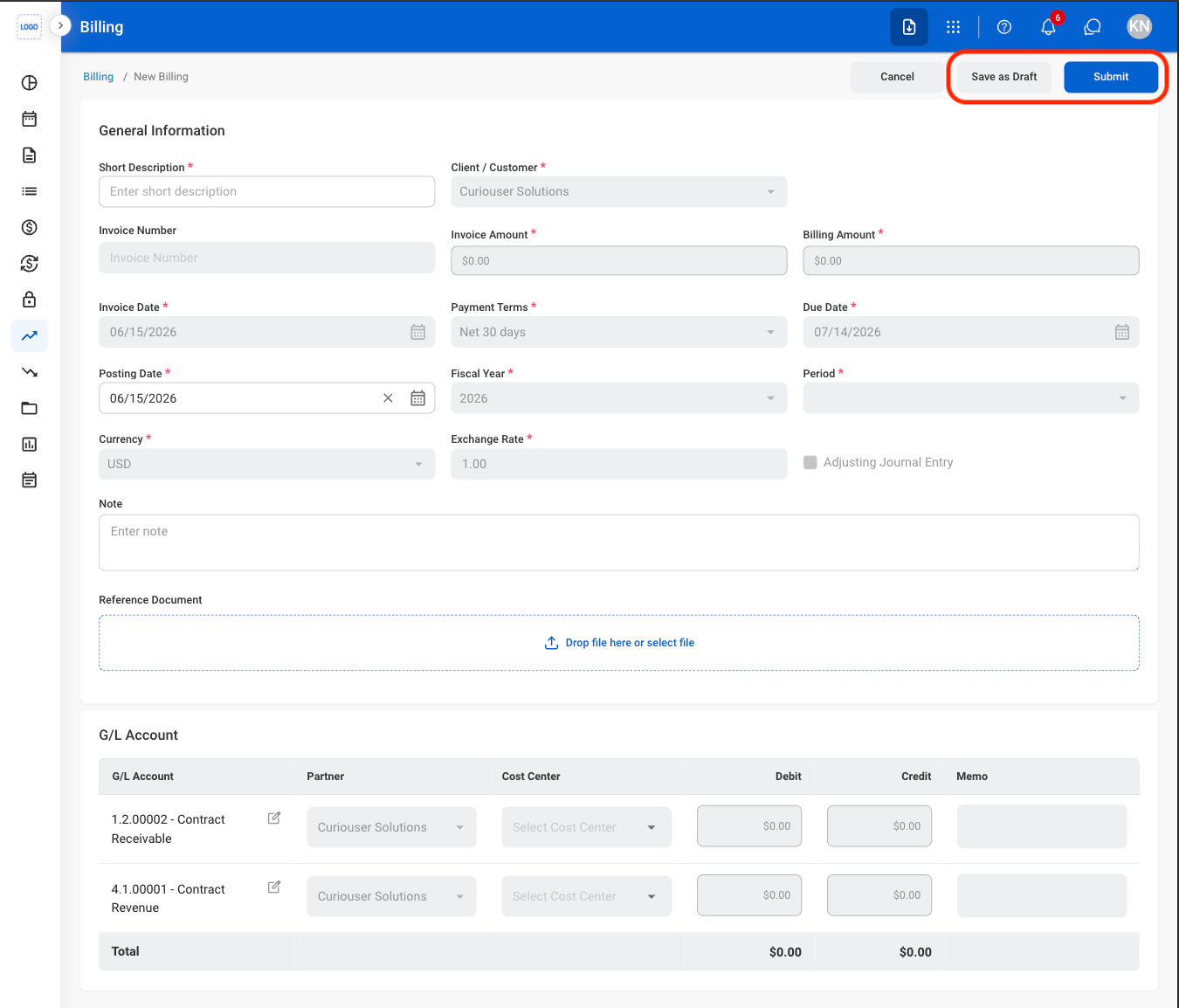
2
Fill in the required information
View a General Ledger
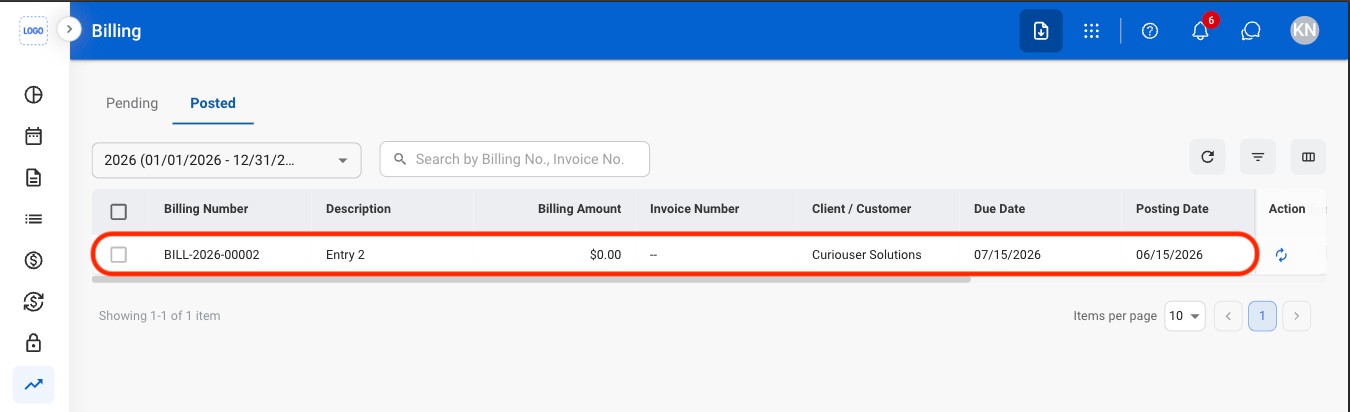
View General Ledger is only available in the Posted tab
1
Select a billing
2
Select View G/L
