
View a Request
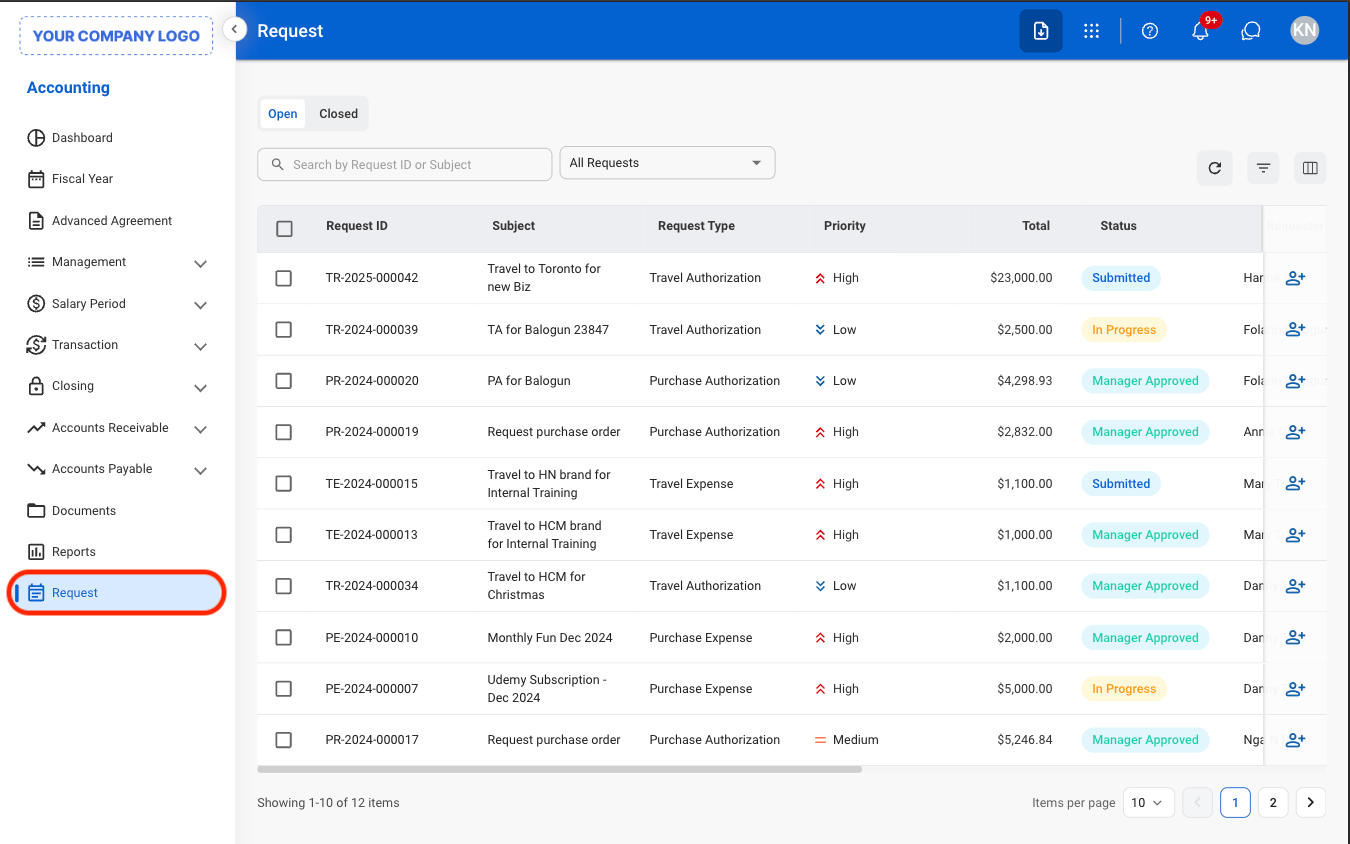
1
Navigate to Request
2
Select a view
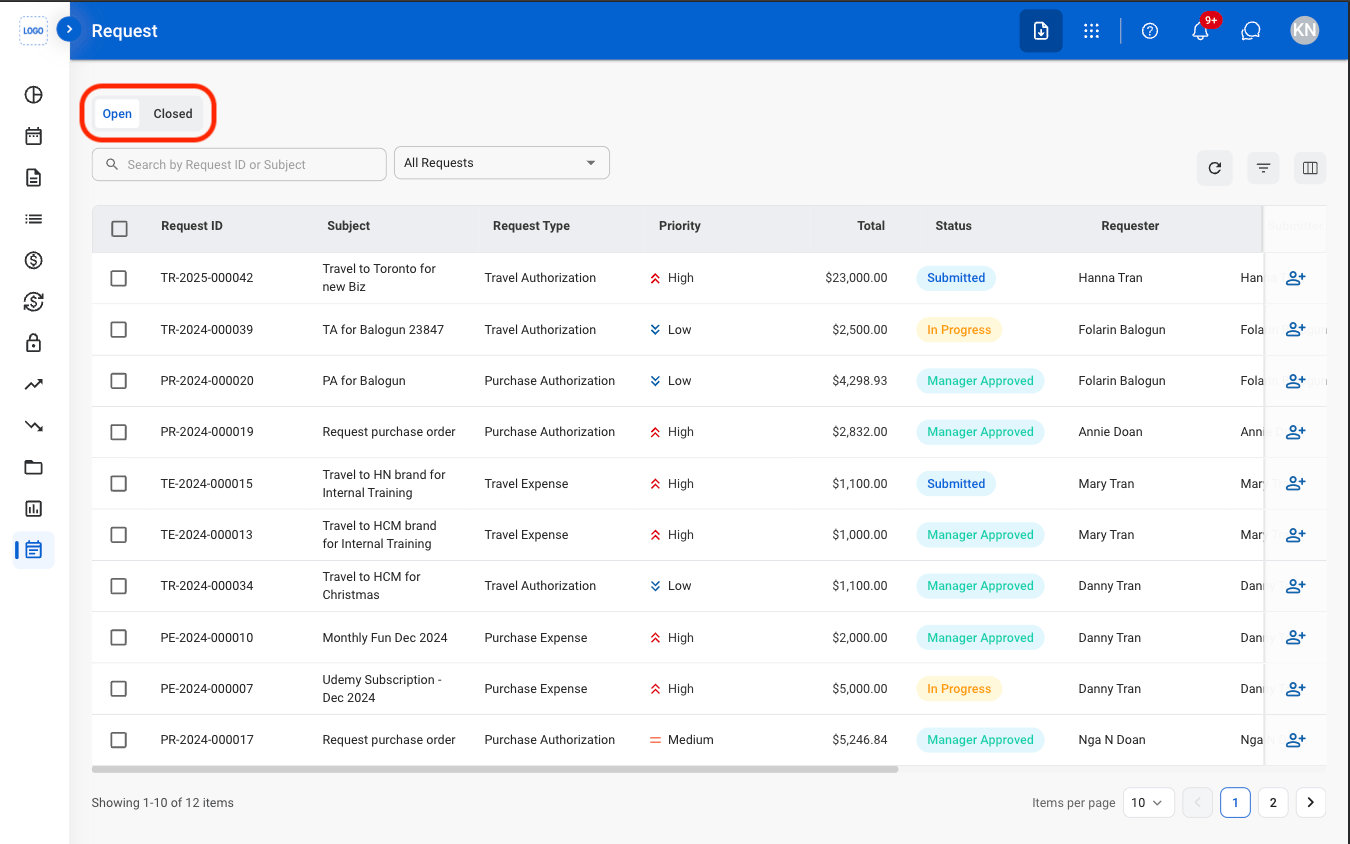
- Open: Ongoing requests.
- Closed: Resolved requests.
3
Search or filter results

- Use the Search bar to find requests by Request ID or subject.
- Use the filter to sort request results.
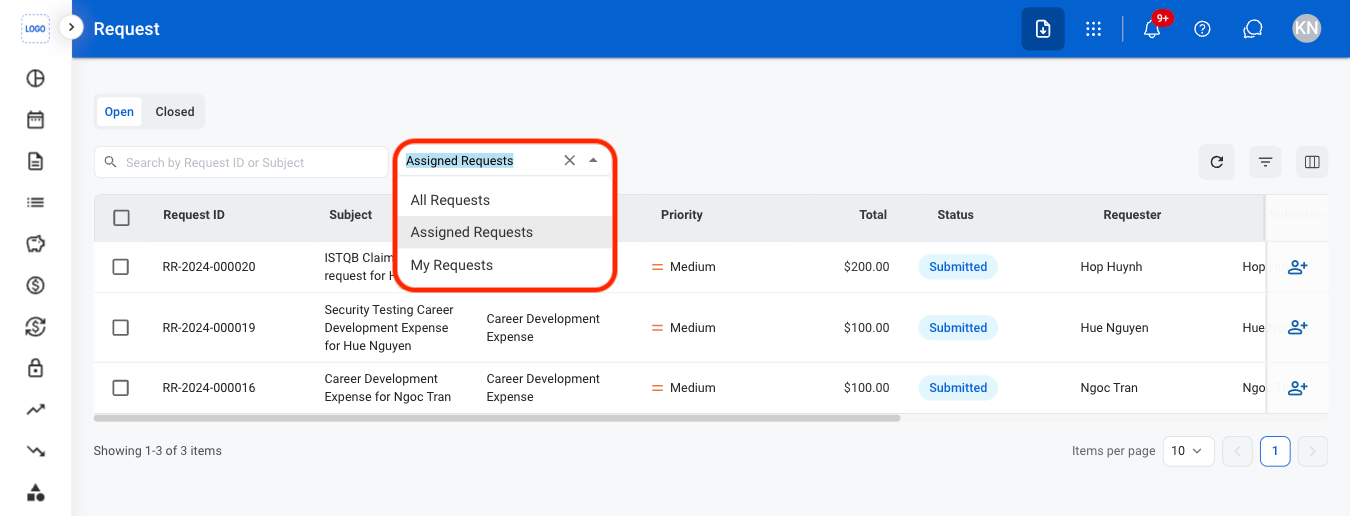
- All Requests: Requests assigned to or created by the current account.
- Assigned Requests: Requests assigned for action and processing.
- My Requests: Requests created by the current account.
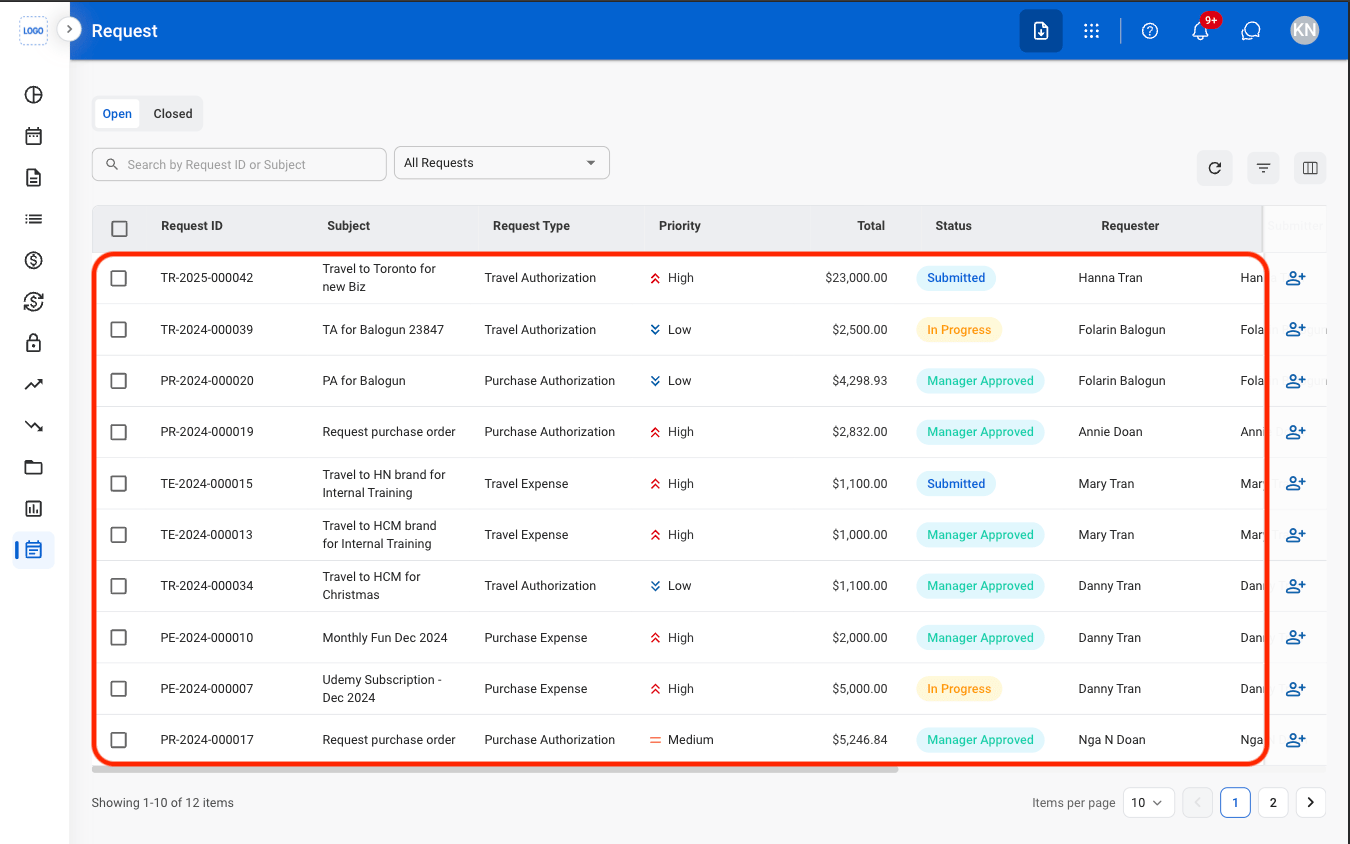
4
Select a request
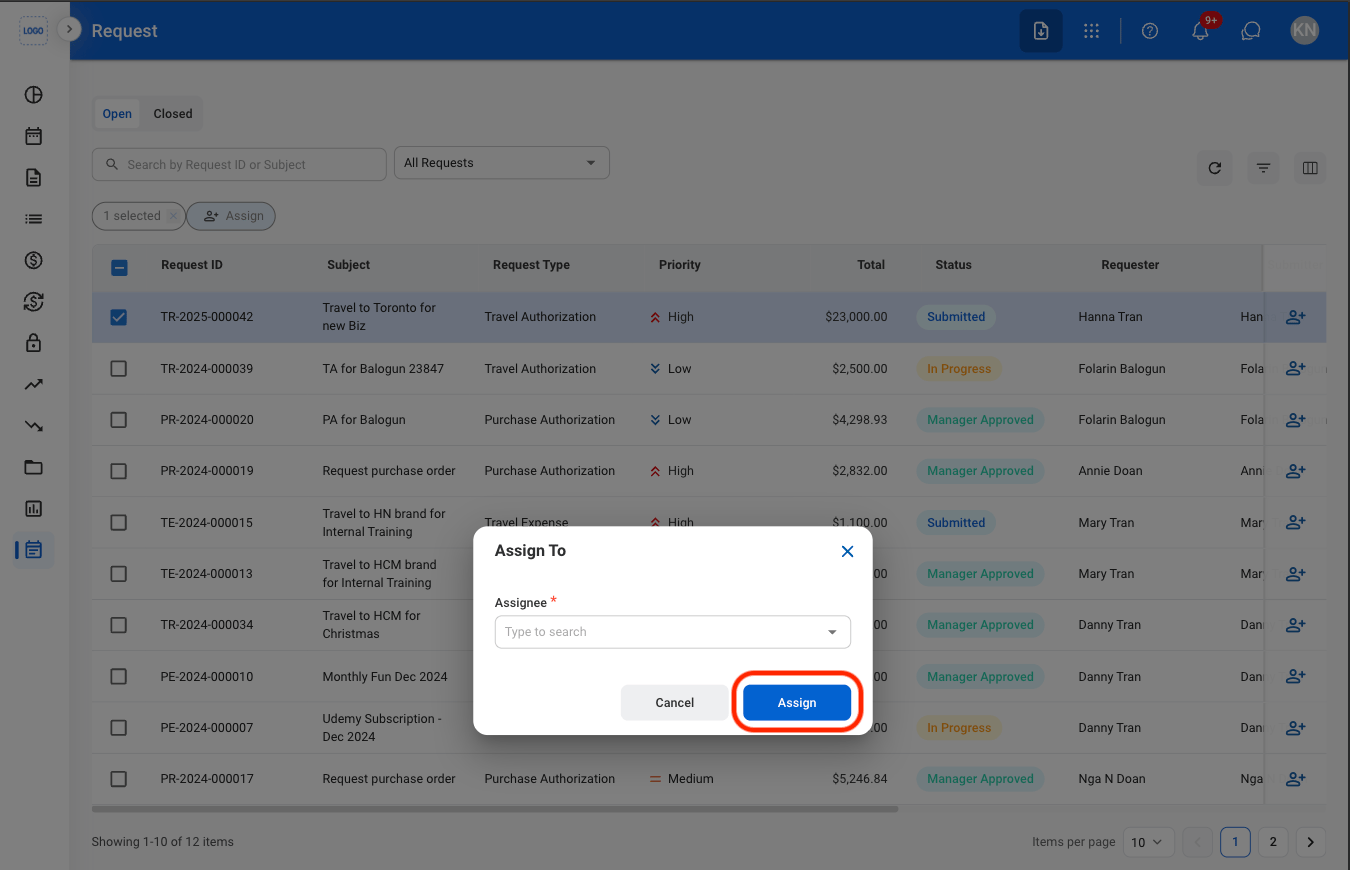
Assign a Request
1
Select a request(s)
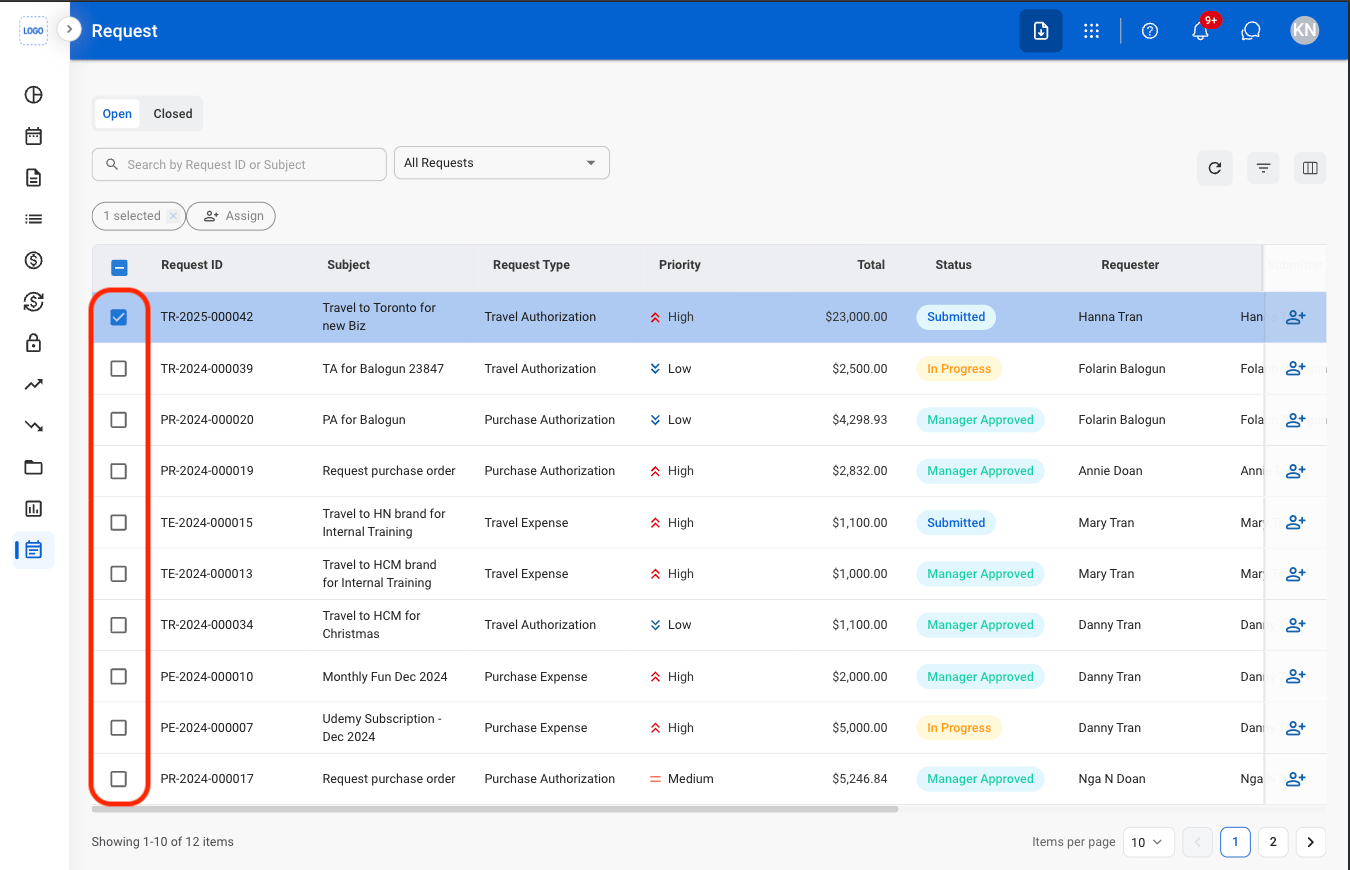
2
Select Assign

3
Fill in the required information
Review a Request
1
Filter by Assigned Requests
Requests must be Open in order to be reviewed.
2
Select a request
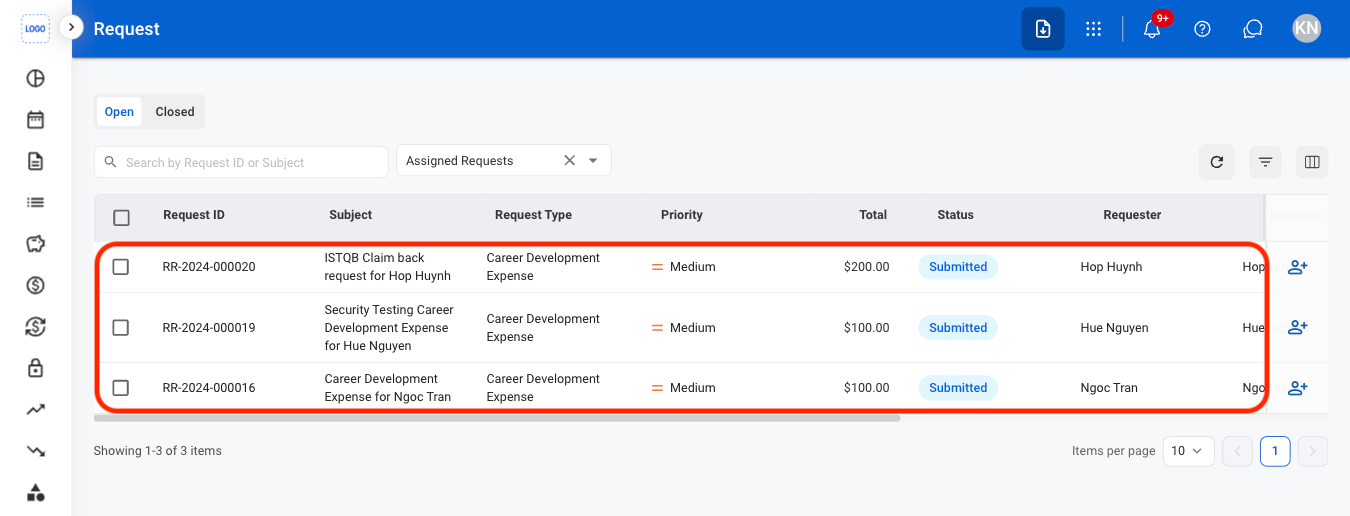
- Use the Search bar to find requests by keyword.
3
Select an action
- Approve: Approve the request for further processing.
- Reject: Reject the request.
- Discard: Permanently remove the request from the system.
- Edit: Modify the request information before continuing processing.
4
Confirm the action
- Approve: Select Approve to complete or Cancel to exit without saving changes.
- Reject: Provide a reason for the decision and select Reject to complete or Cancel to exit without saving changes.
- Discard: Select Discard to complete or Cancel to exit without saving changes.
- Edit: Fill the required information and select Save to complete or Cancel to exit without saving changes.
For Purchase Authorization, Purchase Expense, and Travel Expense requests, journal entries must be created and posted separately through Transaction > Journal Entry.