Run an Anomaly Scan
1
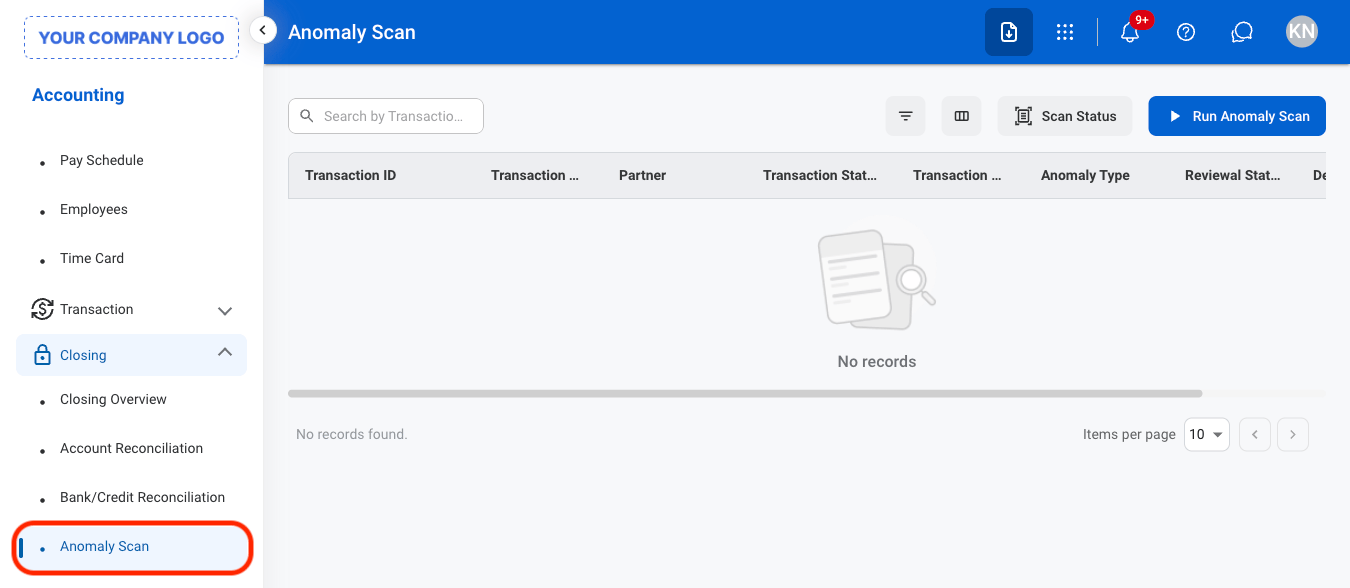
Navigate to Anomaly Scan
2
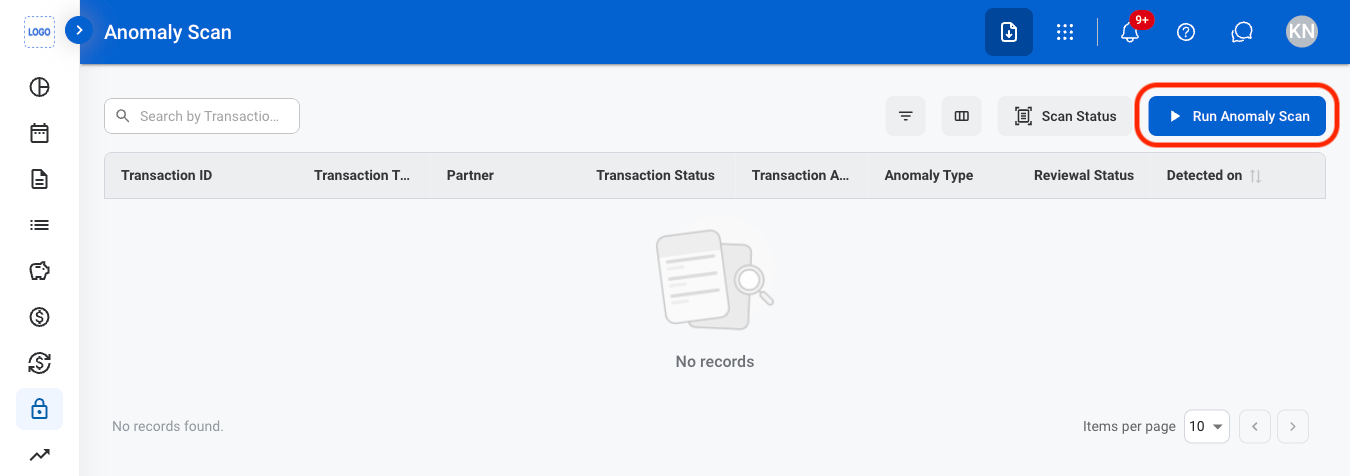
Select Run Anomaly Scan
3
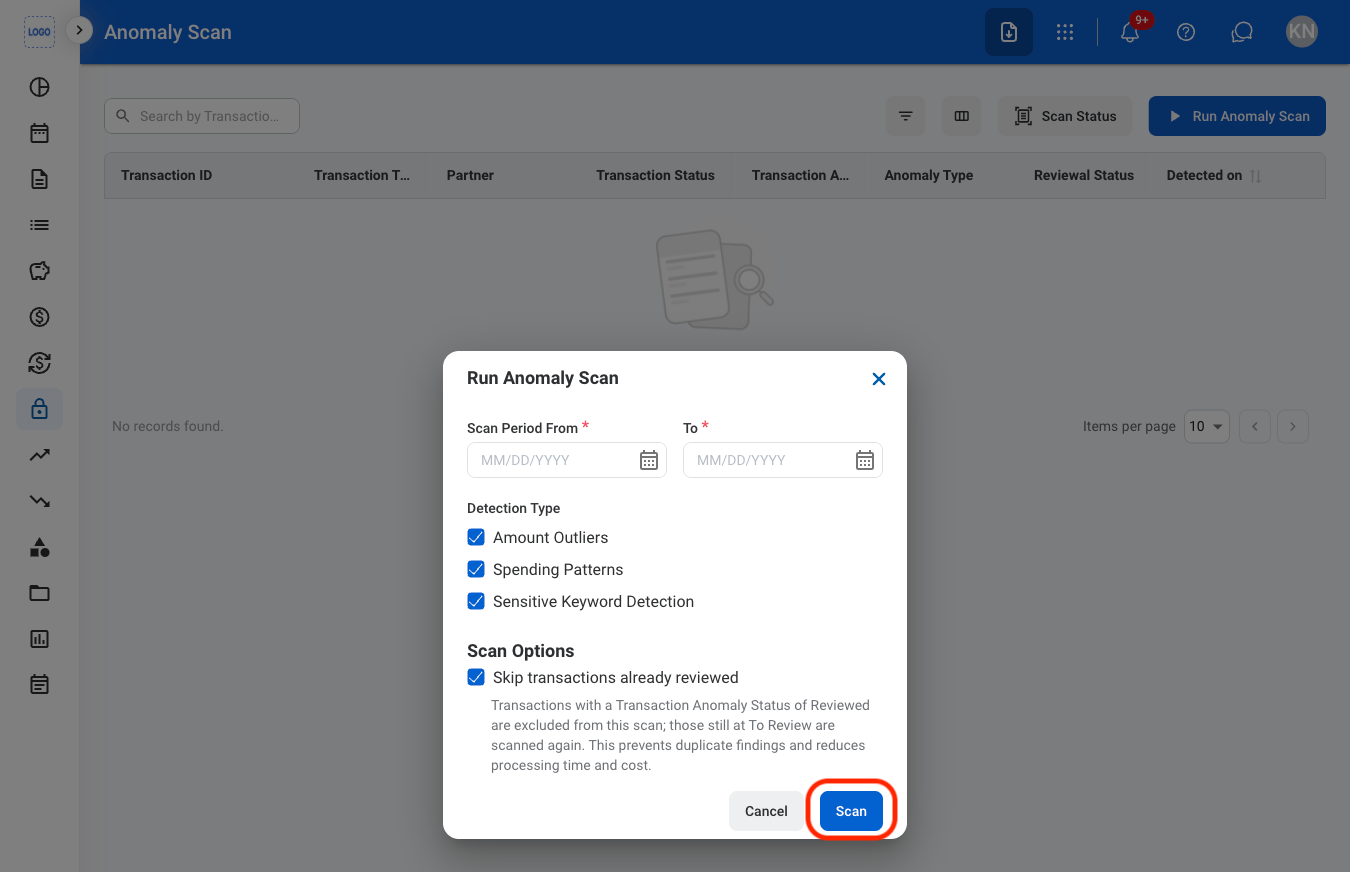
Fill in the required information
Amount Outliers
Amount Outliers
Flags transaction amounts that are unusually large or small compared with the historical transaction amounts for the GL account.
Spending Pattern Deviation
Spending Pattern Deviation
Flags monthly spending by partner and cost center that exceeds the established historical baseline.
Sensitive Keyword
Sensitive Keyword
Flags free-text fields containing terms listed in the configurable Risk Dictionary, including exact matches and wording that conveys the same meaning as a listed term.
4
Confirm the action
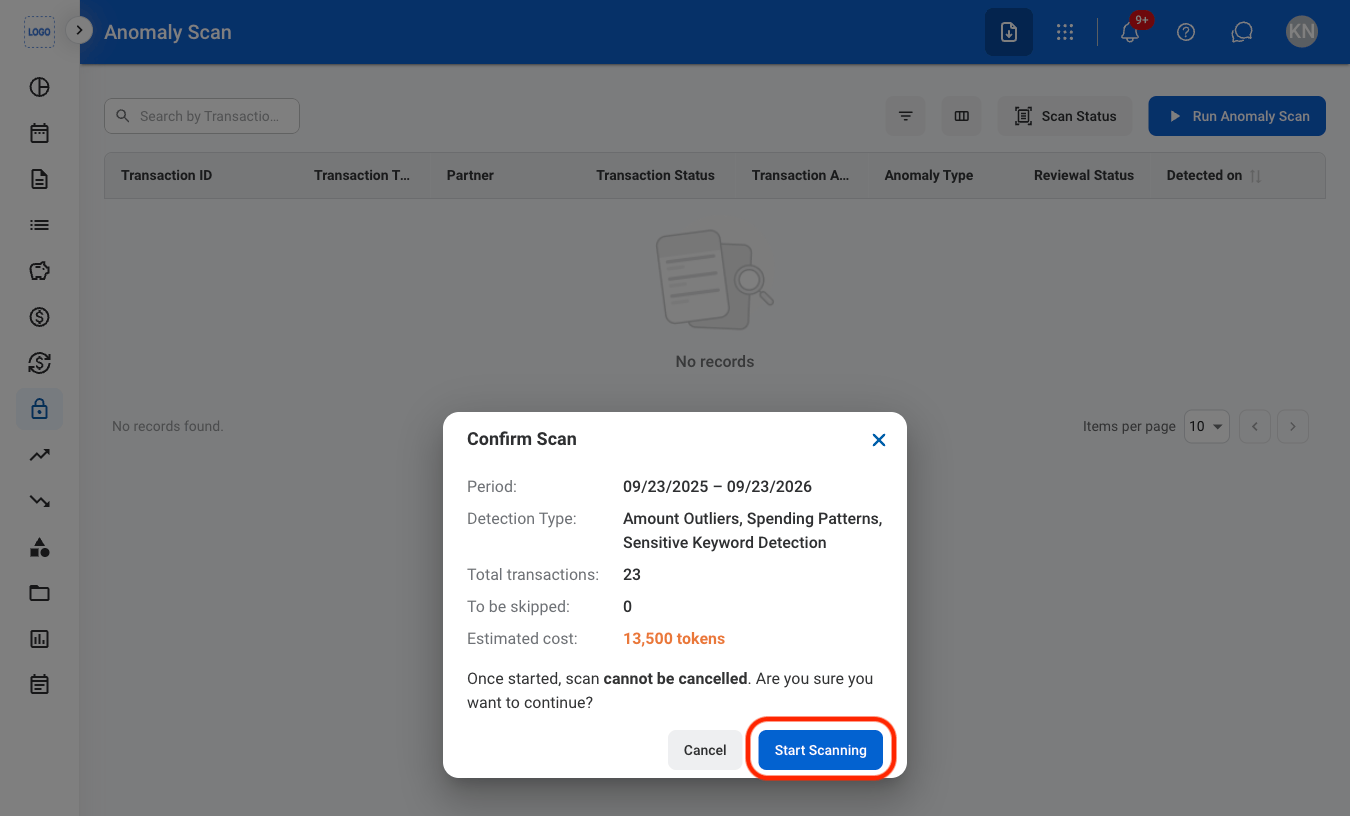
5
Select Close to close the popup
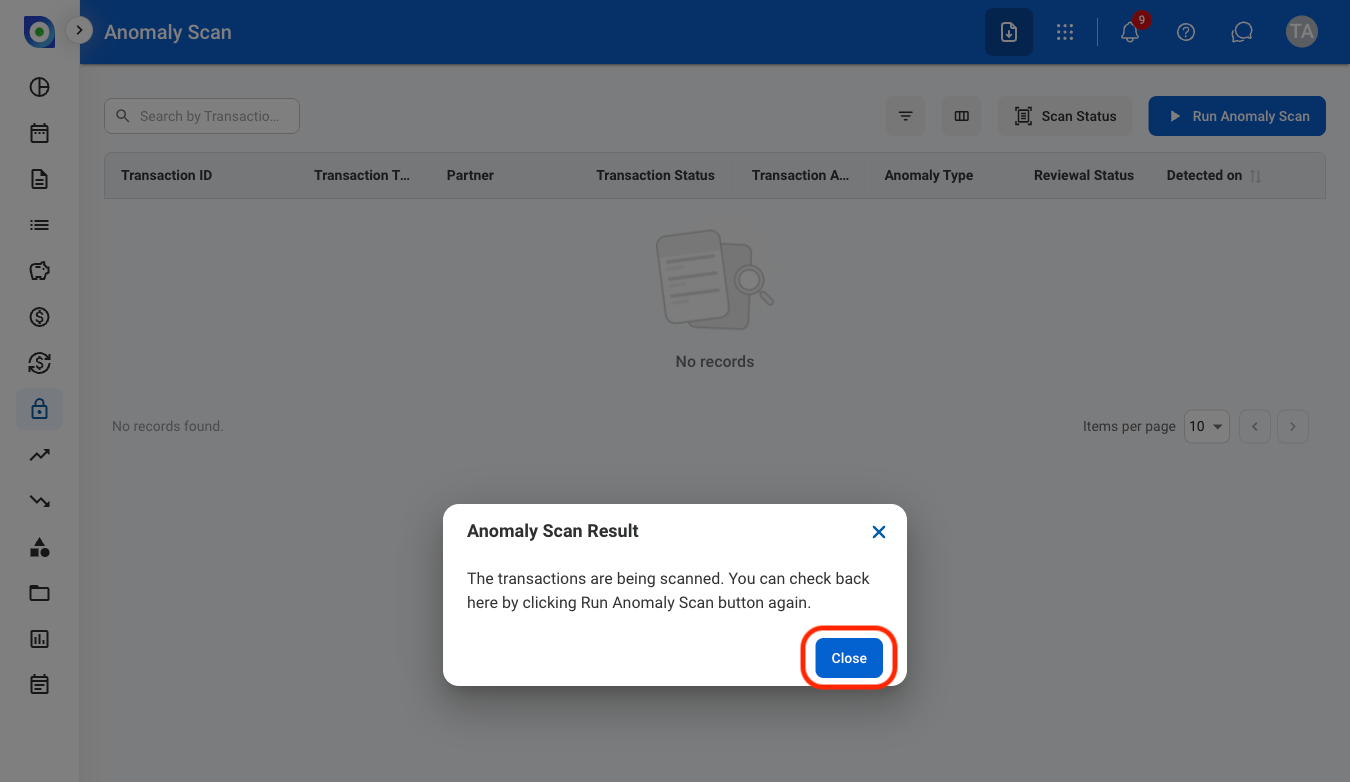
6
Optional: Select Scan Status to check scan progress
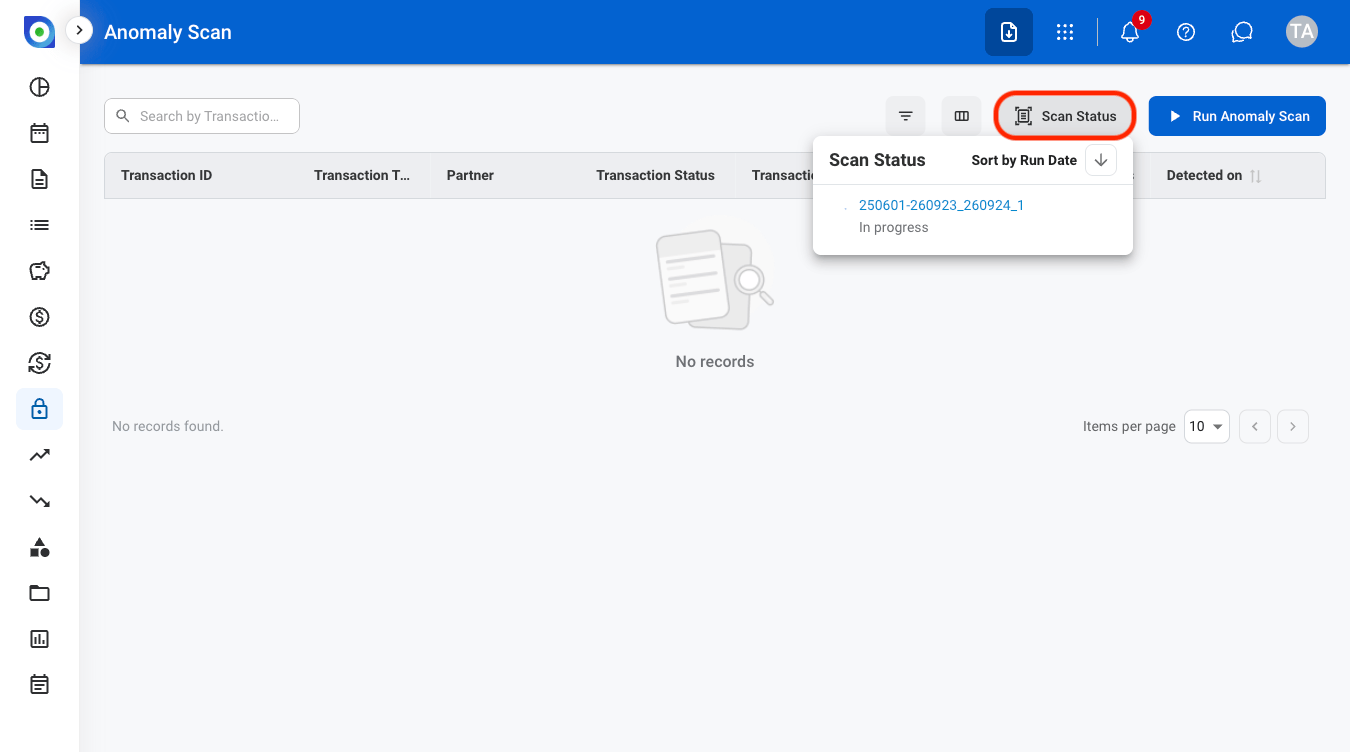
7
Select the completed scan
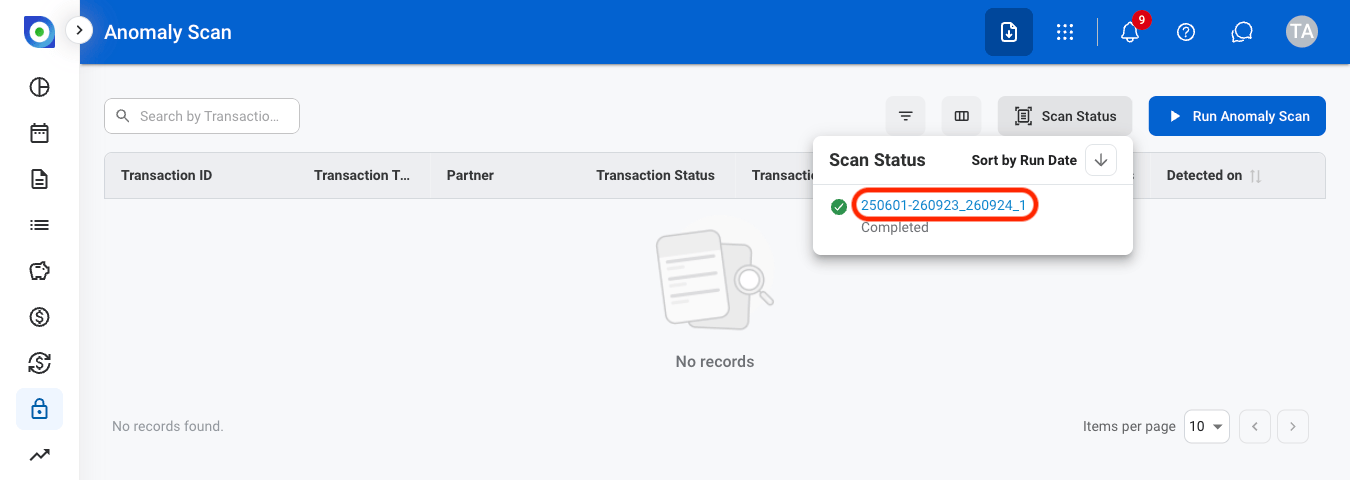
8
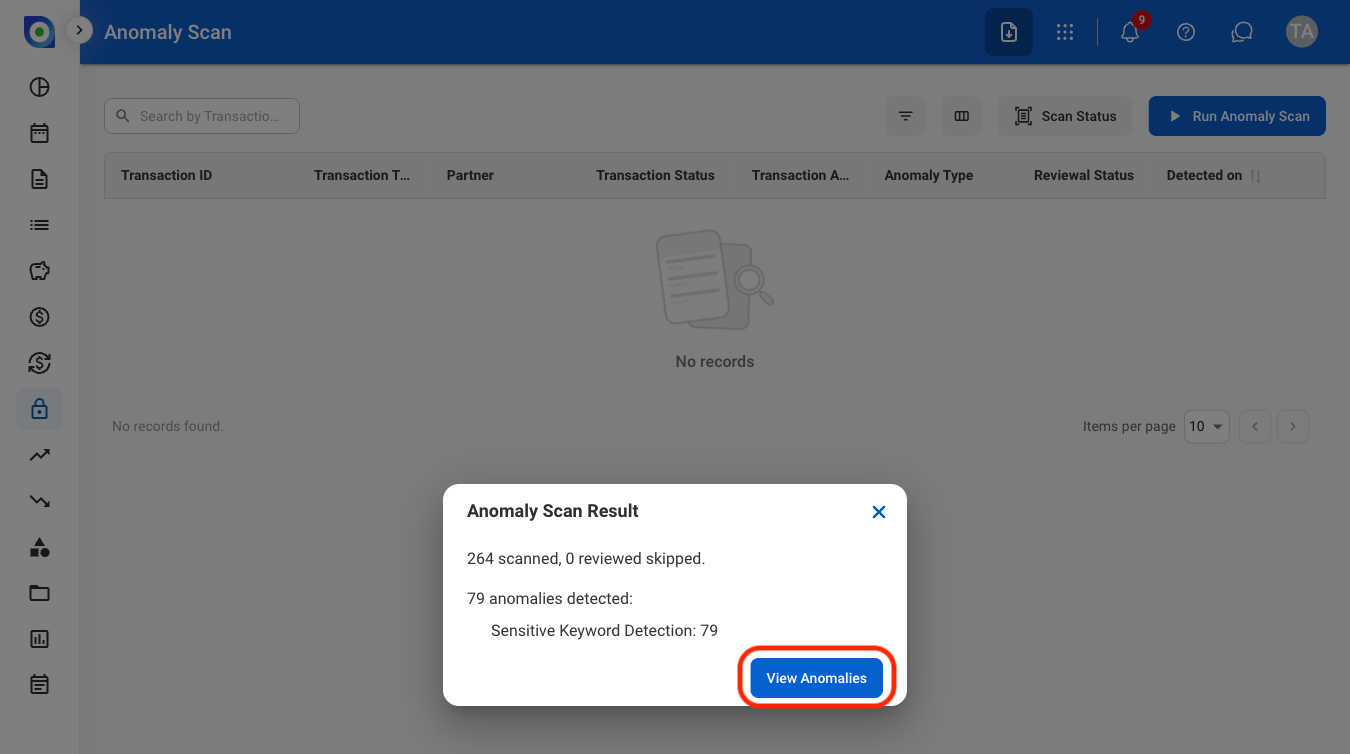
Select View Anomalies
9
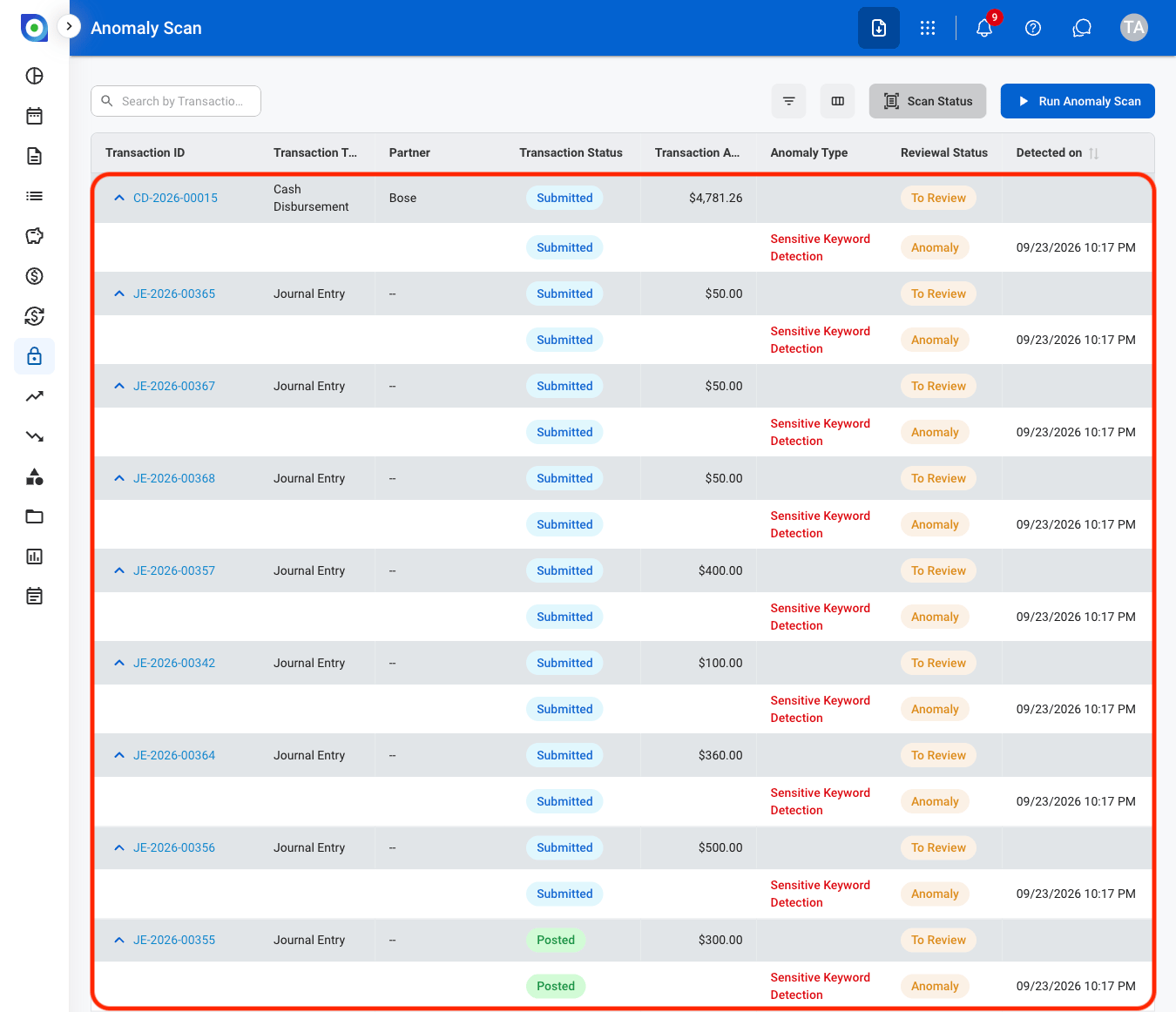
Select an anomaly to review
10
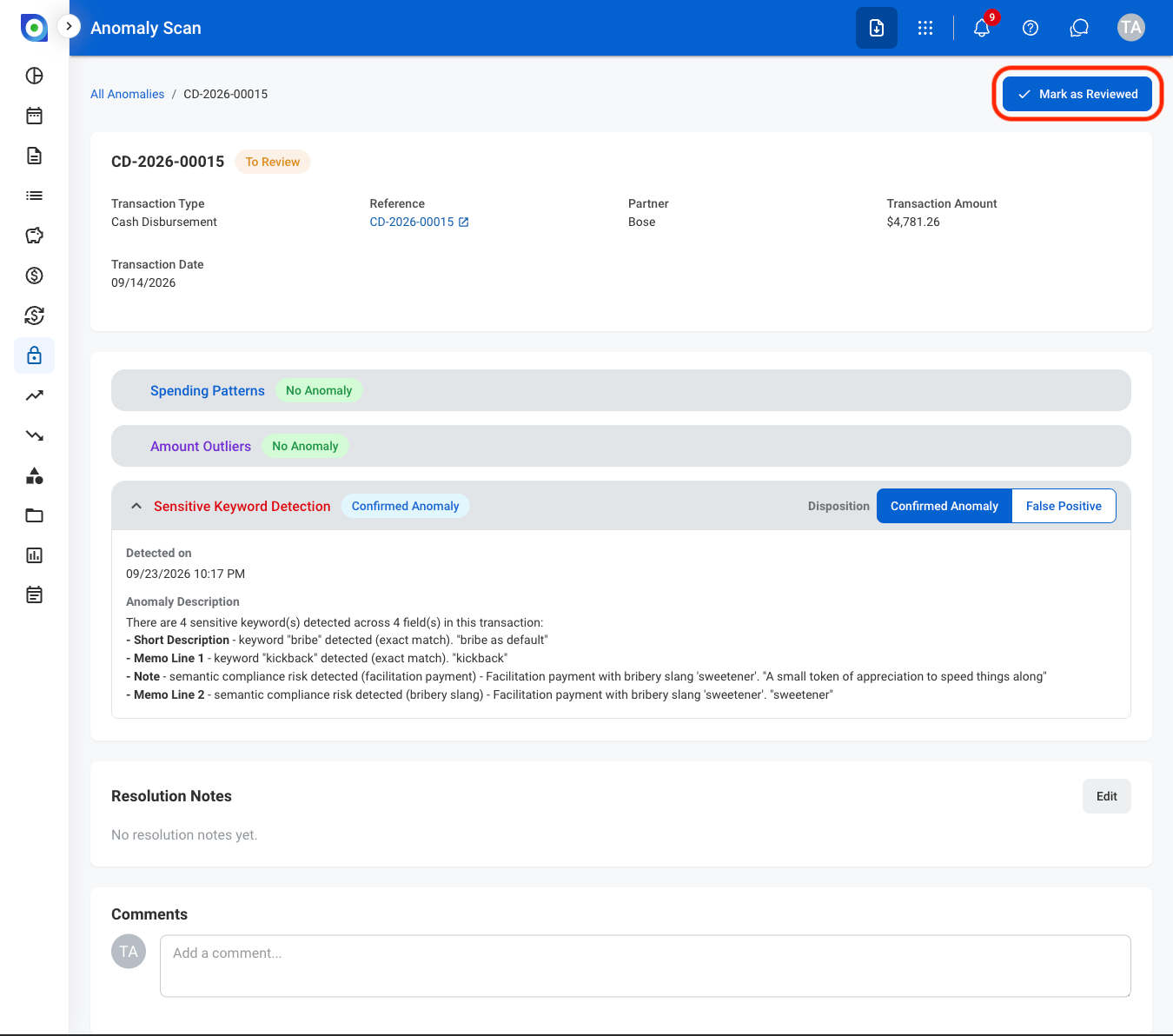
Evaluate the anomaly
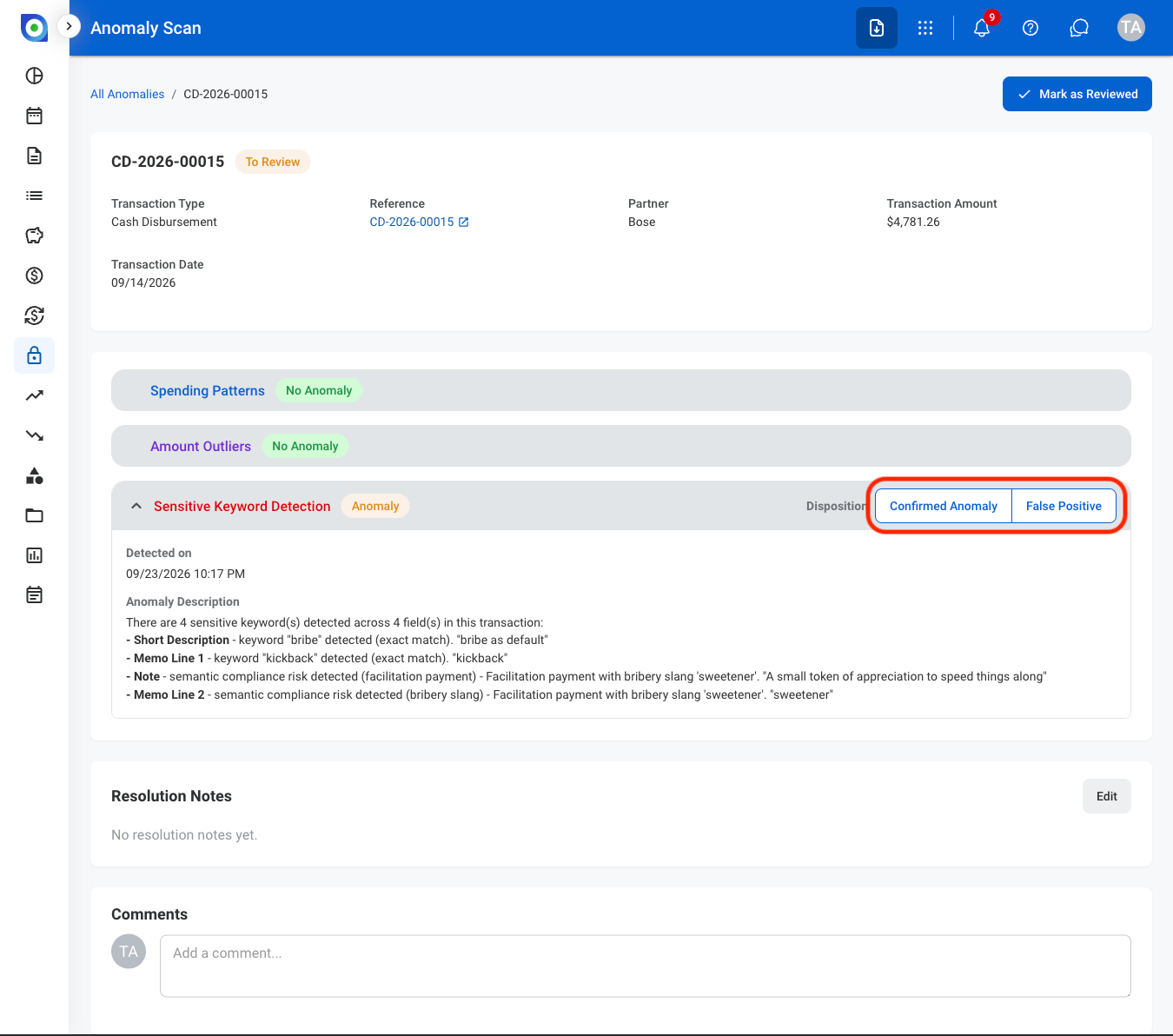
- Select Confirmed Anomaly when the flagged transaction is determined to be an actual anomaly. The anomaly status changes to Confirmed Anomaly.
- Select False Positive when the flagged transaction is determined to be valid and does not represent an anomaly. The anomaly status changes to False Positive.
11
Mark the anomaly as reviewed