
Add a Business Partner
1
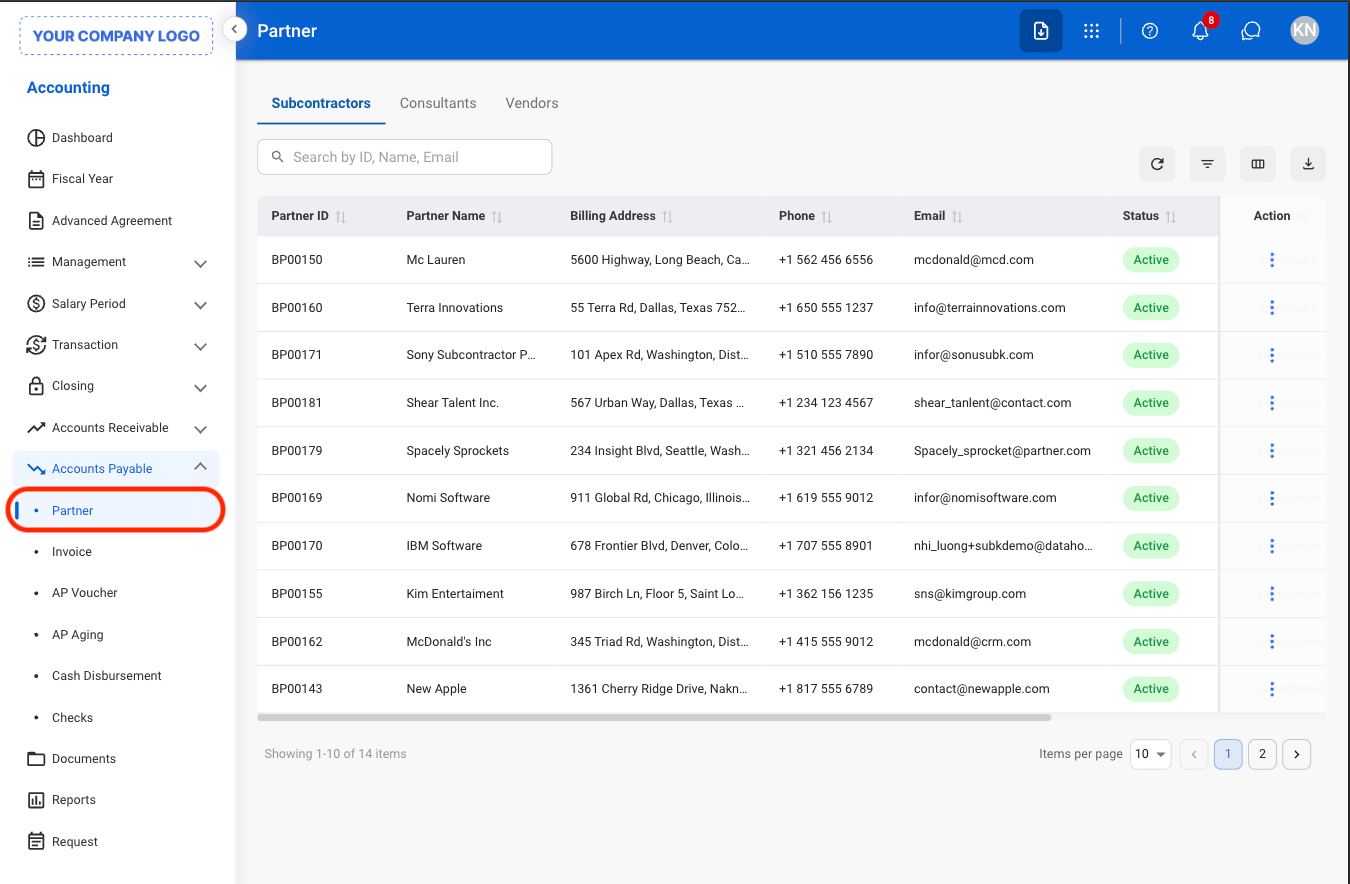
Navigate to Partner
2
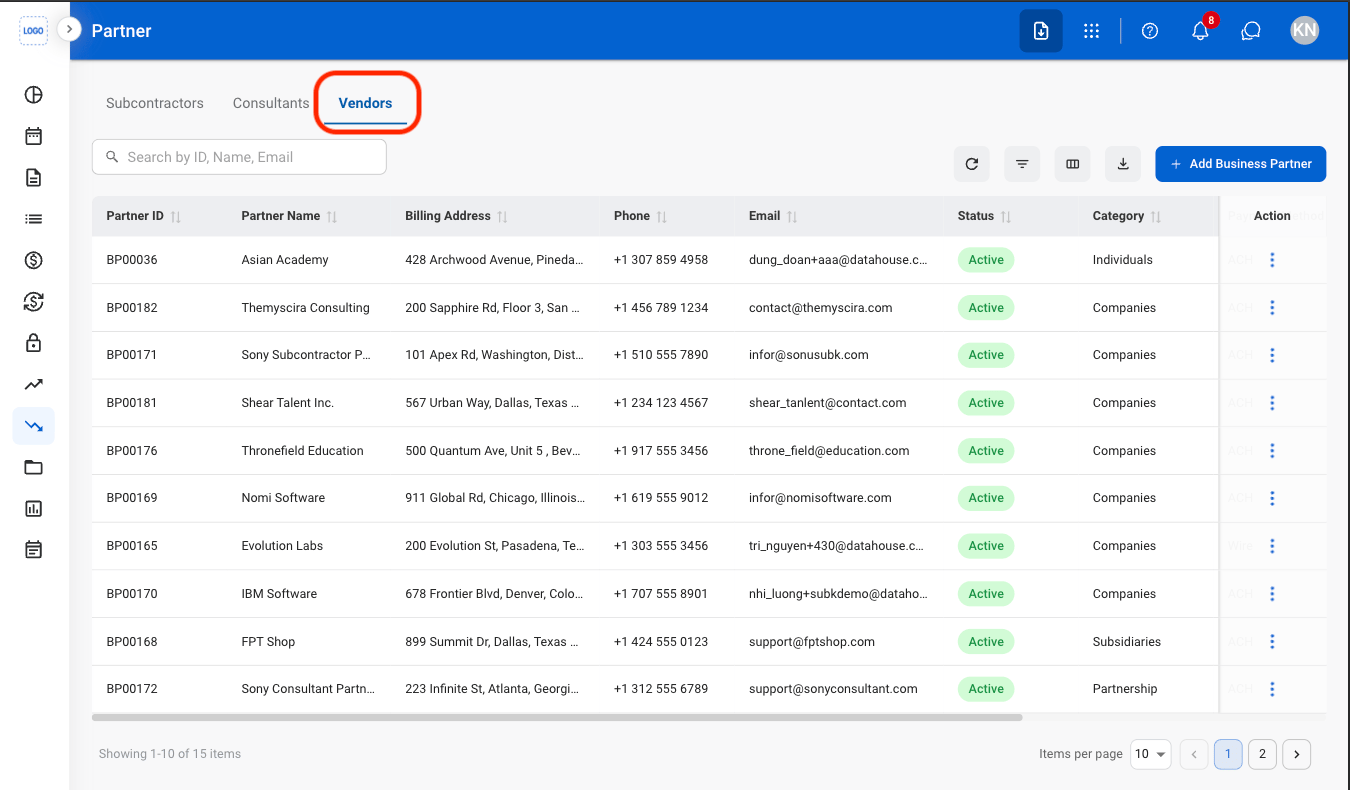
Select the Vendors tab
3
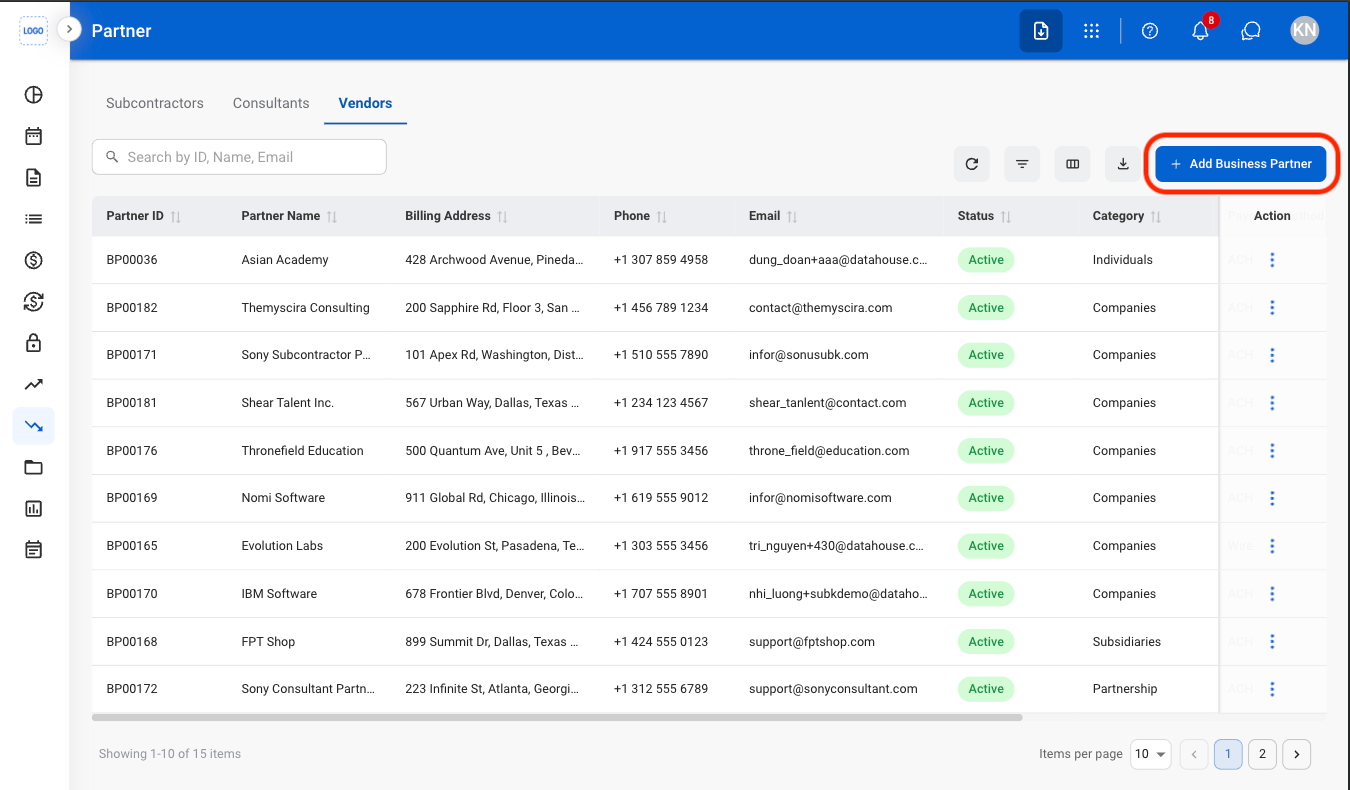
Select Add Business Partner
4
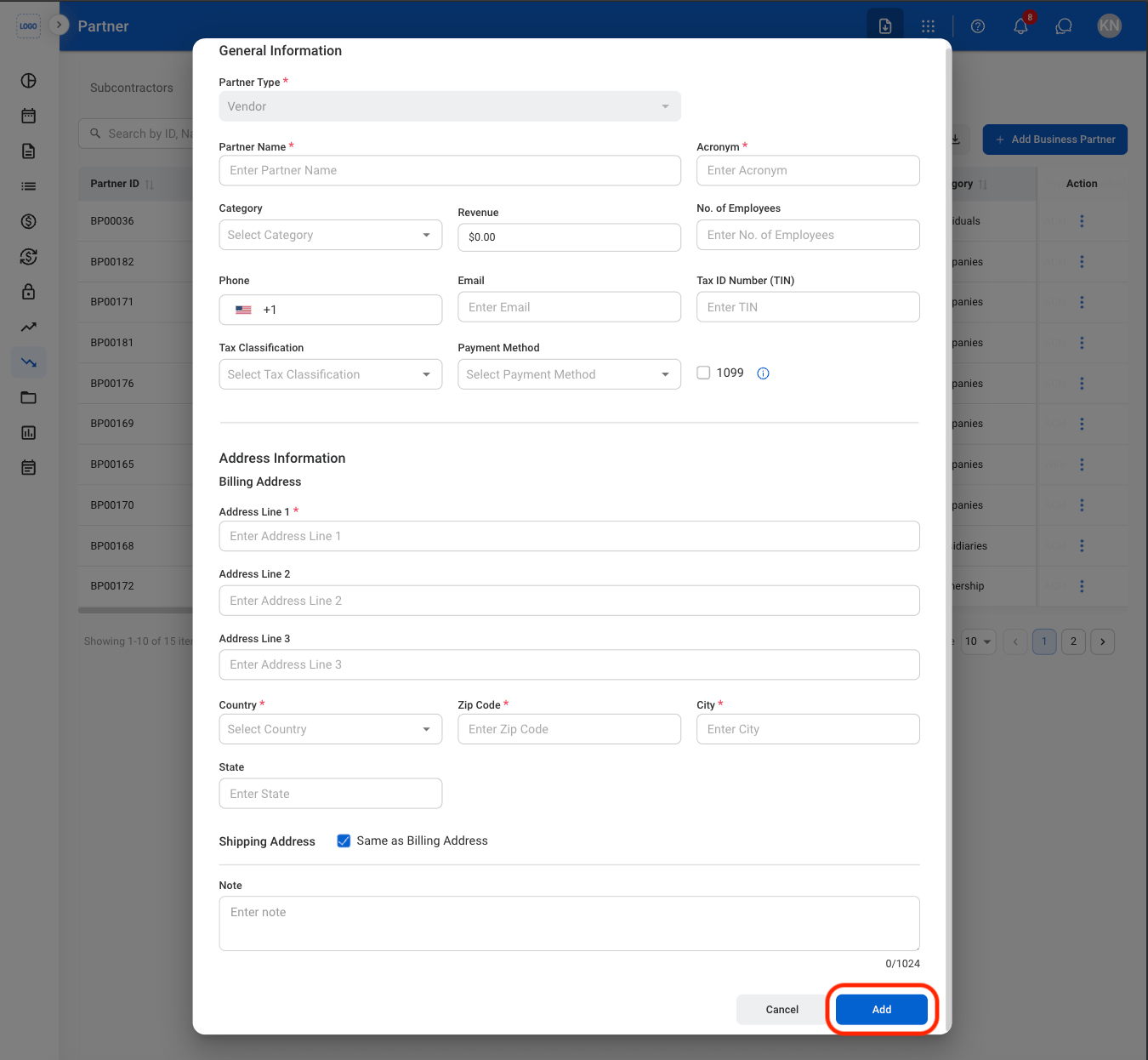
Fill in the required information
Import Business Partner Information
1
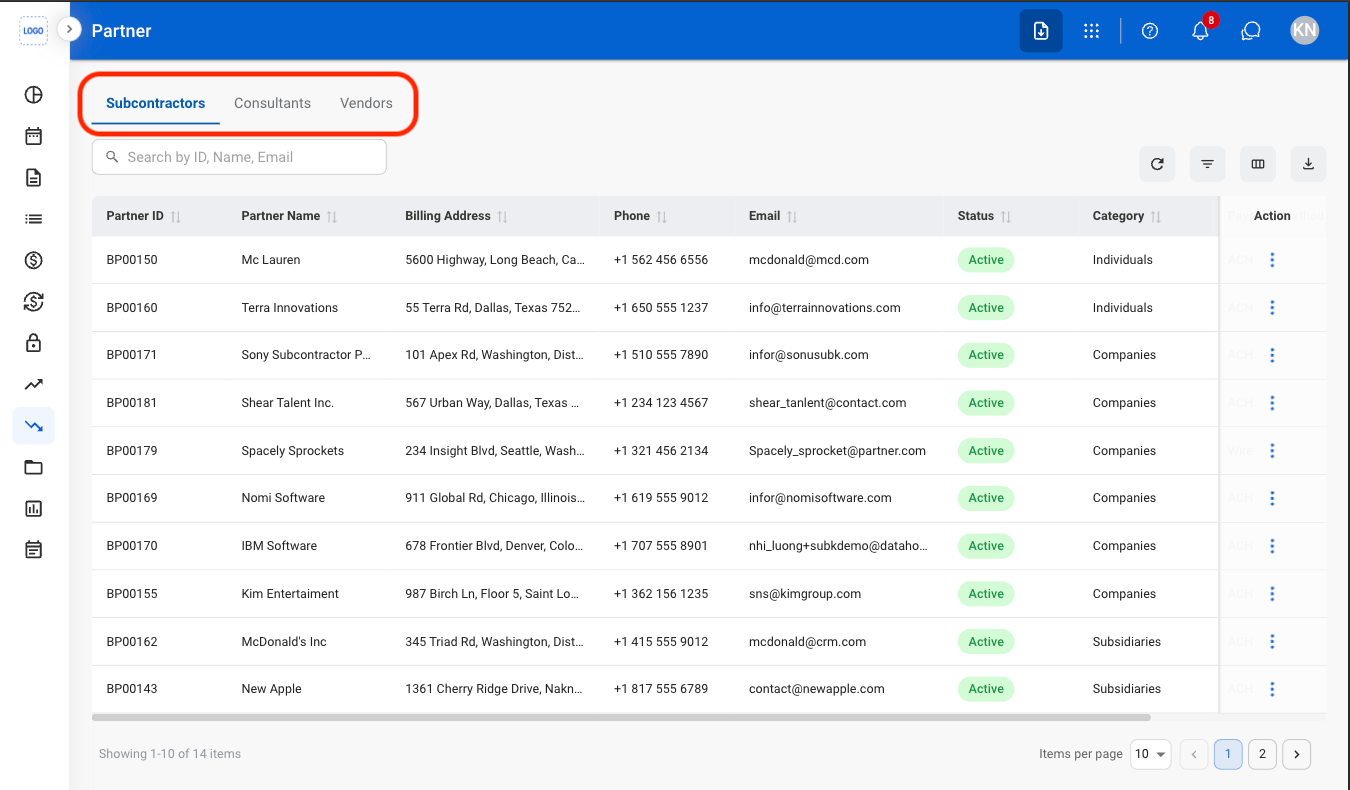
Select a tab
2
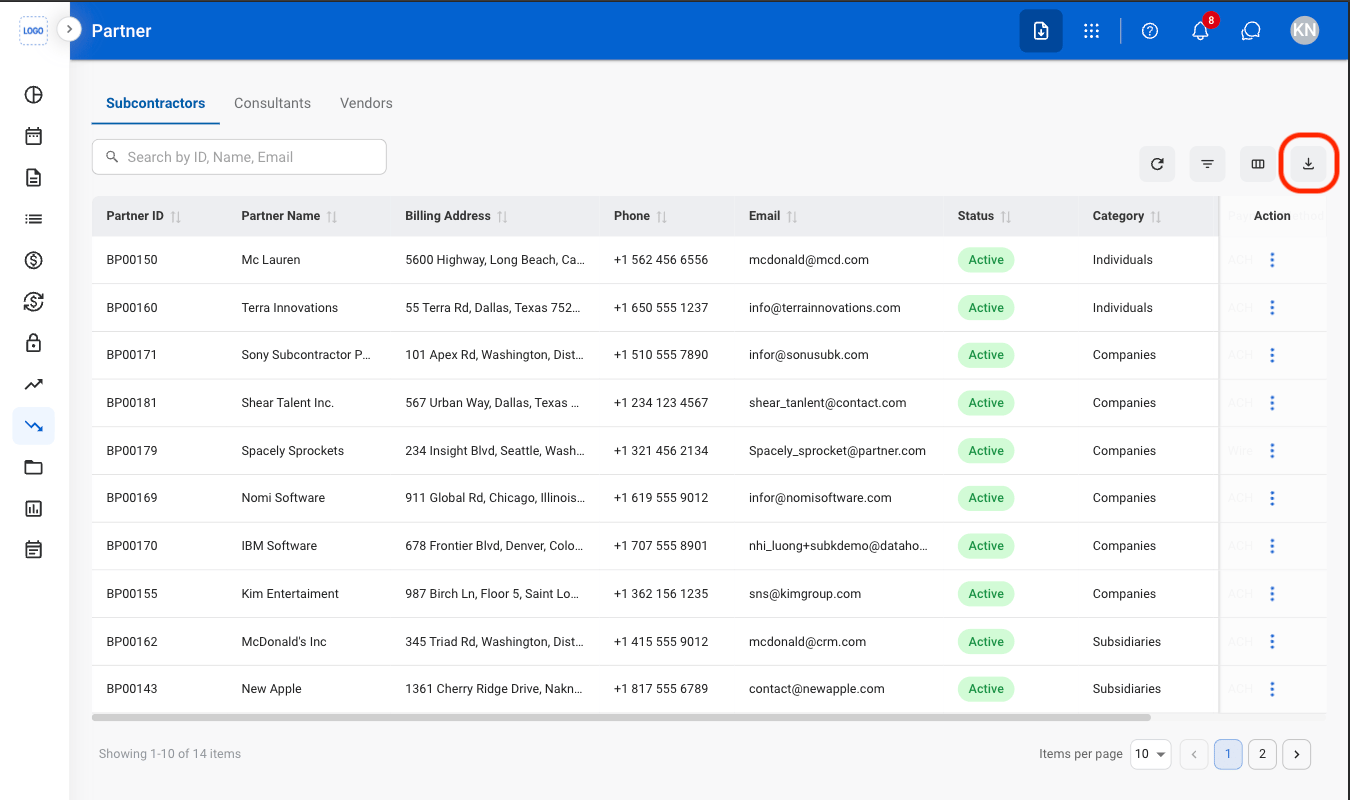
Select the Import button
3
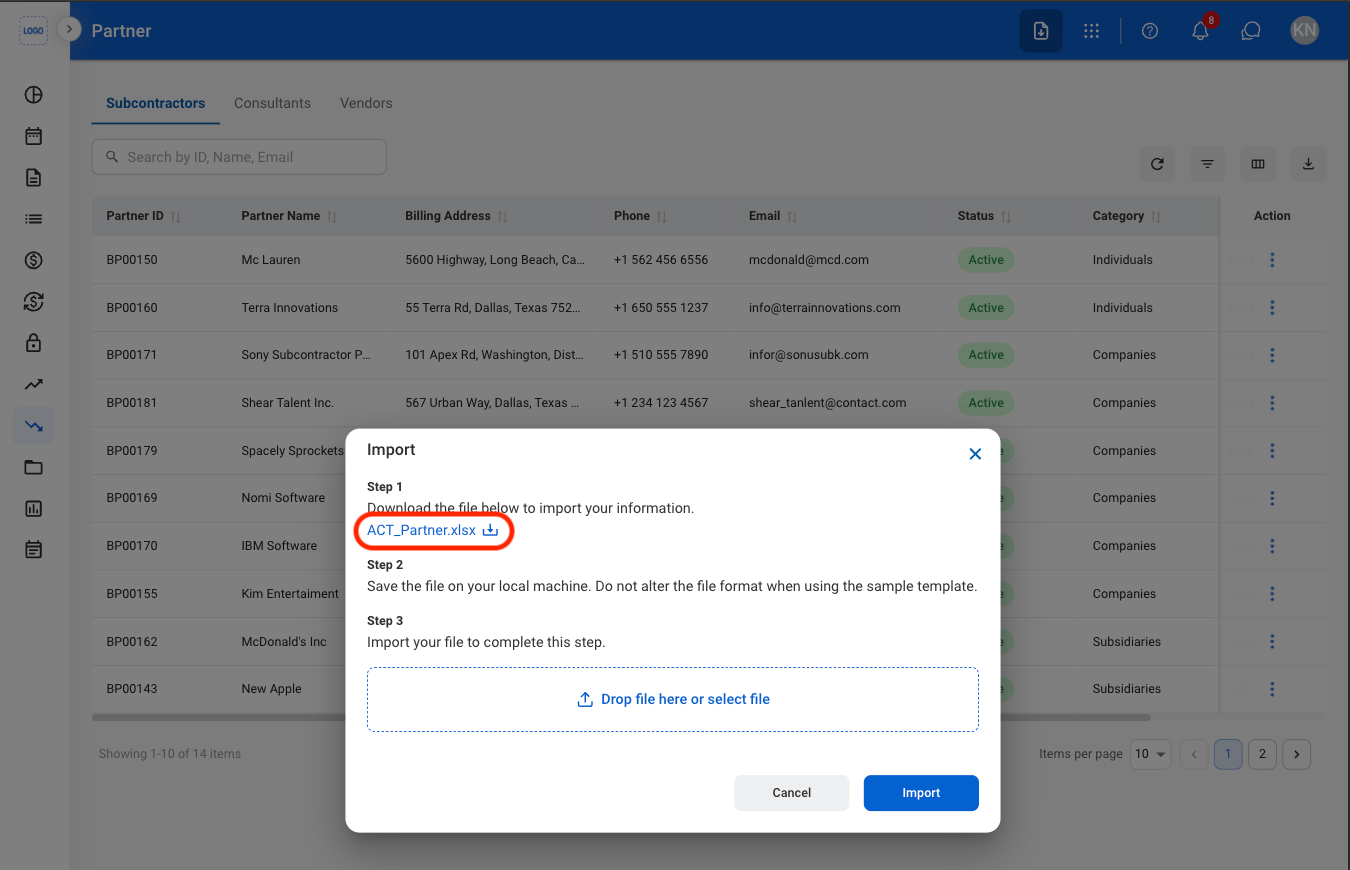
Download the template
4
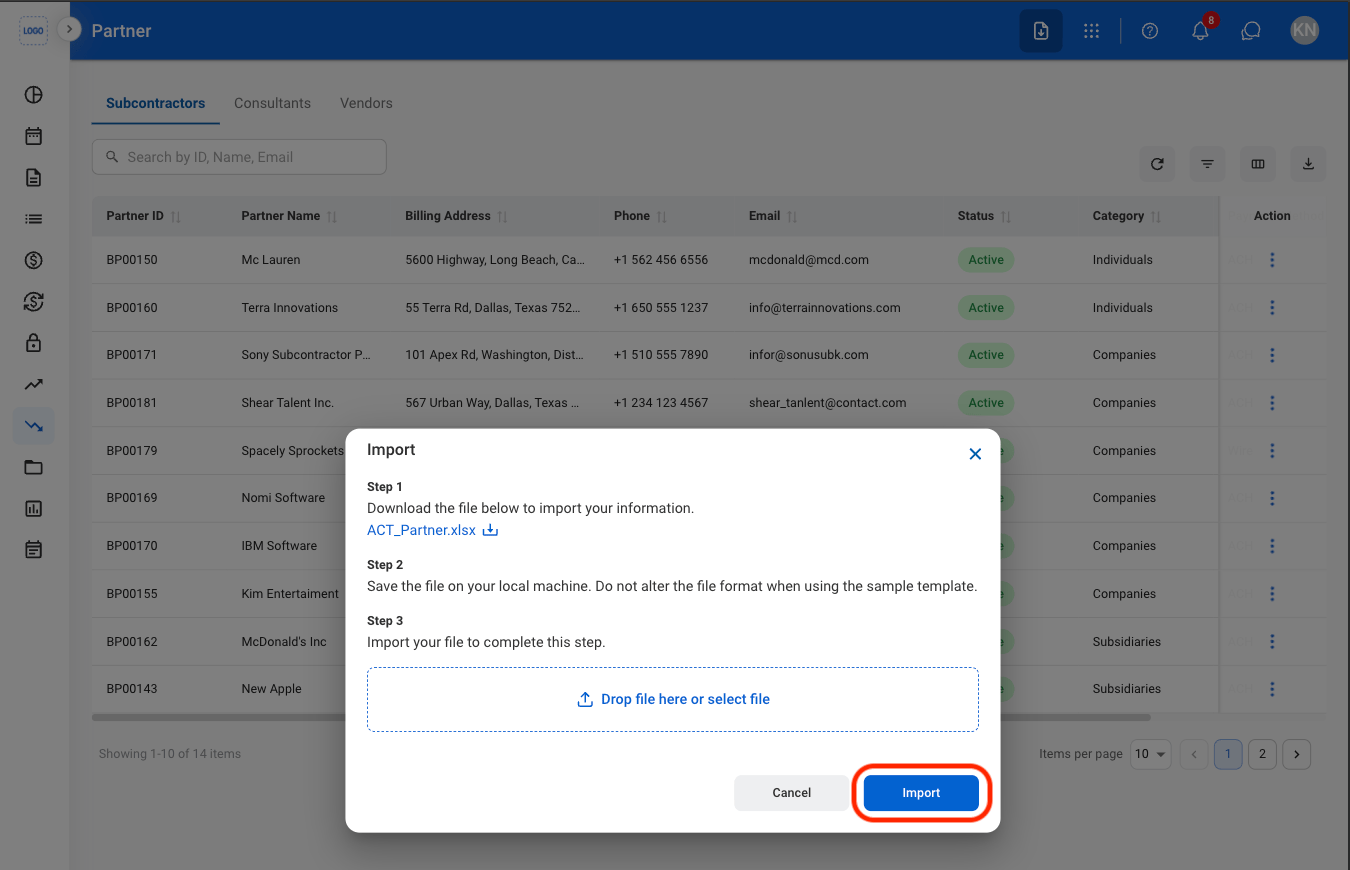
Upload the completed template
View Partner Records
1
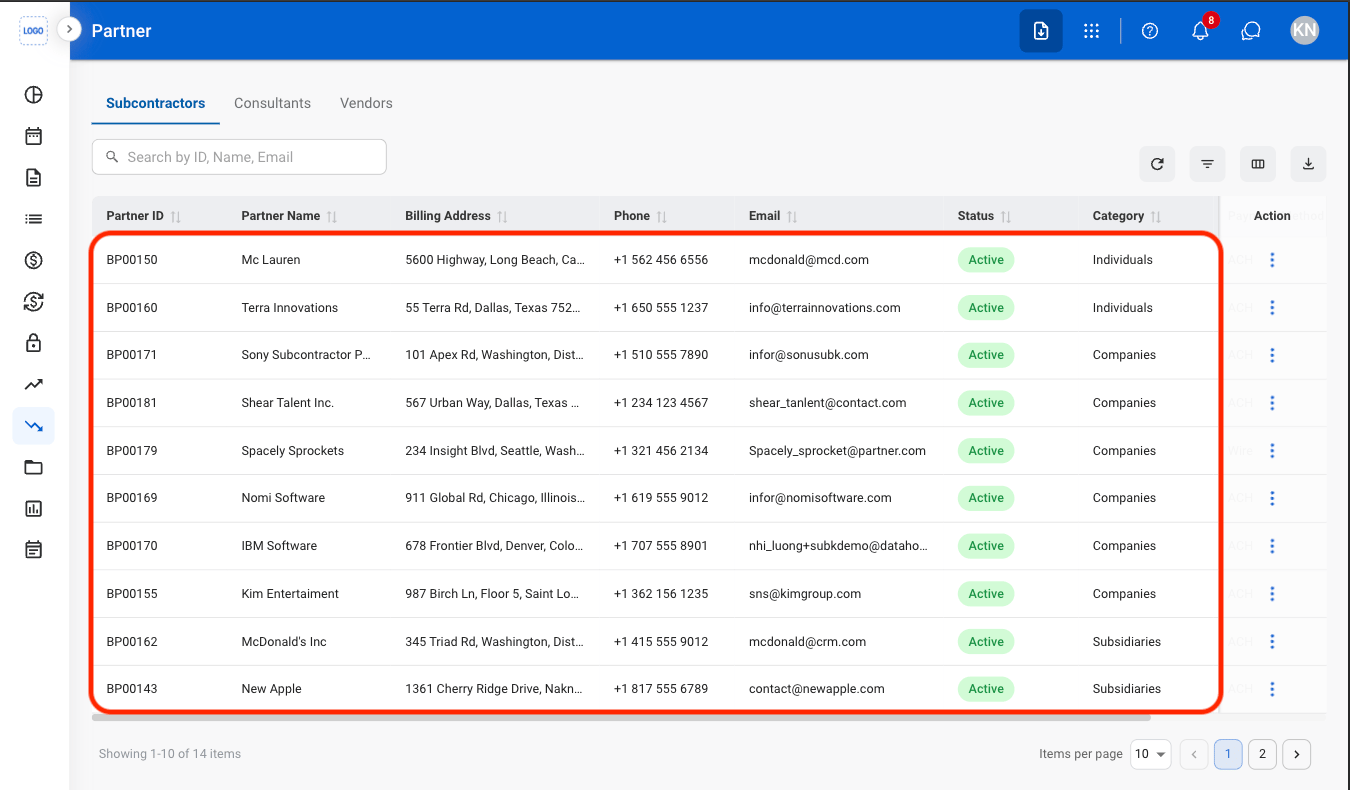
Select a tab
- Subcontractors: Organizations contracted to perform project or contract-related work.
- Consultants: Independent professionals providing specialized services.
- Vendors: Suppliers providing goods or services to the company.
2
Select a partner
3
Select a tab
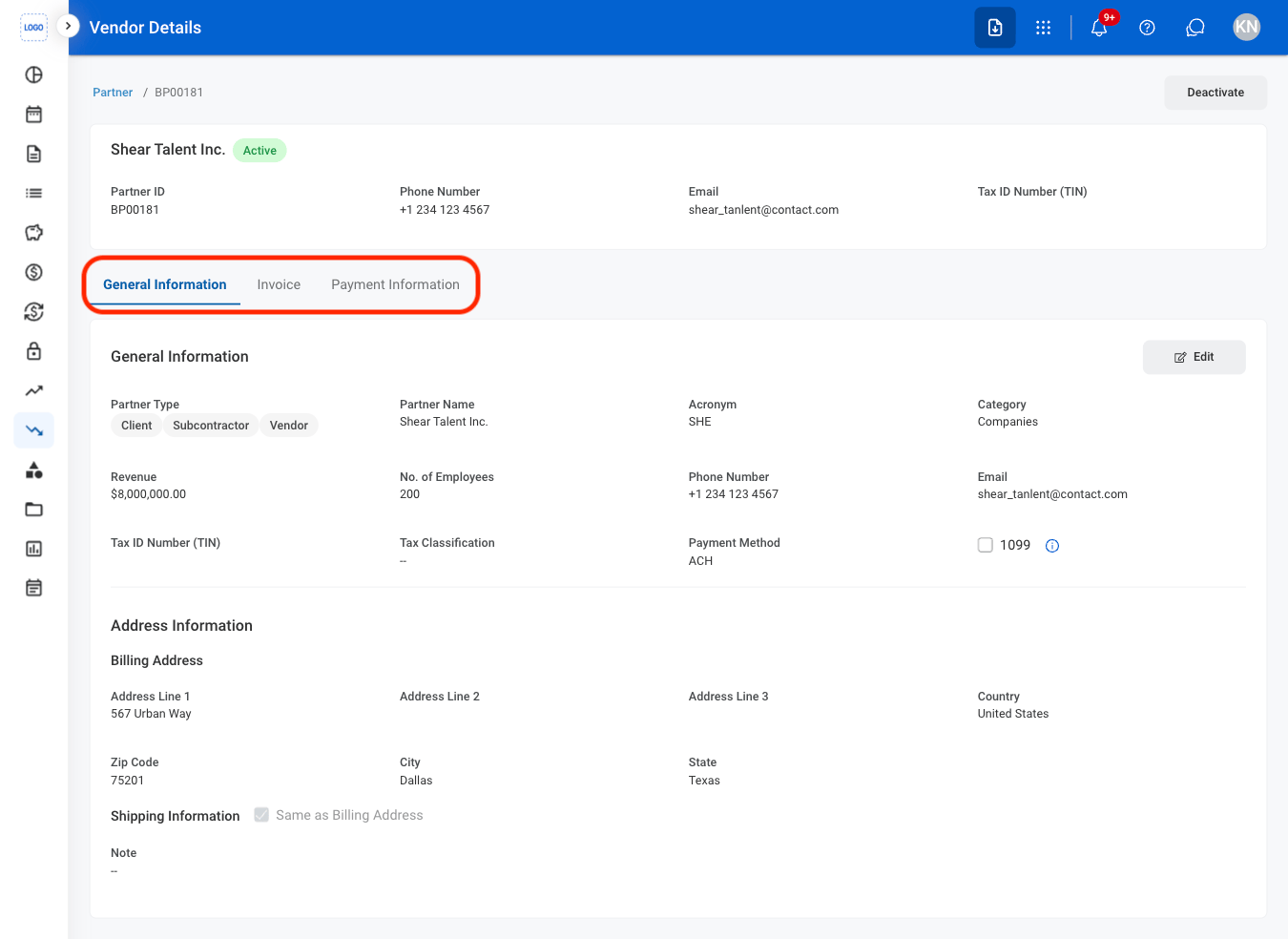
Payment Information
Add Partner Payment Information
1
Select a business partner
2
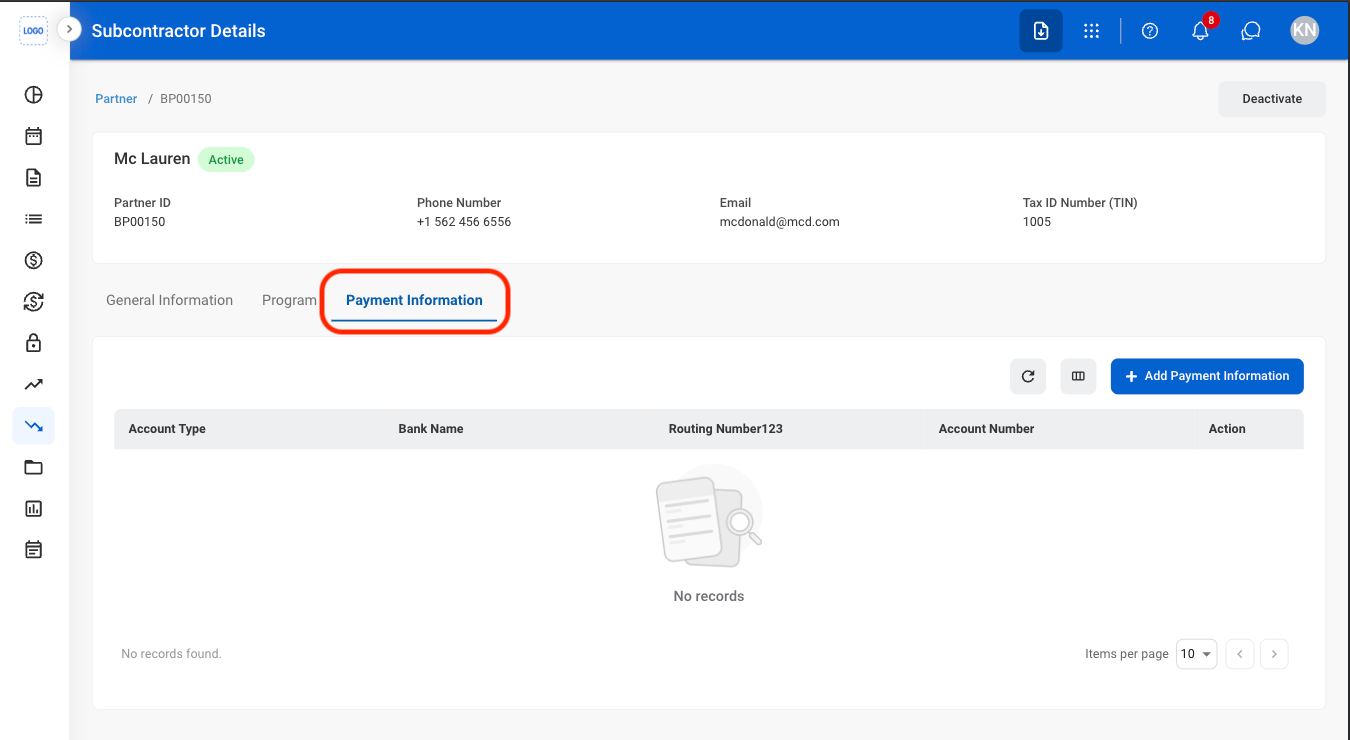
Select Payment Information
3
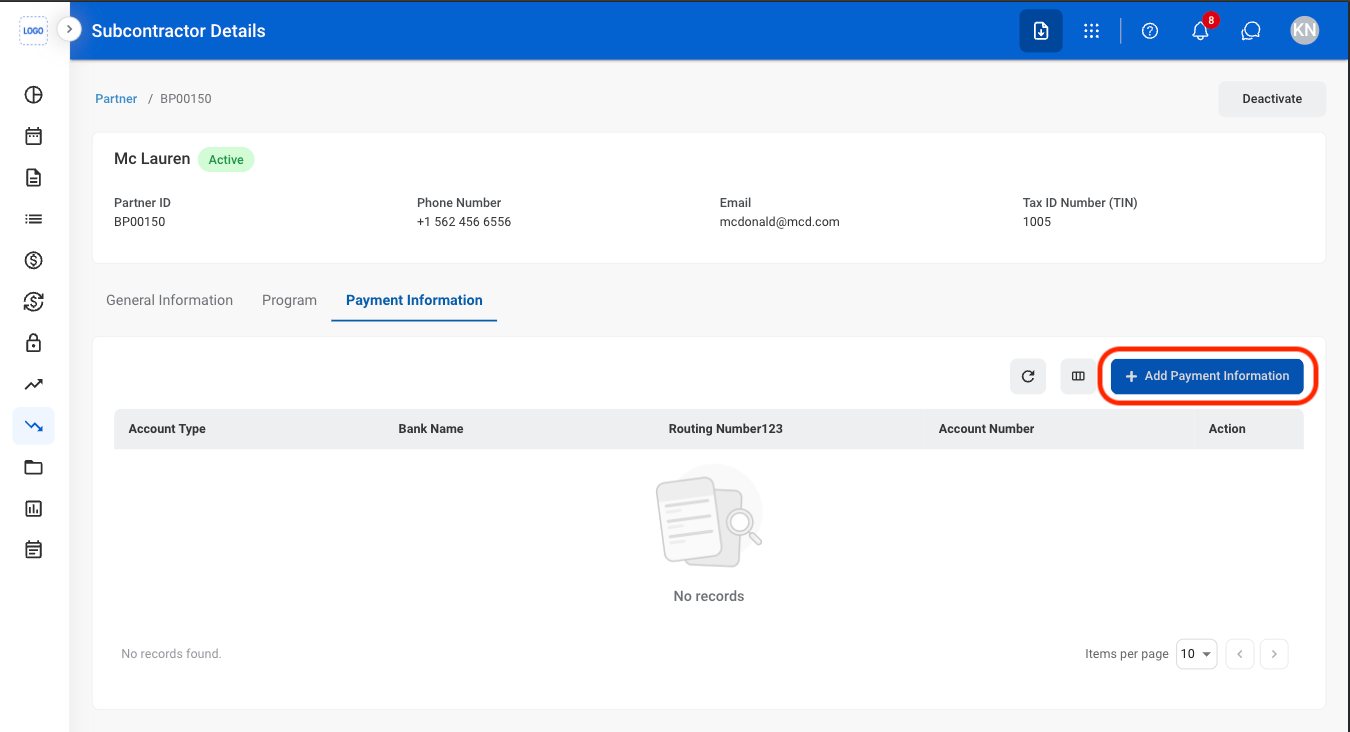
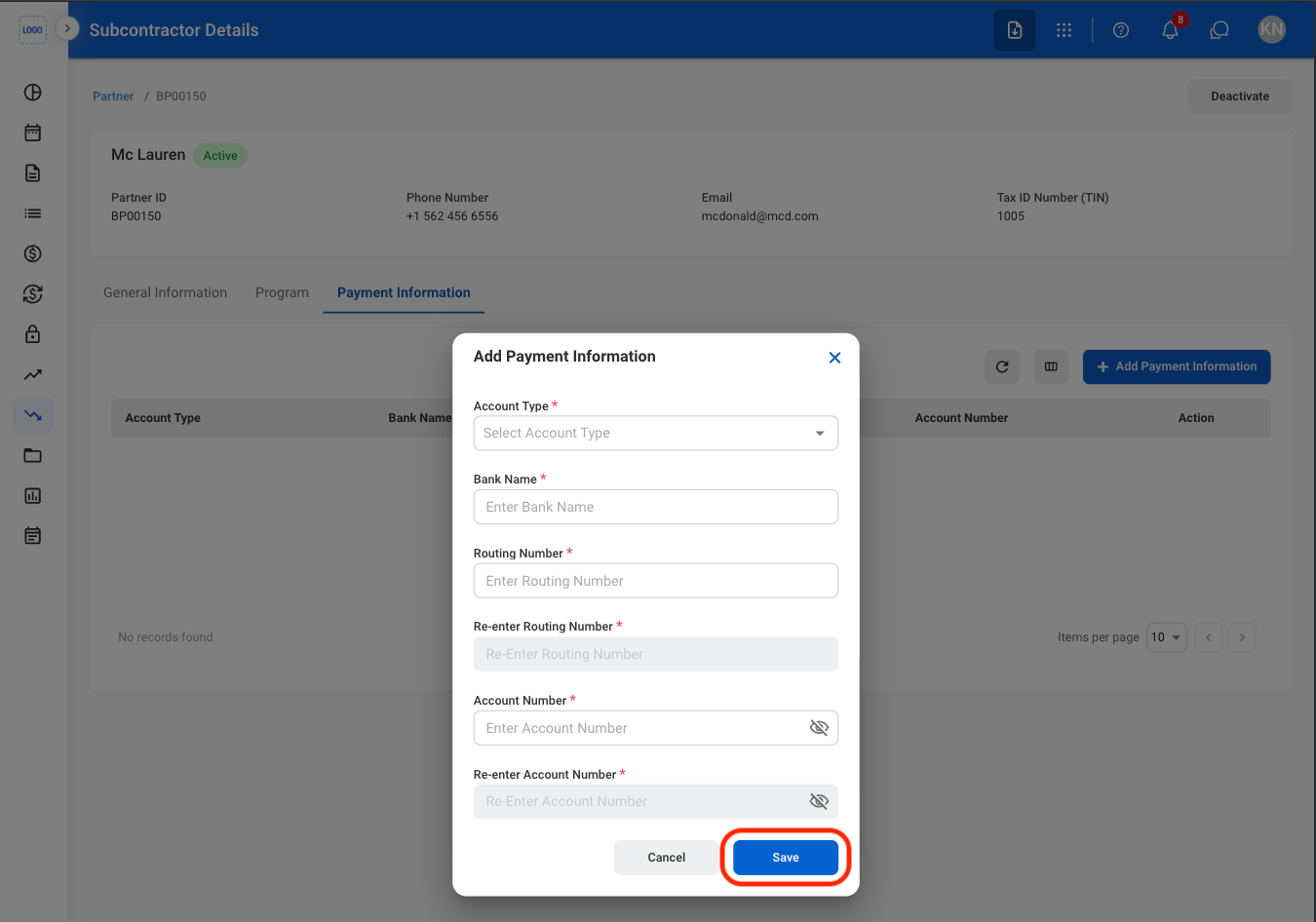
Select Add Payment Information
4
Fill in the required information
Edit Partner Payment Information
1
Select Payment Information
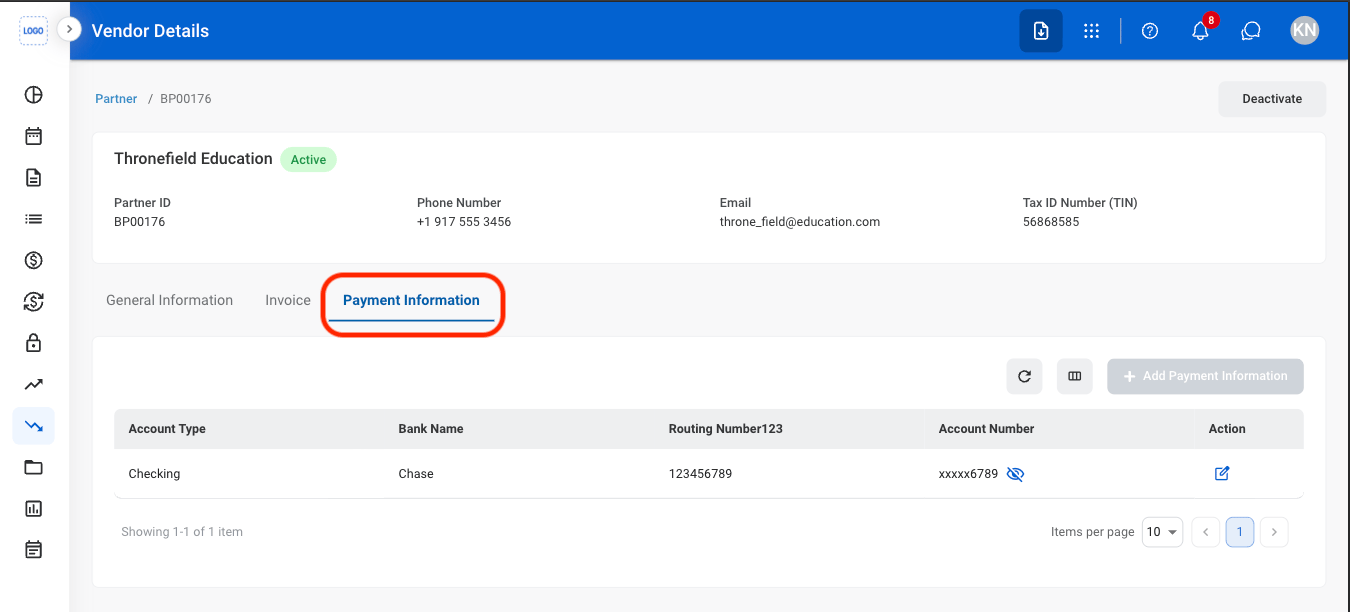
2
Select the Edit icon
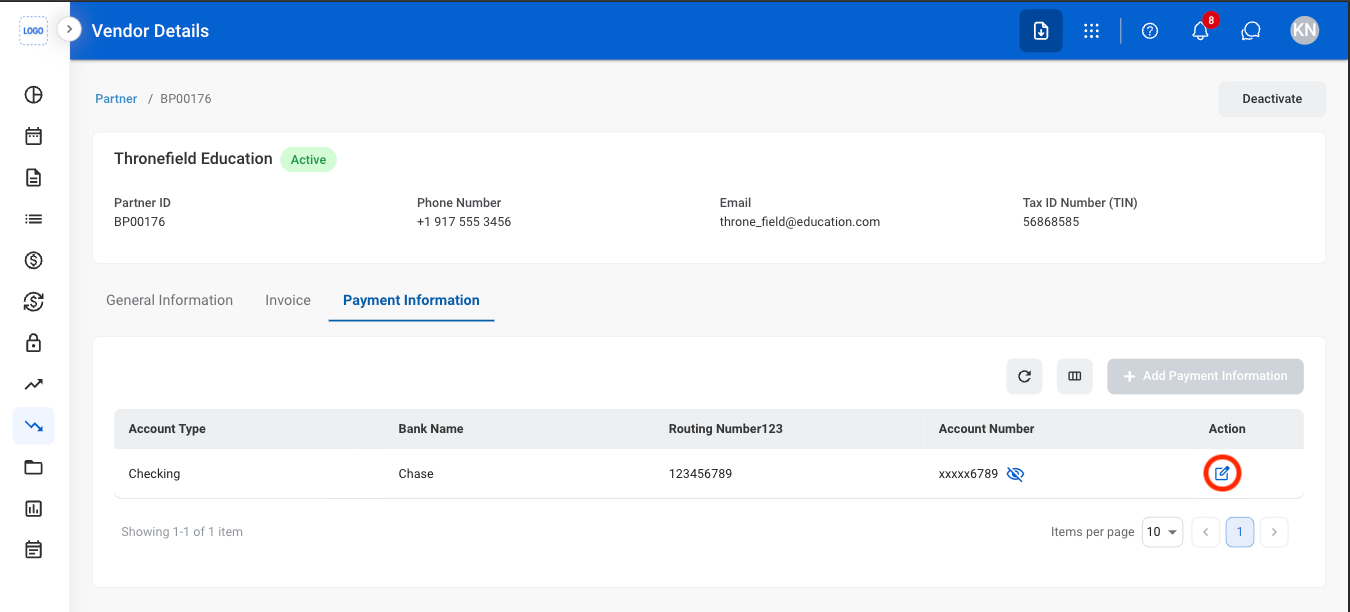
3
Fill in the required information
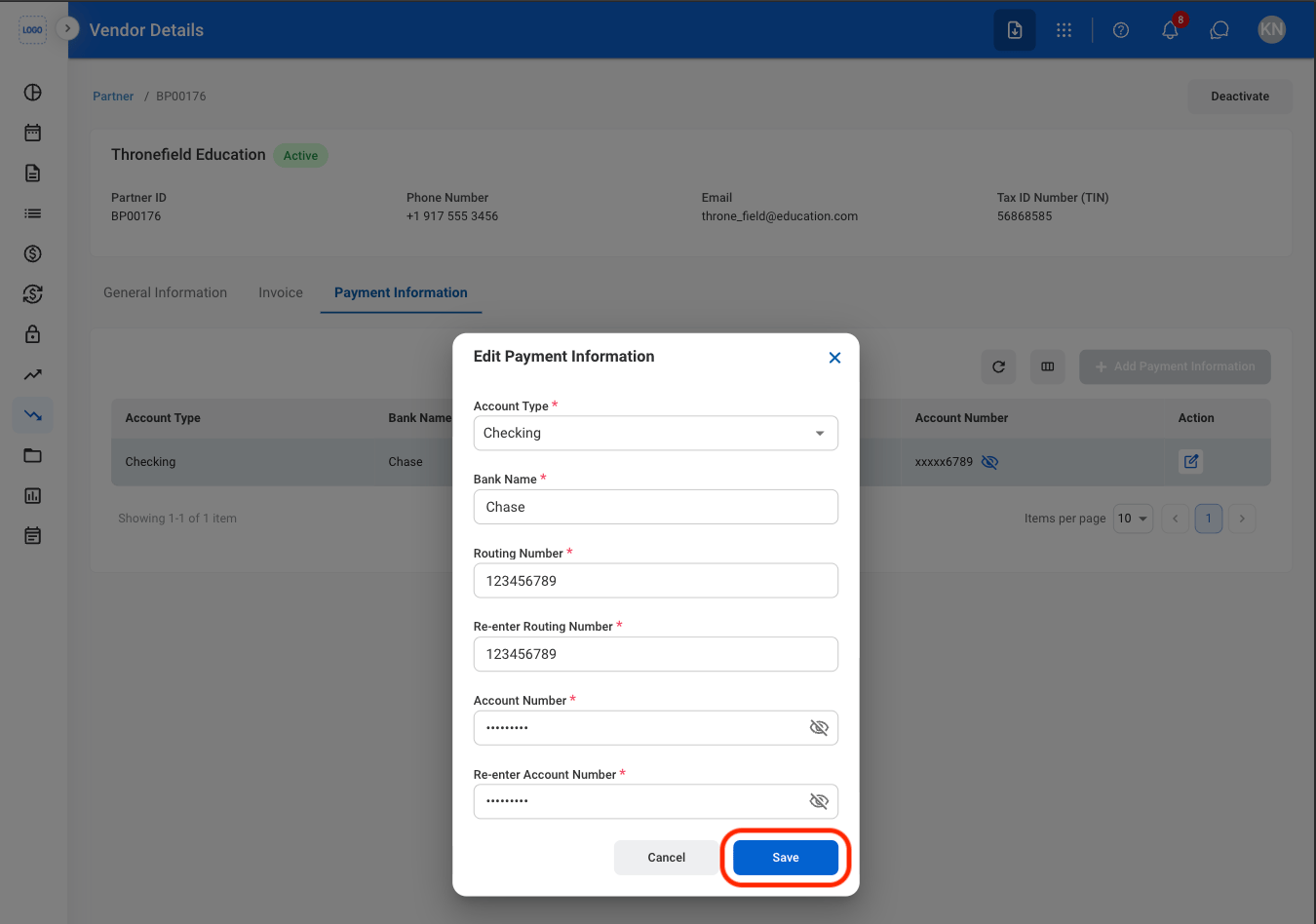
Delete or Deactivate a Business Partner
1
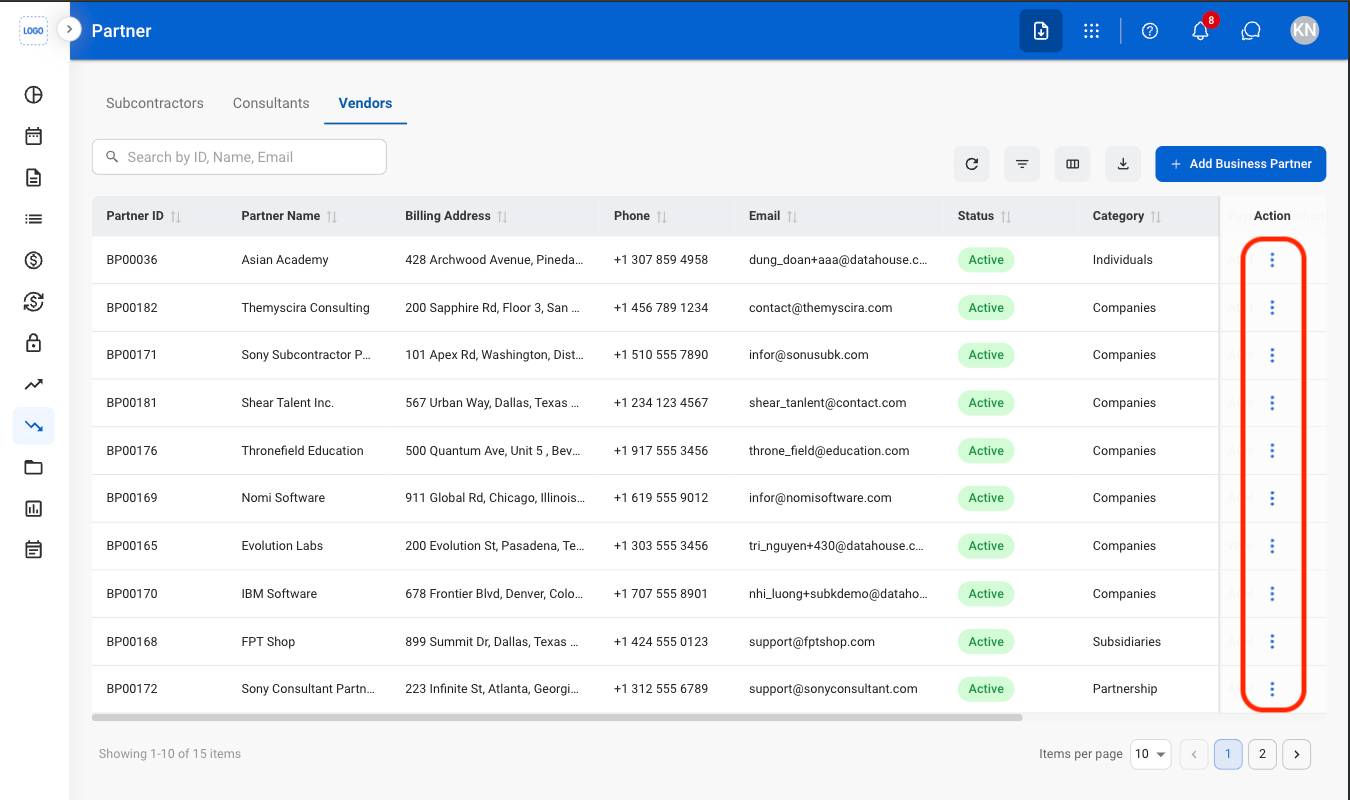
Select the ellipsis icon
2
Select an action
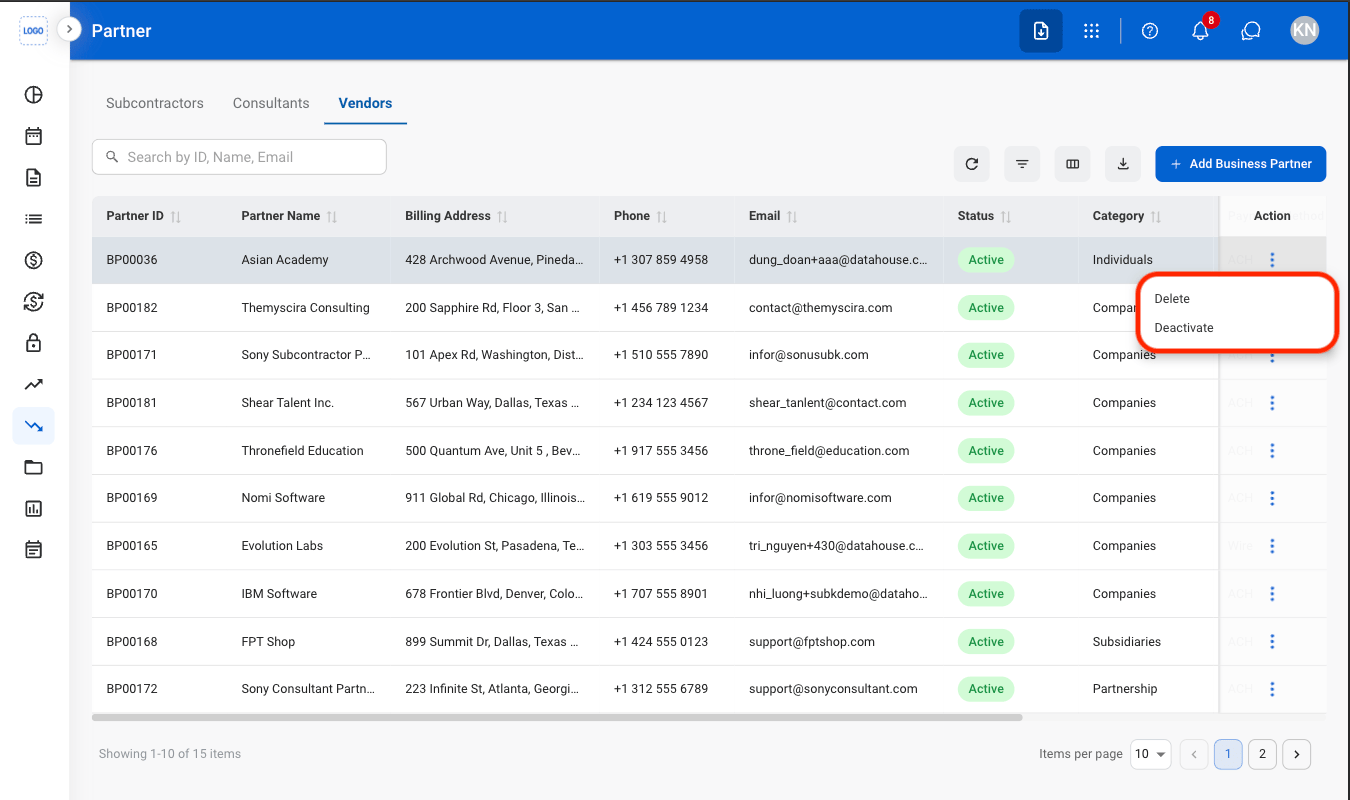
- Delete: Permanently remove the partner record from the system.
- Deactivate: Mark the partner as inactive to prevent use in future transactions while retaining existing records.
3
Confirm the action
- Delete: Select Delete to complete or Cancel to exit without saving changes.
- Deactivate: Select Deactivate to complete or Cancel to exit without saving changes.