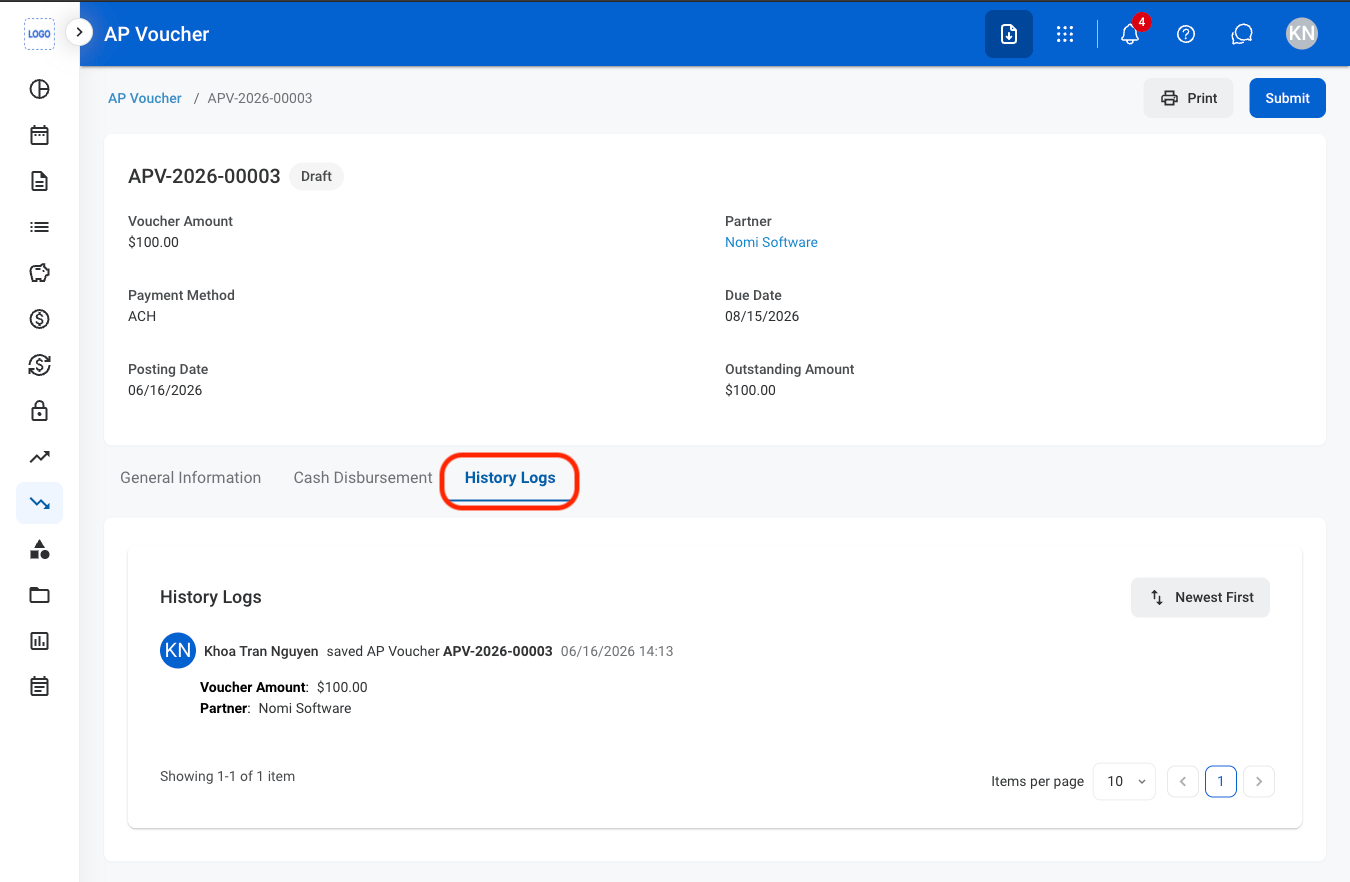
Add an AP Voucher
1
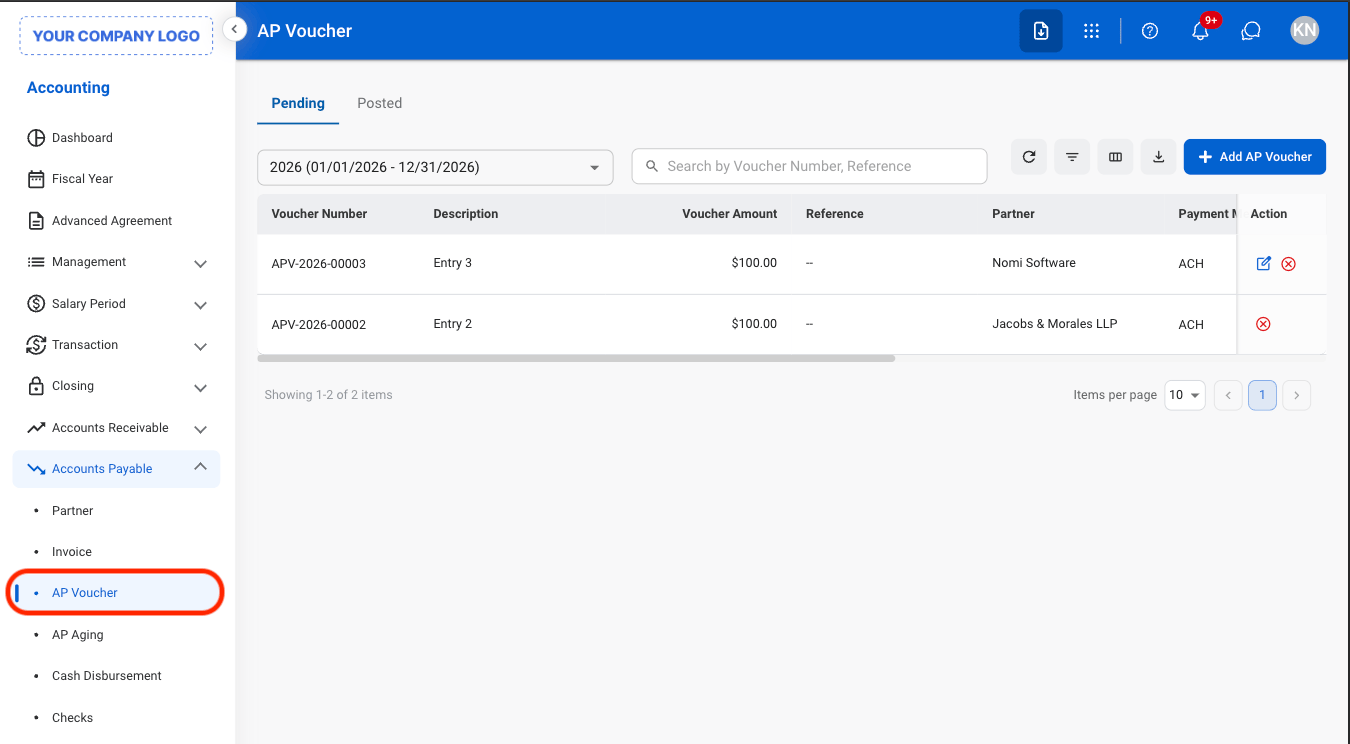
Navigate to AP Voucher
2
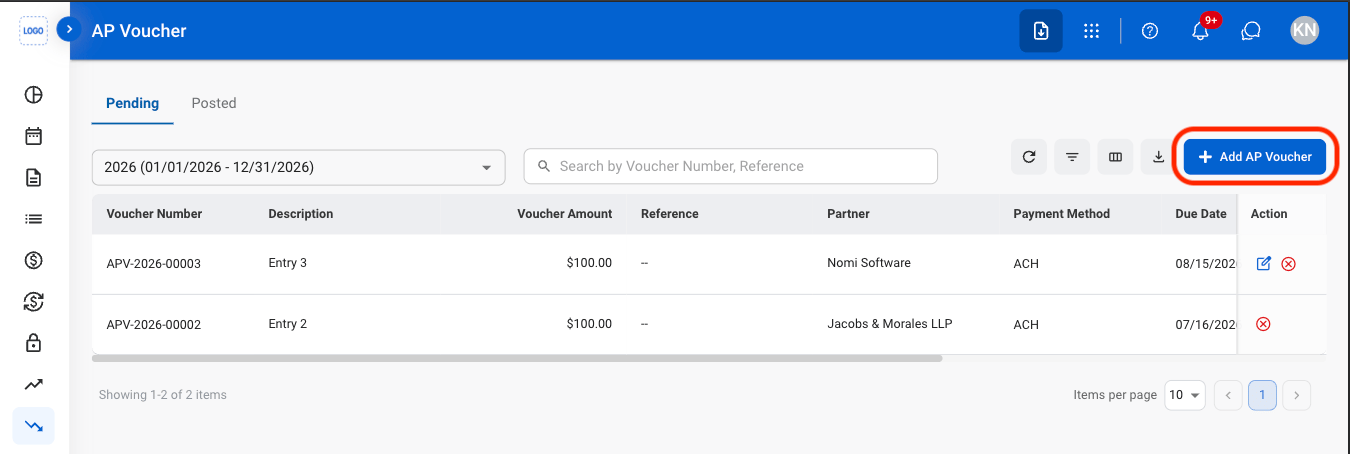
Select Add AP Voucher
3
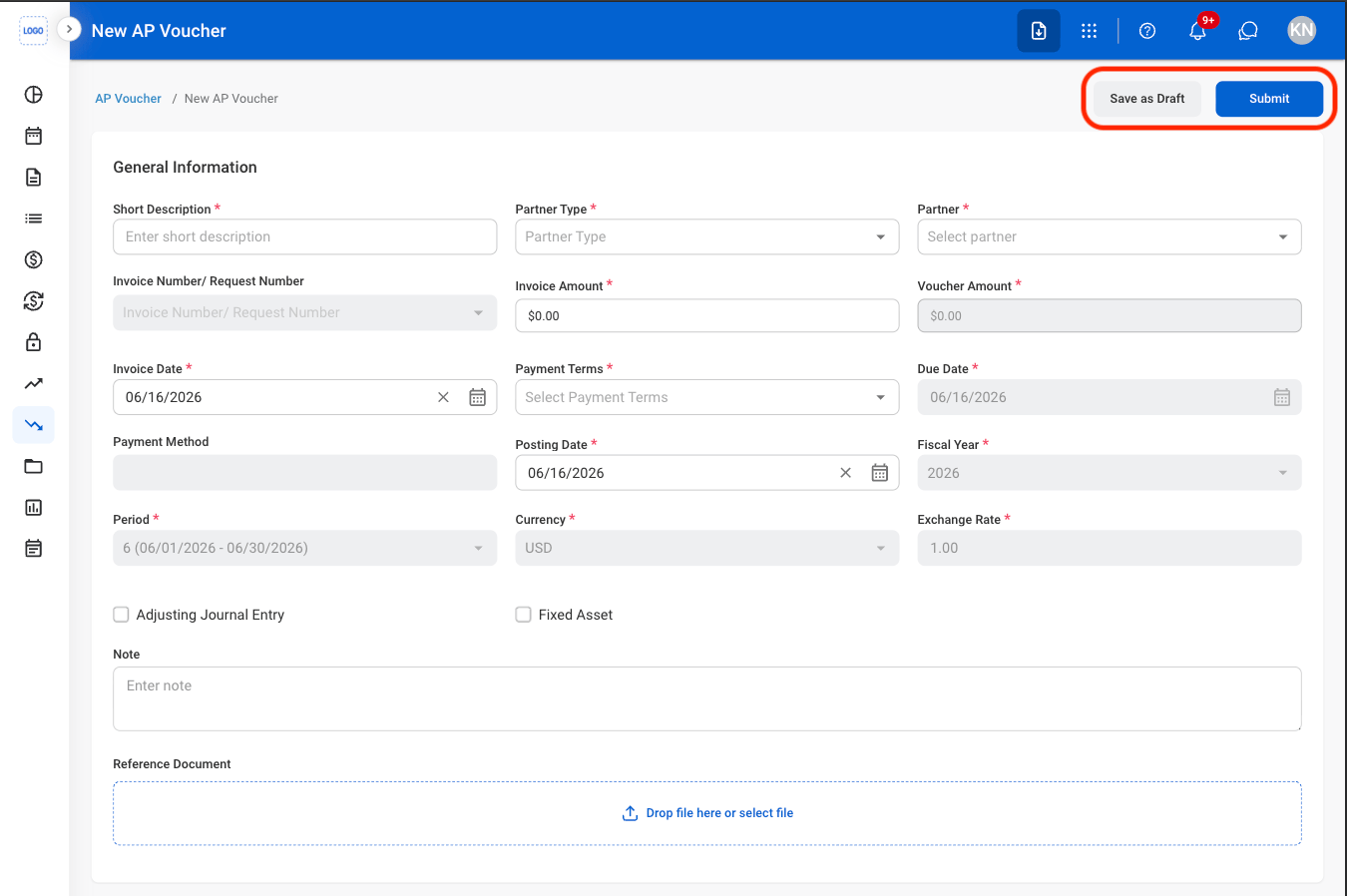
Fill in the required information
The system may flag a transaction for a potential anomaly based on configured detection rules. If an anomaly is detected, a warning appears on the transaction detail screen with an option to review the reason for the flag. An anomaly indicates that the transaction may be unusual and does not necessarily indicate an error or fraudulent activity.
Use AI Suggestions for G/L Accounts
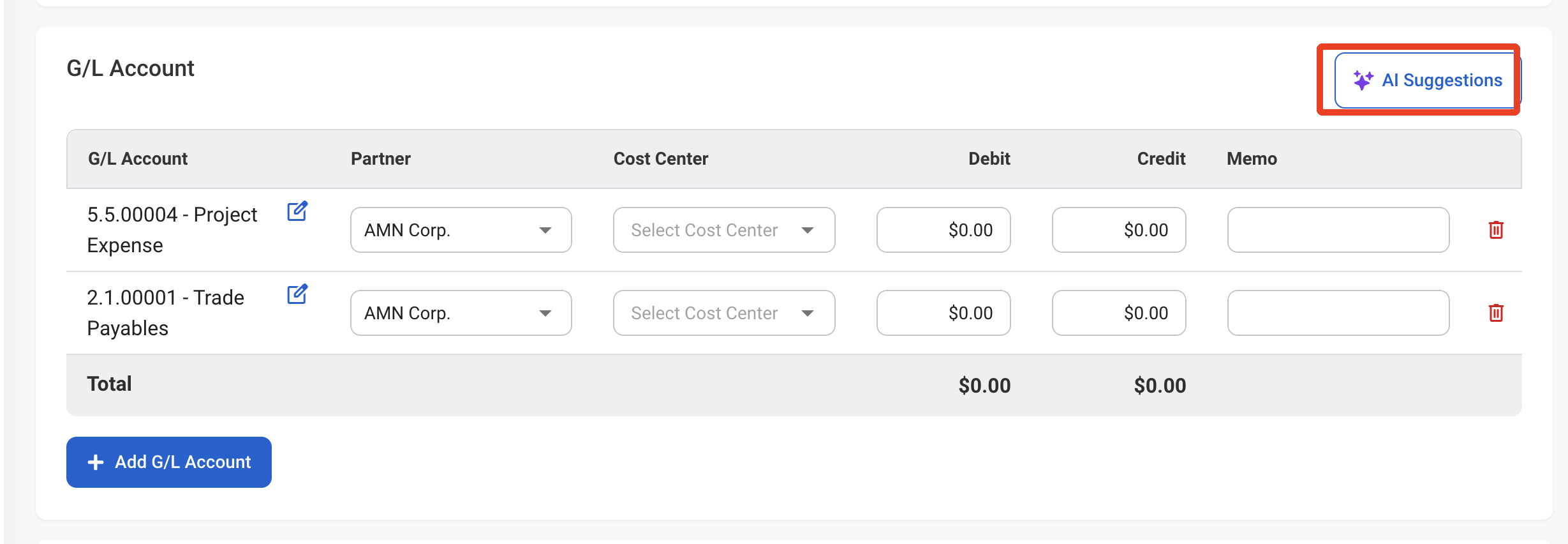
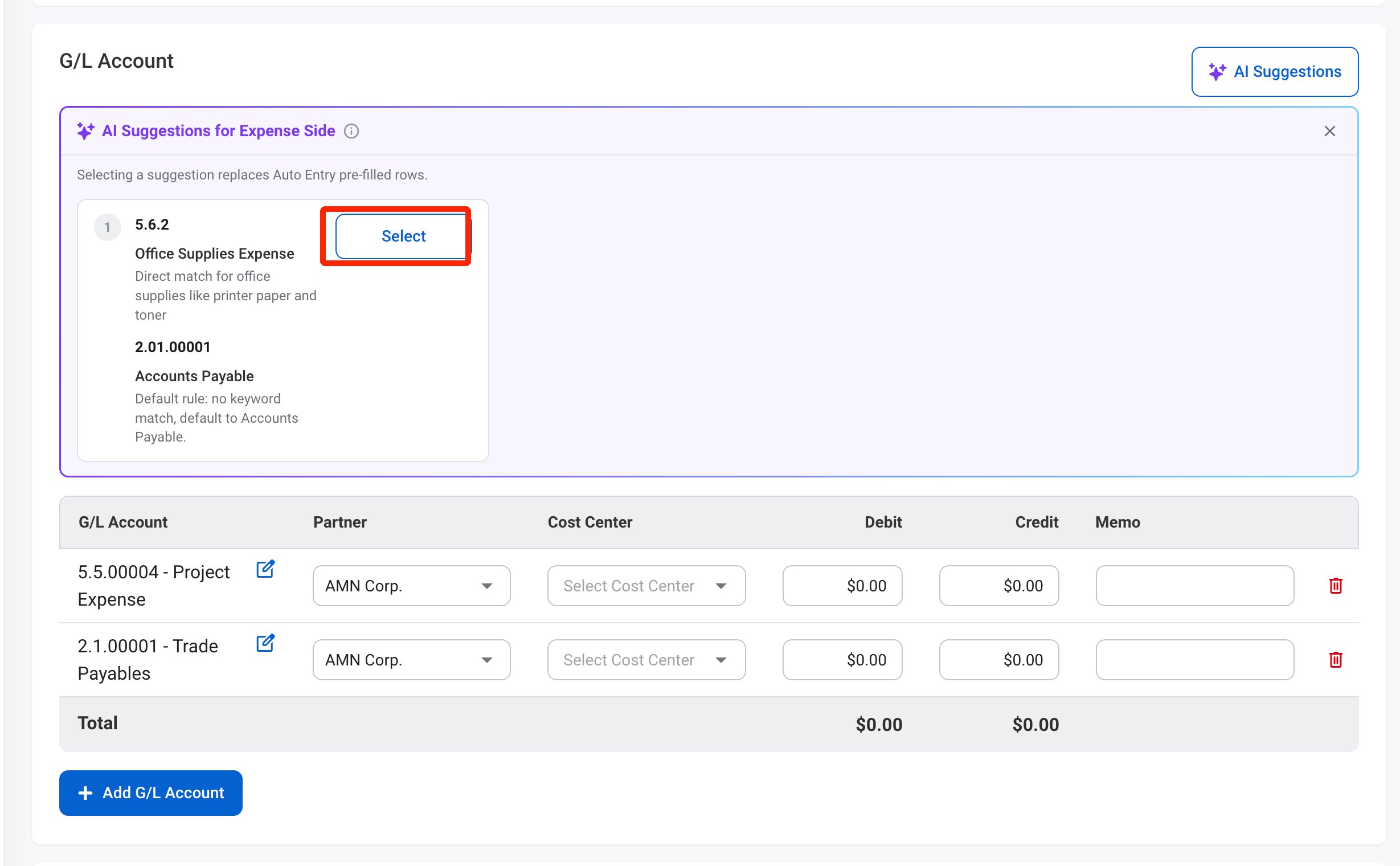
AI Suggestions recommends the G/L accounts for the voucher based on its details, such as the short description, partner, and note. Each suggestion includes the expense (debit) account, the offsetting account, and the reason for the suggestion.Enter a Short Description, Partner, or Note to enable AI Suggestions. Review suggested accounts before submitting. You can still select G/L accounts manually.
1
In the G/L Account section, select AI Suggestions
2
Review the suggestions and select one
3
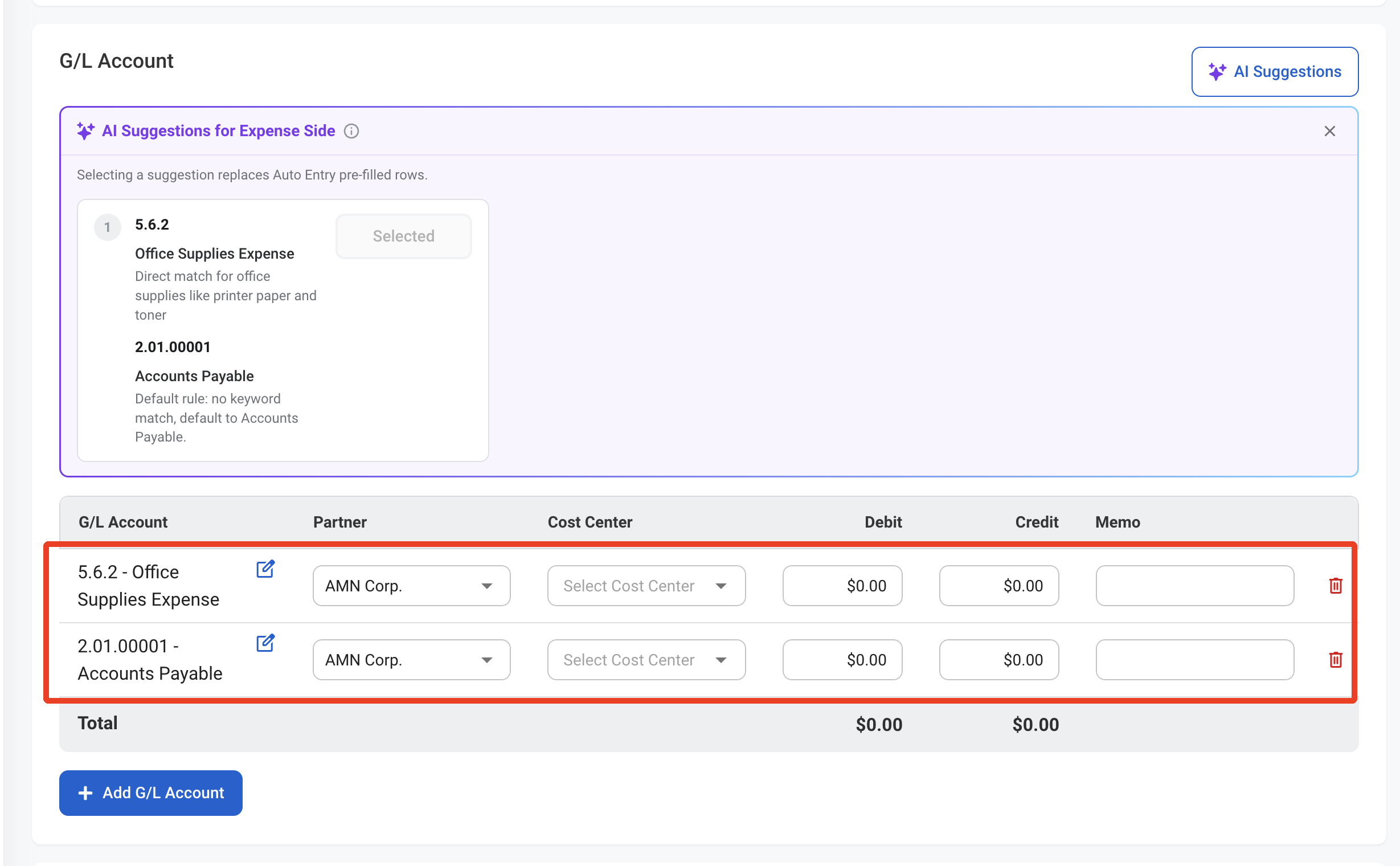
Review the updated G/L accounts
Modify an AP Voucher
Edit and Cancel actions are only available in the Pending tab.
1
Select an action
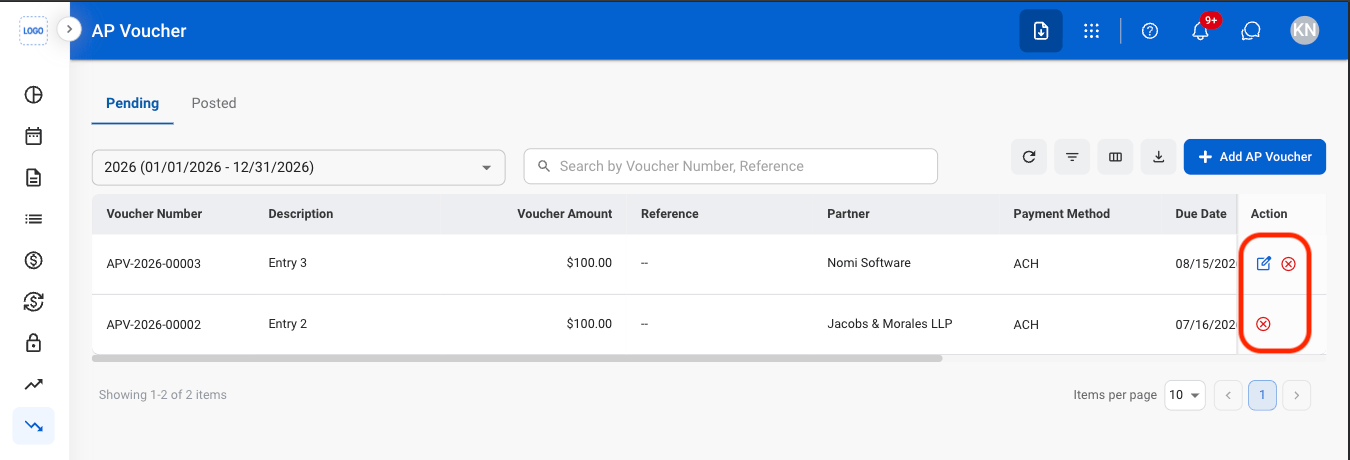
- Edit: Update AP Voucher details before it is finalized or processed in the billing workflow.
- Delete: Permanently remove a draft AP Voucher that has not been submitted for processing.
- Cancel: Cancel a submitted AP Voucher and remove it from the billing workflow while preserving its record for audit purposes.
2
Confirm the action
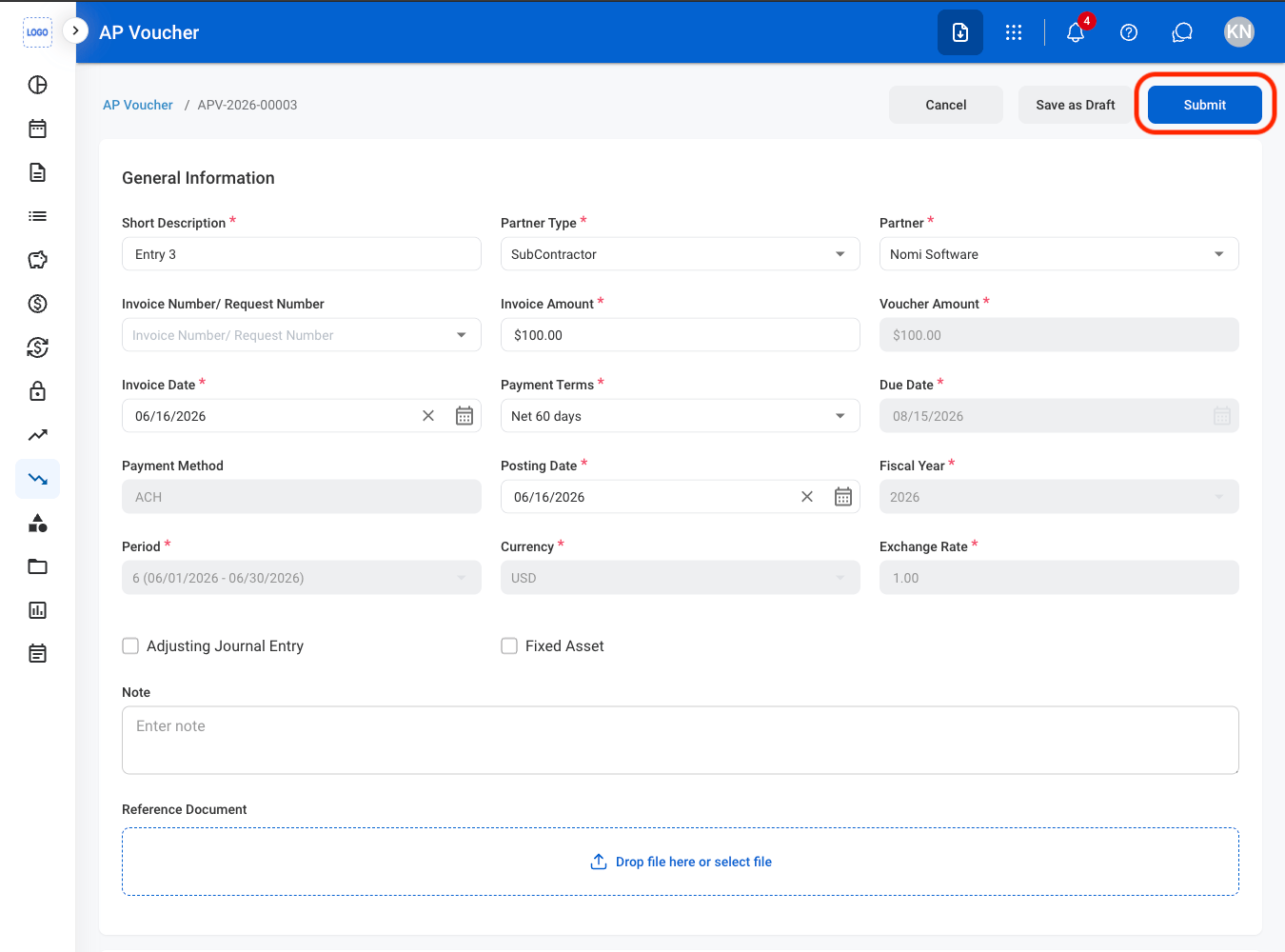
- Edit: Fill in the required information. Select Submit to complete, Save as Draft to save the record without submitting, or Cancel to exit without saving changes.
- Delete: Select Delete to complete or Cancel to exit without saving changes.
- Cancel: Select Confirm to complete or Cancel to exit without saving changes.
Reverse an AP Voucher
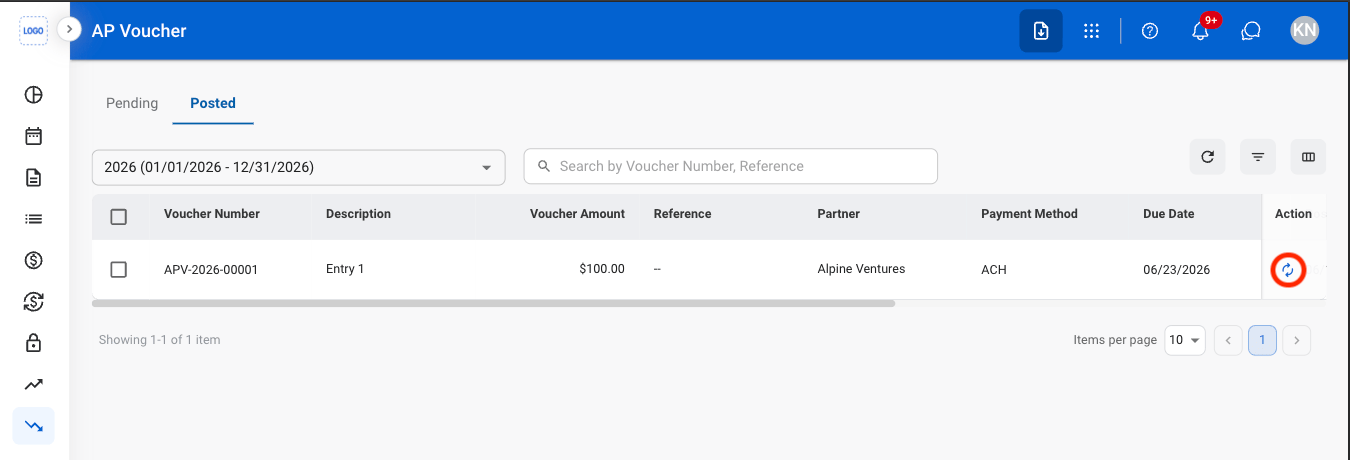
The Reverse action is only available in the Posted tab
1
Select the reverse icon
2
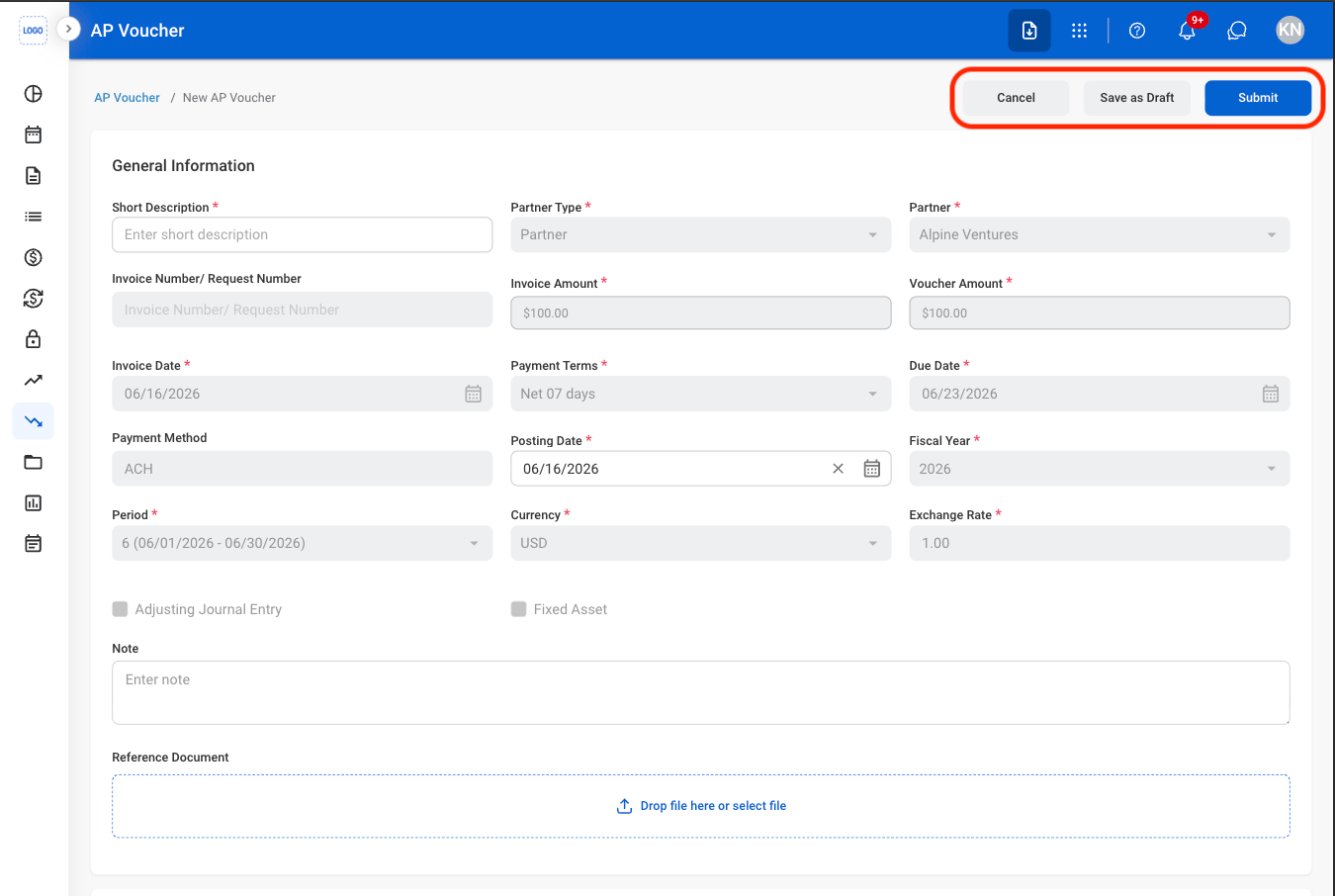
Fill in the required information
Review an AP Voucher
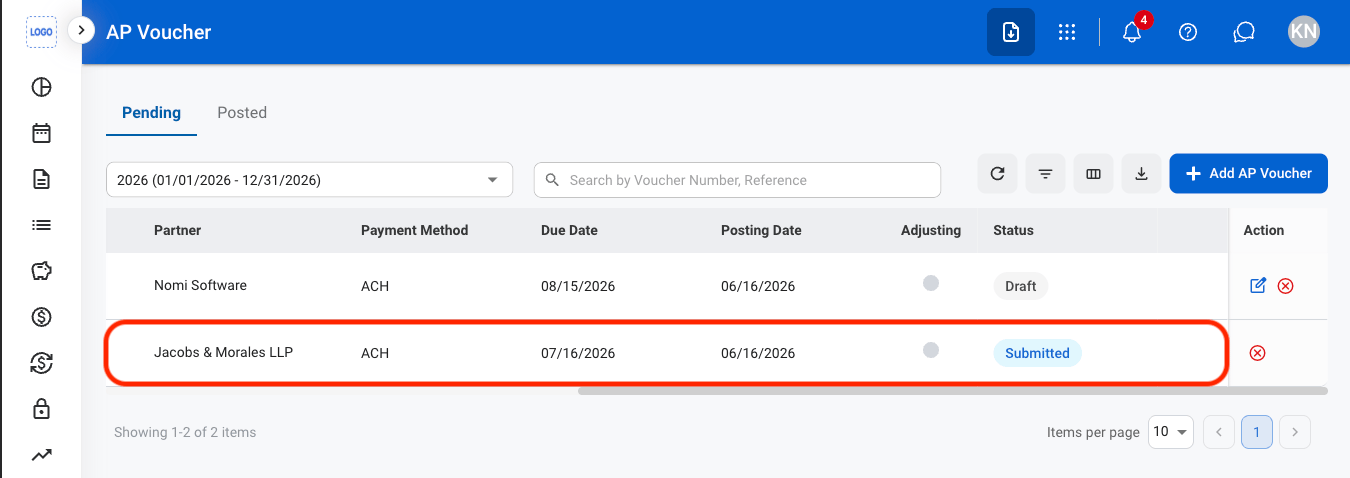
AP Vouchers must be in Submitted status before they can be reviewed. Submitted vouchers appear in the Pending tab until they are posted.
1
Select a submitted AP Voucher
2
Review and process the record
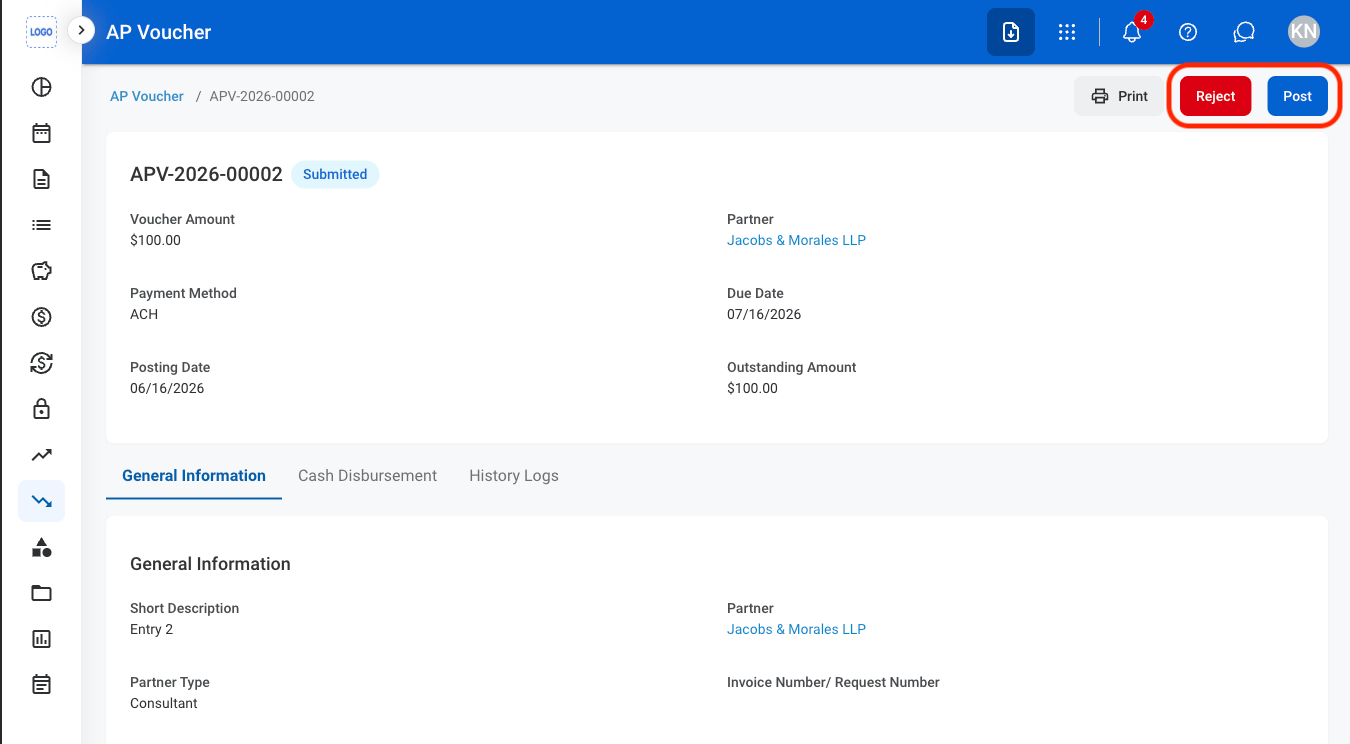
- Reject: The status changes to Rejected and the AP Voucher is not posted to the General Ledger.
- Post: The status changes to Posted and the AP Voucher is recorded in the General Ledger.
3
Confirm the action
- Reject: Enter a rejection reason. Select Reject to complete or Cancel to exit without saving changes.
- Post: Select Confirm to complete or Cancel to exit without saving changes.
General Information
Edit General Information
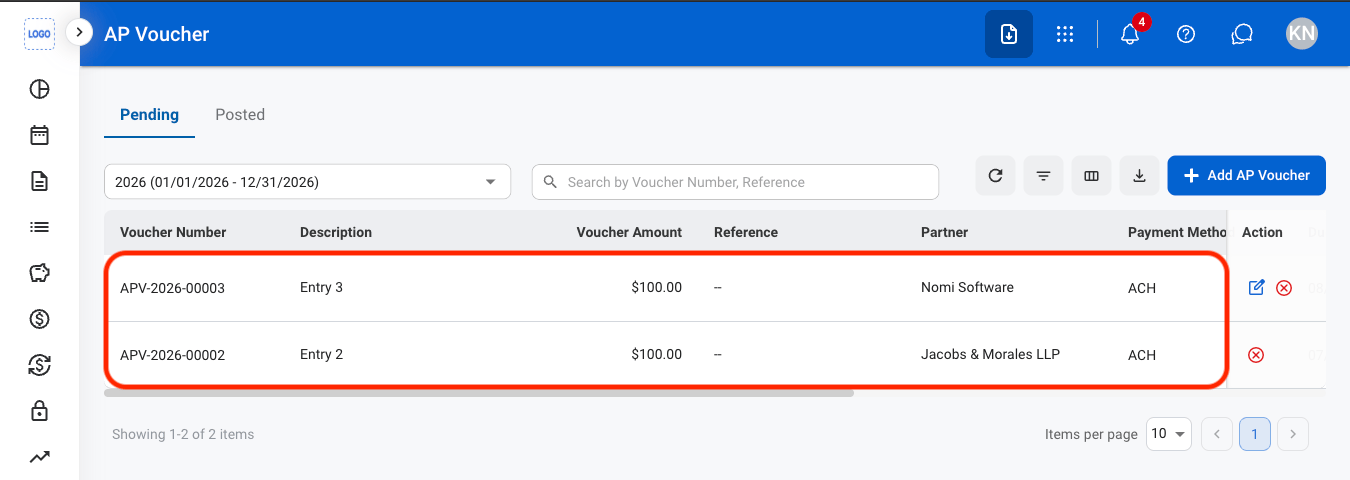
1
Select an AP Voucher
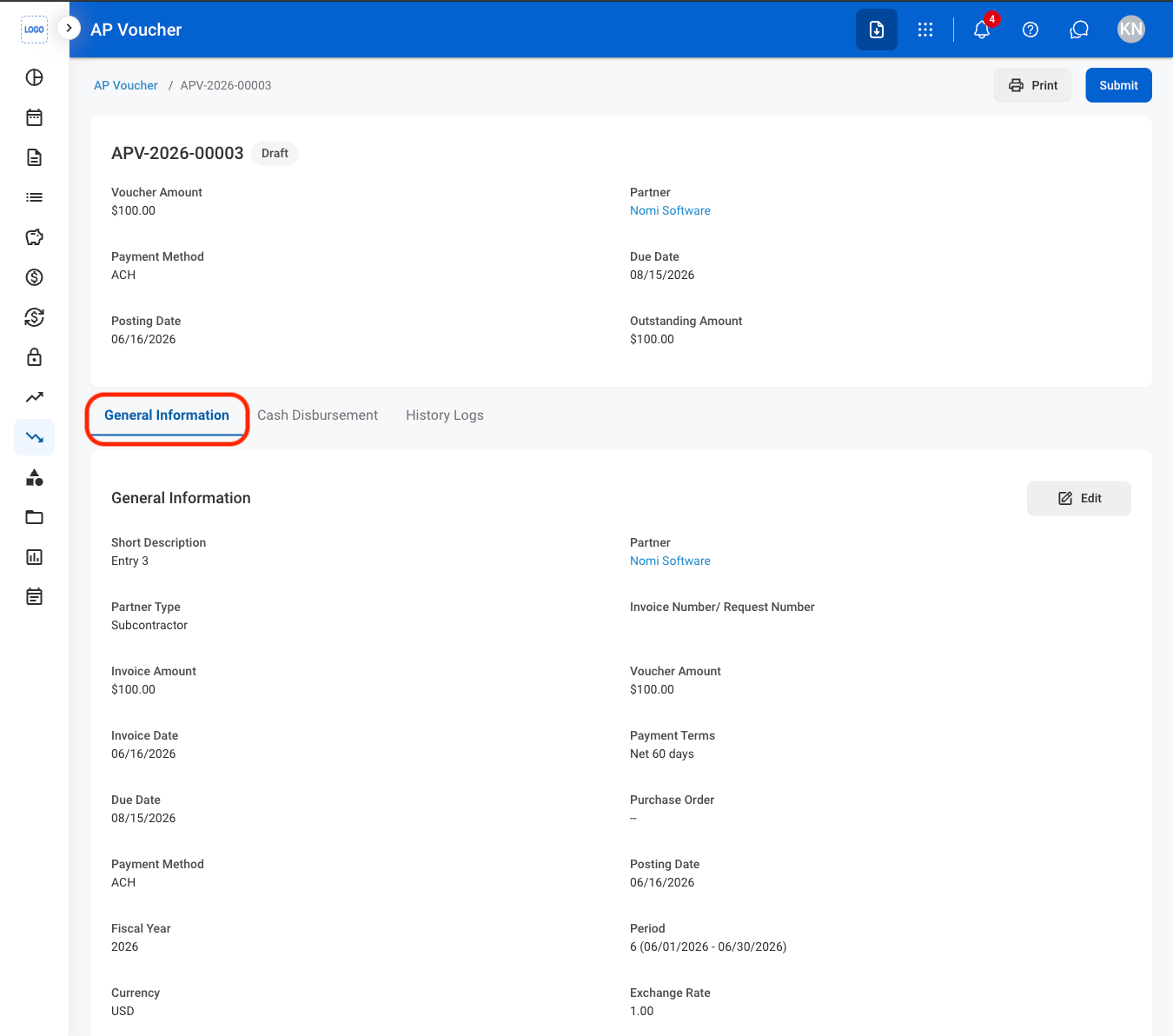
2
Navigate to General Information
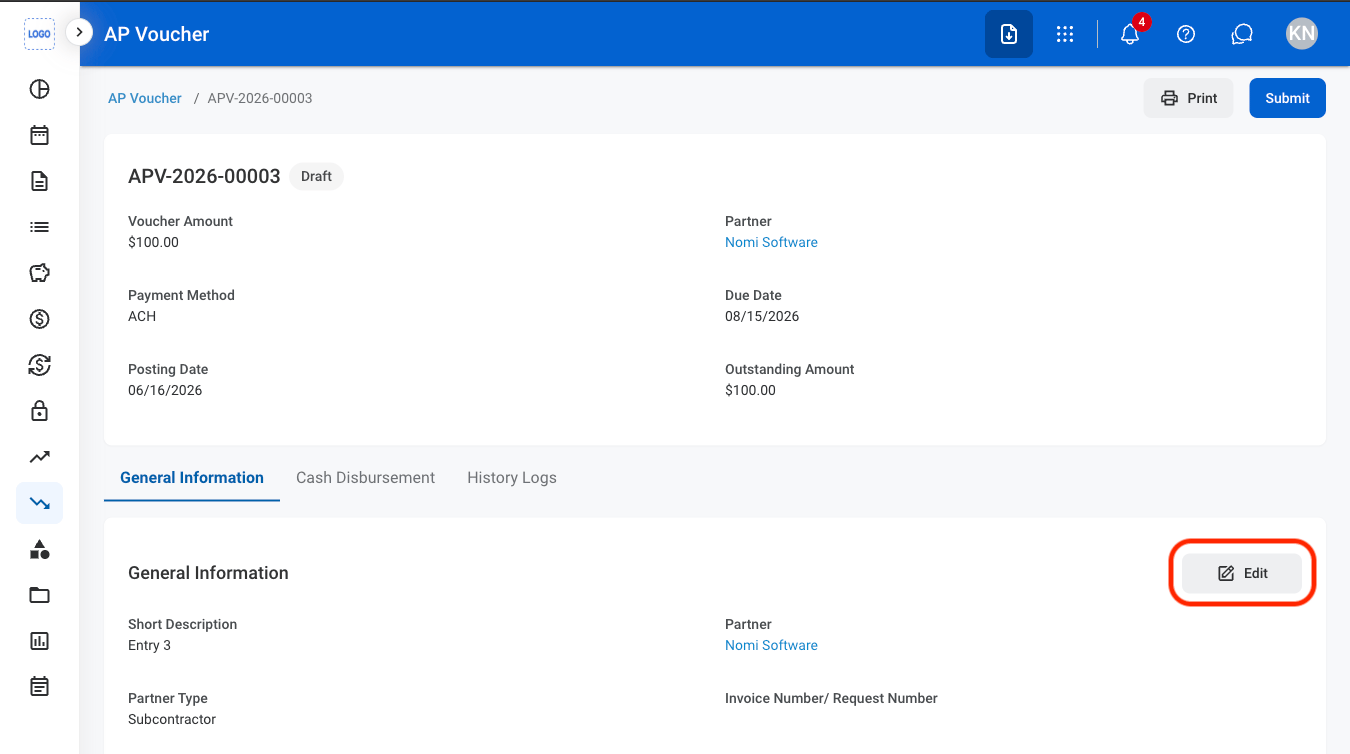
3
Select Edit
4
Fill in the required information
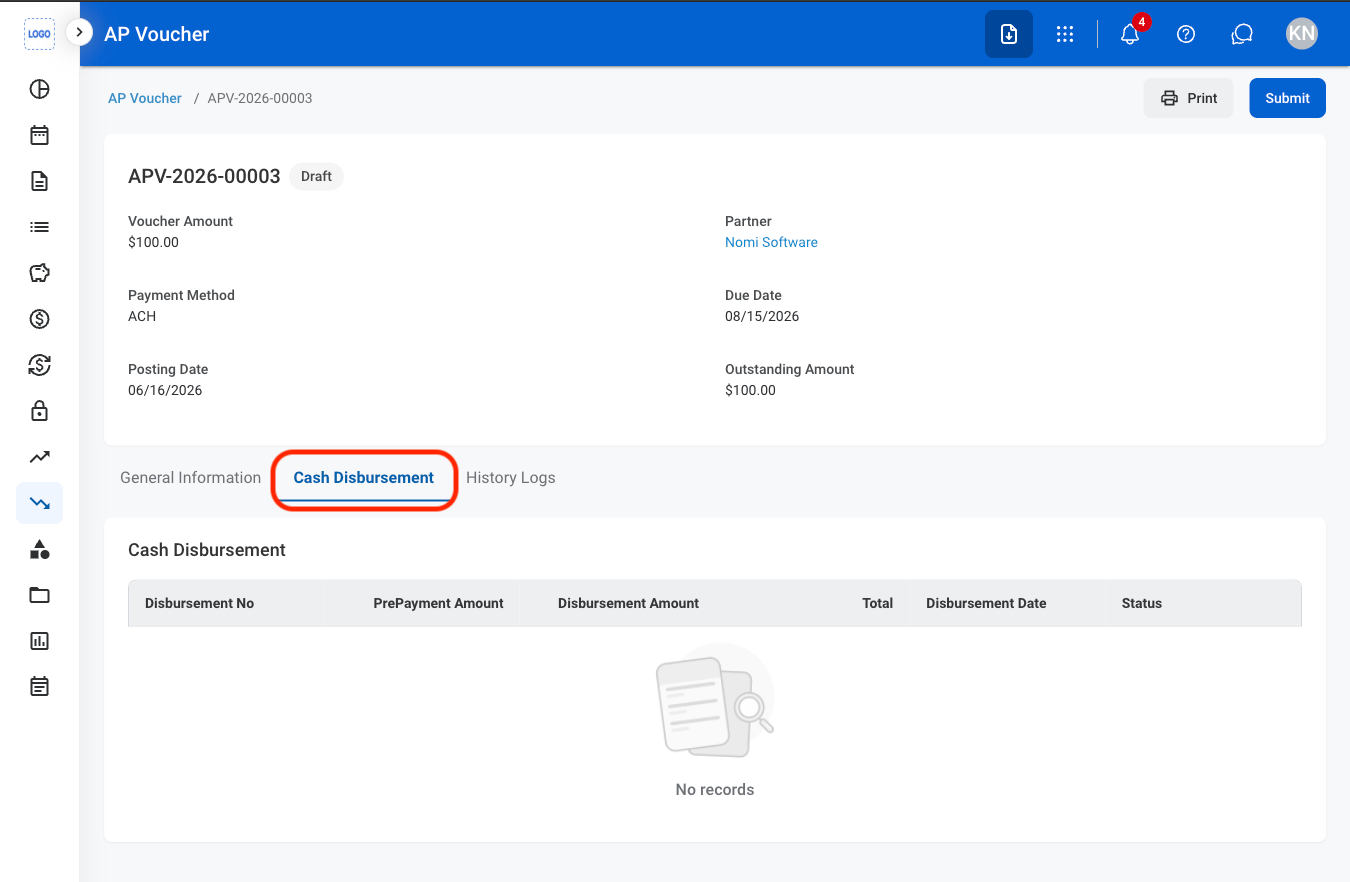
Cash Disbursement
View Cash Disbursements
1
Navigate to Cash Disbursements
History Logs
View History Logs
1
Navigate to History Logs