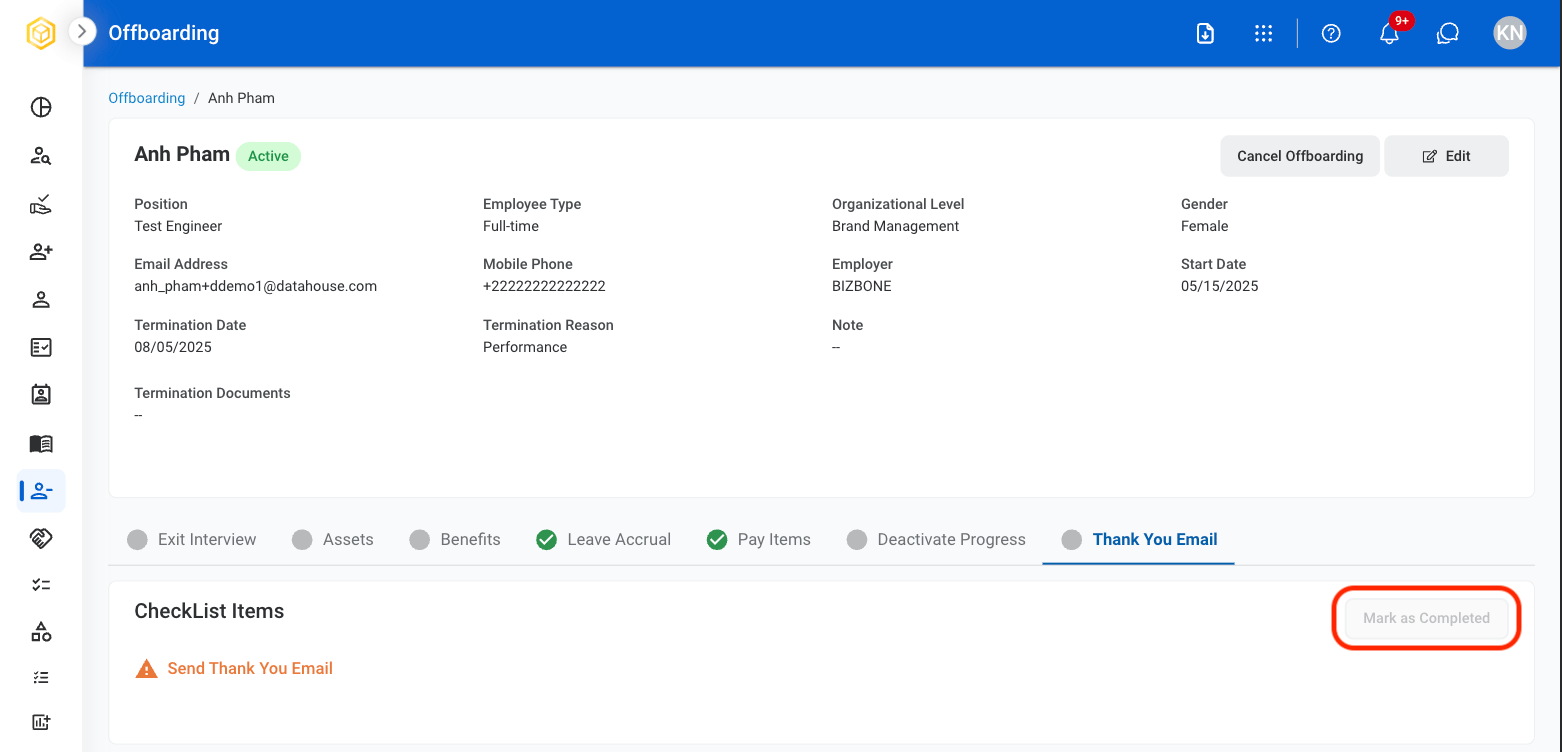
View Offboarding Information
1
Select Offboarding
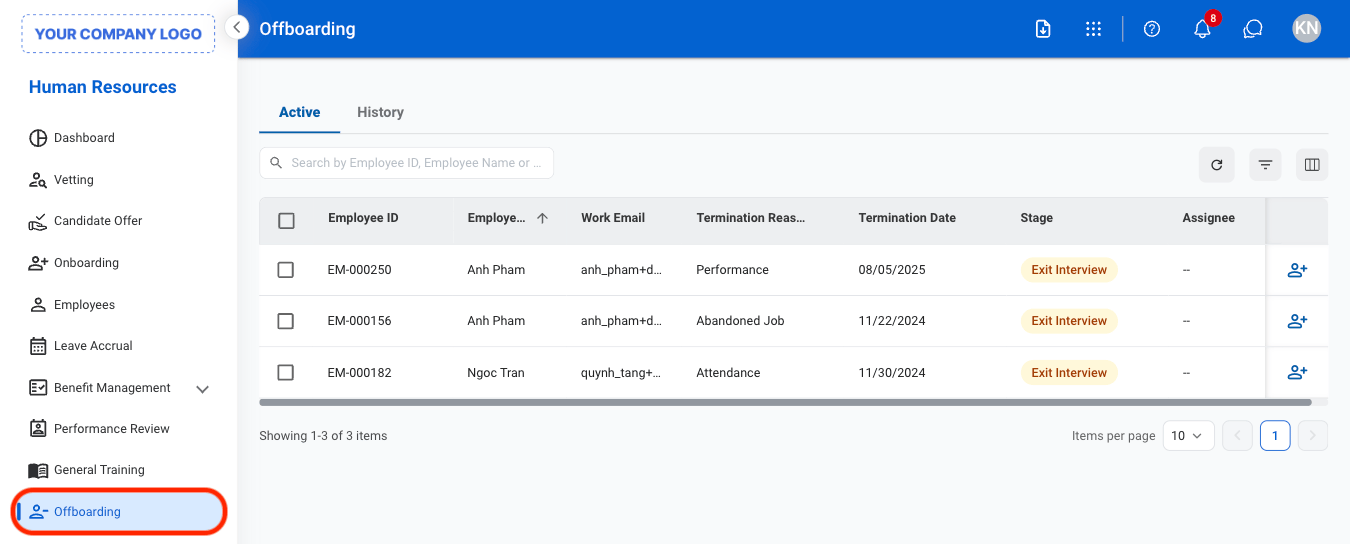
2
Select a tab
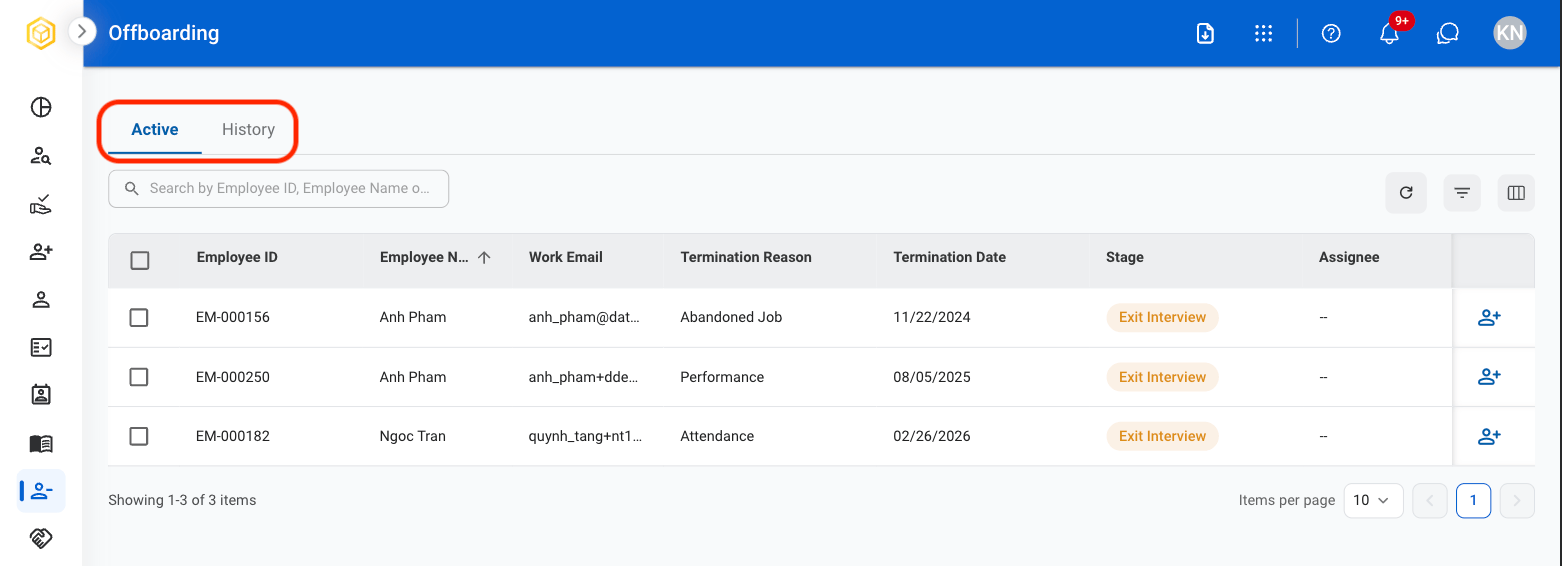
3
Select a profile for more information
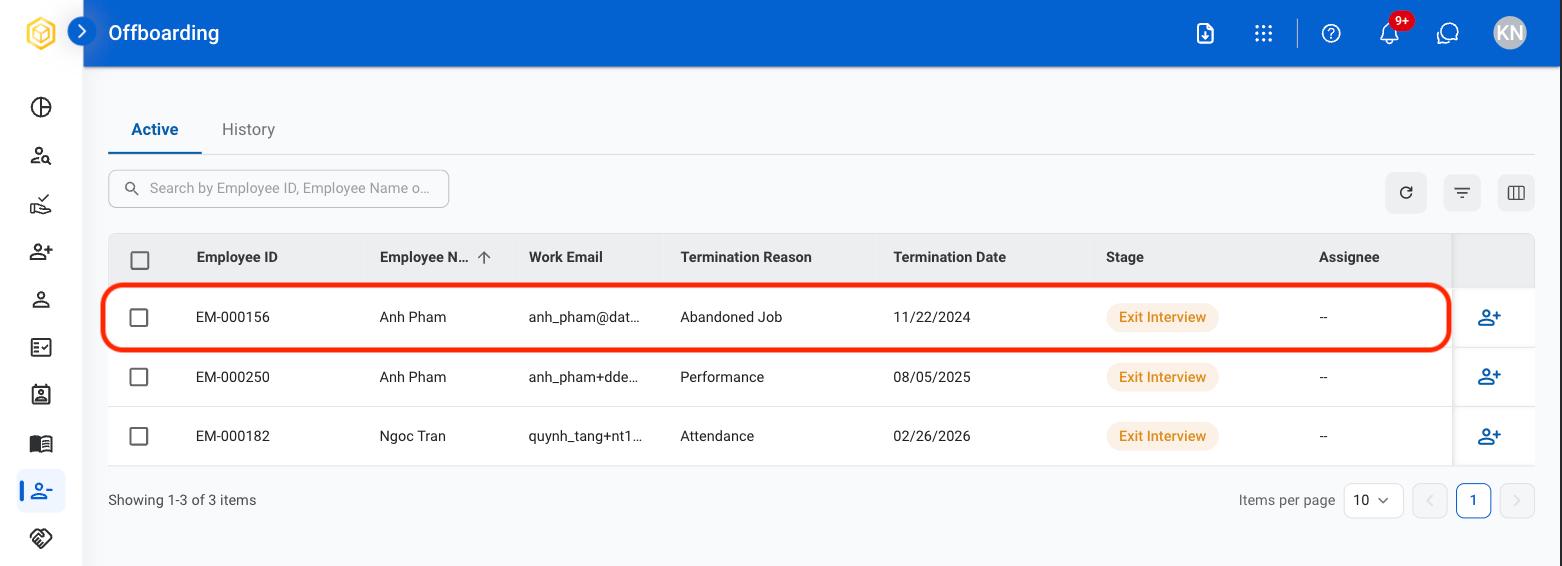
4
To make changes

- Select Cancel Offboarding to move profile back to Employees
- Select Edit to update termination reason, date, and documentation.
Assign Agreement Information
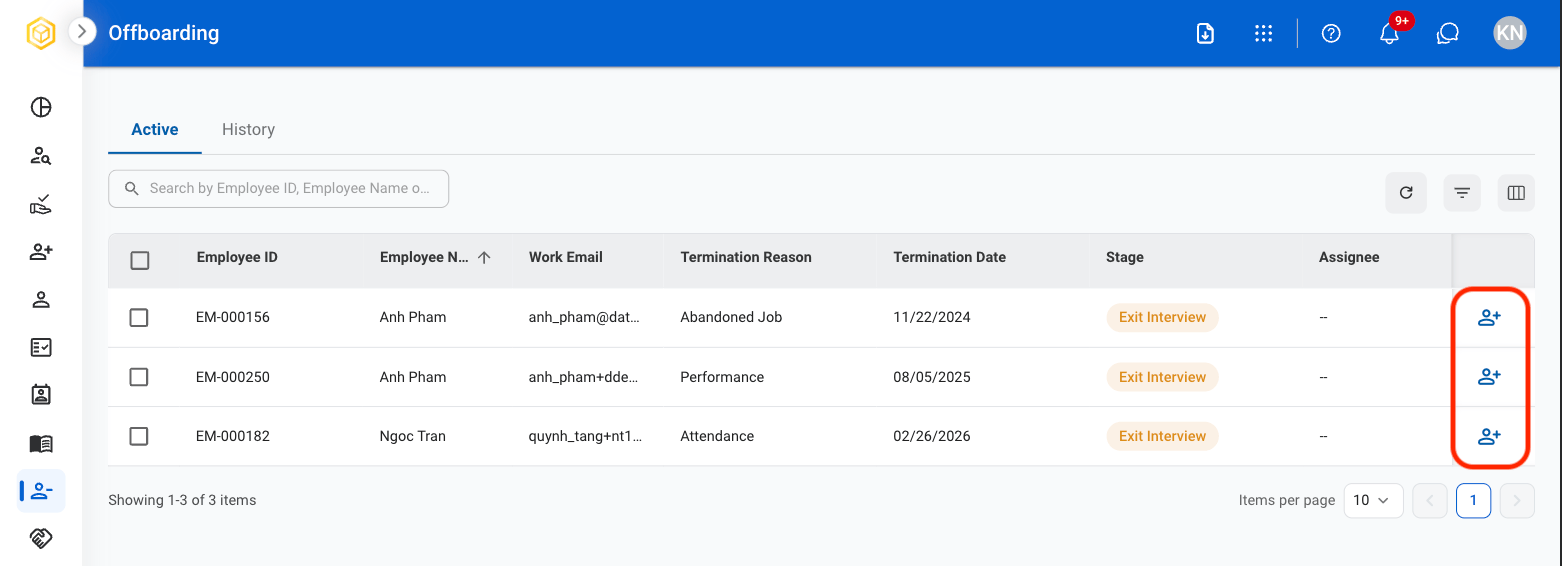
1
Select the Assign icon on an active Offboarding profile
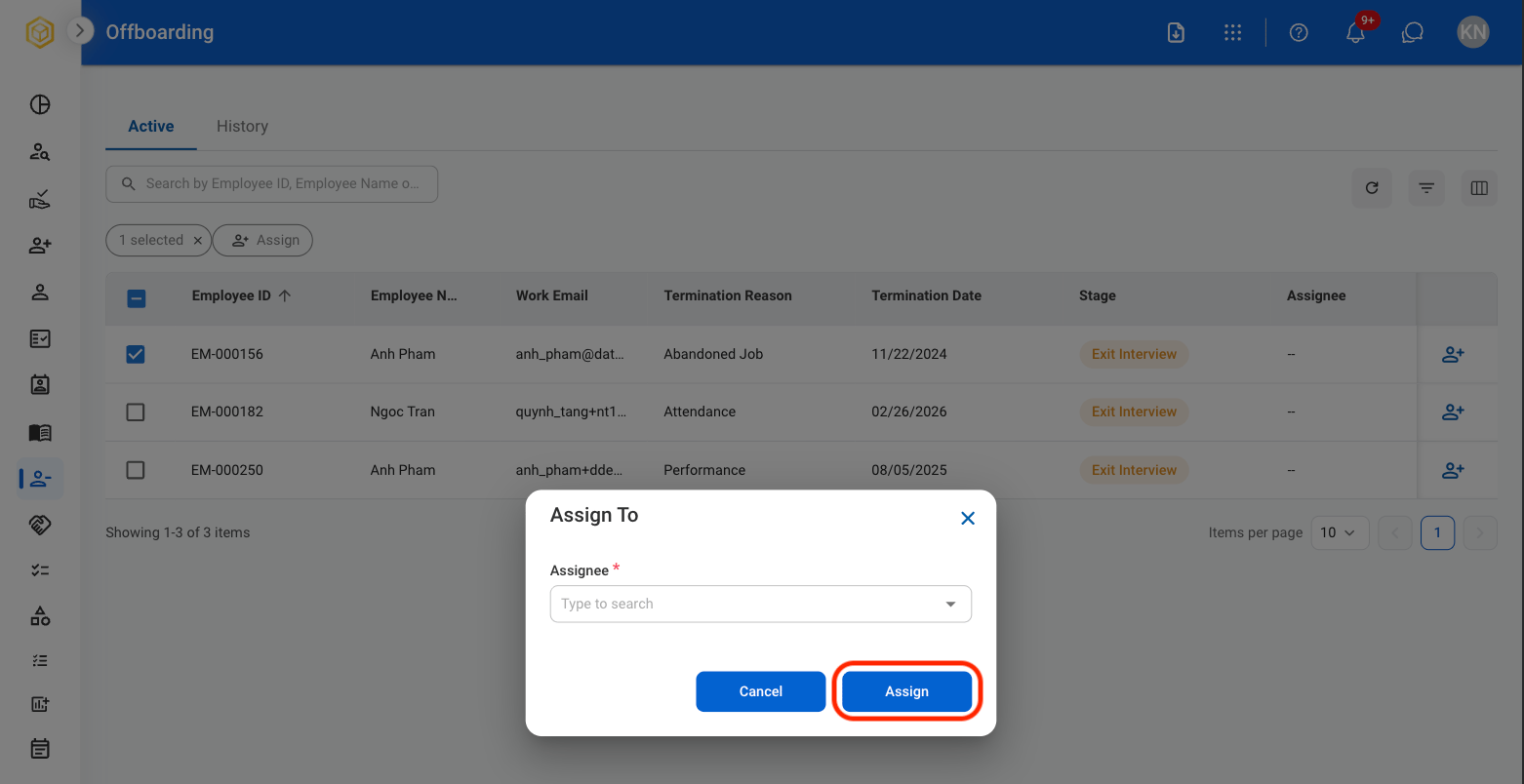
2
Select an assignee
Exit Interview
Record exit interview information and track interview completion status.1
Select an employee profile
2
Select the Exit Interview tab

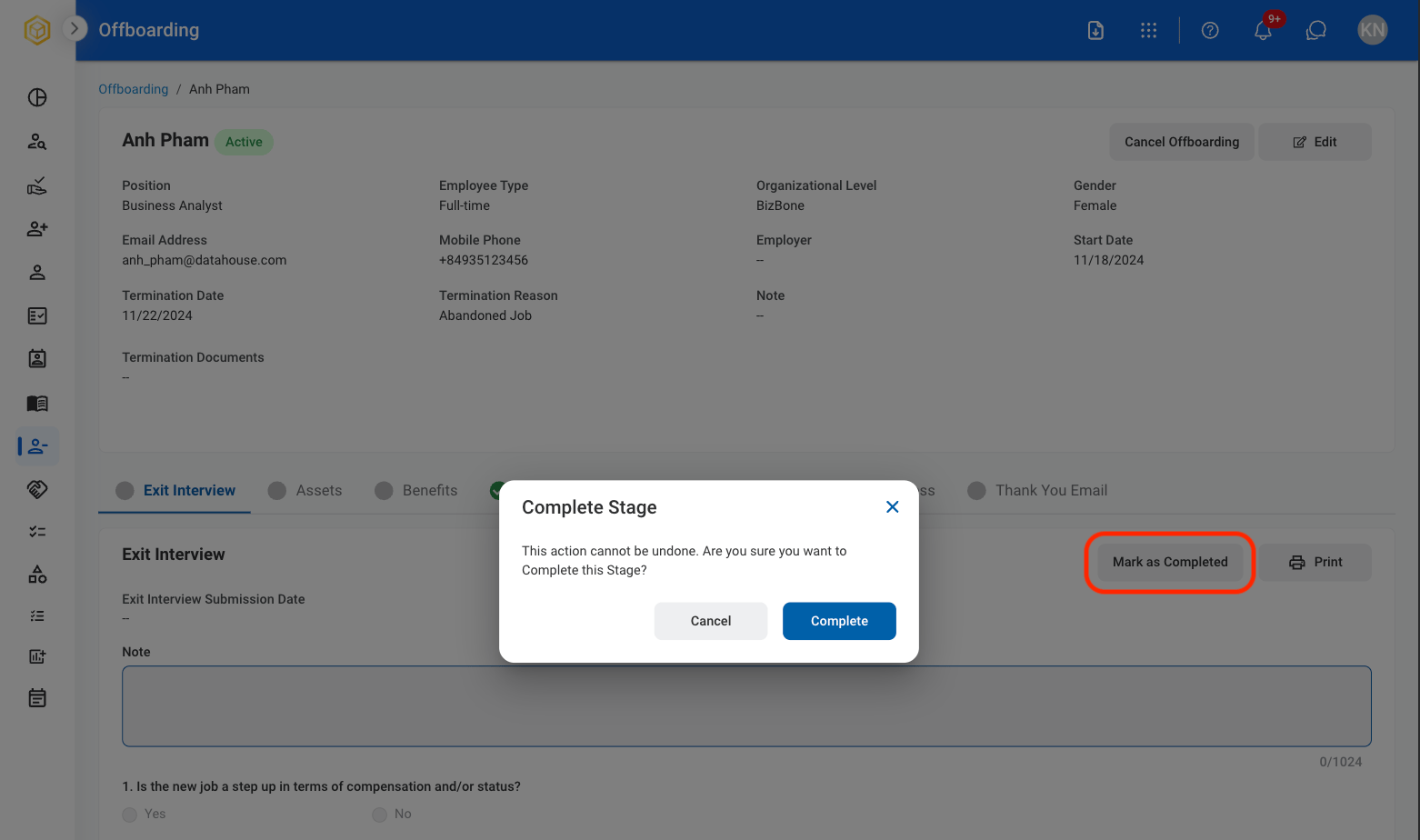
3
Once completed by employee, select Mark as Completed
Assets
View assigned assets and track asset return status during offboarding.1
Select the Assets tab

2
Once asset return is completed, select Mark as Completed

Once completed, this action cannot be undone.
Benefits
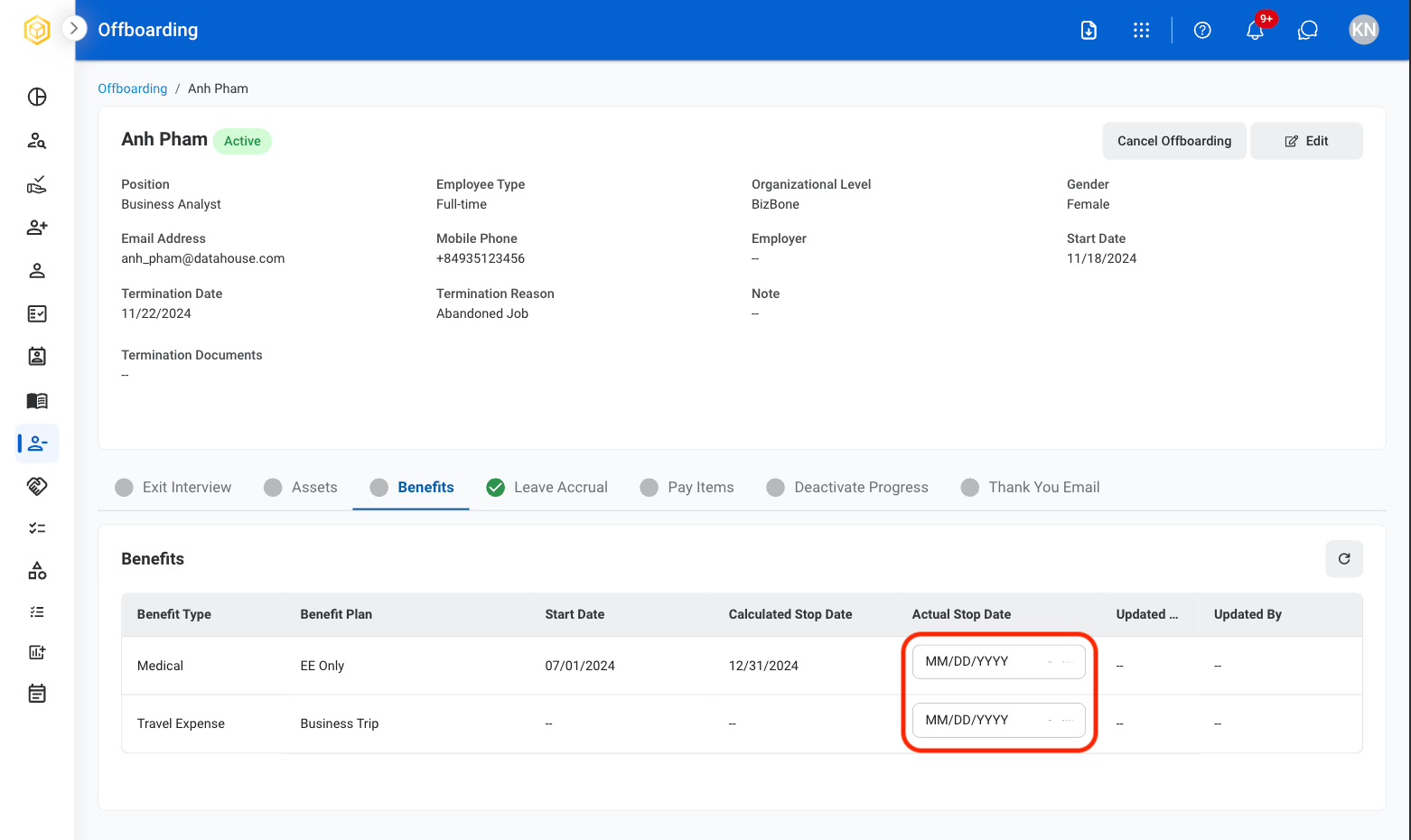
Record benefit termination information and benefit end dates.1
Select the Benefits tab
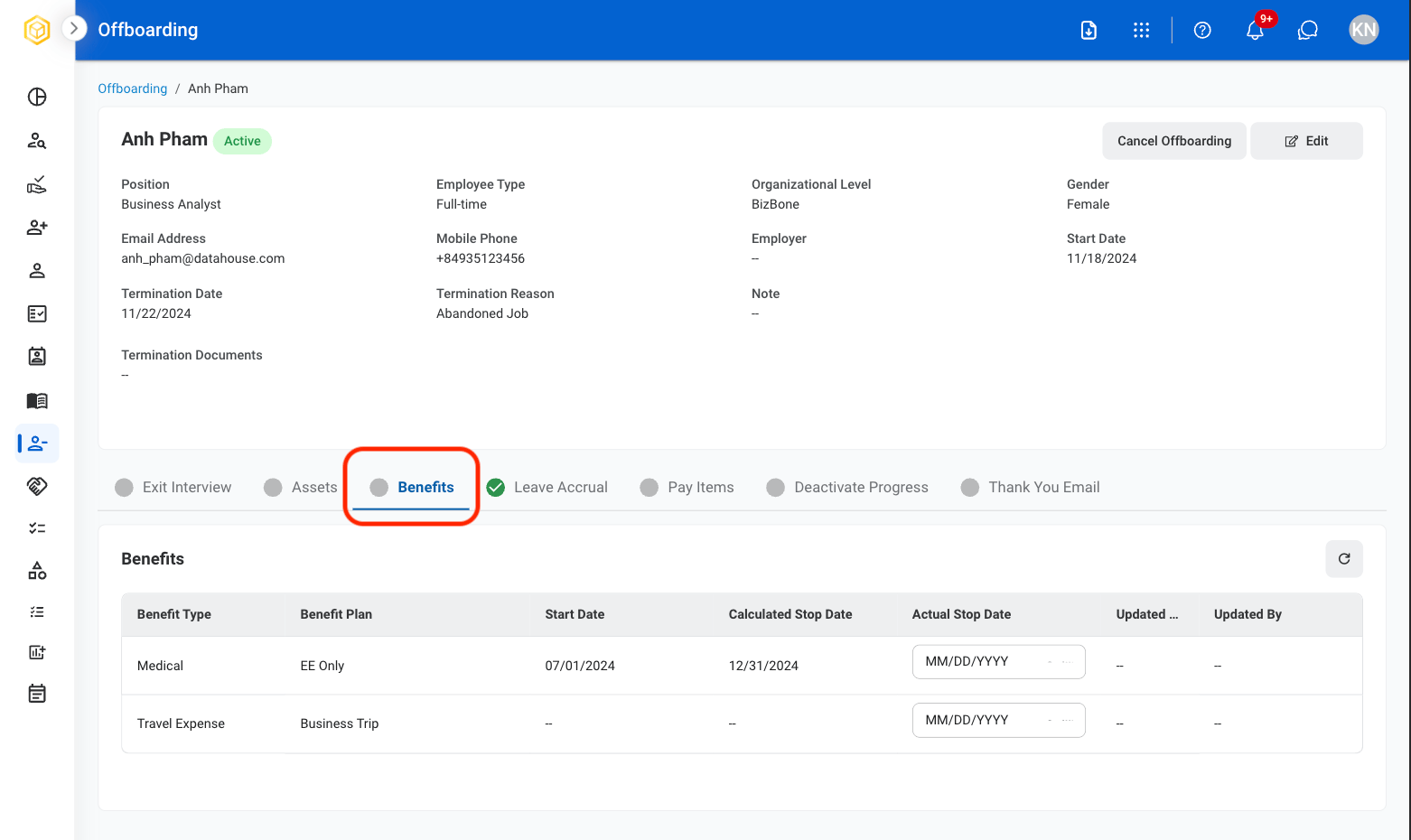
2
Select MM/DD/YYYY to update Actual Stop Date
Leave Accrual
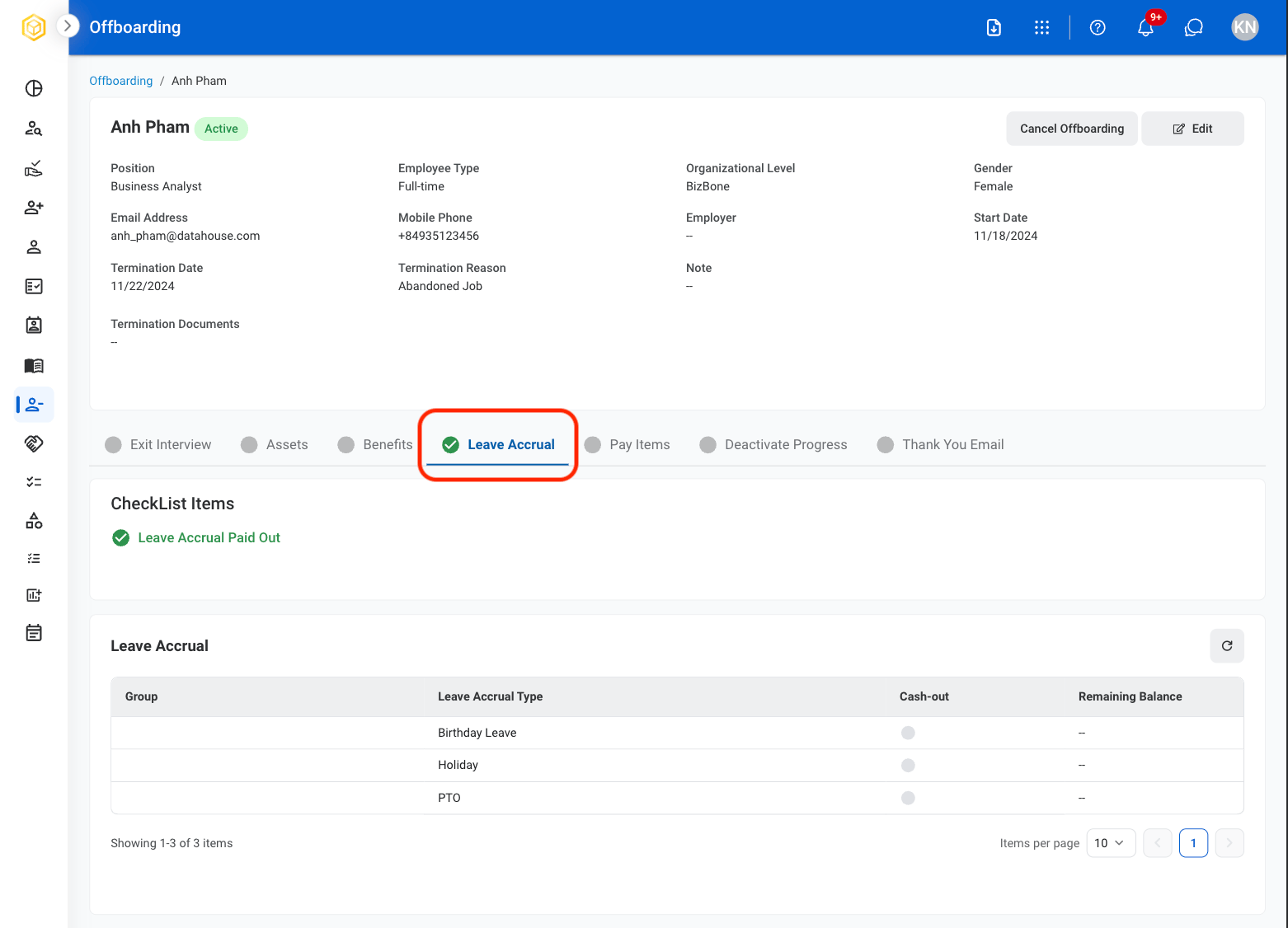
View remaining leave accrual balances and manage leave payout information.1
Select the Leave Accrual tab
Pay Items
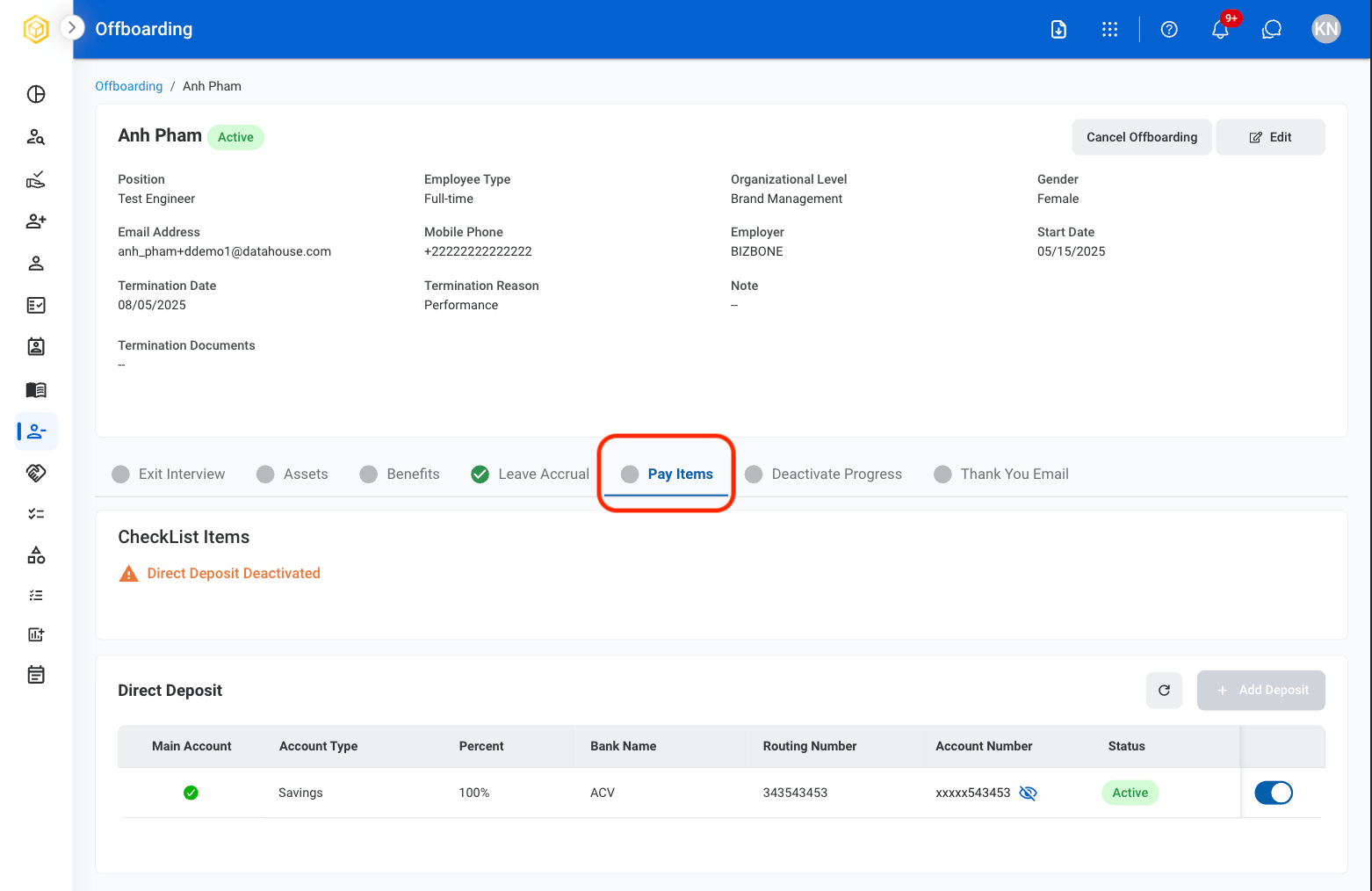
View direct deposit information and manage account deactivation status.1
Select the Pay Items tab
2
Toggle the slider to deactivate direct deposit
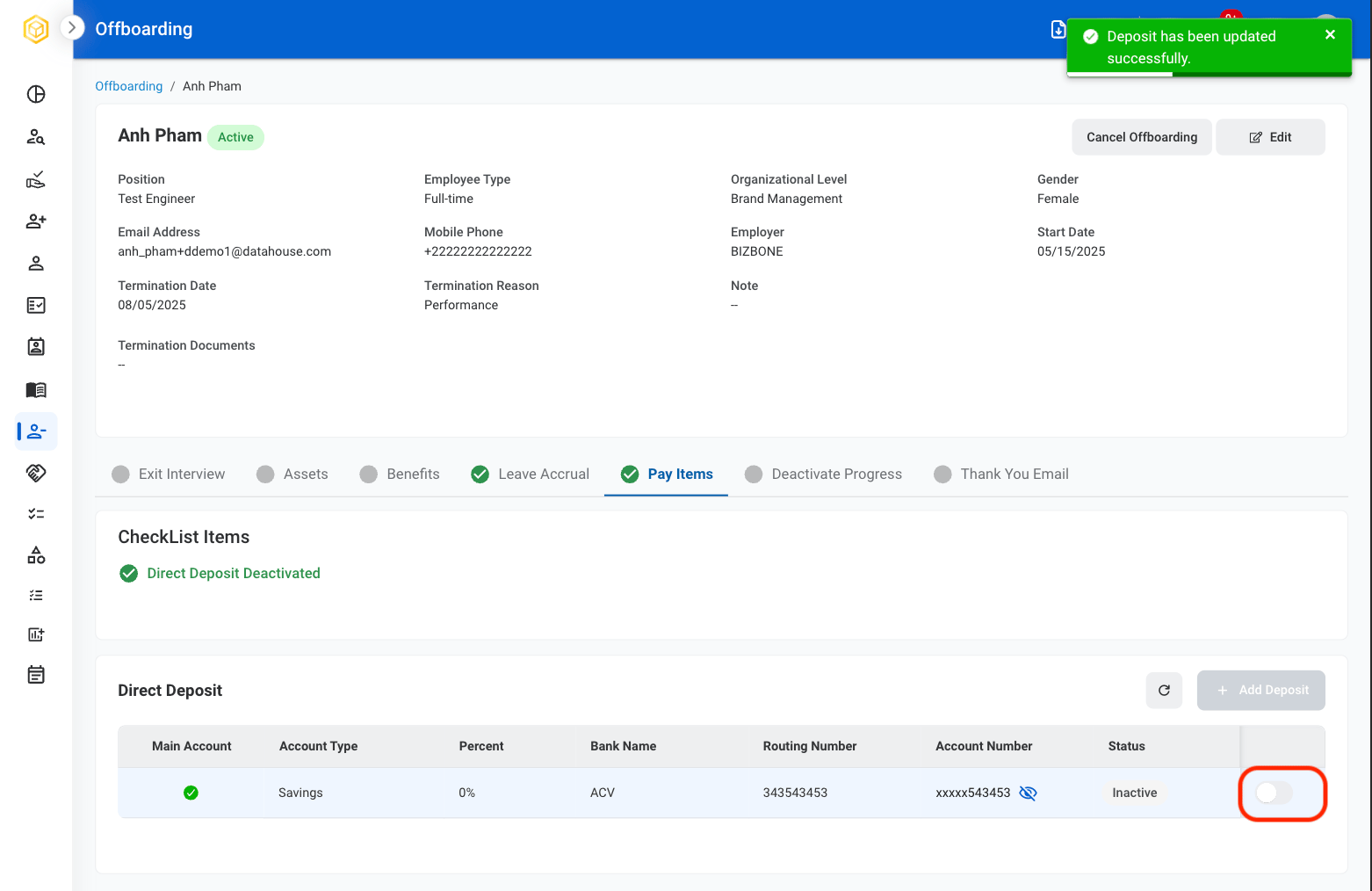
Once deactivated, this action cannot be undone.
Deactivate Progress
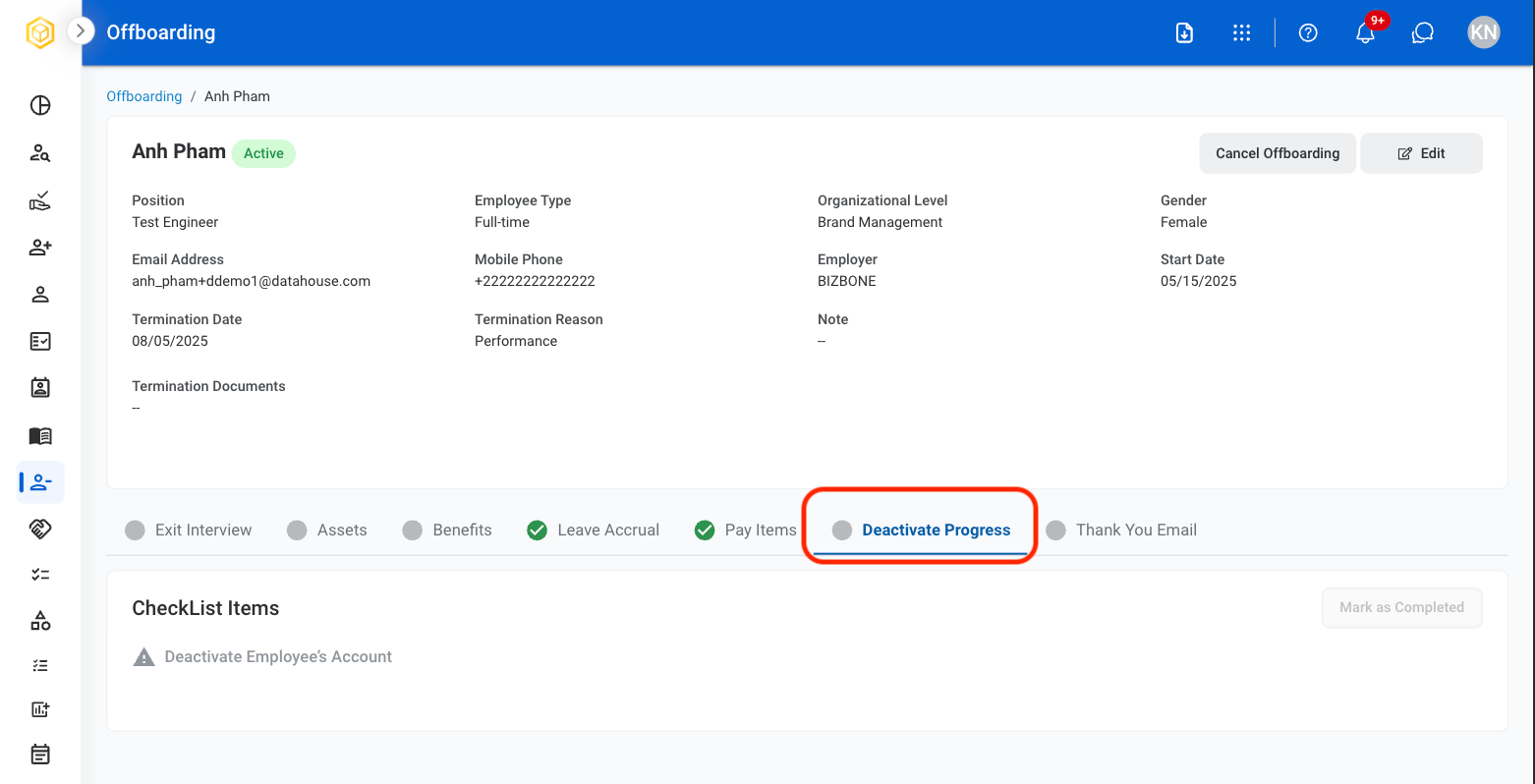
Deactivate employee system access and complete the offboarding process after all requirements have been satisfied.1
Select the Deactivate Progress tab in the employee profile
2
Once all offboarding activities are complete, select Mark as Completed.
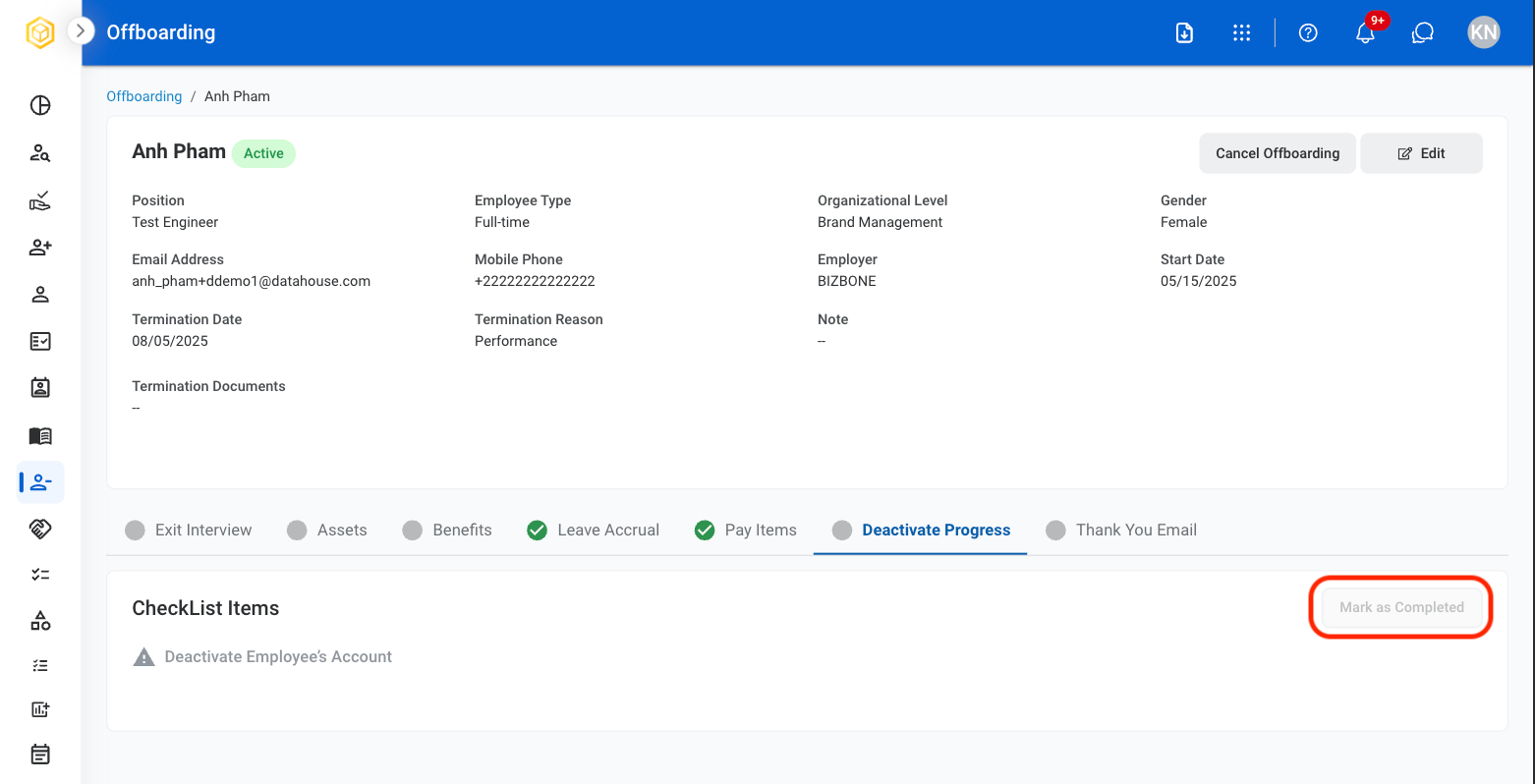
All offboarding requirements must be completed before account deactivation can be finalized.
Thank You Email
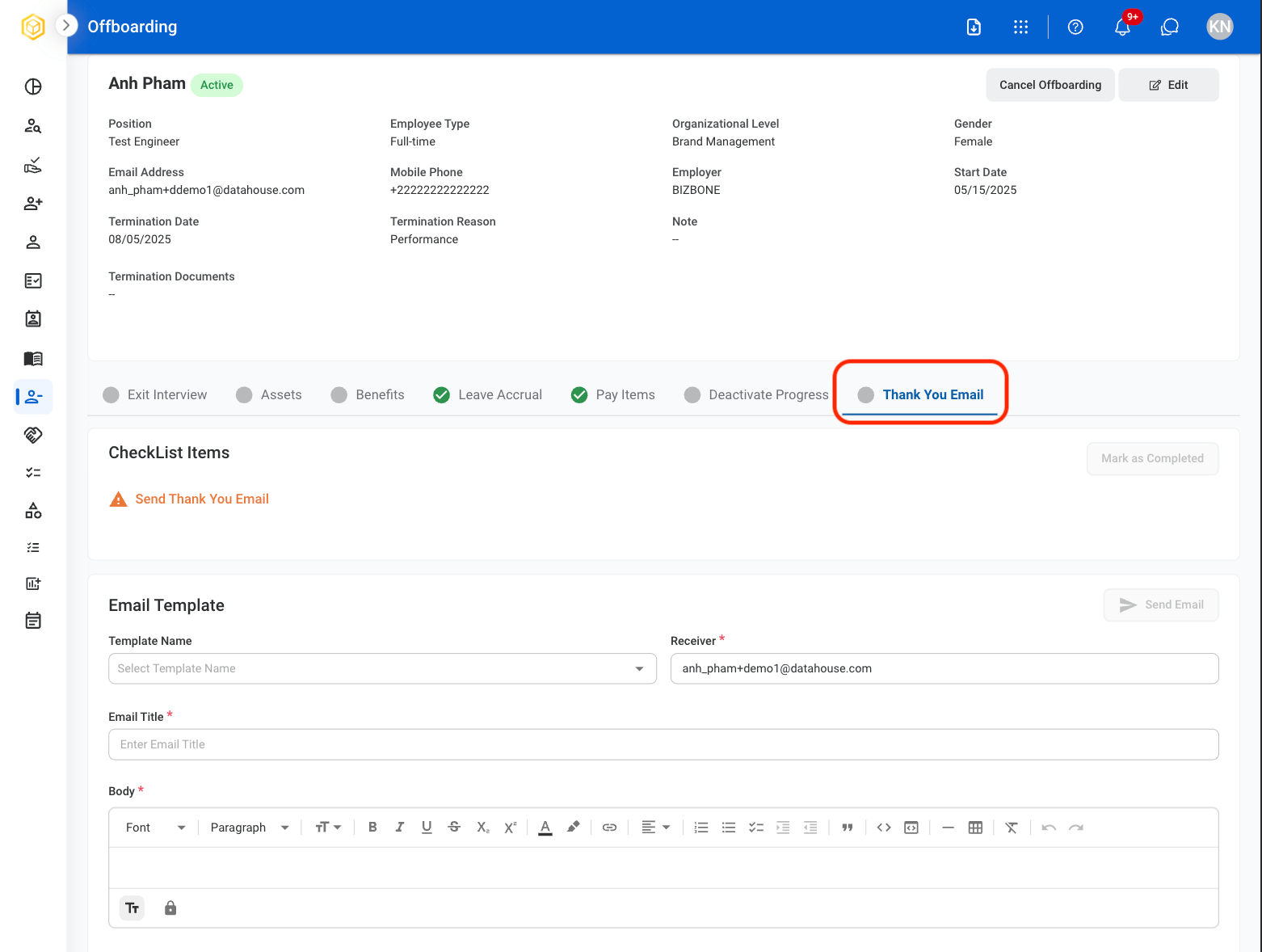
Create and send a final communication to the employee as part of the offboarding process.1
Select the Thank You Email tab.
2
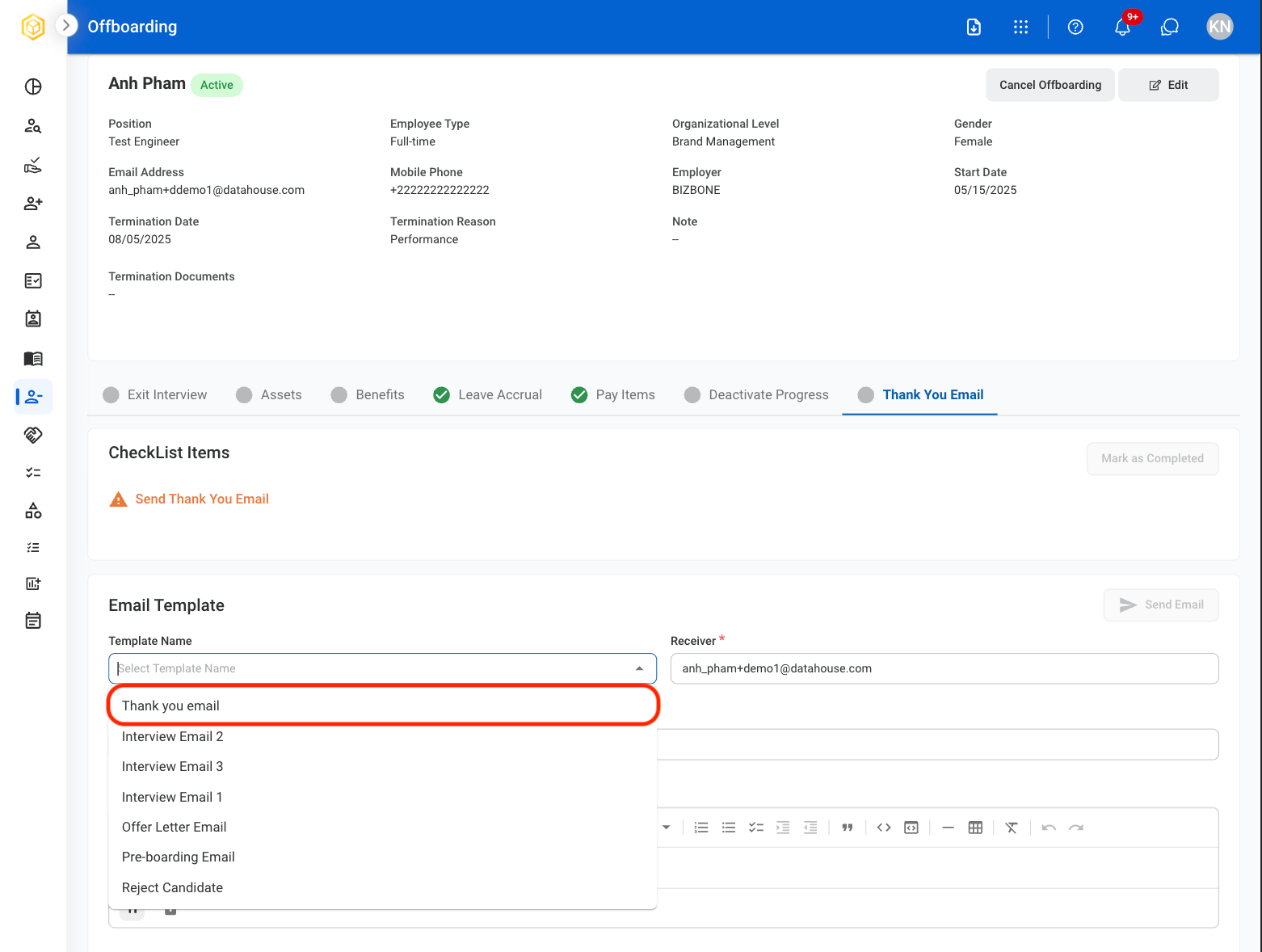
Select the Thank you email template
3
Select Send Email

4
Select Mark as Completed