Long-term leaves are added when a Long-Term Leave Request is approved. Long-term leave categories are configured by your organization.
View Long-term Leave
1
Navigate to Long-term Leave
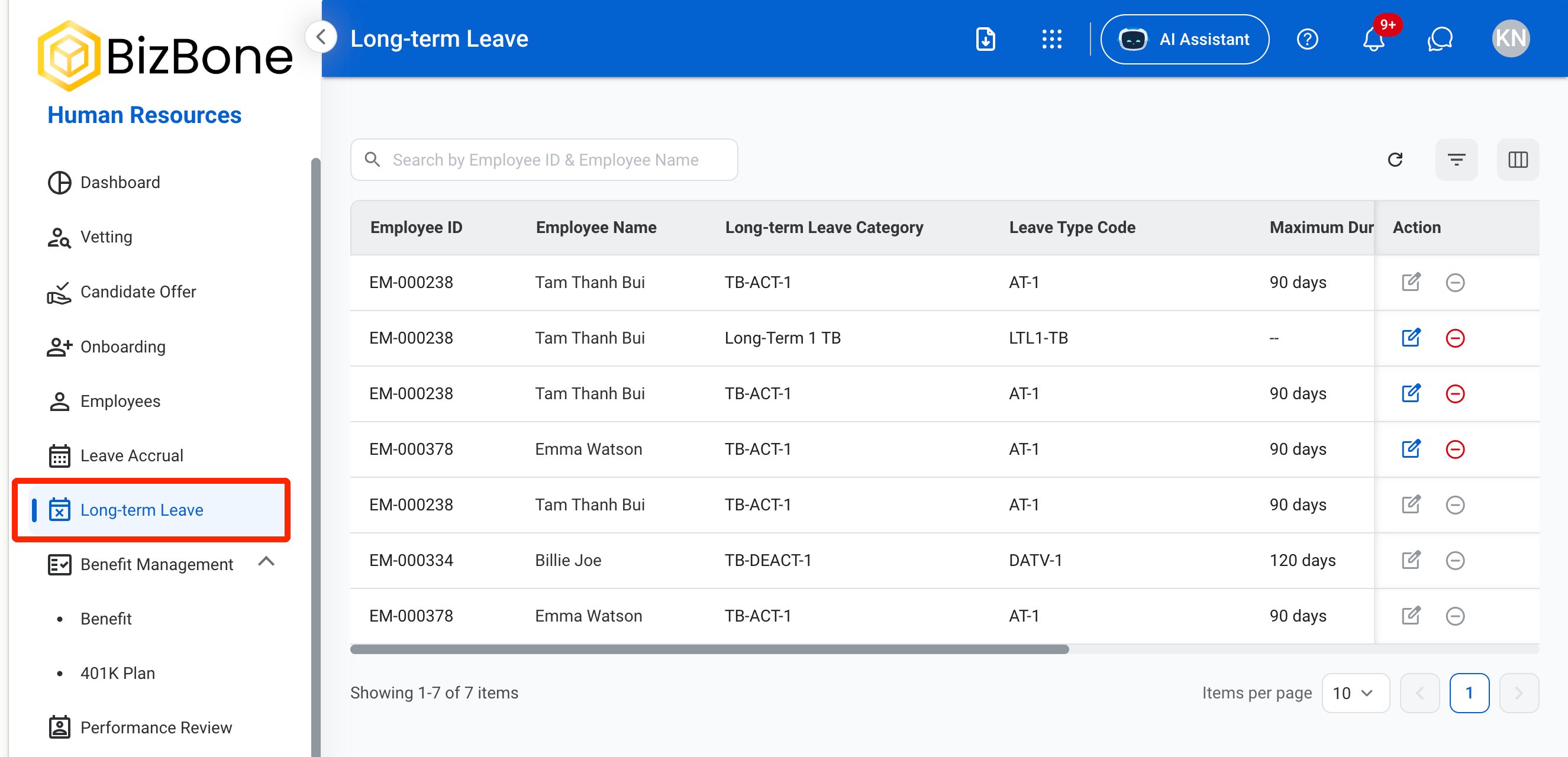
2
Search or filter results
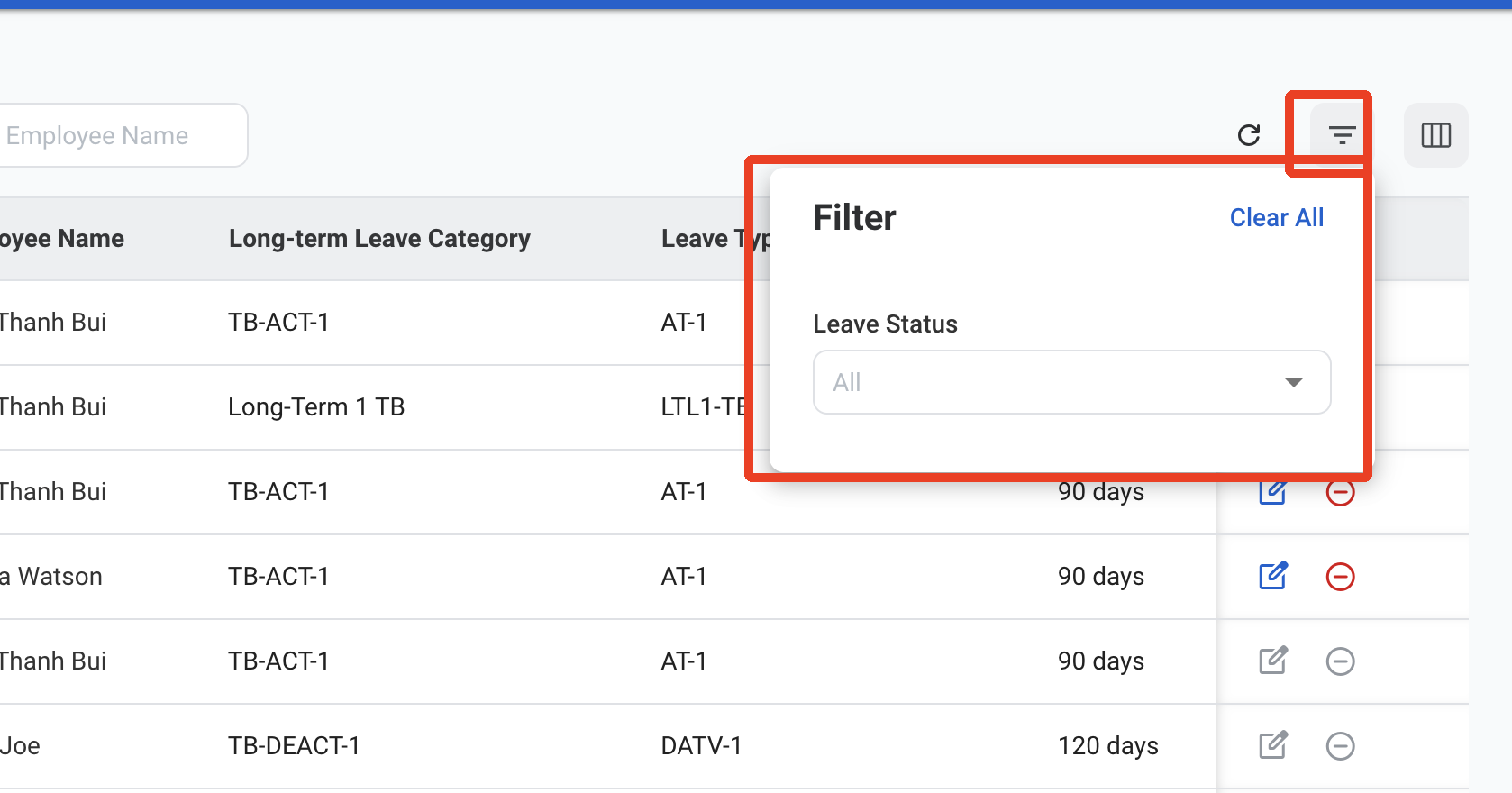
- Use the Search bar to find long-term leaves by Employee ID or Employee Name.
- Use the filter to show long-term leaves by Leave Status:
- Up-coming: The leave has not started yet.
- In-progress: The employee is currently on leave.
- Completed: The employee has returned from leave.
- Cancelled: The leave was cancelled.
3
Select a long-term leave
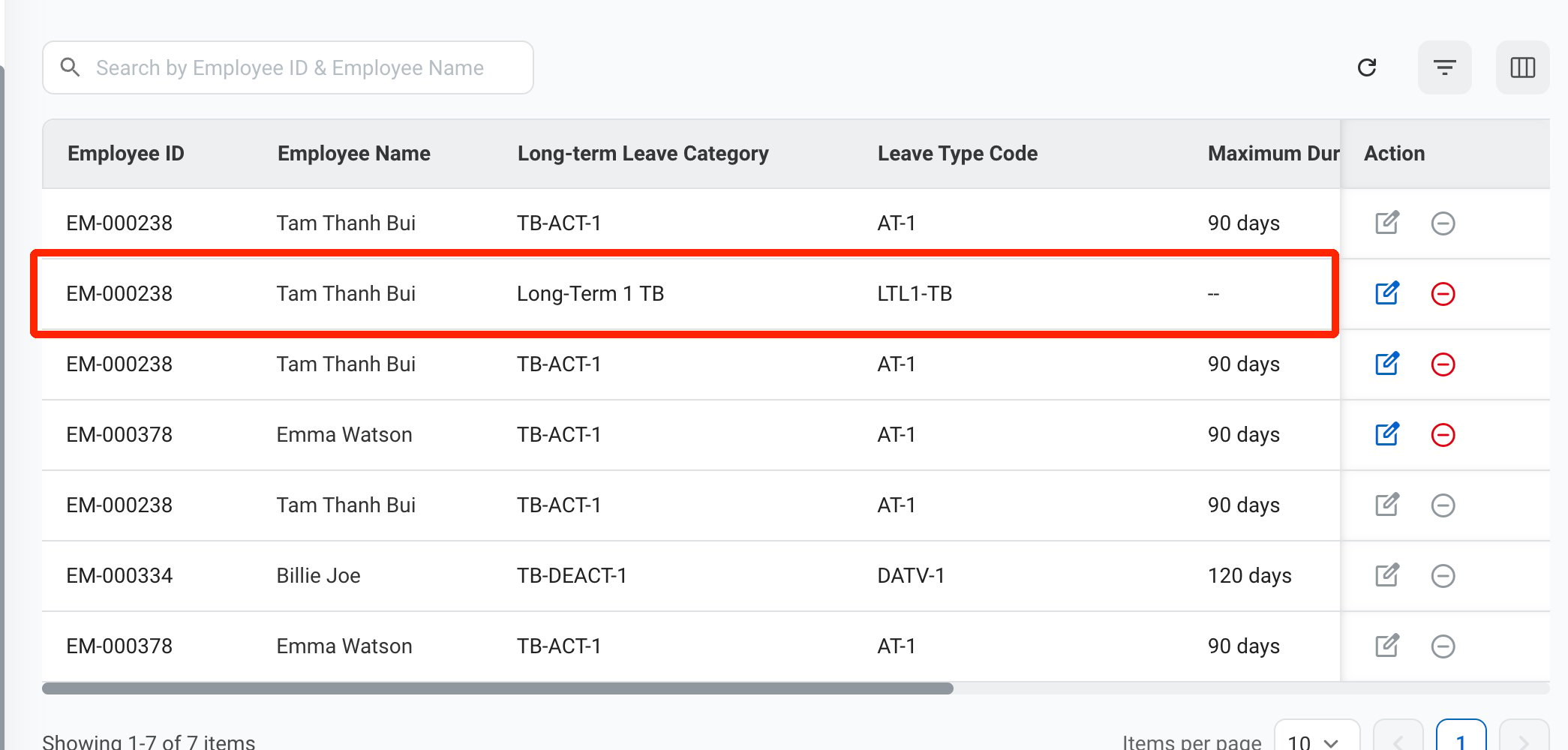
4
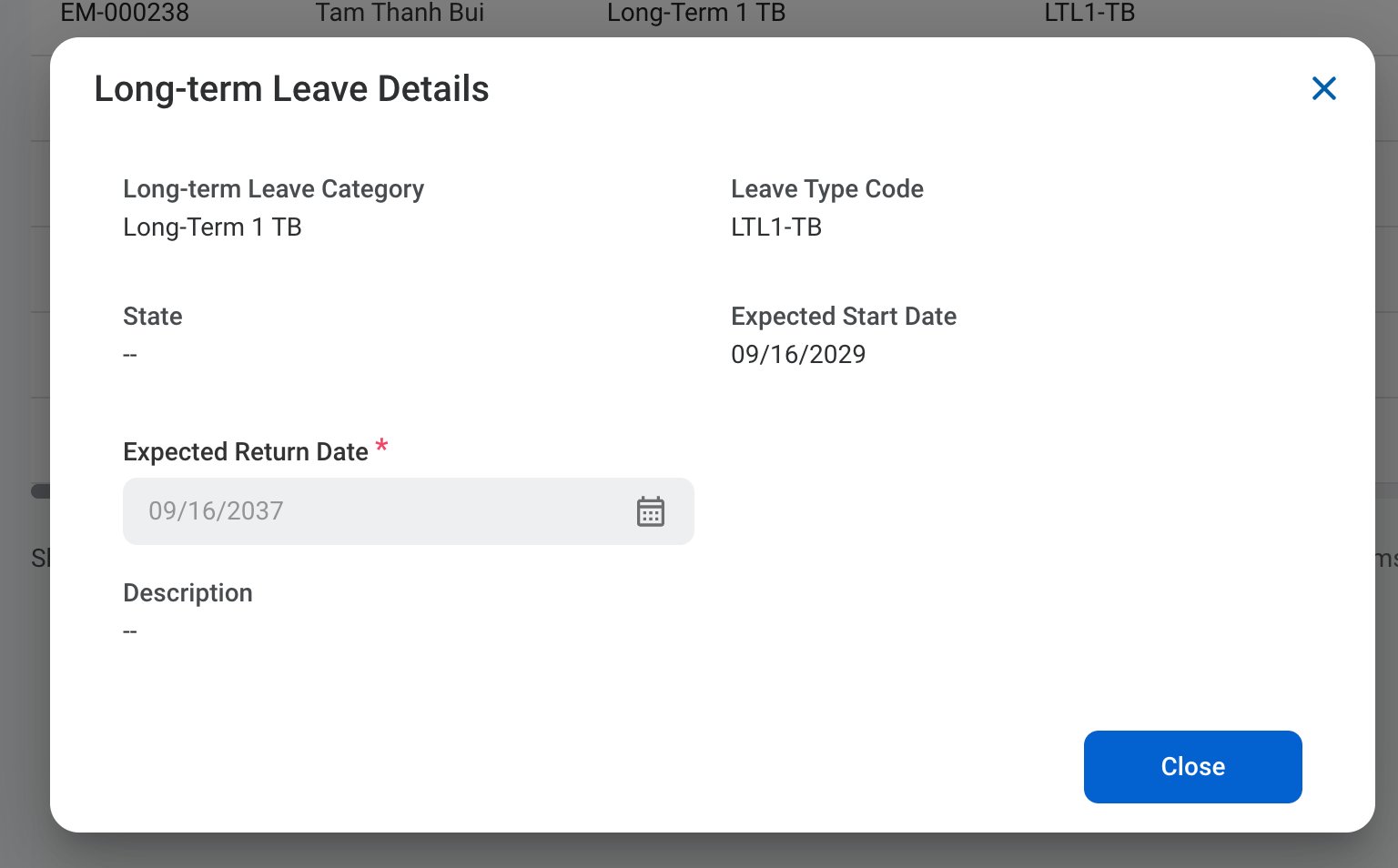
View the long-term leave details
Edit a Long-term Leave
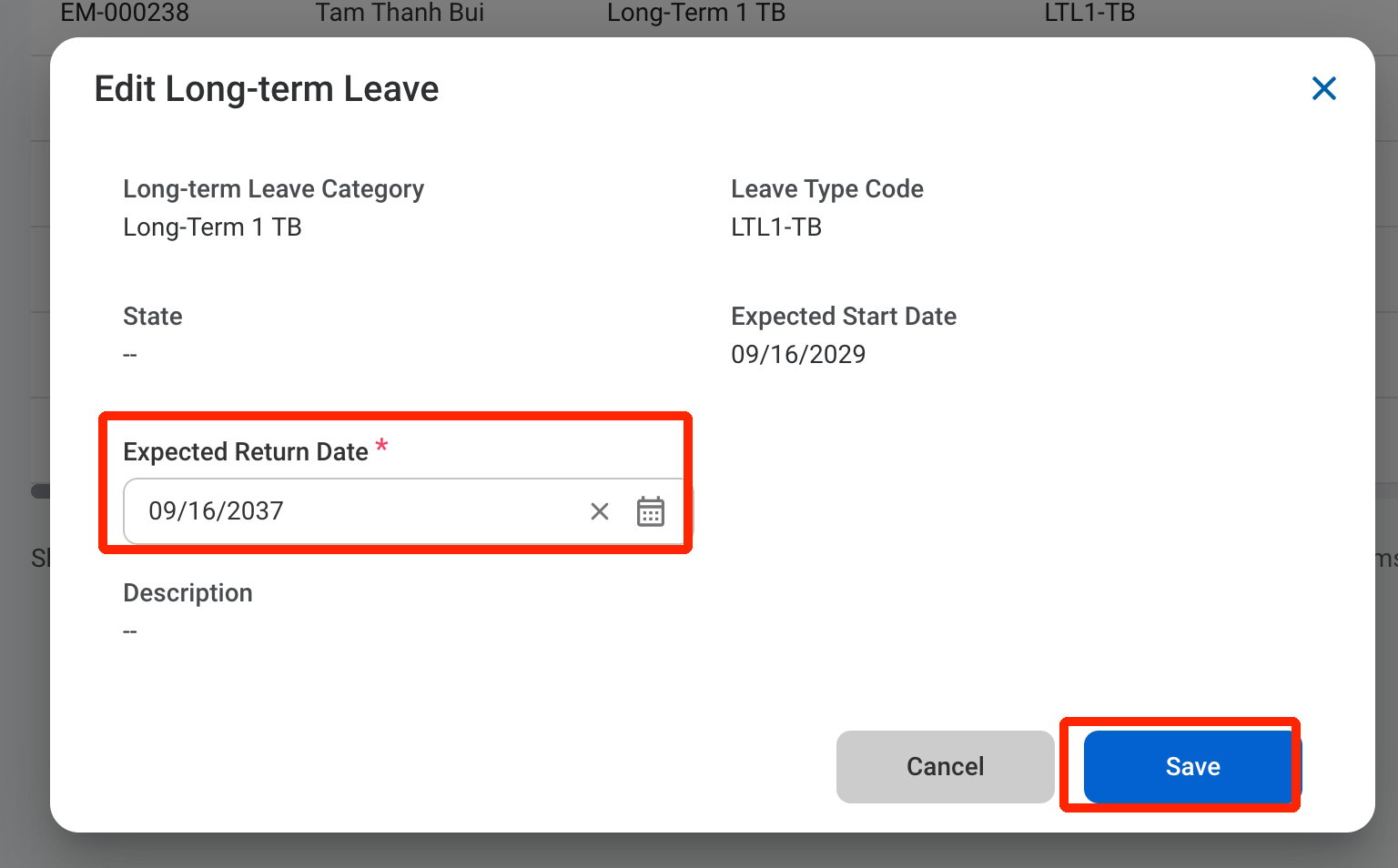
Only the Expected Return Date can be edited. Completed and cancelled long-term leaves cannot be edited.
1
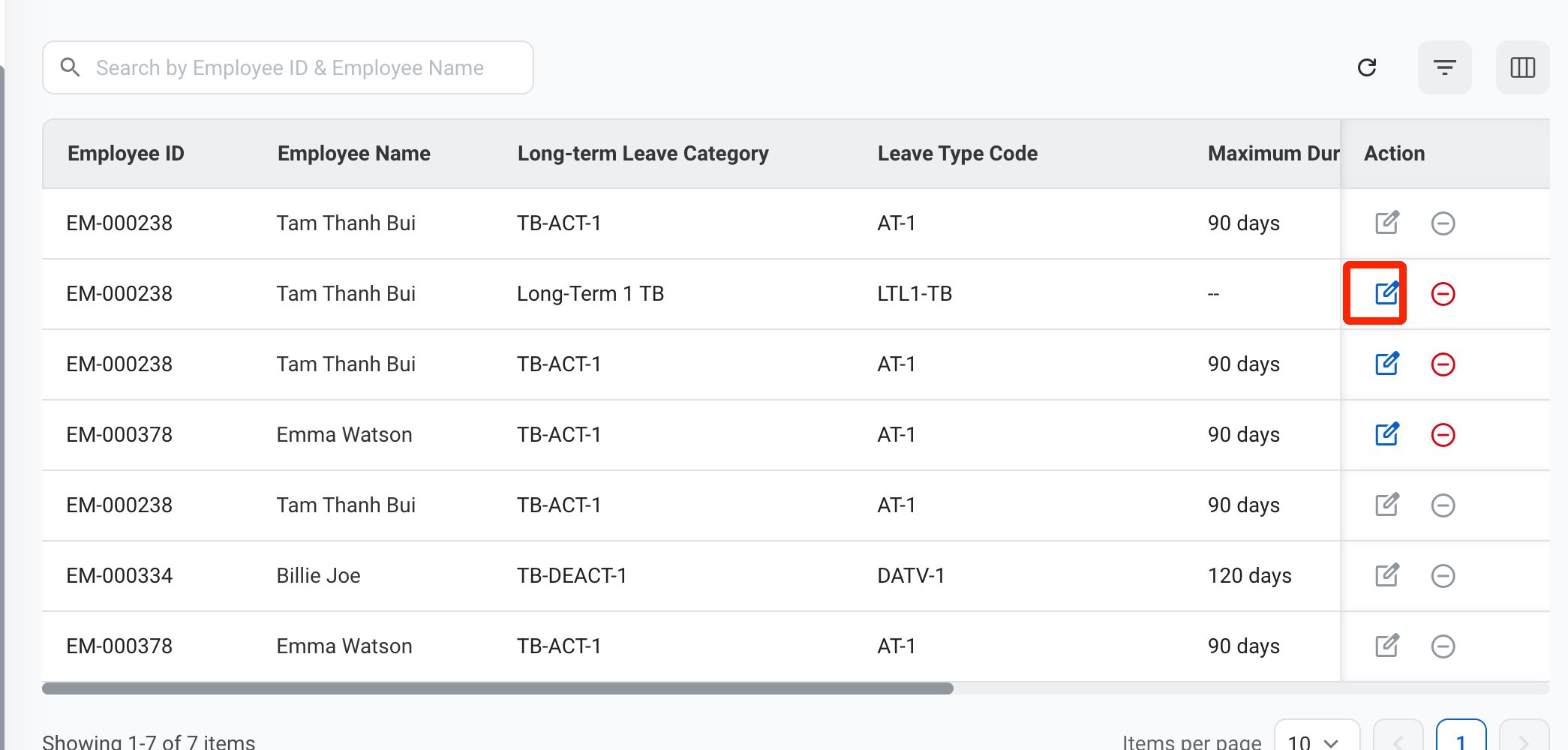
Select the Edit icon
2
Update the Expected Return Date
Cancel a Long-term Leave
Completed and cancelled long-term leaves cannot be cancelled.
1
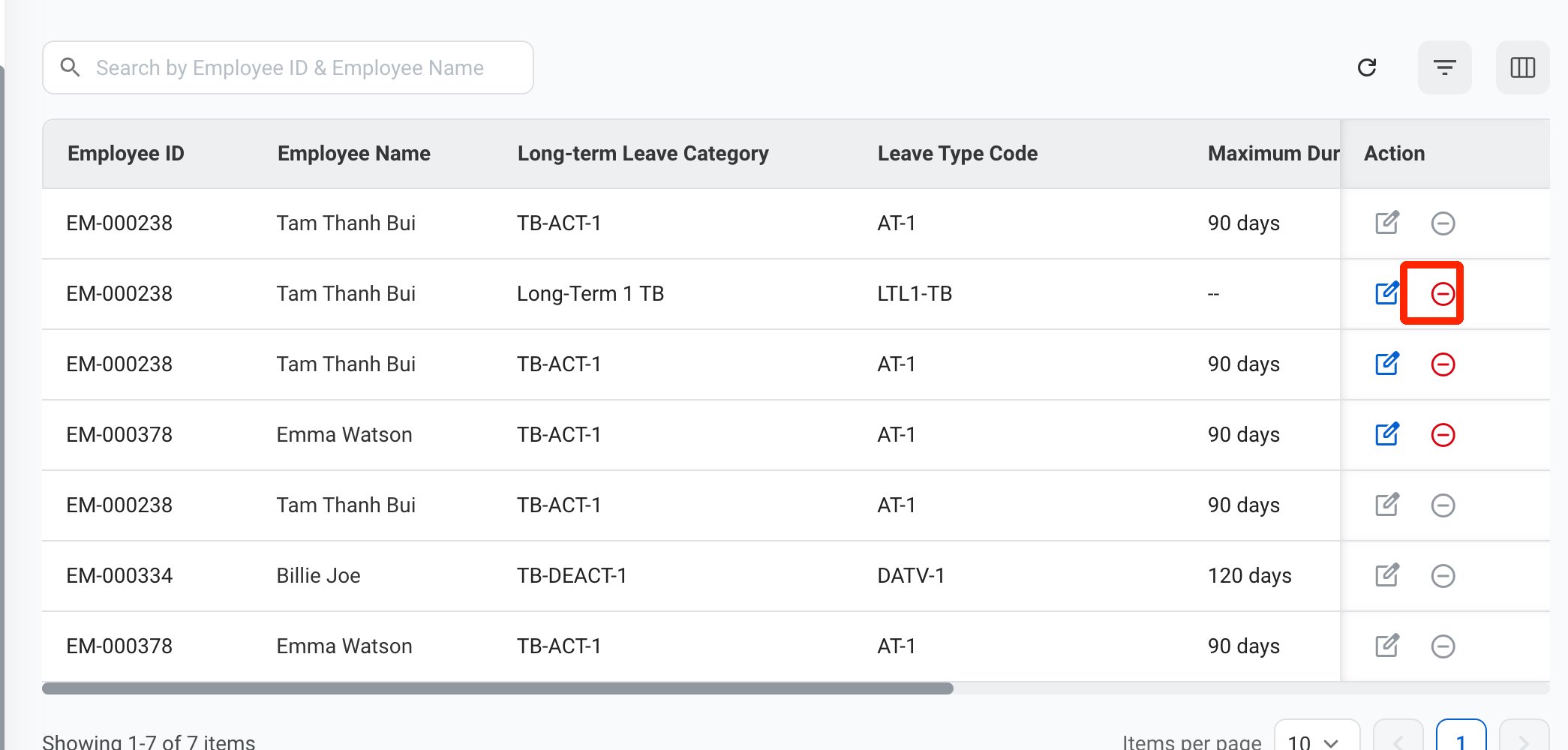
Select the Cancel icon
2
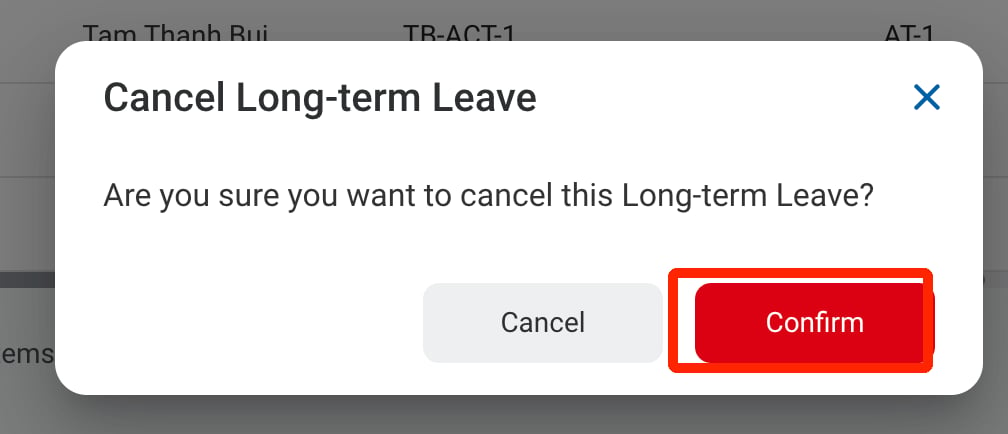
Confirm the action