View a Subcontract
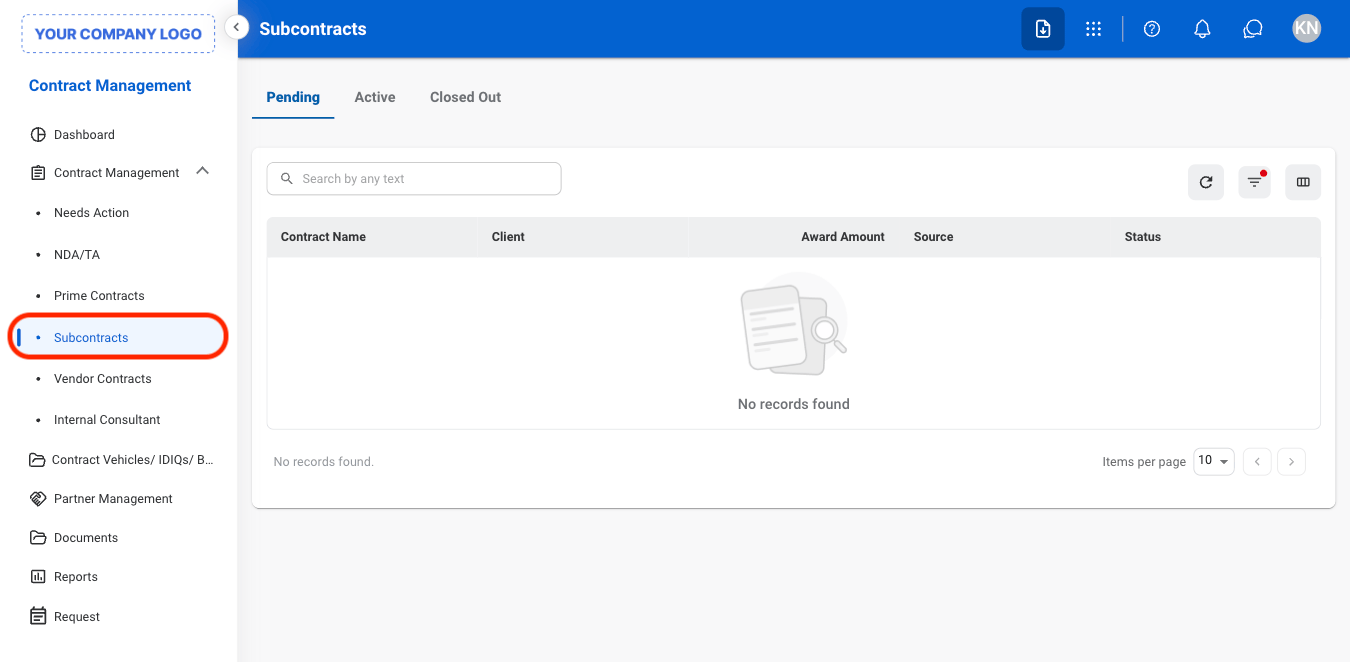
Navigate to Subcontracts
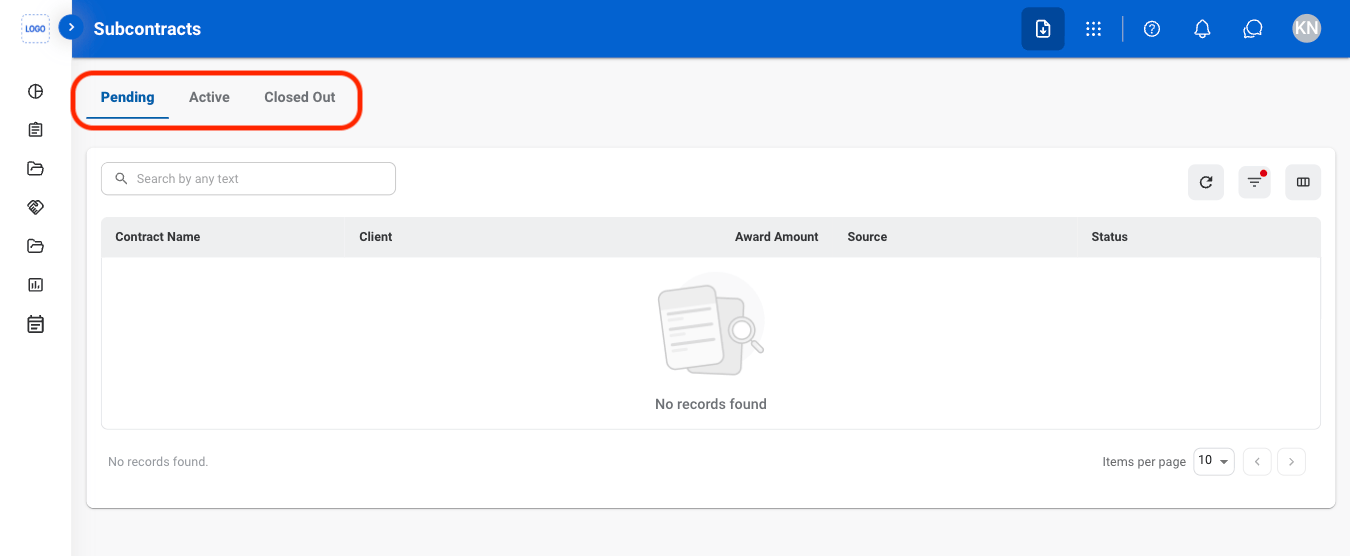
Select a tab
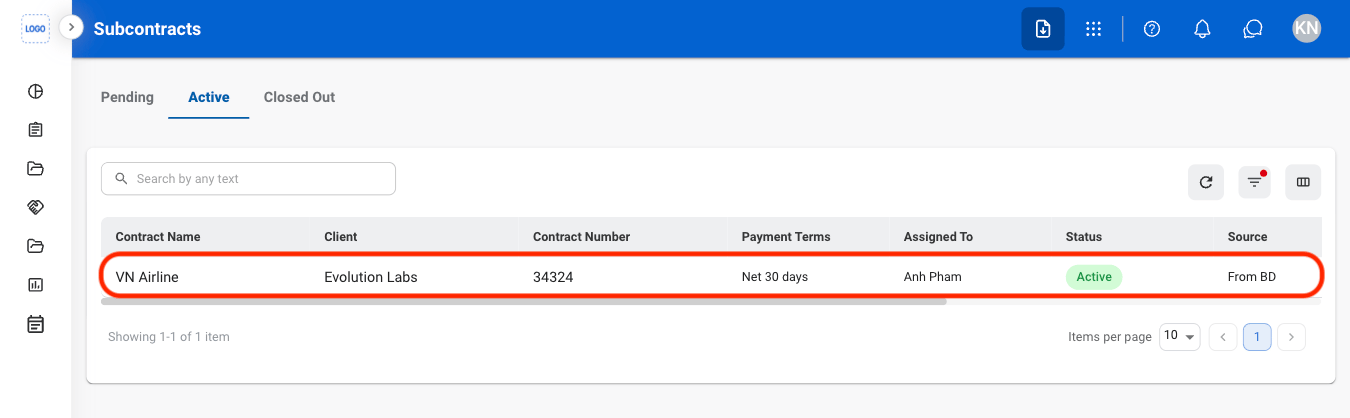
Select a Subcontract
General Information
Edit General Information
Select an active contract
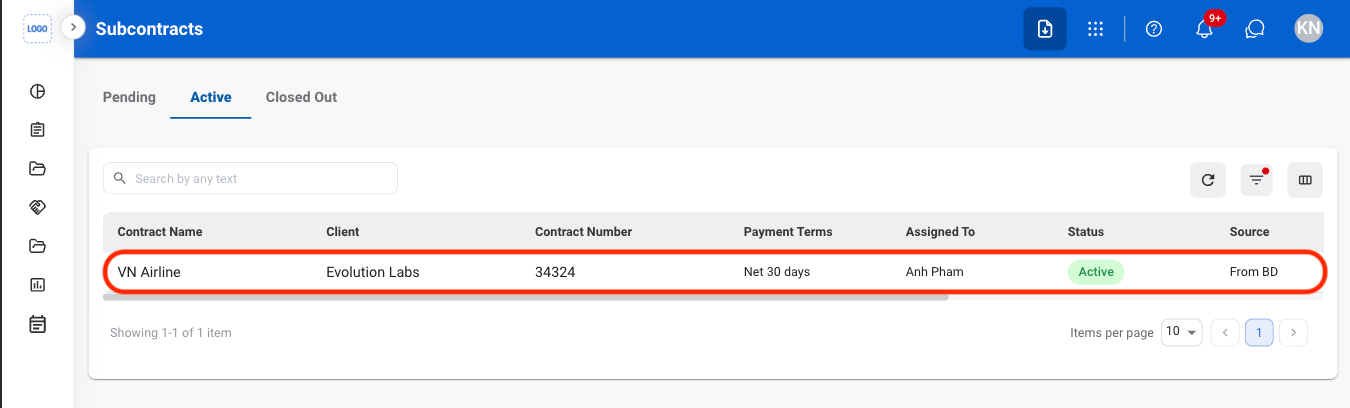
Navigate to General Information
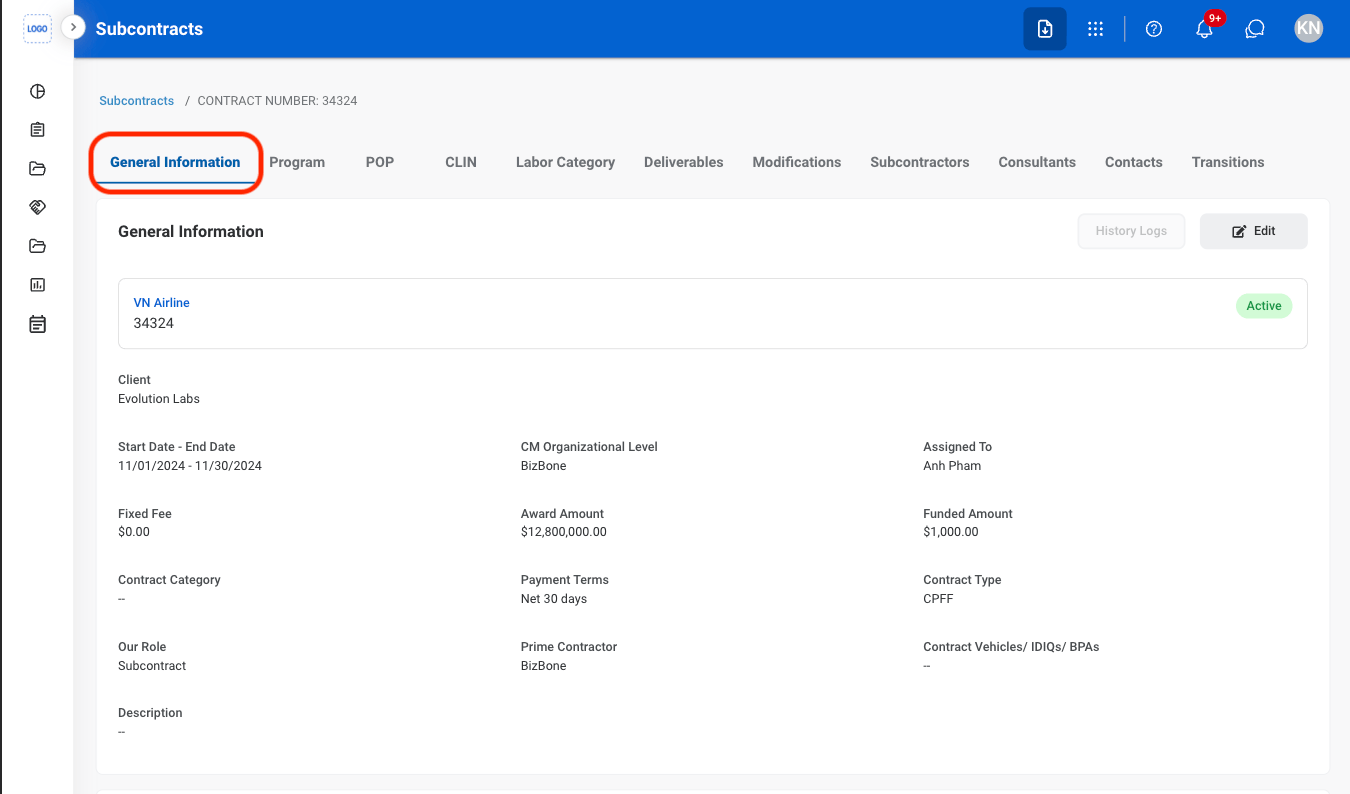
Select Edit
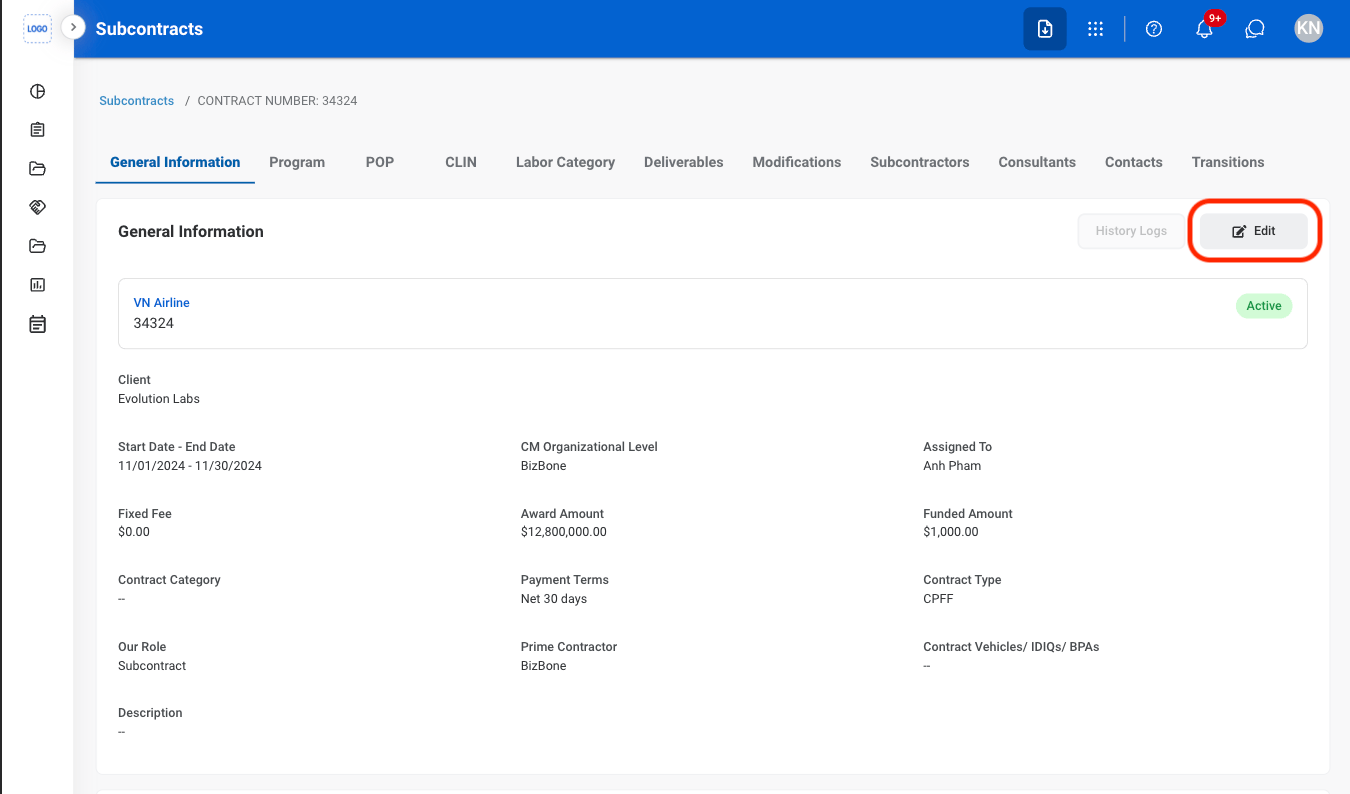
Fill in the required information
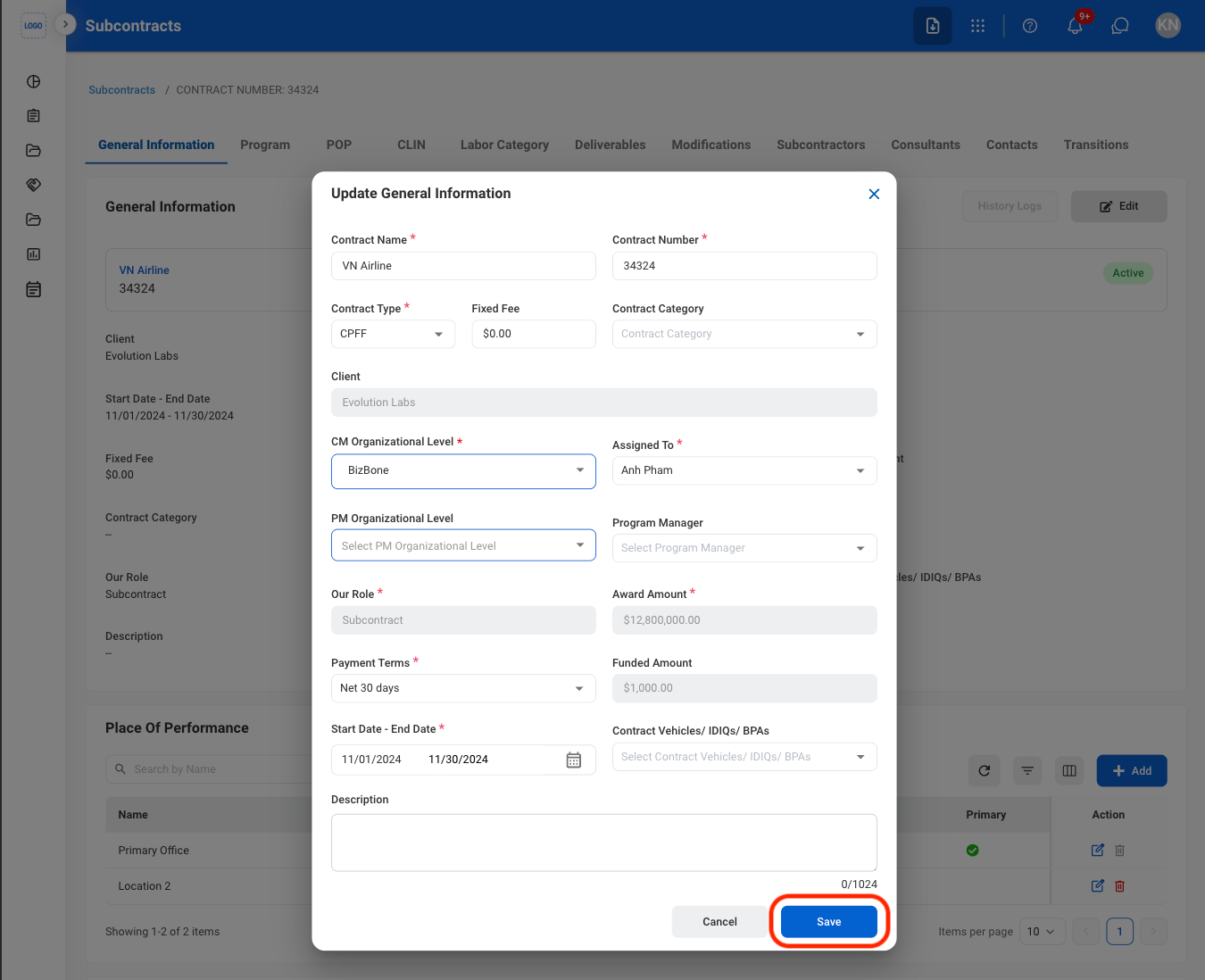
Add a Place of Performance
Navigate to General Information
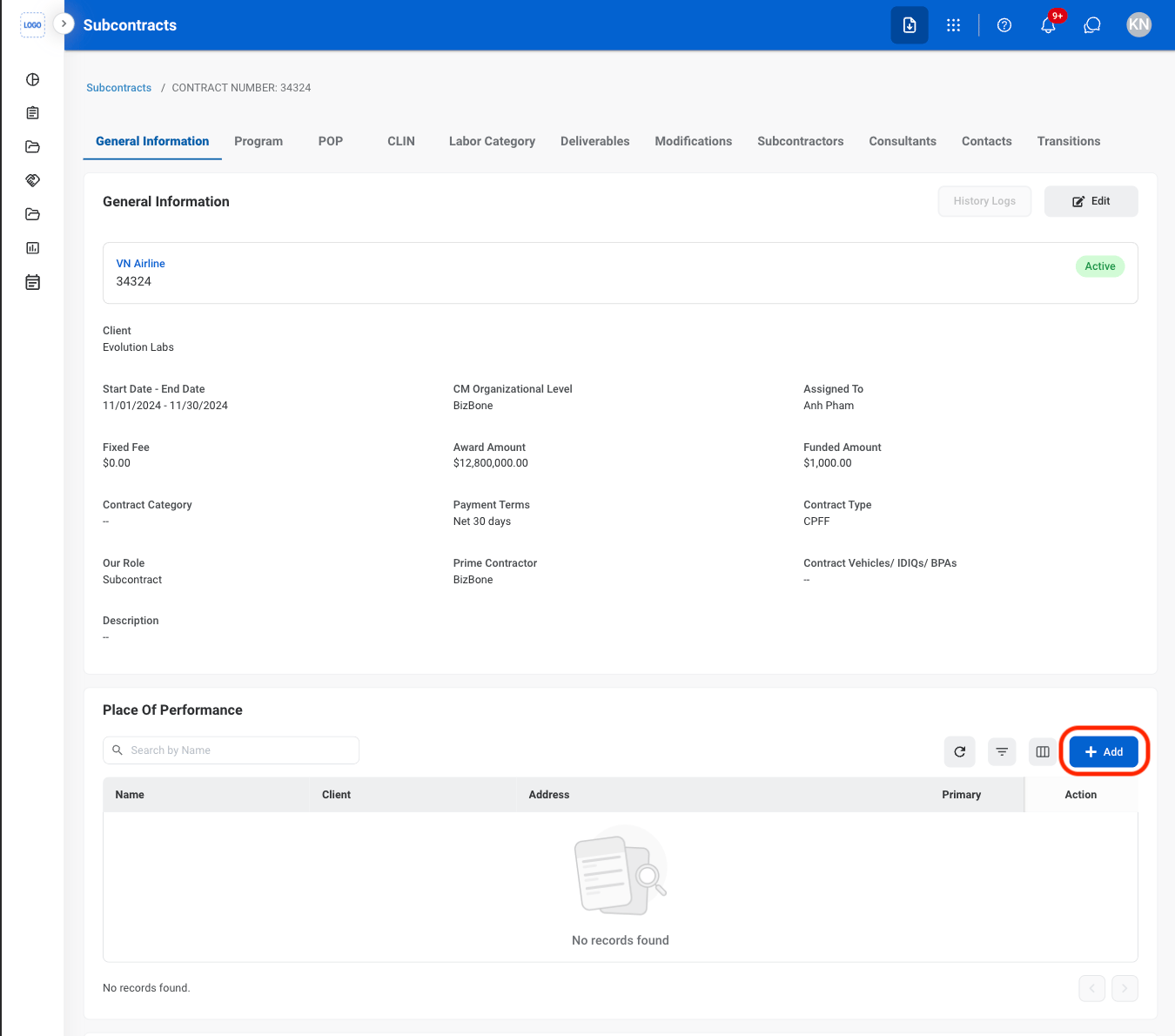
Select the Add button under Place of Performance
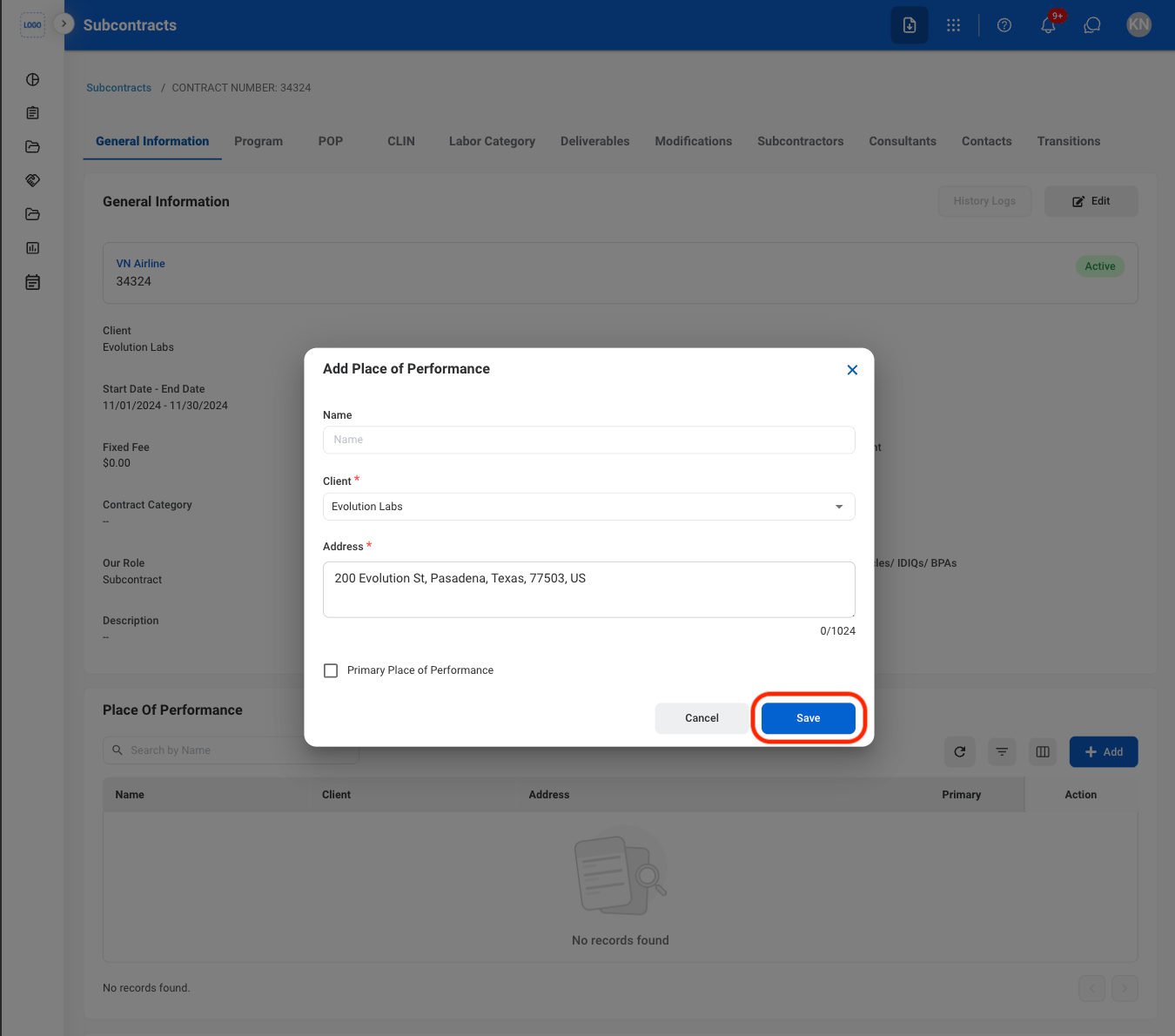
Fill in the required information
Modify a Place of Performance
Select an action
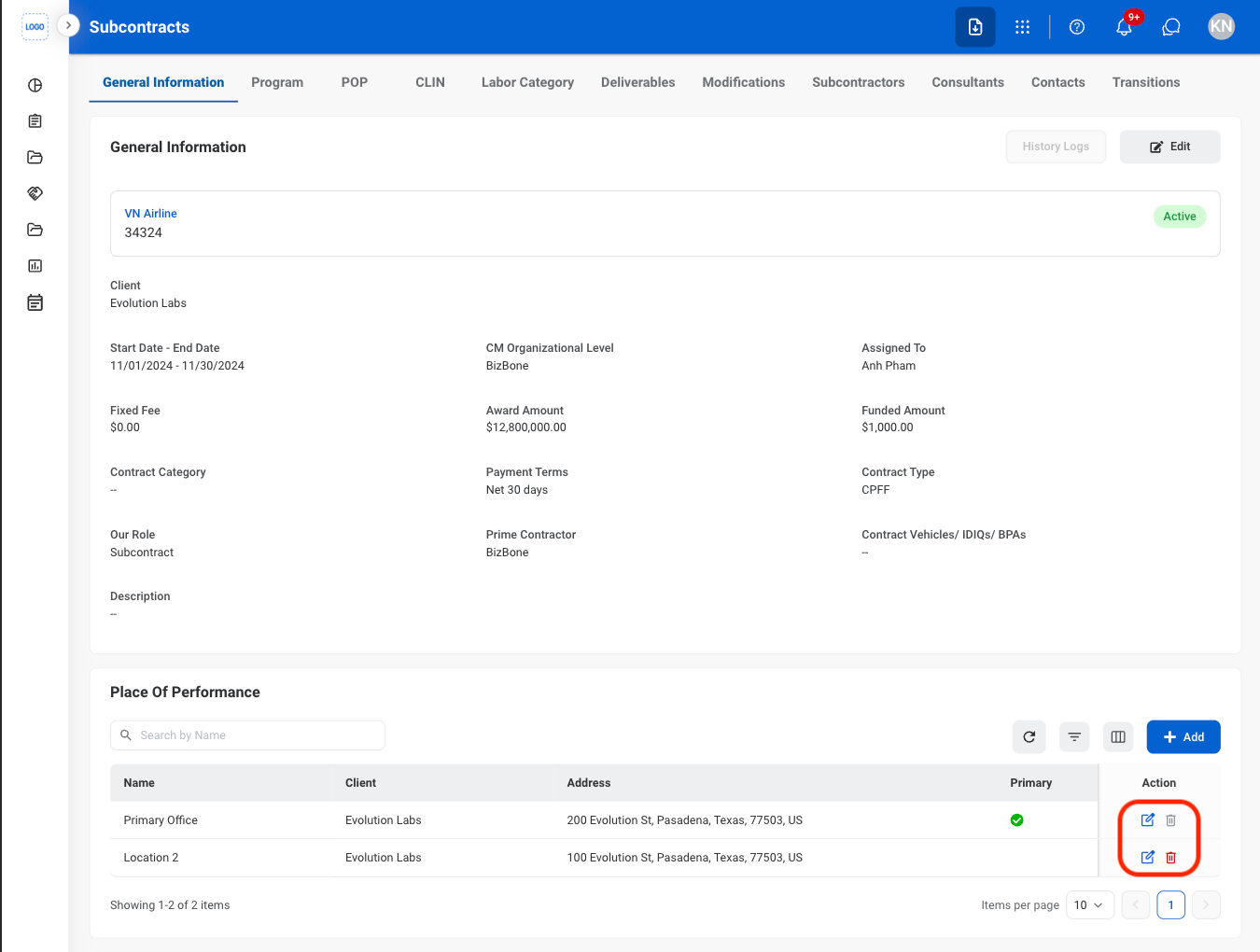
- Edit: Select the edit icon to update an existing entry.
- Delete: Select the trash icon to delete an existing entry.
Confirm the action
- Edit: Fill in the required information and select Save to complete or Cancel to exit without saving changes.
- Delete: Select Delete to complete or Cancel to exit without saving changes.
Add a Document
Select the Add button under Documents
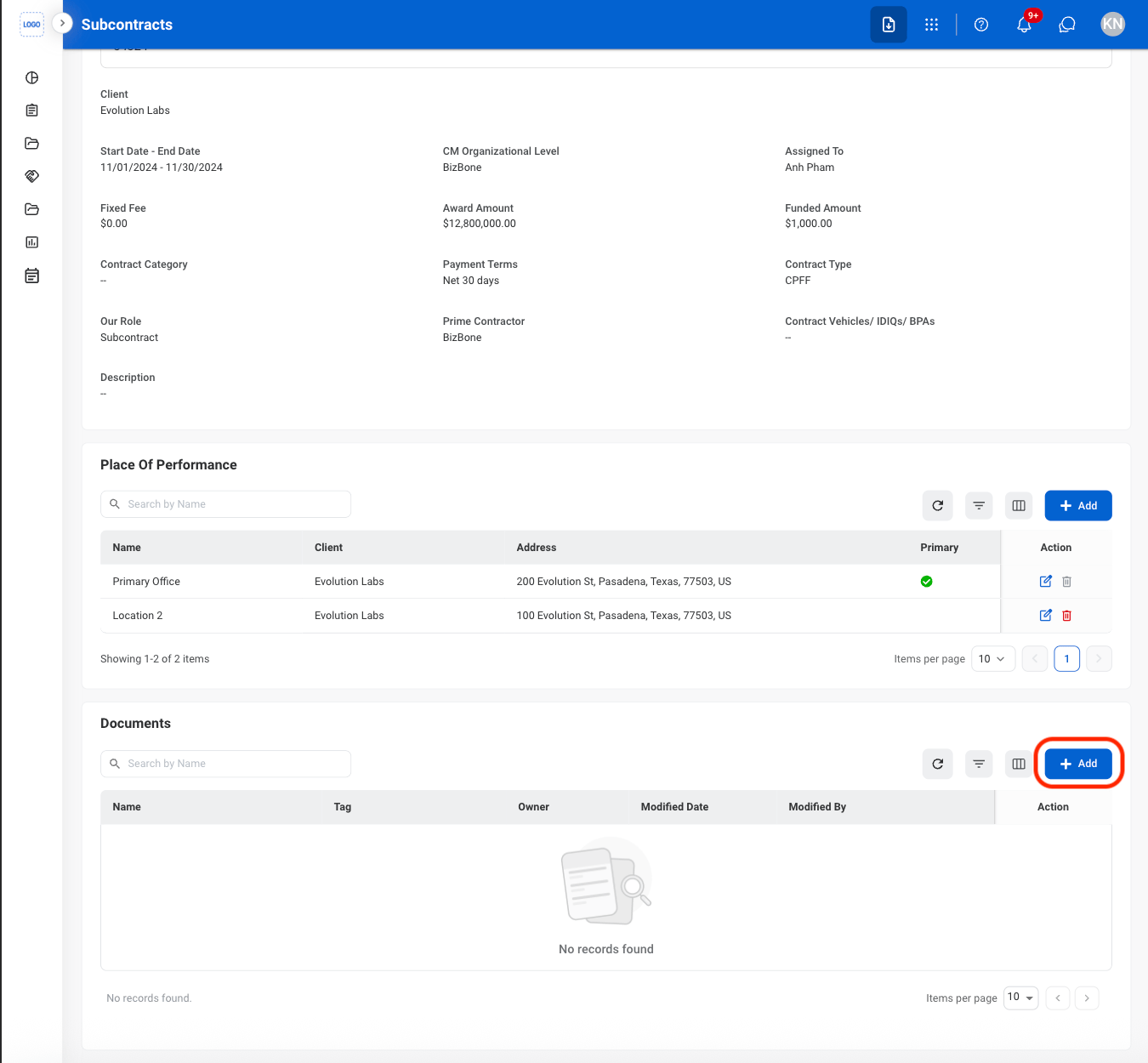
Fill in the required information
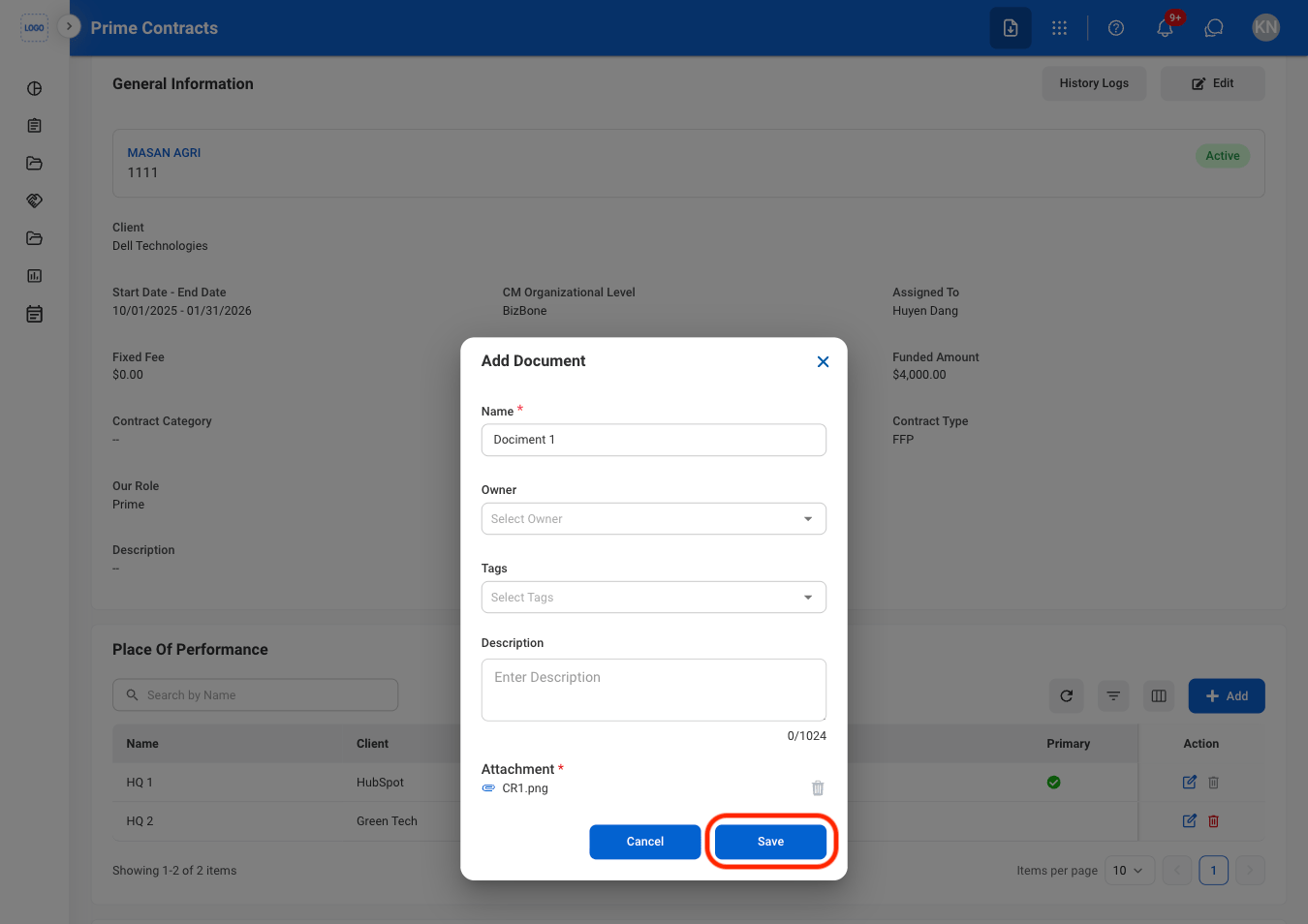
Modify a Document
Select an action
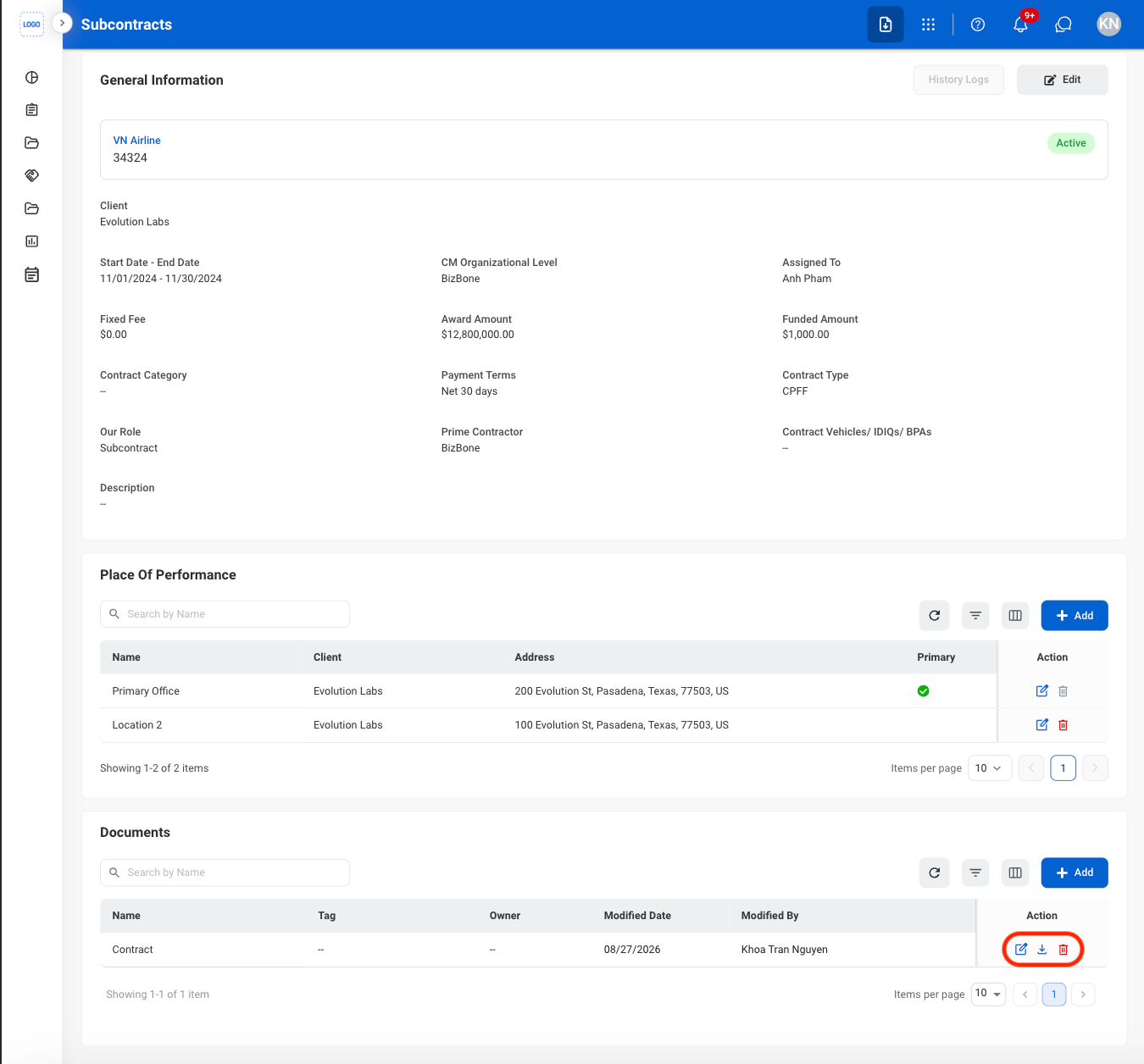
- Edit: Select the edit icon to update an existing entry.
- Download: Download will start automatically after selection.
- Delete: Select the trash icon to delete an existing entry.
Confirm the action
- Edit: Fill in the required information and select Save to complete or Cancel to exit without saving changes.
- Delete: Select Delete to complete or Cancel to exit without saving changes.
Program
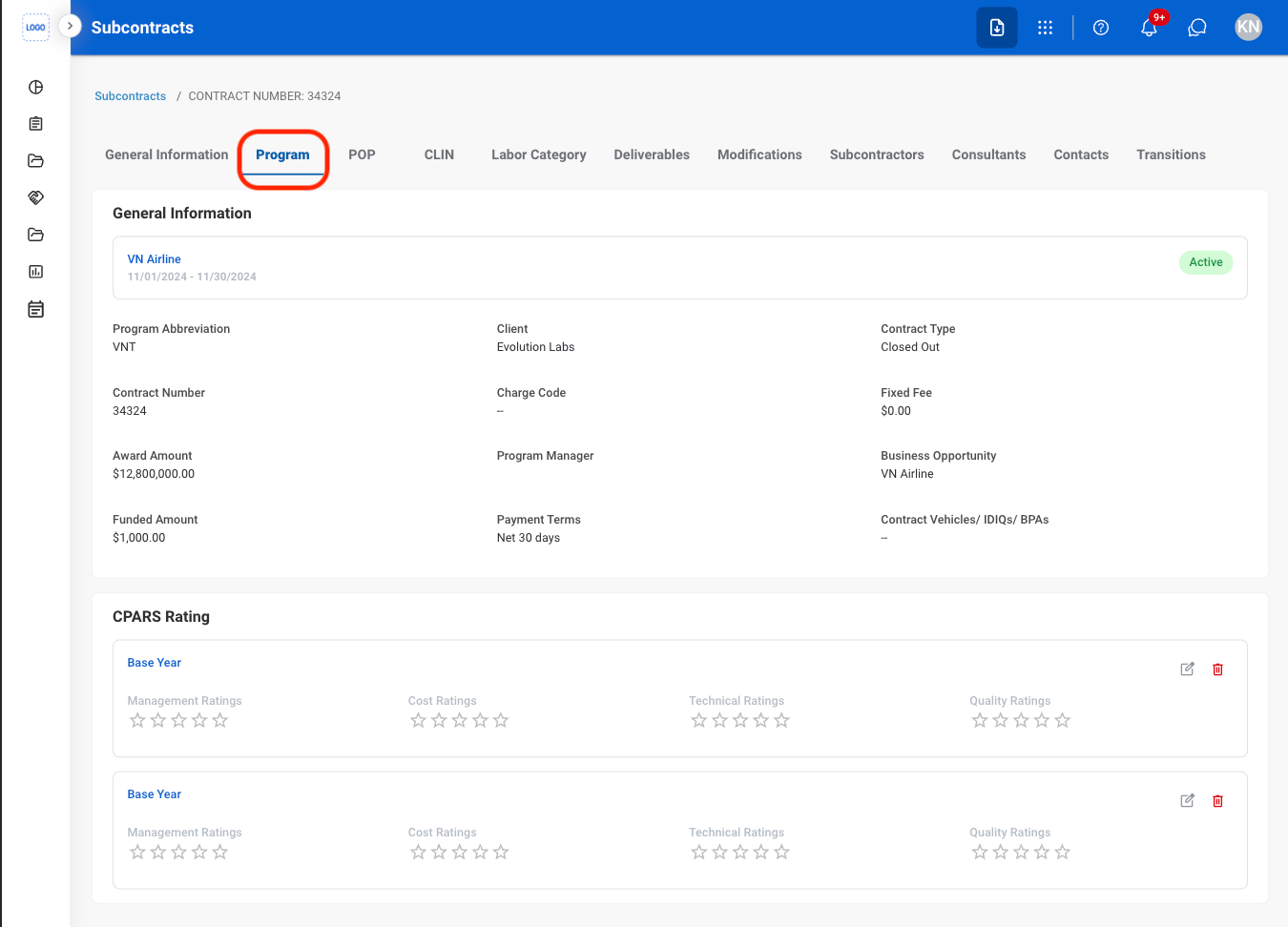
Add CPARS Rating
Select the Program tab
Select the Edit icon
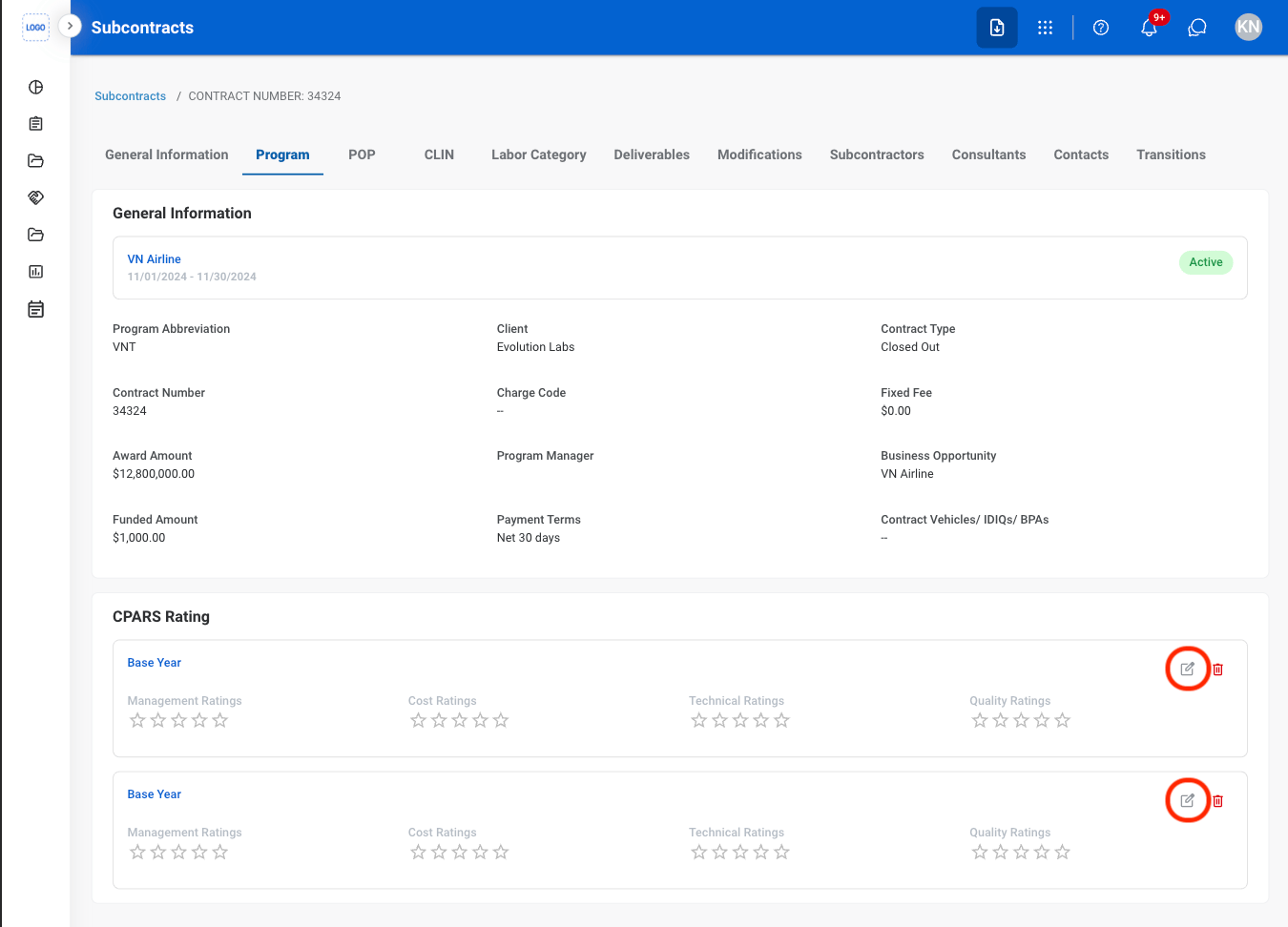
Optional: Select Upload to attach supporting documents
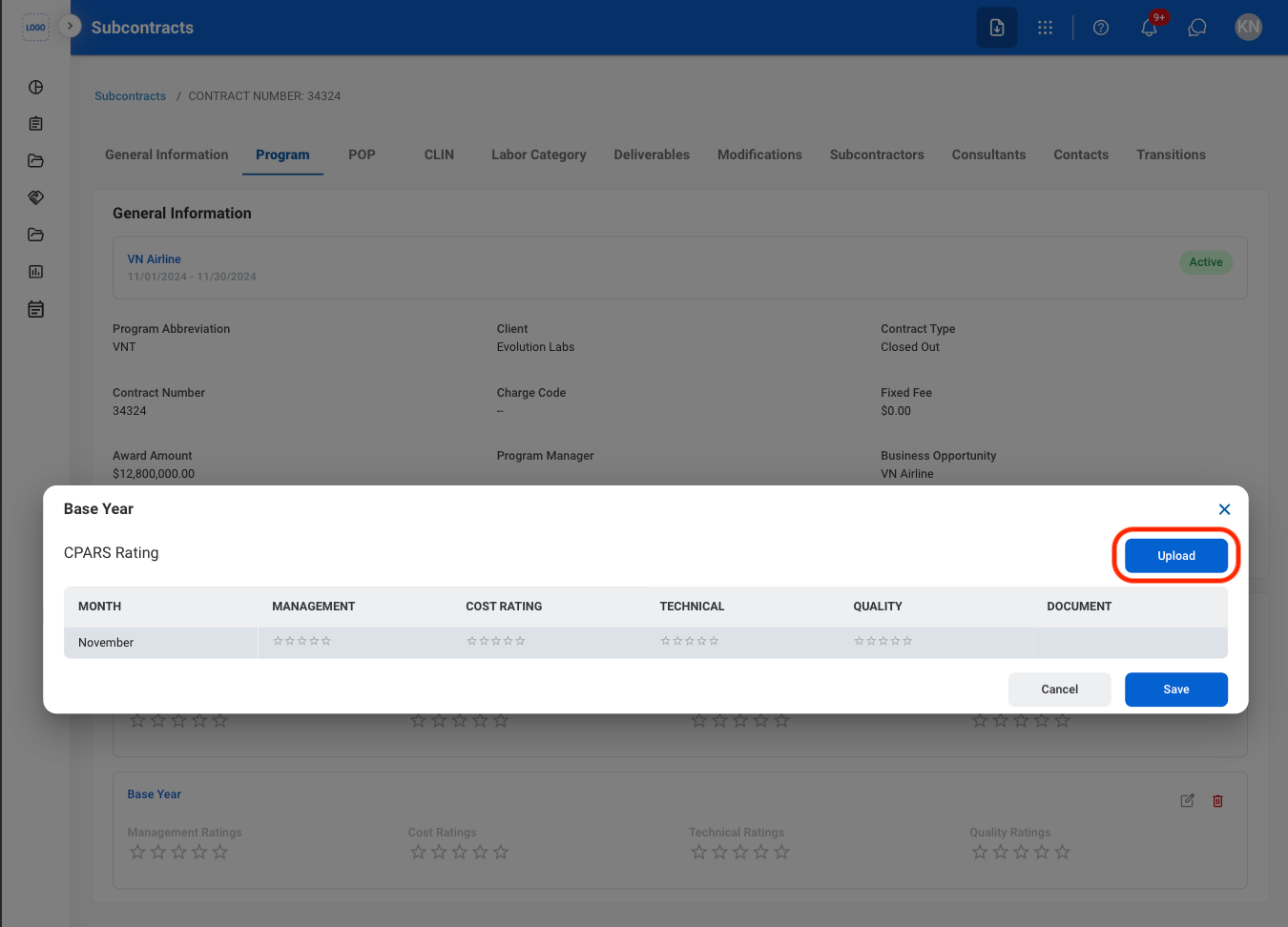
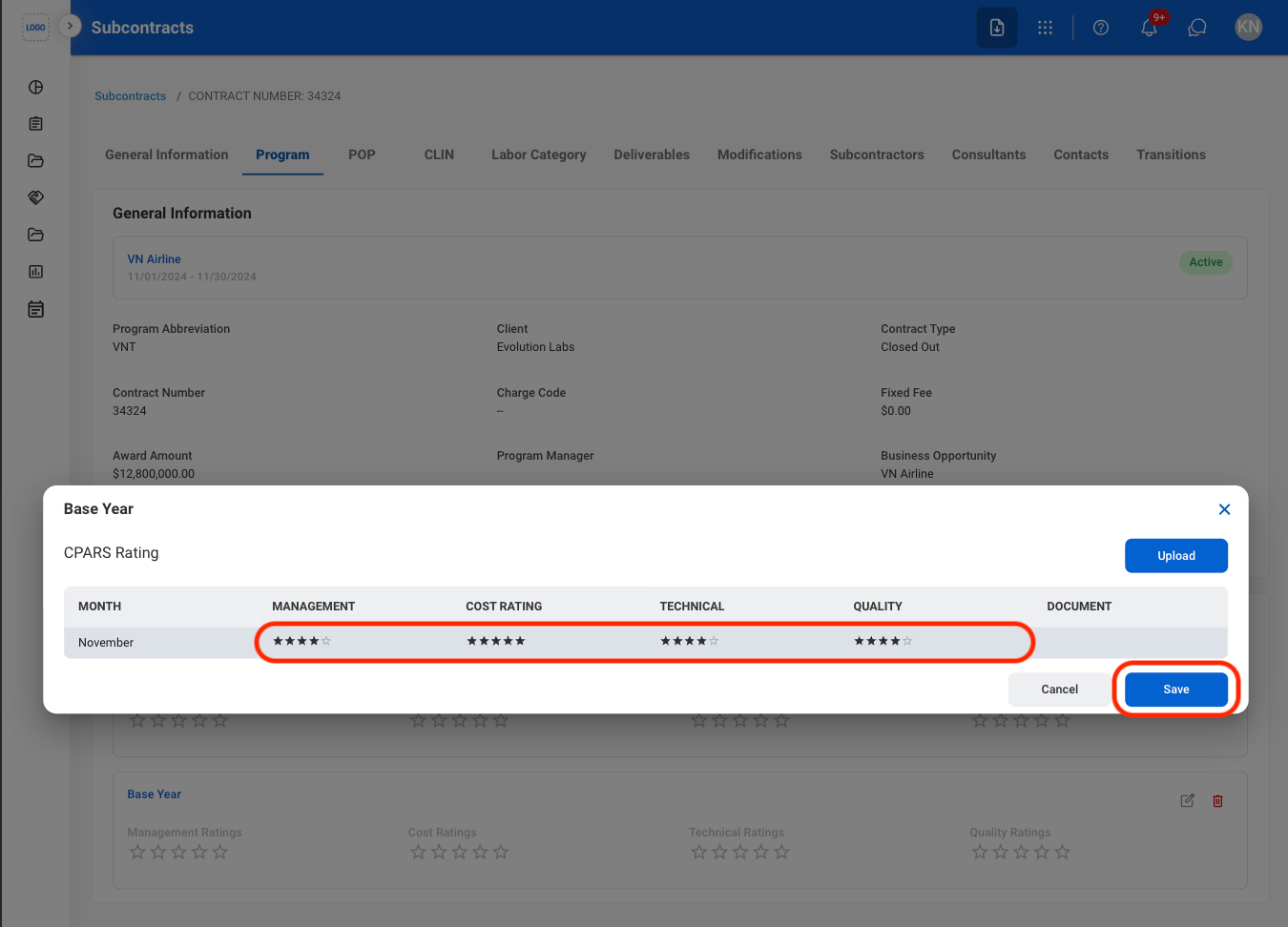
Select ratings for each category
Period of Performance
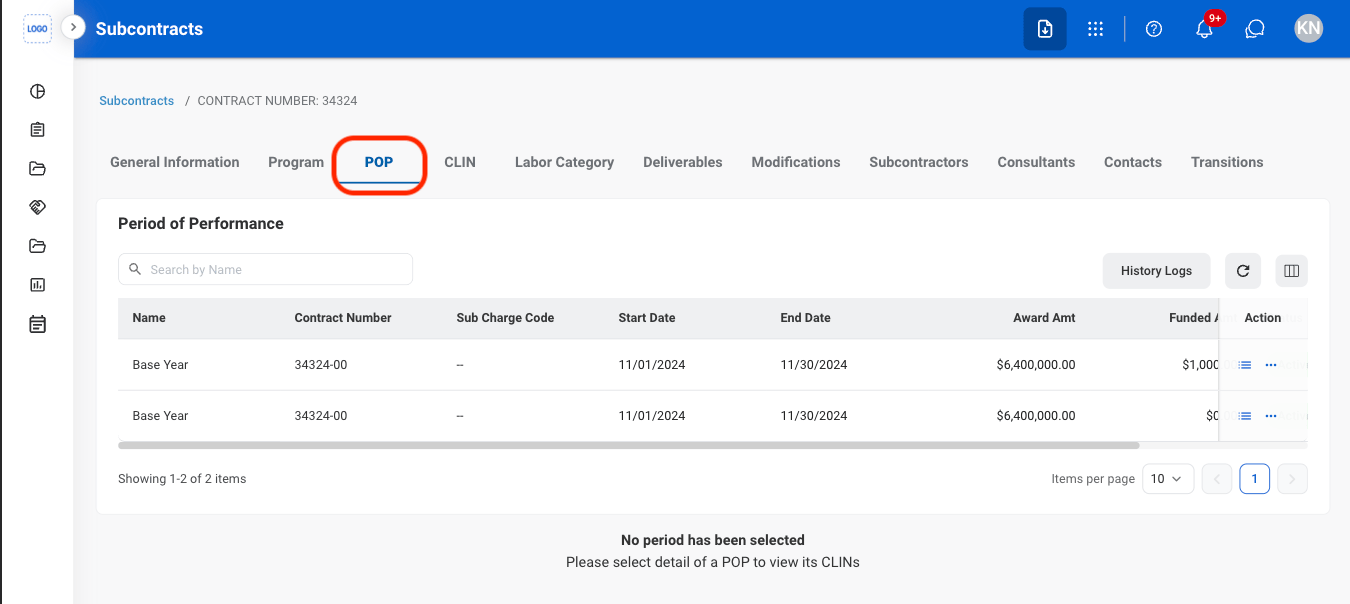
View POP CLINs
Navigate to POP
Select the list icon
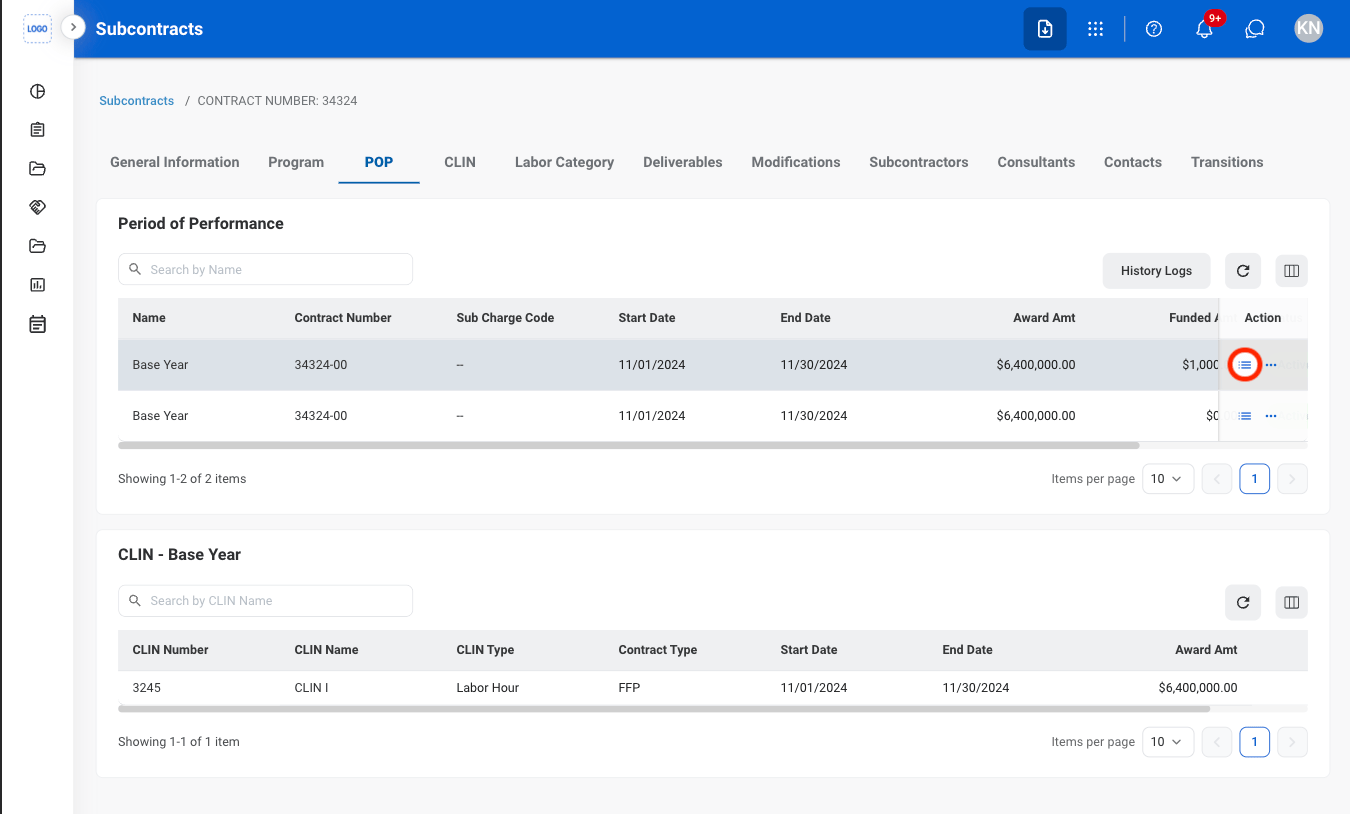
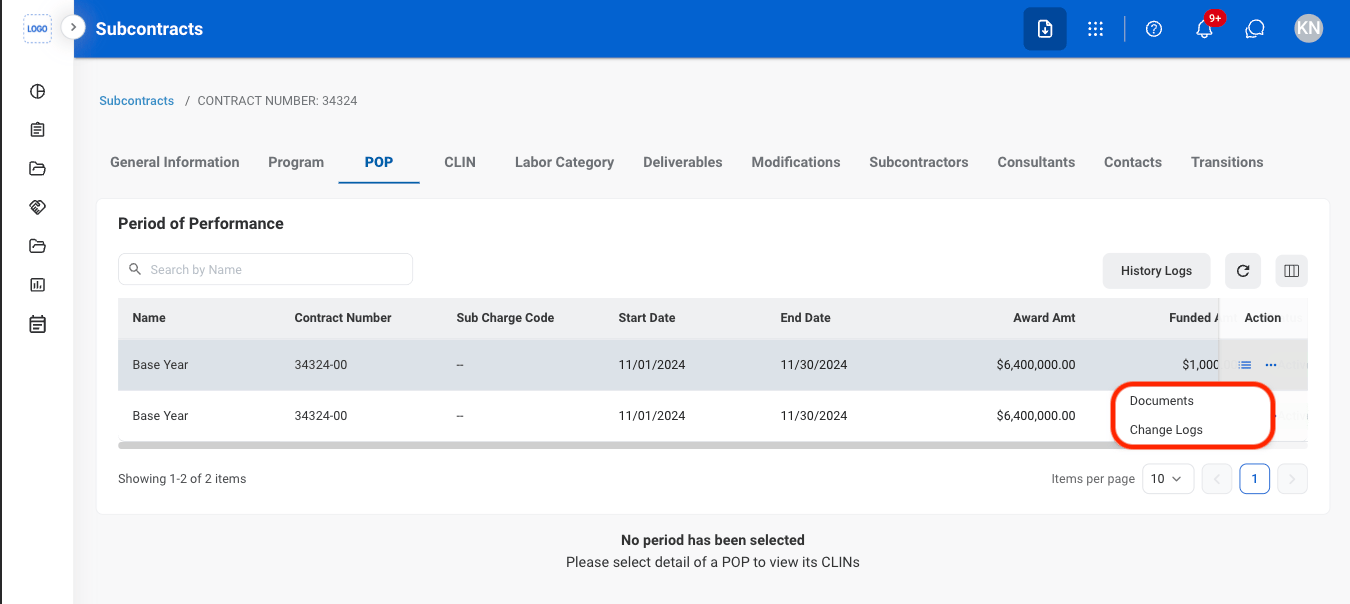
View POP Documents and Change Logs
Select the ellipsis
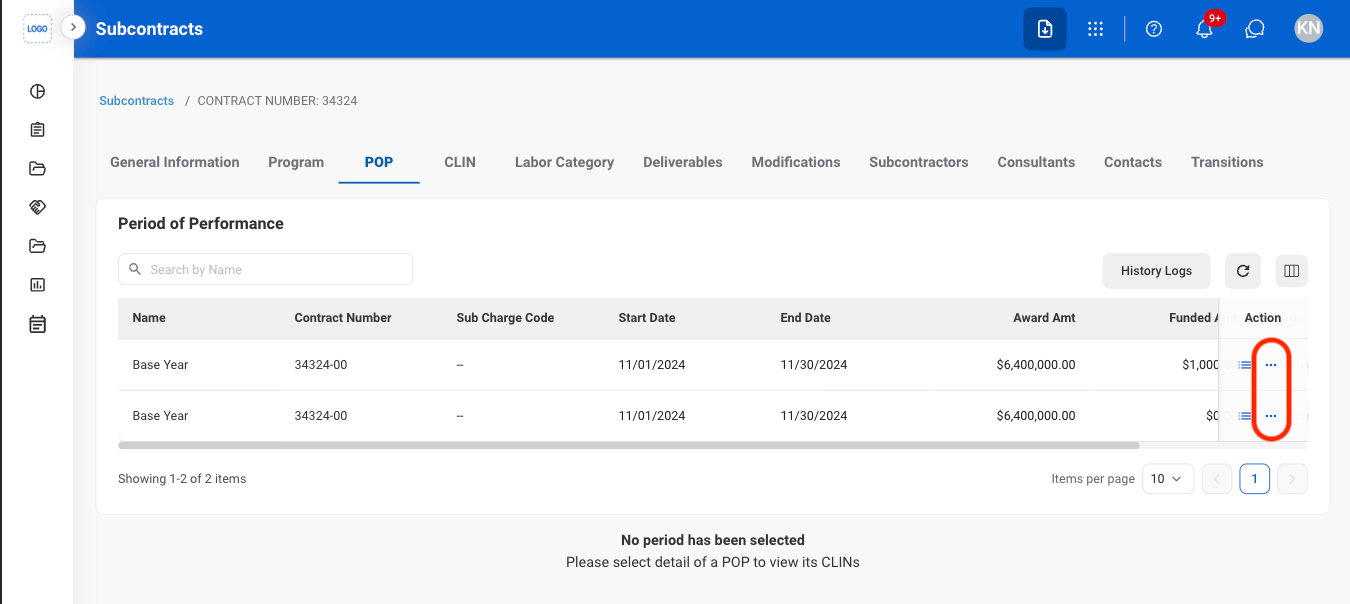
Select Documents or Change Logs
Contract Line Item Number
View CLIN Labor Categories
Navigate to CLIN
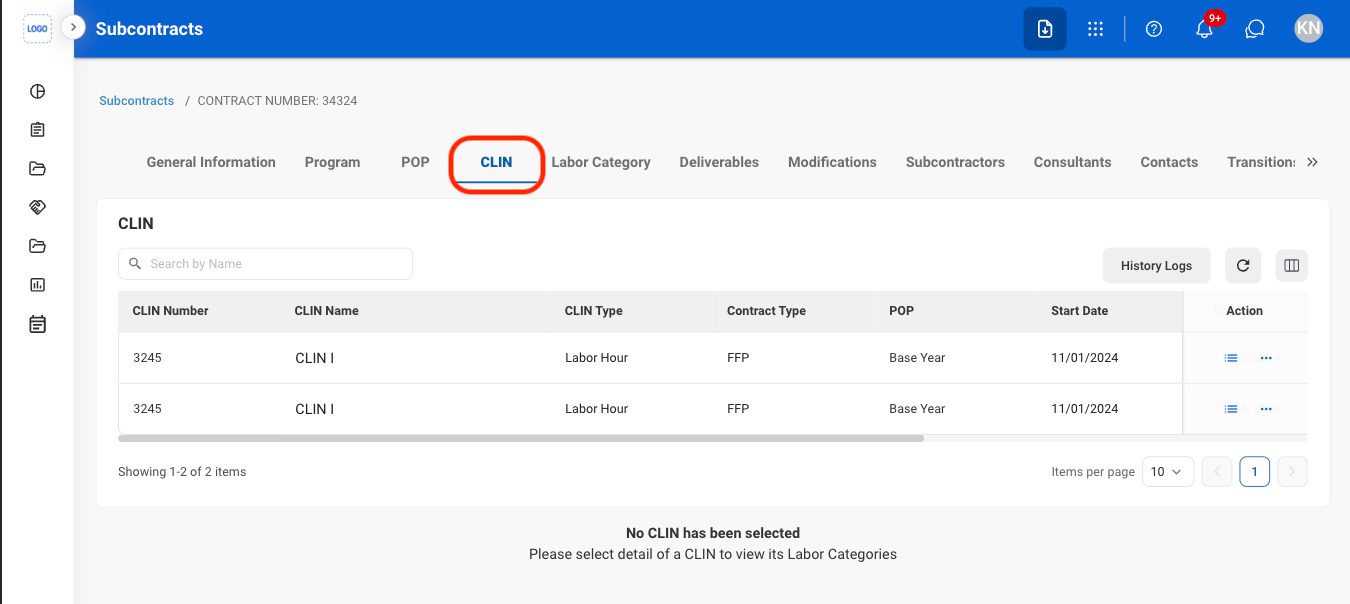
Select the list icon
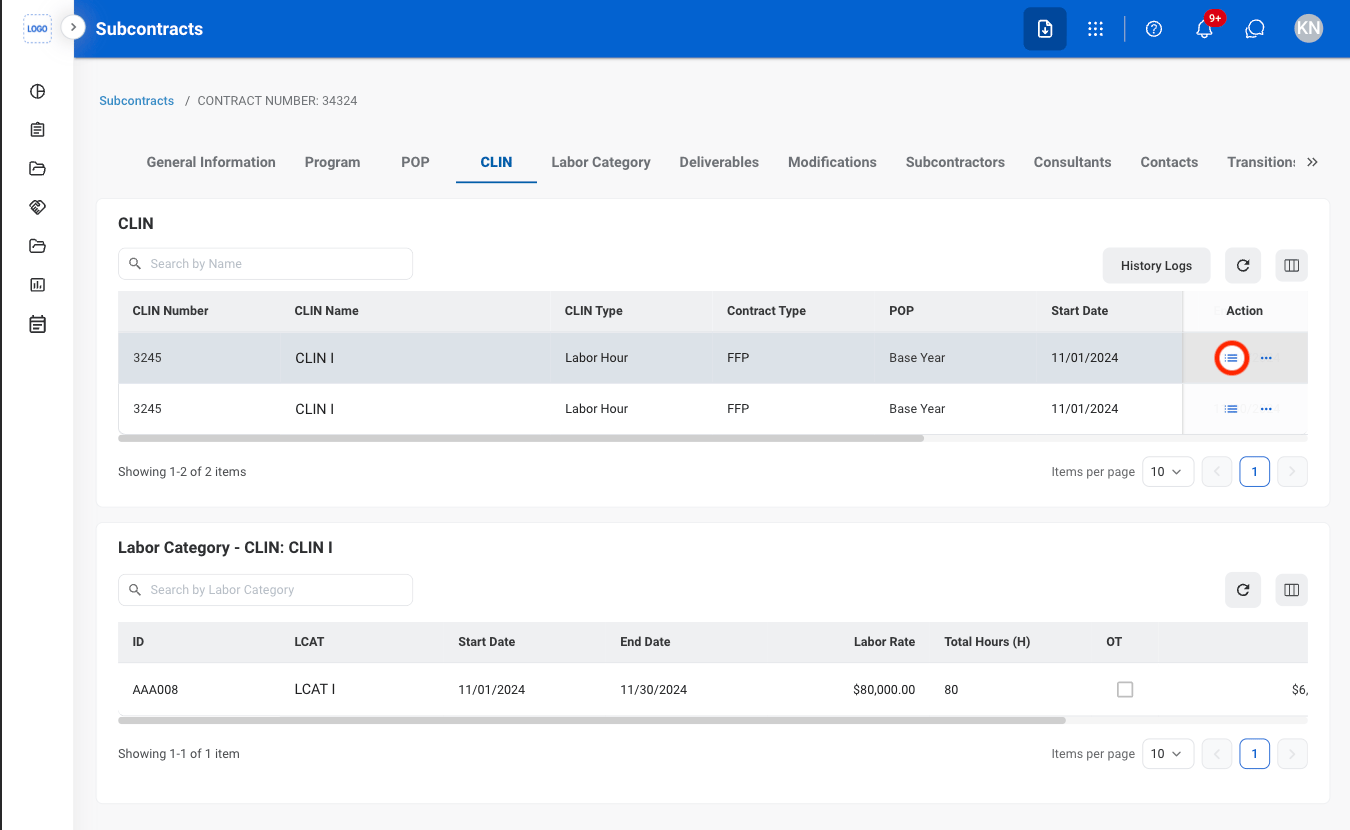
View CLIN Documents and Change Logs
Select the ellipsis
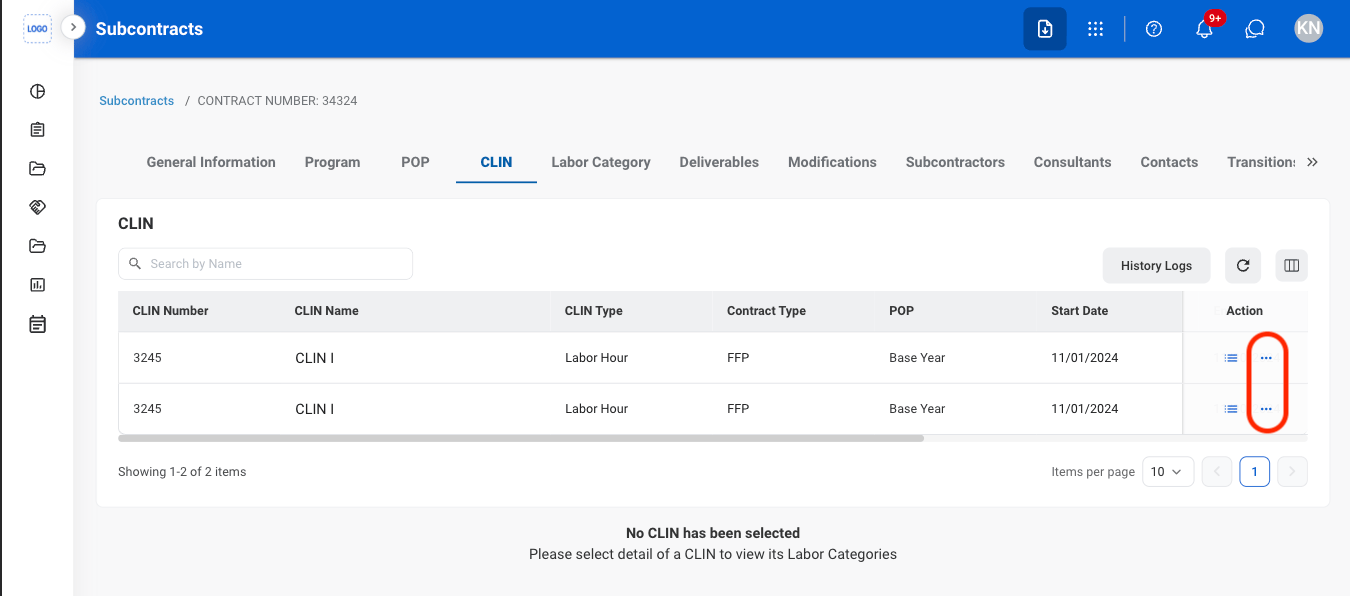
Select Documents or Change Logs
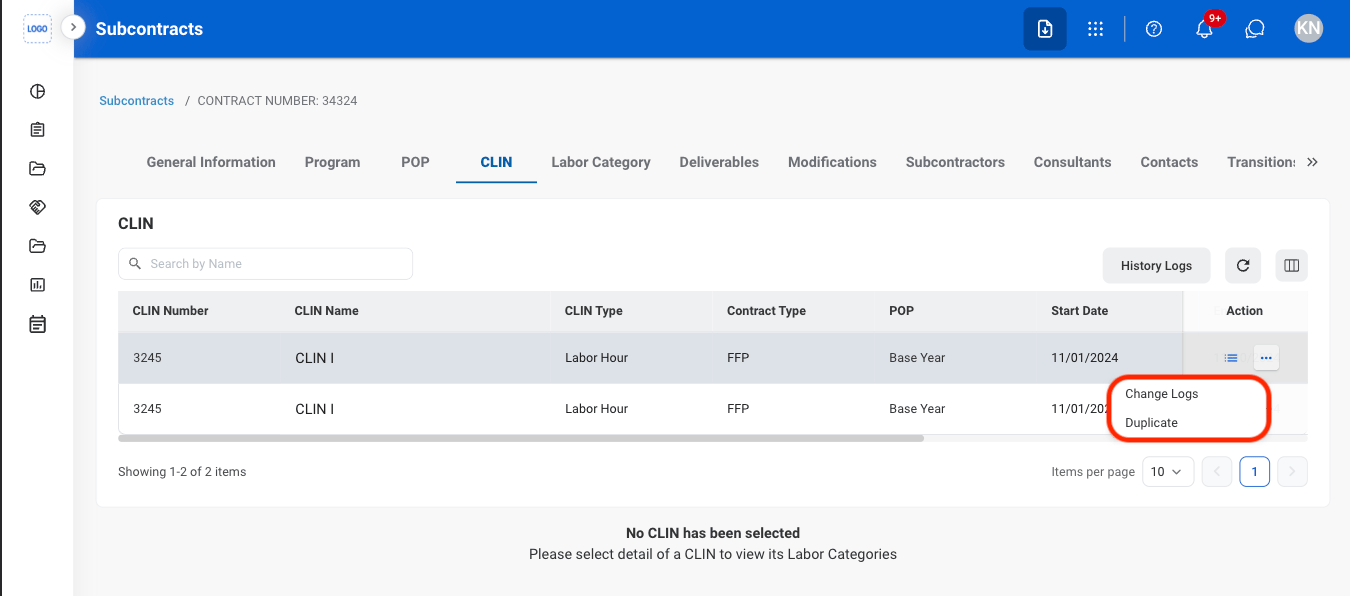
Labor Category
View Labor Category Change Logs
Navigate to Labor Category
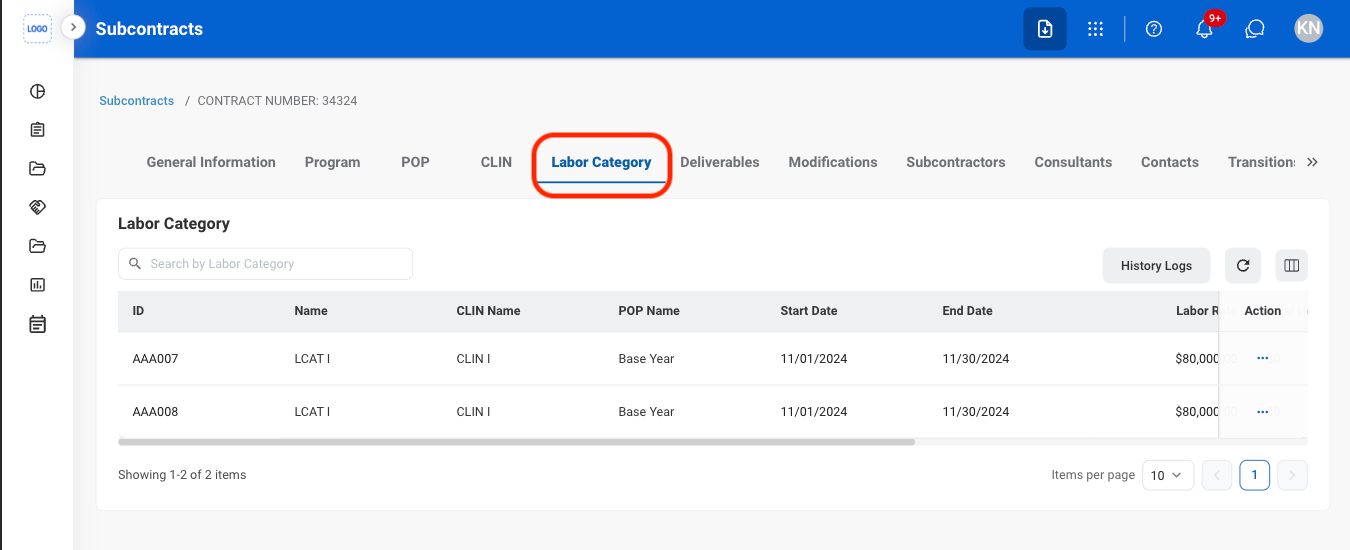
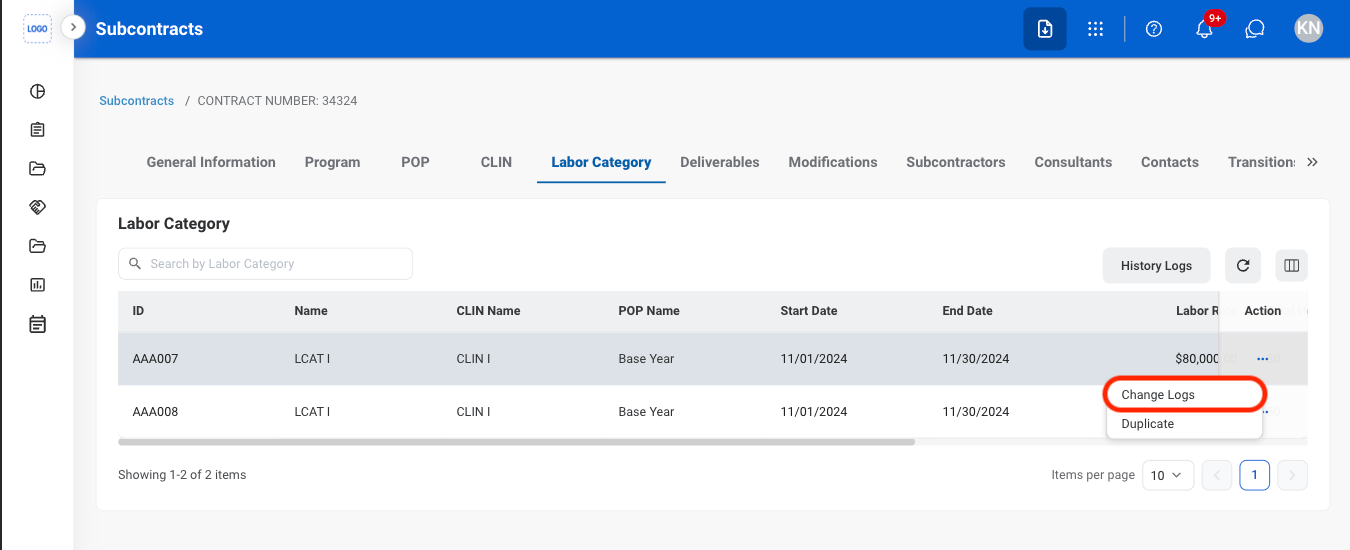
Select the ellipsis
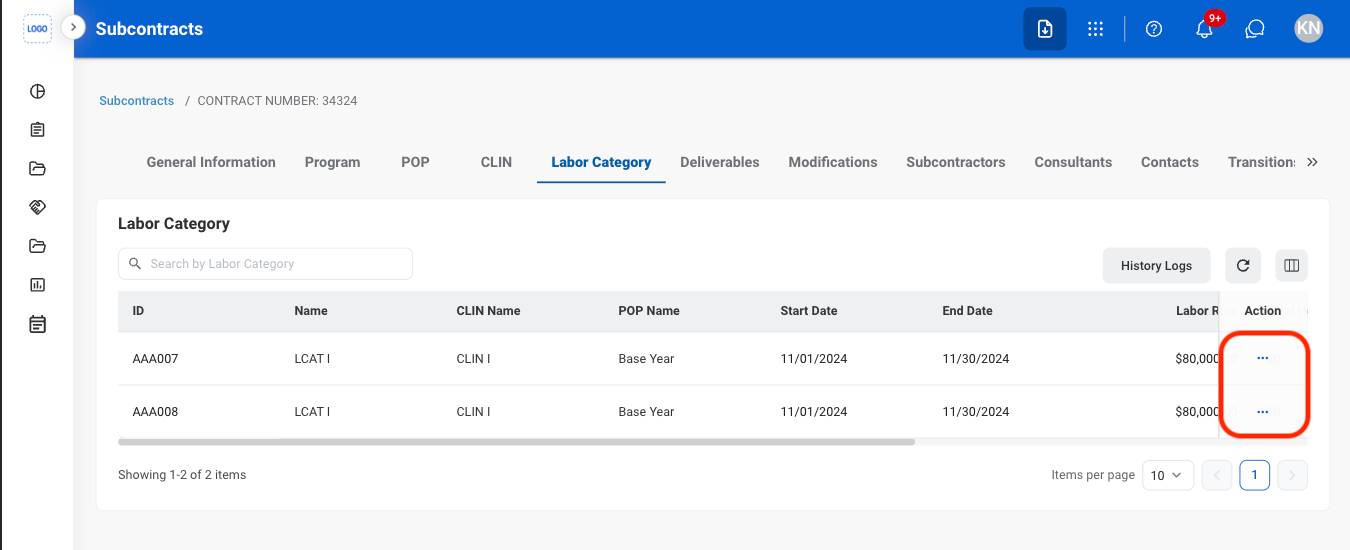
Select Change Logs
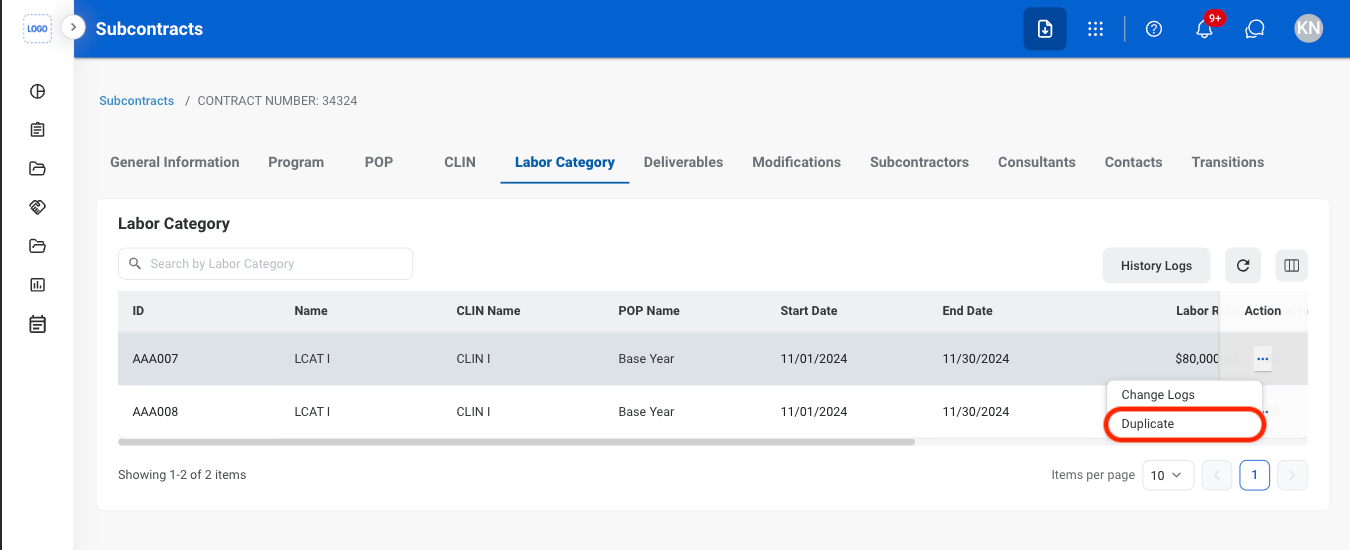
Duplicate a Labor Category
Select the ellipsis
Select Duplicate
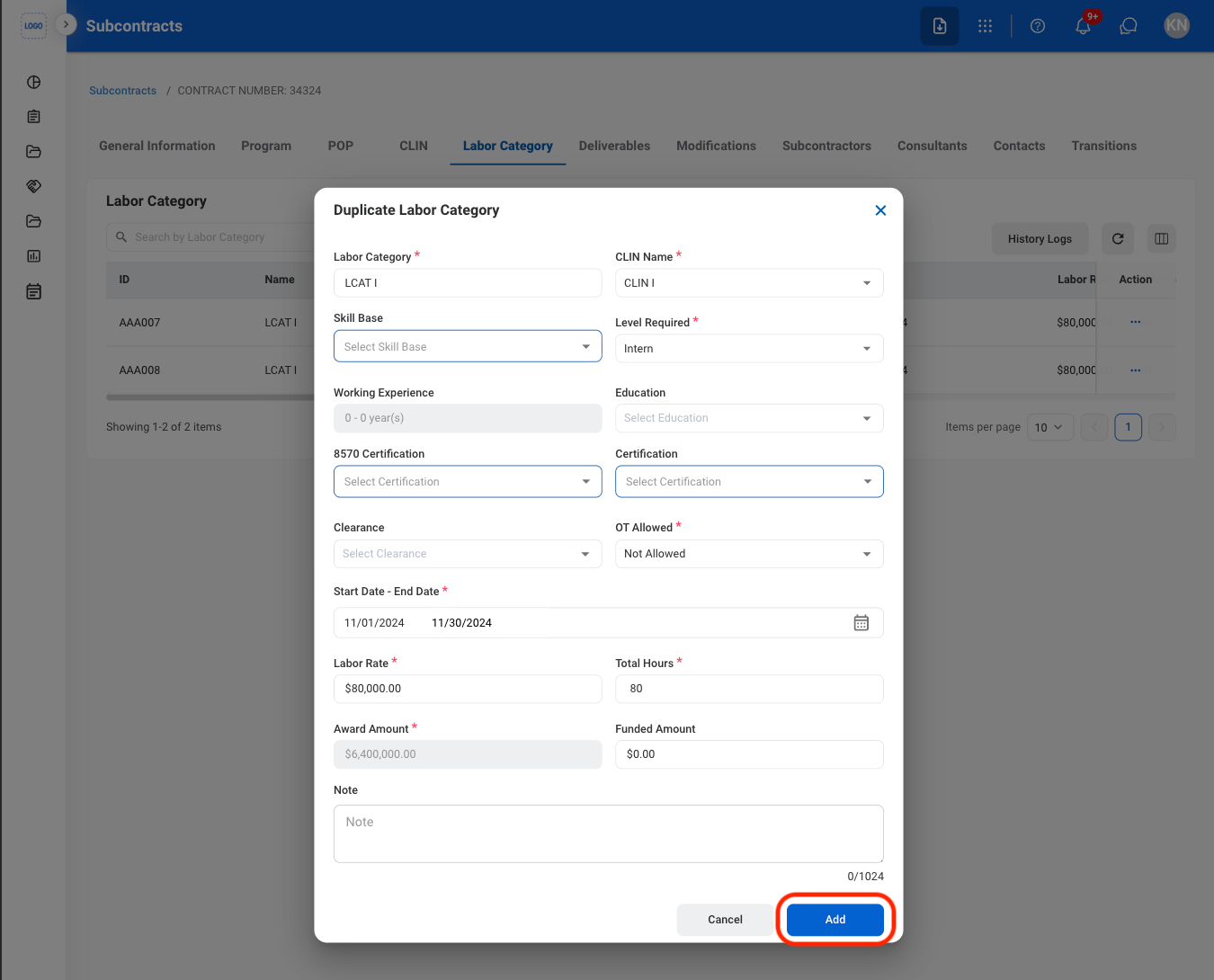
Fill in the required information
Deliverables
Add Deliverables
Navigate to Deliverables
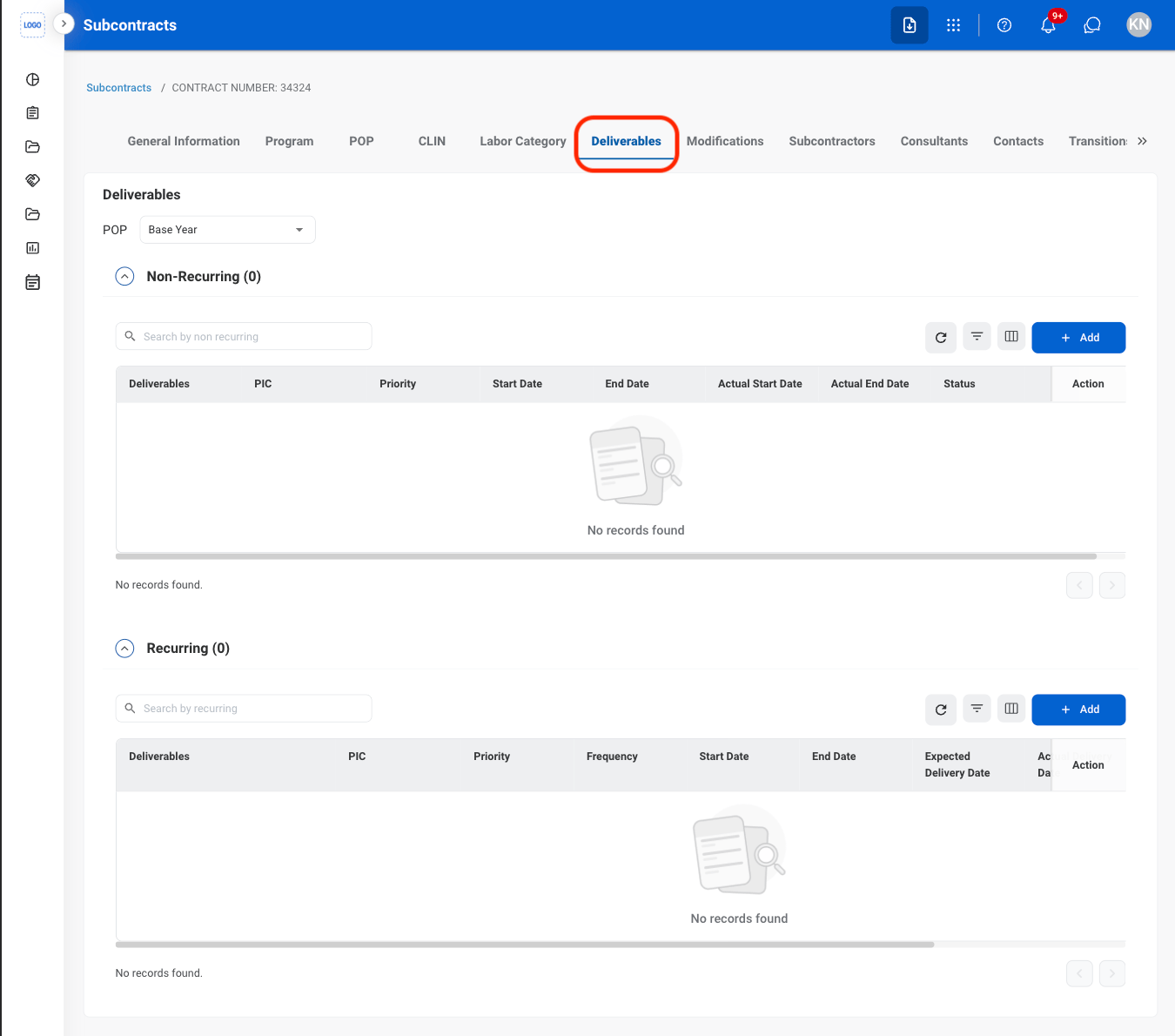
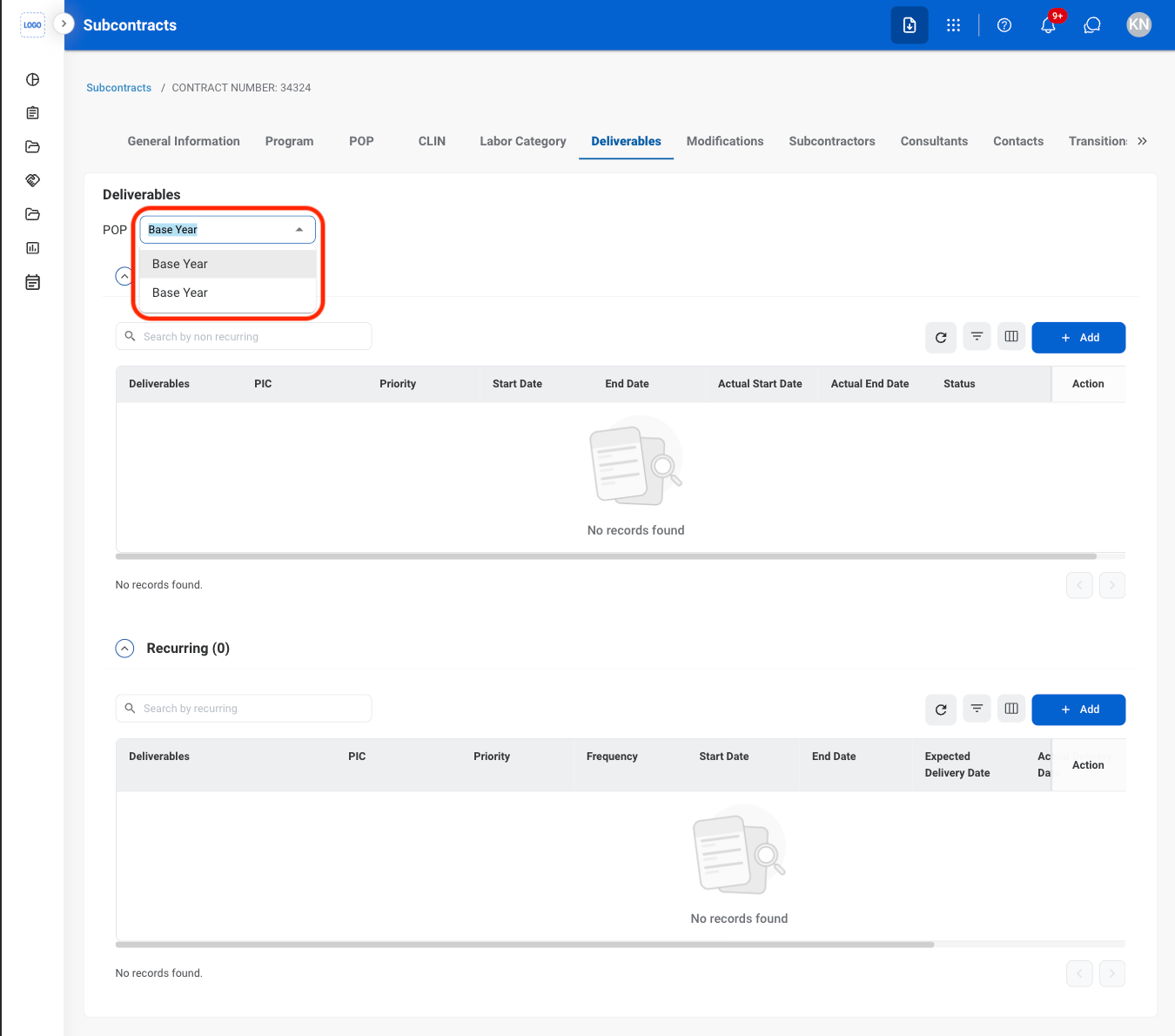
Non-recurring Deliverables only: Select a POP
Select Add under the appropriate section
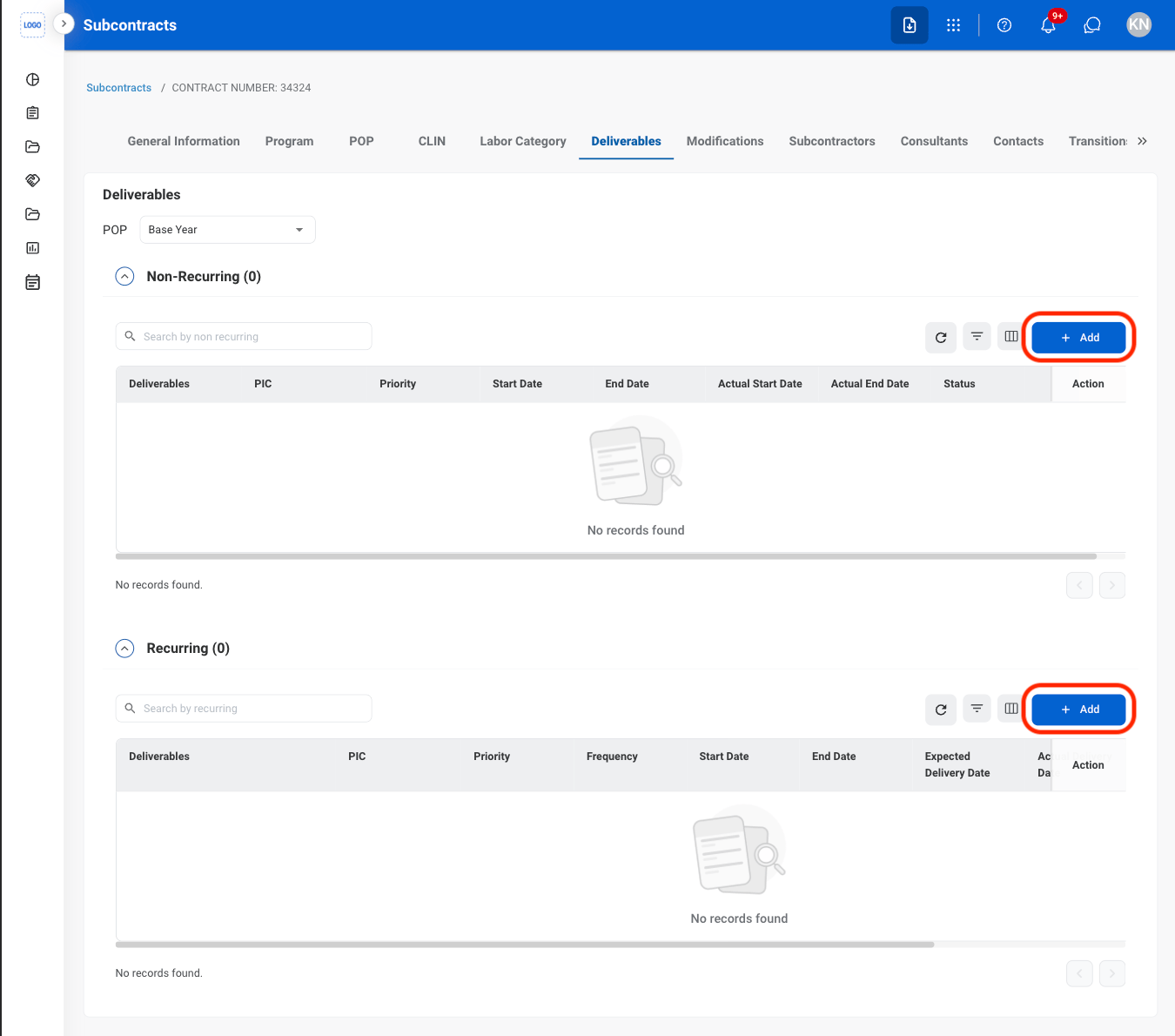
- Non-Recurring: Deliverables that are submitted once or occur only during a specific Period of Performance (POP).
- Recurring: Deliverables that occur on a repeated schedule or require ongoing submission throughout the contract period.
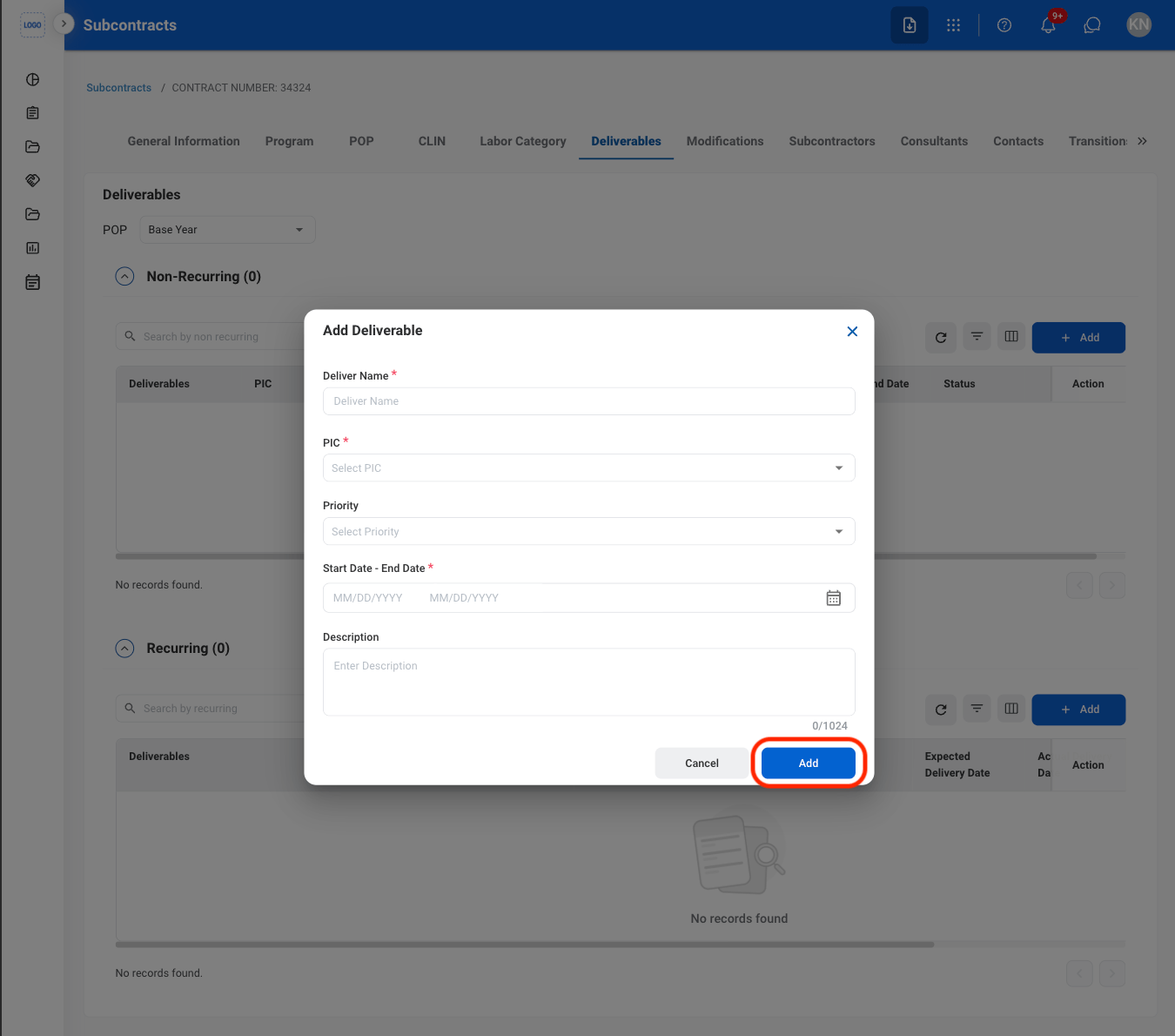
Fill in the required information
Modify a Deliverable
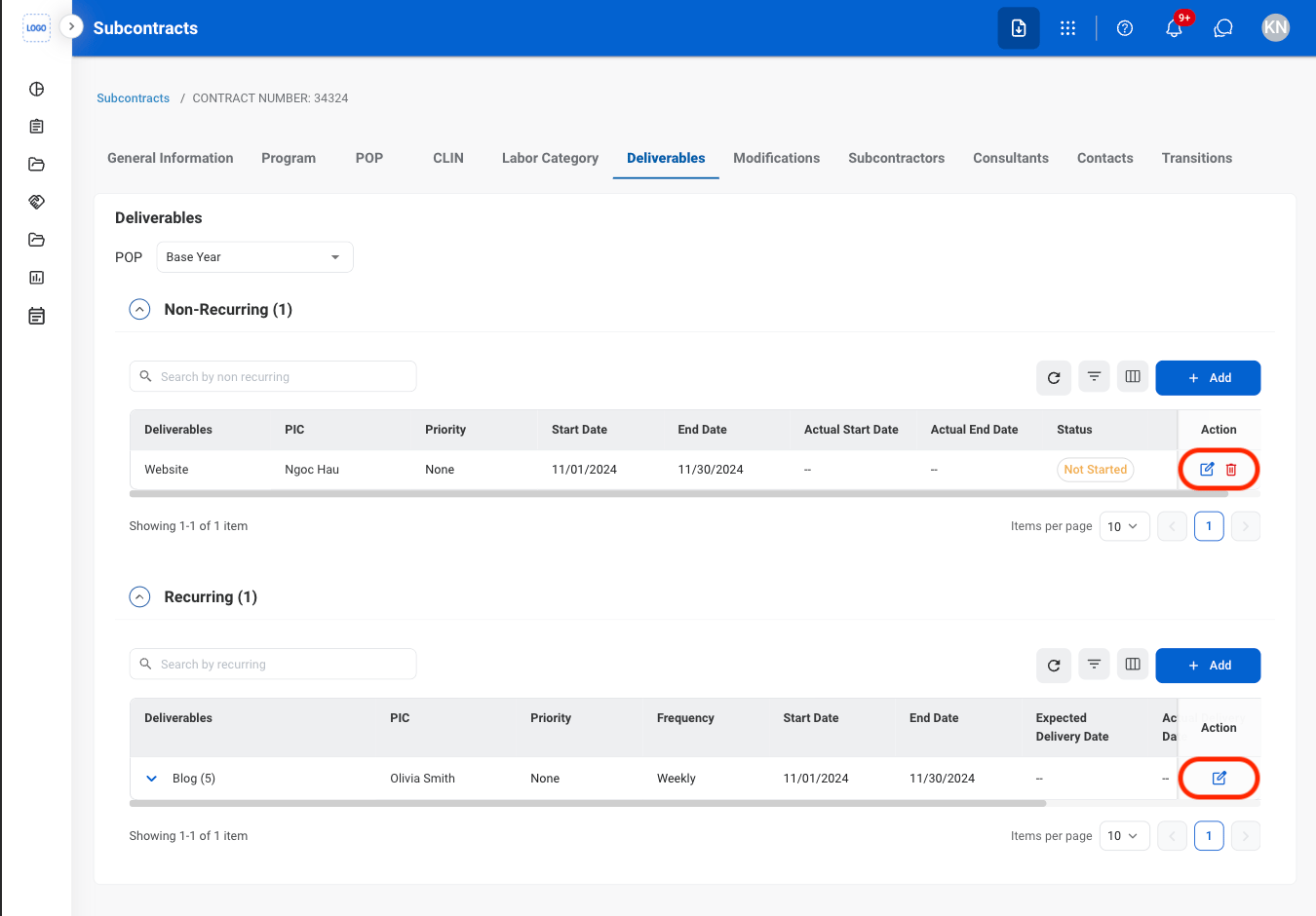
Select an action
Confirm the action
- Edit: Fill in the required information and select Update to complete or Cancel to exit without saving changes.
- Delete: Select Delete to complete or Cancel to exit without saving changes.
Modifications
Add a Modification
Navigate to Modifications
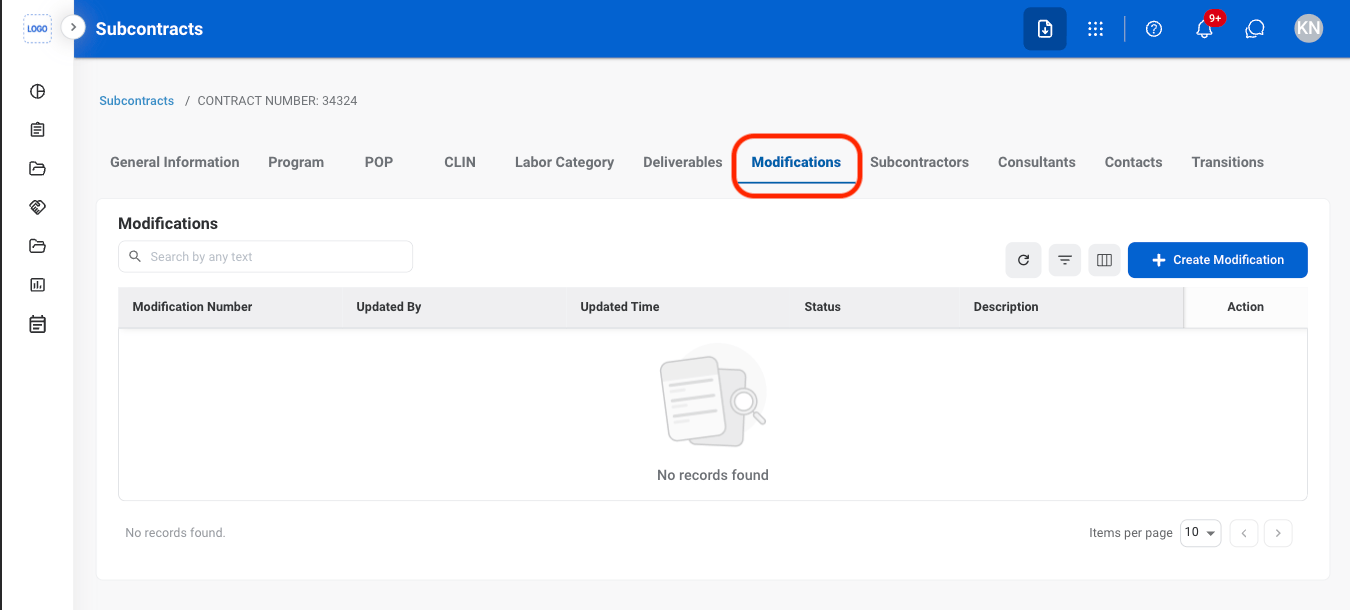
Select Create Modification
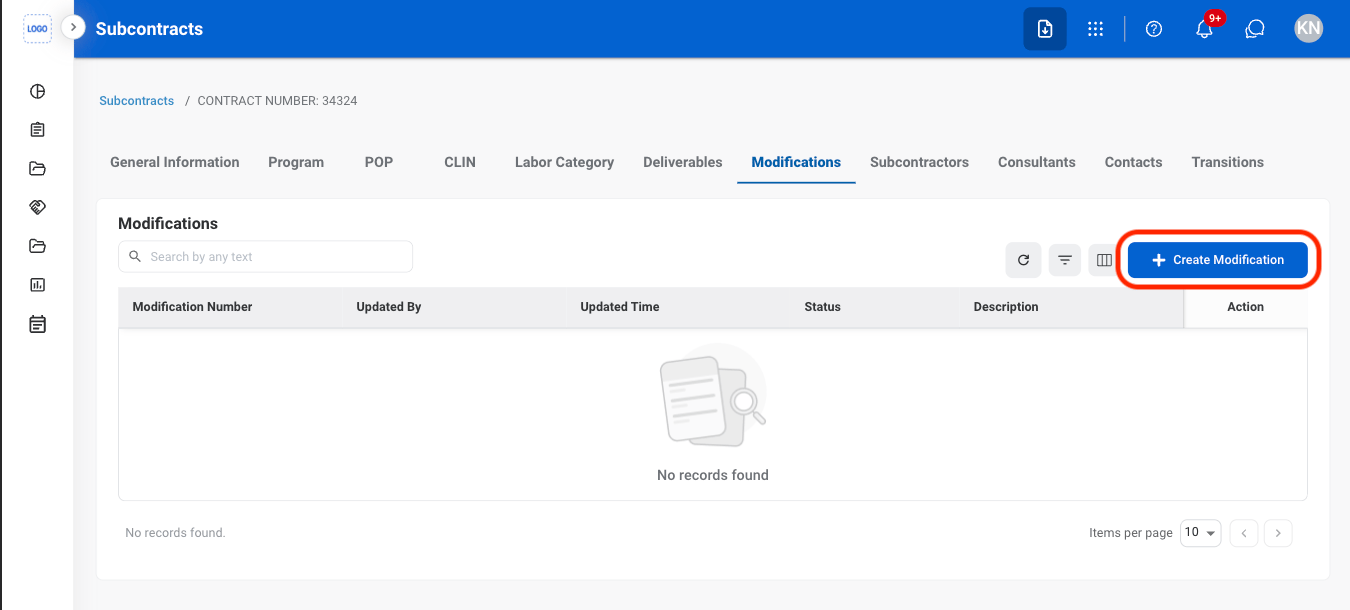
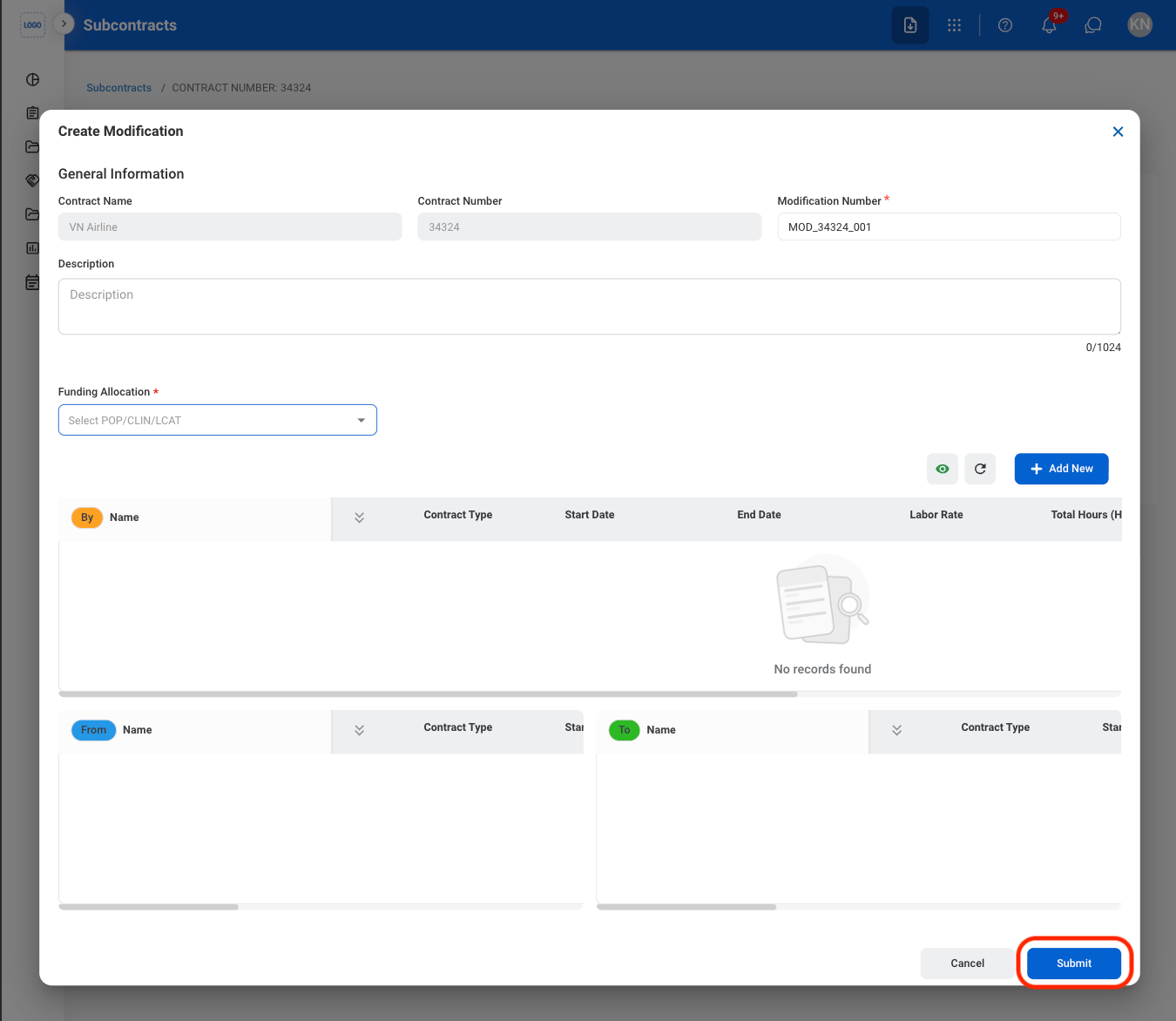
Fill in the required information
Modify a Contract Modification Document
Select the document icon
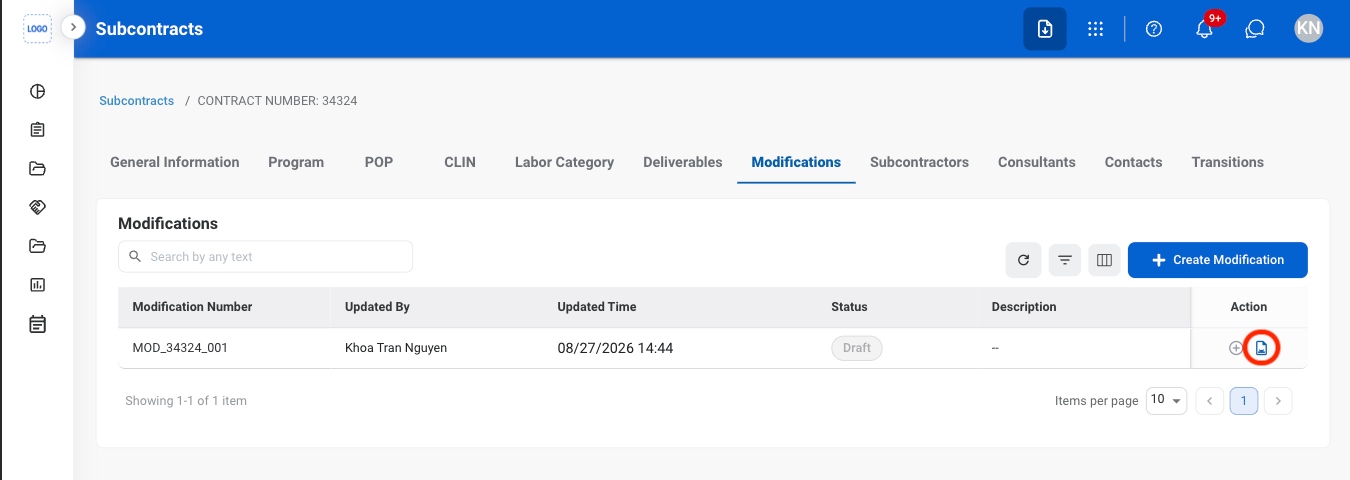
Select an action
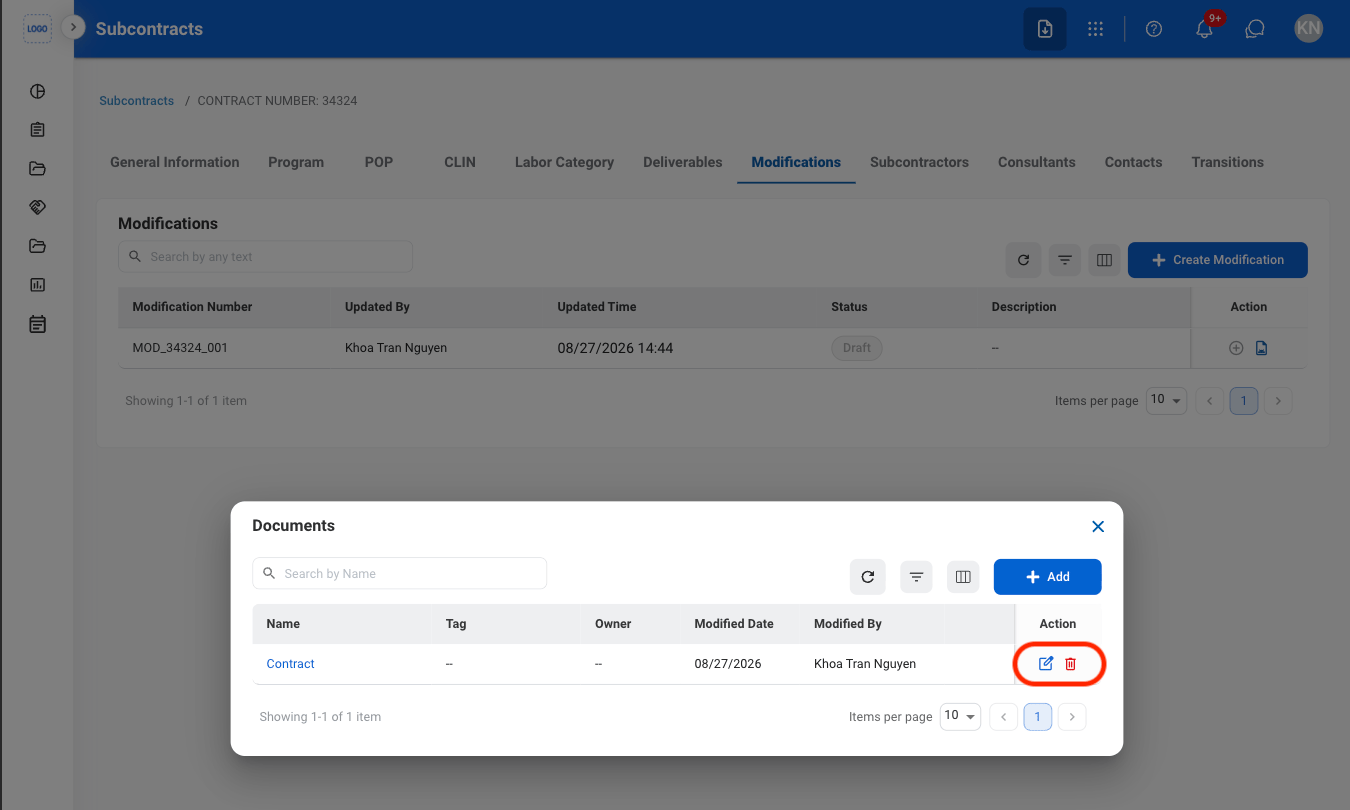
- Edit: Select the edit icon to update an existing entry
- Delete: Select the trash icon to delete an existing entry.
Confirm the action
- Edit: Fill in the required information. Select Save to complete or Cancel to exit without saving changes.
- Delete: Select Delete to complete or Cancel to exit without saving changes.
Contacts
Add a Contact
Navigate to Contacts
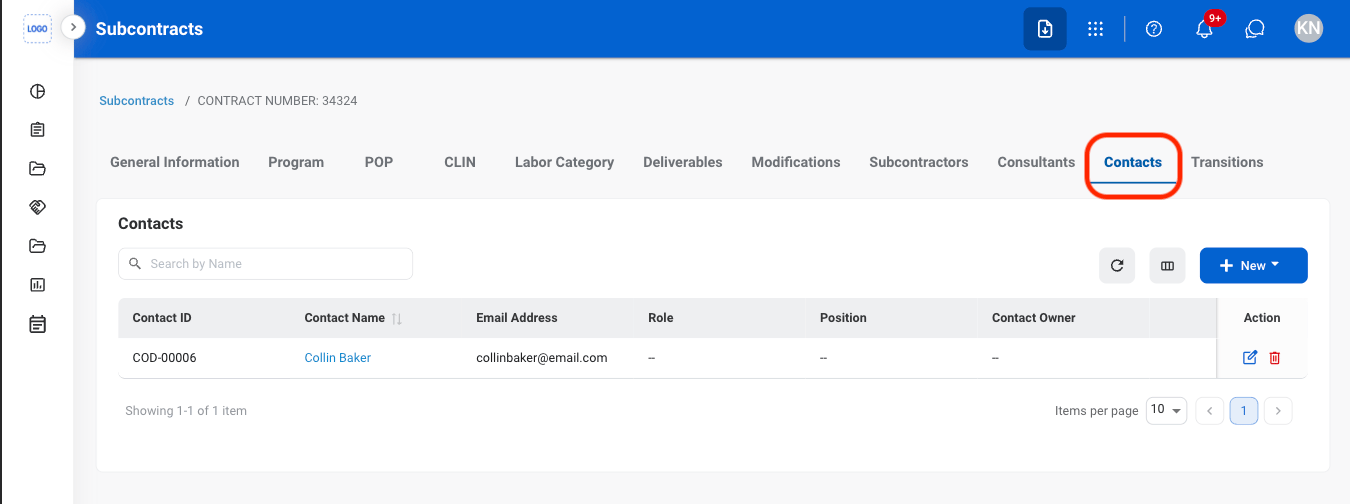
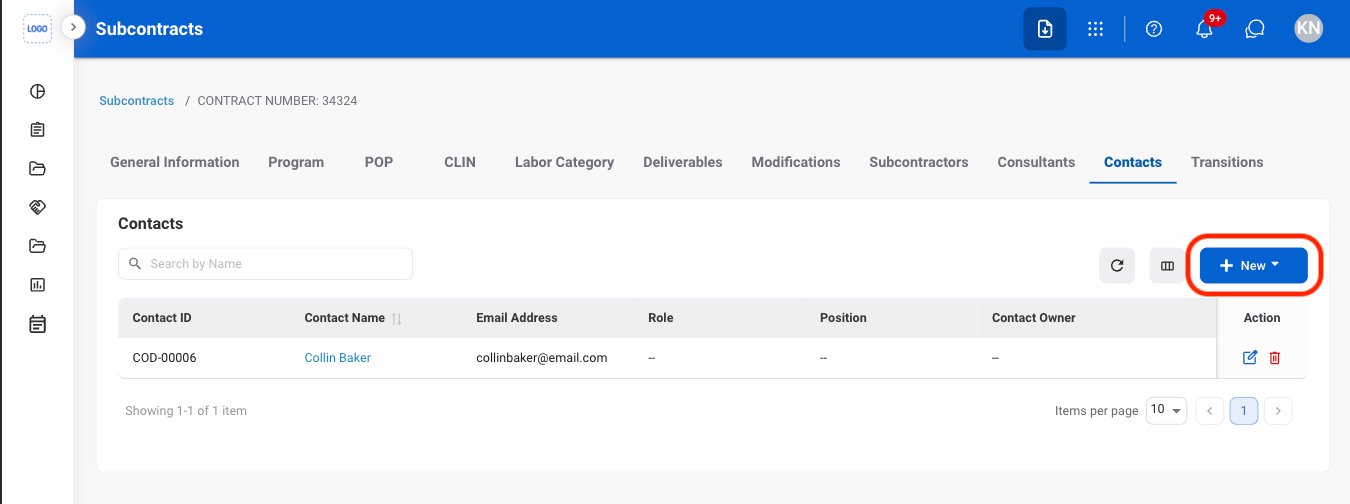
Select New
Select a contact type
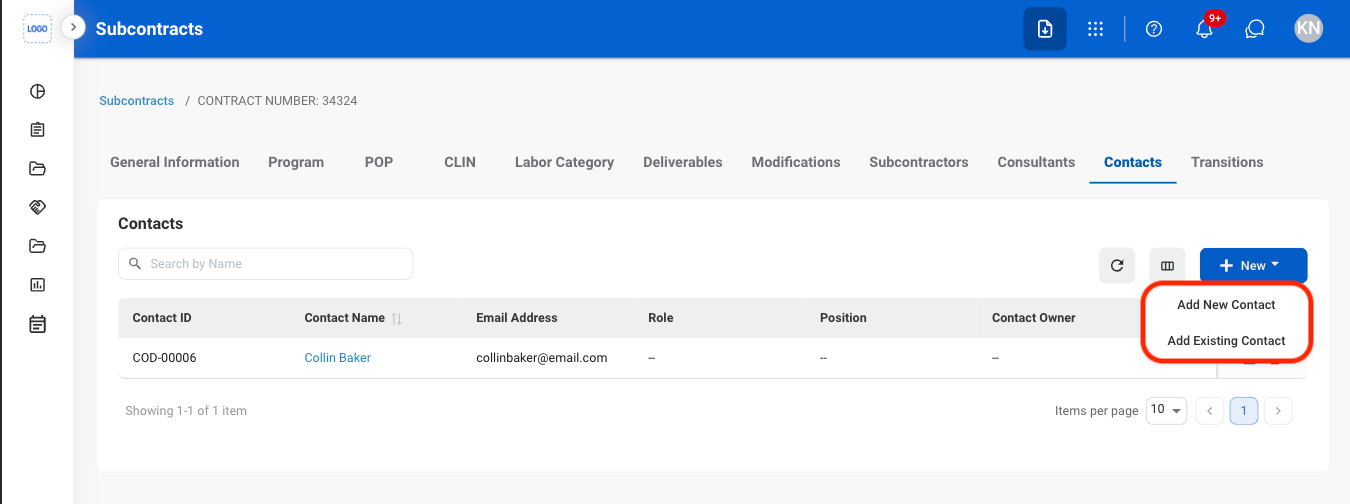
- Add New Contact: Create a new contact and link it to the contract.
- Add Existing Contact: Link an existing contact to the contract.
Fill in the required information
- Add New Contact: Select Add to complete or Cancel to exit without saving changes.
- Add Existing Contact: Select Save to complete or Cancel to exit without saving changes.
Transitions
Add Transition Team
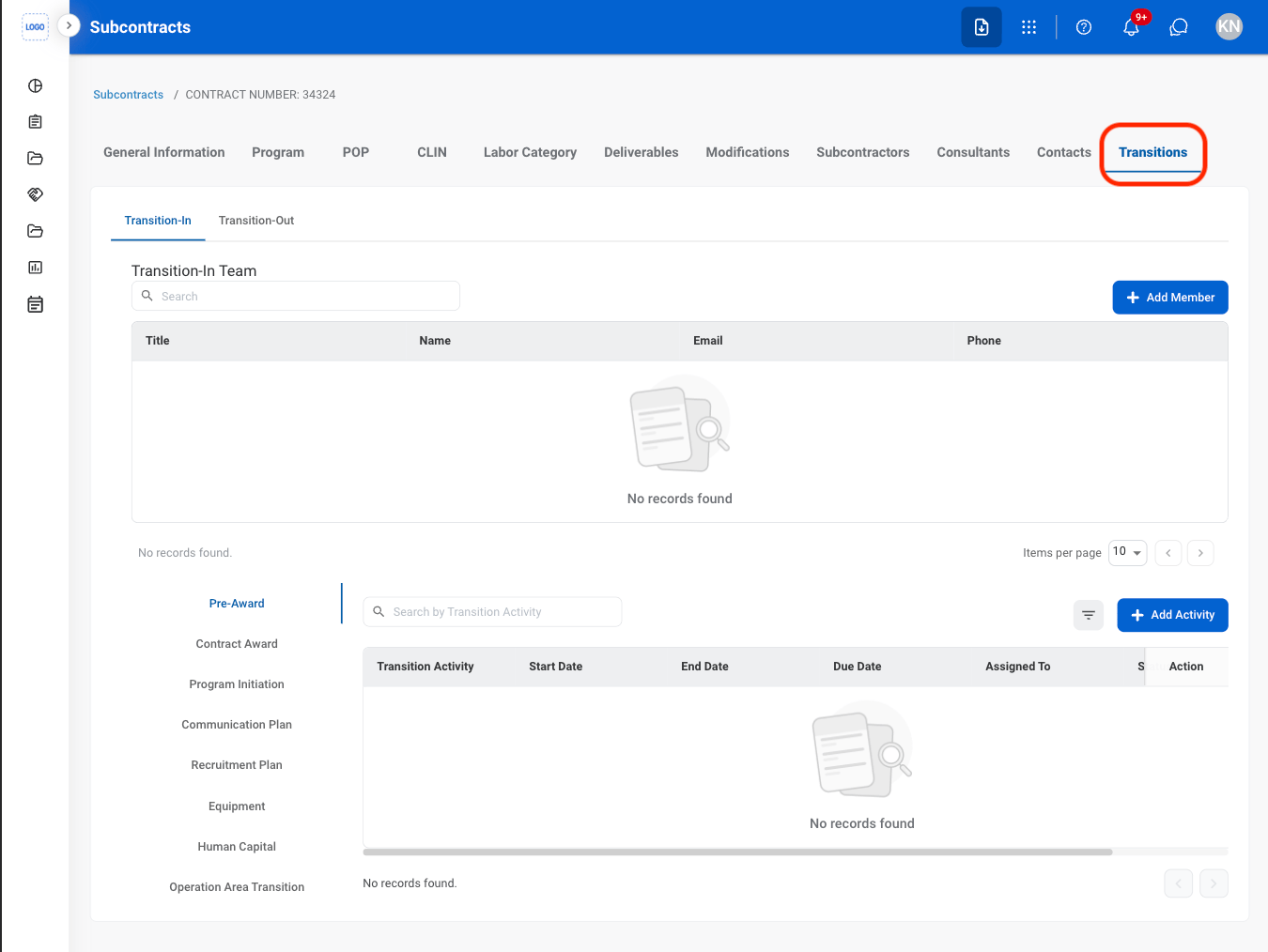
Navigate to Transitions
Select a tab
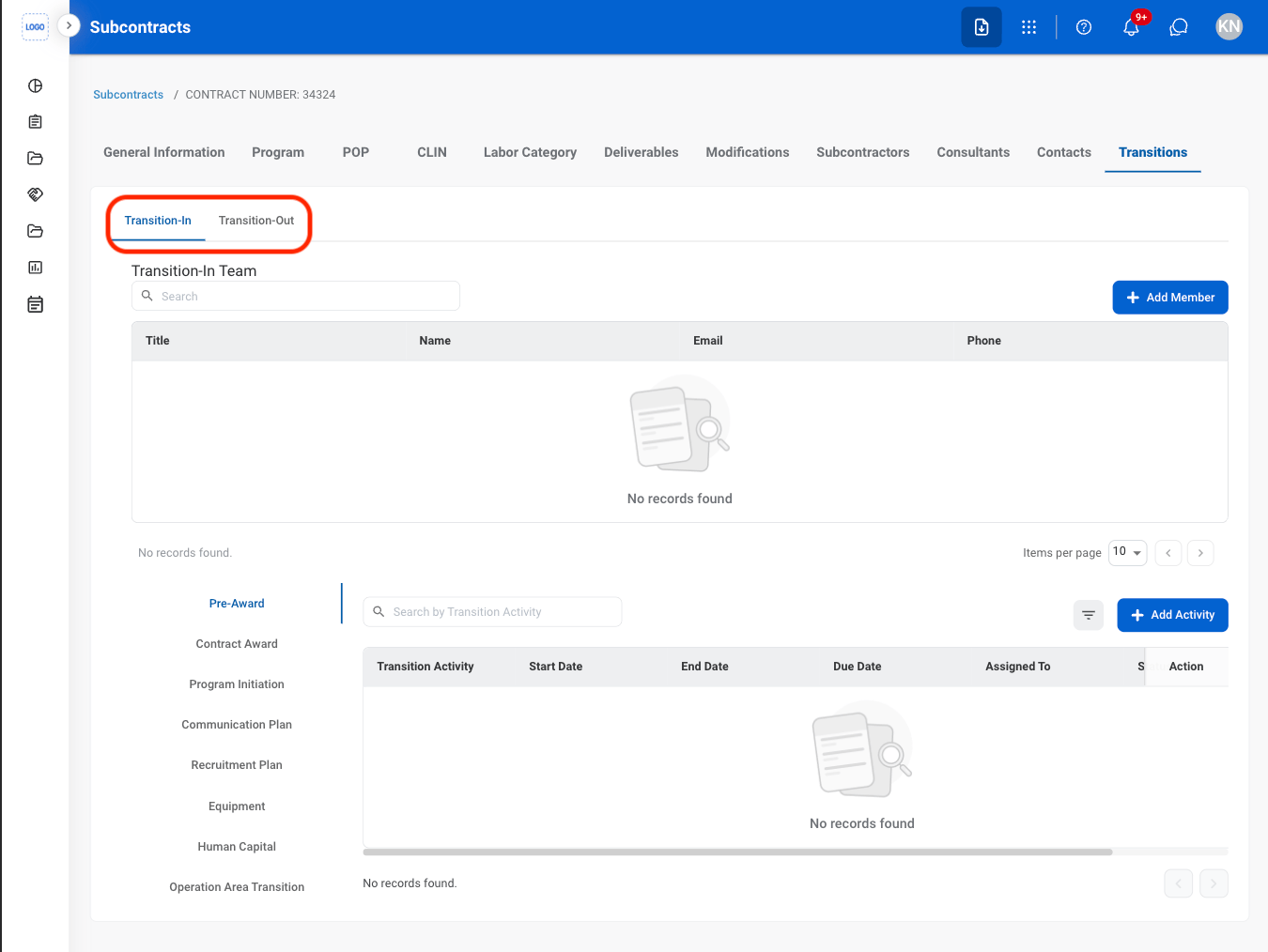
- Transition-In: Activities related to transitioning into a newly awarded program or contract.
- Transition-Out: Activities related to contract closeout and disengagement.
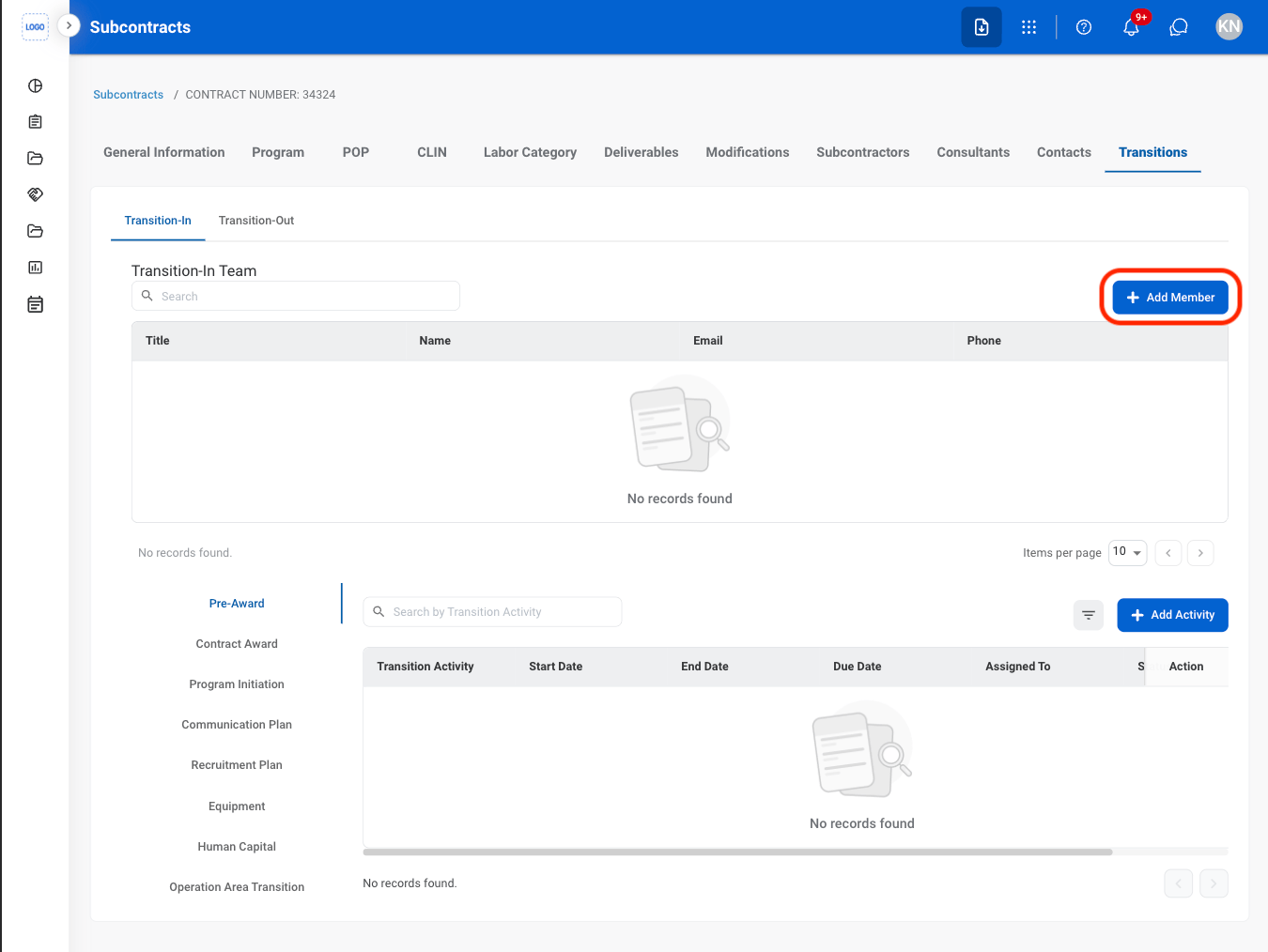
Select Add Member
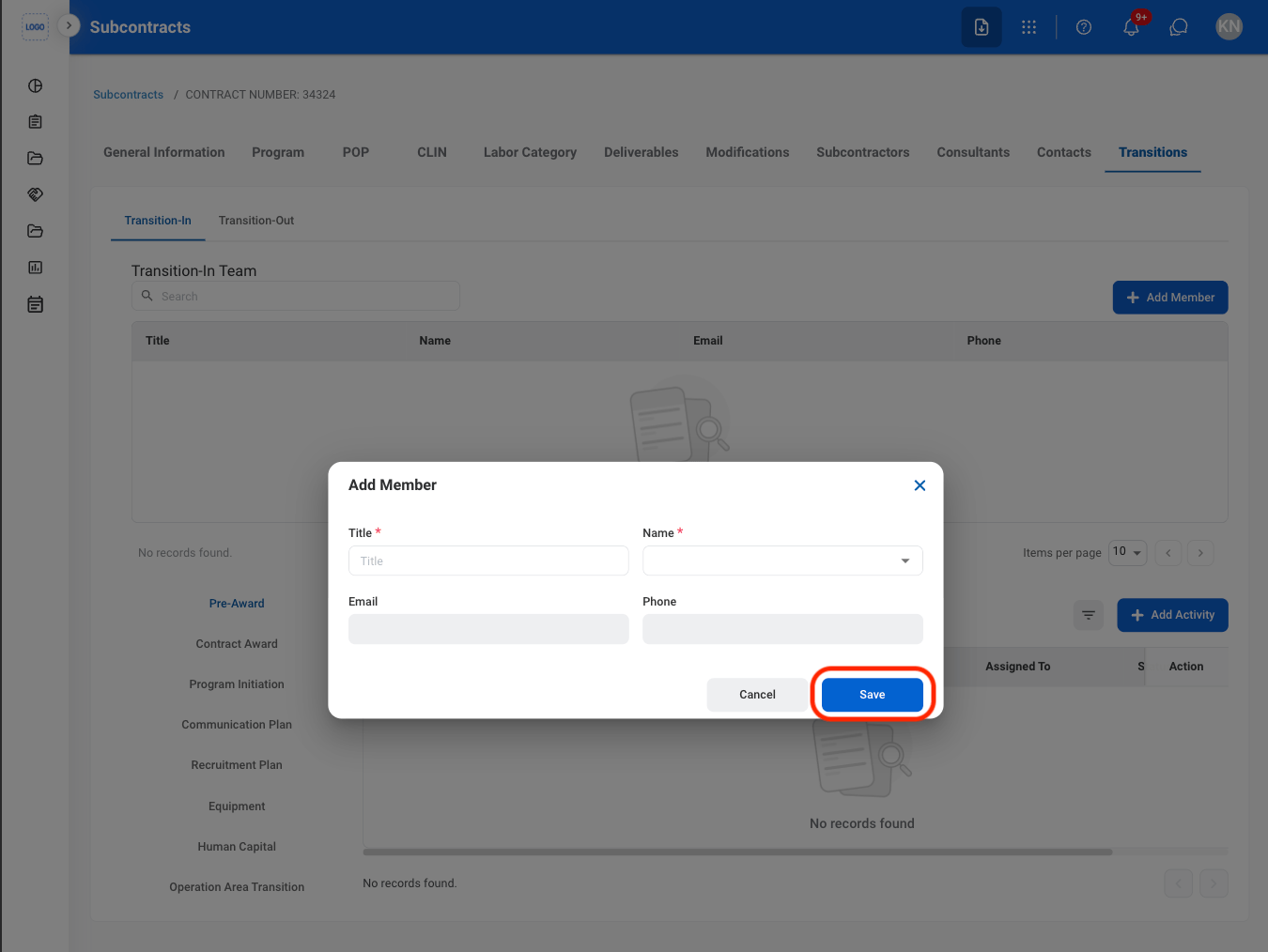
Fill in the required information
Add Transition Activity
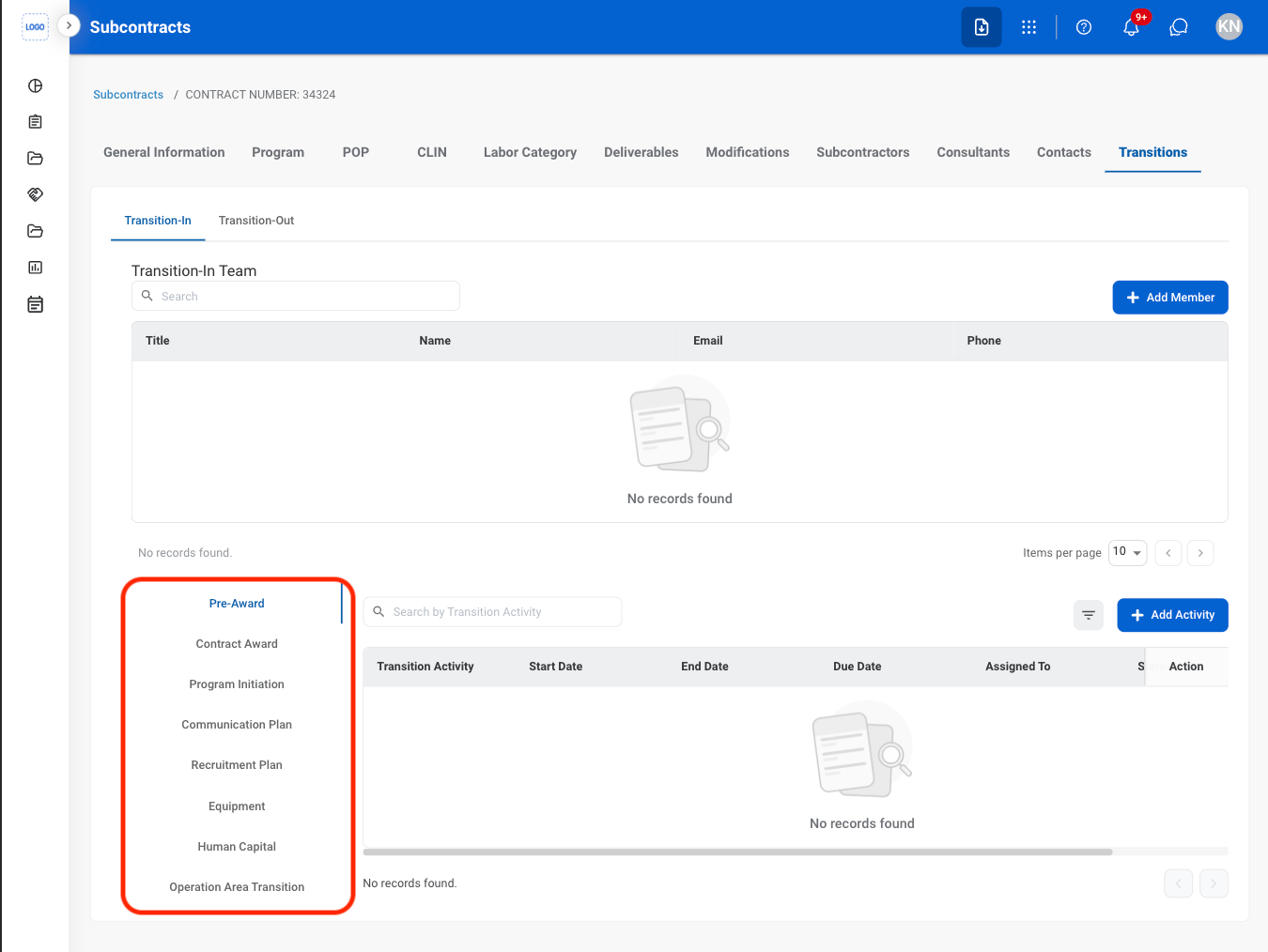
Select a tab
- Transition-In: Activities related to transitioning into a newly awarded program or contract.
- Transition-Out: Activities related to contract closeout and disengagement.
Select a sub tab
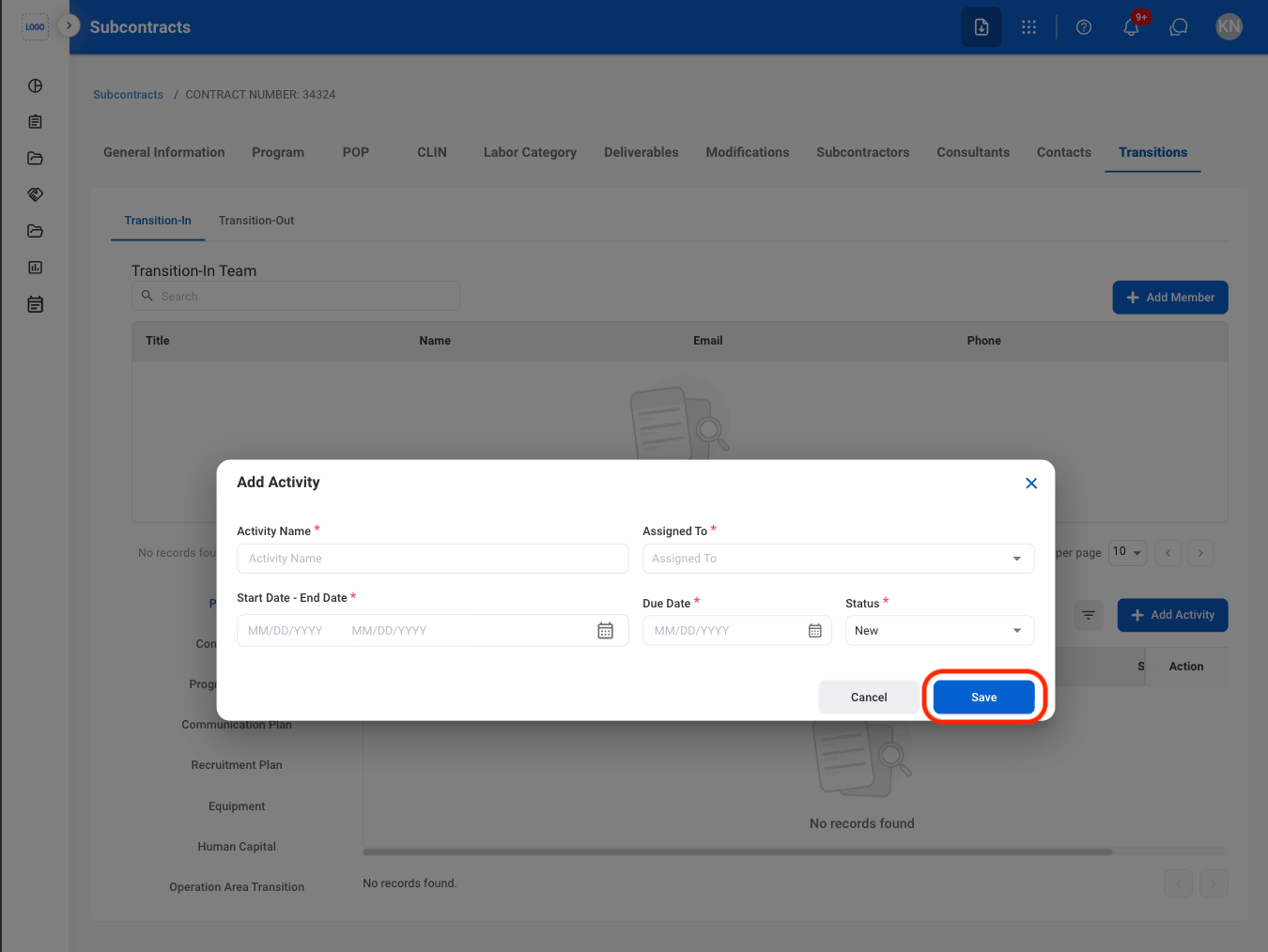
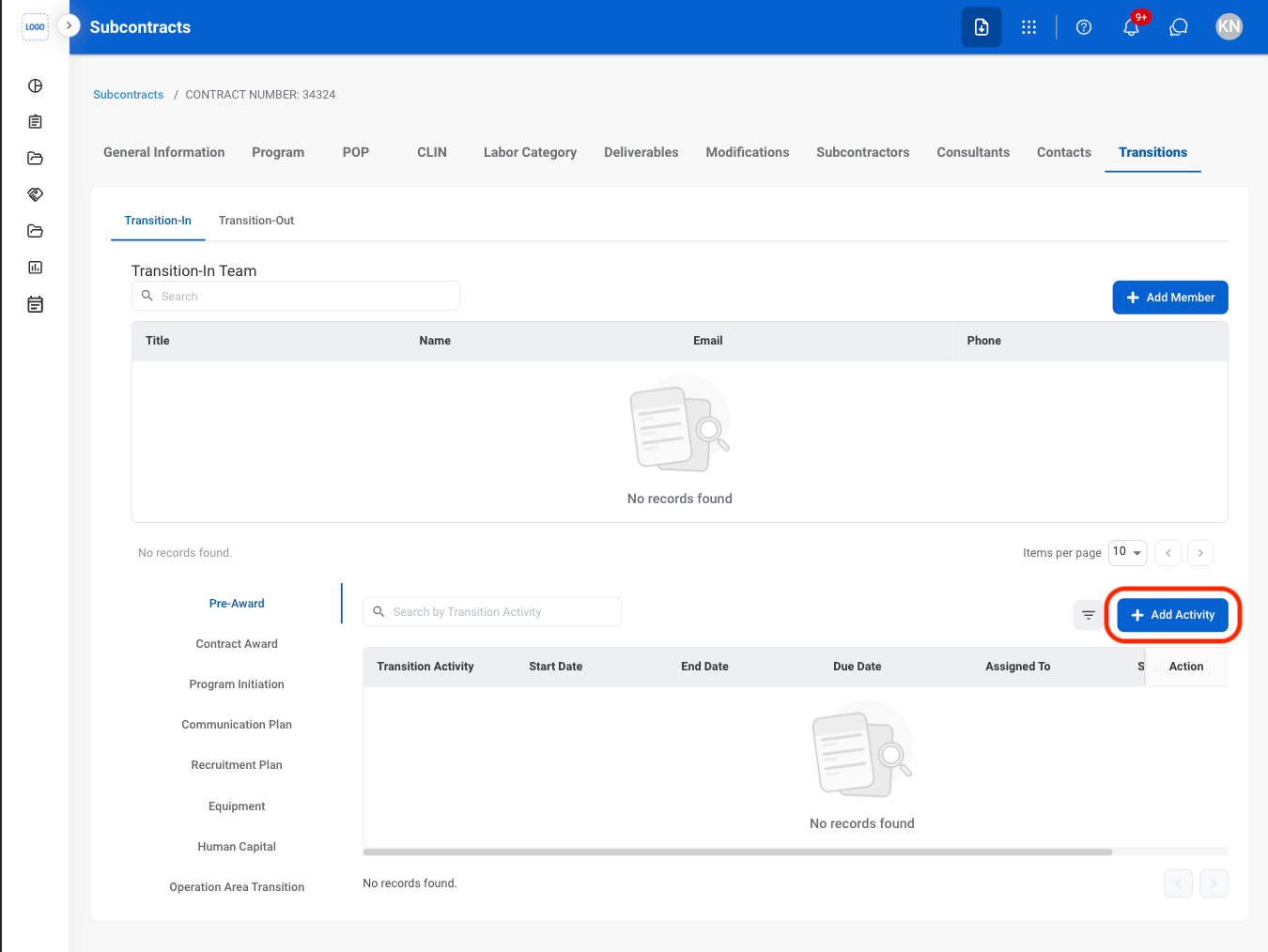
Select Add Activity
Fill in the required information