
Create a Contract Vehicle
Navigate to Contract Vehicles
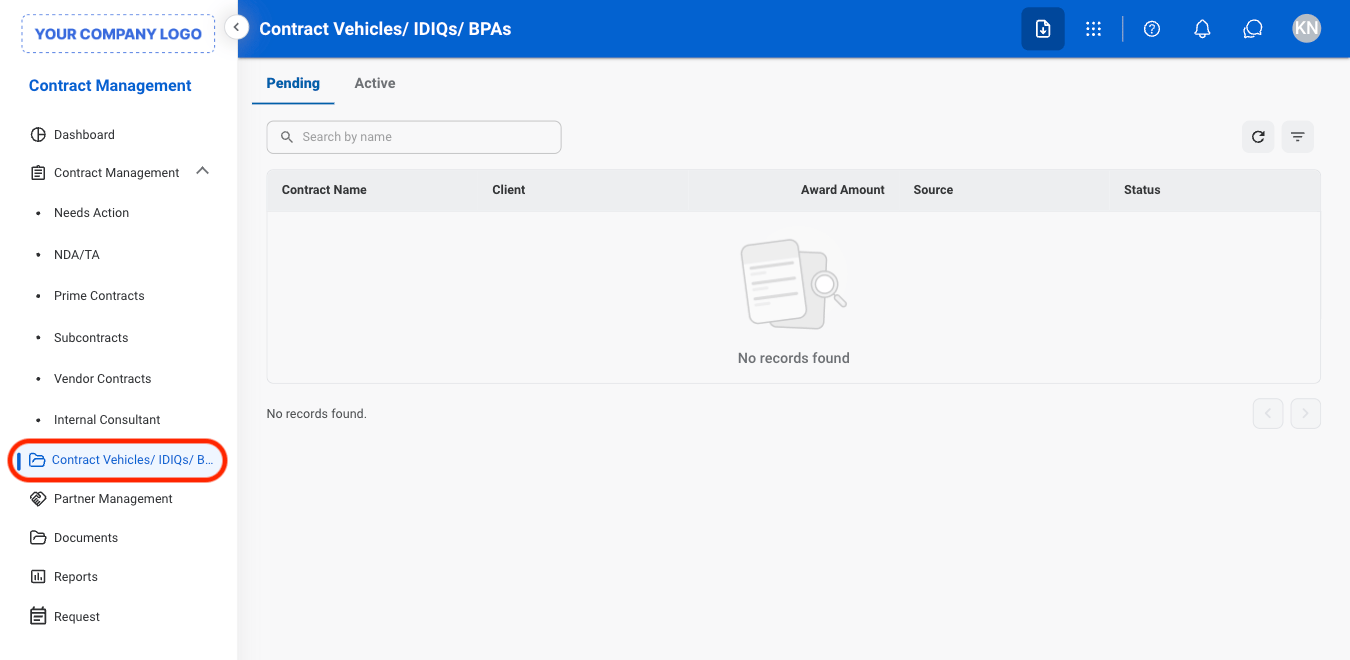
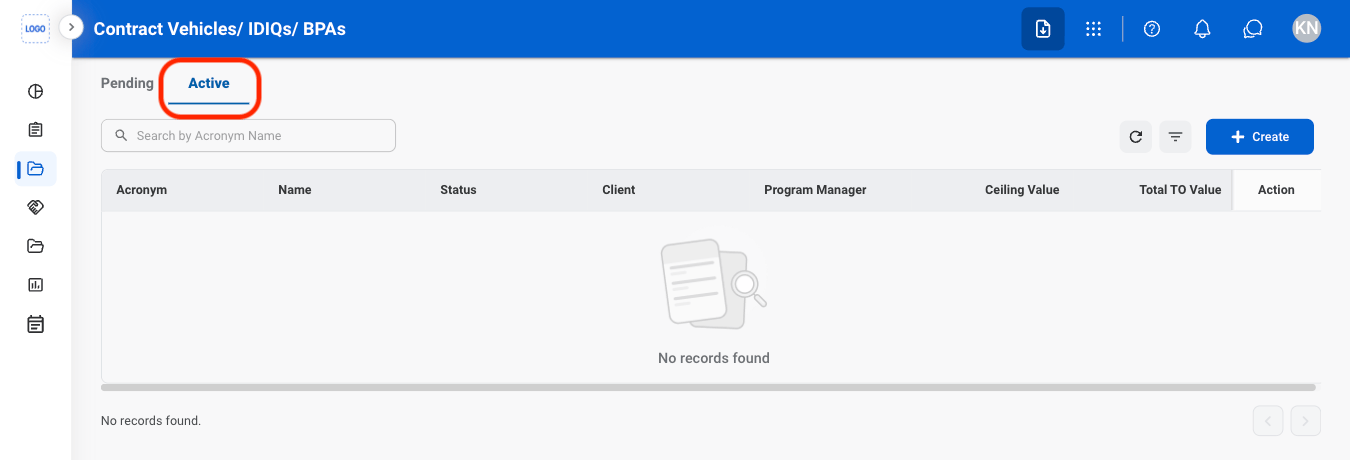
Navigate to the Active tab
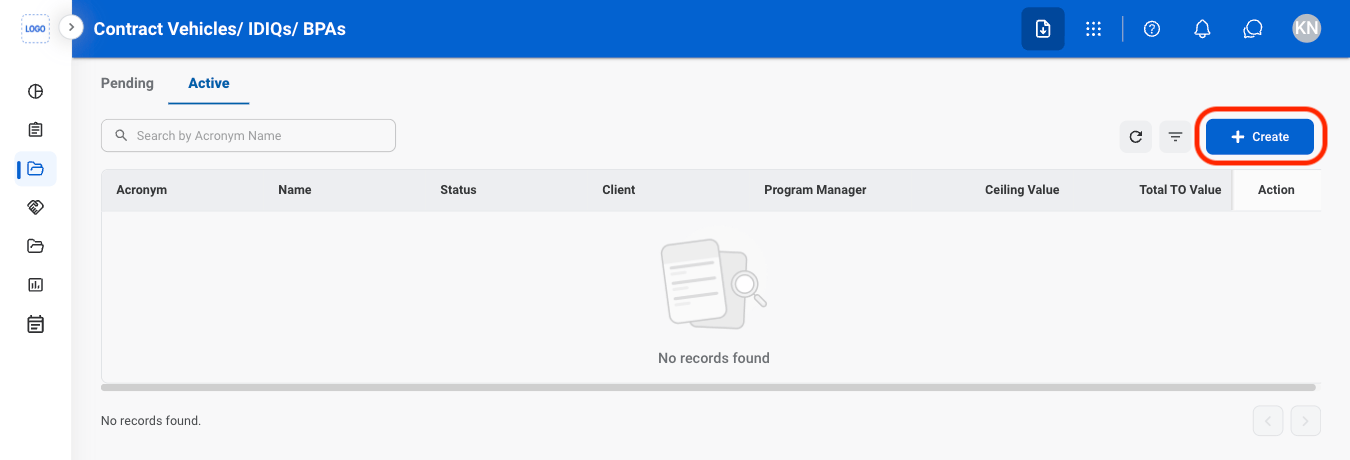
Select Create
Fill in the required information
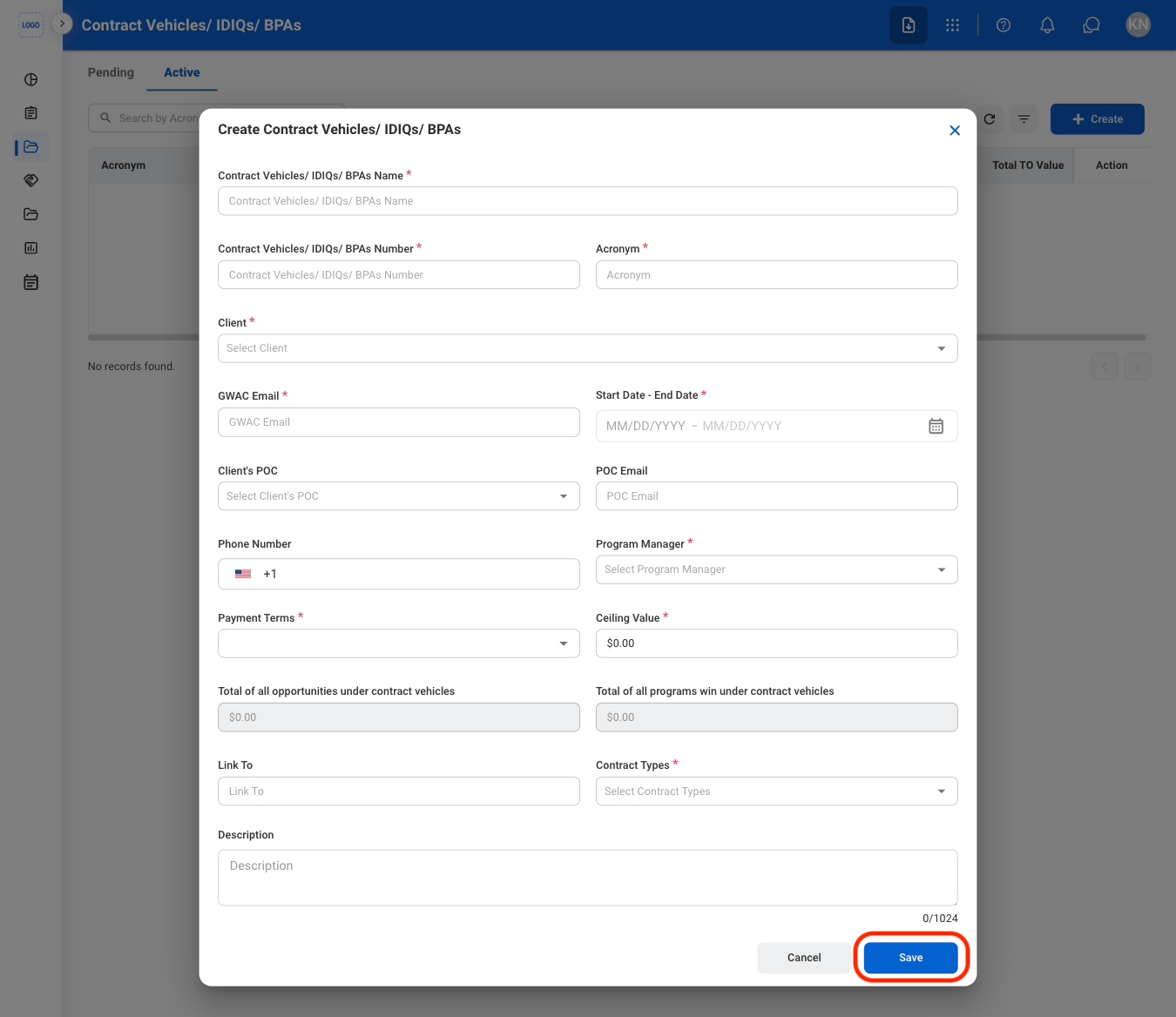
General Information
Edit General Information
Select a Contract Vehicle
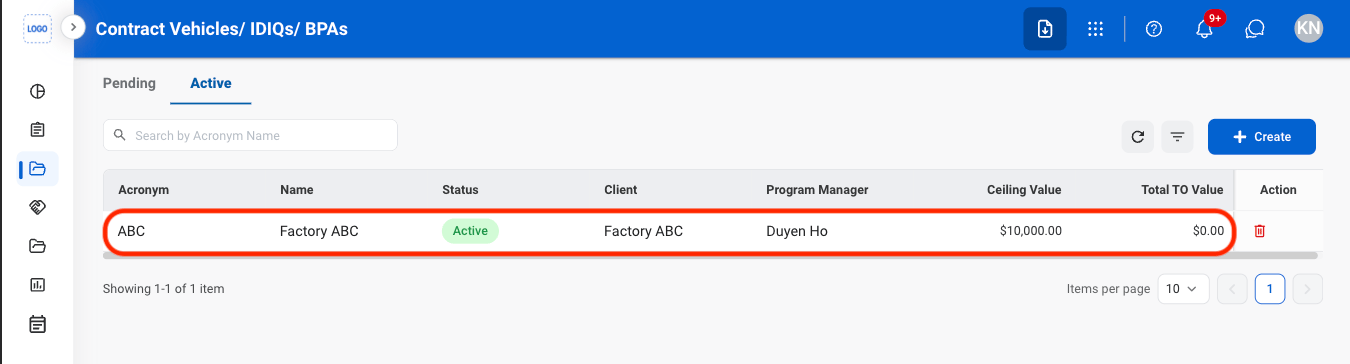
Navigate to General Information
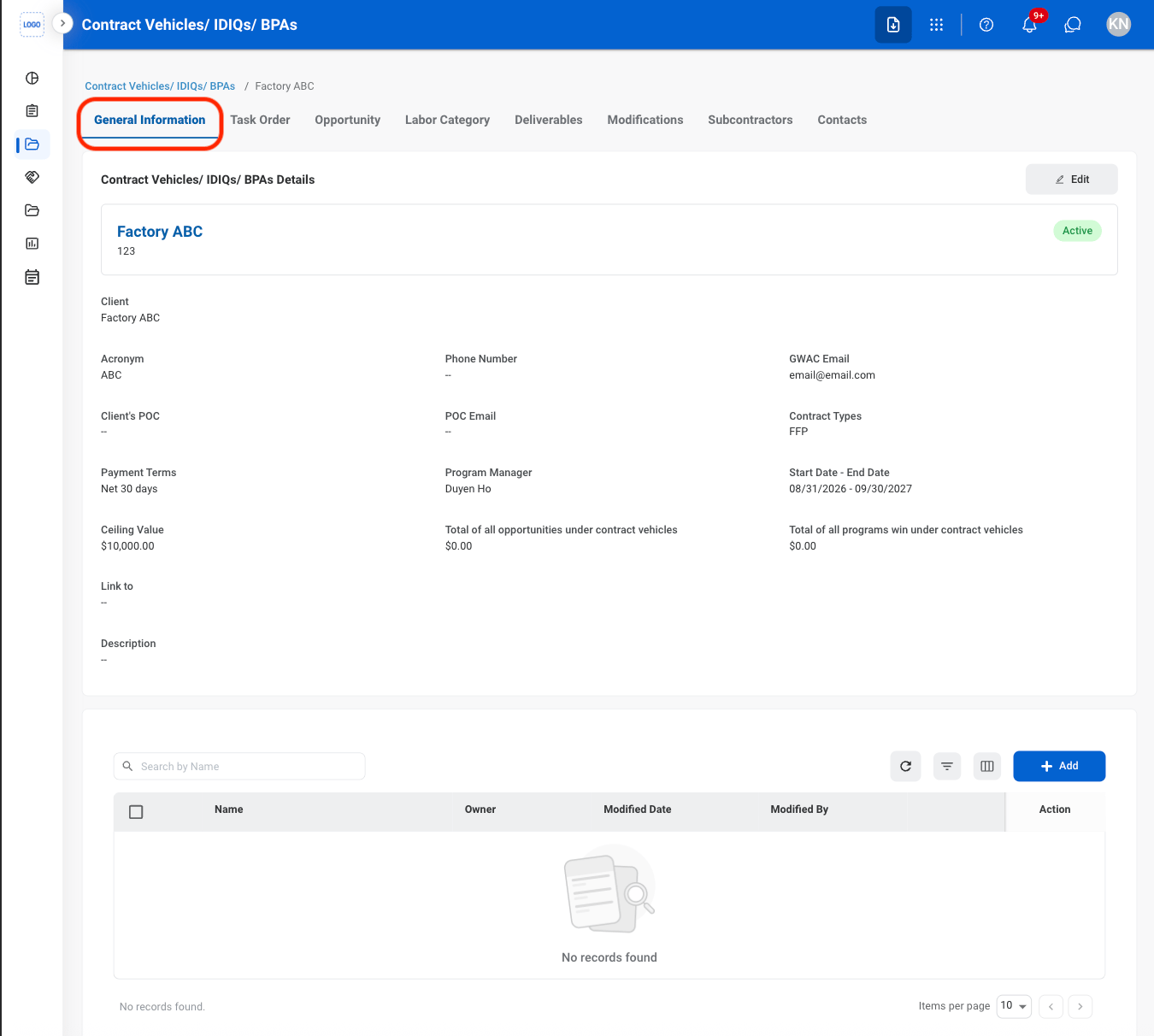
Select Edit
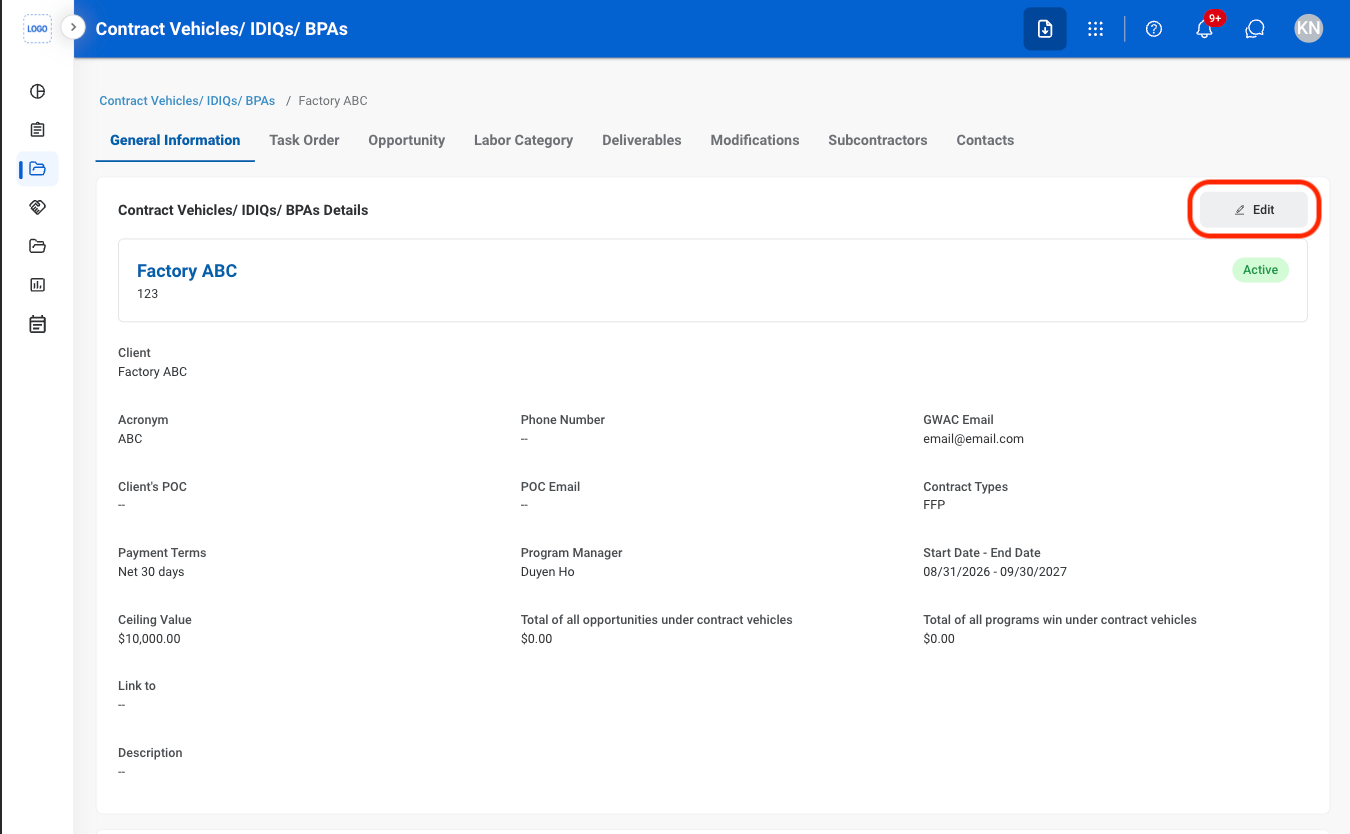
Fill in the required information
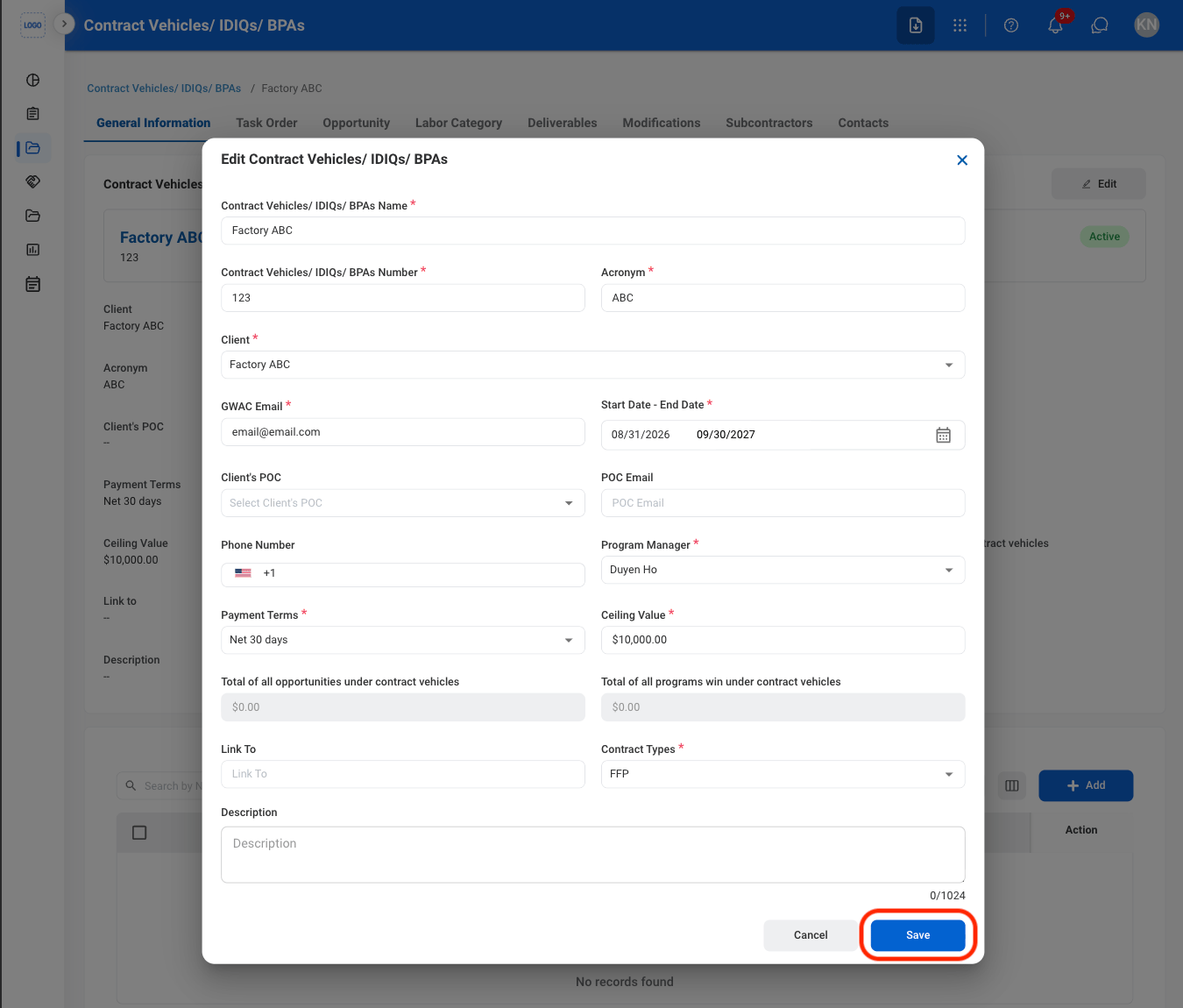
Add Contract Vehicle Documents
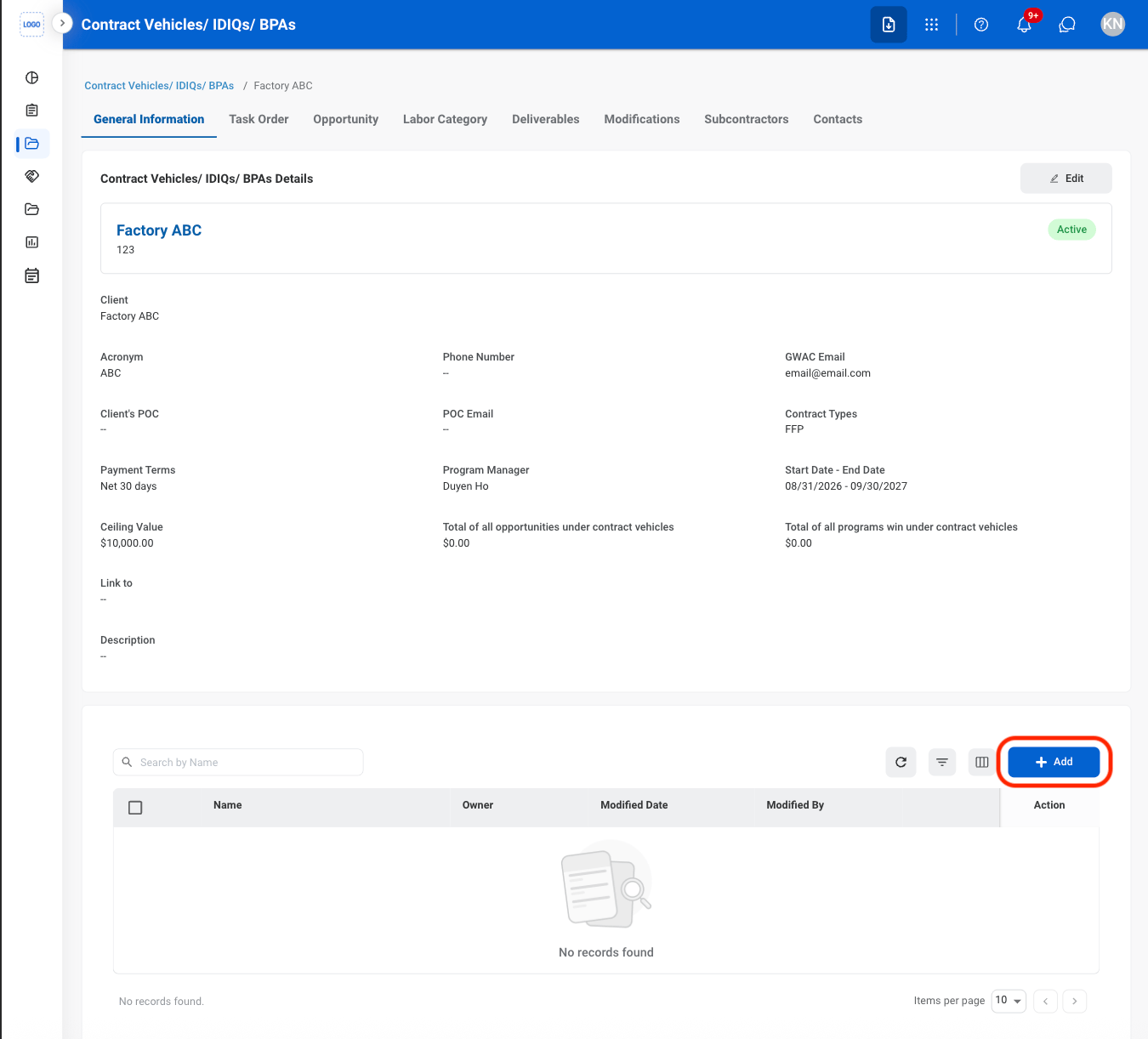
Navigate to General Information
Select Add
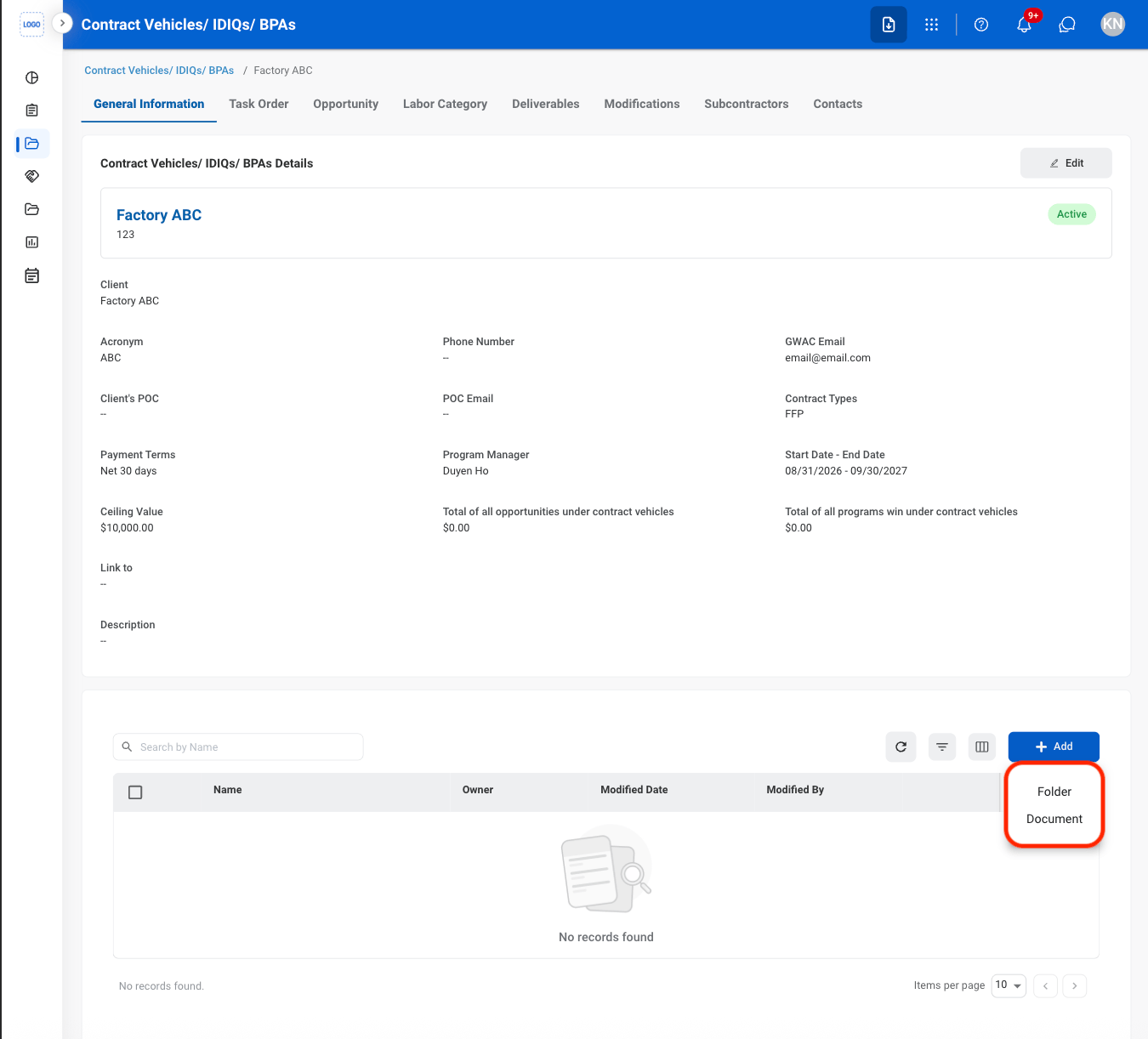
Select a document type
Fill in the required information
Task Order
Add a Task Order Document
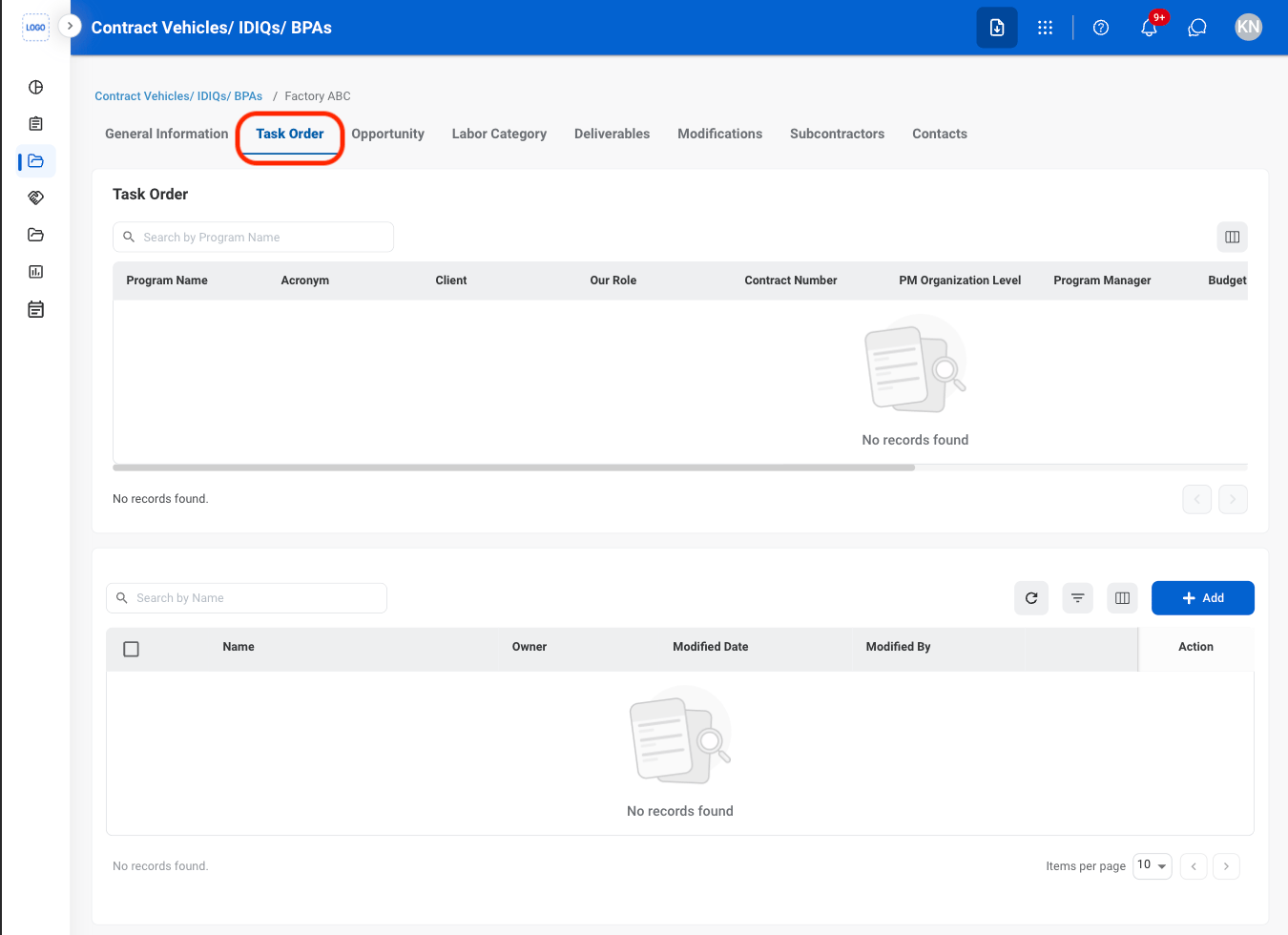
Navigate to Task Order
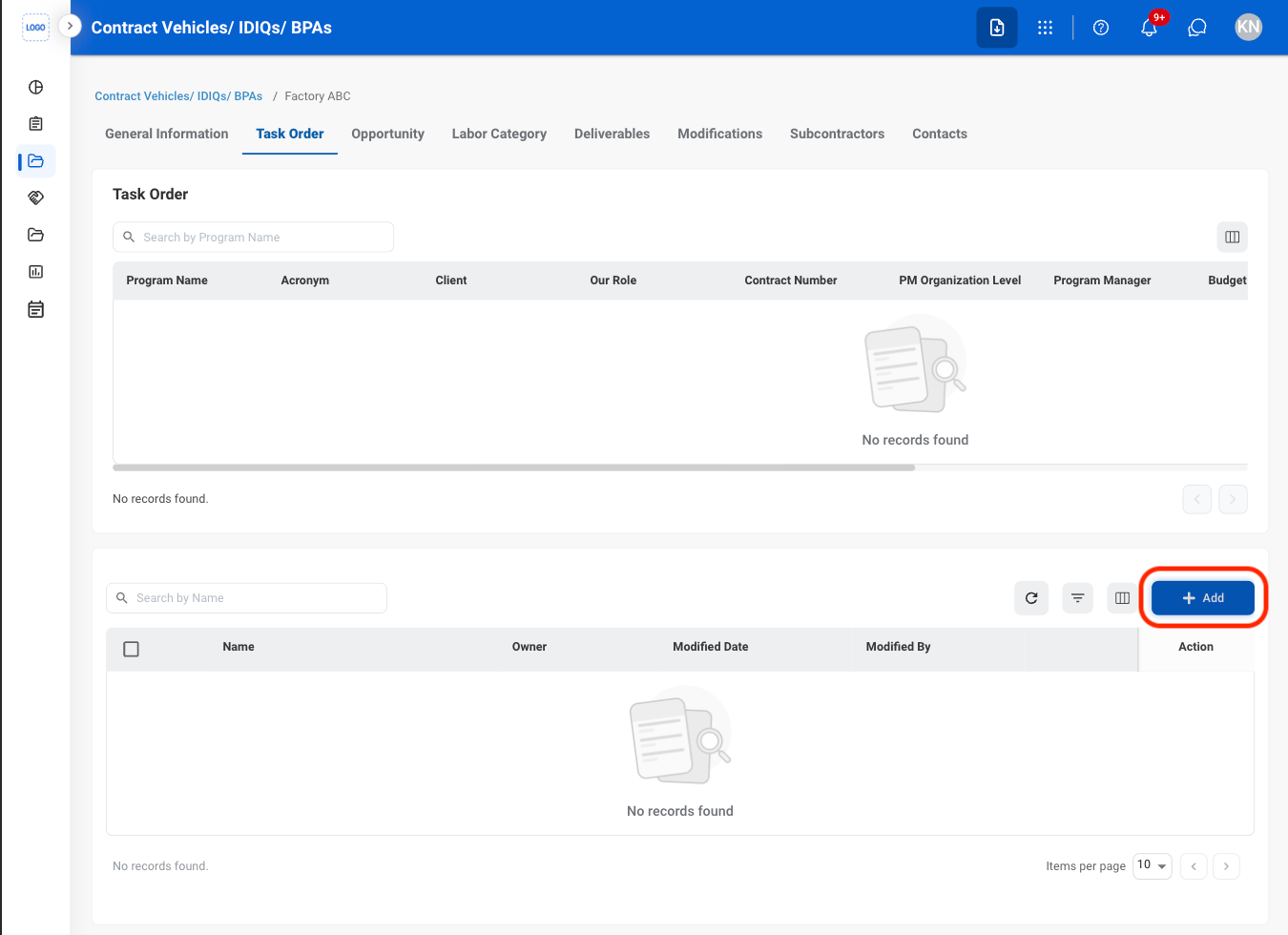
Select Add
Fill in the required information
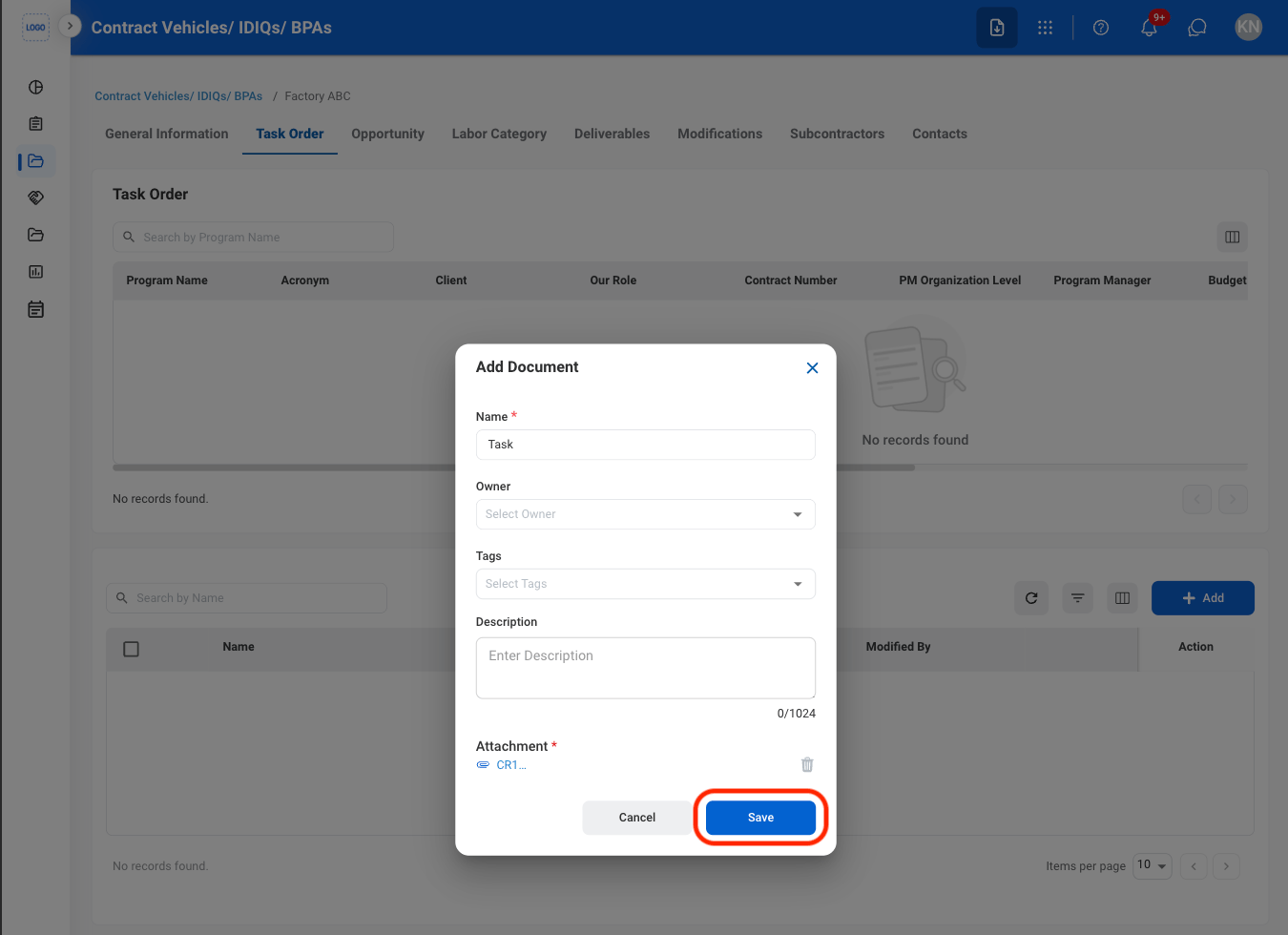
Opportunity
View Business Opportunities
Navigate to Opportunity
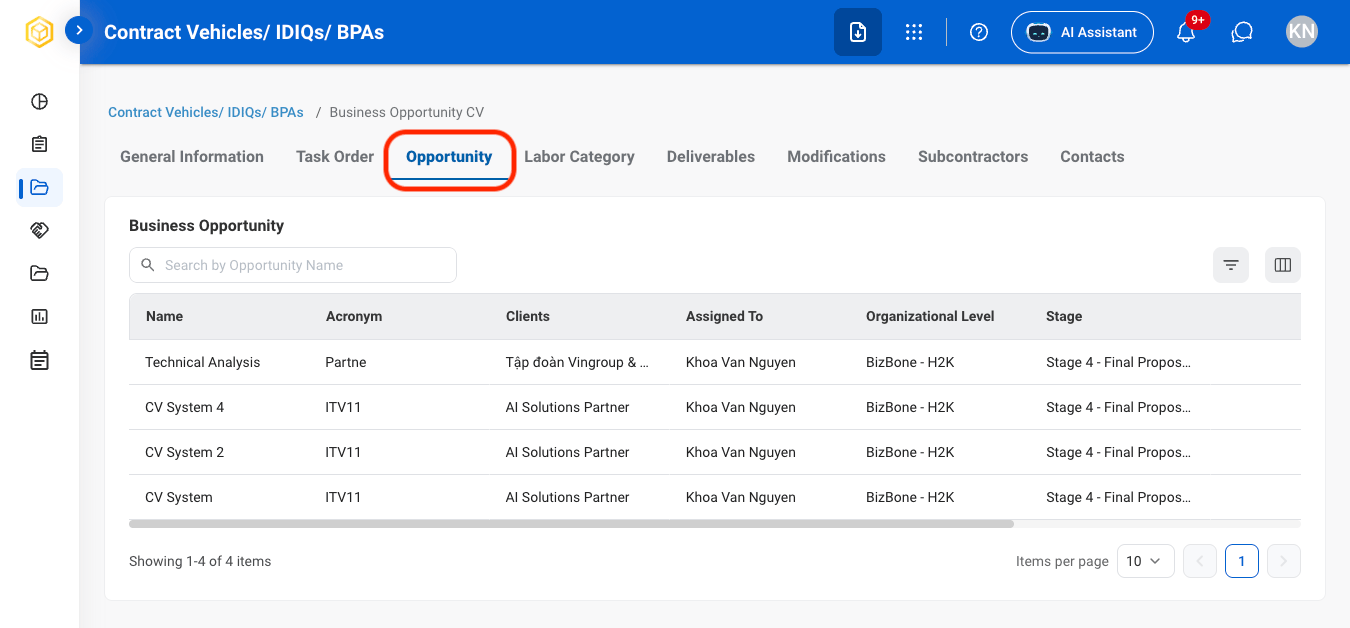
Select an opportunity
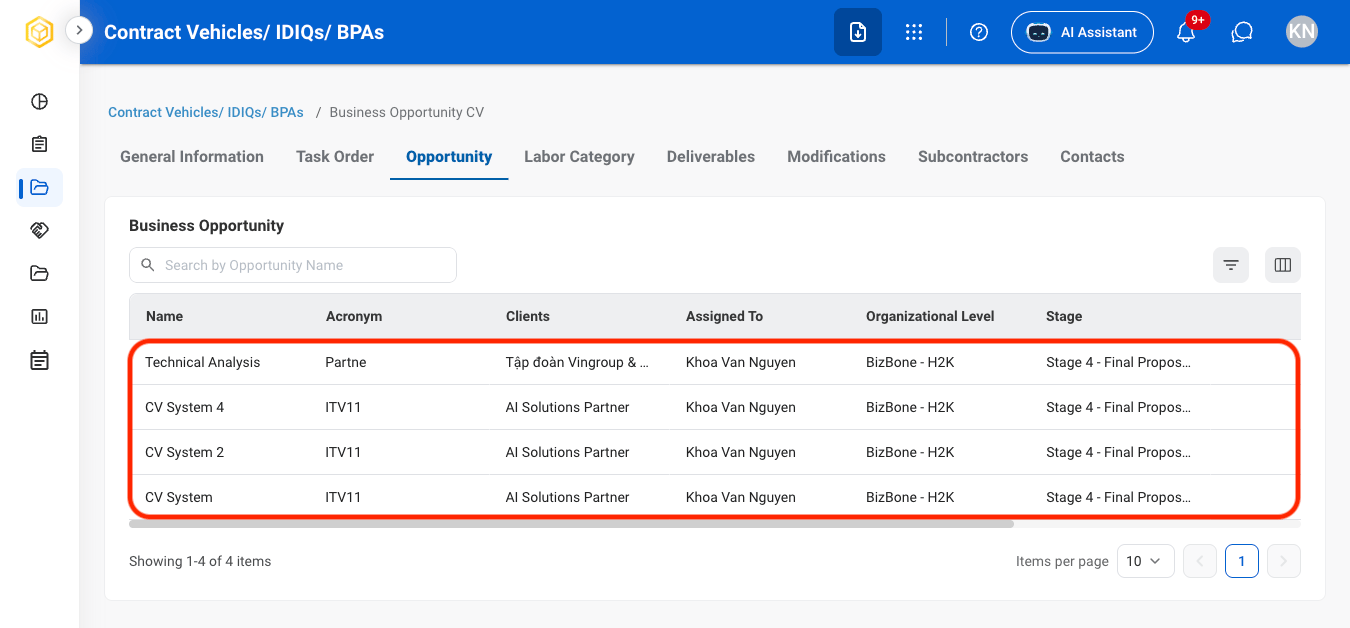
Labor Category
Add a POP
Navigate to Labor Category
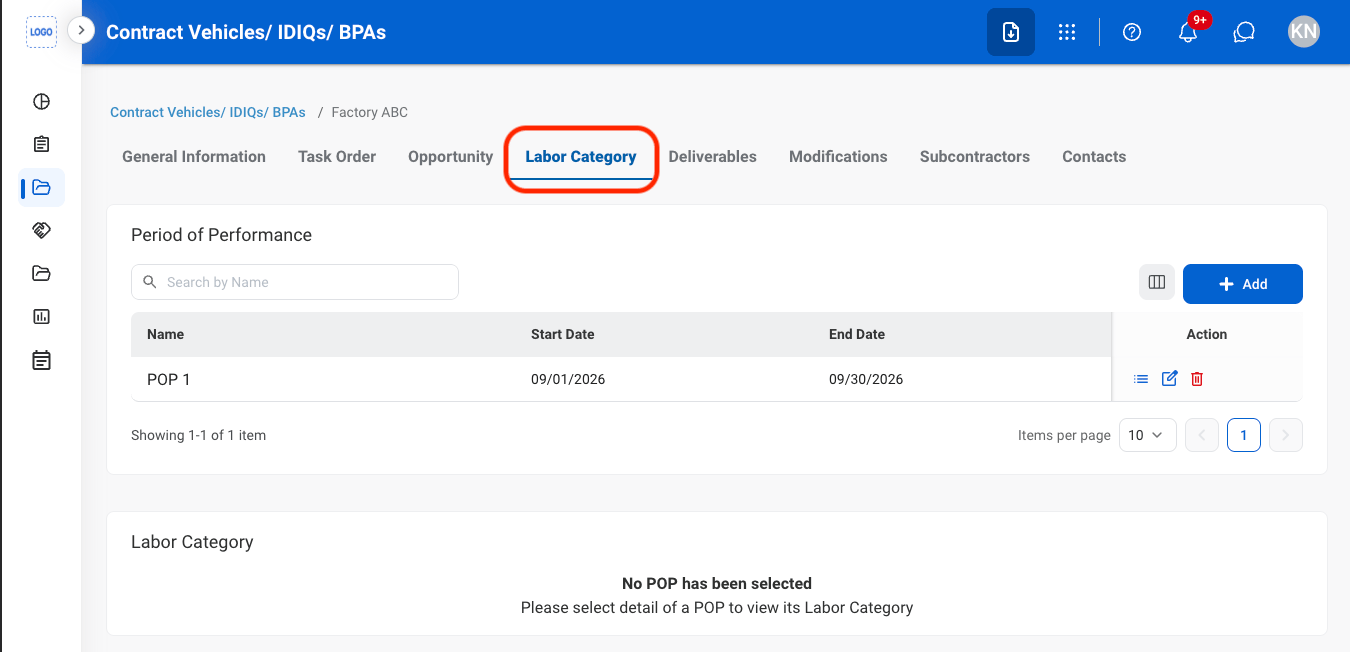
Under POP, select Add
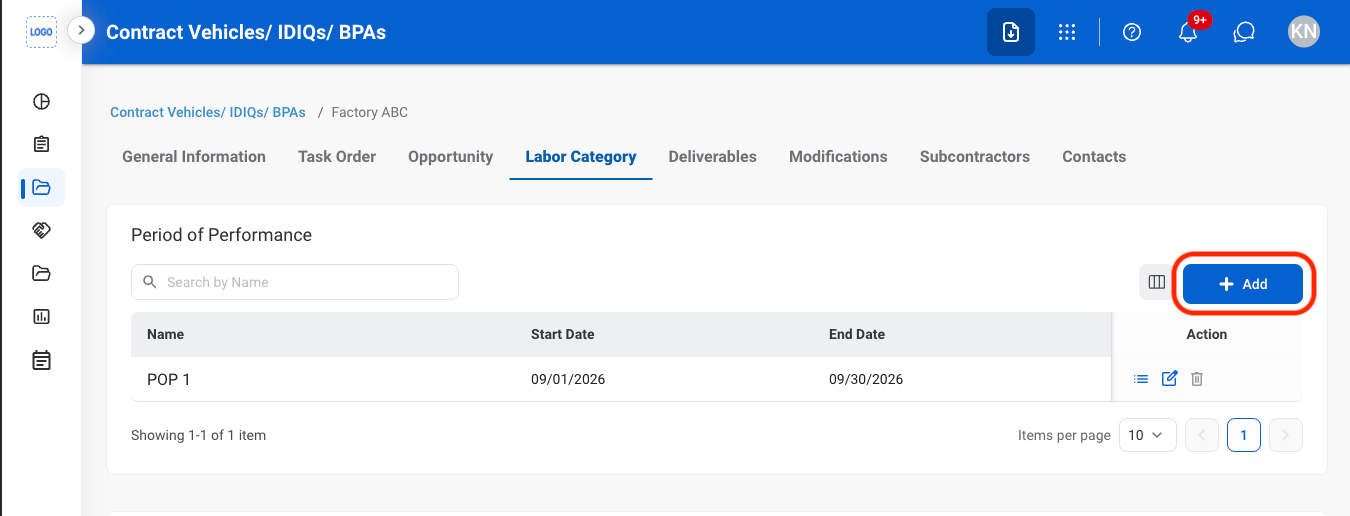
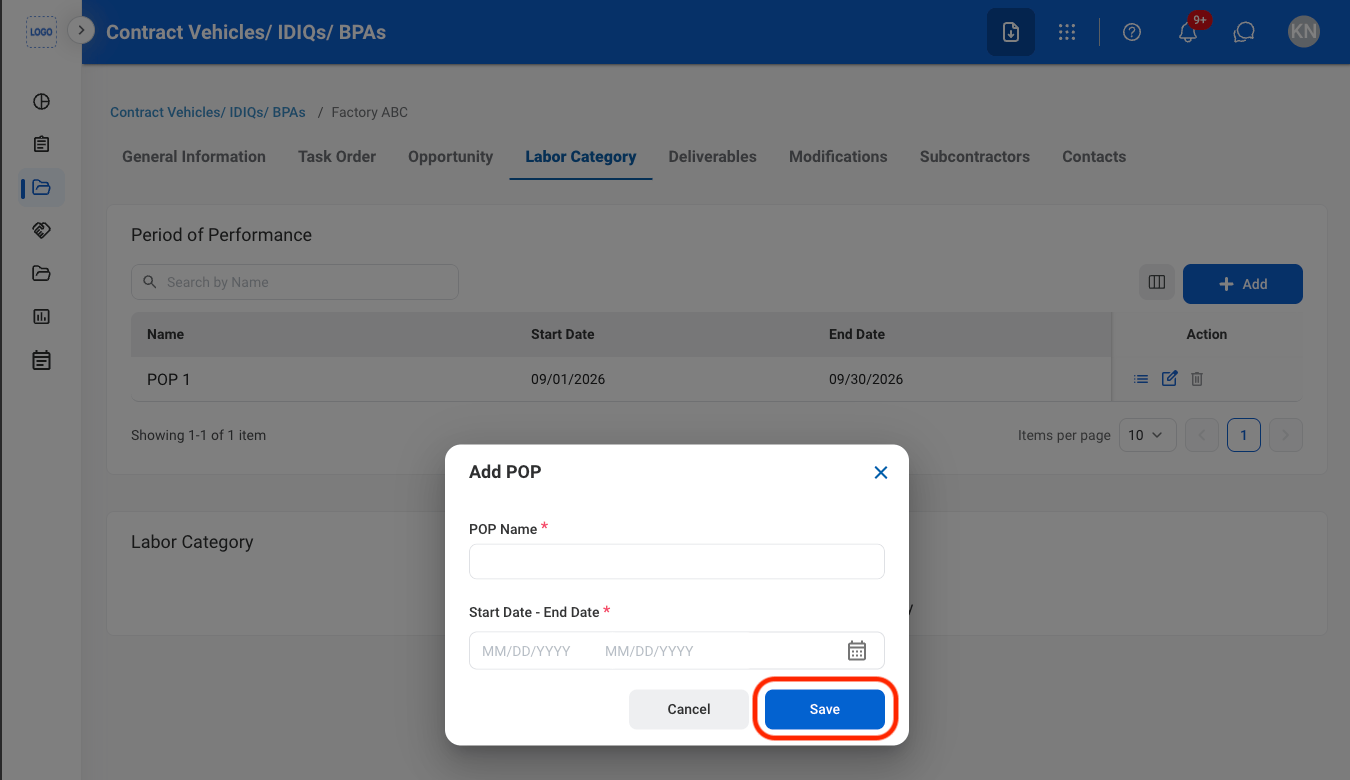
Fill in the required information
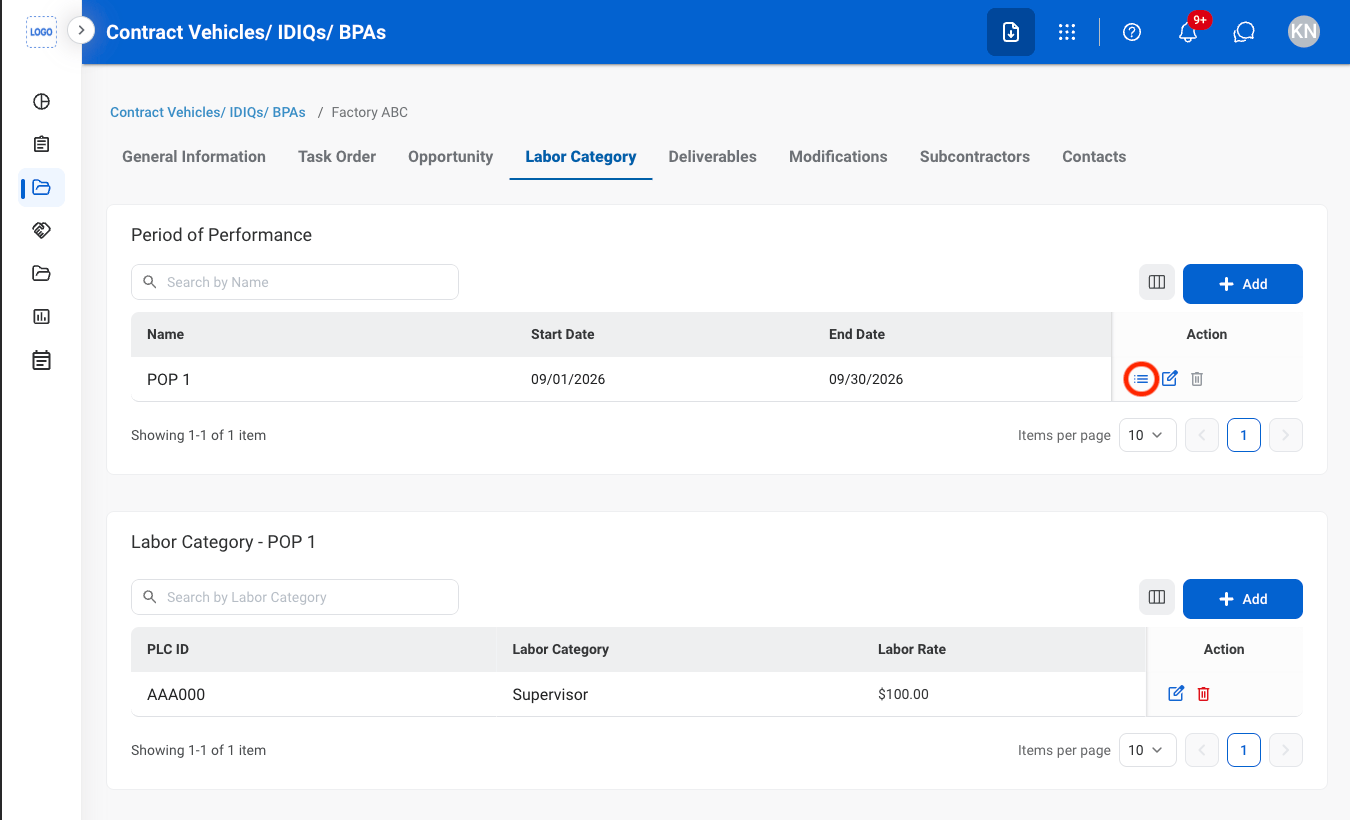
View a POP
Select the details icon
Add a Labor Category
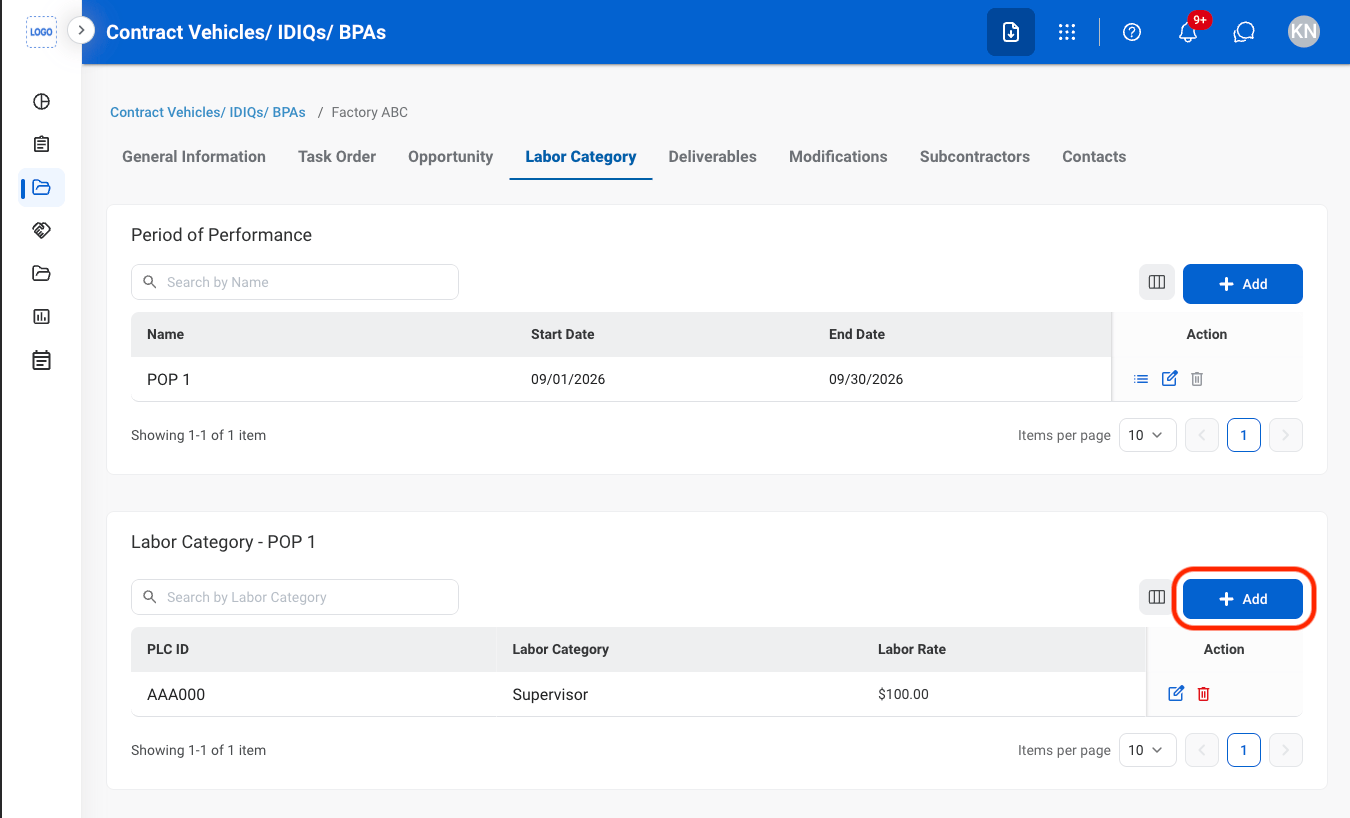
Select the details icon
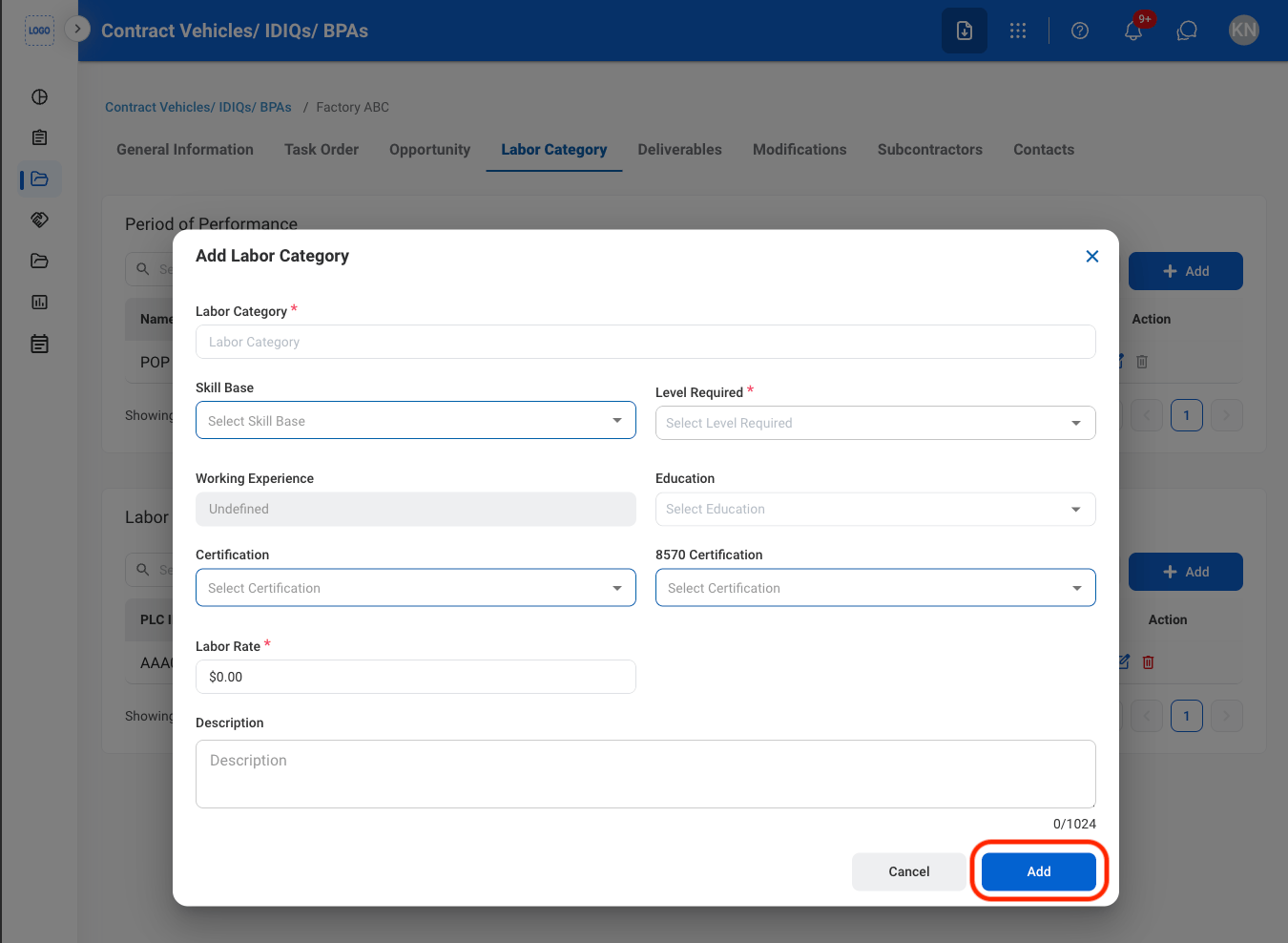
Under Labor Category, select Add
Fill in the required information
Deliverables
Add Deliverables
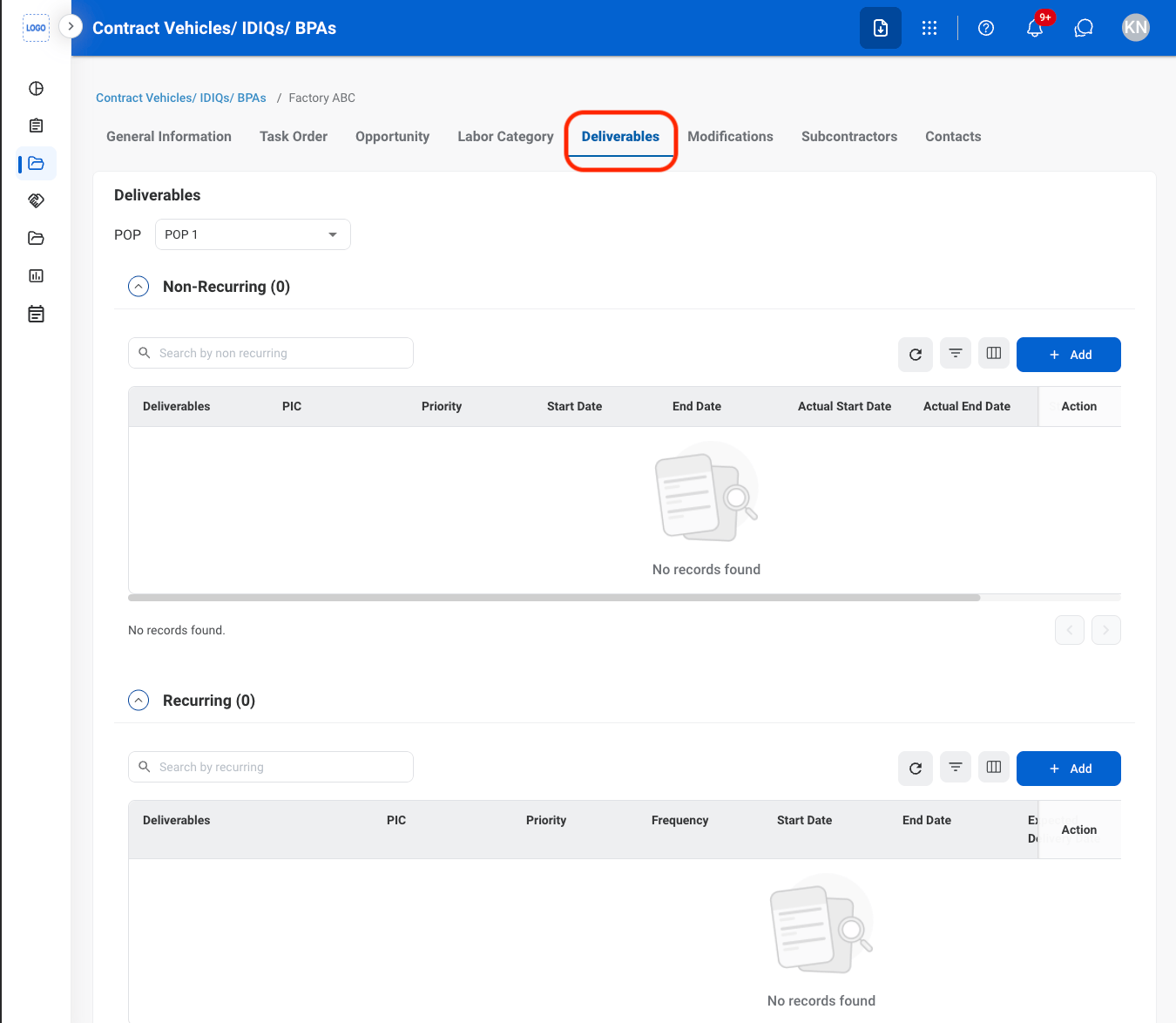
Navigate to Deliverables
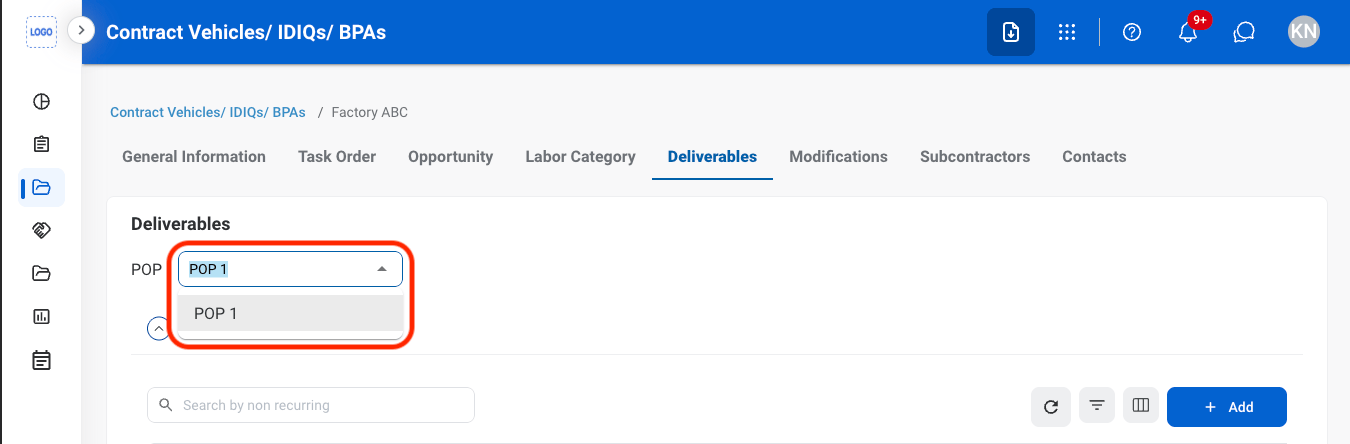
Non-recurring Deliverables only: Select a POP
Select Add under the appropriate section
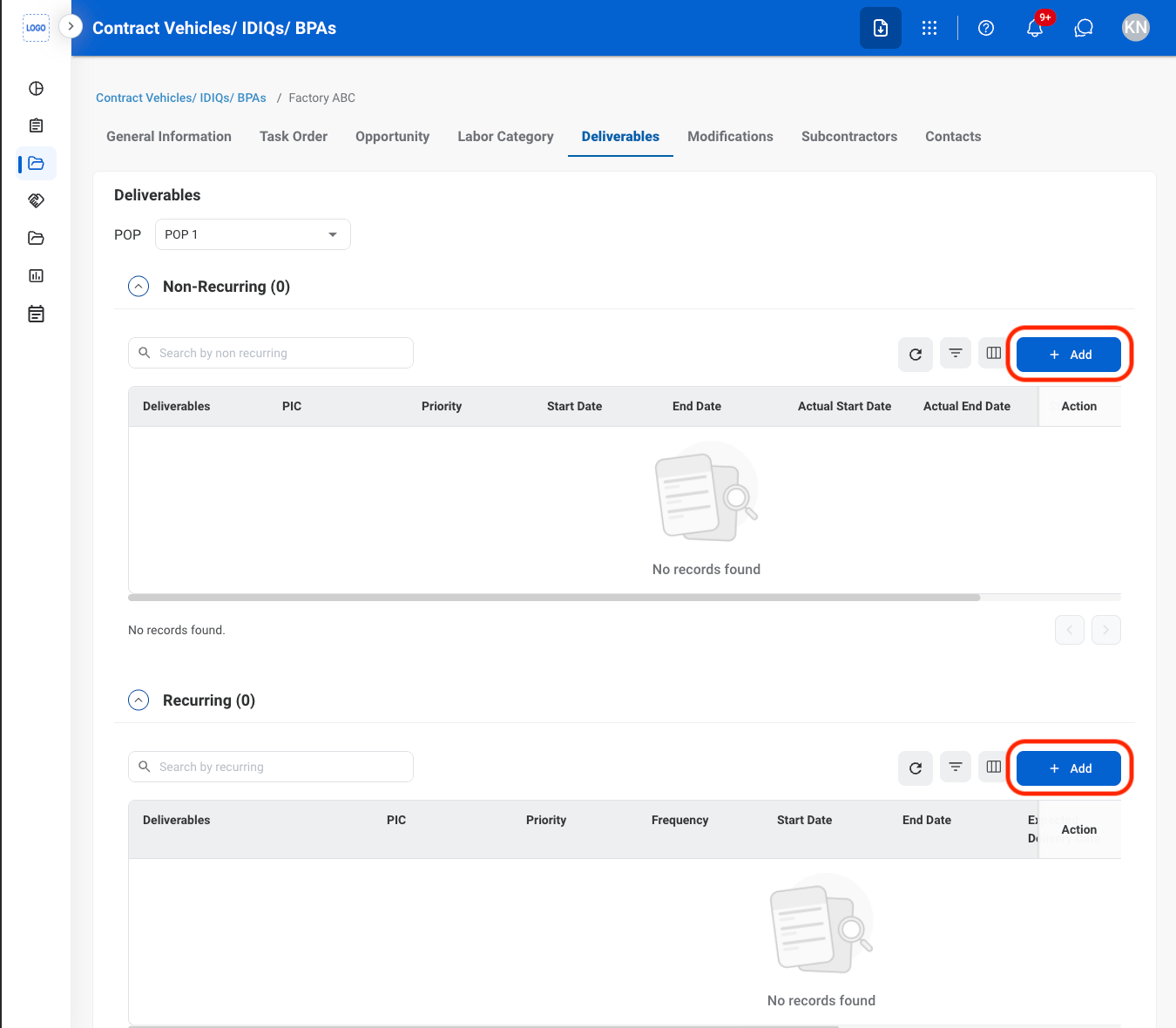
- Non-Recurring: Deliverables that are submitted once or occur only during a specific Period of Performance (POP).
- Recurring: Deliverables that occur on a repeated schedule or require ongoing submission throughout the contract period.
Fill in the required information
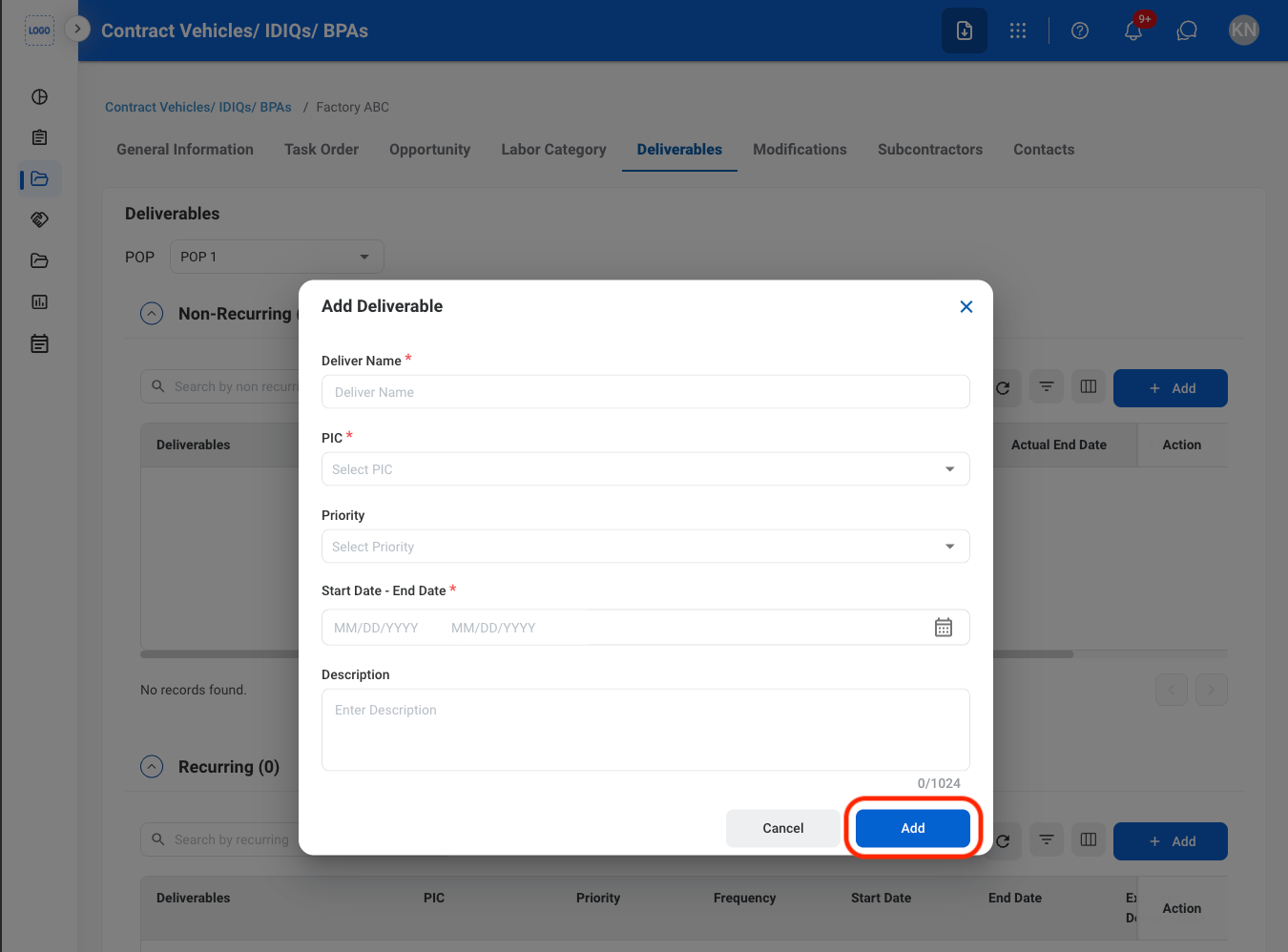
Modify a Deliverable
Select an action
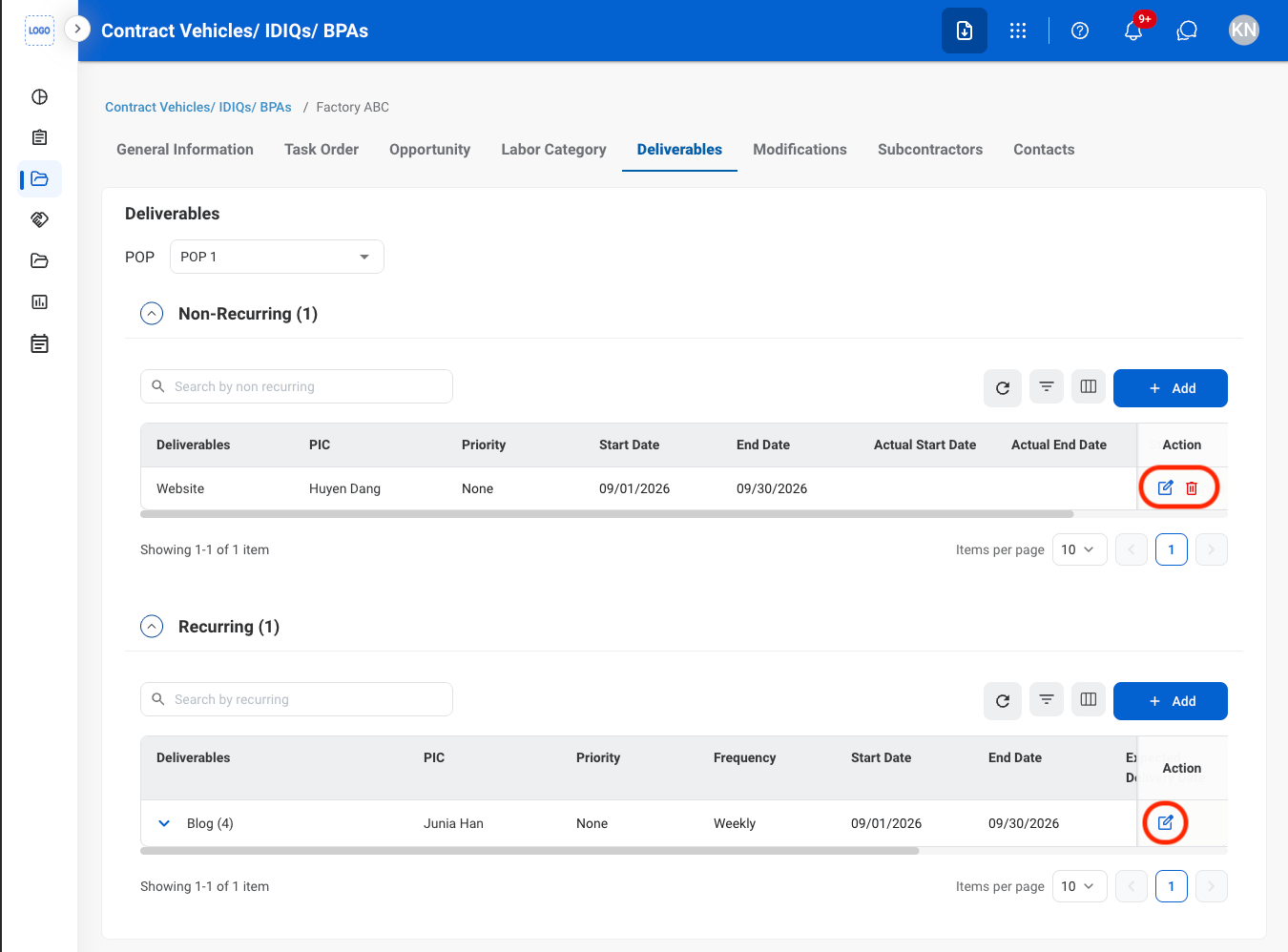
Confirm the action
- Edit: Fill in the required information and select Update to complete or Cancel to exit without saving changes.
- Delete: Select Delete to complete or Cancel to exit without saving changes.
Modifications
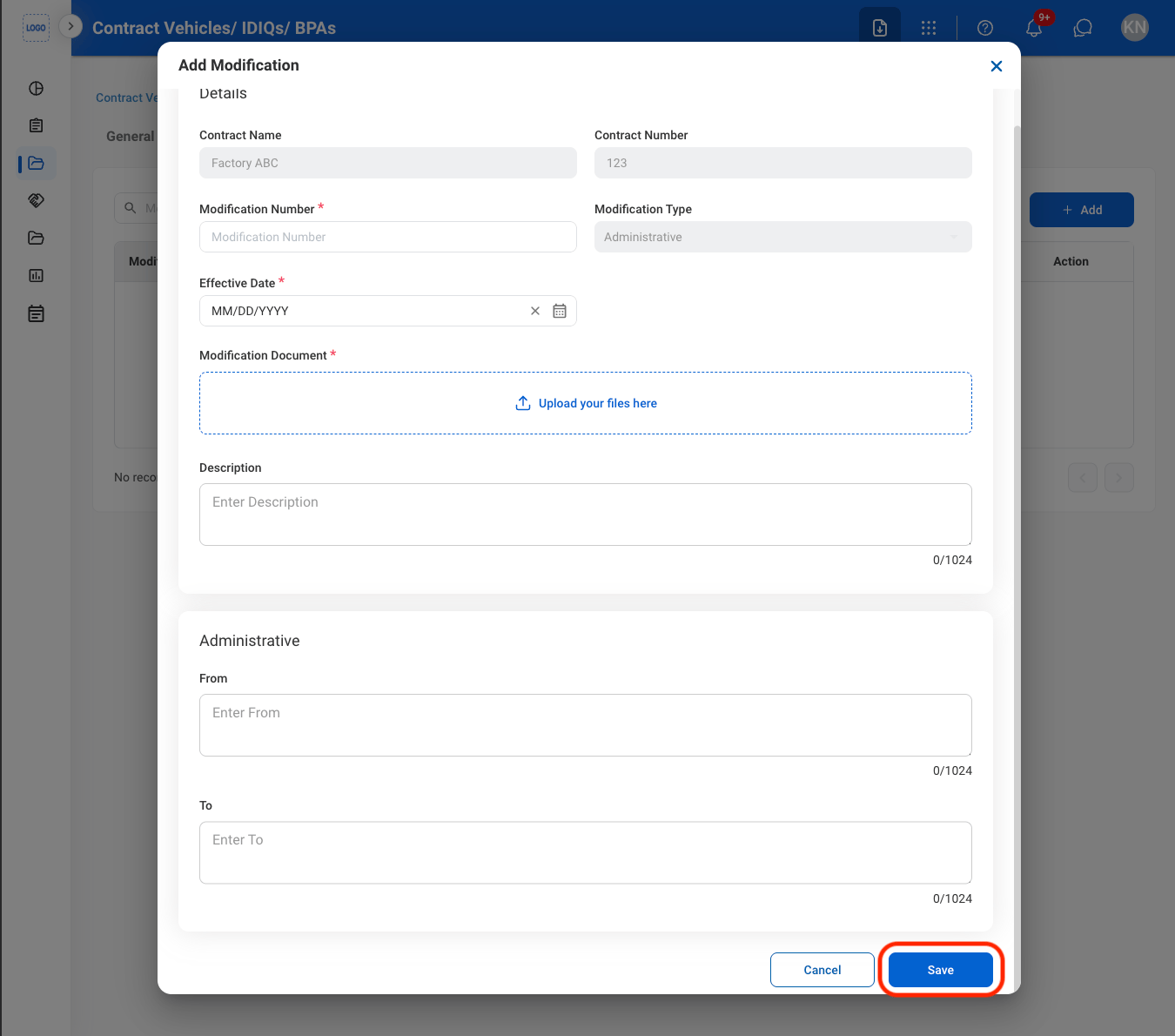
Add a Modification
Navigate to Modifications
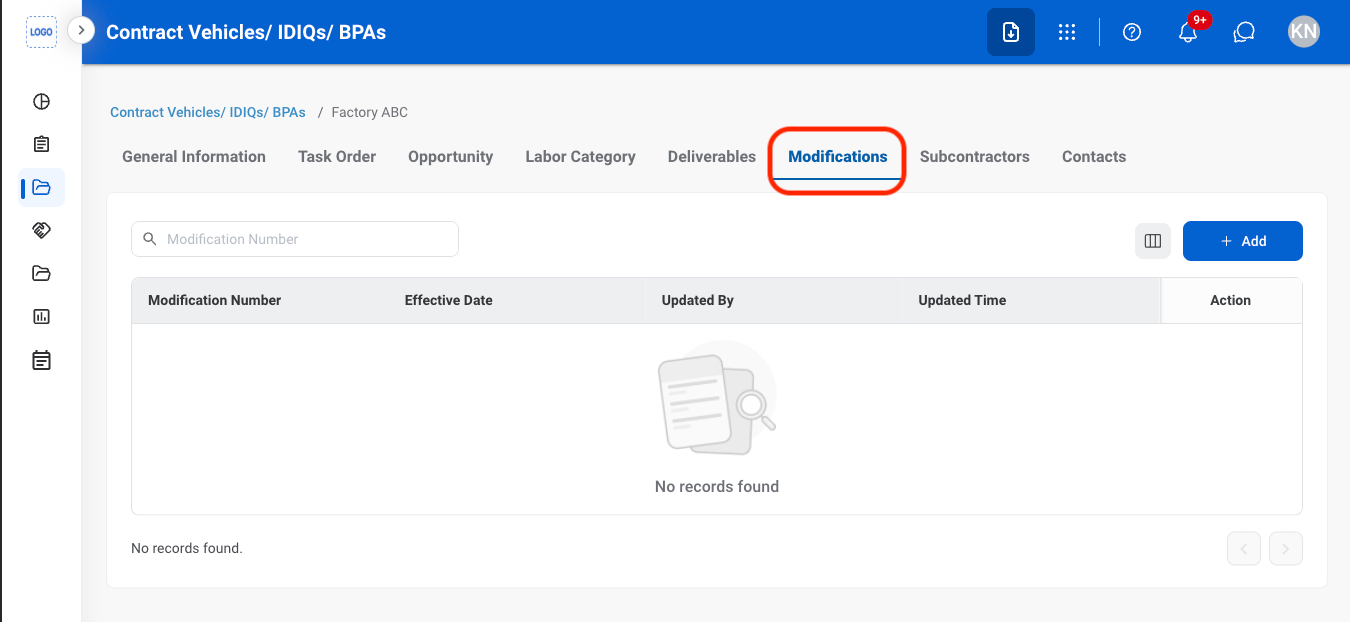
Select Add
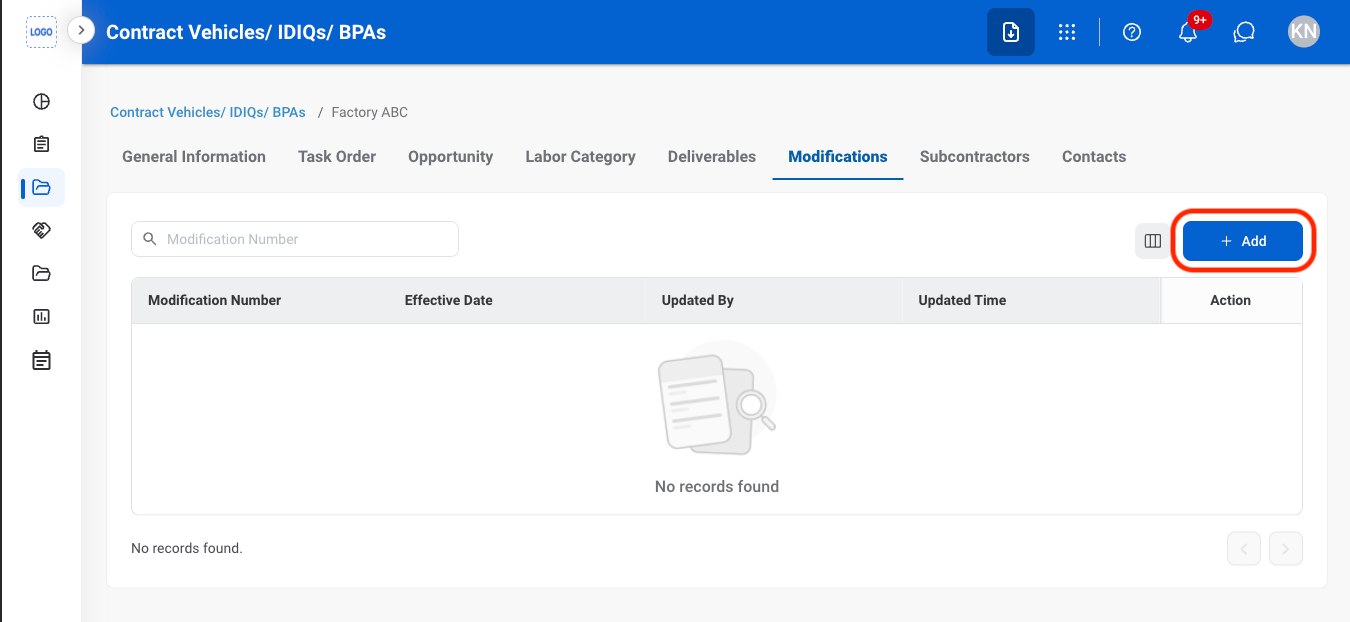
Fill in the required information
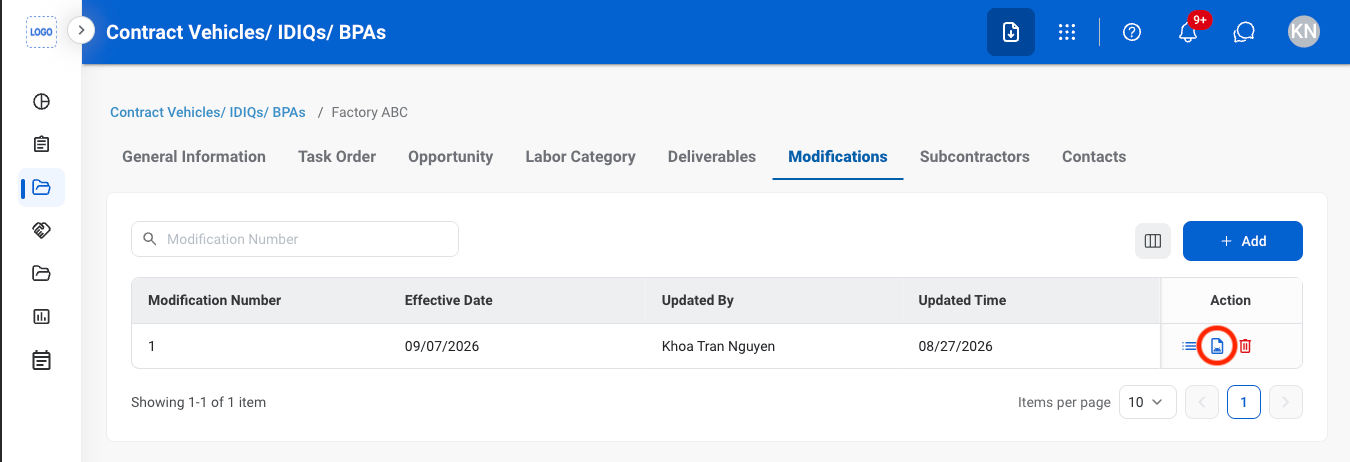
Modify a Contract Modification Document
Select the document icon
Select an action
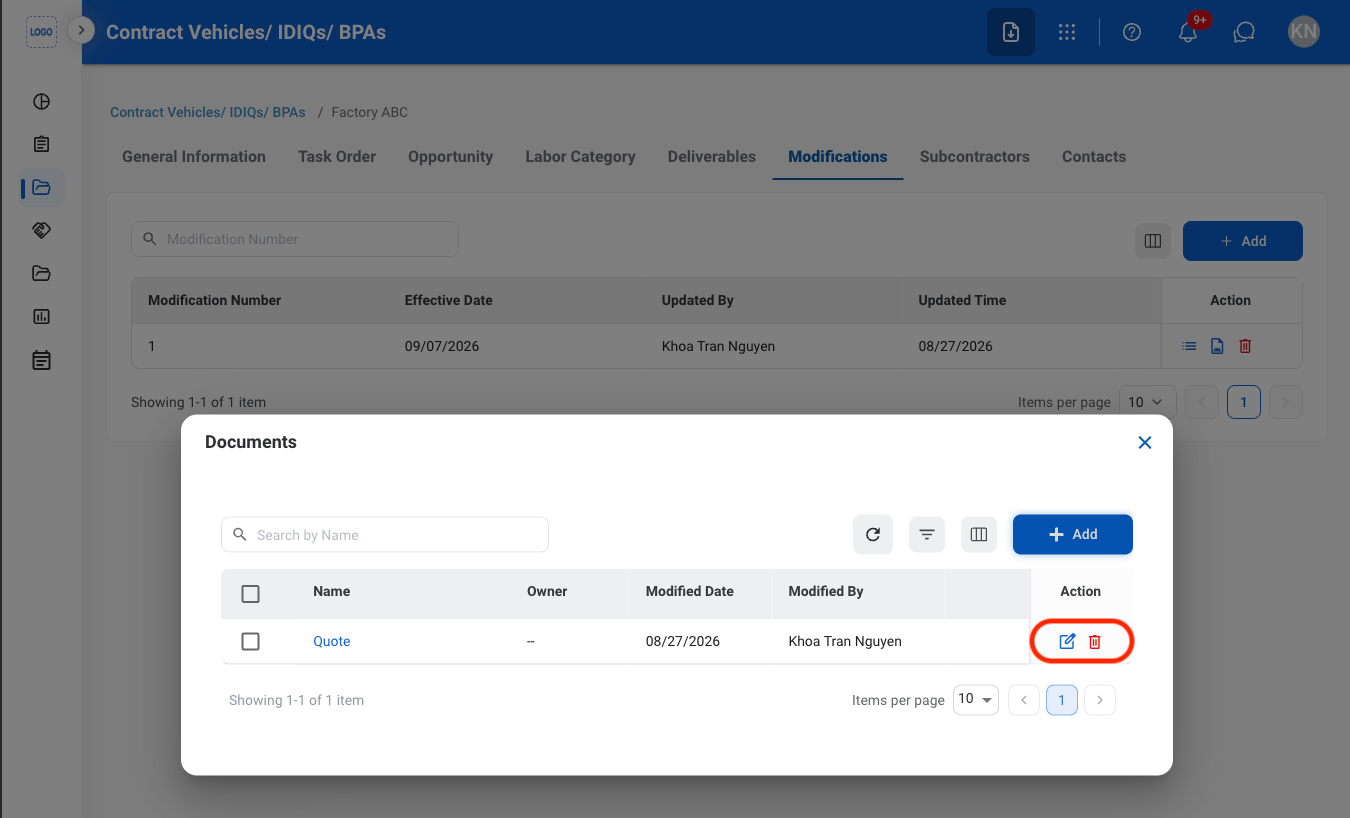
- Edit: Select the edit icon to update an existing entry
- Delete: Select the trash icon to delete an existing entry.
Confirm the action
- Edit: Fill in the required information. Select Save to complete or Cancel to exit without saving changes.
- Delete: Select Delete to complete or Cancel to exit without saving changes.
Subcontractors
Add a Subcontractor
Navigate to Subcontractors
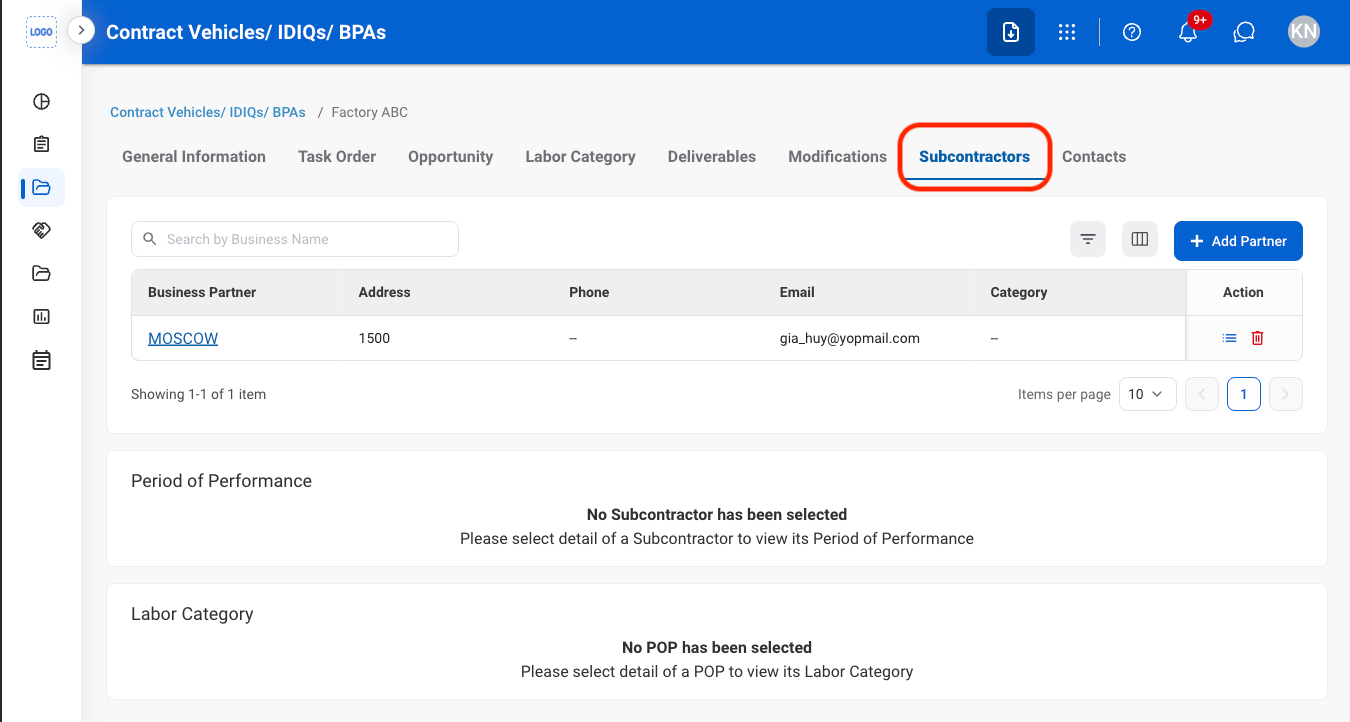
Select Add Partner
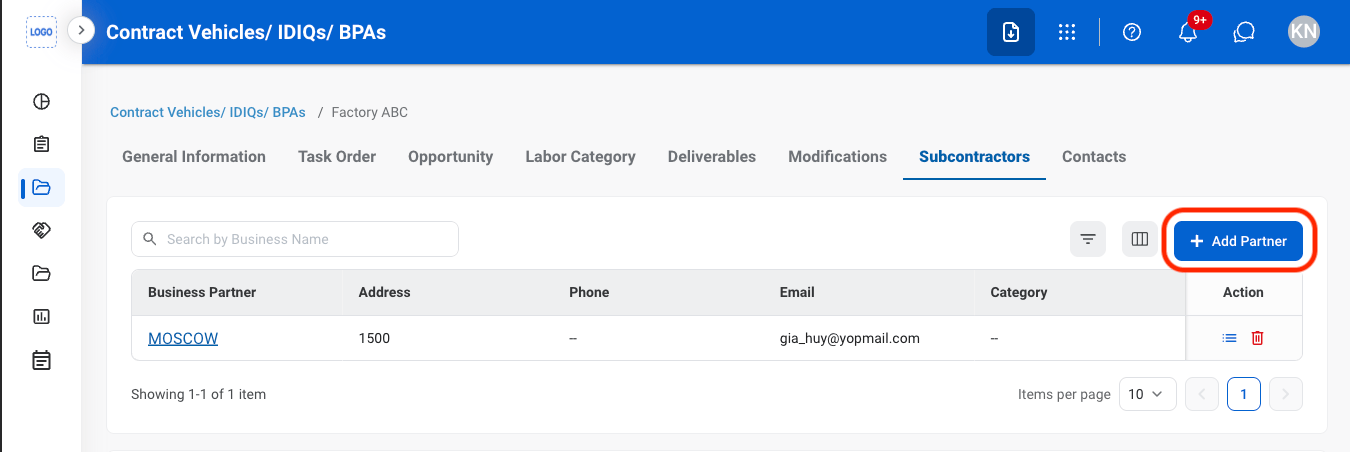
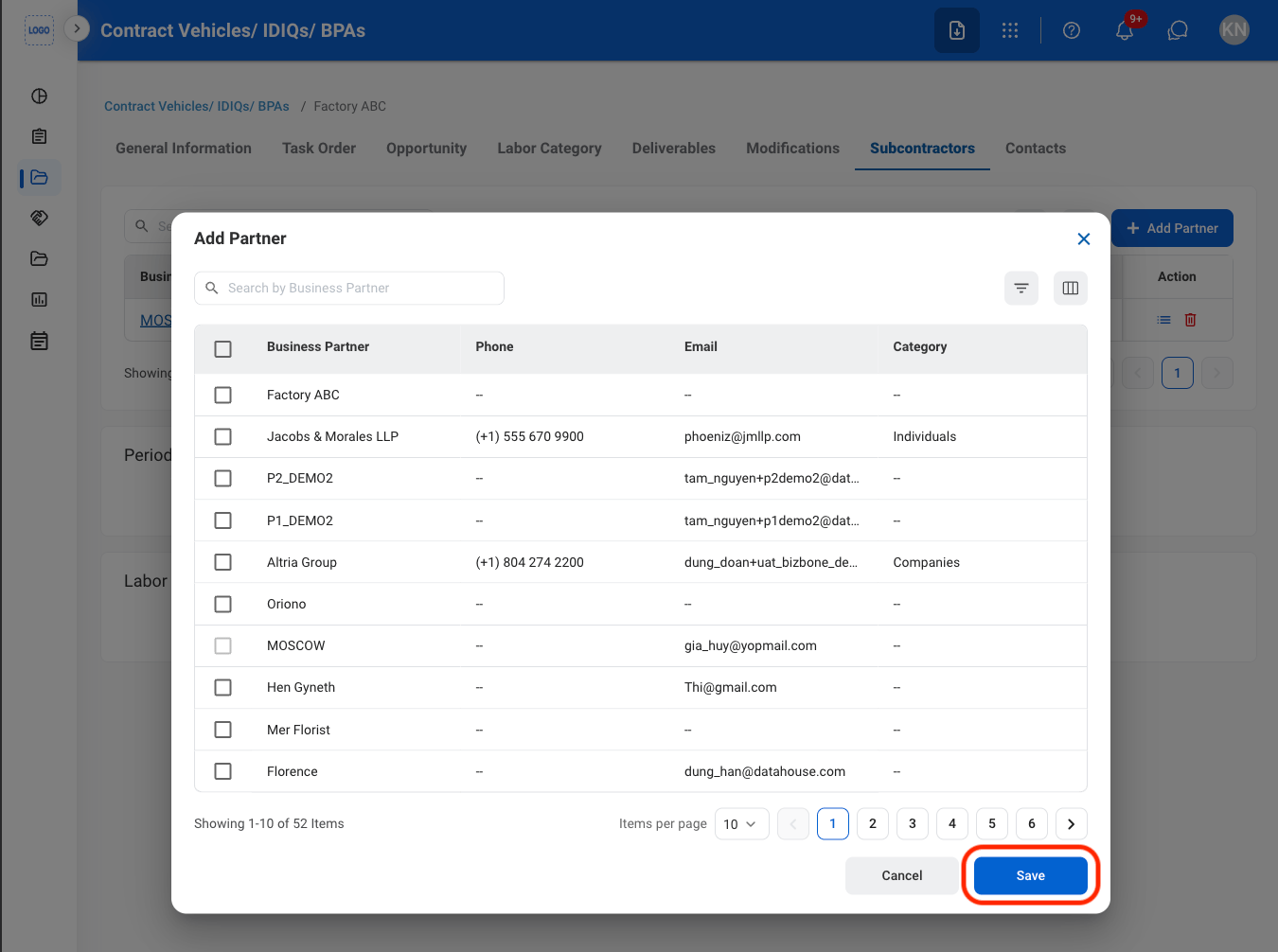
Fill in the required information
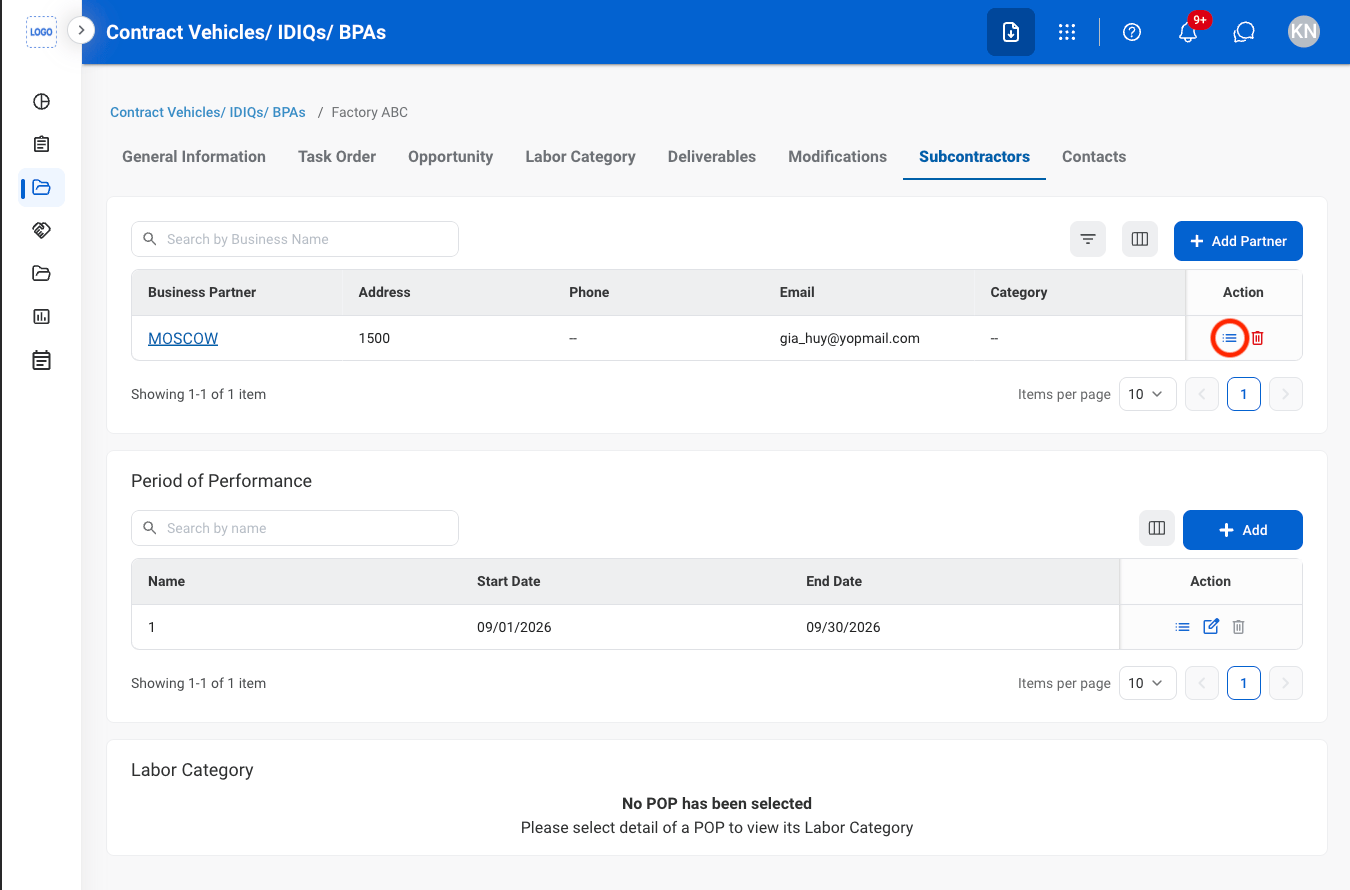
View Subcontractor POP & LCAT
Select the detail icon
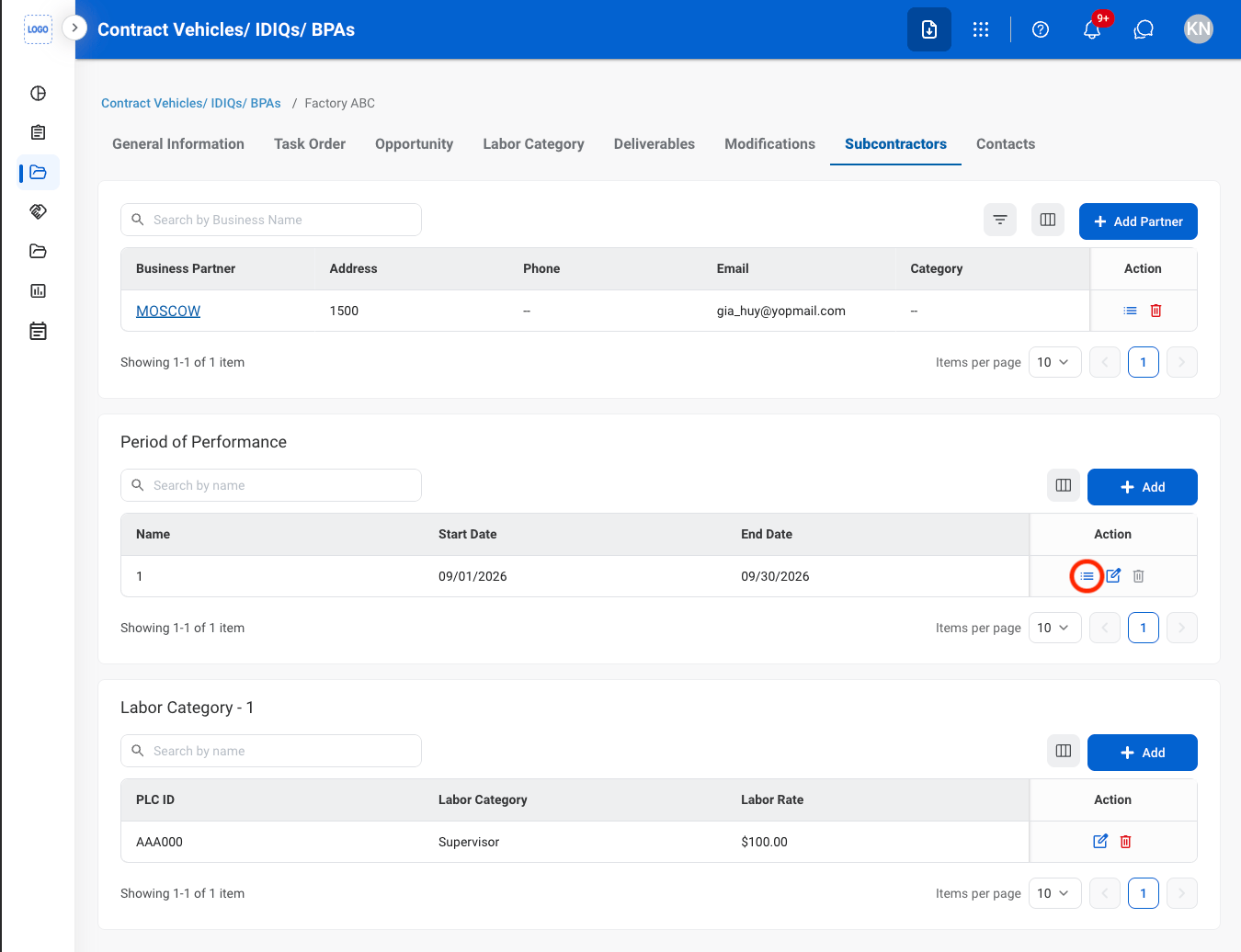
Under POP, select the detail icon
Contacts
Add a Contact
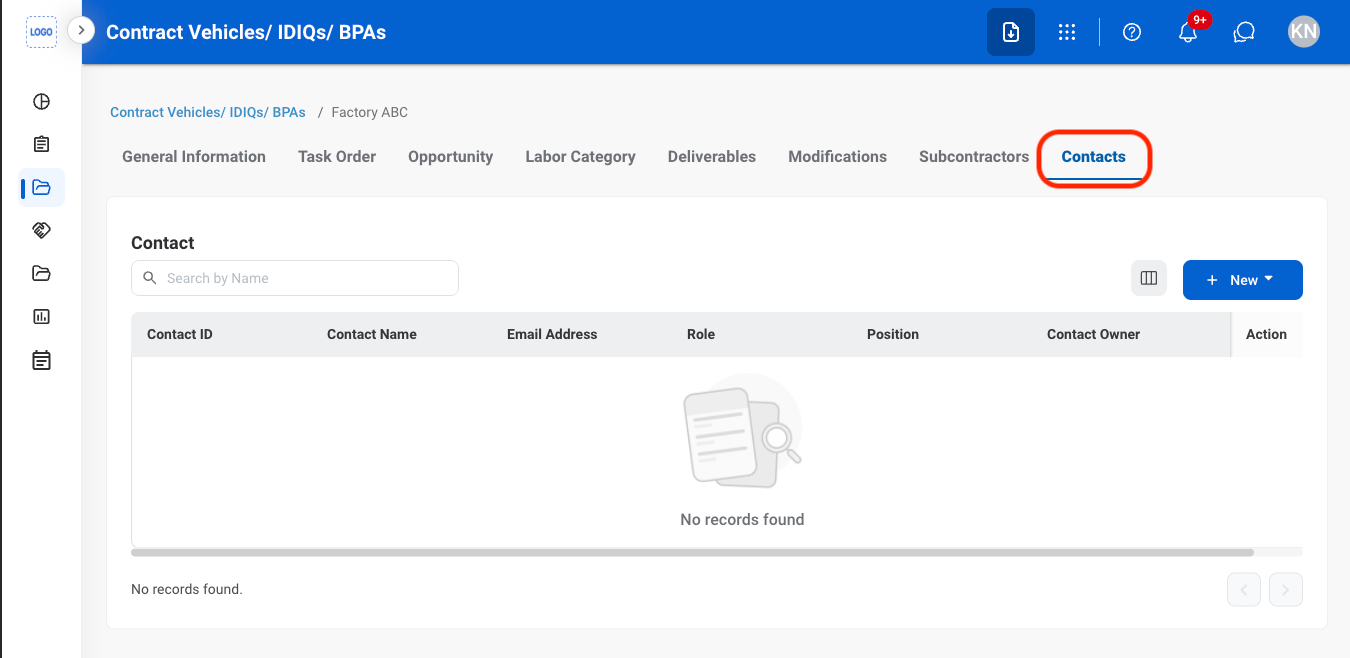
Navigate to Contacts
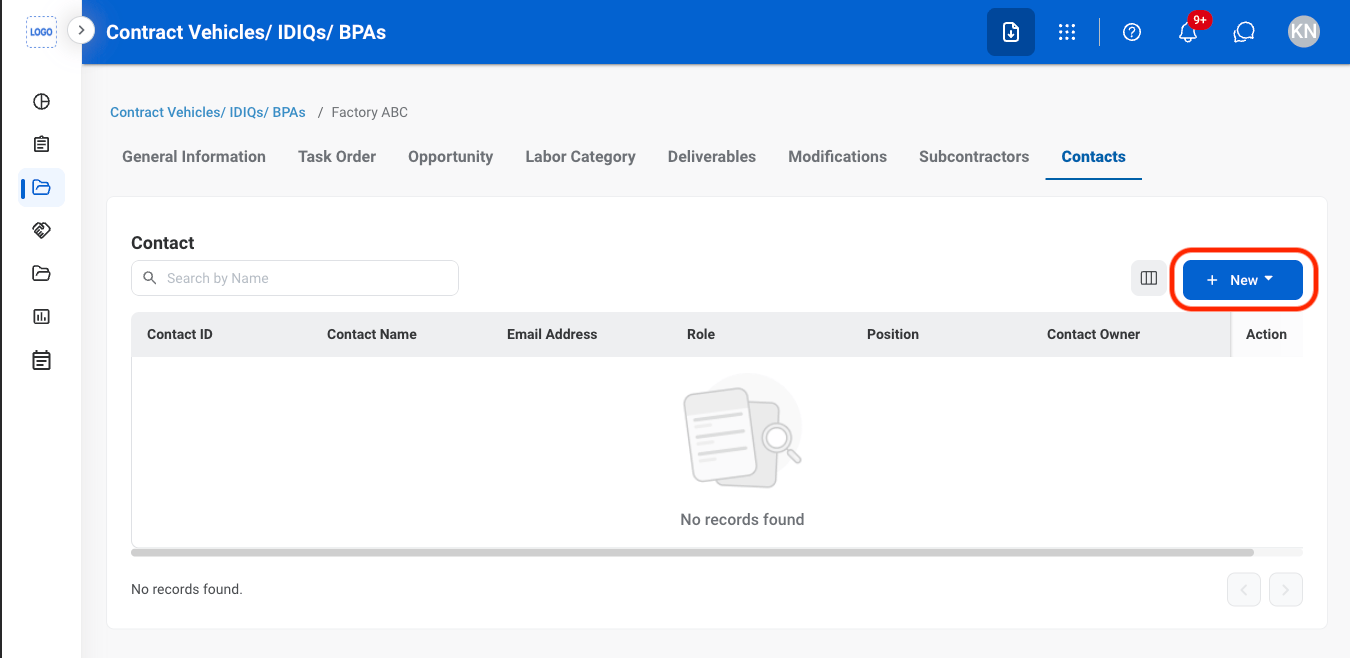
Select New
Select a contact type
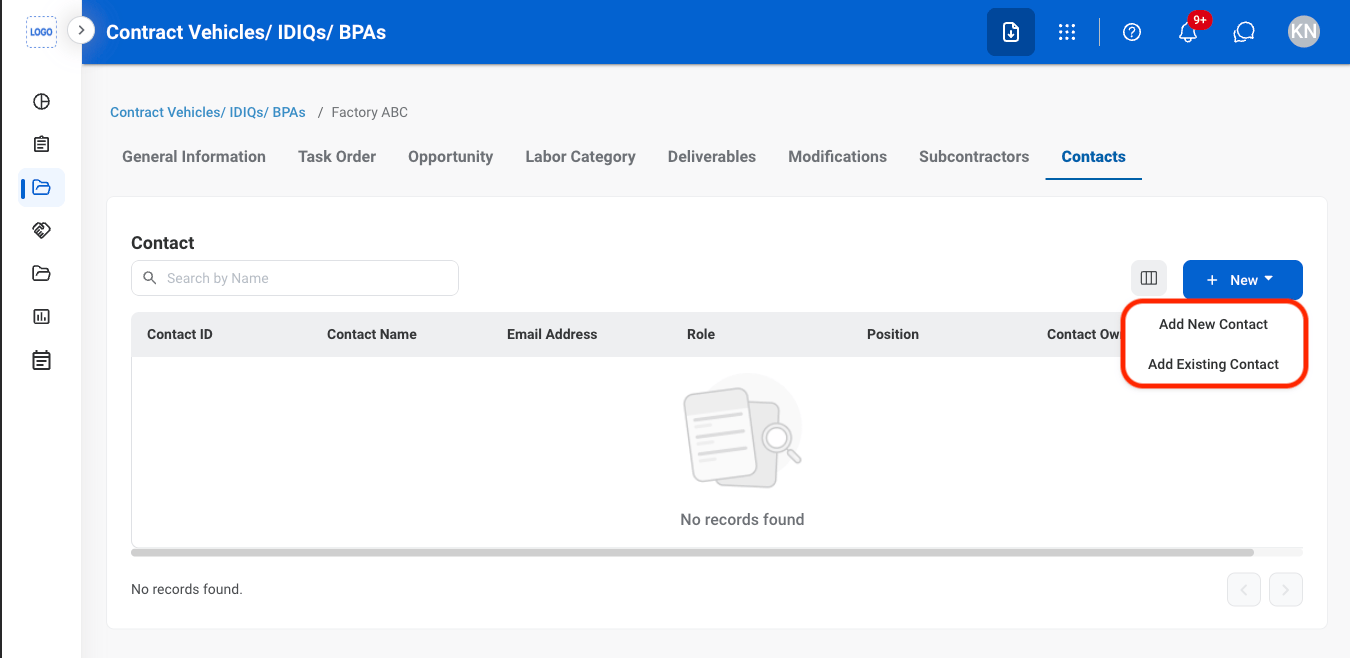
- Add New Contact: Create a new contact and link it to the contract.
- Add Existing Contact: Link an existing contact to the contract.
Fill in the required information
- Add New Contact: Select Add to complete or Cancel to exit without saving changes.
- Add Existing Contact: Select Save to complete or Cancel to exit without saving changes.