View Timesheet
1
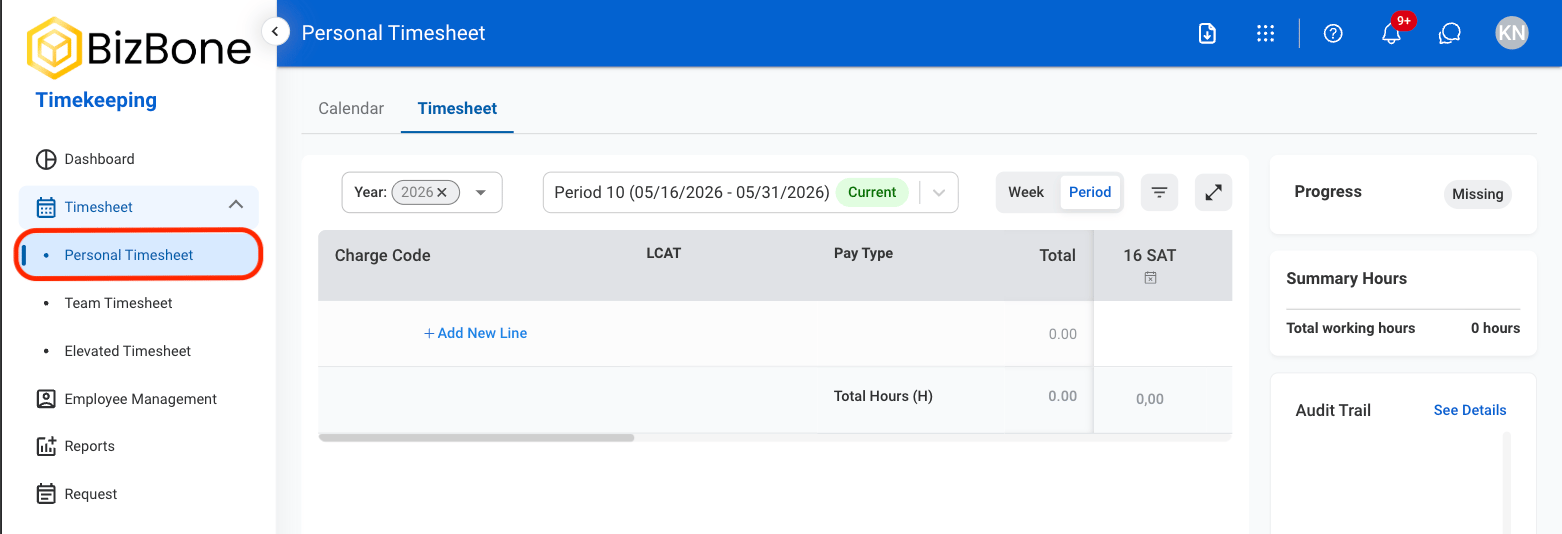
Navigate to Personal Timesheet
2
Select a tab
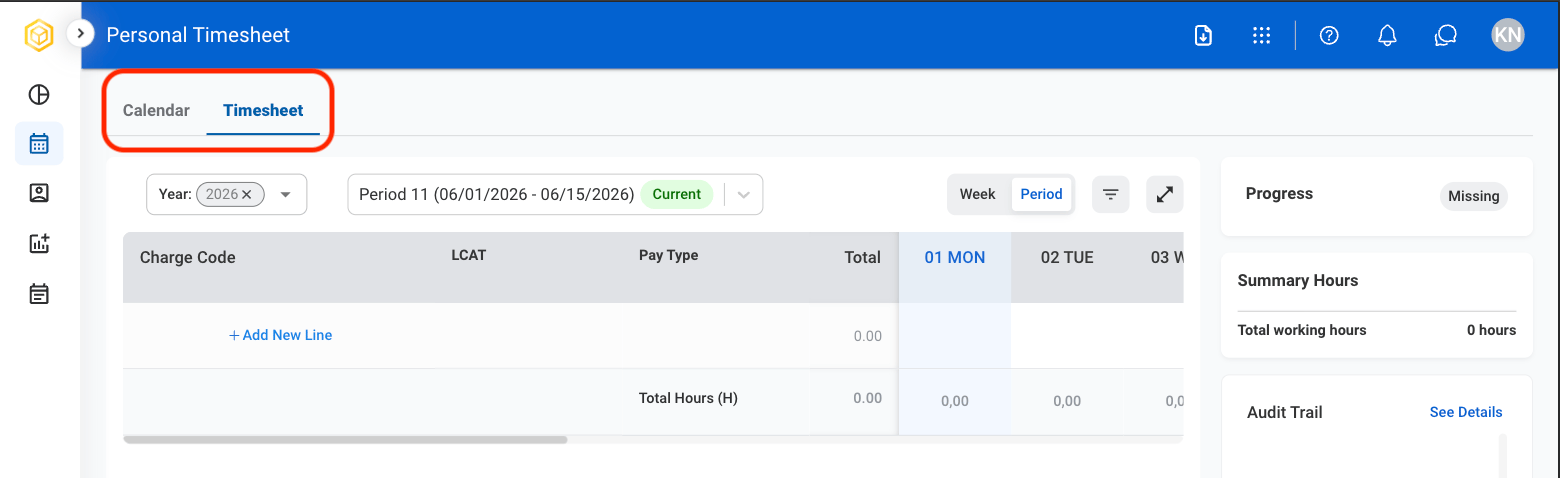
- Calendar: Displays time entries in a date-based calendar format for easier visualization of daily or weekly activity.
- Timesheet: Displays time entries in a structured list format for detailed review and editing of recorded hours.
3
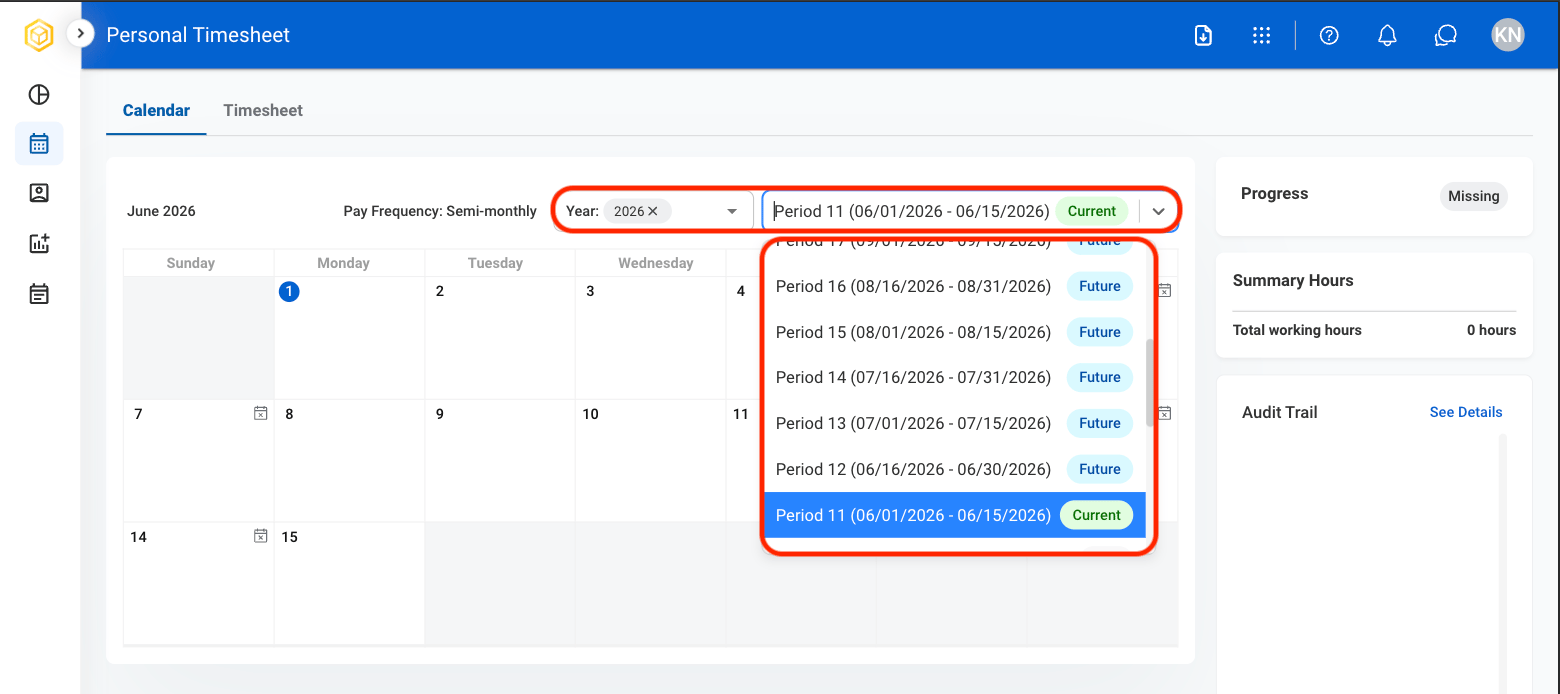
Select a time period
Submit a Timesheet
1
Navigate to Timesheet
2
Select Add New Line
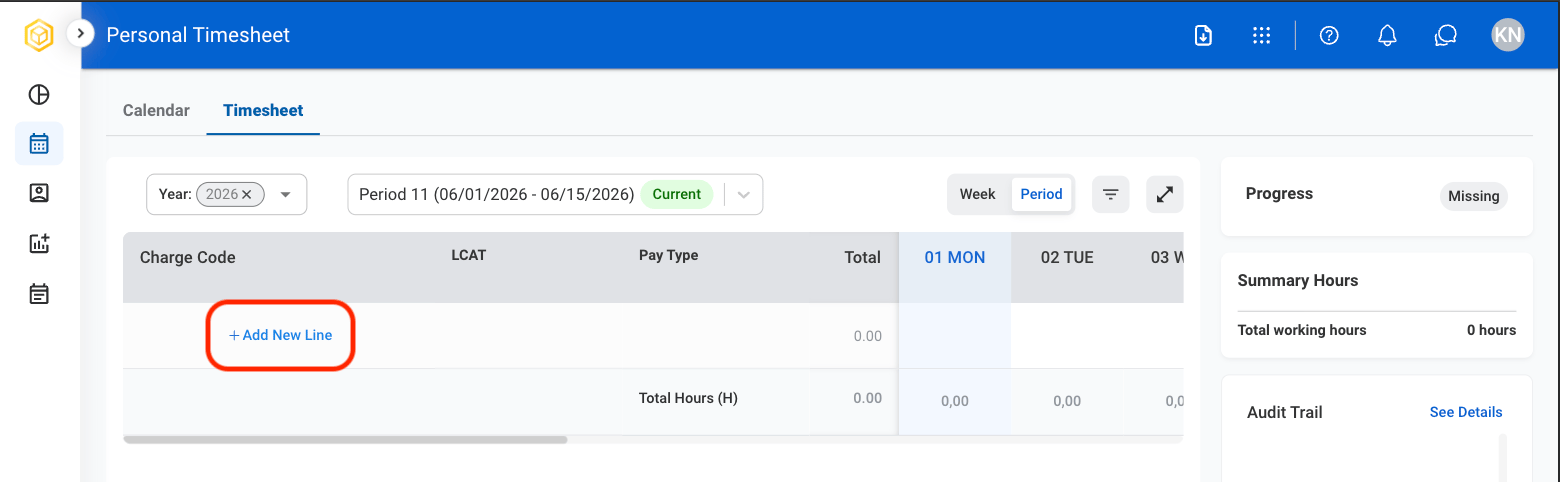
3
Select time entry classifications
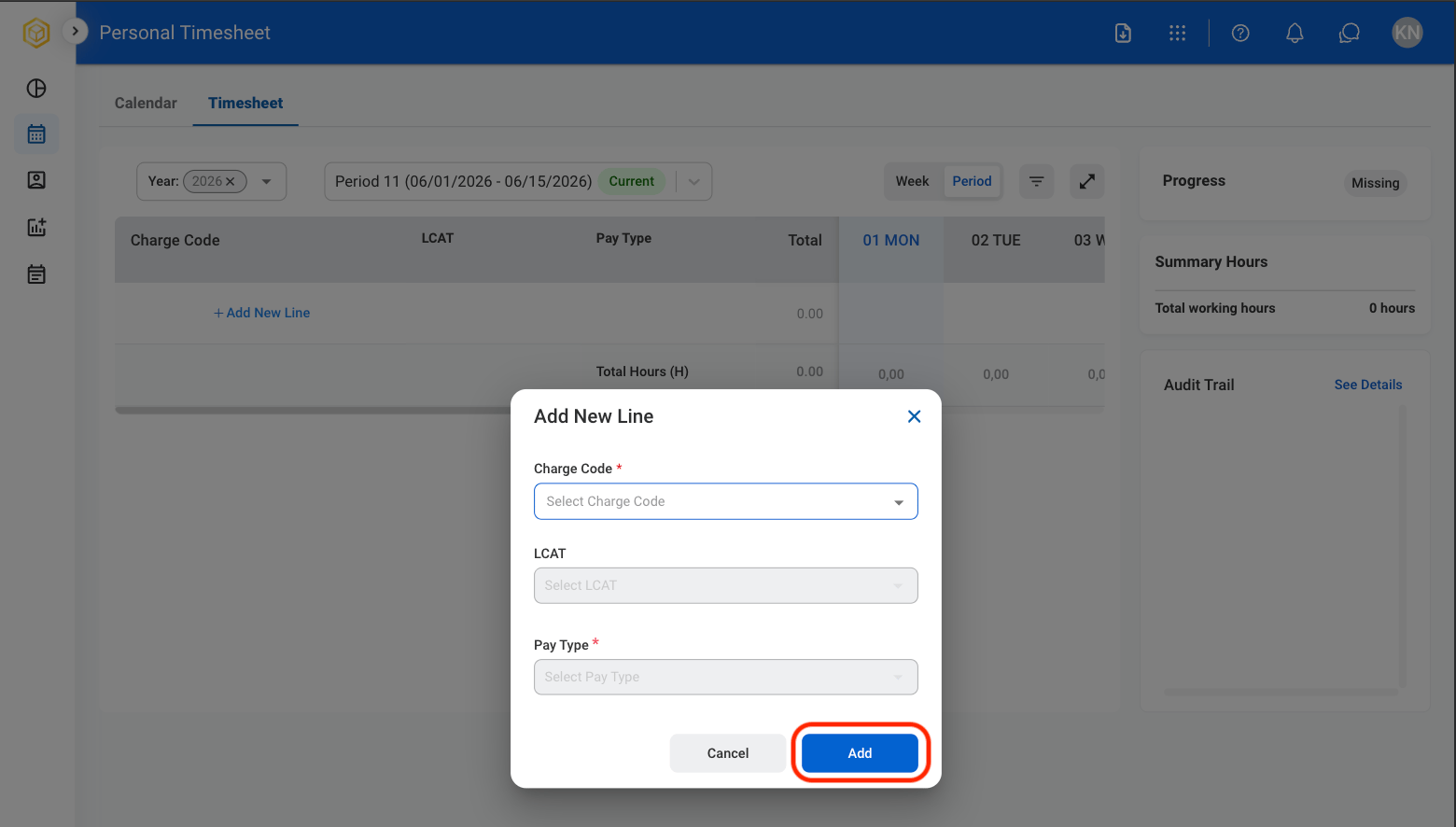
- Charge Code: Identifier used to track and categorize work performed for billing or reporting purposes.
- LCAT: Labor category that defines the type of work performed and the associated role classification.
- Pay Type: Classification of time entry indicating how hours are compensated. Select Add to complete or Cancel to exit without saving changes.
4
Select a cell to enter hours worked
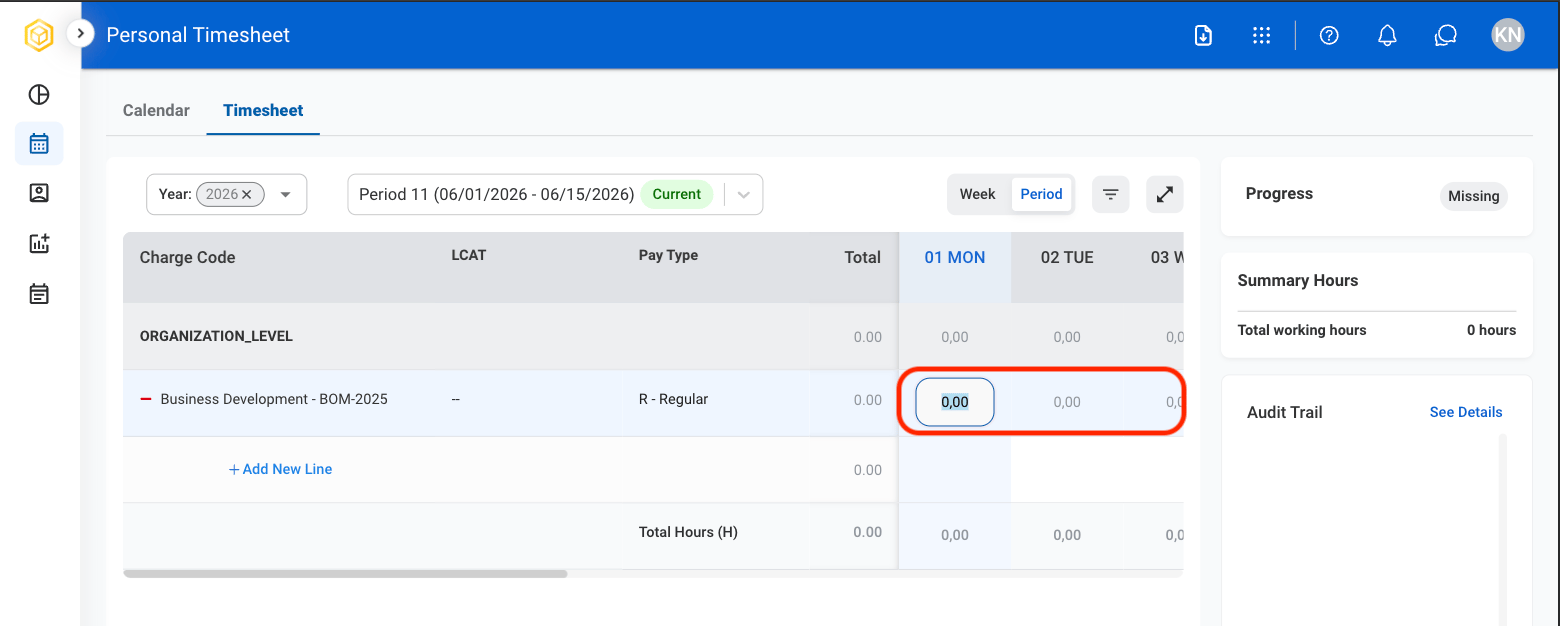
- Summary Hours: Displays total hours entered in a given period.
- Audit Trail: Displays all time entries and changes in a given period.
5
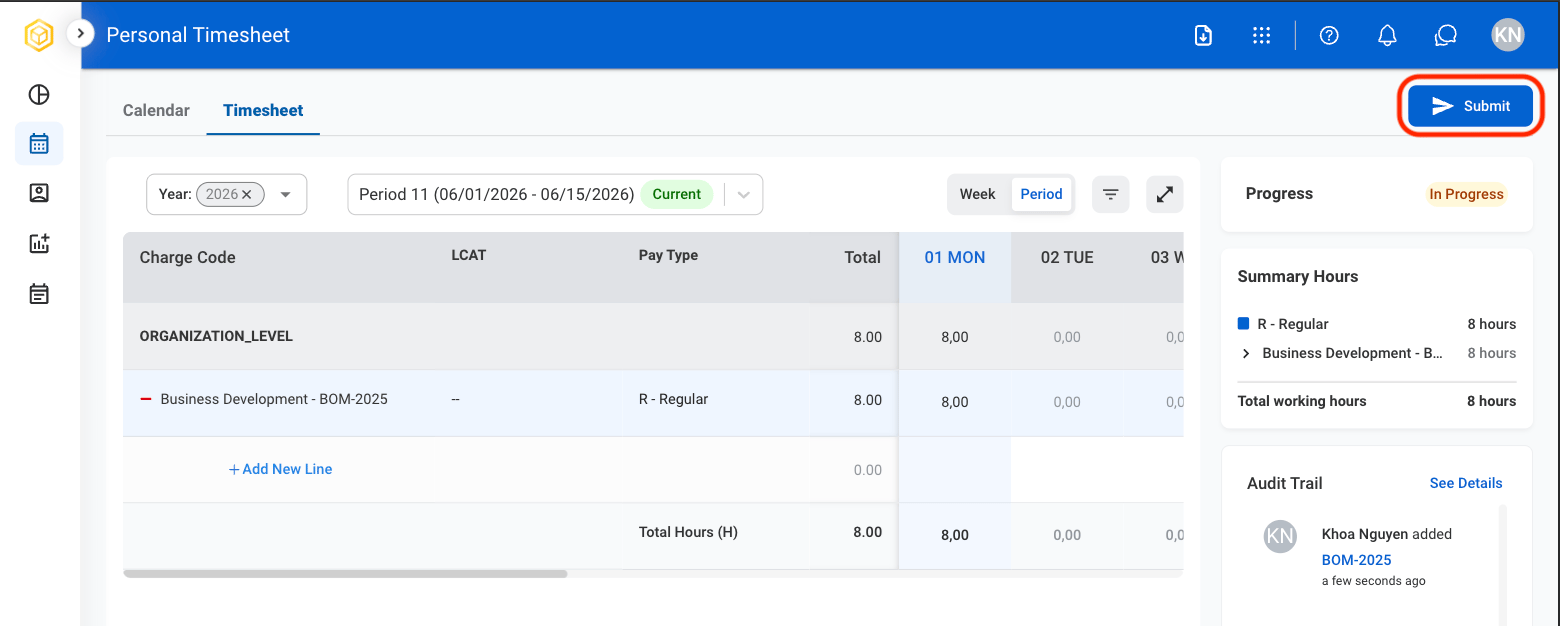
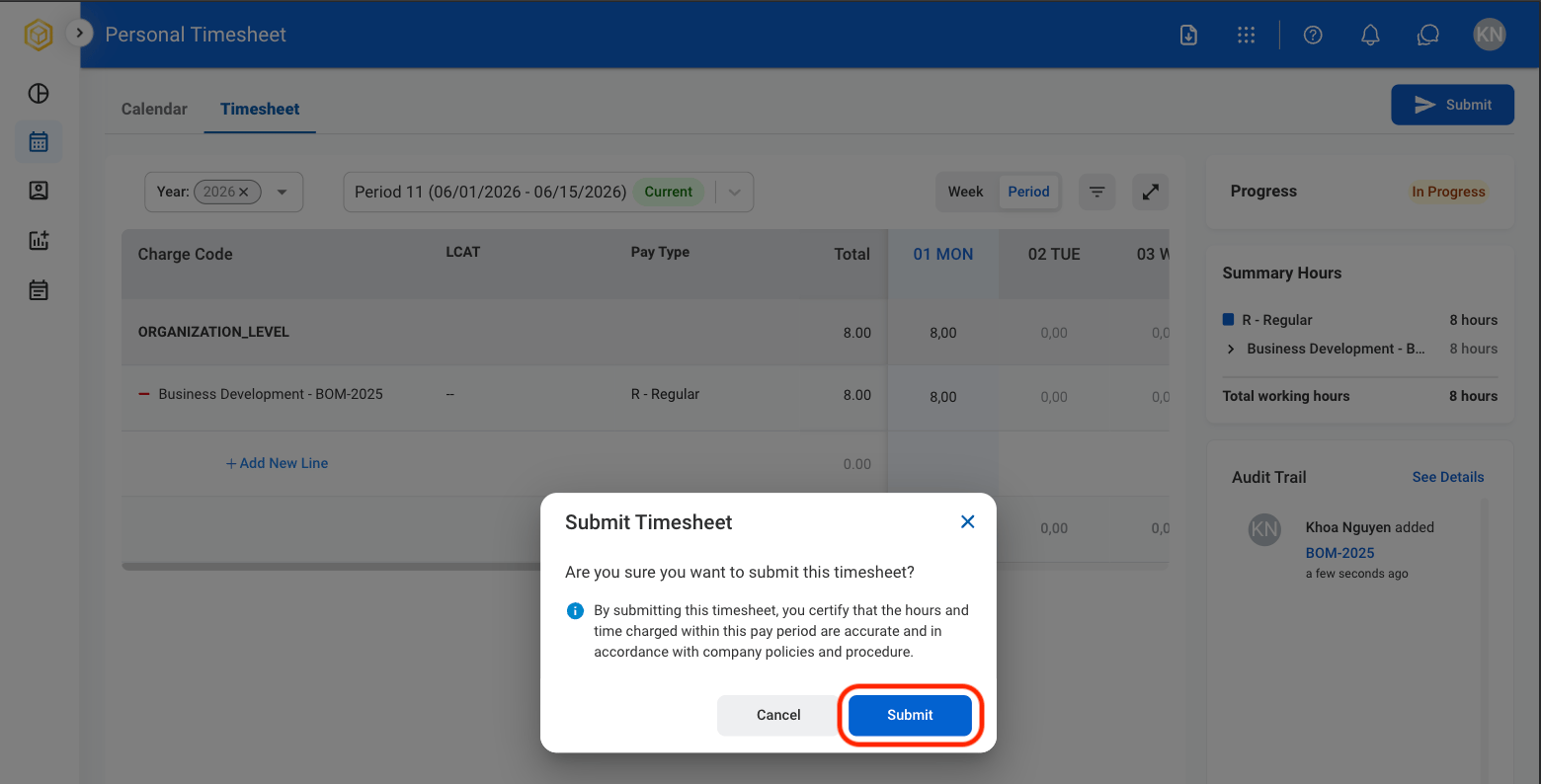
Select Submit
6
Confirm the action
Remove a Charge Code
1
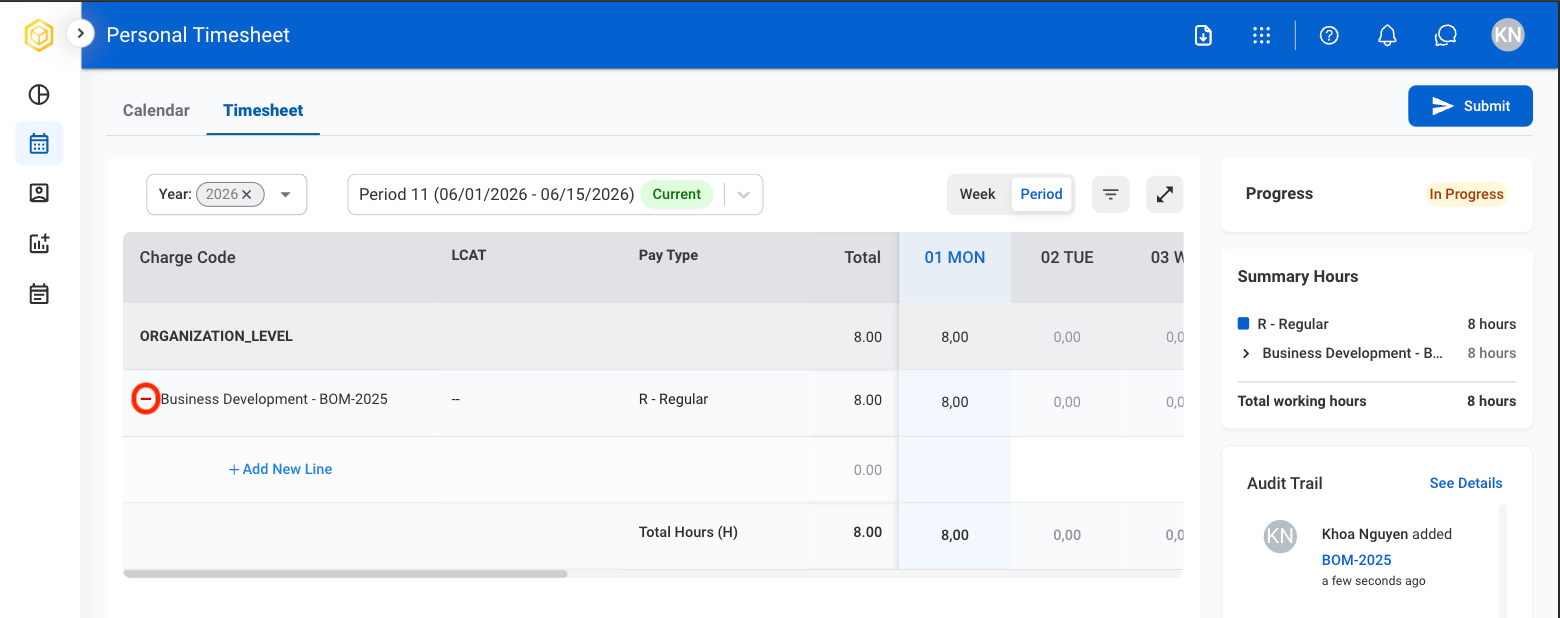
Select the minus icon
2
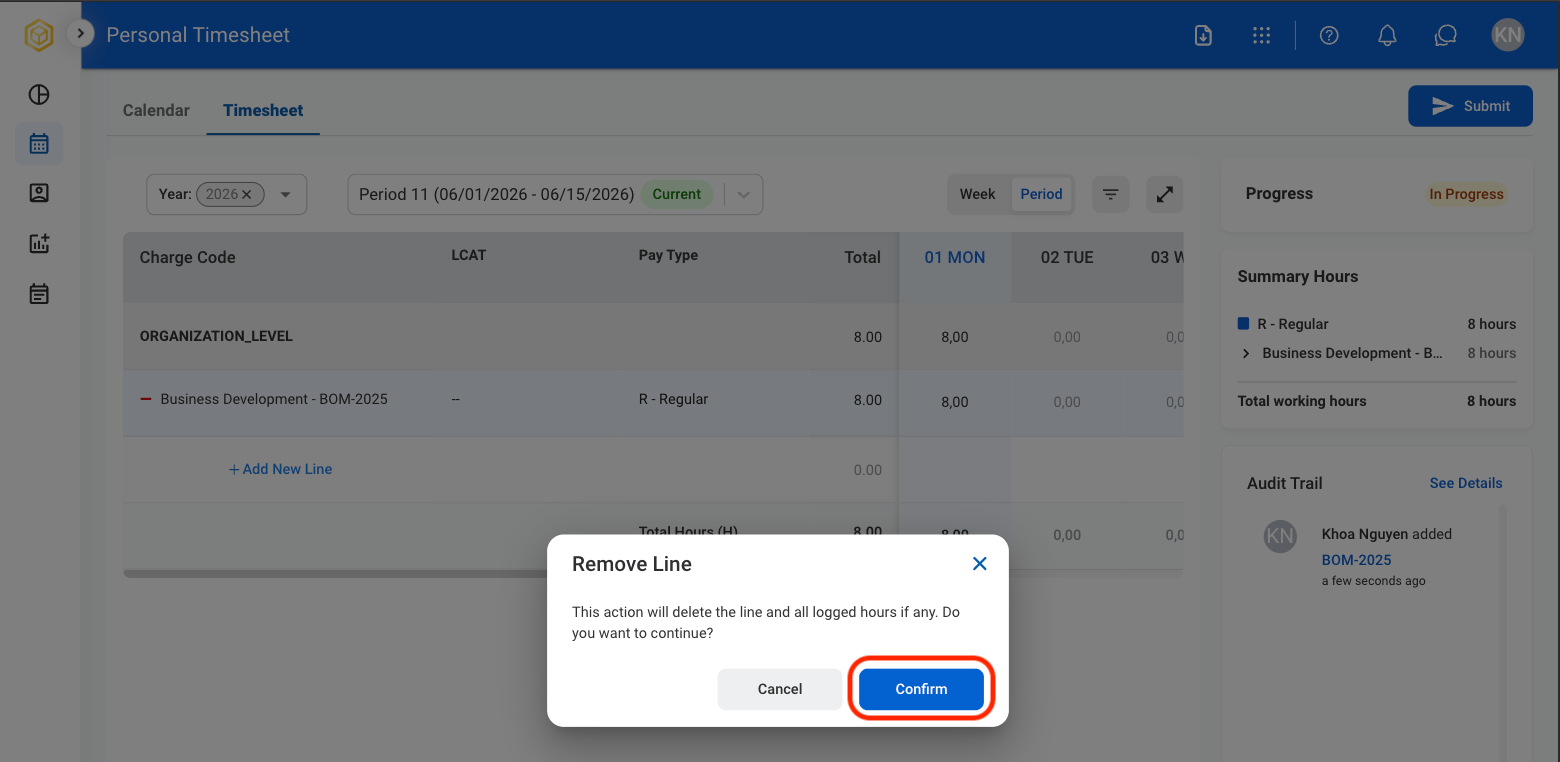
Confirm the action