
Add a Vendor
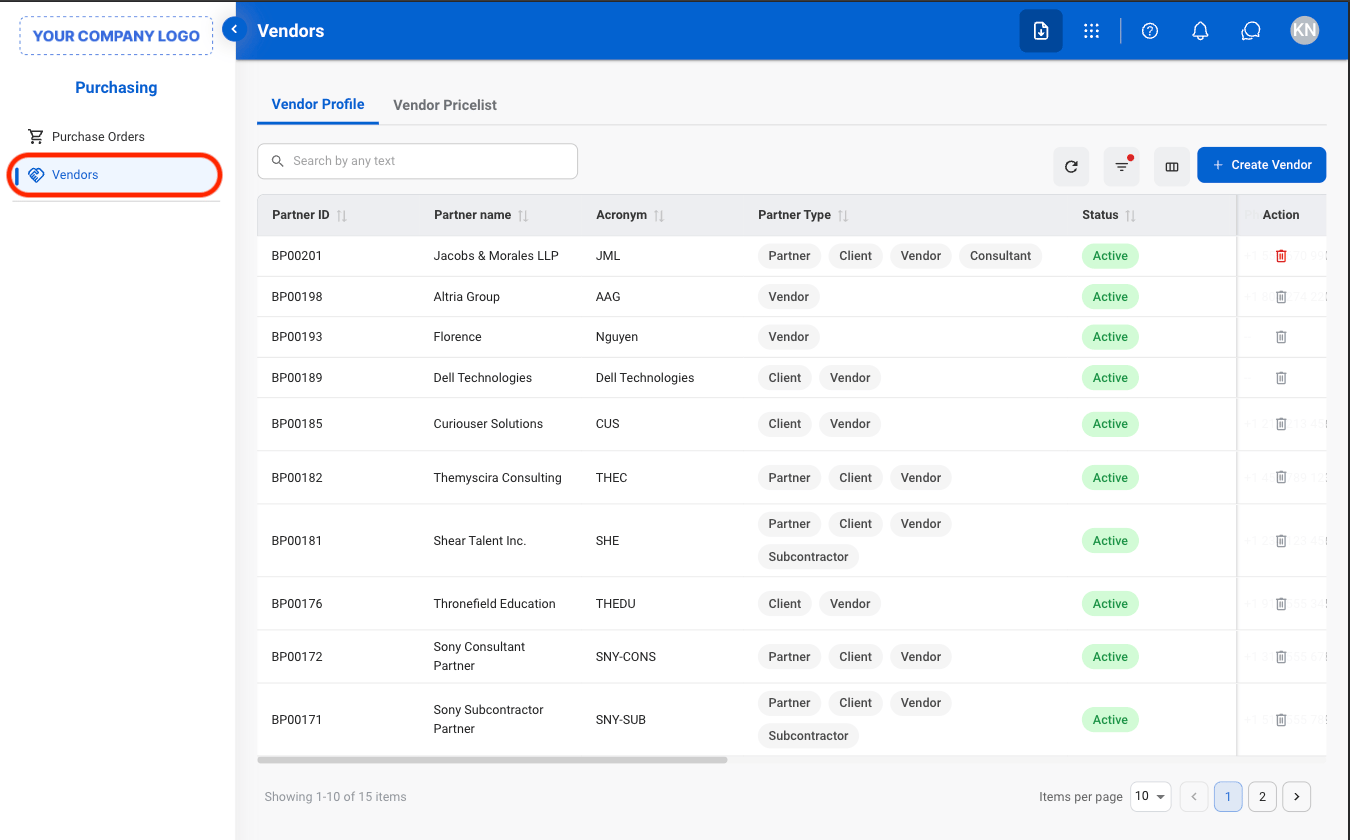
Navigate to Vendors
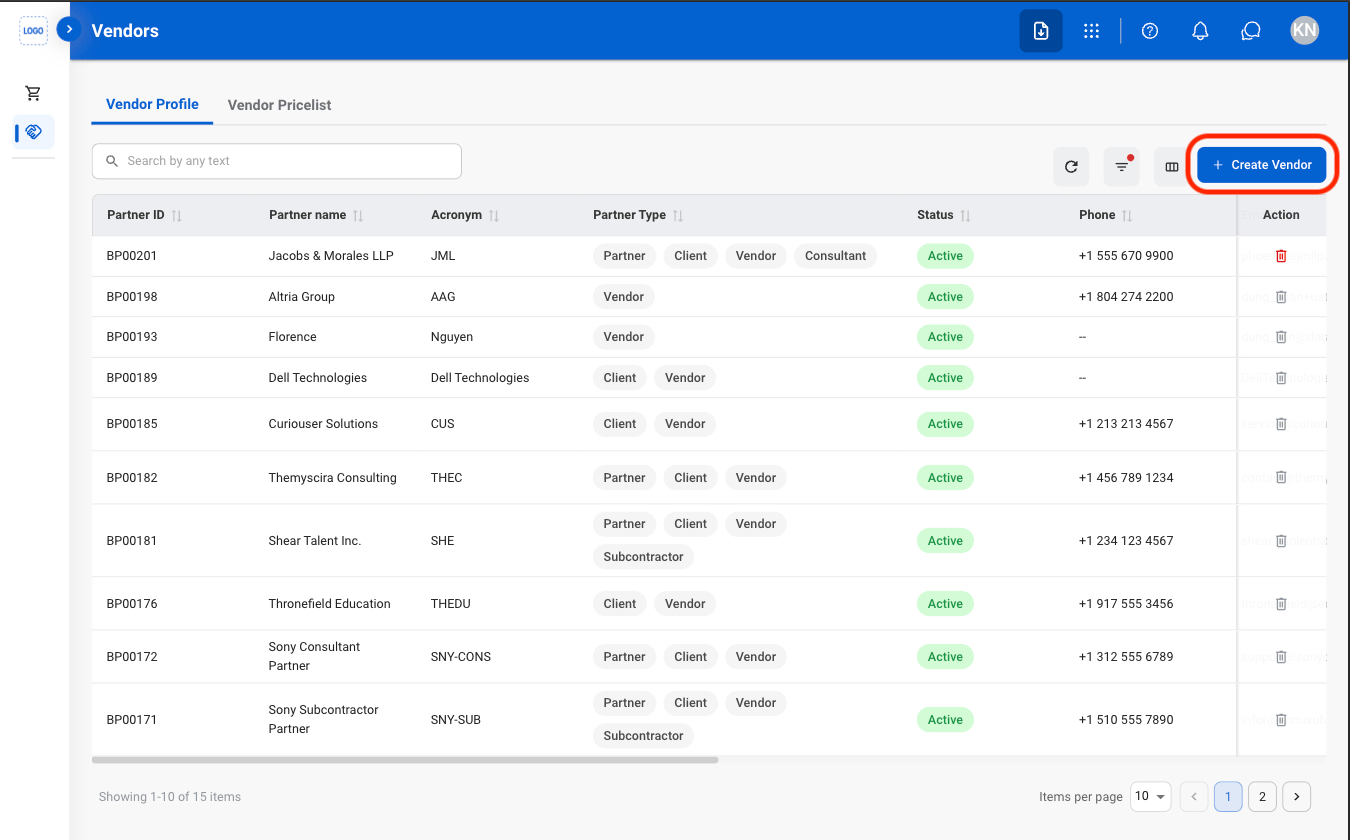
Select Create Vendor
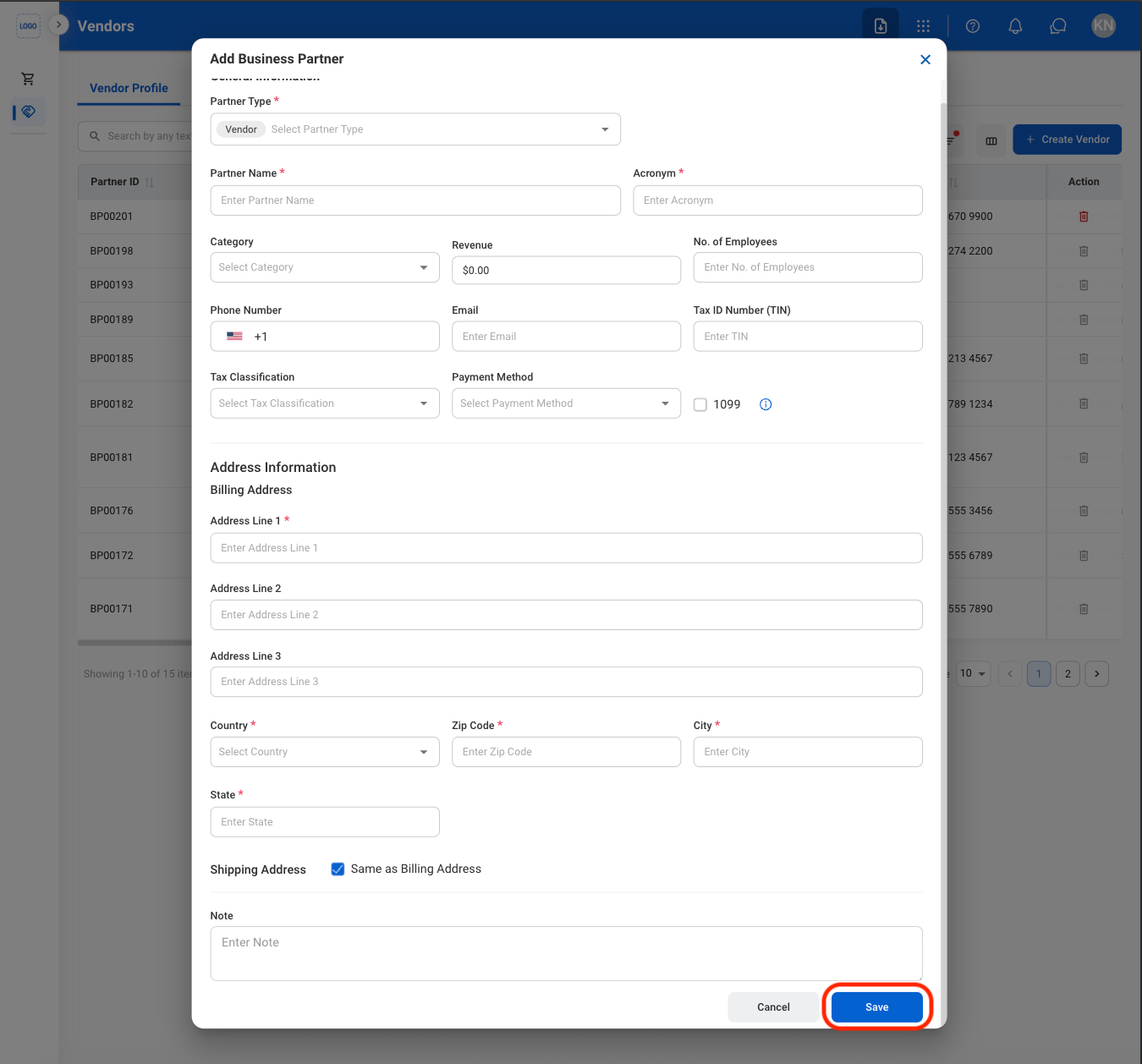
Fill in the required information
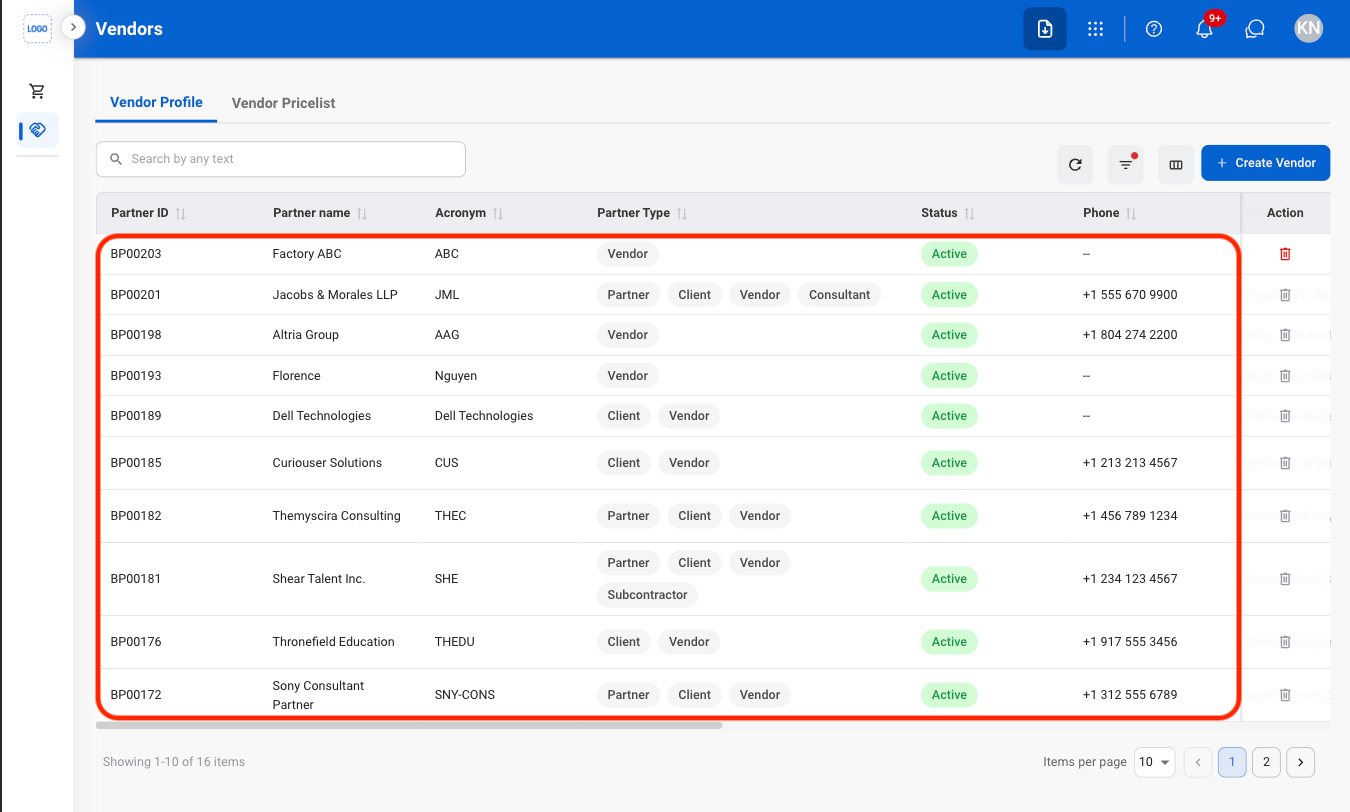
Edit a Vendor
Select a vendor
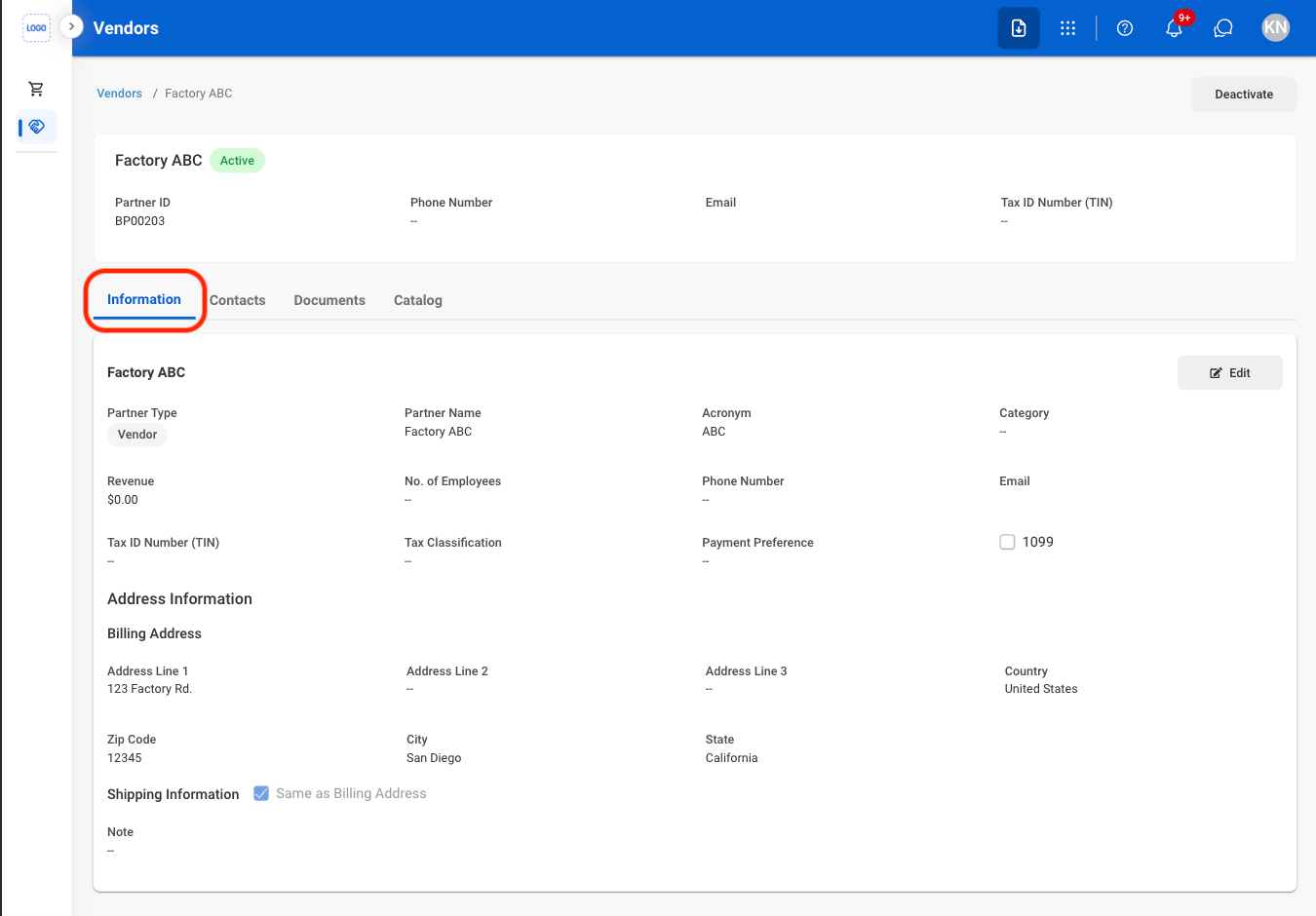
Navigate to Information
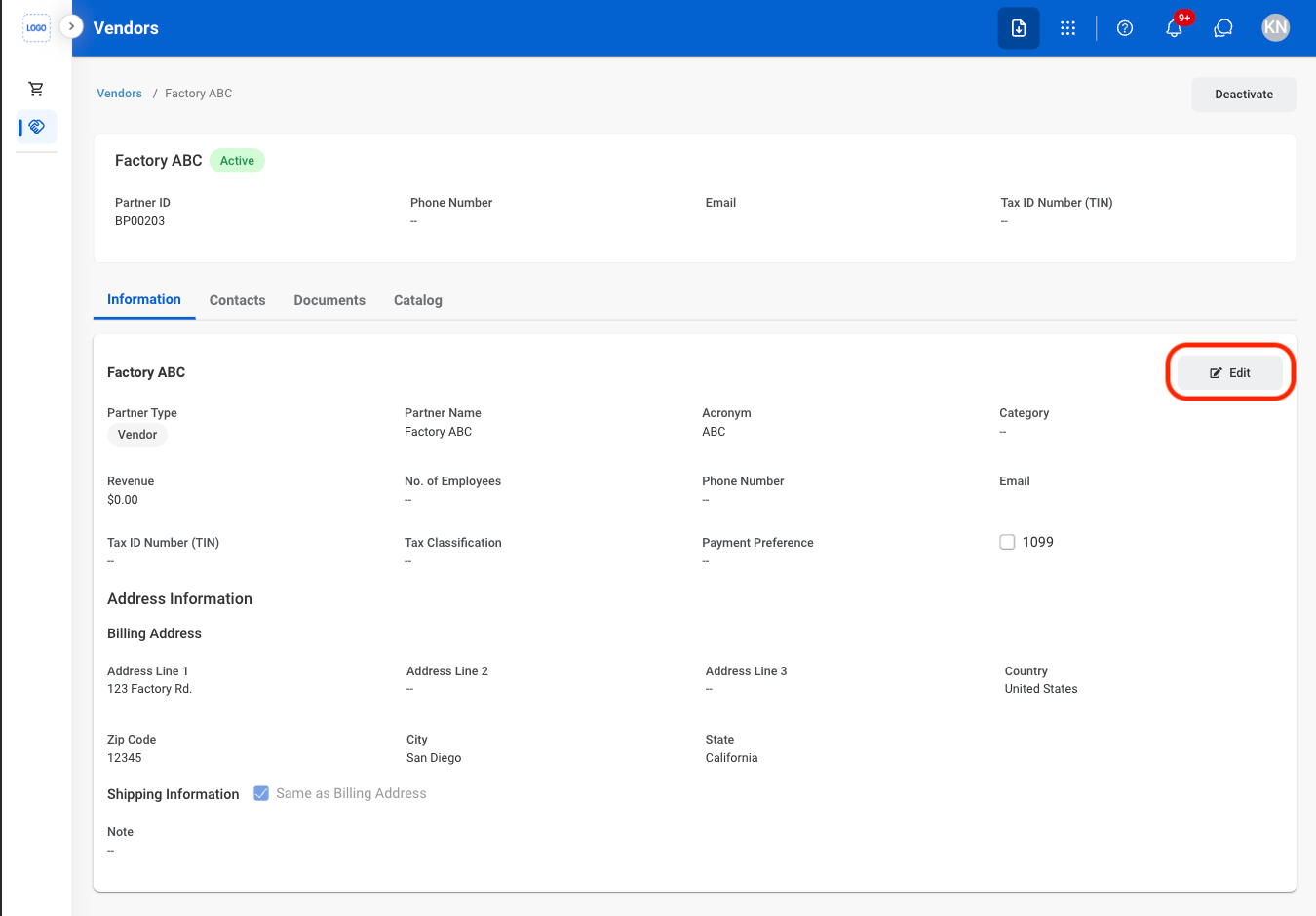
Select Edit
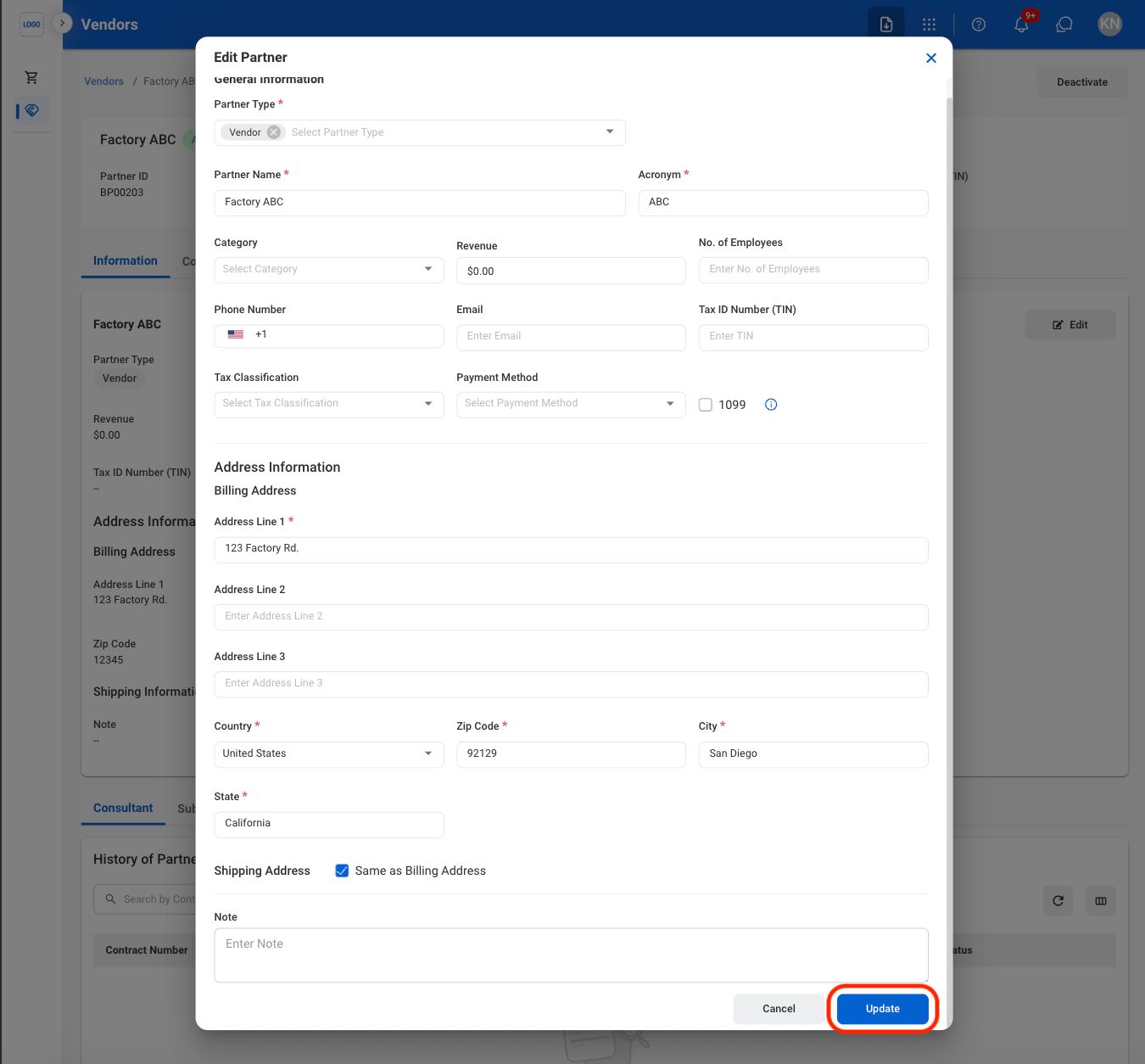
Fill in the required information
Vendor Contacts
Add a Vendor Contact
Navigate to Contacts
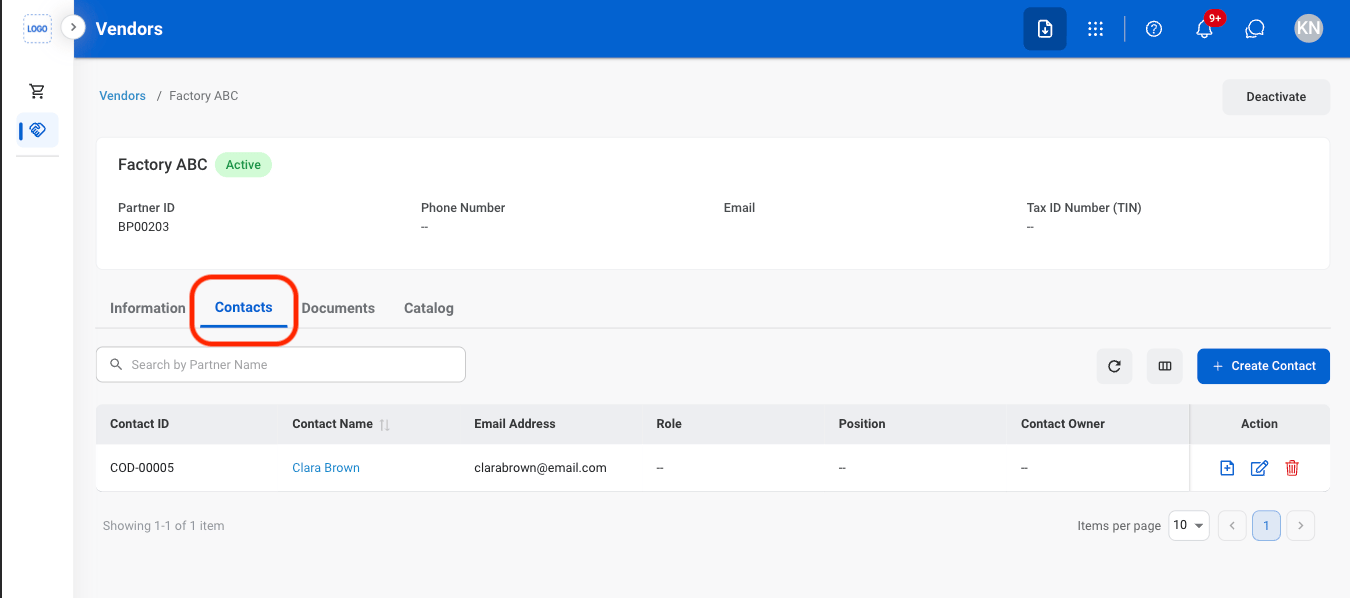
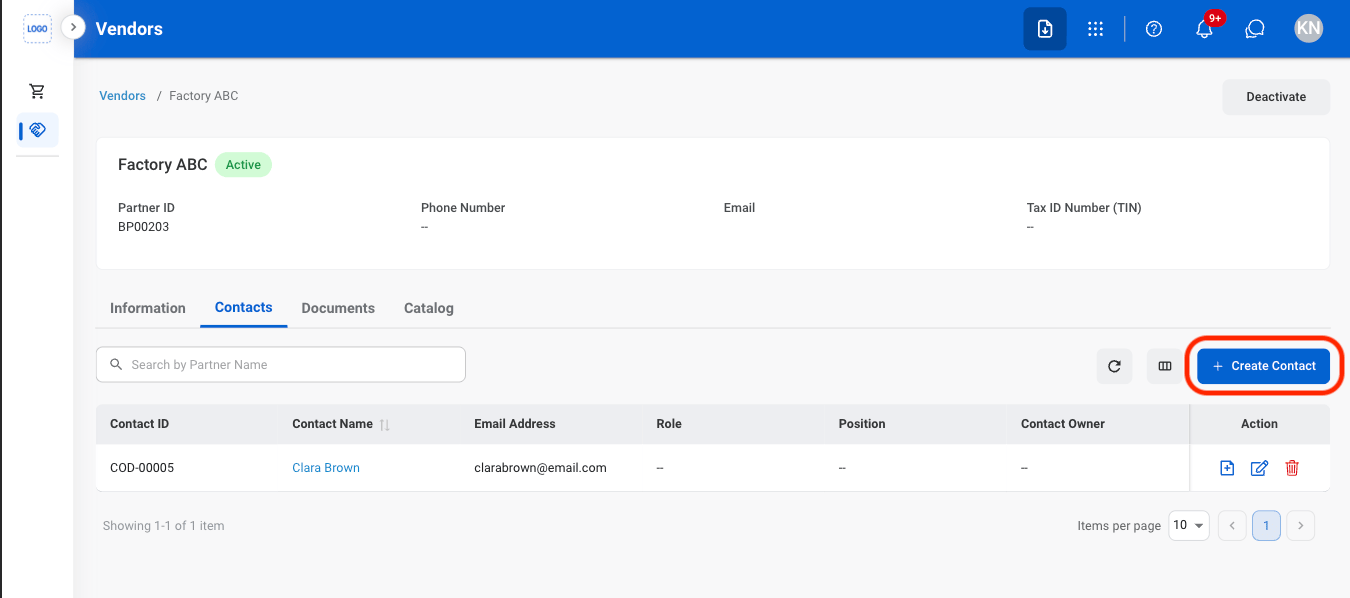
Select Create Contact
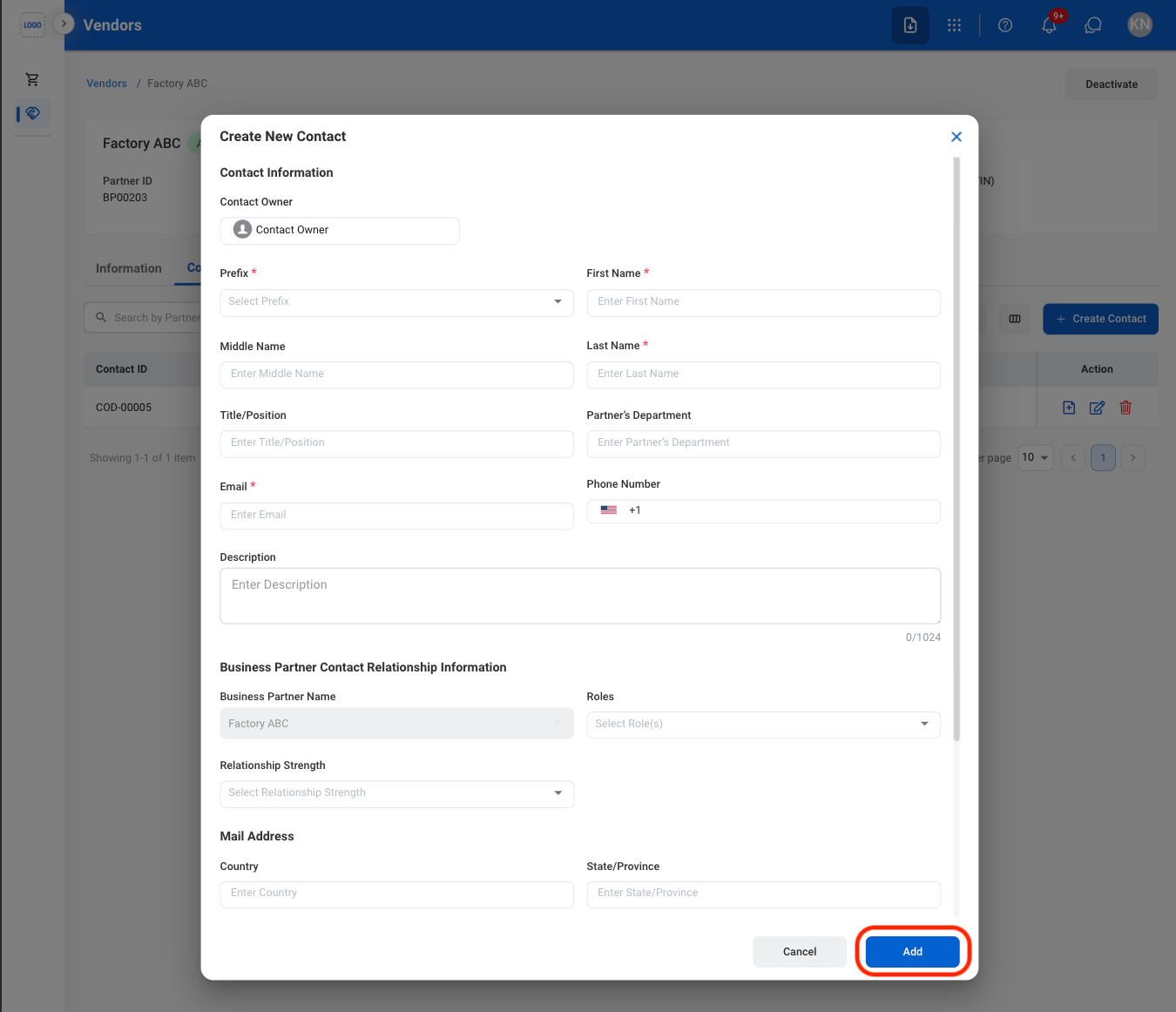
Fill in the required information
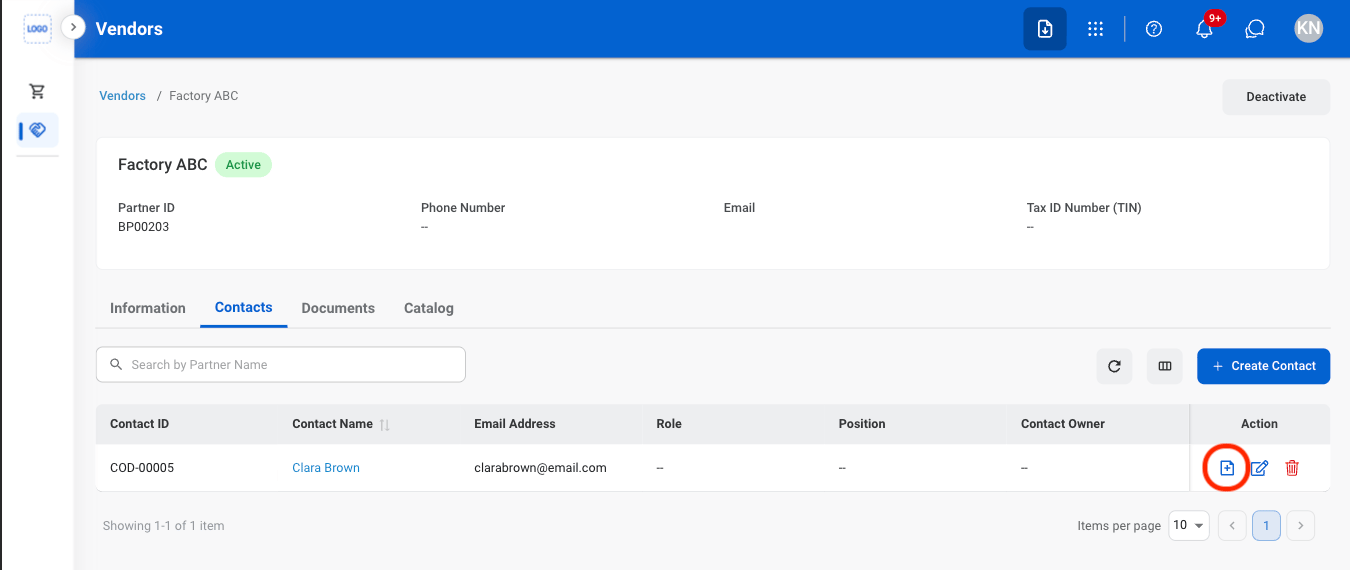
Create a Contact Request
Select the request icon
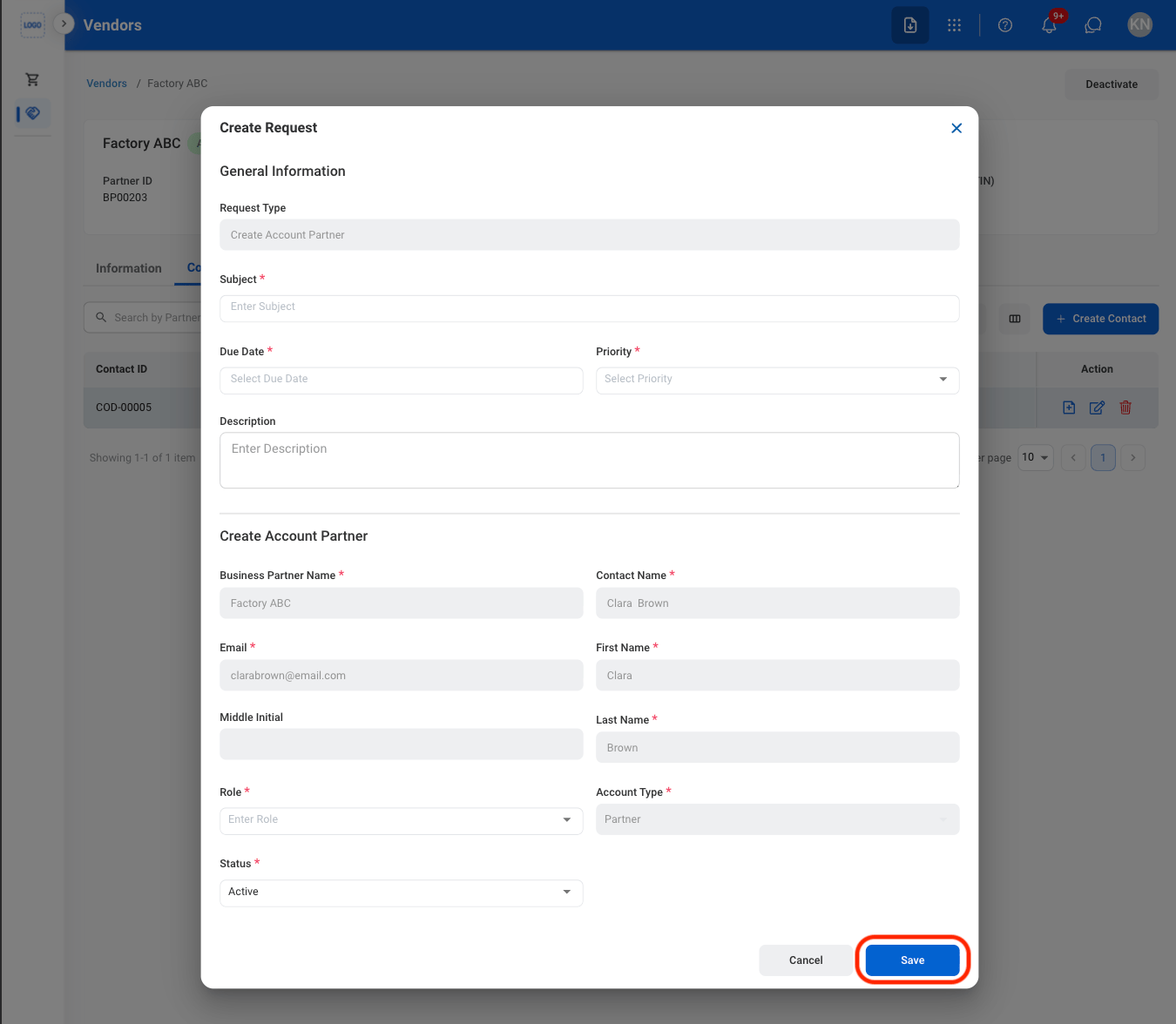
Fill in the required information
Modify a Contact
Select an action
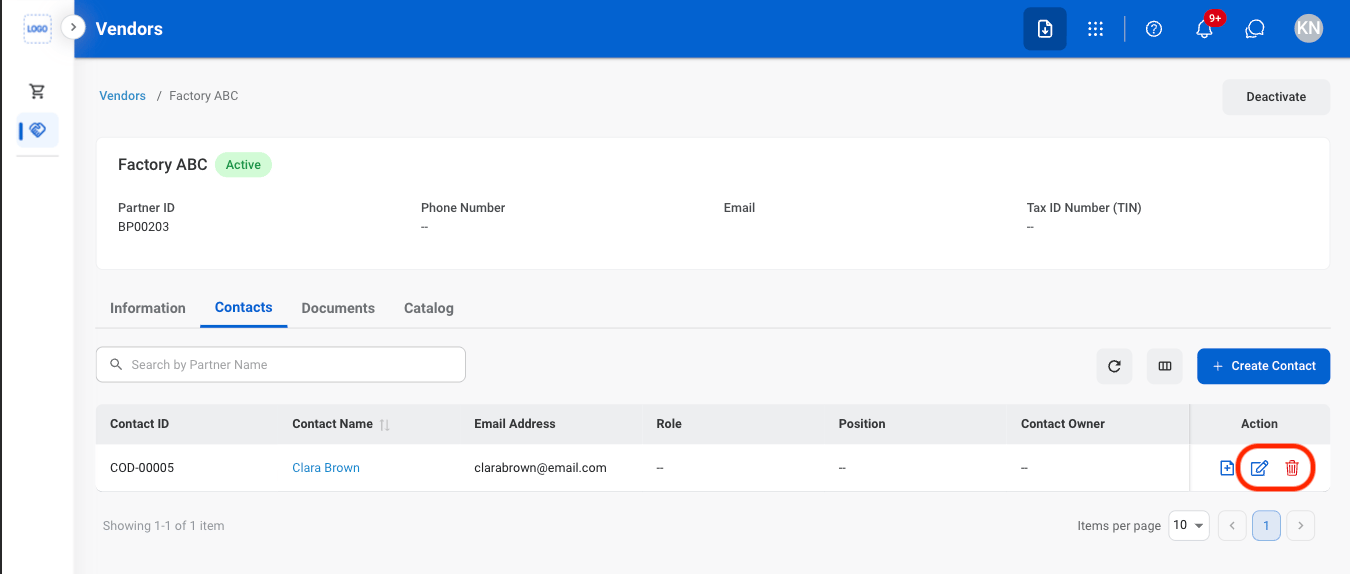
- Edit: Select the edit icon to update an existing entry
- Delete: Select the trash icon to delete an existing entry.
Confirm the action
- Edit: Fill in the required information. Select Update to complete or Cancel to exit without saving changes.
- Delete: Select Delete to complete or Cancel to exit without saving changes.
Vendor Documents
Add a Document
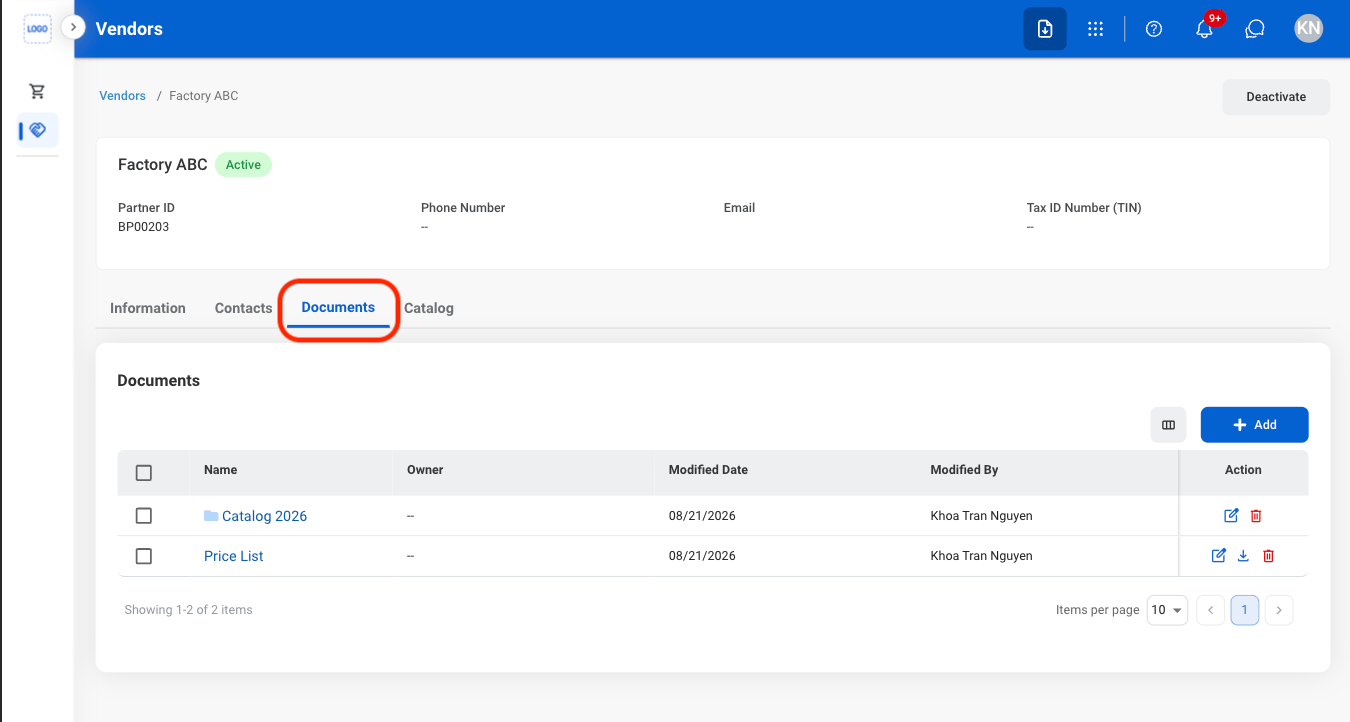
Navigate to Documents
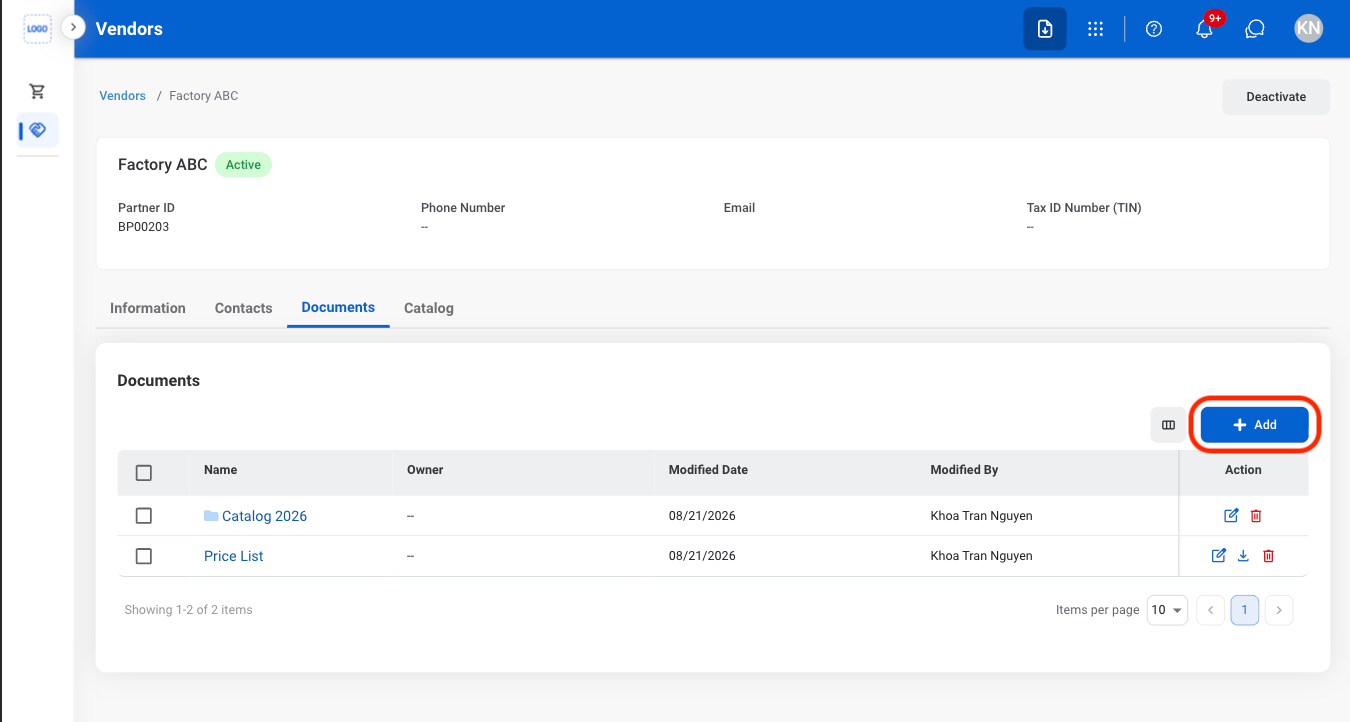
Select Add
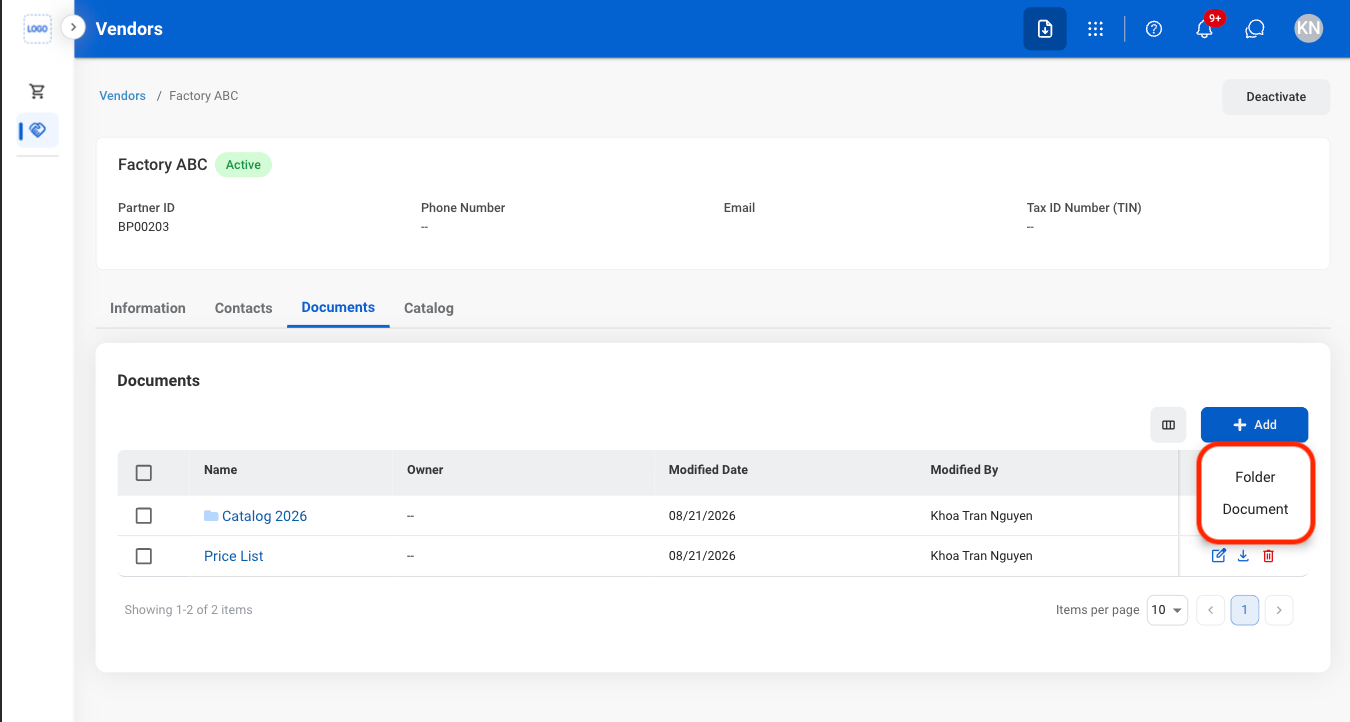
Select a document type
Fill in the required information
Modify a Document
Select an action
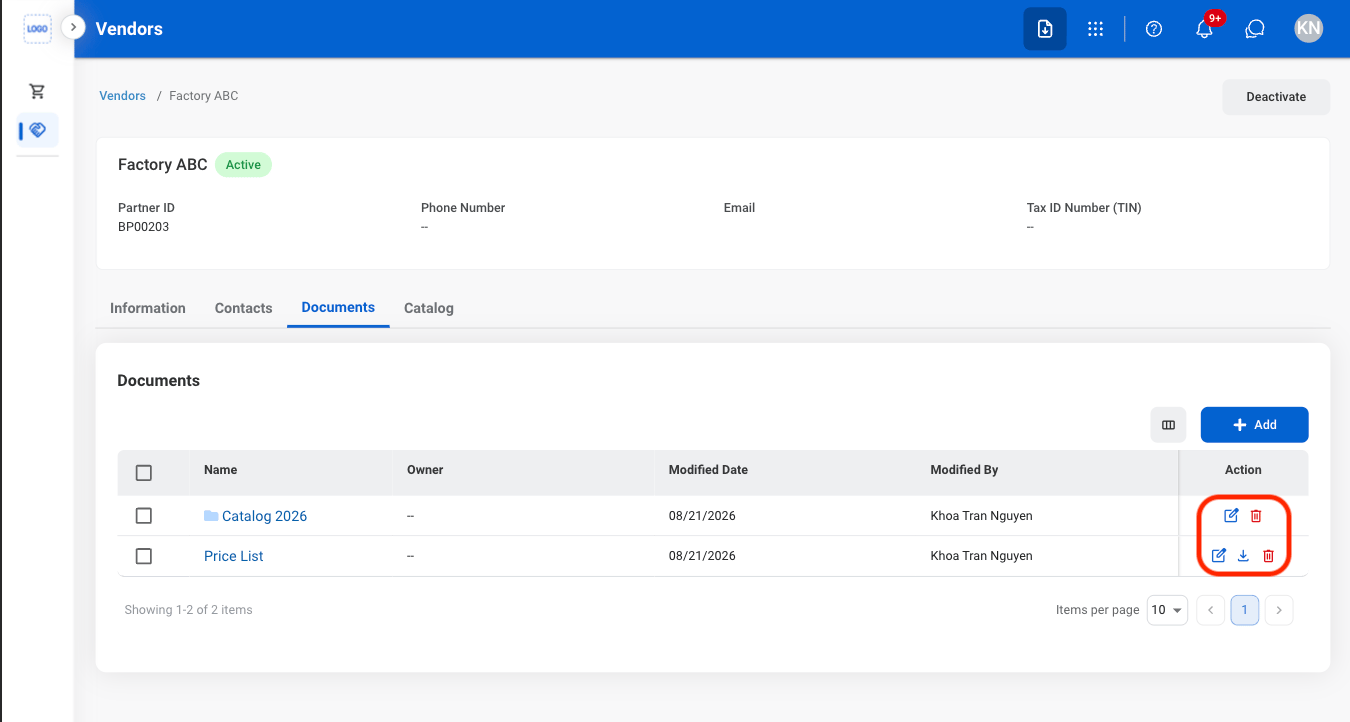
- Edit: Select the edit icon to update an existing entry
- Delete: Select the trash icon to delete an existing entry.
- Download: Download will start automatically after selection.
Confirm the action
- Edit: Fill in the required information. Select Update to complete or Cancel to exit without saving changes.
- Delete: Select Delete to complete or Cancel to exit without saving changes.
Vendor Catalog
Add a Vendor Product
Navigate to Catalog
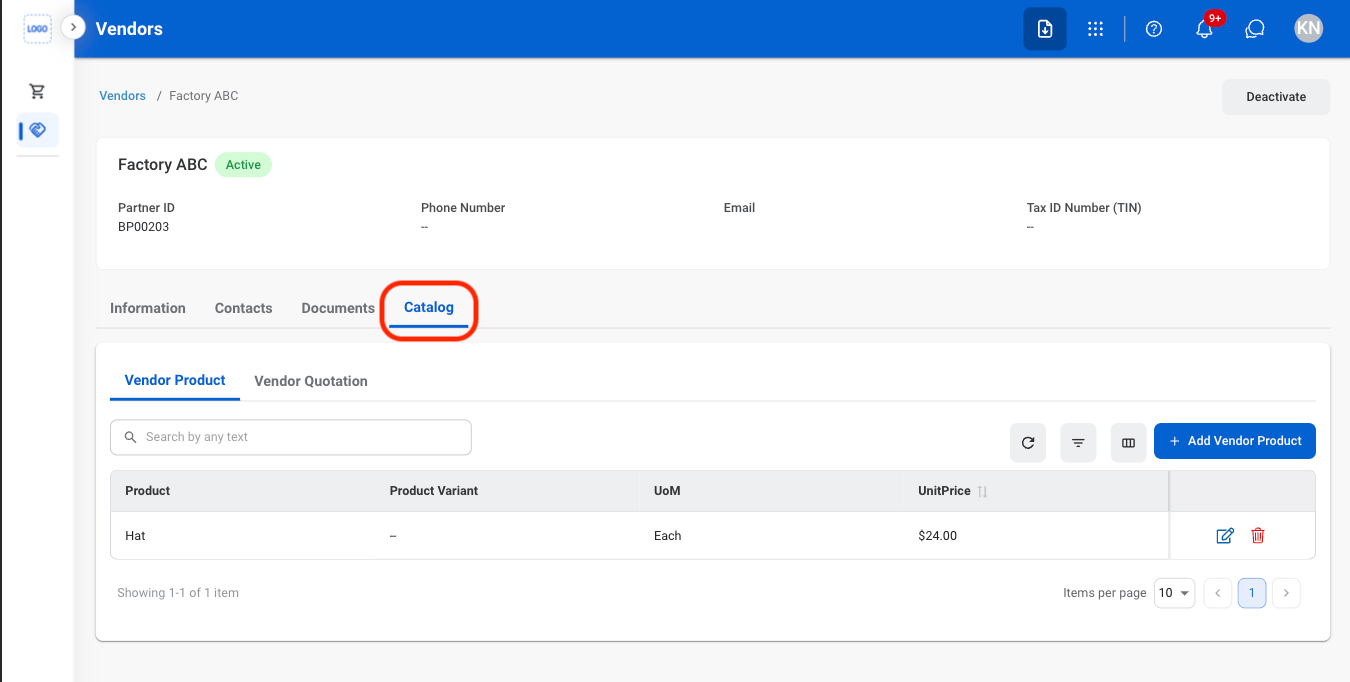
Navigate to Vendor Product
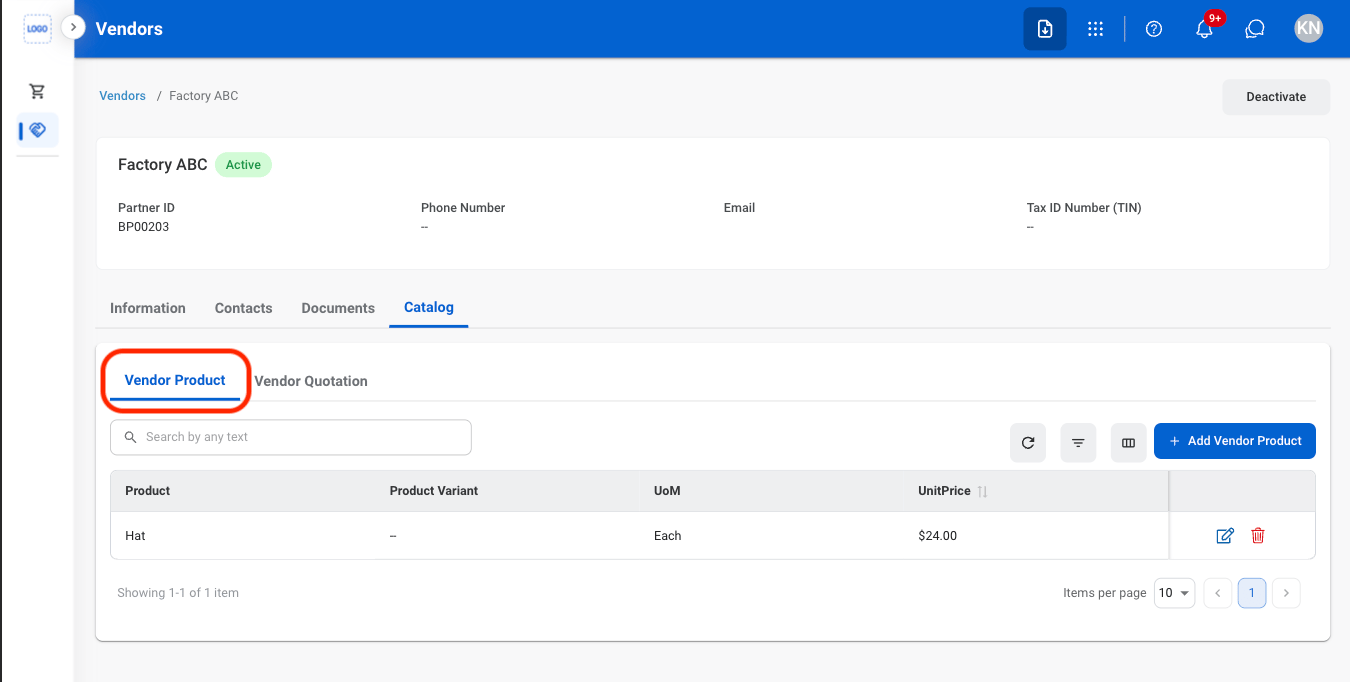
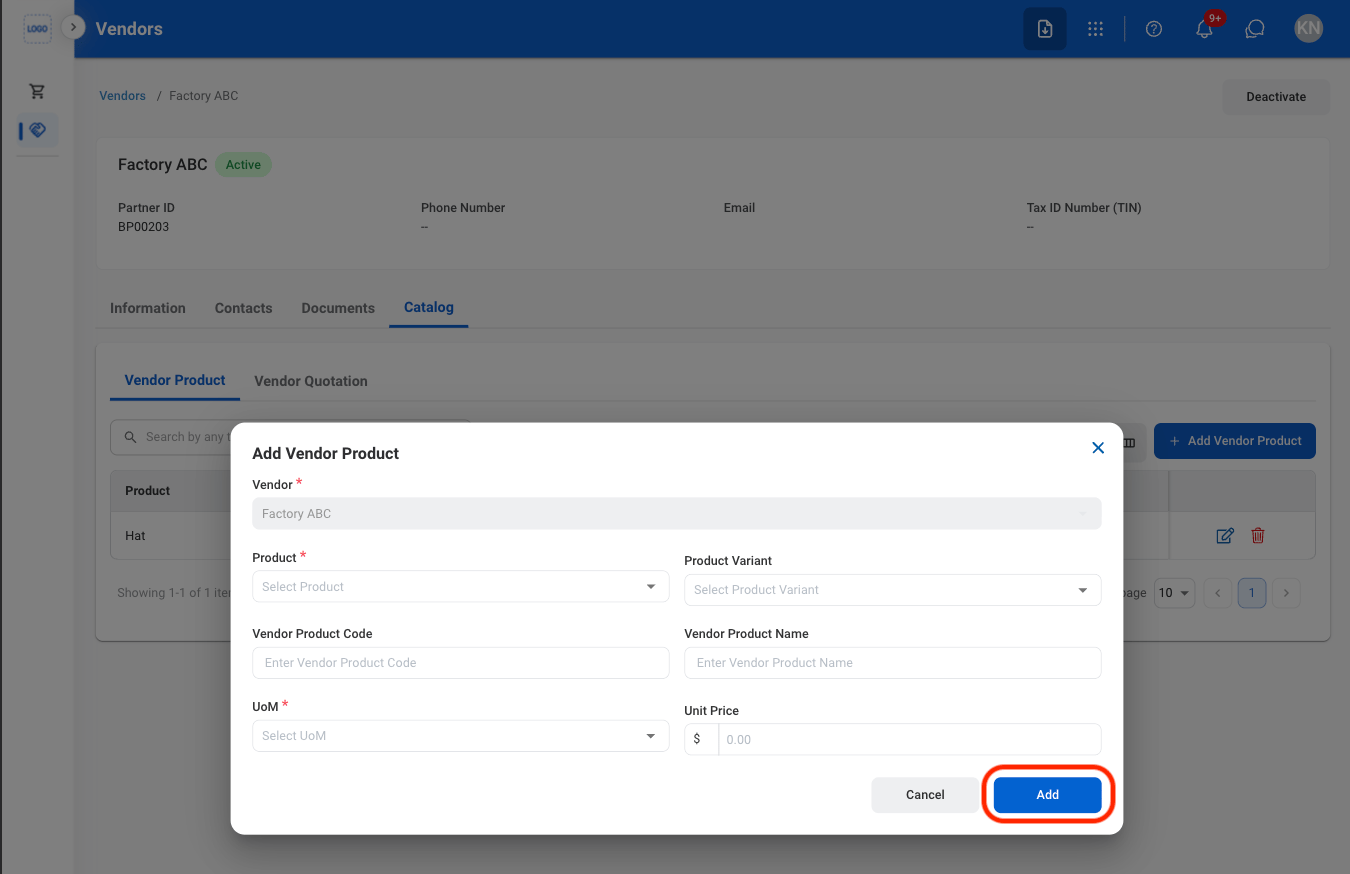
Select Add Vendor Product
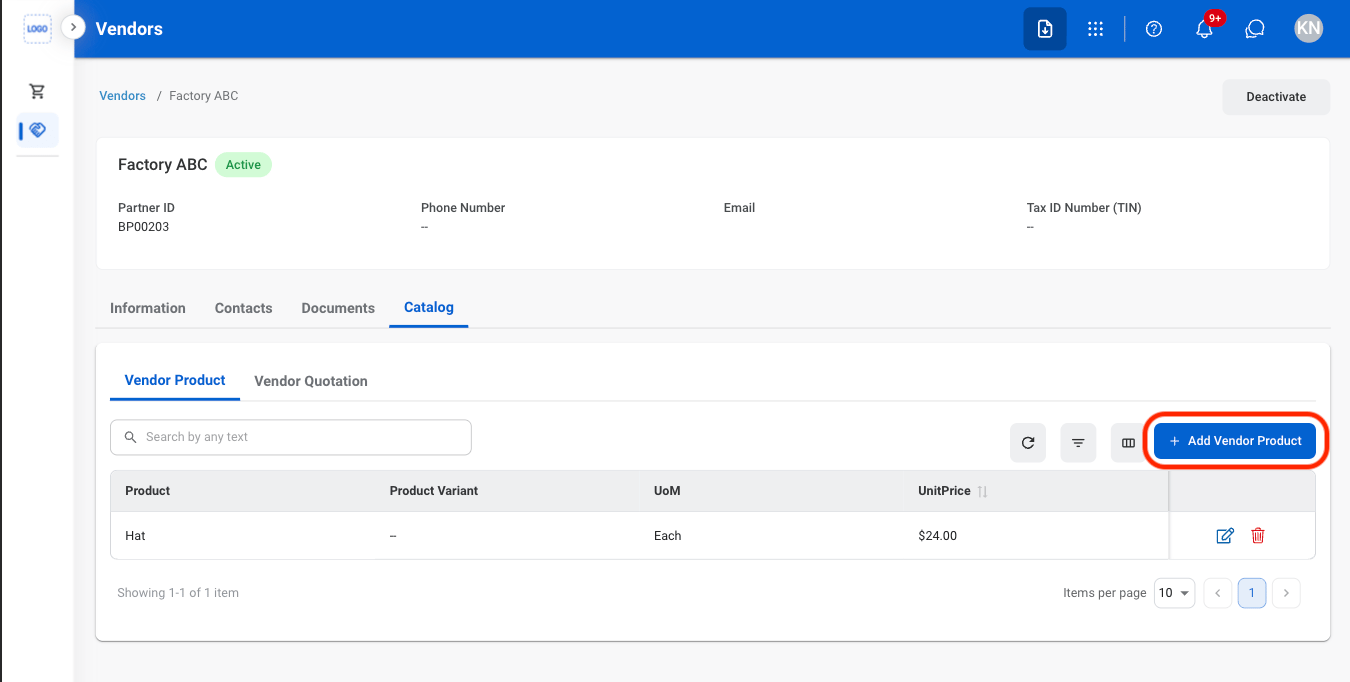
Fill in the required information
Modify a Vendor Product
Select an action
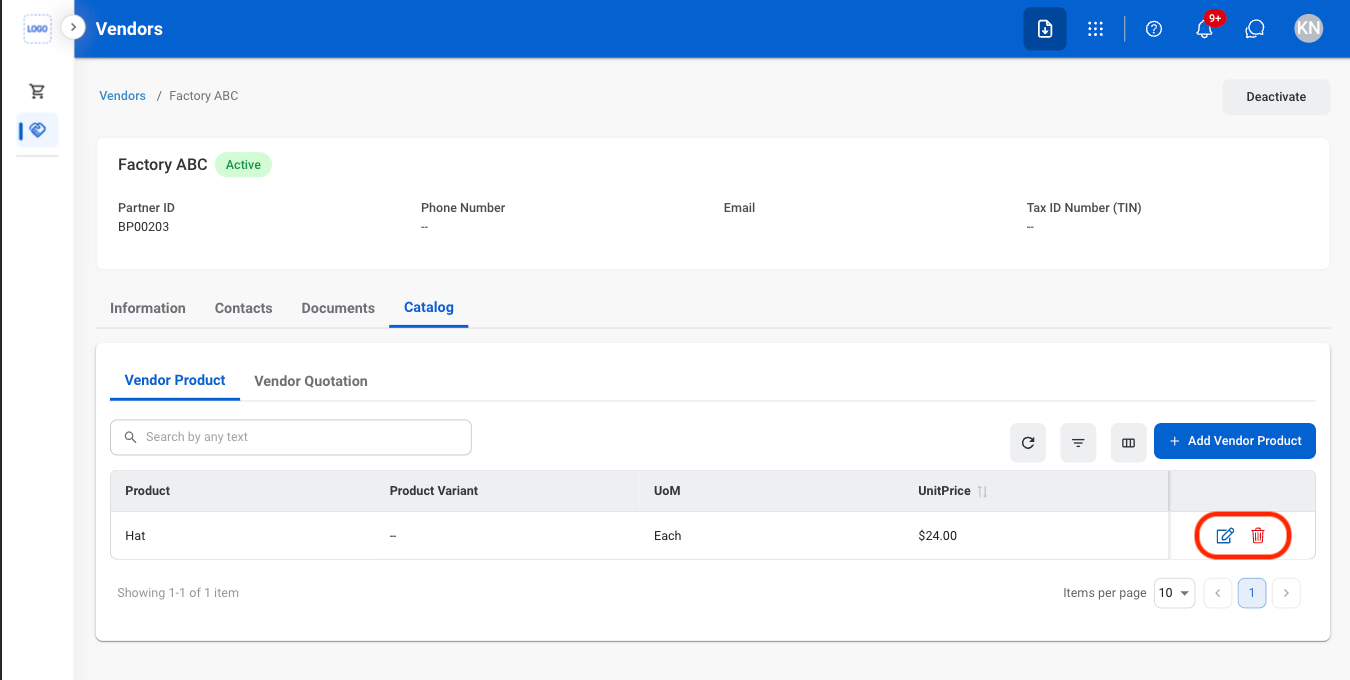
- Edit: Select the edit icon to update an existing entry
- Delete: Select the trash icon to delete an existing entry.
Confirm the action
- Edit: Fill in the required information. Select Update to complete or Cancel to exit without saving changes.
- Delete: Select Delete to complete or Cancel to exit without saving changes.
Add a Vendor Quotation
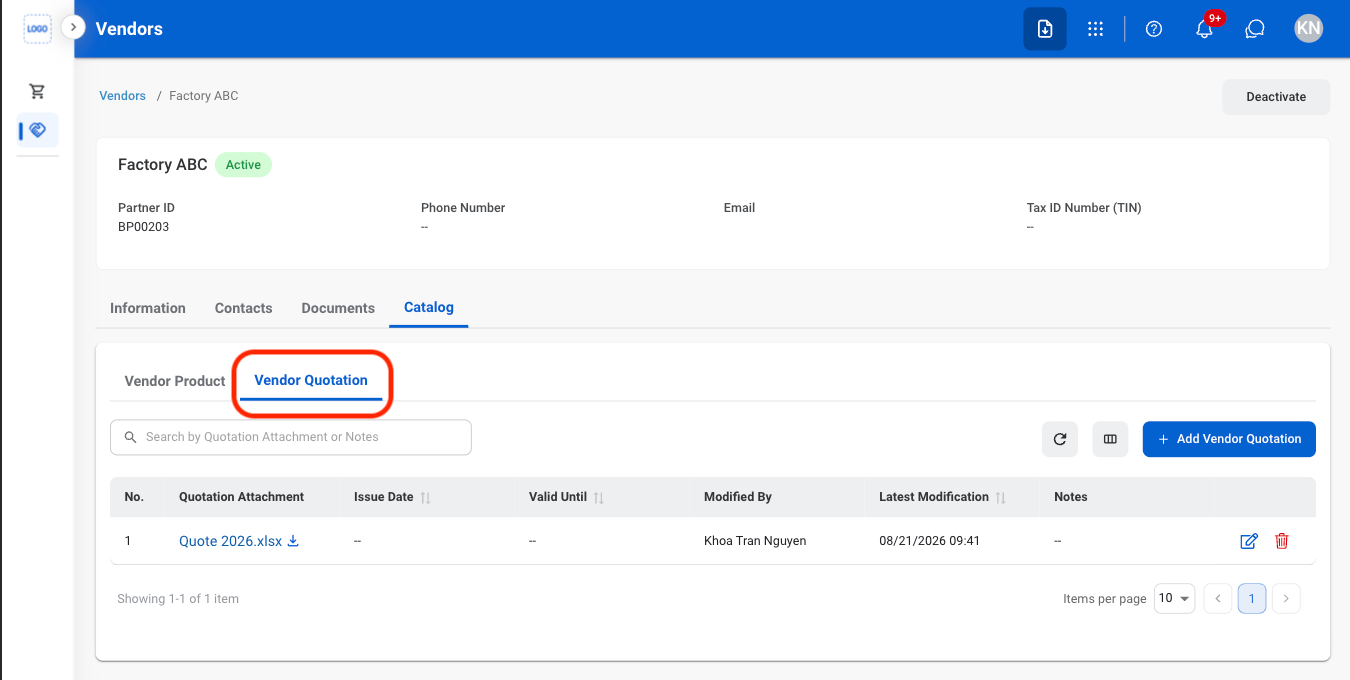
Navigate to Vendor Quotation
Select Add Vendor Quotation
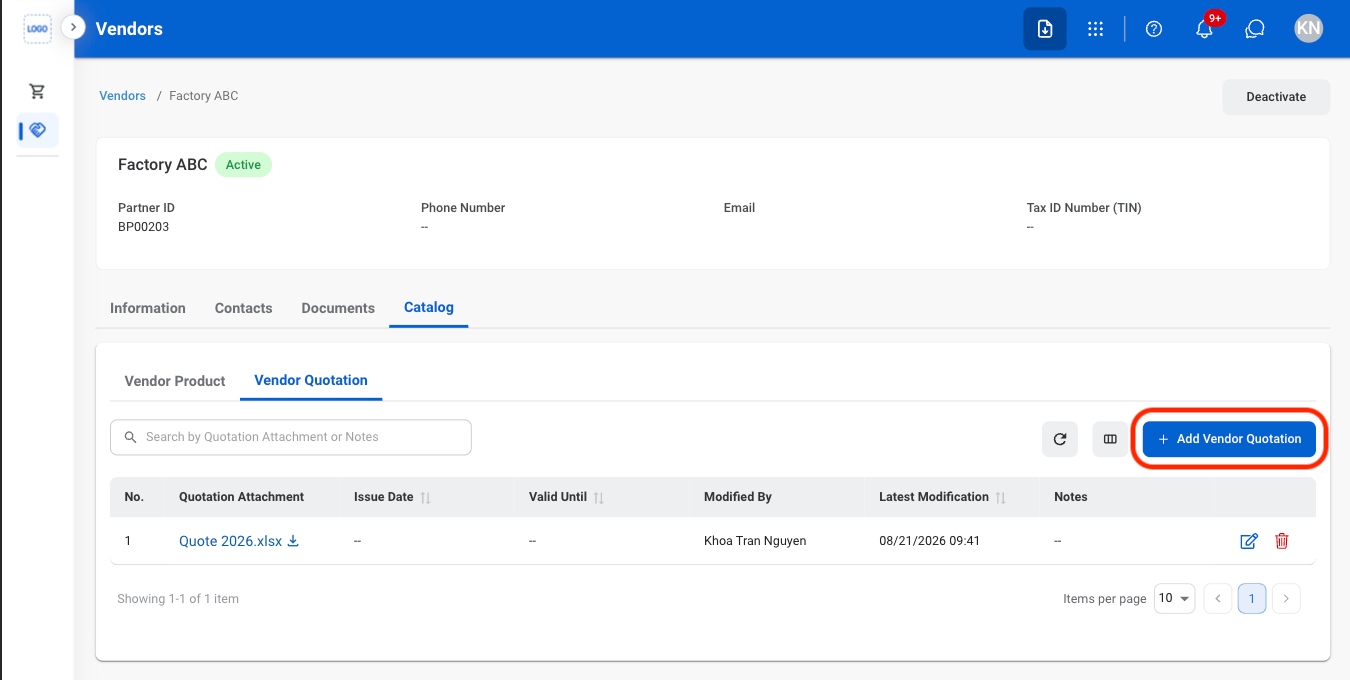
Fill in the required information
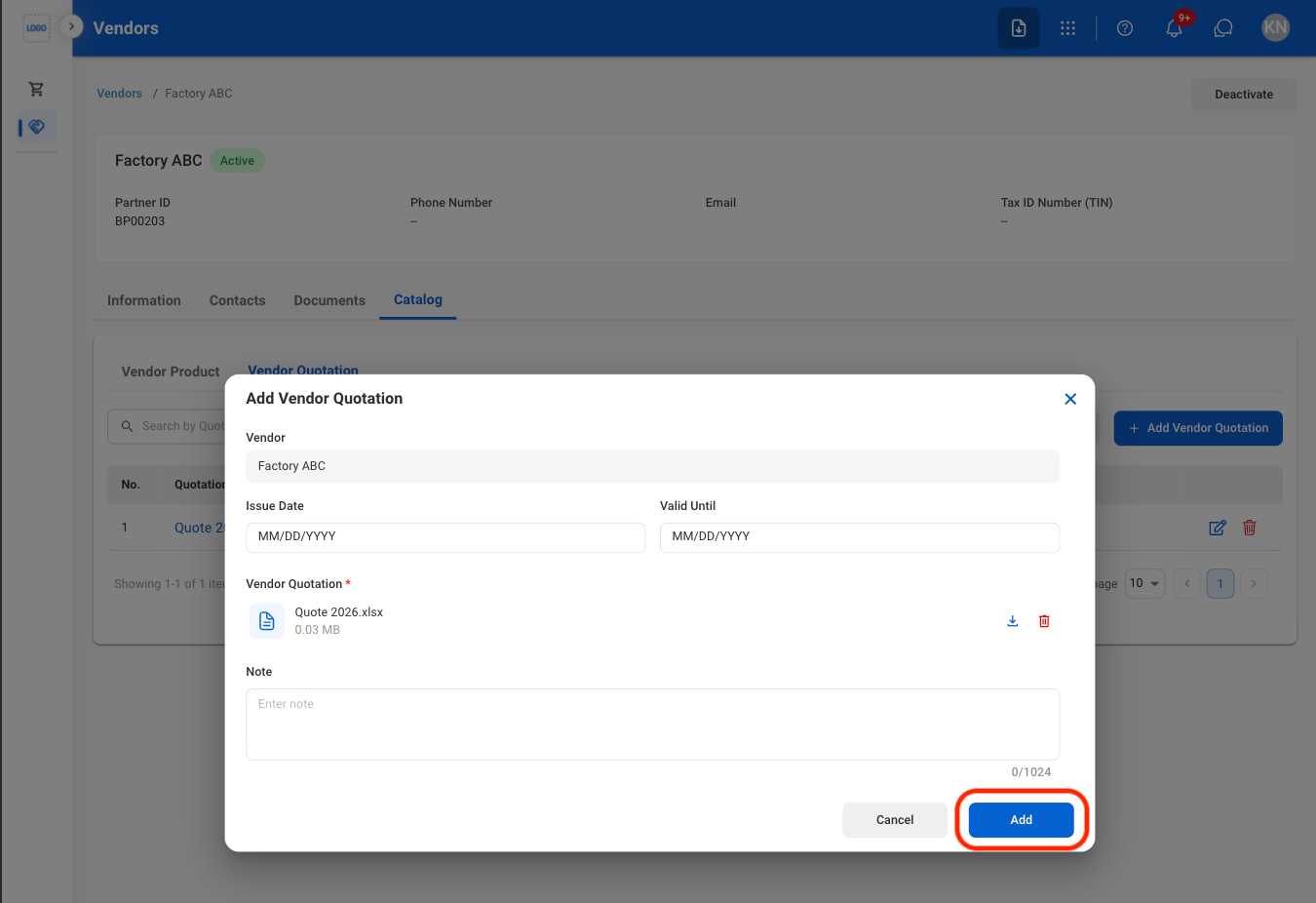
Modify a Vendor Quotation
Select an action
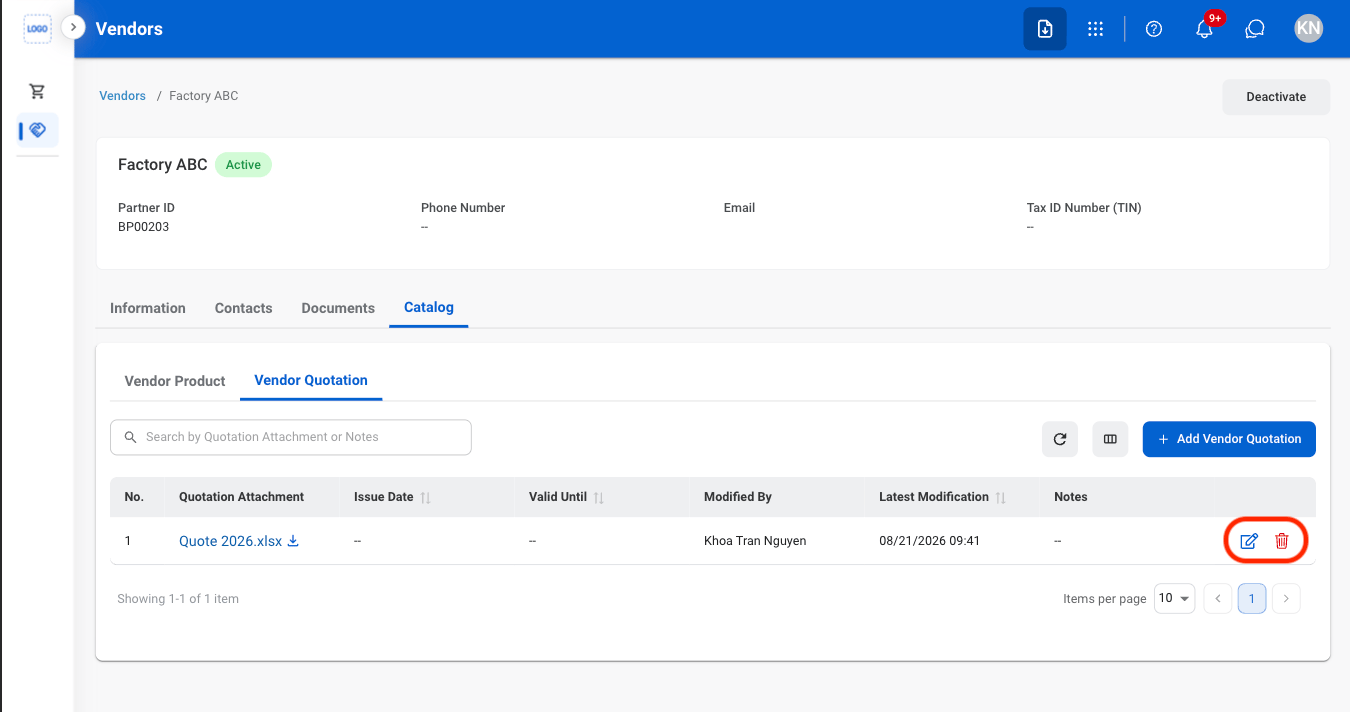
- Edit: Select the edit icon to update an existing entry
- Delete: Select the trash icon to delete an existing entry.
Confirm the action
- Edit: Fill in the required information. Select Update to complete or Cancel to exit without saving changes.
- Delete: Select Delete to complete or Cancel to exit without saving changes.
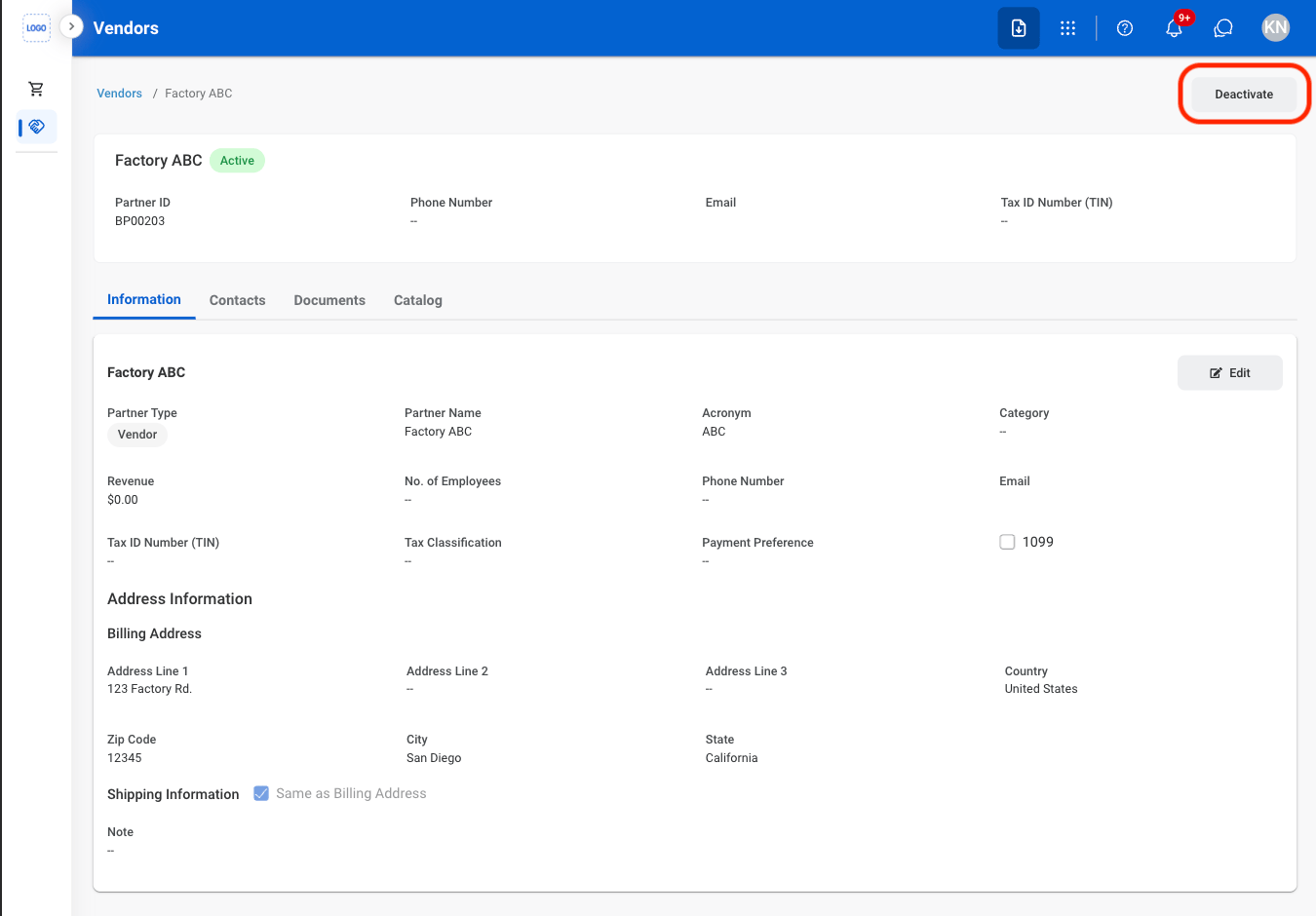
Deactivate a Vendor
Deactivate the vendor to prevent further use while retaining the vendor record and its existing information.Select Deactivate
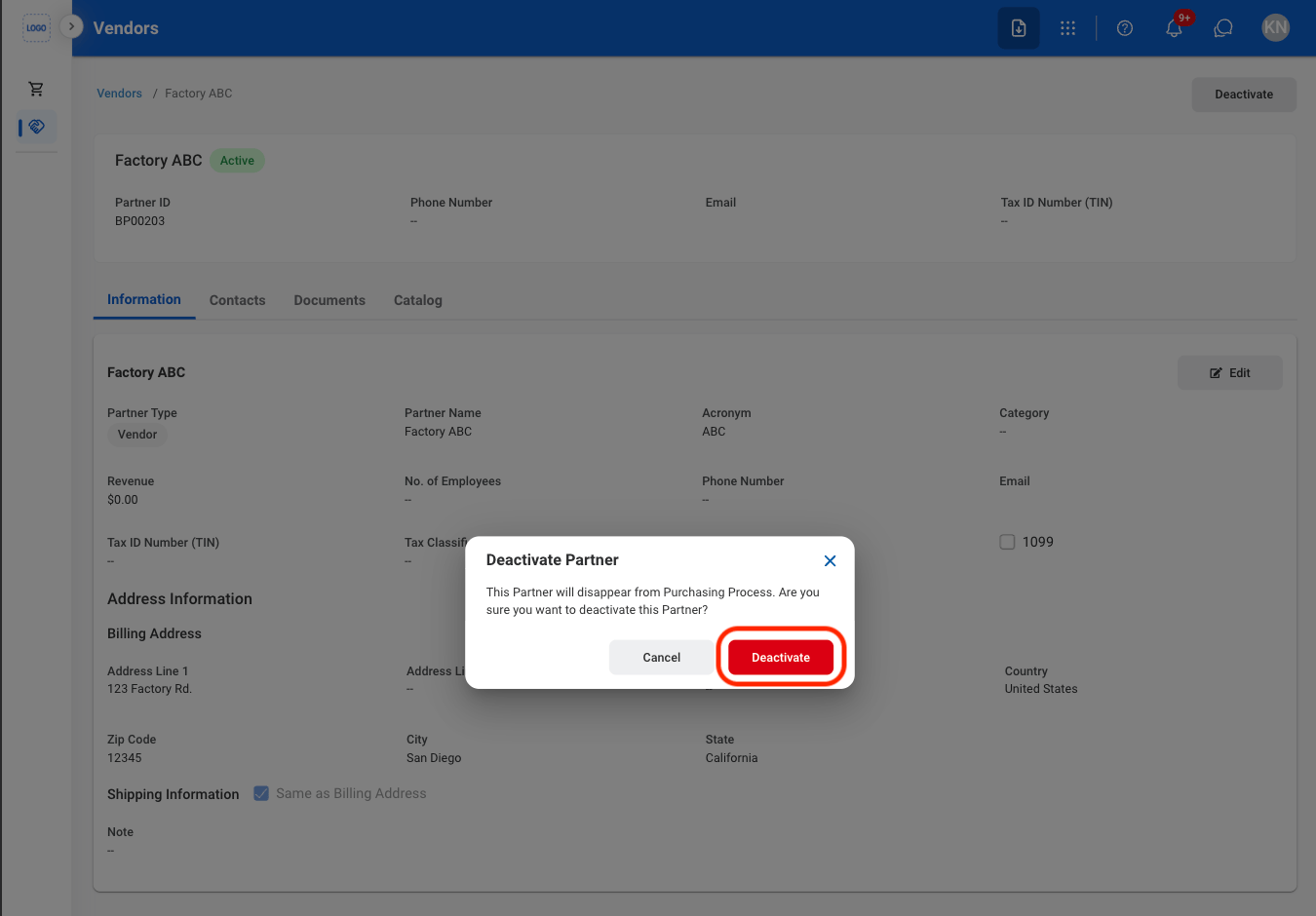
Confirm the action
Delete a Vendor
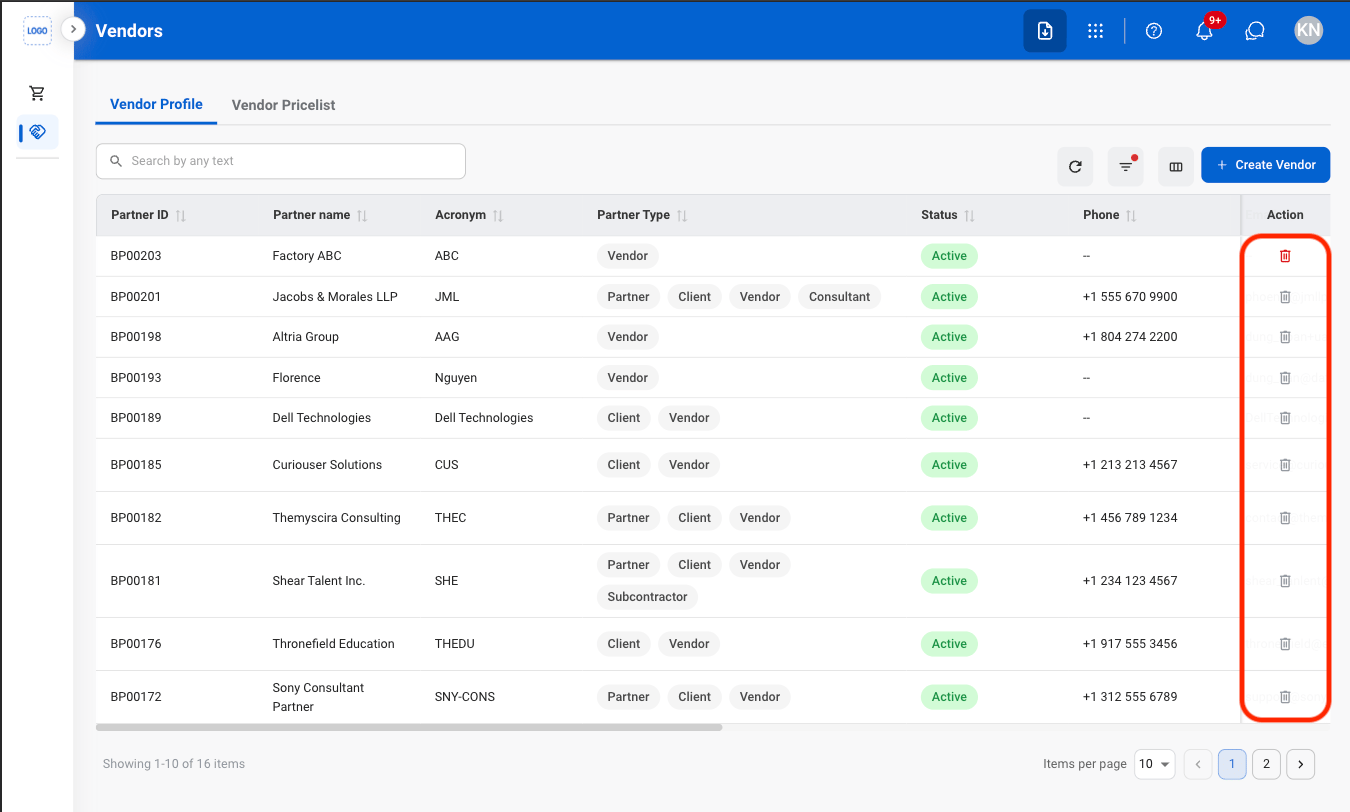
Permanently remove the vendor record and its associated information from the system.Select the delete icon
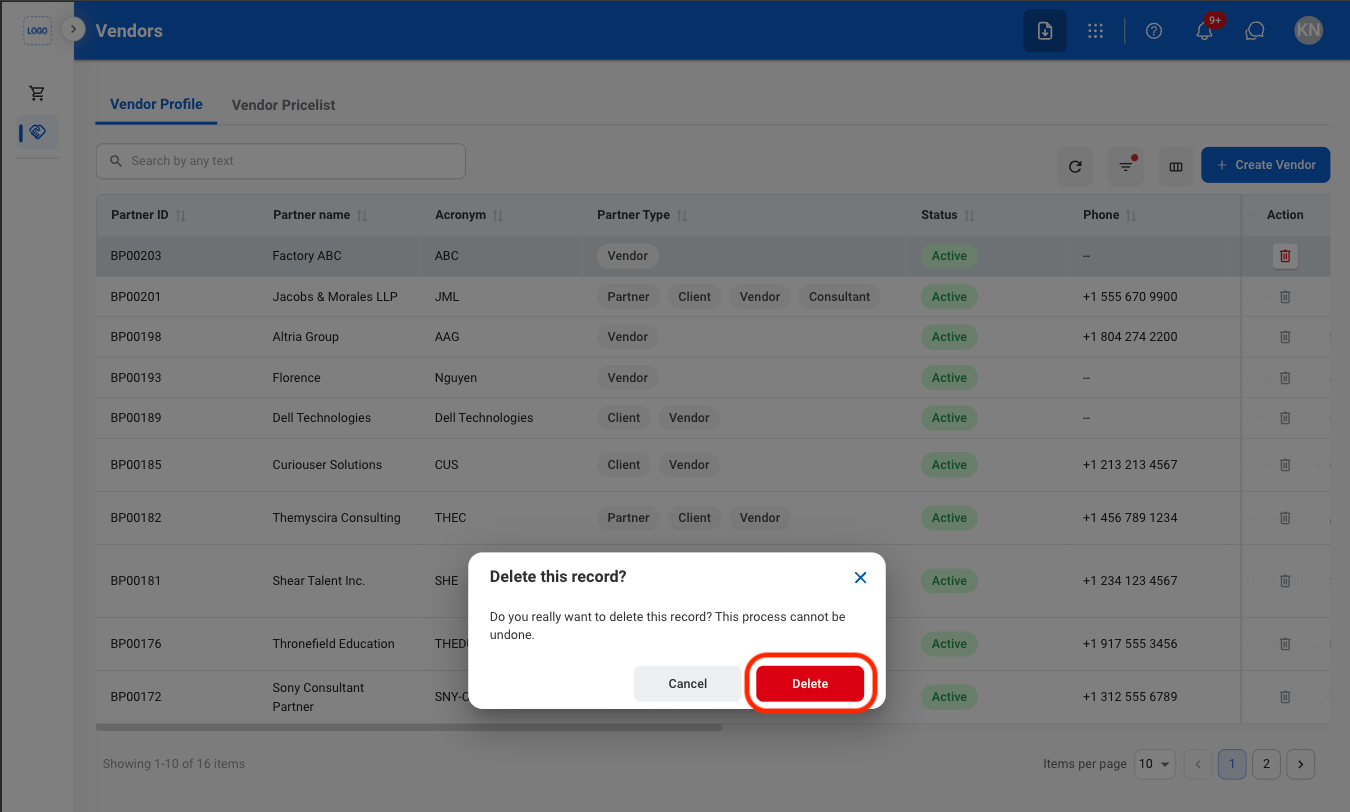
Confirm the action
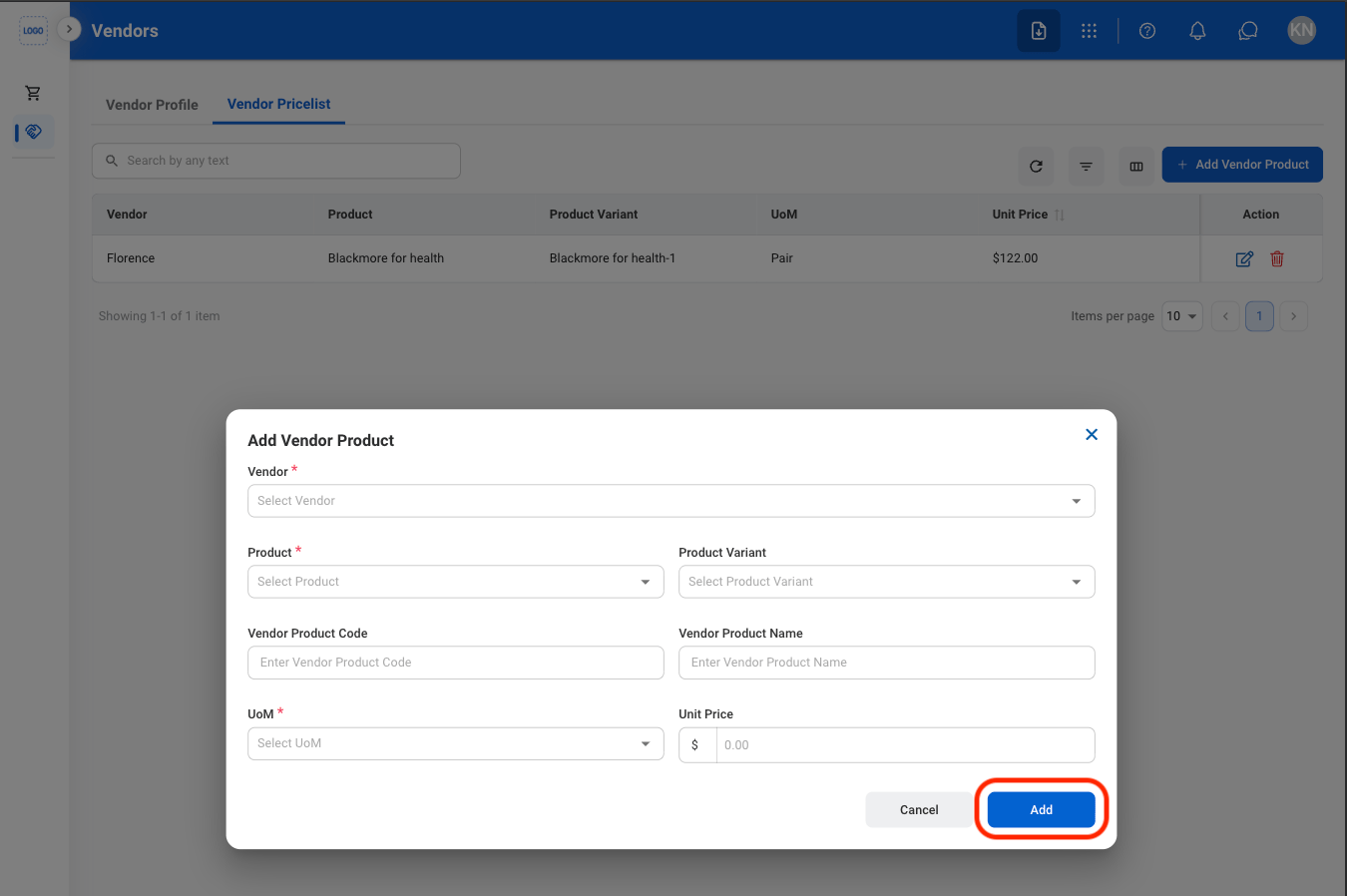
Add a Vendor Product
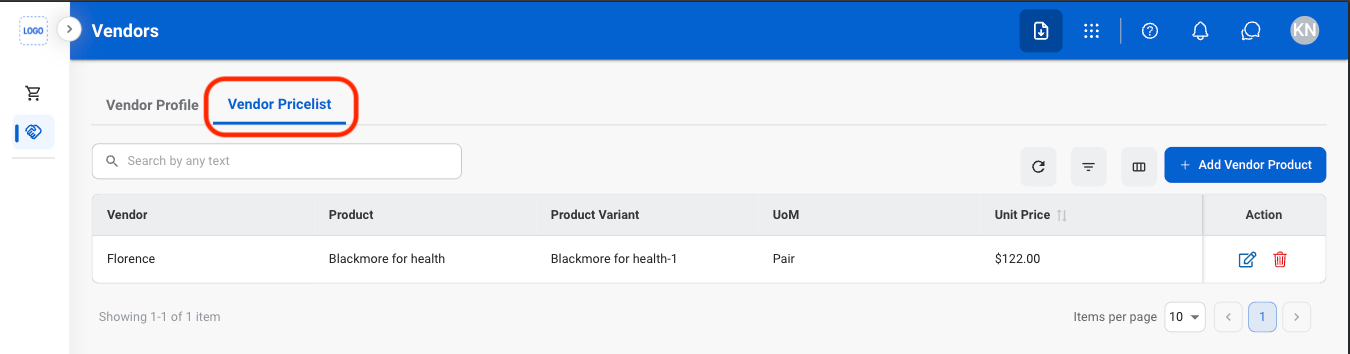
Select Vendor Pricelist
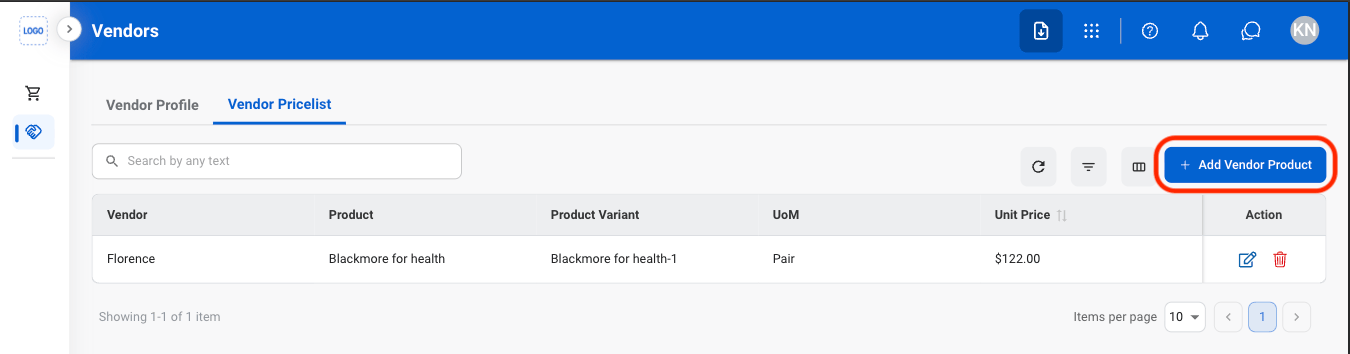
Select Add Vendor Product
Fill in the required information
Modify a Vendor Product
Select an action
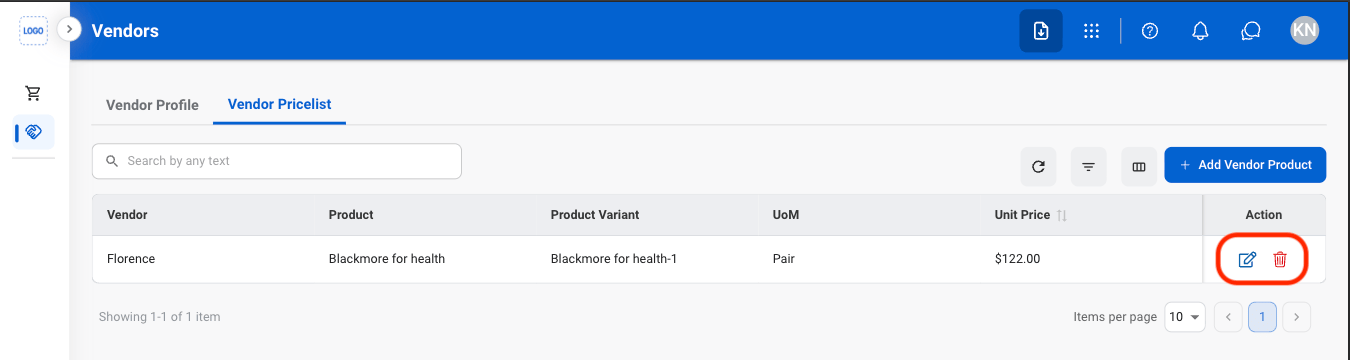
- Edit: Select the edit icon to update an existing entry
- Delete: Select the trash icon to delete an existing entry.
Confirm the action
- Edit: Fill in the required information. Select Save to complete or Cancel to exit without saving changes.
- Delete: Select Delete to complete or Cancel to exit without saving changes.