
Add to Product Catalog
1
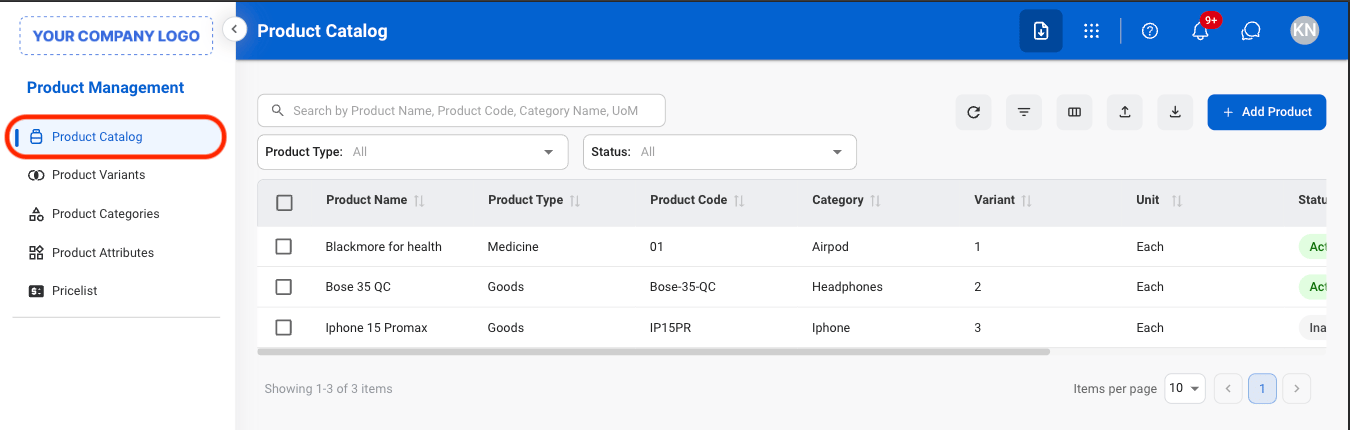
Navigate to Product Catalog
2
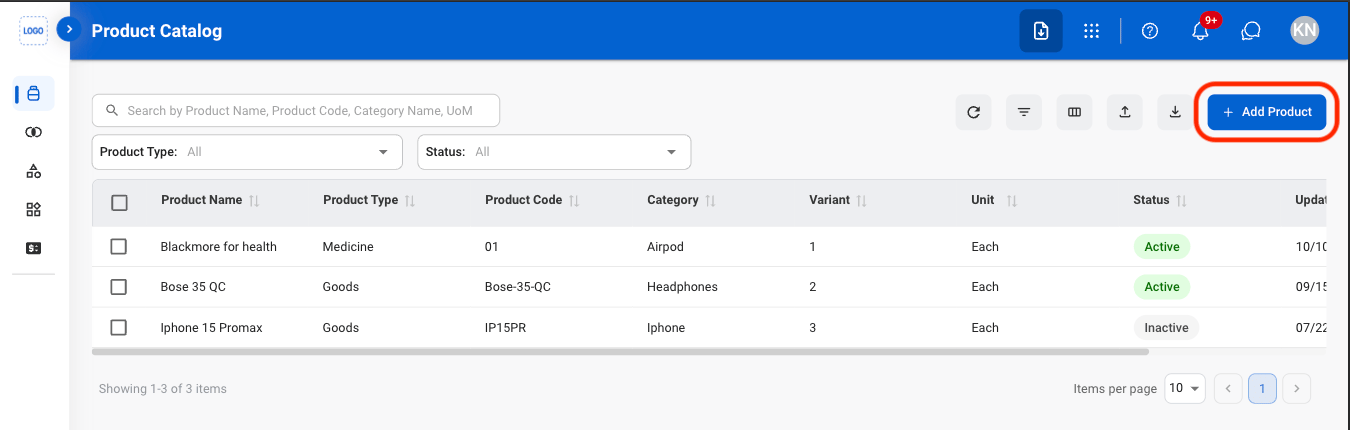
Select Add Product
3
Fill in the required information
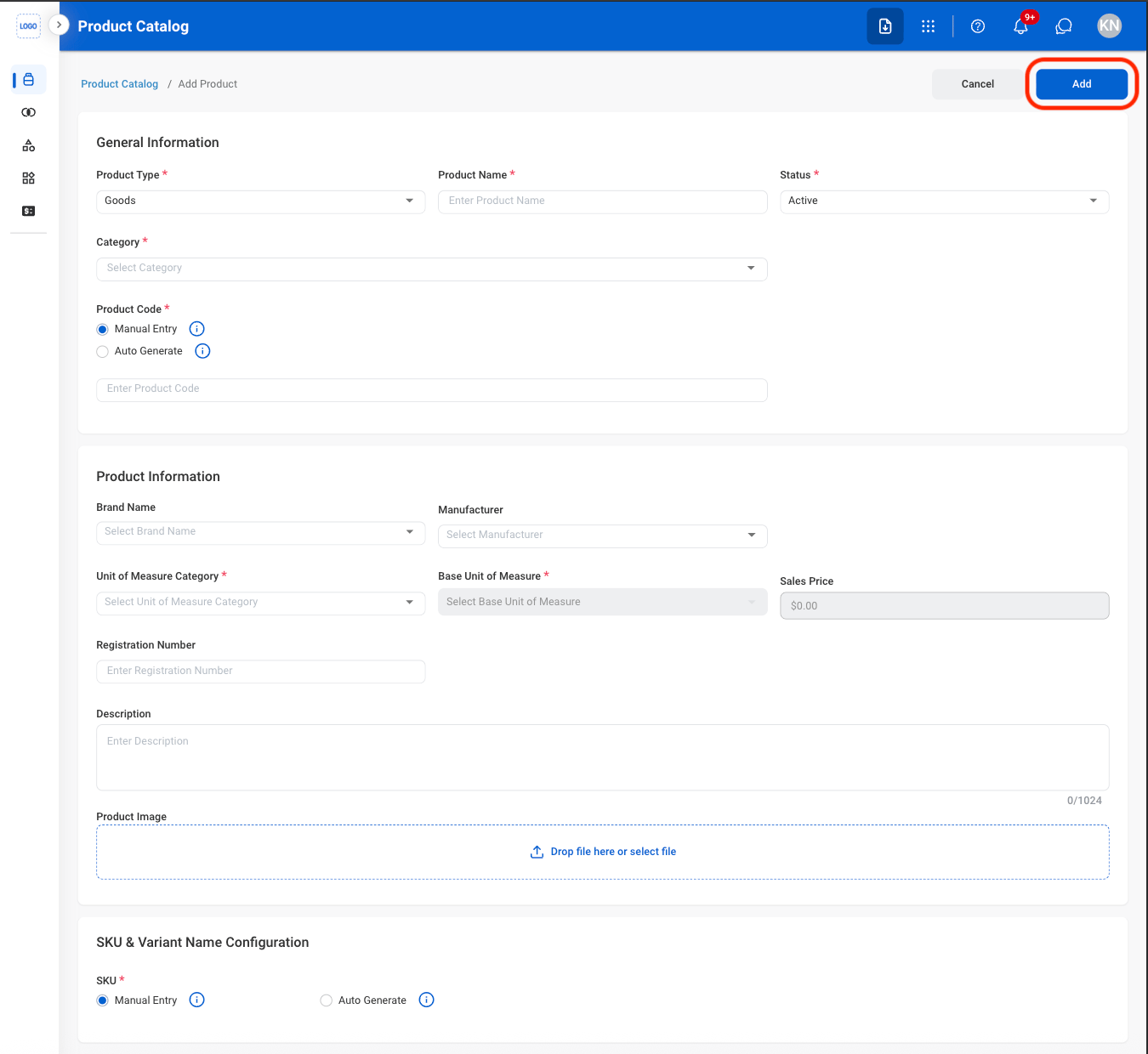
To configure Auto Generate Product Code settings, visit Administration Management > Document Number > Search SKU > Edit SKU Document.
Modify a Product
1
Select an action
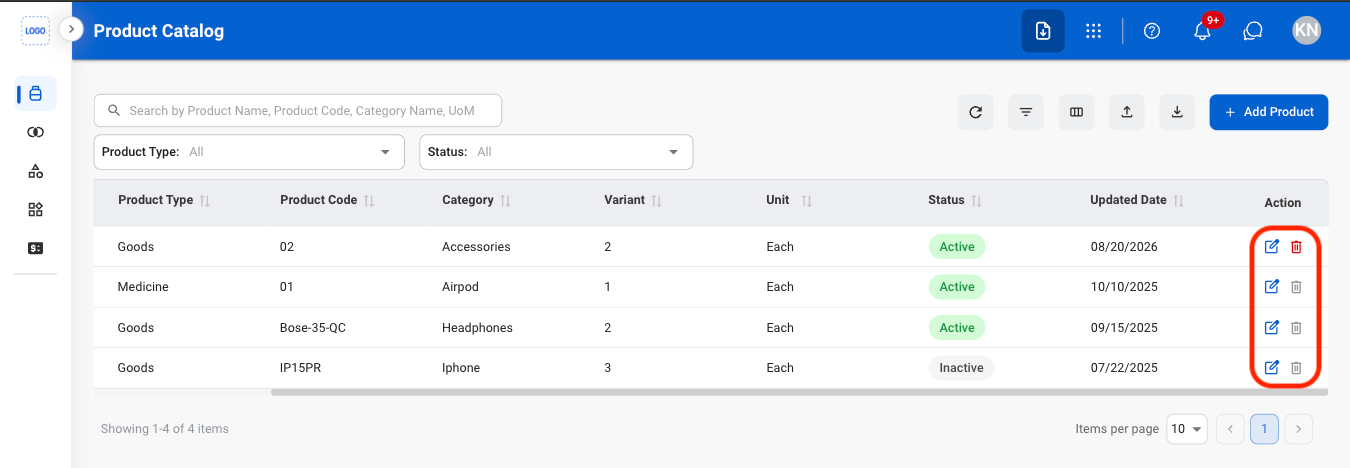
- Edit: Update a product’s details.
- Delete: Permanently remove a product.
2
Confirm the action
To configure Unit of Measure, visit Admin Module > Settings > Unit of Measure.
- Edit: Fill in the required information. Select Save to complete or Cancel to exit without saving changes.
- Delete: Select Delete to complete or Cancel to exit without saving changes.
Products with documented stock in / out records cannot be deleted.
Product Information
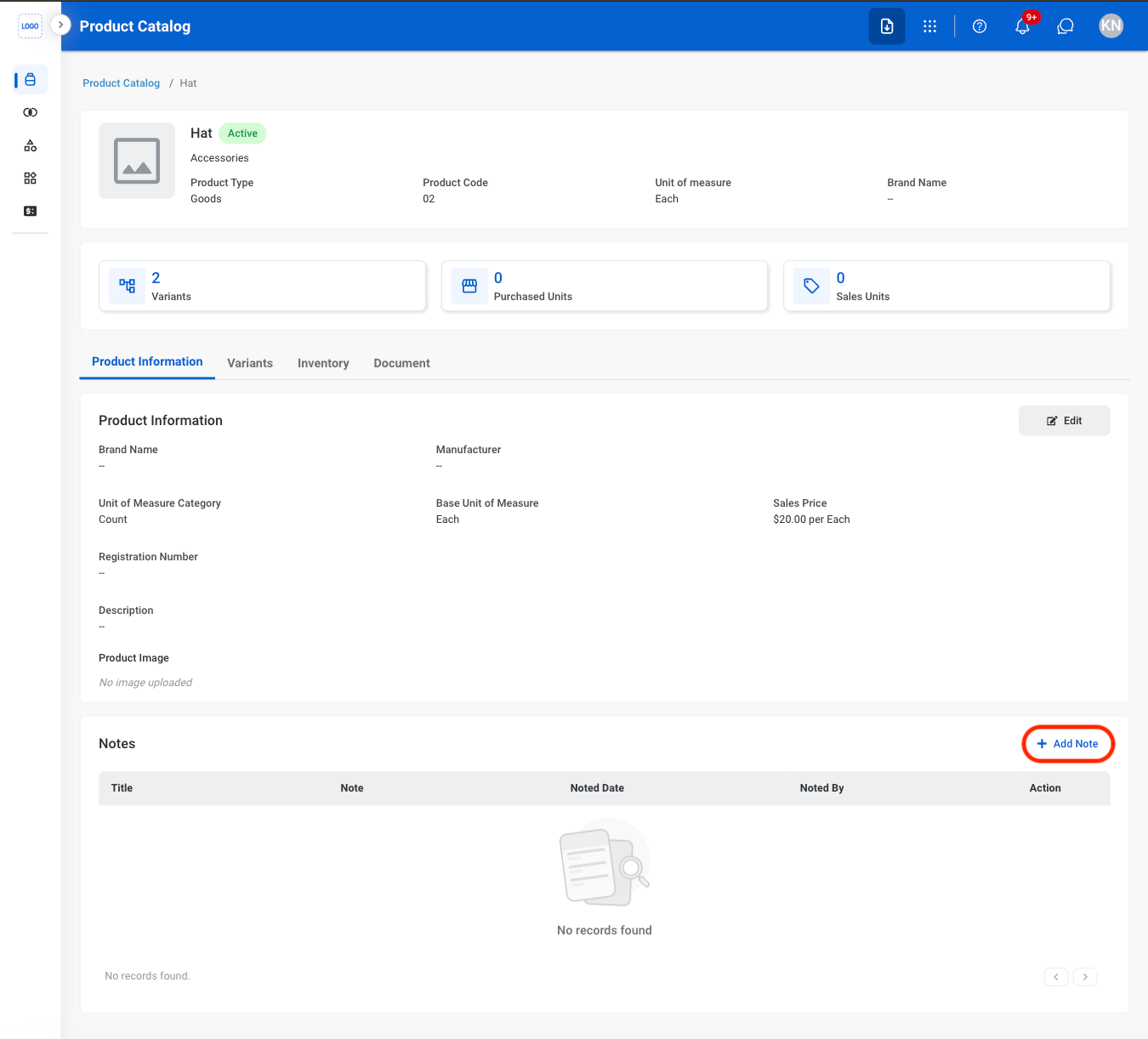
Add a Product Note
1
Select Add Note
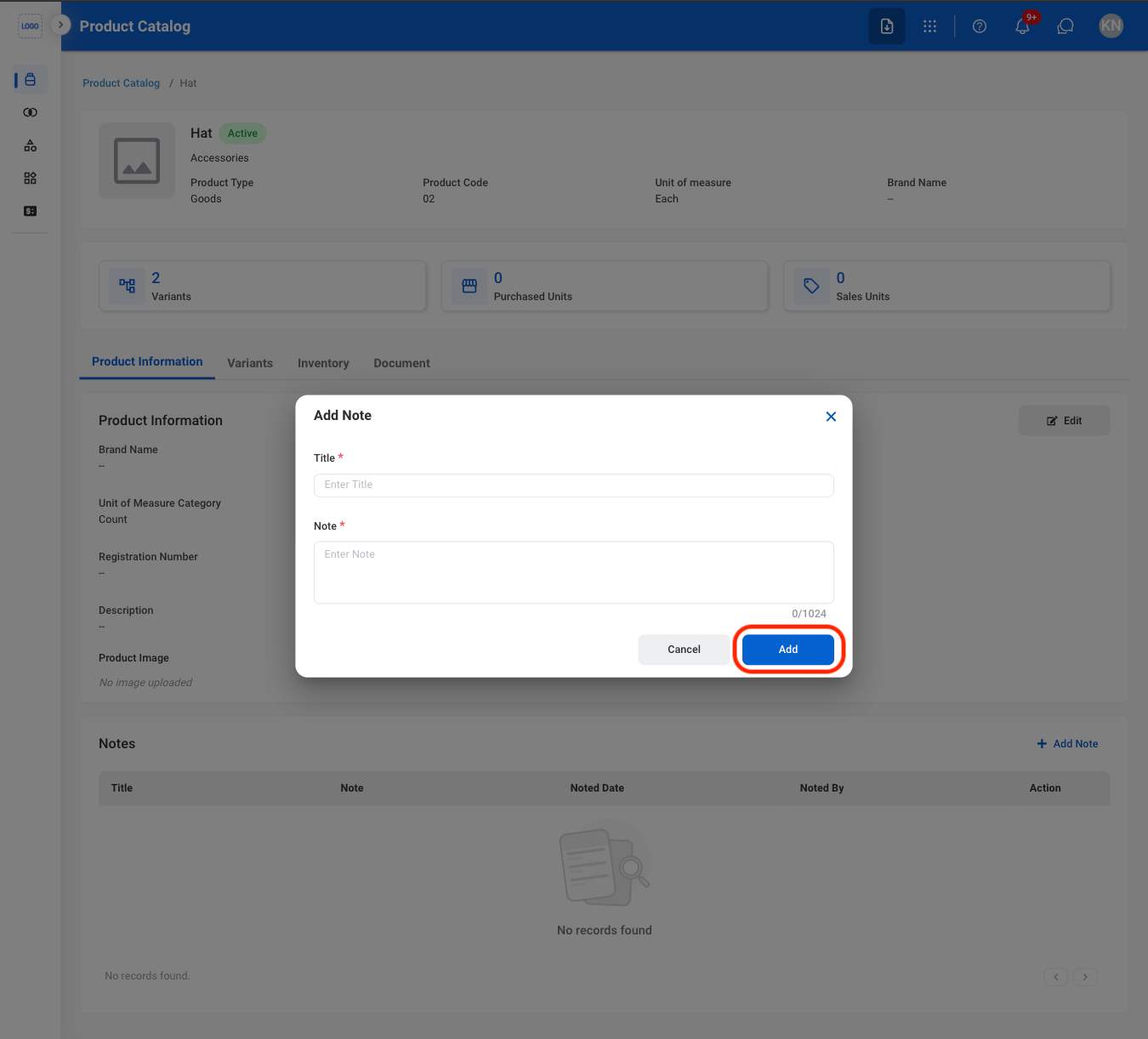
2
Fill in the required information
Variants
Add a Product Variant
To add product variants, This product has attributes must be selected when creating the product. Products created with This product has no attributes cannot have attributes added later through the Edit function.
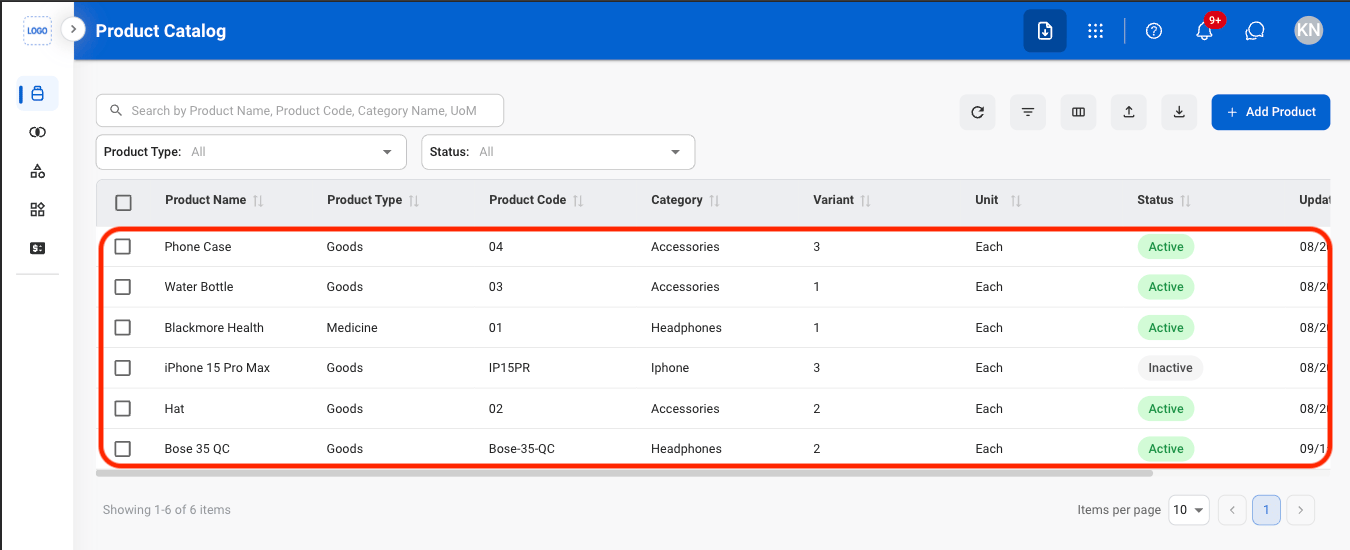
1
Select a product
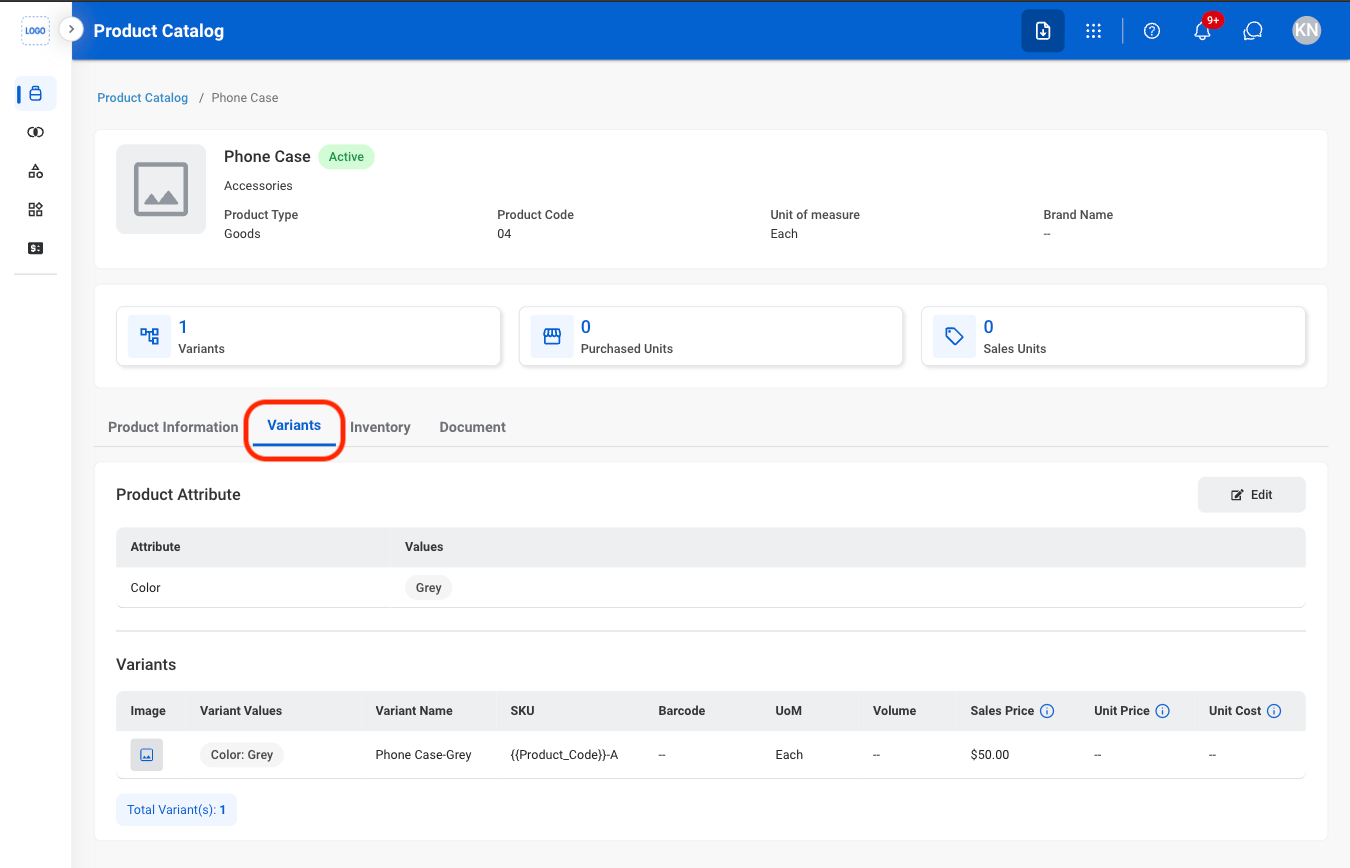
2
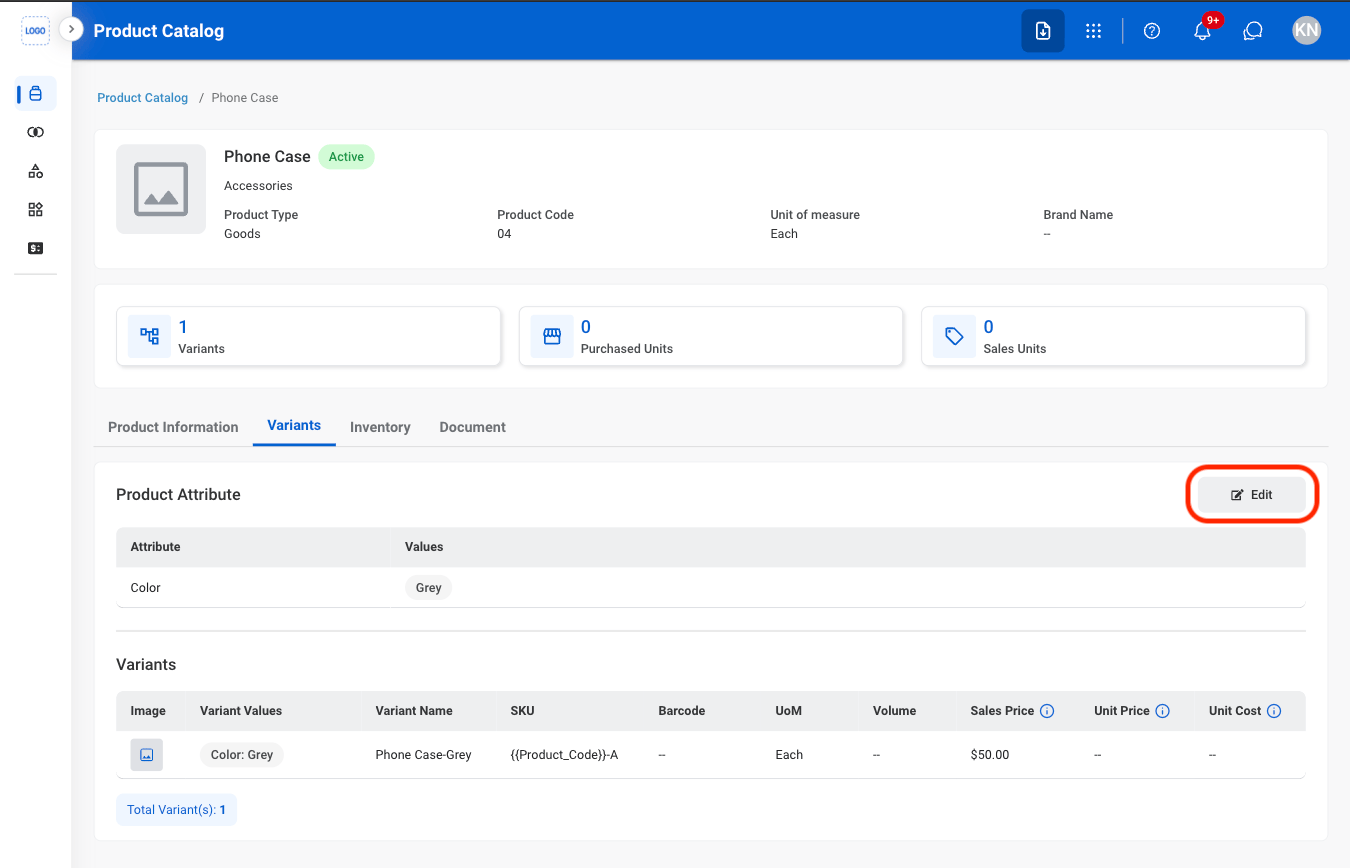
Navigate to Variants
3
Select Edit
4
Add product attribute values
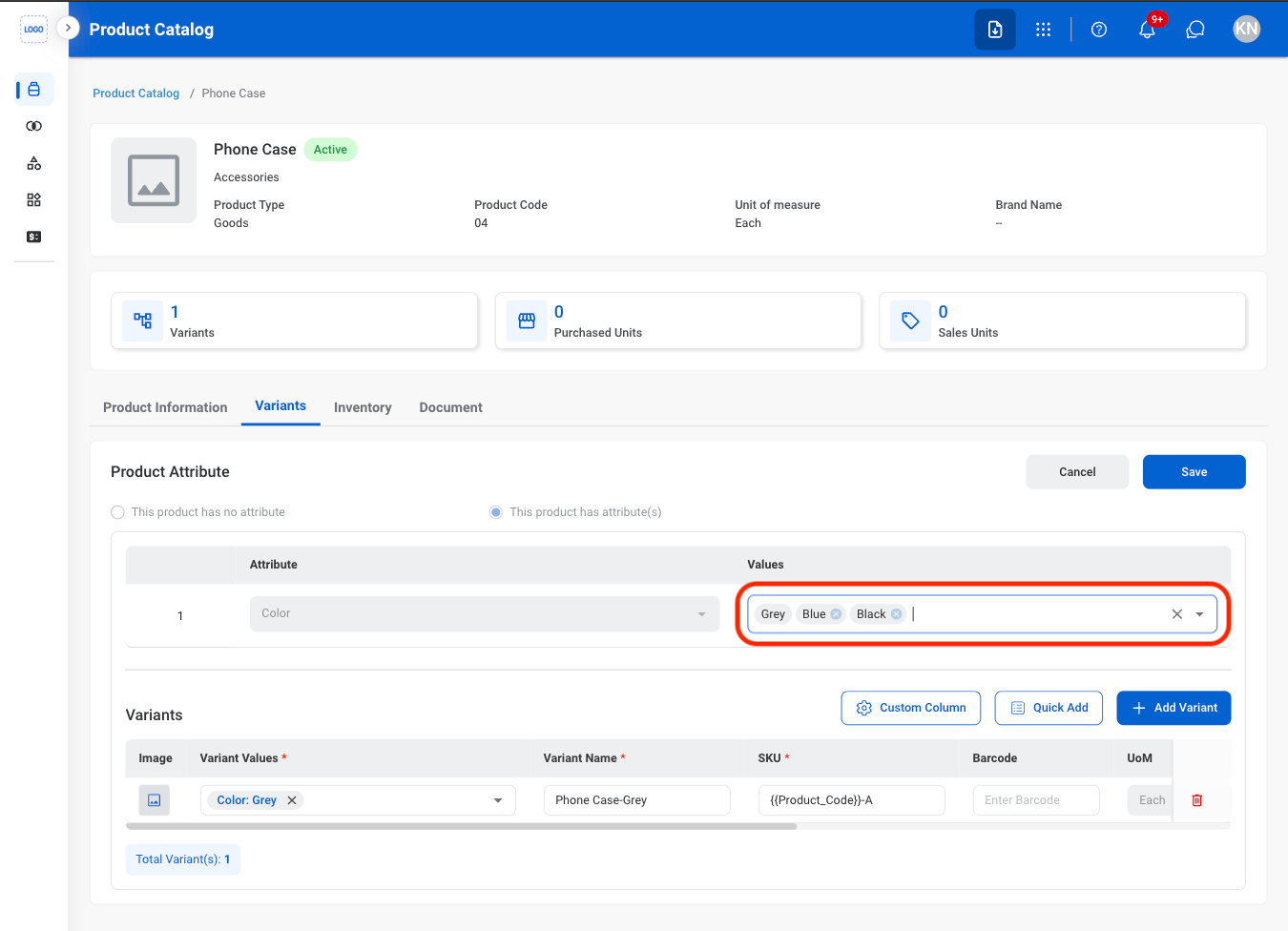
To add product attributes to the dropdown list, visit Product Management > Product Attributes.
5
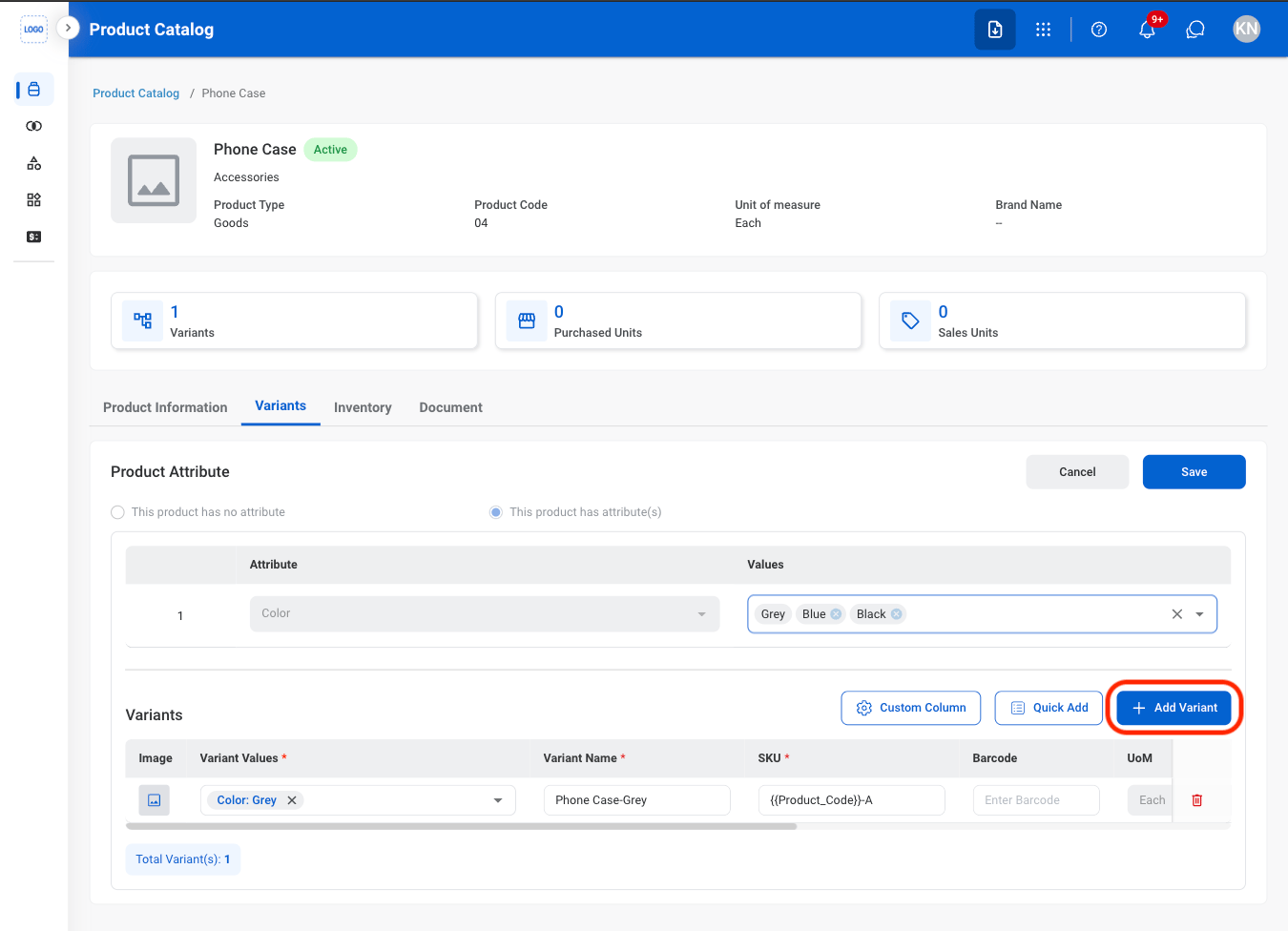
Select Add Variant
6
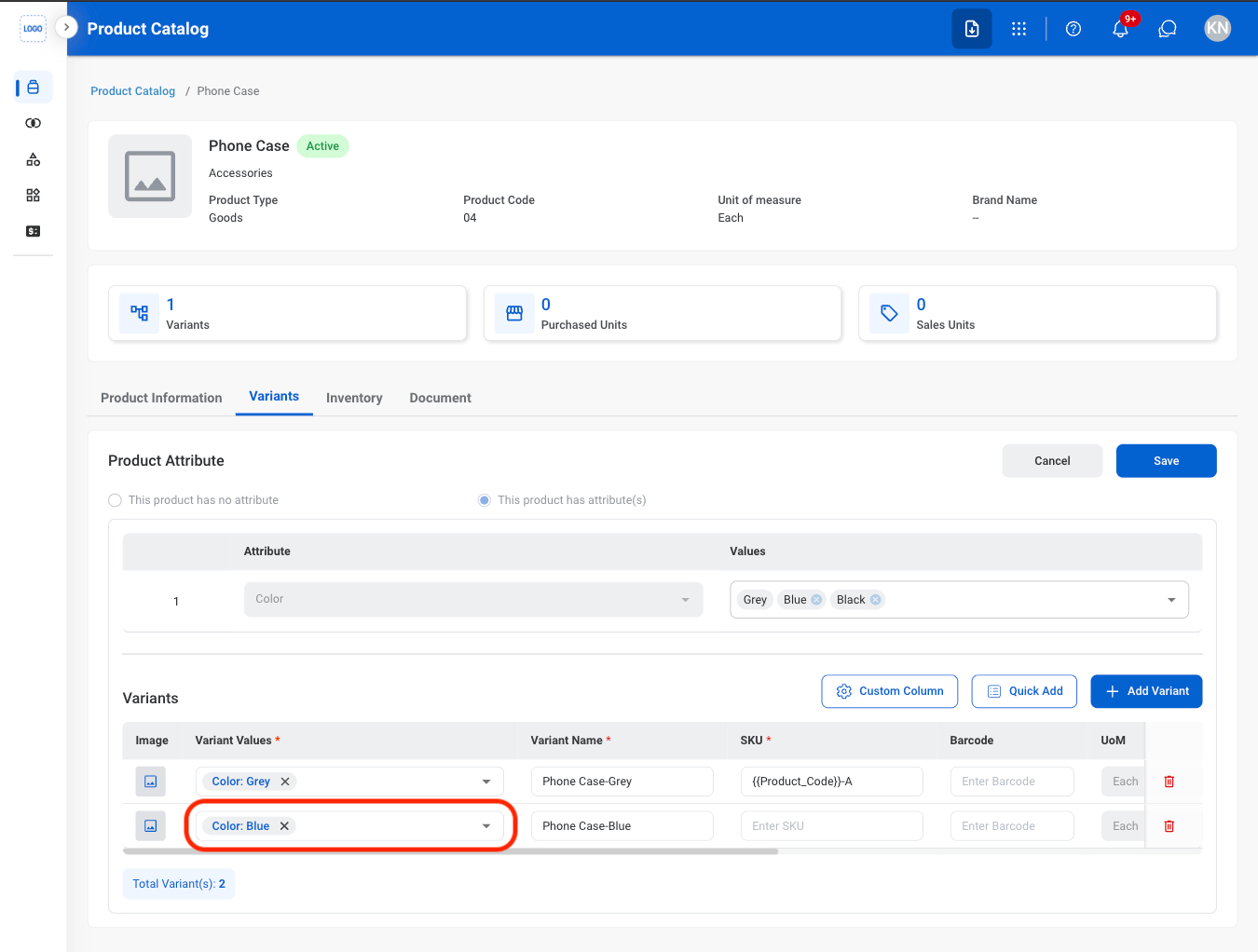
Add variant values
7
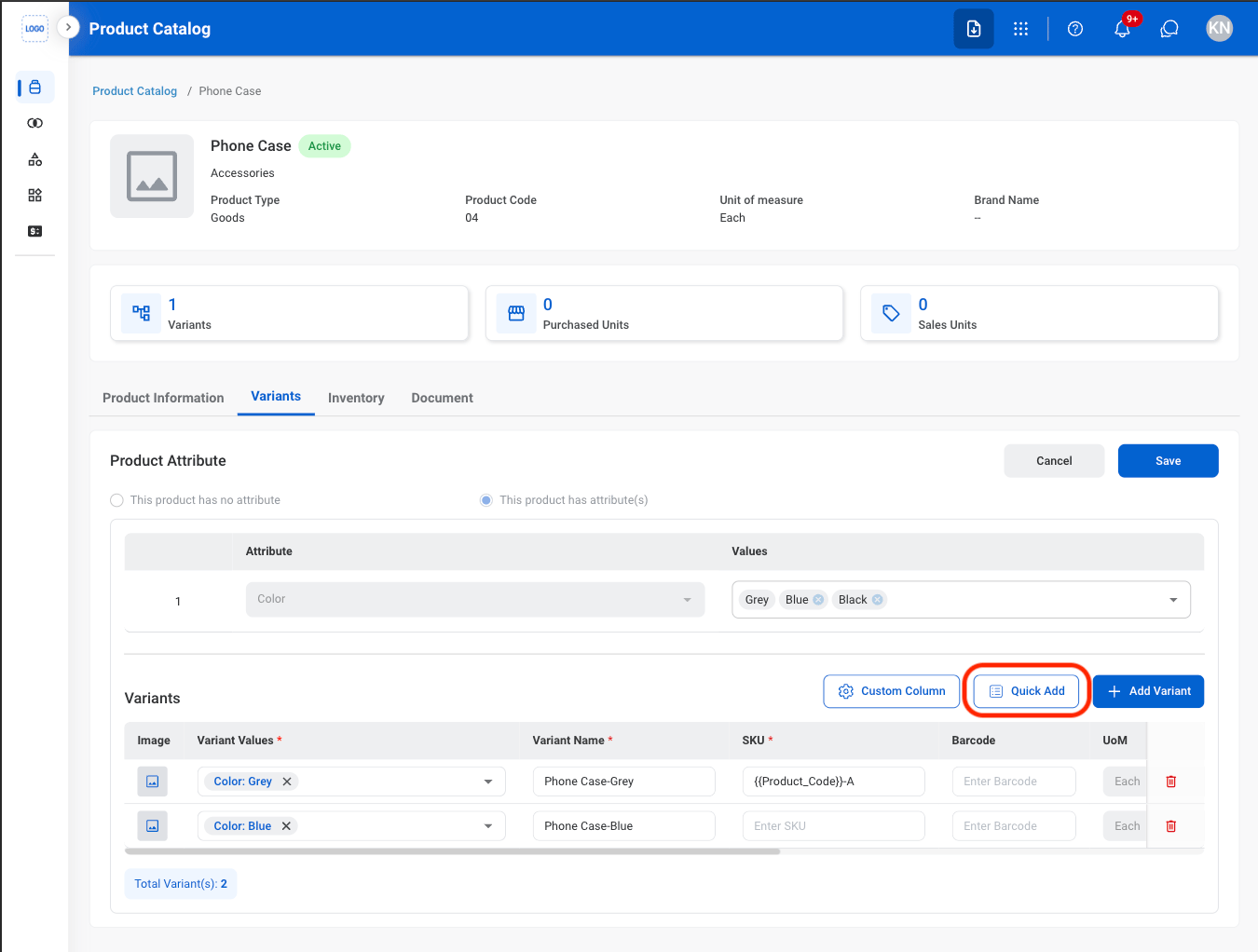
Optional: Quick Add
1
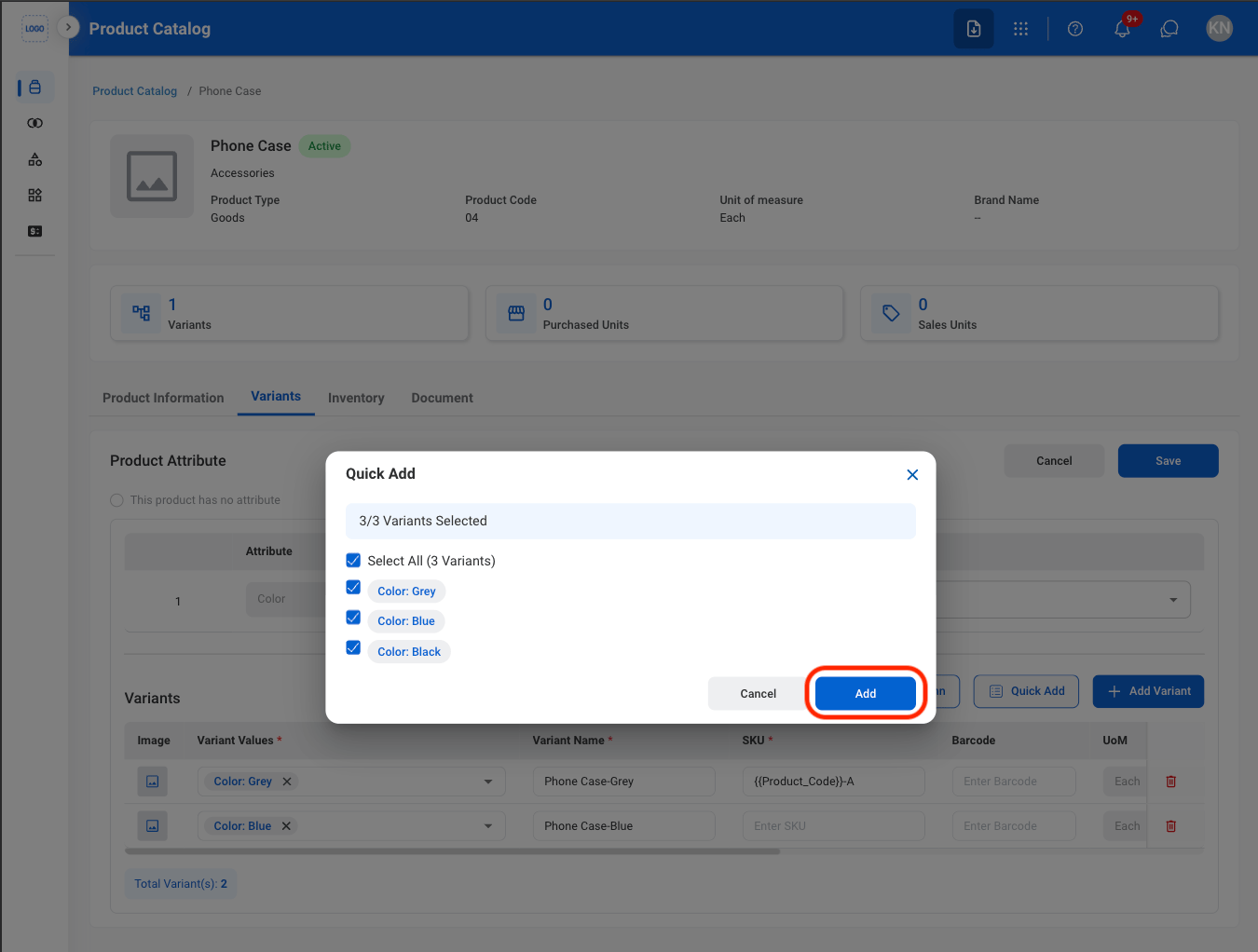
Select Quick Add to auto-add all variants
2
Select Add
8
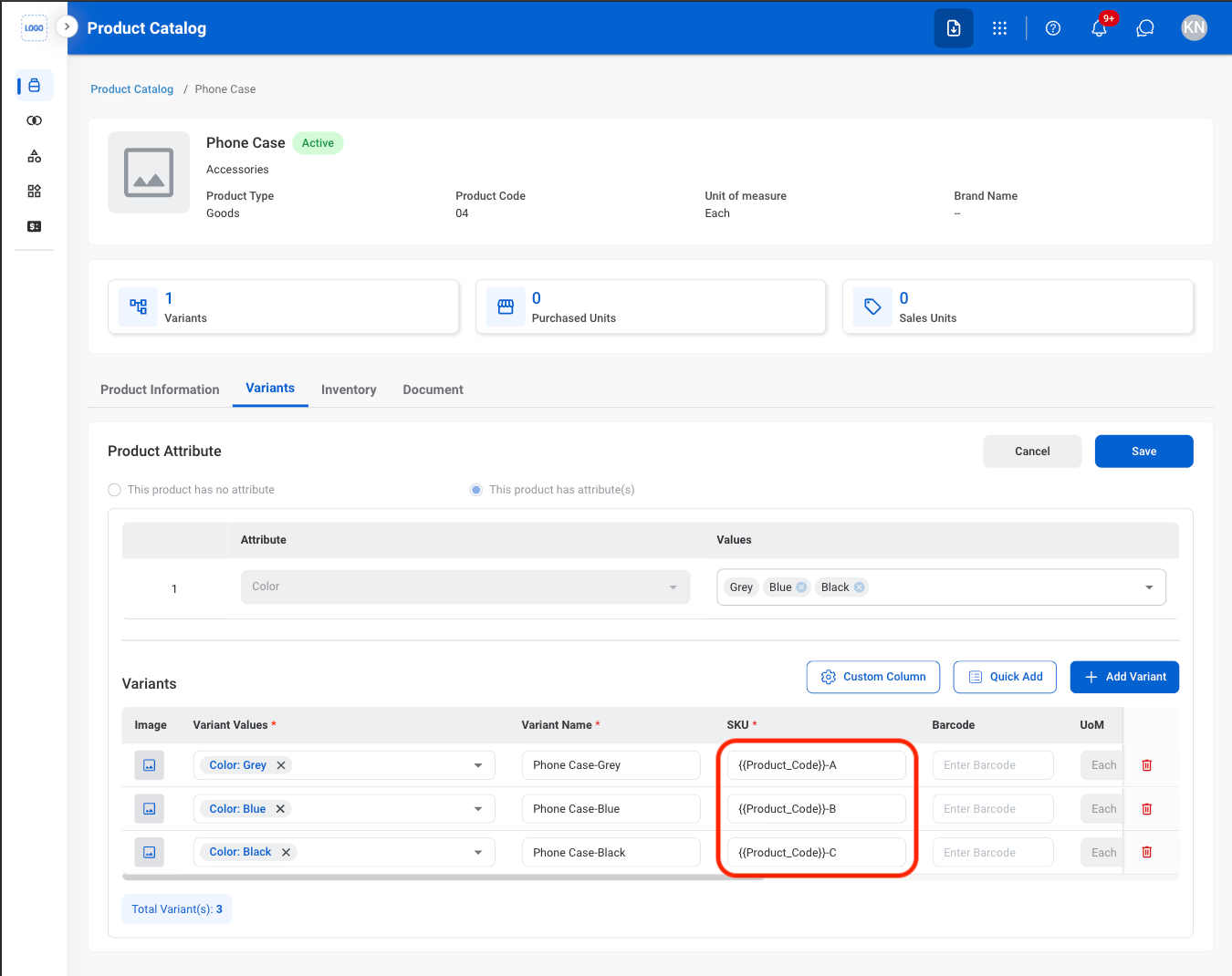
Enter variant SKU
9
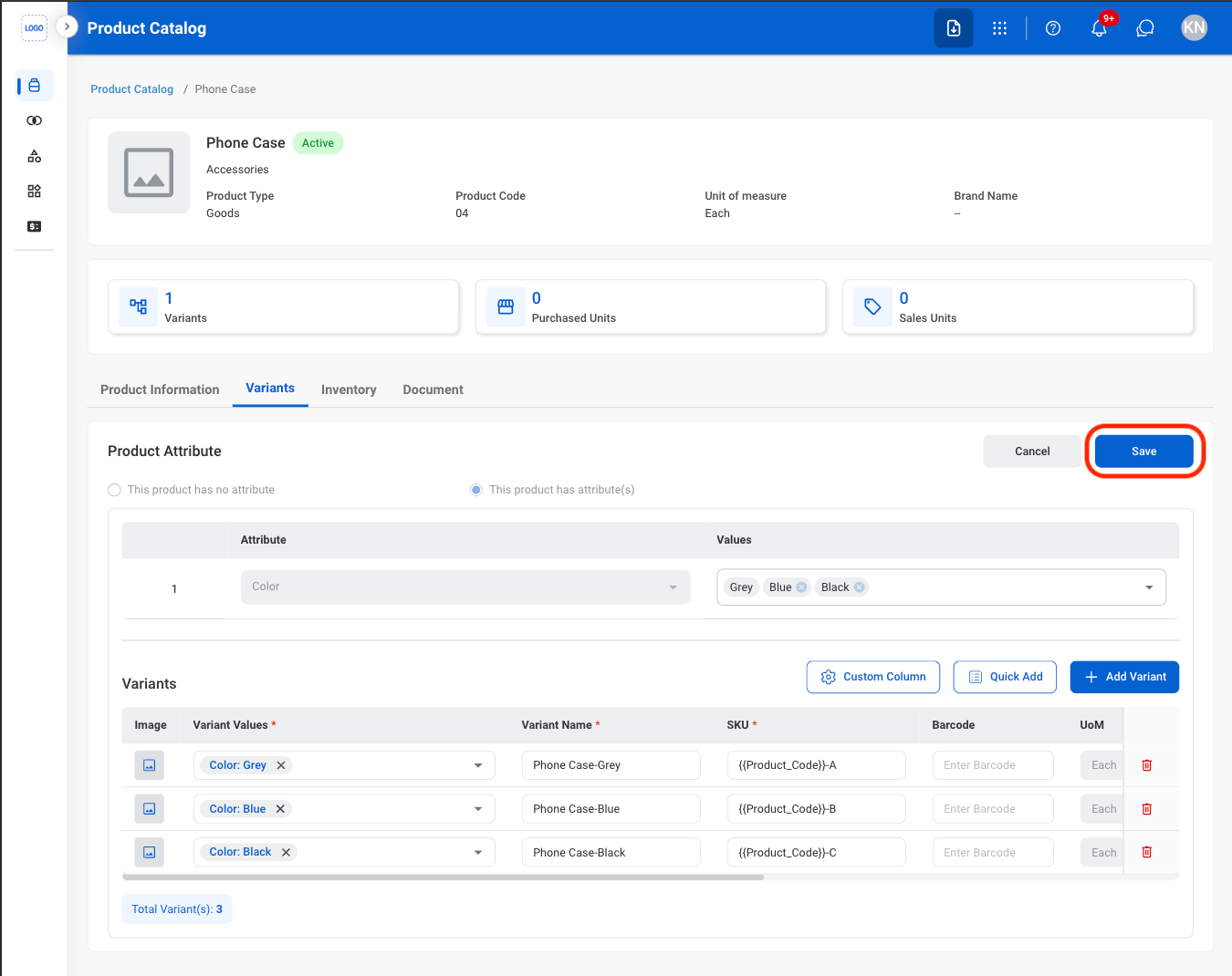
Select Save
Inventory
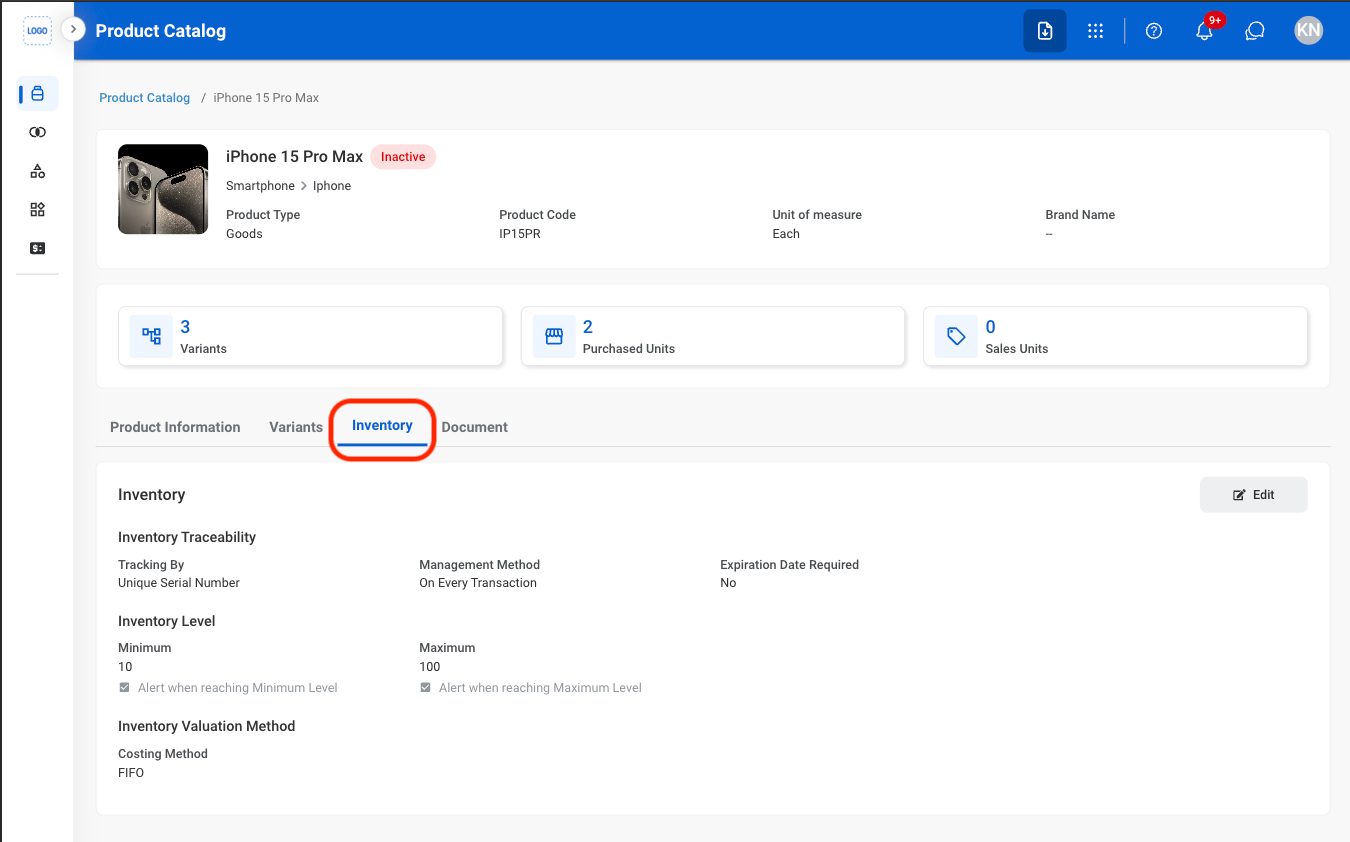
View Inventory
1
Navigate to Inventory
Document
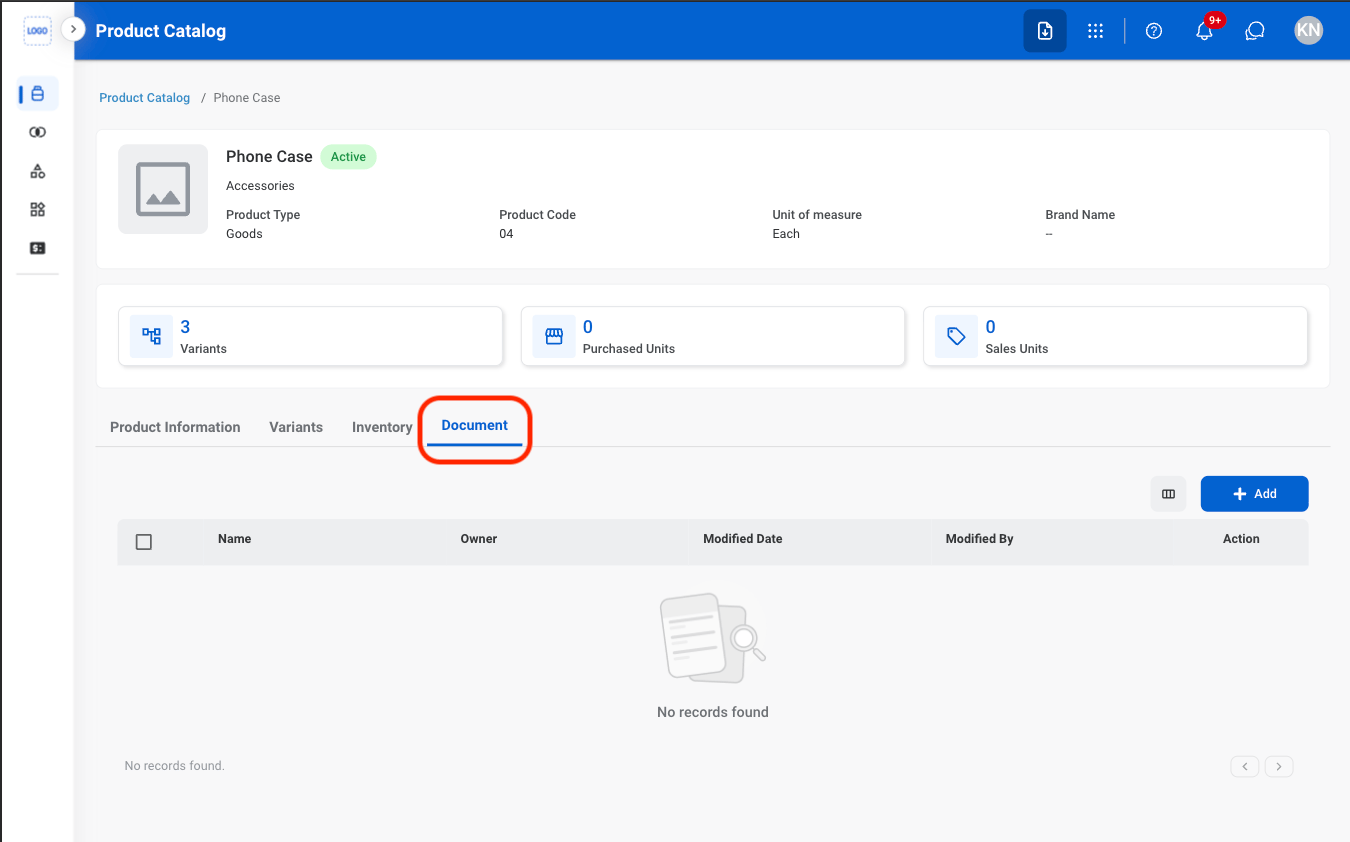
Add Documents
1
Navigate to Document
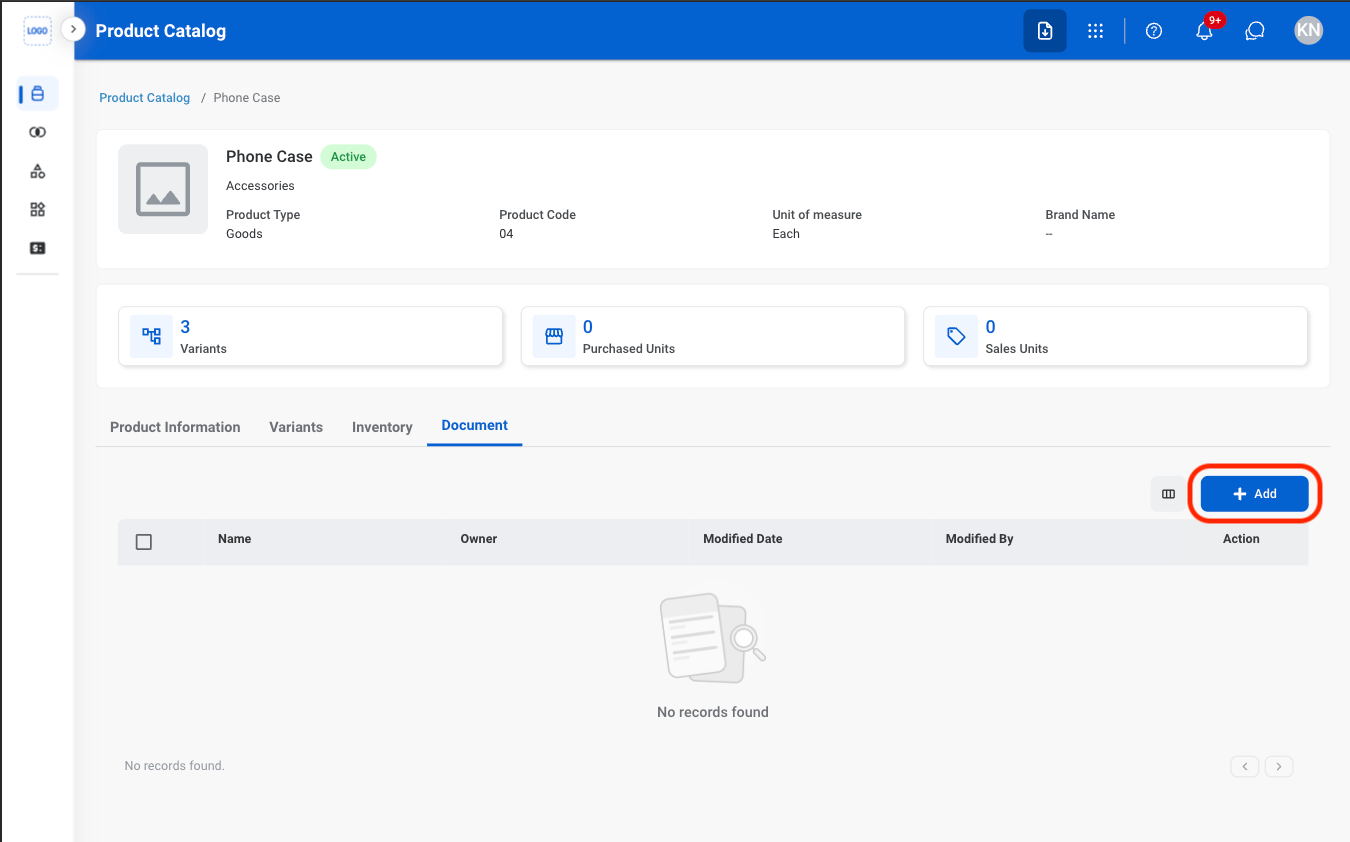
2
Select Add
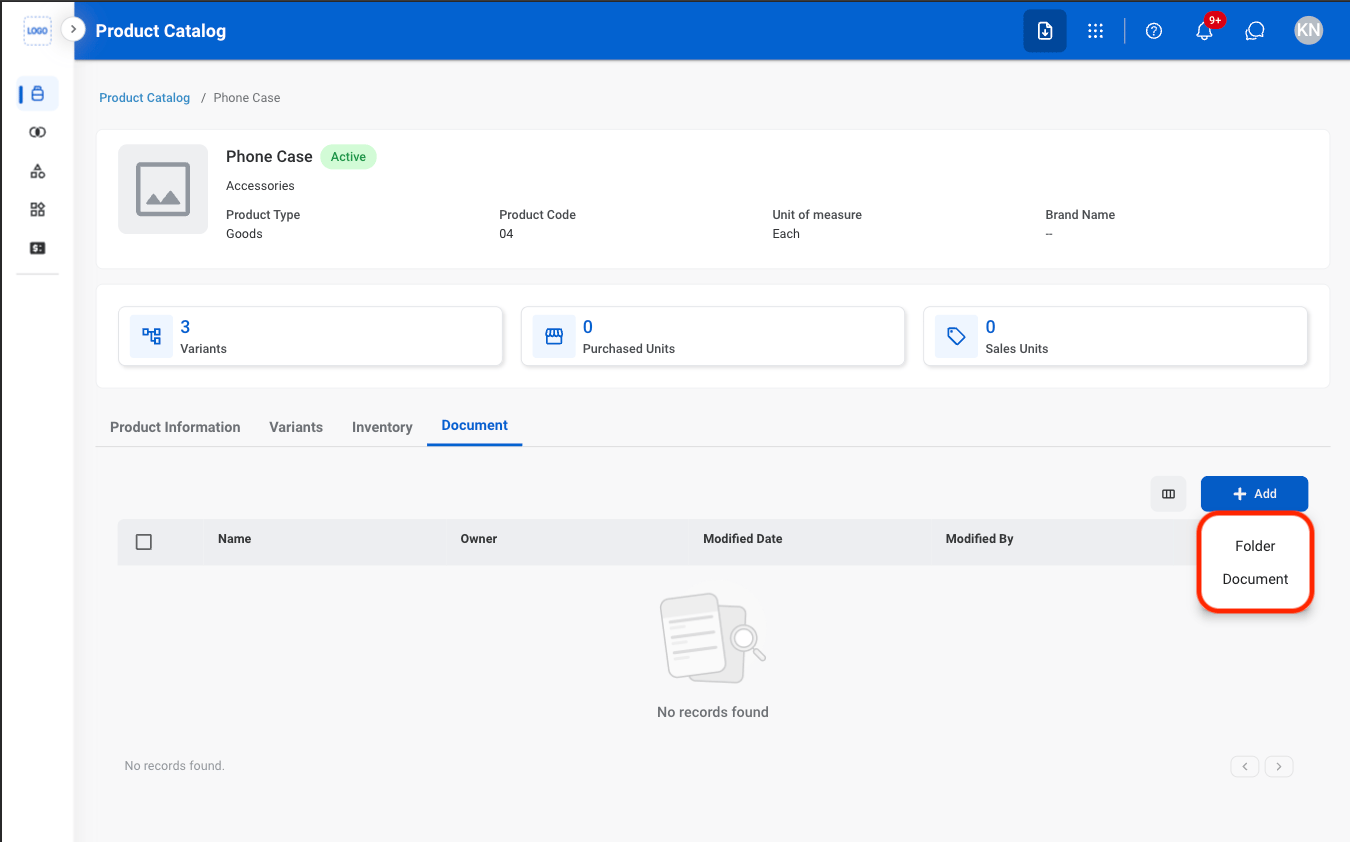
3
Select a file type
4
Fill in the required information
Select Save to complete or Cancel to exit without saving changes.