Add a Lead
1
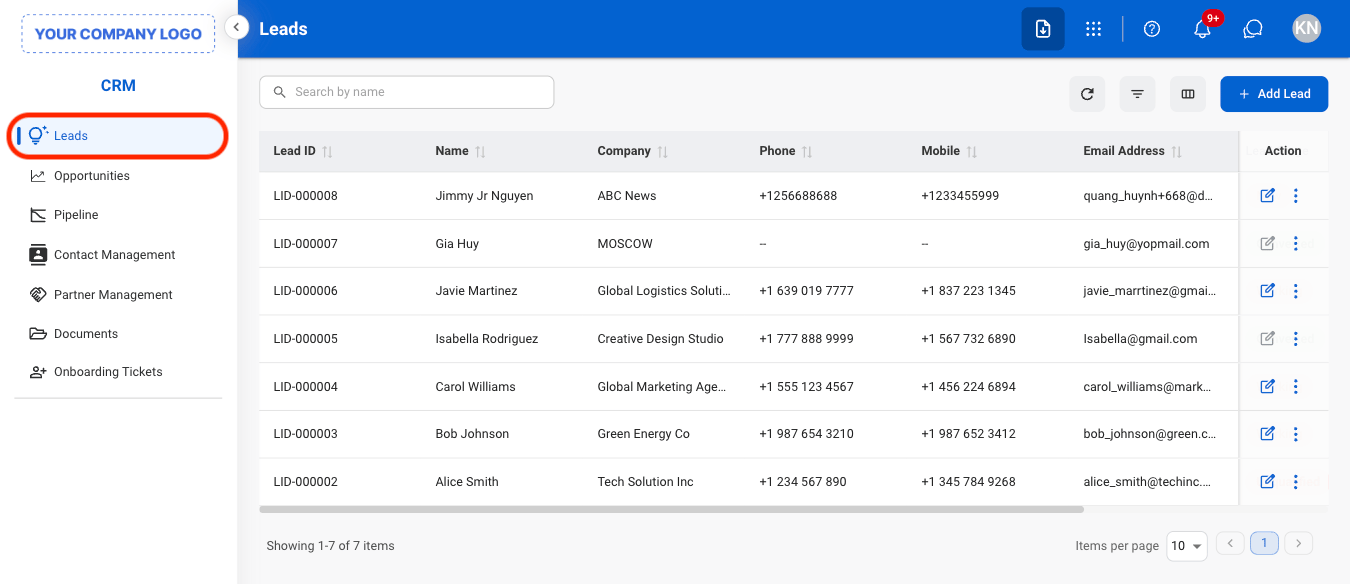
Navigate to Leads
2
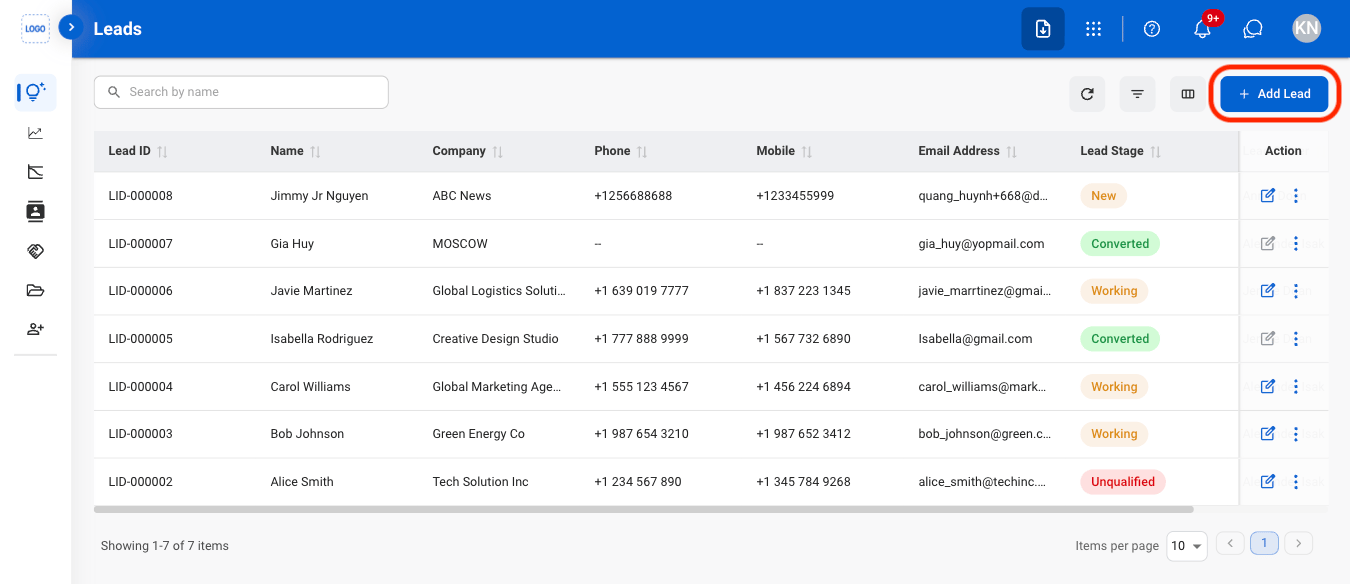
Select Add Lead
3
Fill in the required information
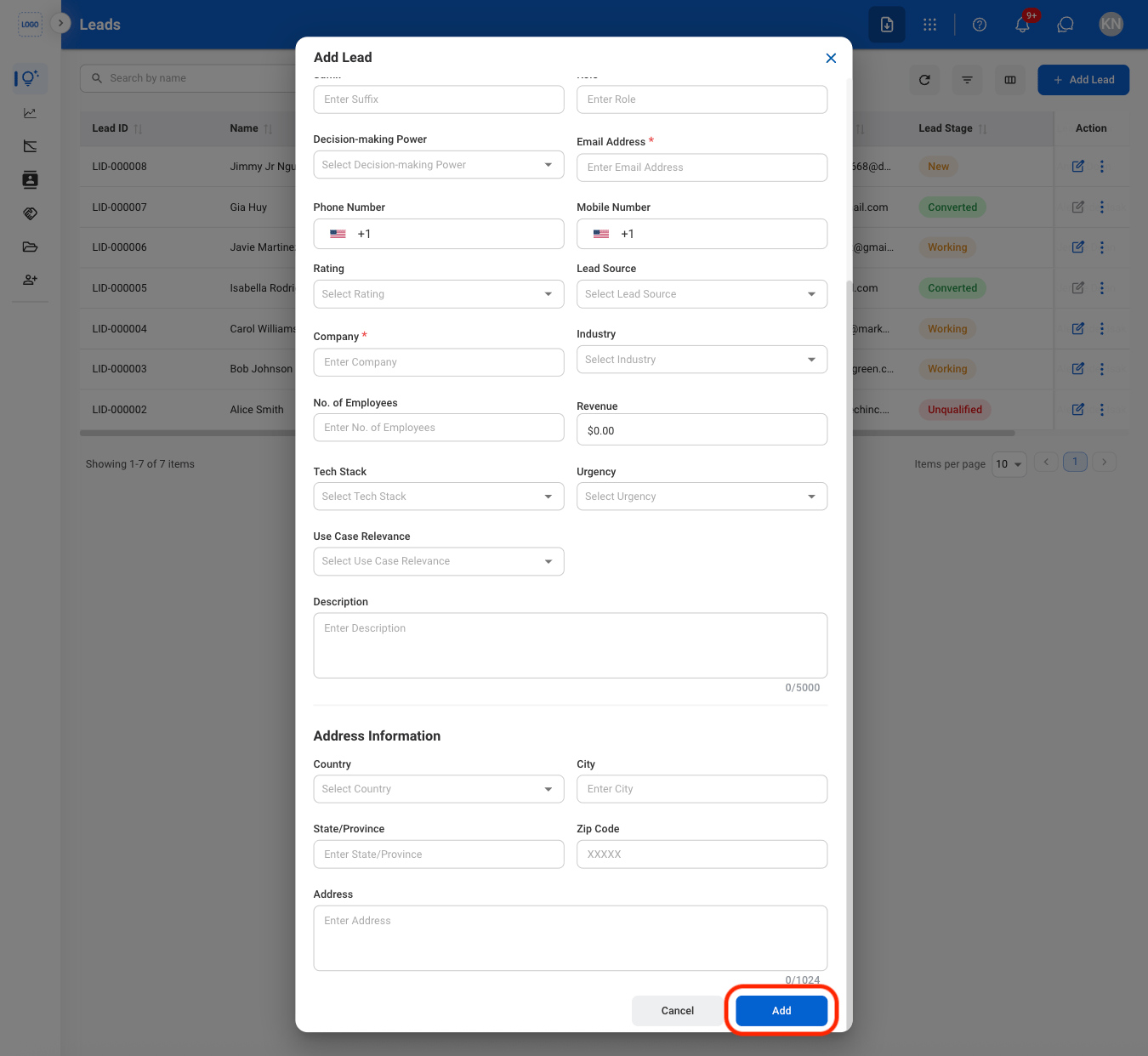
When a lead is added, a corresponding contact is automatically created in the Contact Management section.
If a duplicate entry is detected, the system will ask for confirmation to continue before creating a new entry.
Modify a Lead
1
Select an action
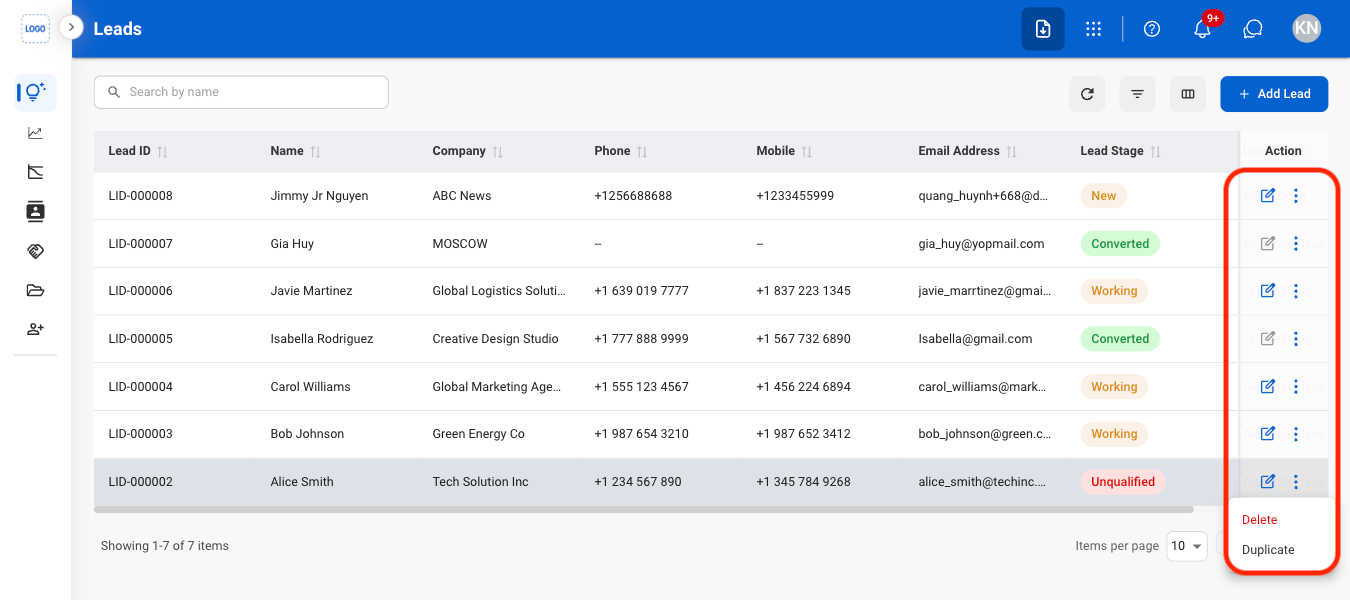
Only leads that have not been converted to opportunities can be edited or deleted.
- Edit: Update lead information before it is converted to an opportunity.
- Delete: Permanently remove the lead from the system.
- Duplicate: Create a copy of the lead to use as the basis for a new lead record.
2
Confirm the action
- Edit: Fill in the required information. Select Update to complete or Cancel to exit without saving changes.
- Delete: Select Delete to complete or Cancel to exit without saving changes.
- Duplicate: Fill in the required information. Select Save to complete or Cancel to exit without saving changes.
Activity
Add Activity
1
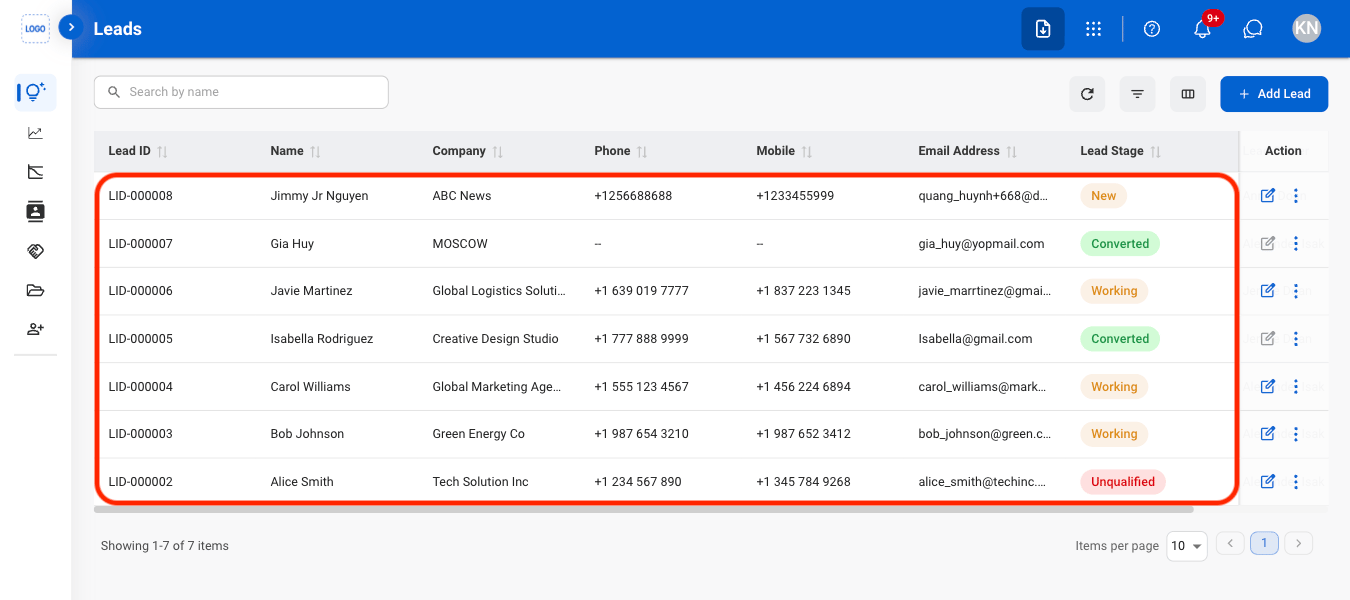
Select a Lead
2
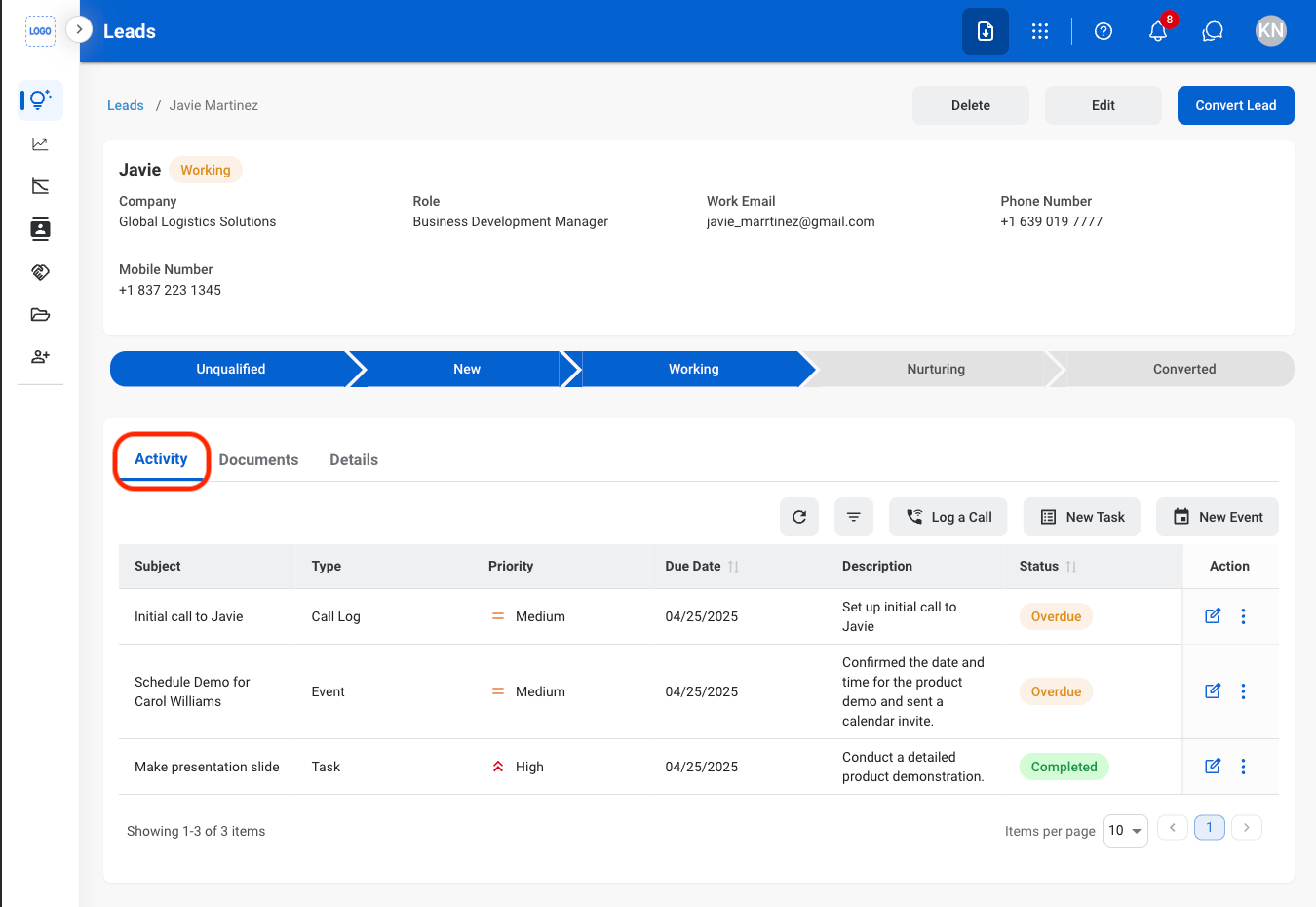
Navigate to Activity
3
Select an activity type
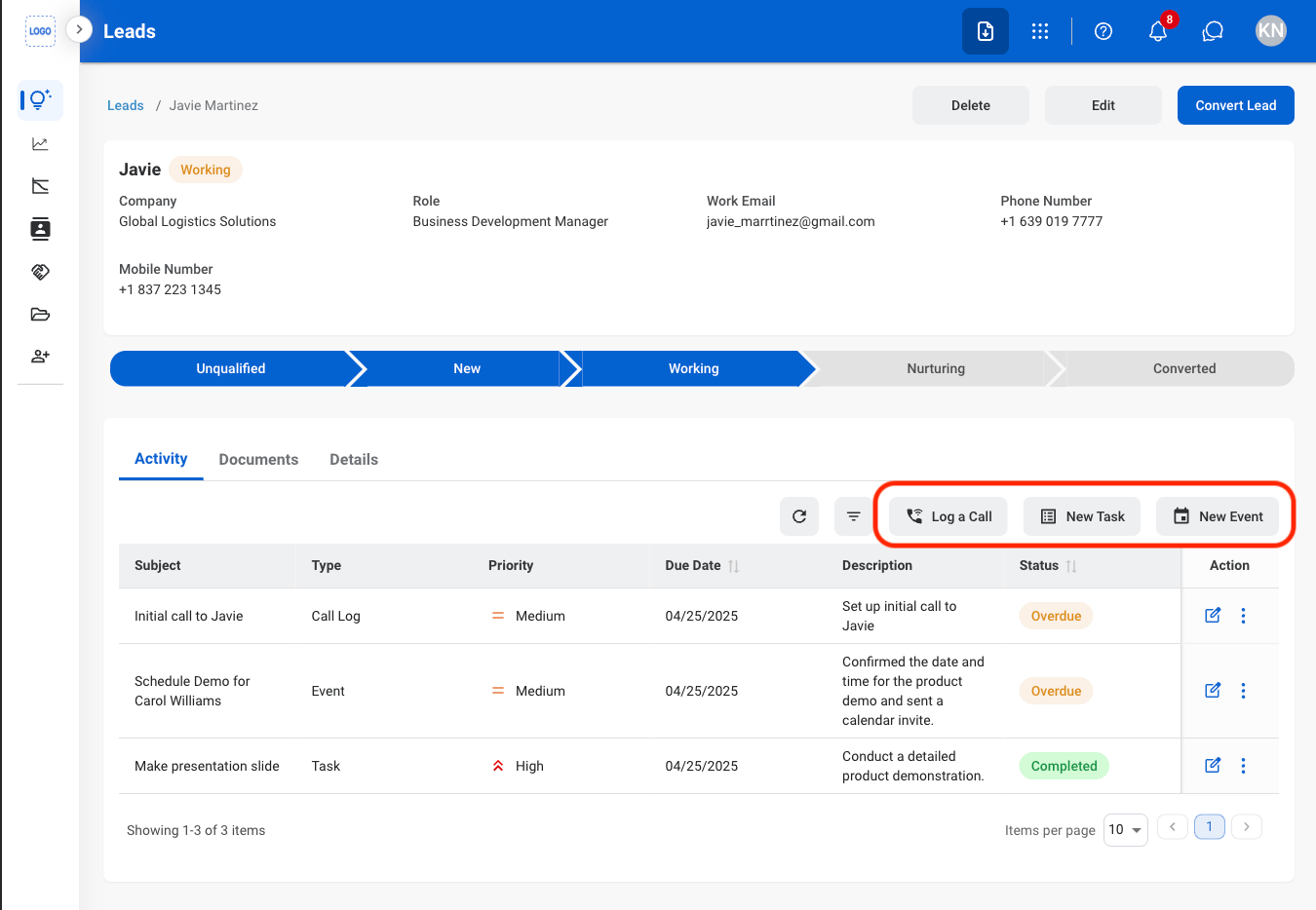
- Log a Call: Record a completed or attempted phone call and its details.
- New Task: Document a task that requires follow-up or completion.
- New Event: Note a meeting, appointment, or other time-based activity.
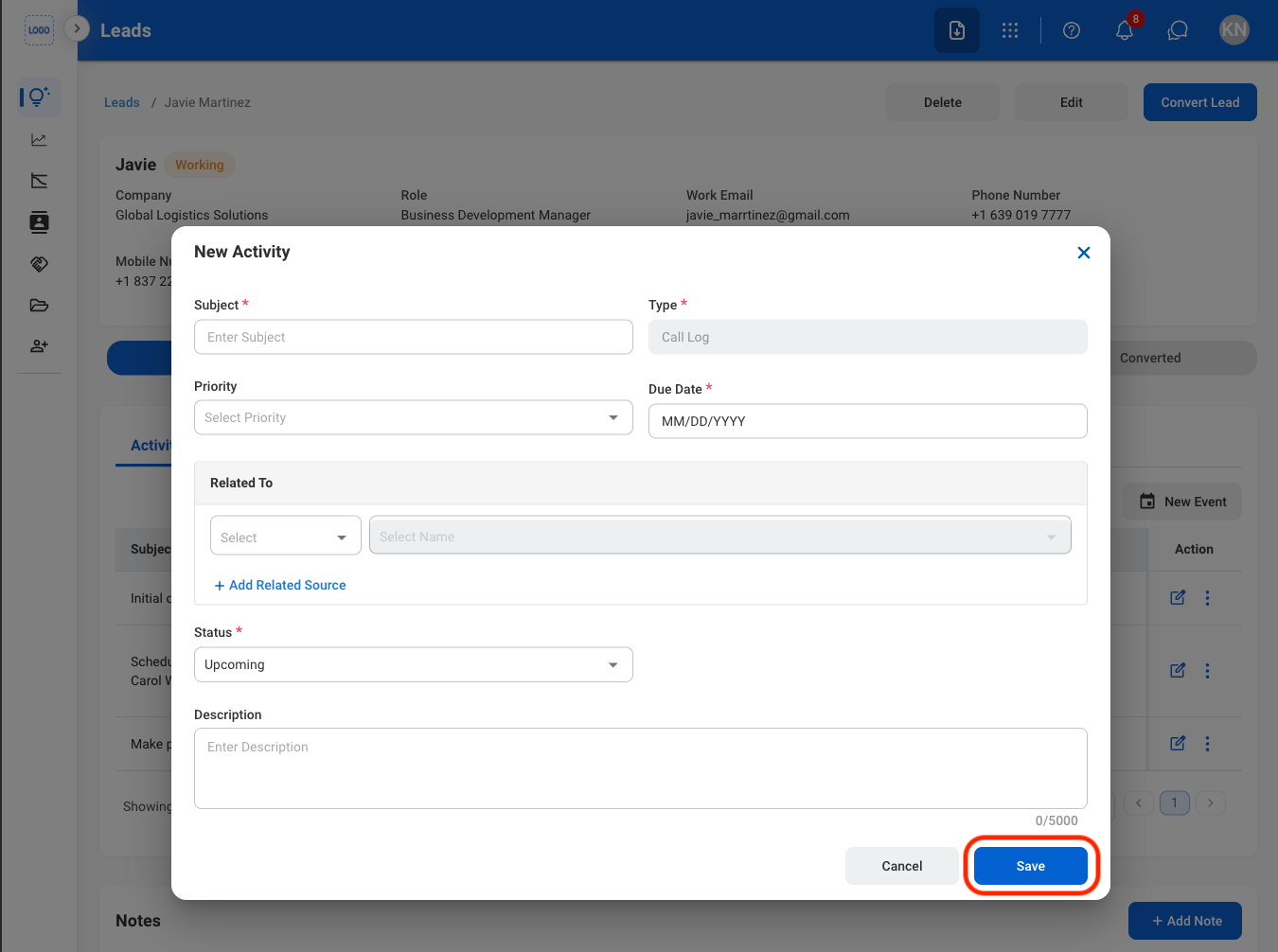
4
Fill in the required information
Add a Note
1
Navigate to Activity
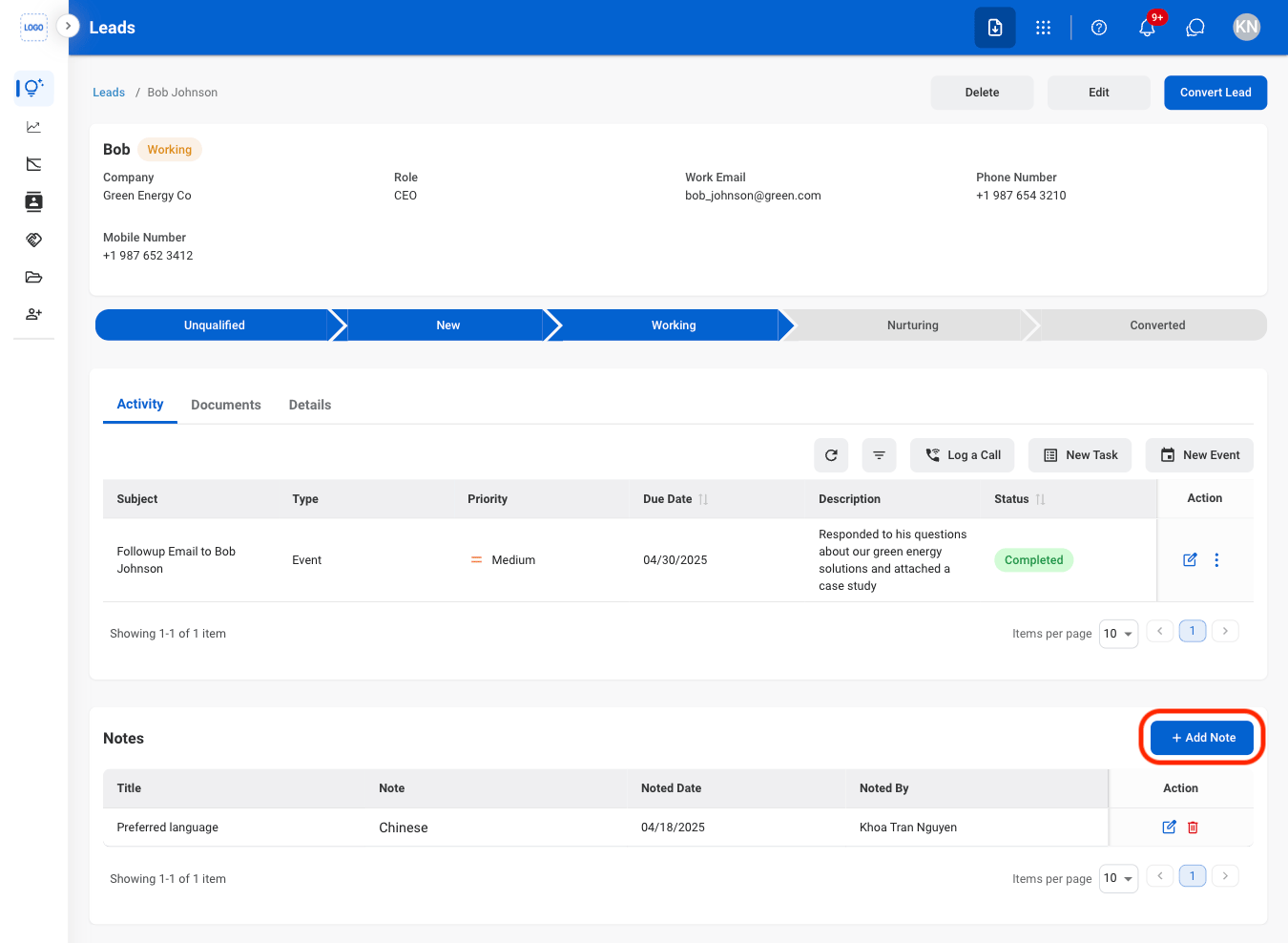
2
Select Add Note
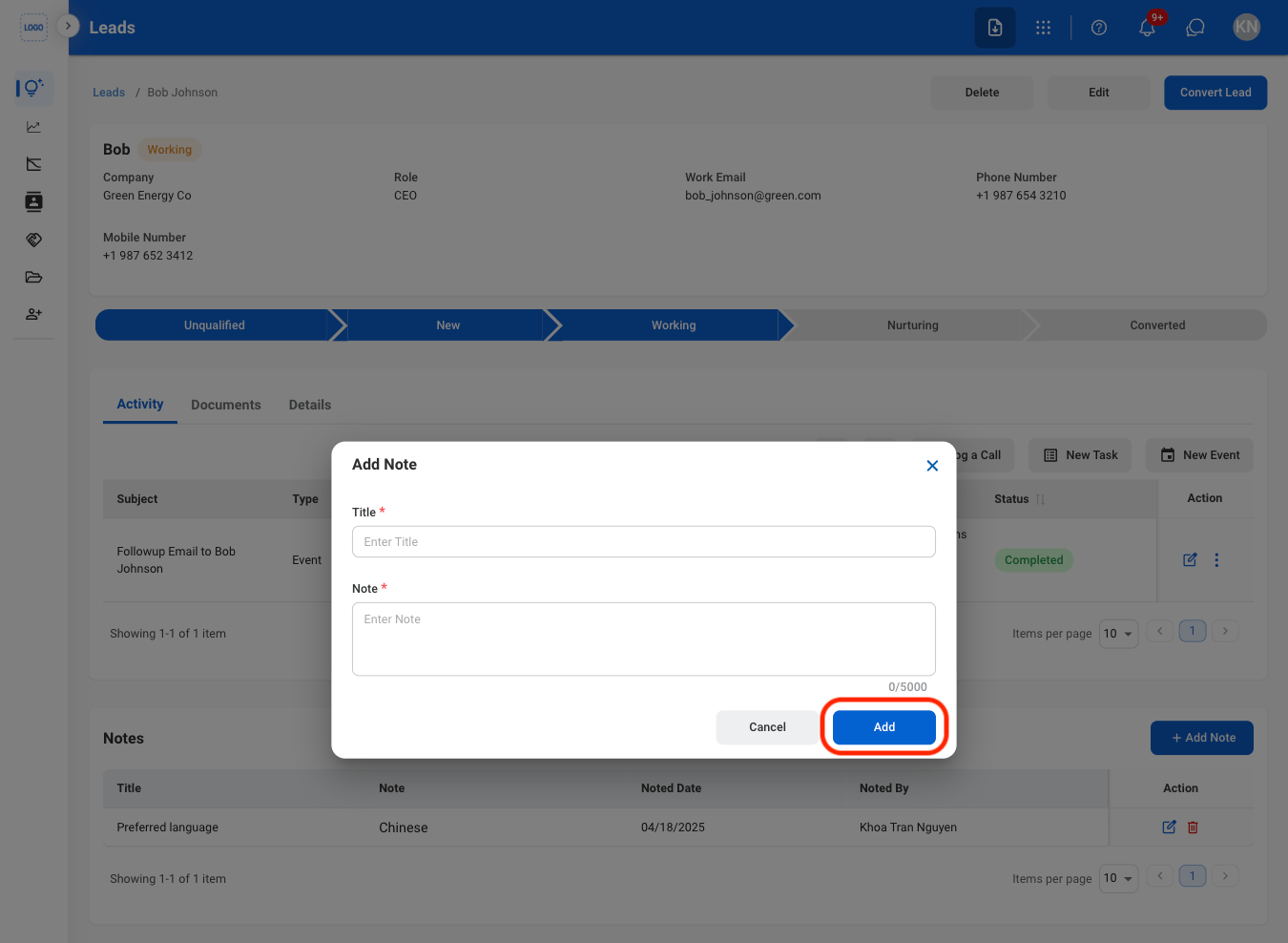
3
Fill in the required information
Document
Add a Document
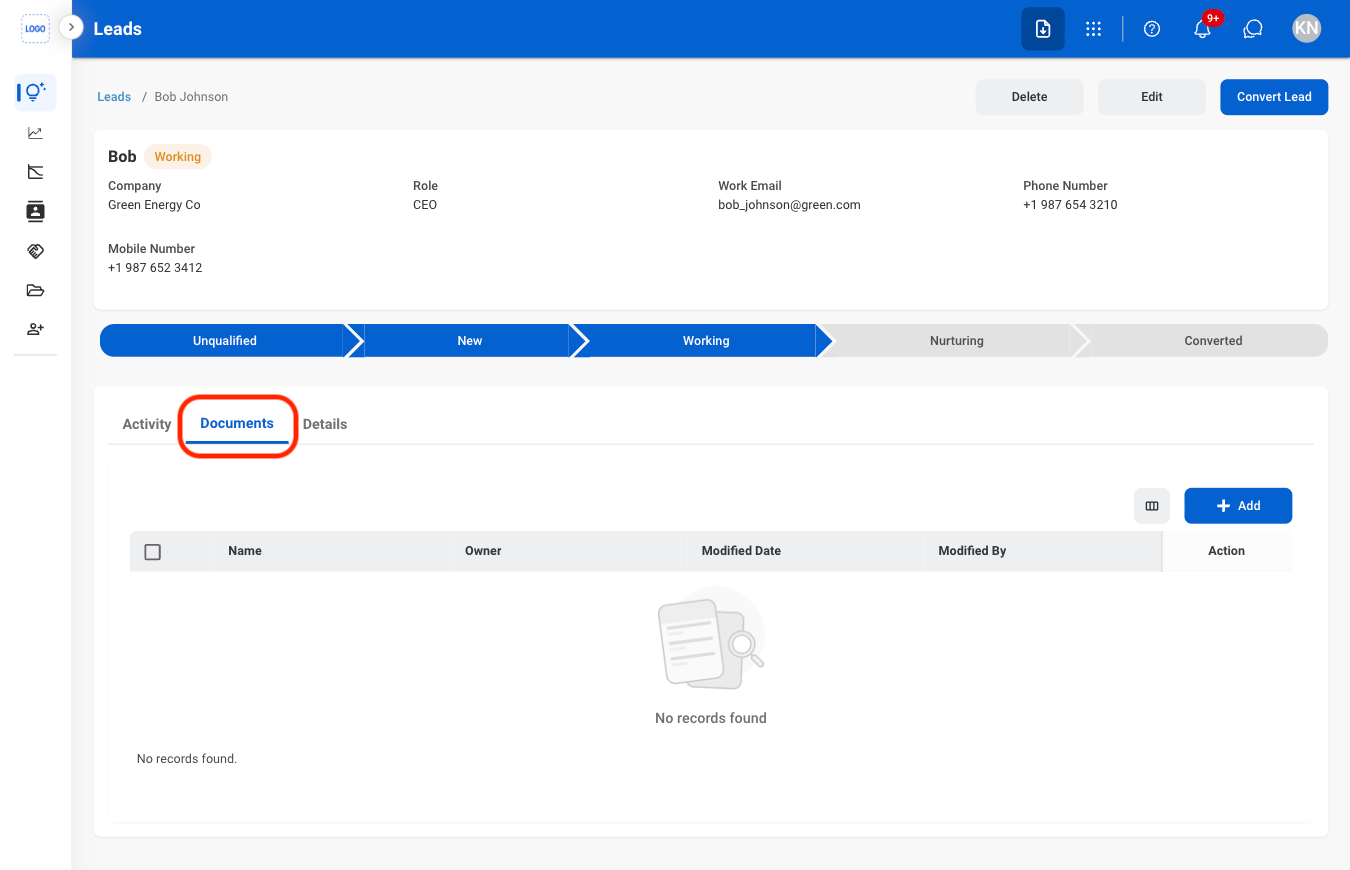
1
Navigate to Documents
2
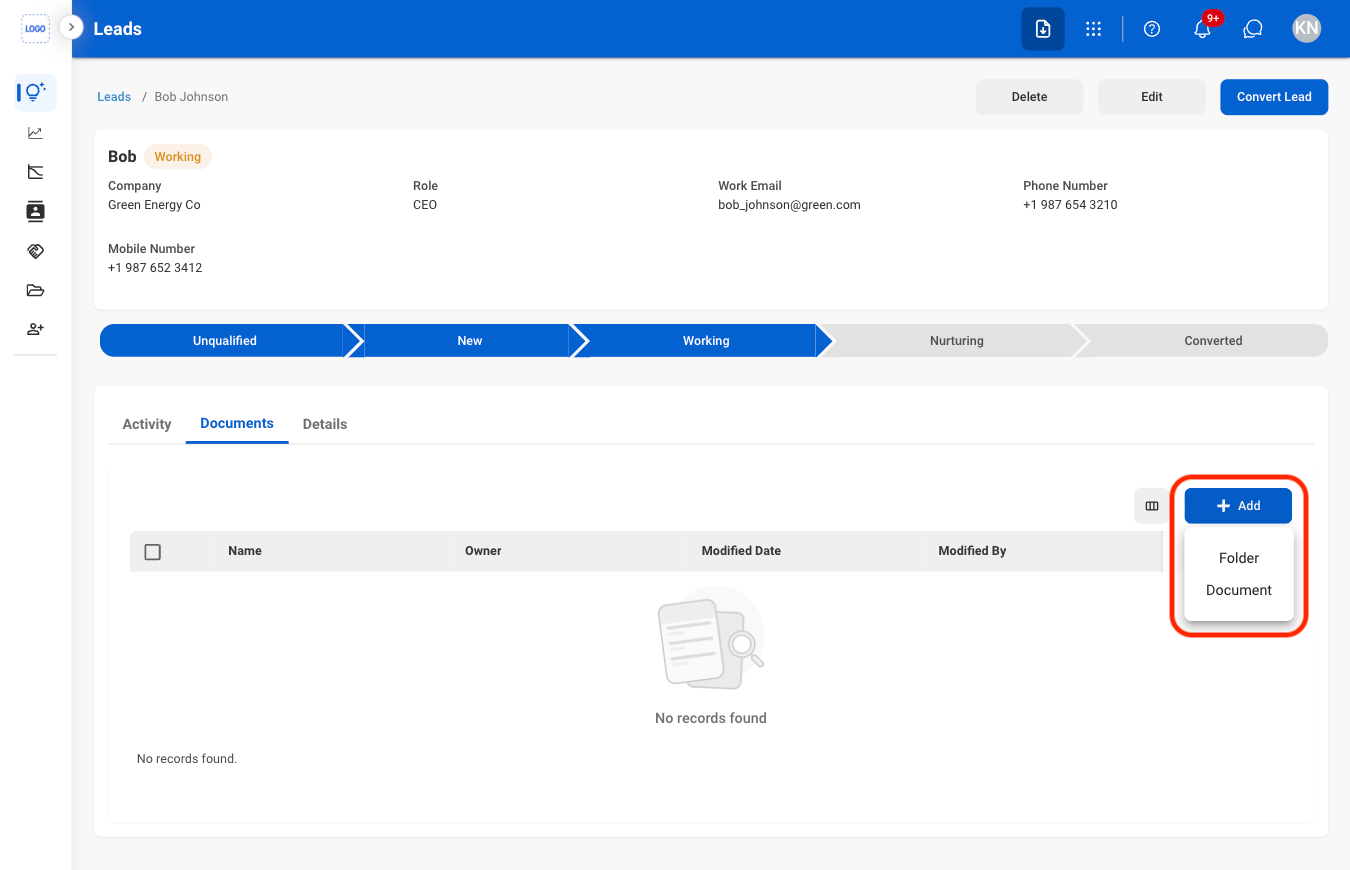
Select Add

3
Select document type
4
Fill in the required information
Select Save to complete or Cancel to exit without saving changes.
Details
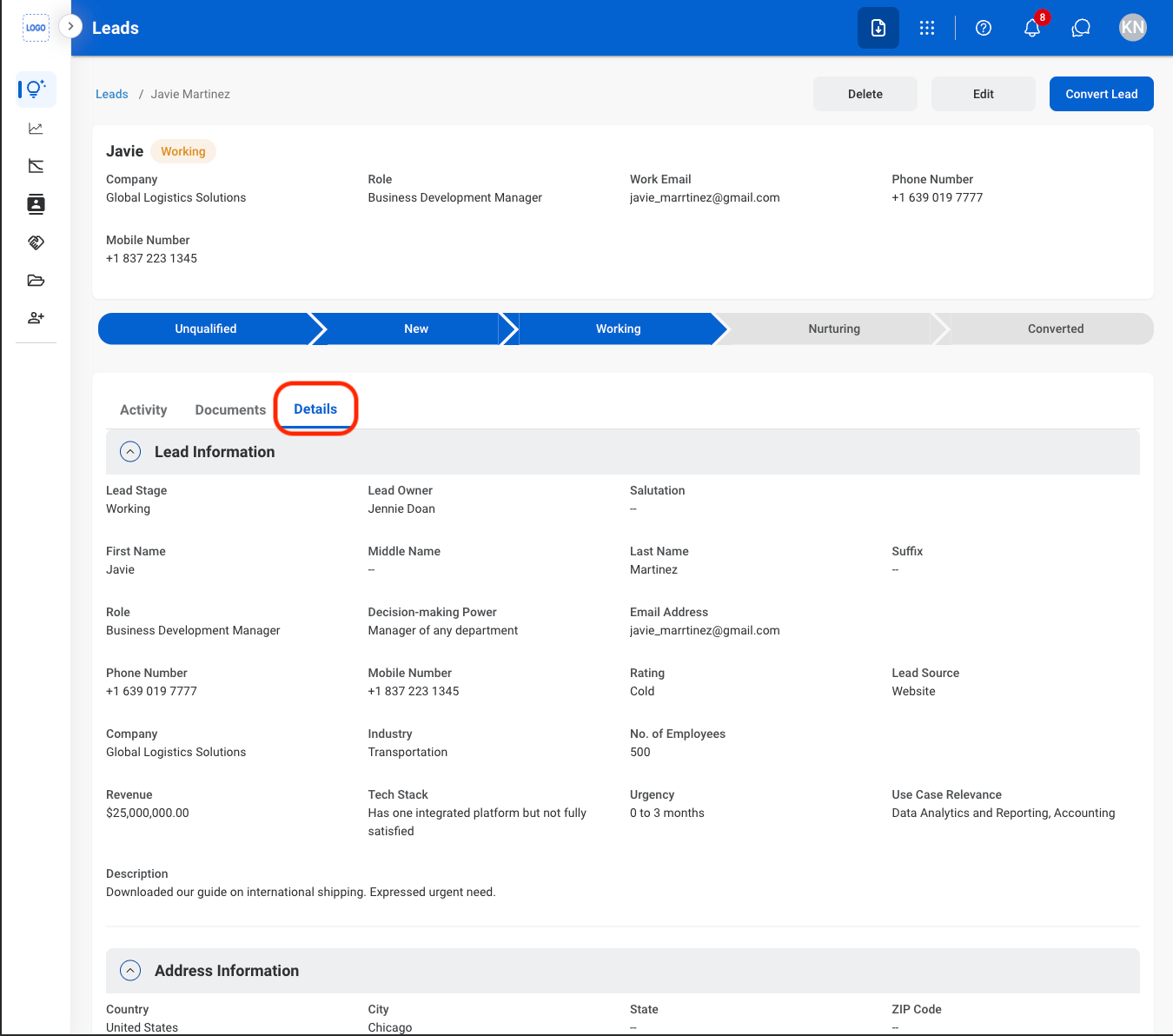
View Details
1
Navigate to Details
Change a Lead Stage
1
Select a lead stage

2
Confirm the action

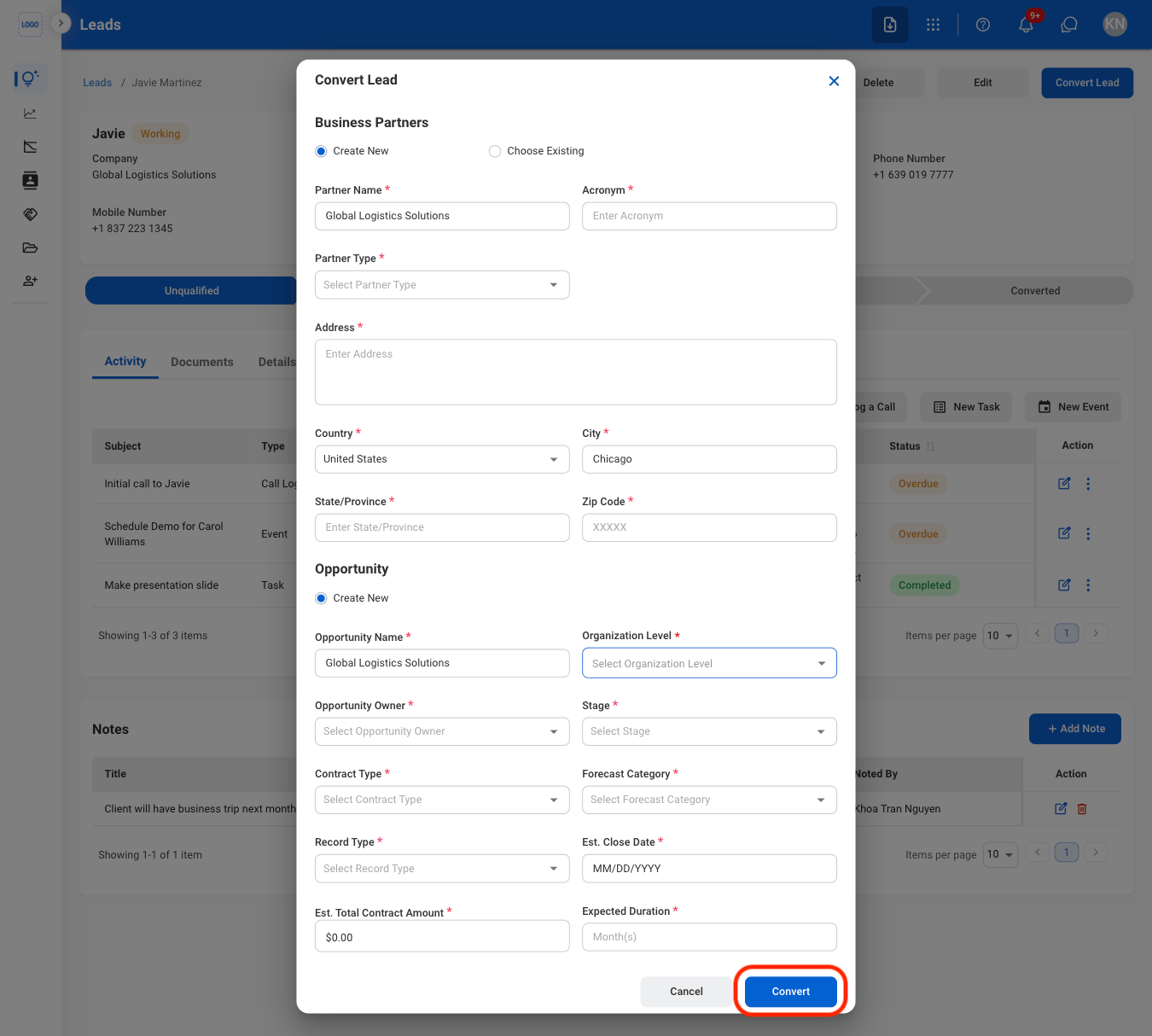
Convert a Lead
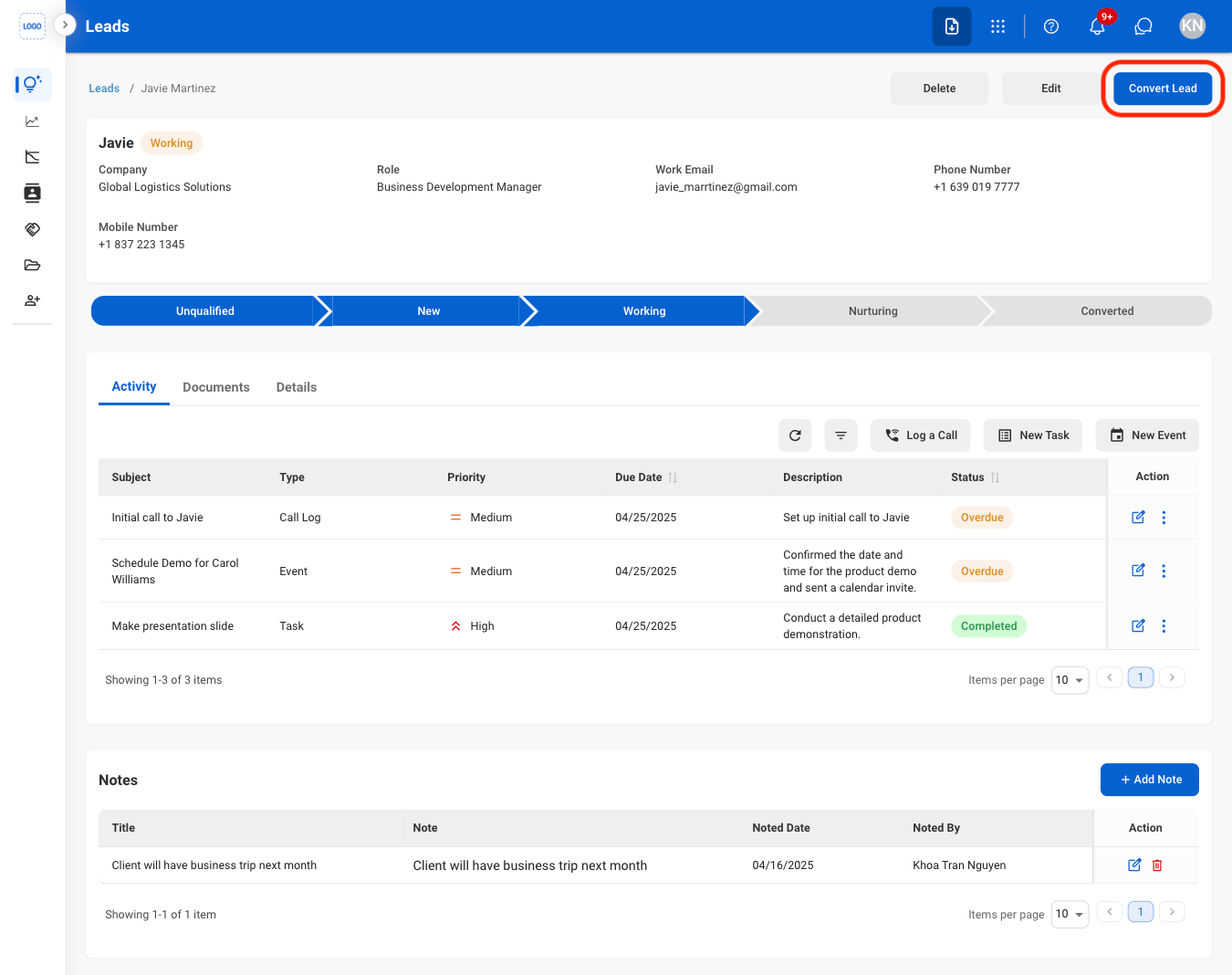
Convert qualified leads into business opportunities. Converting a lead creates a corresponding opportunity record in the Opportunities section while marking the original lead as converted.1
Select Convert Lead
2
Fill in the required information