> ## Documentation Index
> Fetch the complete documentation index at: https://docs.bizbone.com/llms.txt
> Use this file to discover all available pages before exploring further.

# Product Variants

> Manage product variants associated with a product. Supports the maintenance, and organization of product options, such as size, color, or style.

<Info>
  Product variants must be added in the **Product Catalog** before they appear in this section. To add a variant, go to Product Catalog > select a product > **Variants** > add variant attributes. The configured variants will then appear in the **Product Variants** section.
</Info>

## Edit Product Variants

<Steps>
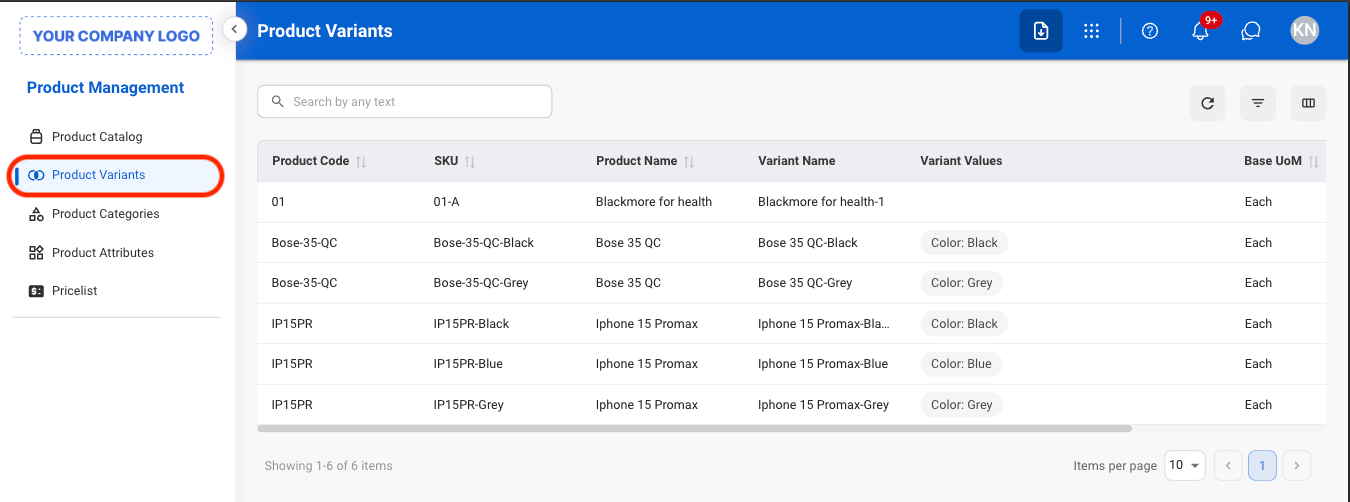
  <Step title="Navigate to Product Variants">
    <Frame>
      <img src="https://mintcdn.com/bizbone/pFtSY-Ipzl50uWKG/images/PM-PV-Nav.png?fit=max&auto=format&n=pFtSY-Ipzl50uWKG&q=85&s=0160acf81895dc79ba796e19c02a7d0f" alt="PM PV Nav" width="1350" height="502" data-path="images/PM-PV-Nav.png" />
    </Frame>
  </Step>

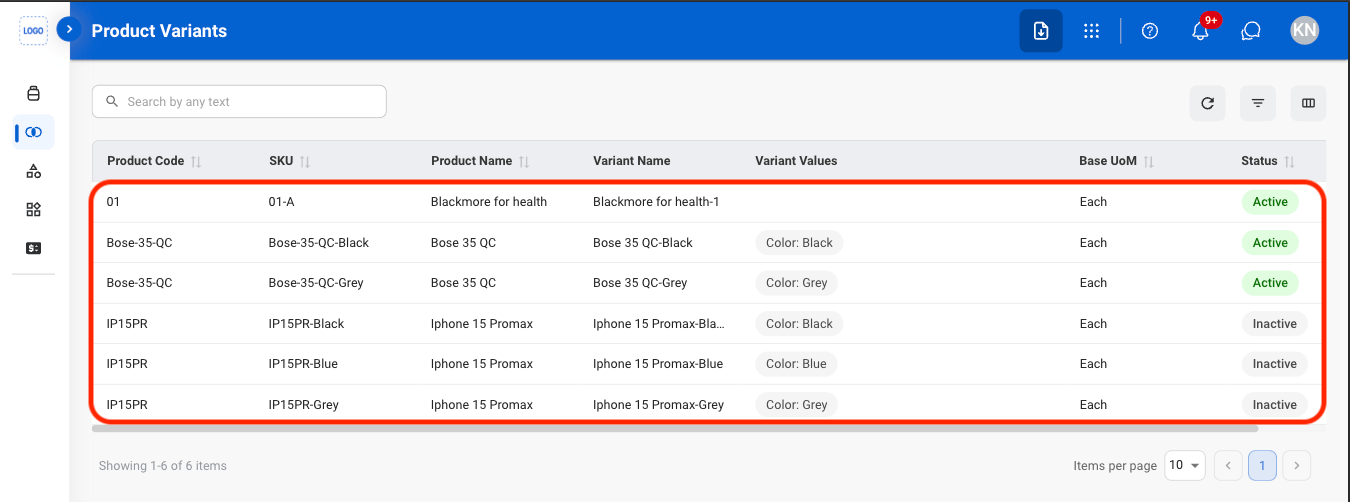
  <Step title="Select a product">
    <Frame>
      <img src="https://mintcdn.com/bizbone/pFtSY-Ipzl50uWKG/images/PM-PV-Select.png?fit=max&auto=format&n=pFtSY-Ipzl50uWKG&q=85&s=55b58758c25d702a707ef1a3c4e5c60c" alt="PM PV Select" width="1350" height="502" data-path="images/PM-PV-Select.png" />
    </Frame>
  </Step>

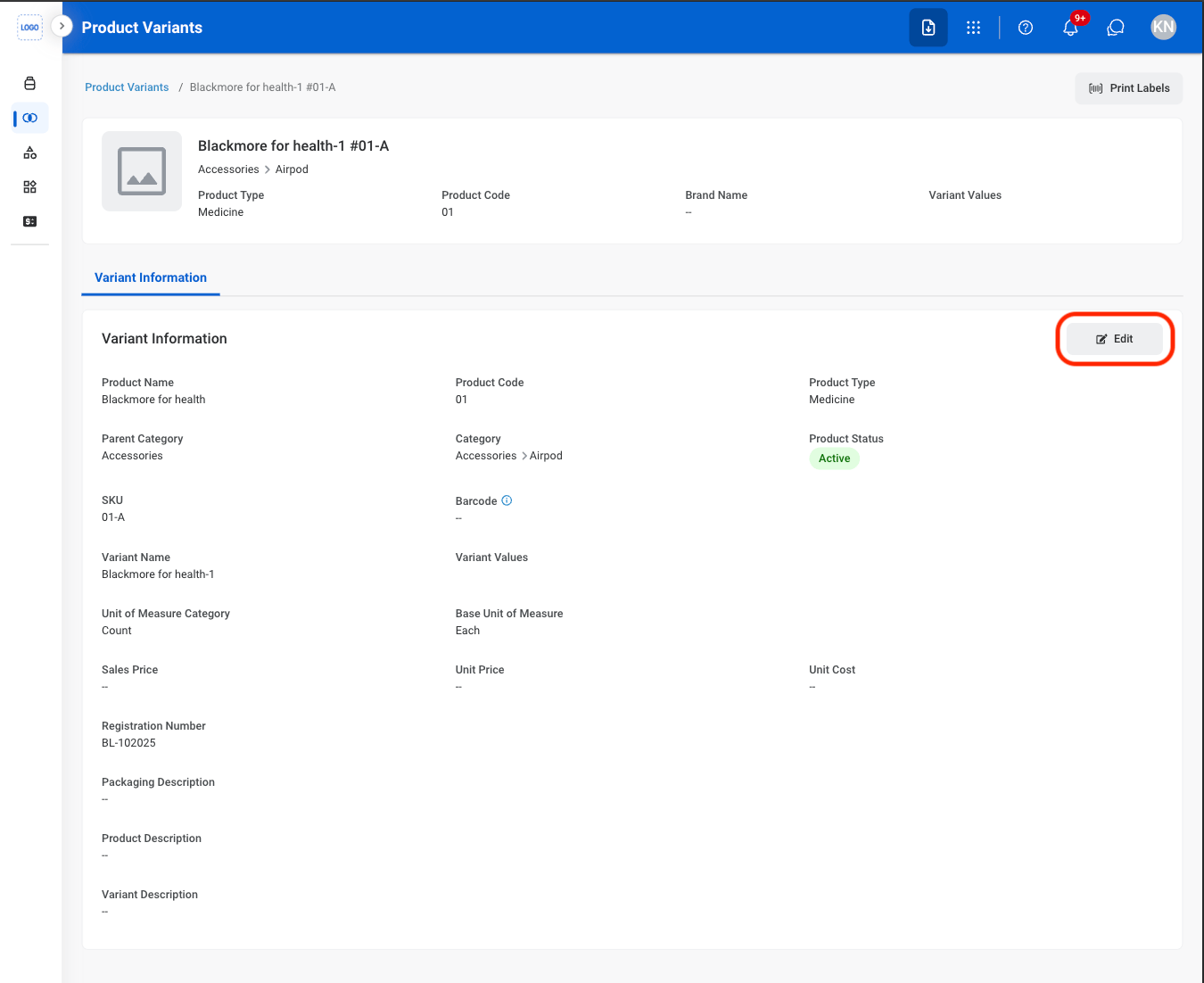
  <Step title="Select Edit">
    <Frame>
      <img src="https://mintcdn.com/bizbone/pFtSY-Ipzl50uWKG/images/PM-PV-Edit.png?fit=max&auto=format&n=pFtSY-Ipzl50uWKG&q=85&s=928e8ff864be0c6685ee4e7c4fcfa0fa" alt="PM PV Edit" width="1350" height="1102" data-path="images/PM-PV-Edit.png" />
    </Frame>
  </Step>

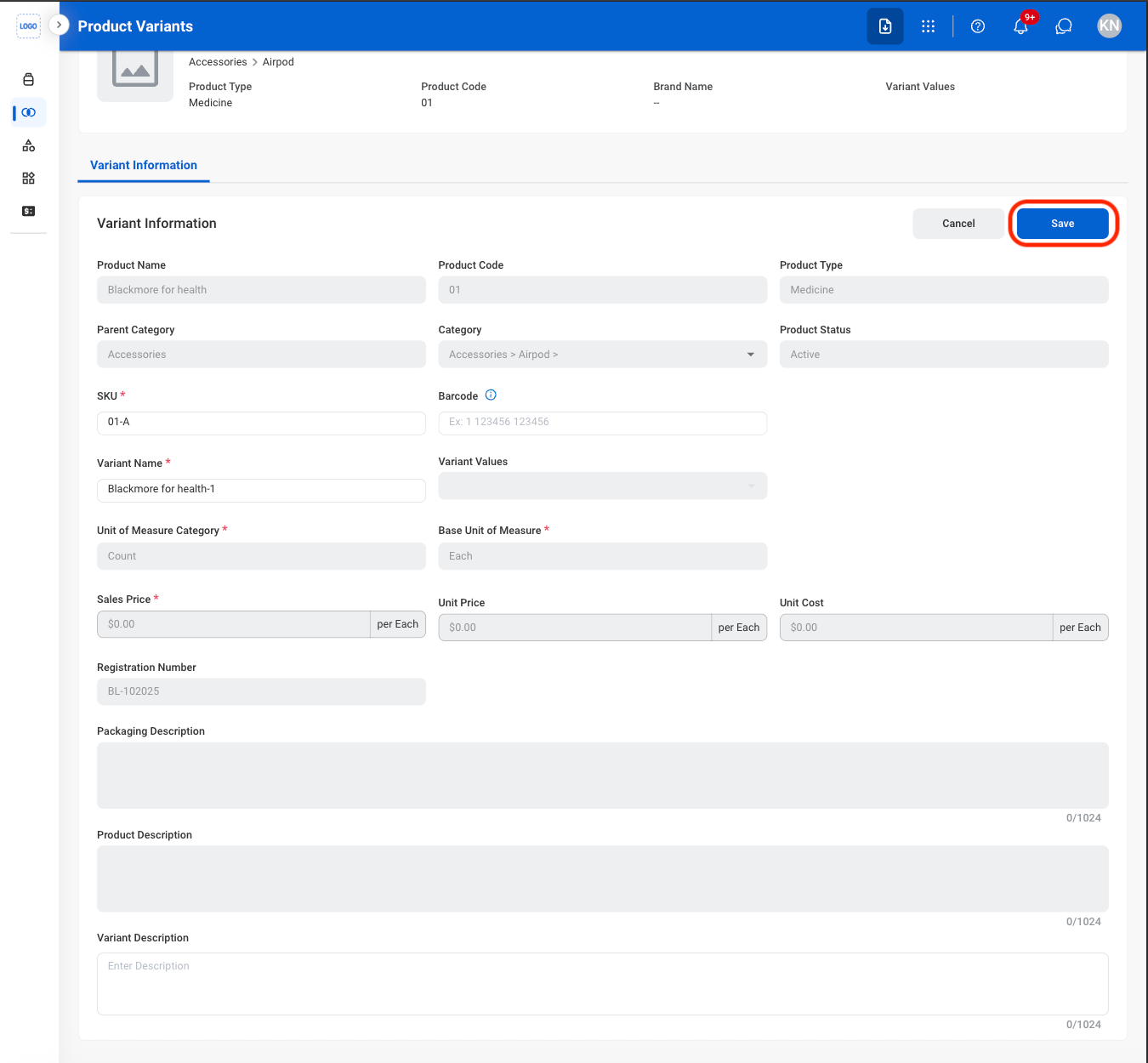
  <Step title="Fill in the required information">
    <Frame>
      <img src="https://mintcdn.com/bizbone/pFtSY-Ipzl50uWKG/images/PM-PV-Edit-C.png?fit=max&auto=format&n=pFtSY-Ipzl50uWKG&q=85&s=73435a028121c73fd88c0536bcb60292" alt="PM PV Edit C" width="1350" height="1250" data-path="images/PM-PV-Edit-C.png" />
    </Frame>

    Select **Save** to complete or **Cancel** to exit without saving changes. 
  </Step>
</Steps>

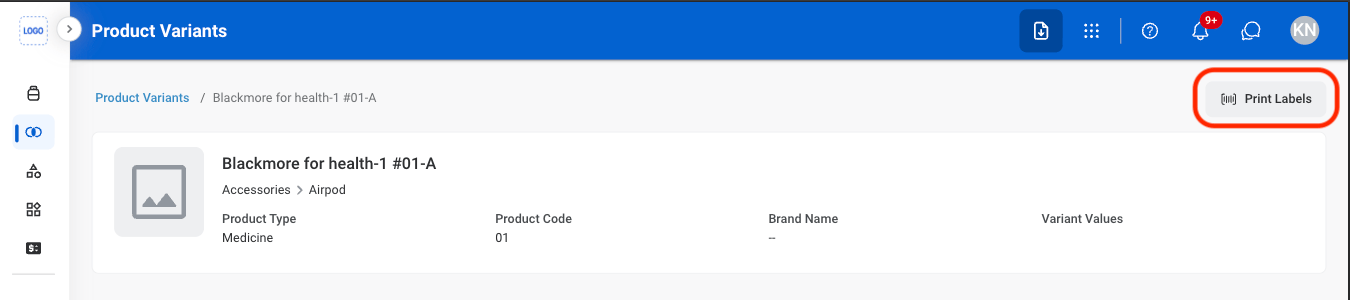
## Print Labels

<Steps>
  <Step title="Select a product">
    <Frame>
      <img src="https://mintcdn.com/bizbone/pFtSY-Ipzl50uWKG/images/PM-PV-Select.png?fit=max&auto=format&n=pFtSY-Ipzl50uWKG&q=85&s=55b58758c25d702a707ef1a3c4e5c60c" alt="PM PV Select" width="1350" height="502" data-path="images/PM-PV-Select.png" />
    </Frame>
  </Step>

  <Step title="Select Print Labels">
    <Frame>
      <img src="https://mintcdn.com/bizbone/pFtSY-Ipzl50uWKG/images/PM-PV-Print.png?fit=max&auto=format&n=pFtSY-Ipzl50uWKG&q=85&s=316e0dbb1ee50bec59df3e93623b168c" alt="PM PV Print" width="1350" height="300" data-path="images/PM-PV-Print.png" />
    </Frame>
  </Step>

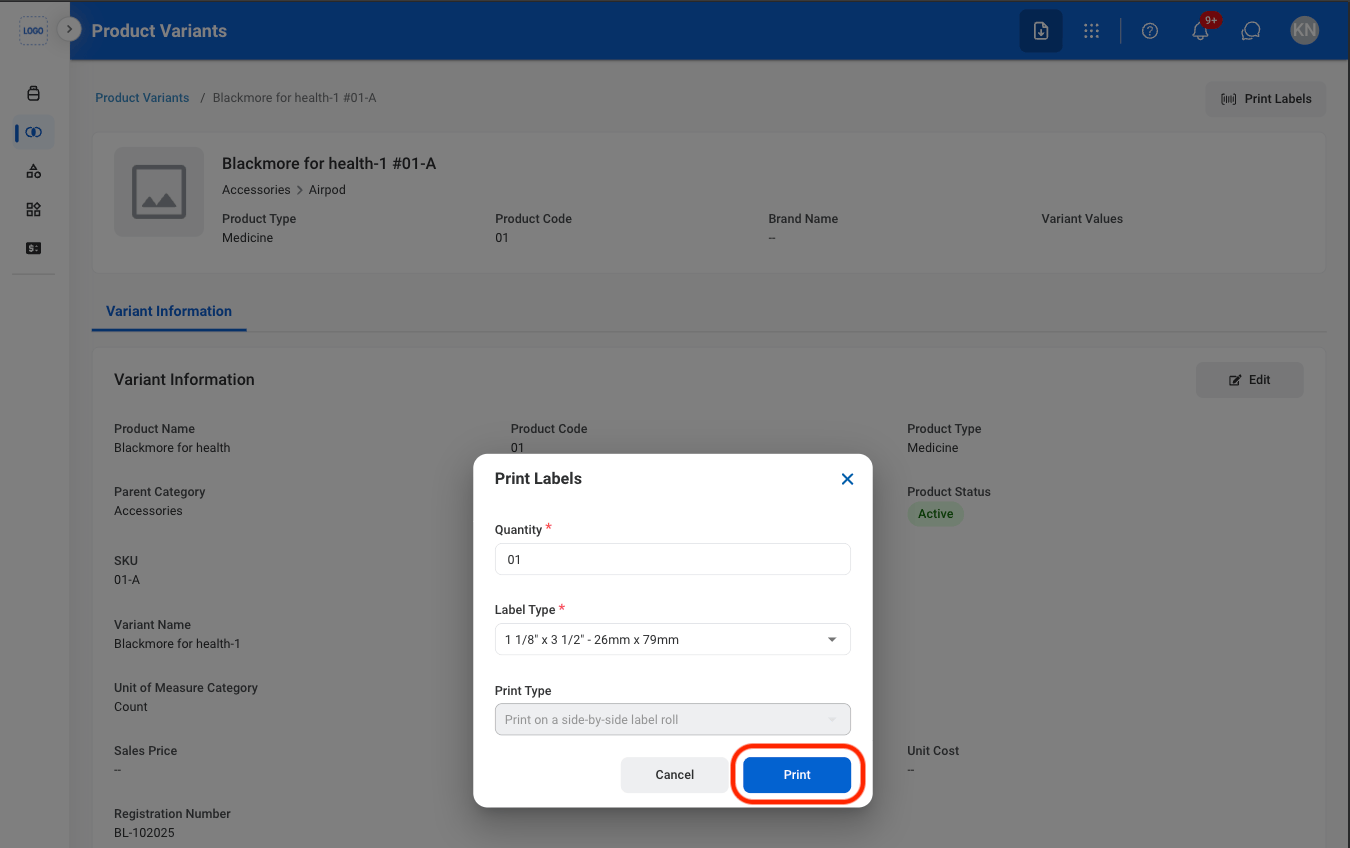
  <Step title="Fill in the required information">
    <Frame>
      <img src="https://mintcdn.com/bizbone/pFtSY-Ipzl50uWKG/images/PM-PV-Print-C.png?fit=max&auto=format&n=pFtSY-Ipzl50uWKG&q=85&s=e6599b8c3d2f1f178e68d28230ef3909" alt="PM PV Print C" width="1350" height="848" data-path="images/PM-PV-Print-C.png" />
    </Frame>

    Select **Print** to open system print settings or **Cancel** to exit without saving changes. 
  </Step>
</Steps>