> ## Documentation Index
> Fetch the complete documentation index at: https://docs.bizbone.com/llms.txt
> Use this file to discover all available pages before exploring further.
# Inventory Transactions
> Manage inventory transactions that record stock movements throughout the inventory lifecycle. Supports transaction creation, operational details, and inventory movement tracking.
## Add an Inventory Transaction
Create a new inventory transaction by entering the required transaction details. The transaction is saved with a **Draft** status and can be updated before processing begins.
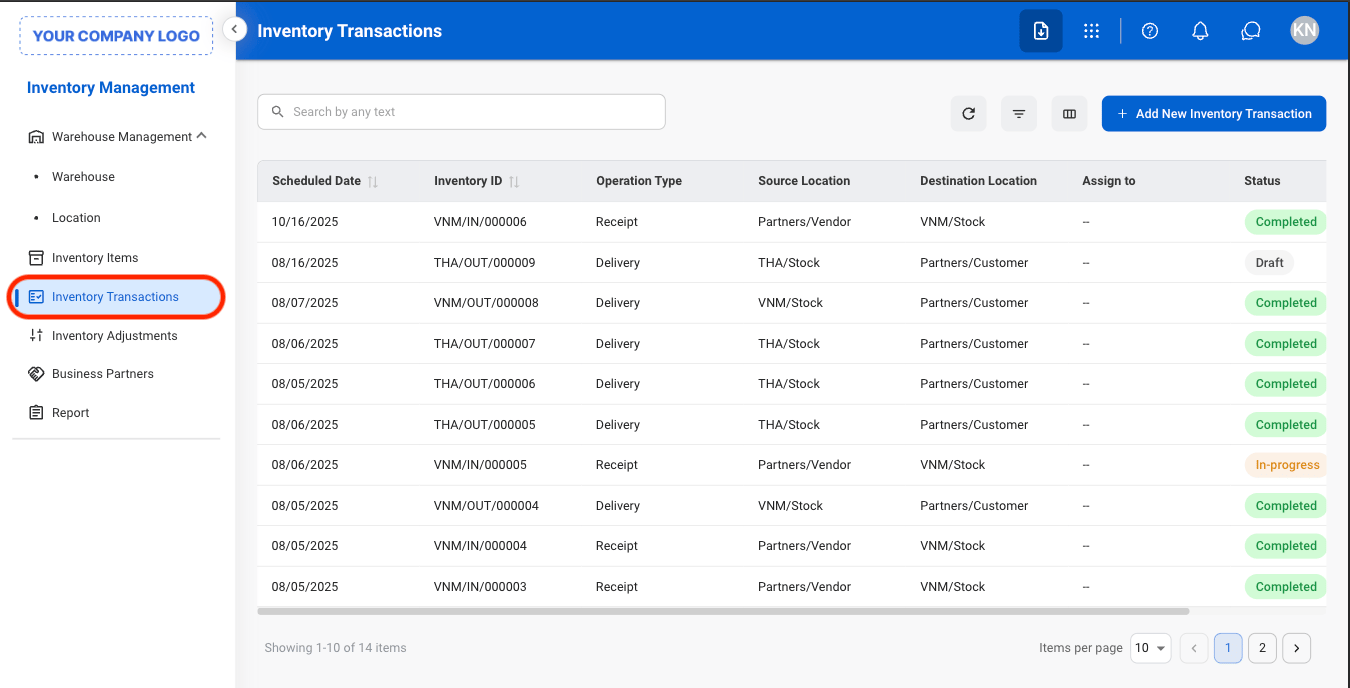
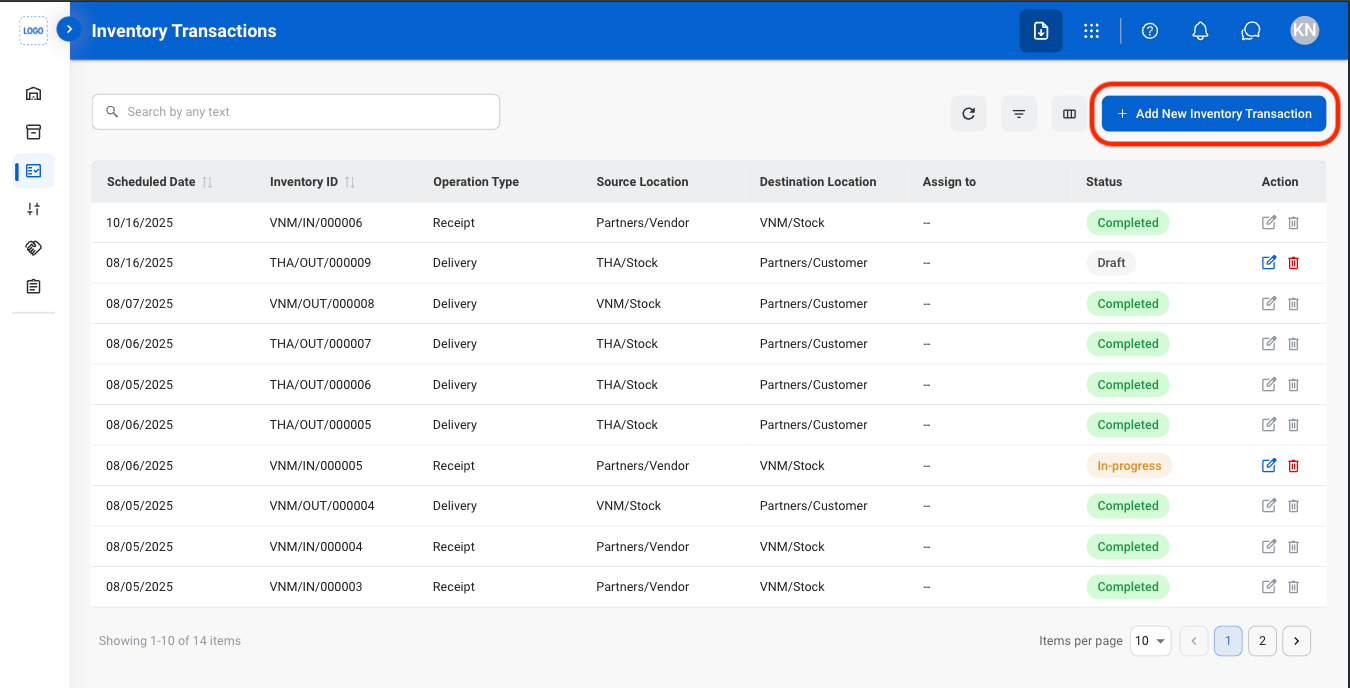
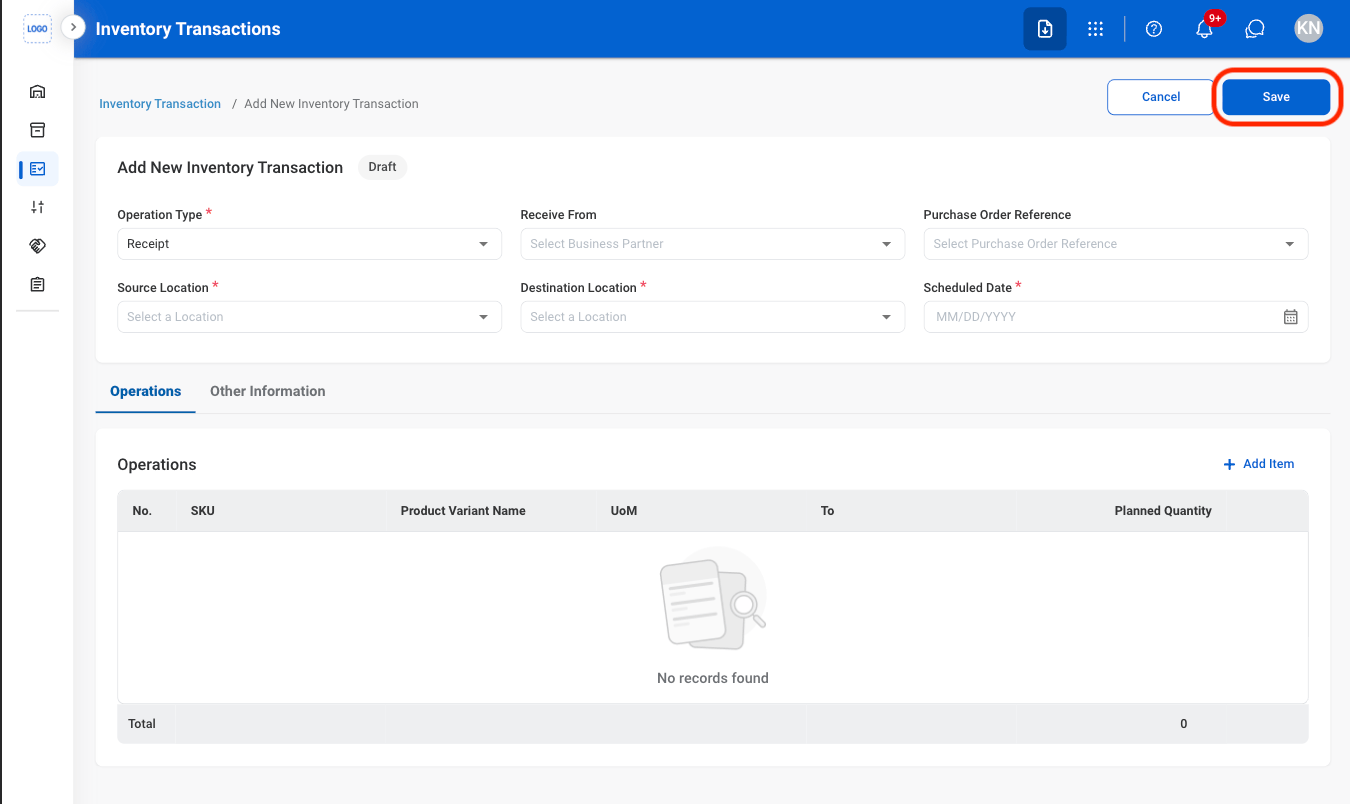 Select **Save** to complete or **Cancel** to exit without saving changes.
## Mark an Inventory Transaction as To-Do
Initiate an inventory transaction for processing by entering the planned and actual quantities. This action is available for transactions with a **Draft** or **In Progress** status.
Select **Save** to complete or **Cancel** to exit without saving changes.
## Mark an Inventory Transaction as To-Do
Initiate an inventory transaction for processing by entering the planned and actual quantities. This action is available for transactions with a **Draft** or **In Progress** status.
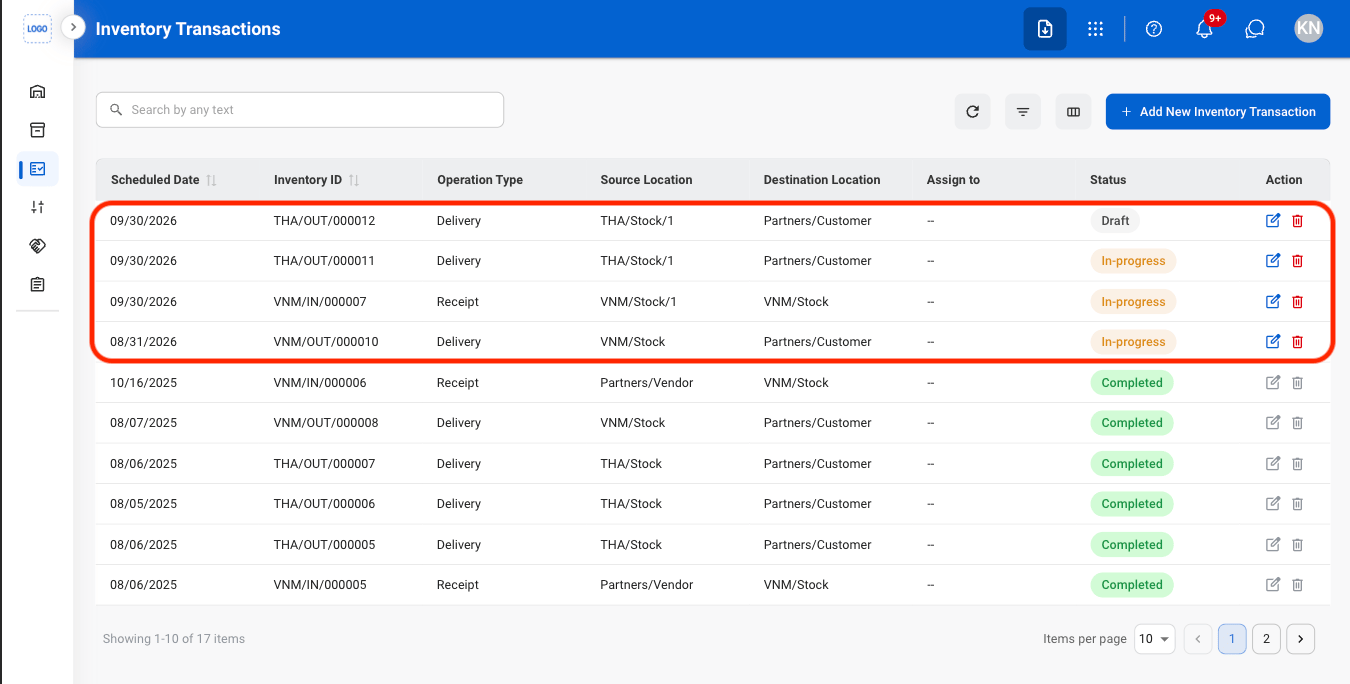
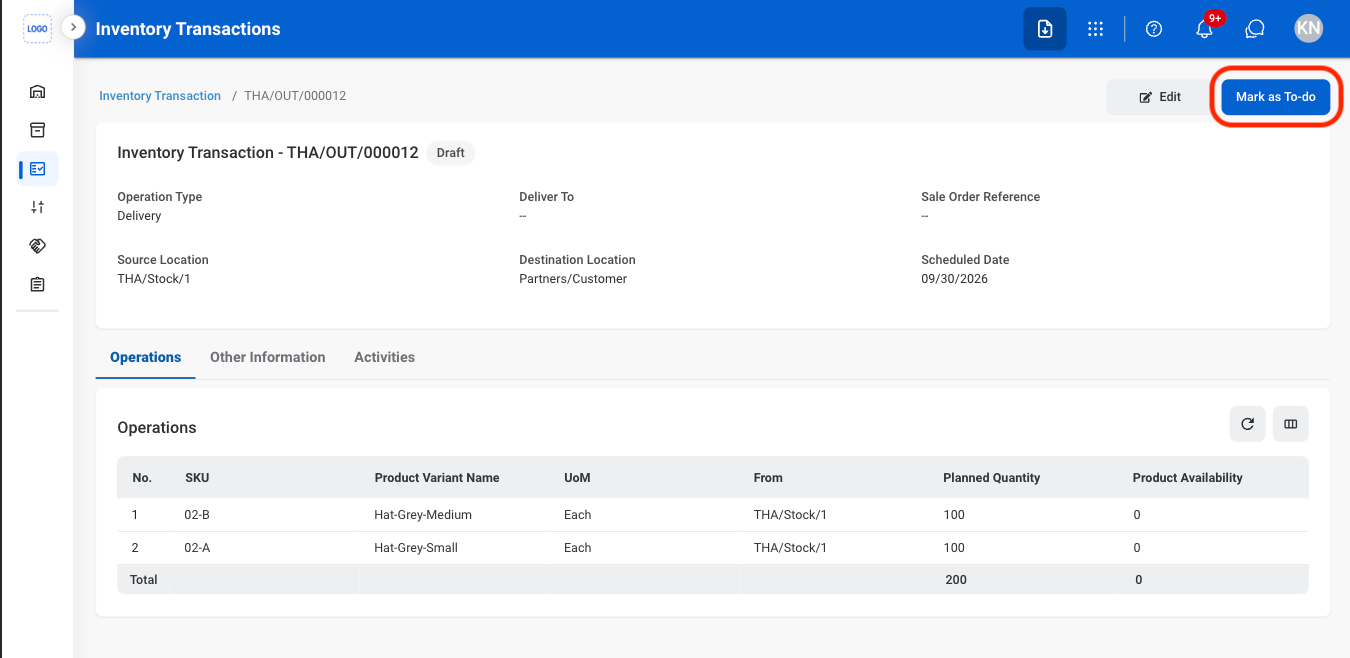
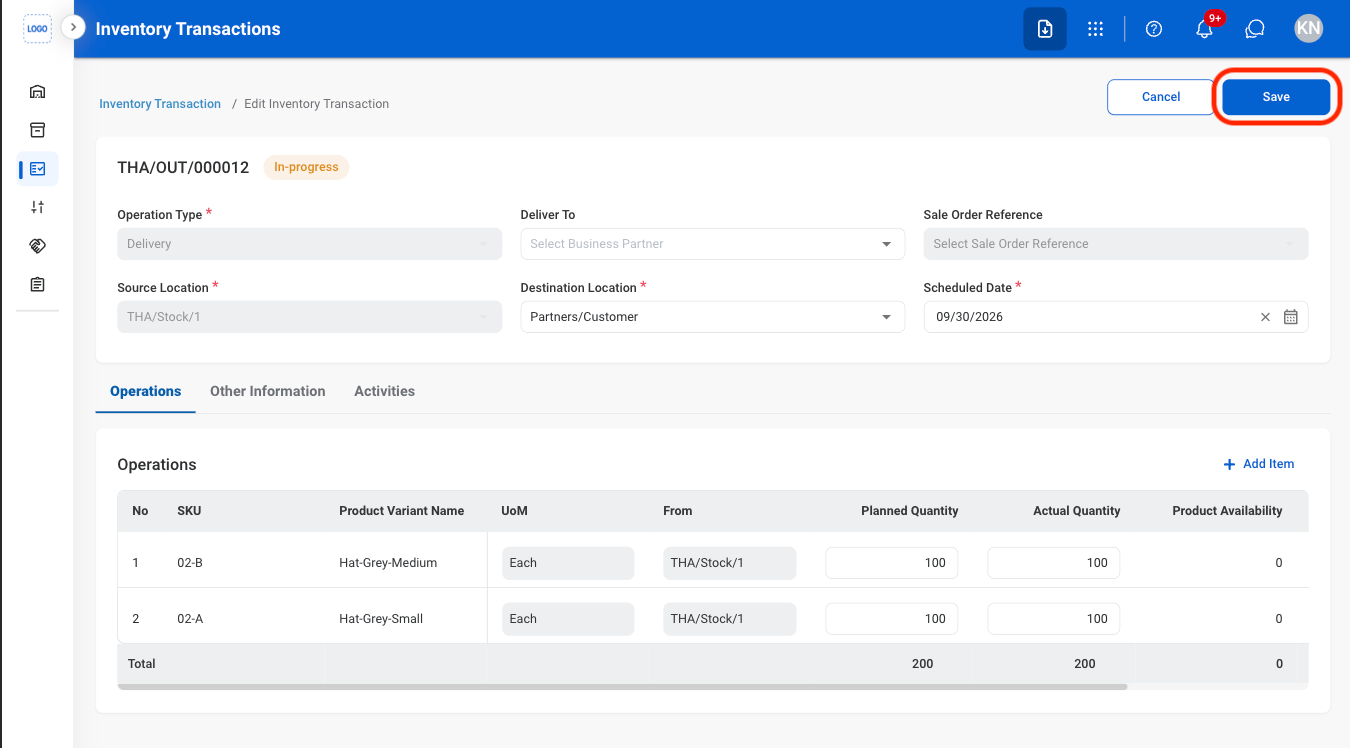 Select **Save** to complete or **Cancel** to exit without saving changes.
## Validate an Inventory Transaction
Verify the transaction details and confirm that all required inventory conditions are met. This action is available for transactions with a **In Progress** status. Once successfully validated, the transaction is marked as **Complete** and the inventory movement is recorded.
Select **Save** to complete or **Cancel** to exit without saving changes.
## Validate an Inventory Transaction
Verify the transaction details and confirm that all required inventory conditions are met. This action is available for transactions with a **In Progress** status. Once successfully validated, the transaction is marked as **Complete** and the inventory movement is recorded.
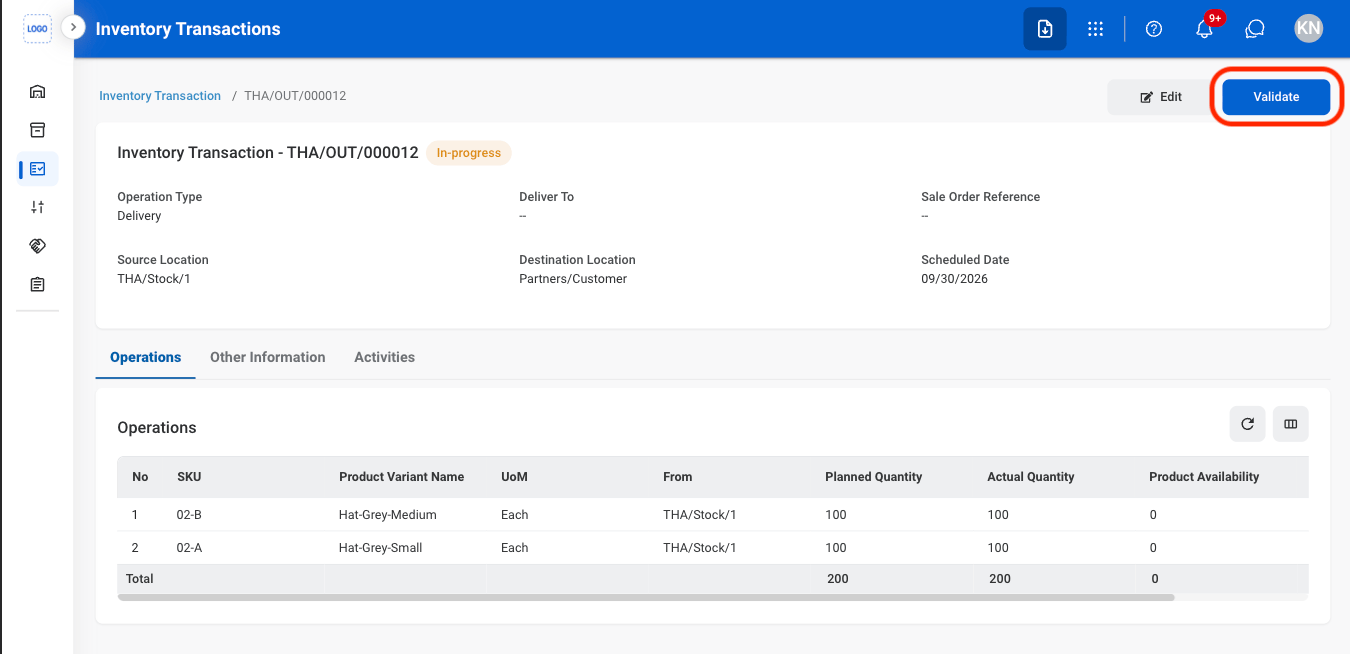 Select **Save** to complete or **Cancel** to exit without saving changes.
## Modify an Inventory Transaction
Select **Save** to complete or **Cancel** to exit without saving changes.
## Modify an Inventory Transaction
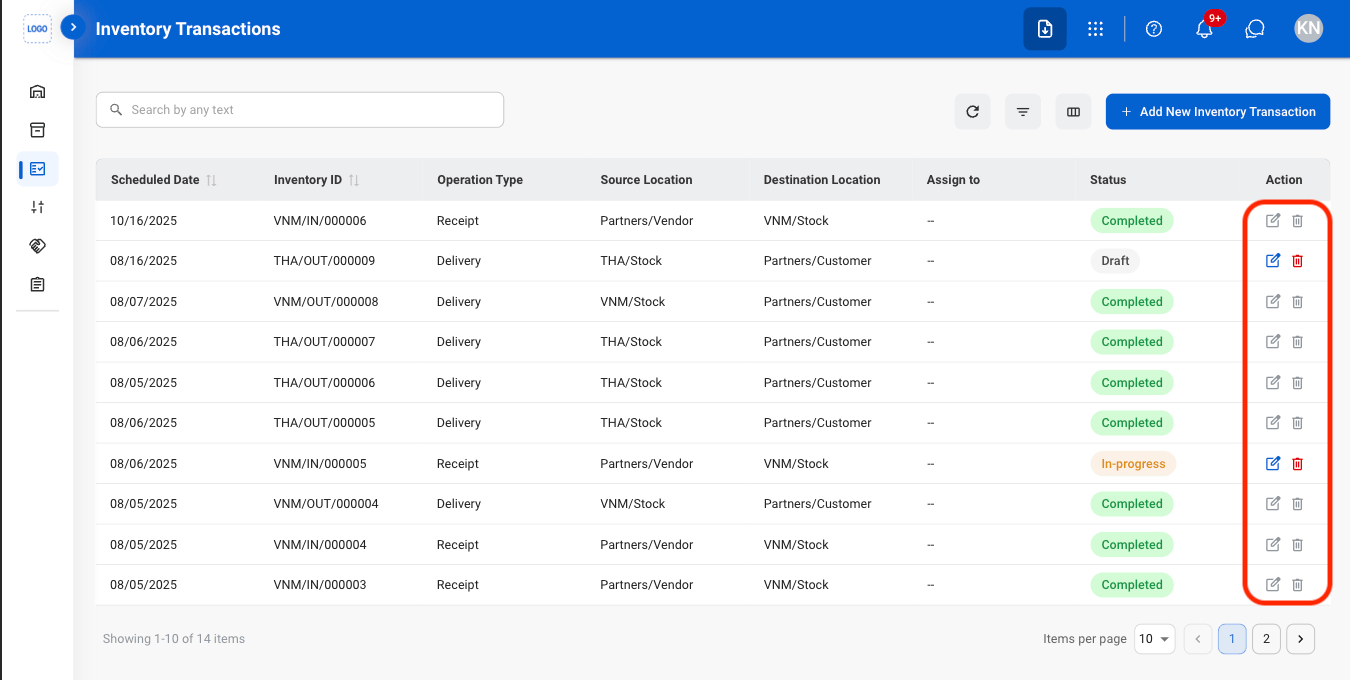 Completed Inventory Transactions cannot be edited or deleted.
* **Edit:** Fill in the required information. Select **Save** to complete or **Cancel** to exit without saving changes.
* **Delete:** Select **Delete** to complete or **Cancel** to exit without saving changes.
Completed Inventory Transactions cannot be edited or deleted.
* **Edit:** Fill in the required information. Select **Save** to complete or **Cancel** to exit without saving changes.
* **Delete:** Select **Delete** to complete or **Cancel** to exit without saving changes.