> ## Documentation Index
> Fetch the complete documentation index at: https://docs.bizbone.com/llms.txt
> Use this file to discover all available pages before exploring further.
# Sub Charge Code Request
> Request a sub charge code under a program's Period of Performance (POP) so costs can be tracked separately within the program.
A Sub Charge Code request asks Accounting to create a sub charge code under a program's Period of Performance (POP), for example to track a type of cost separately. After you submit it, the request follows the configured approval workflow before being approved, rejected, or returned for revision.
## Create a Sub Charge Code Request
### Prerequisites
Before submitting a Sub Charge Code request:
* You must have an active employee account.
* You must be the Program Manager of the program, or have access to it in Program Management.
* The program's Period of Performance (POP) must already exist.
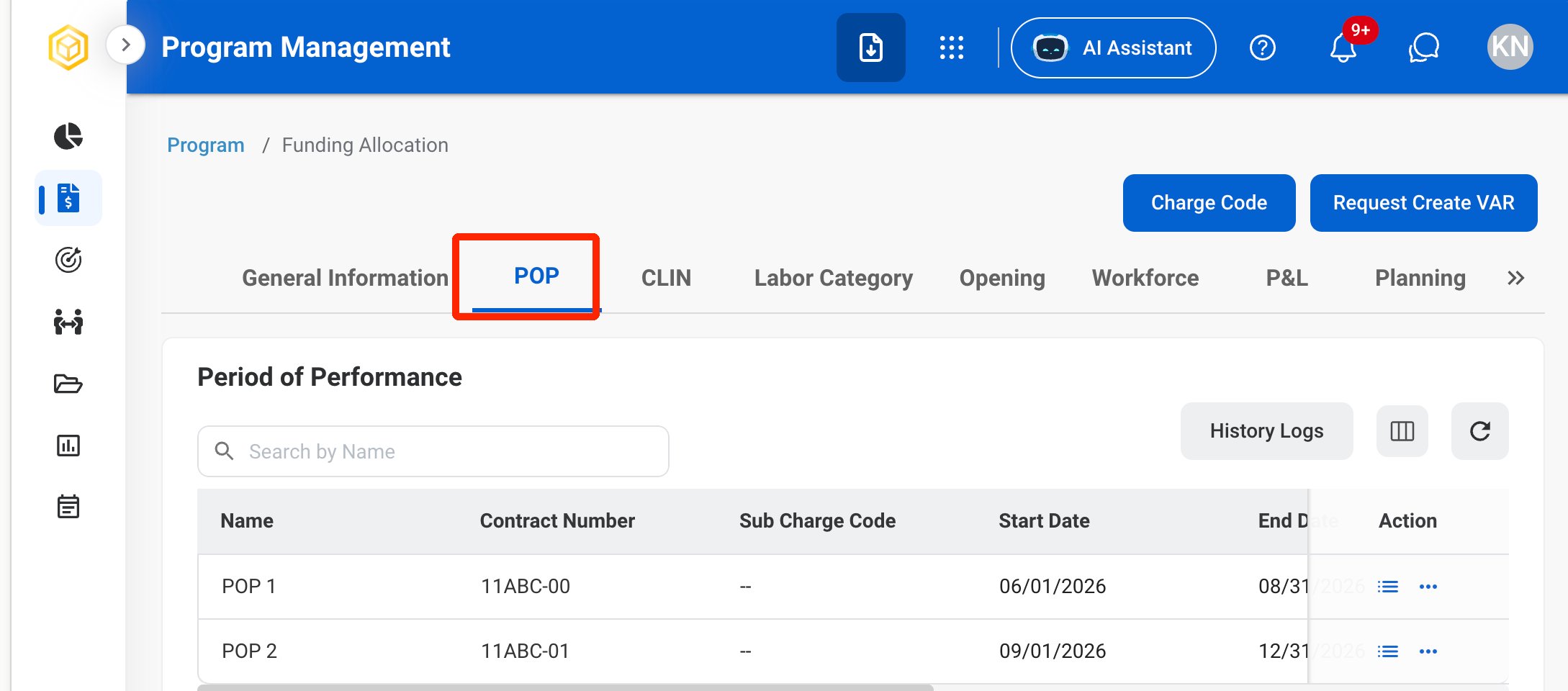
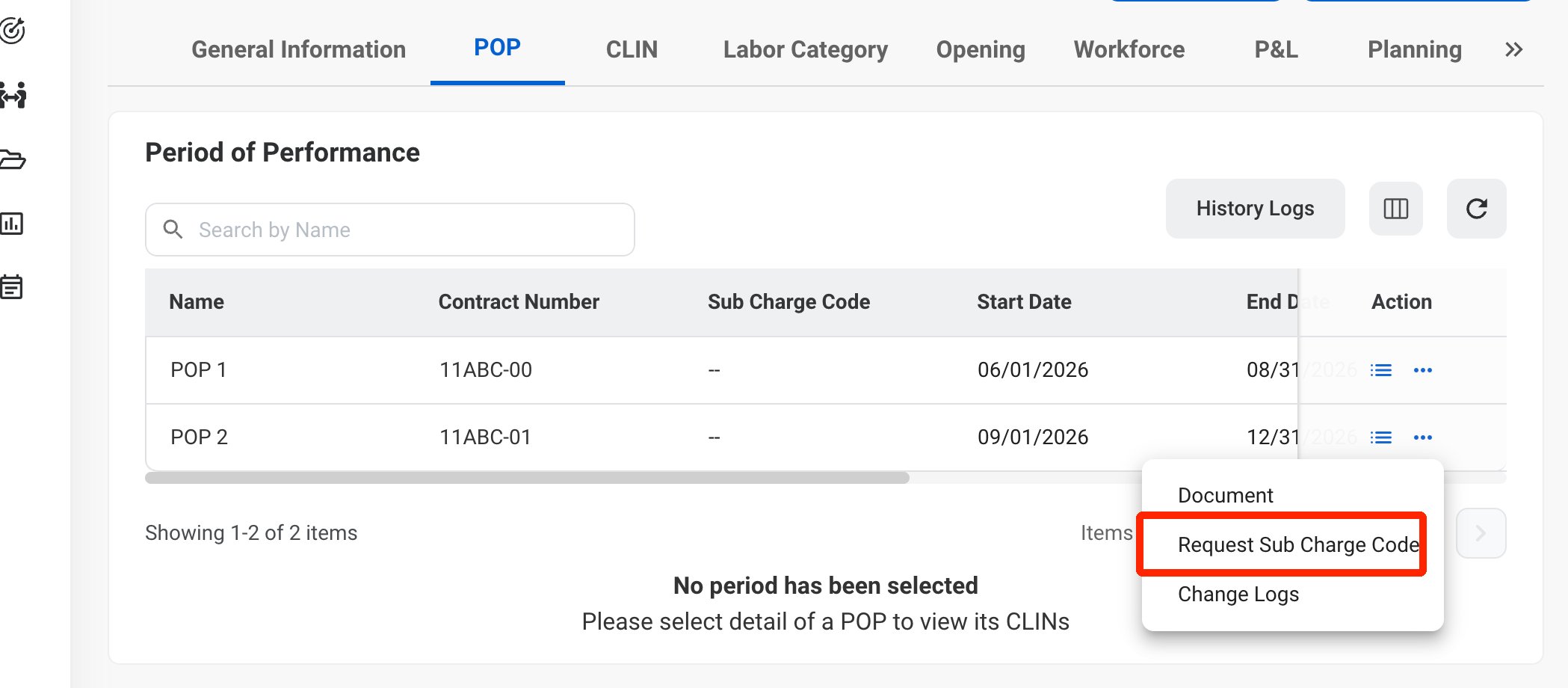
Sub Charge Code requests are created from the program in the **Program Management** module.
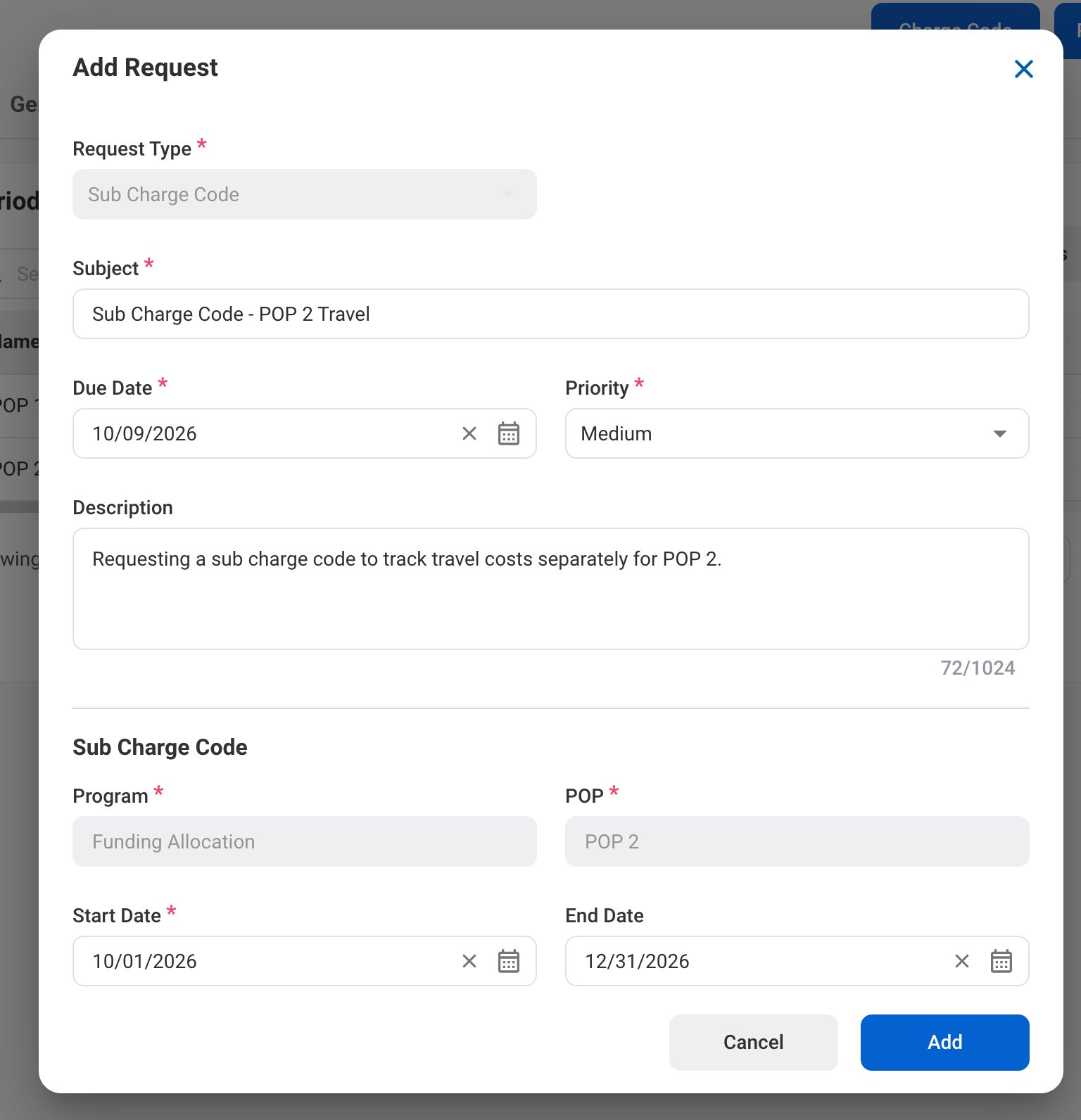 ### Request Information
| Field | Description | Required | Example |
| :---------- | :------------------------------------------------------ | :------- | :----------------------------------------------------------------------- |
| Subject | A short title describing the request. | ✓ | Sub Charge Code - POP 2 Travel |
| Due Date | The expected completion or review date for the request. | ✓ | October 9, 2026 |
| Priority | Indicates the urgency of the request. | ✓ | Medium |
| Description | Additional details or reason for the request. | | Requesting a sub charge code to track travel costs separately for POP 2. |
### Sub Charge Code
The request type, program, and POP are filled in from where you started the request.
| Field | Description | Required | Example |
| :--------- | :-------------------------------------------------- | :------- | :----------------- |
| Program | Program the sub charge code belongs to. | Auto | Funding Allocation |
| POP | Period of Performance the sub charge code is under. | Auto | POP 2 |
| Start Date | First date the sub charge code can be used. | ✓ | October 1, 2026 |
| End Date | Last date the sub charge code can be used. | | December 31, 2026 |
### Request Information
| Field | Description | Required | Example |
| :---------- | :------------------------------------------------------ | :------- | :----------------------------------------------------------------------- |
| Subject | A short title describing the request. | ✓ | Sub Charge Code - POP 2 Travel |
| Due Date | The expected completion or review date for the request. | ✓ | October 9, 2026 |
| Priority | Indicates the urgency of the request. | ✓ | Medium |
| Description | Additional details or reason for the request. | | Requesting a sub charge code to track travel costs separately for POP 2. |
### Sub Charge Code
The request type, program, and POP are filled in from where you started the request.
| Field | Description | Required | Example |
| :--------- | :-------------------------------------------------- | :------- | :----------------- |
| Program | Program the sub charge code belongs to. | Auto | Funding Allocation |
| POP | Period of Performance the sub charge code is under. | Auto | POP 2 |
| Start Date | First date the sub charge code can be used. | ✓ | October 1, 2026 |
| End Date | Last date the sub charge code can be used. | | December 31, 2026 |
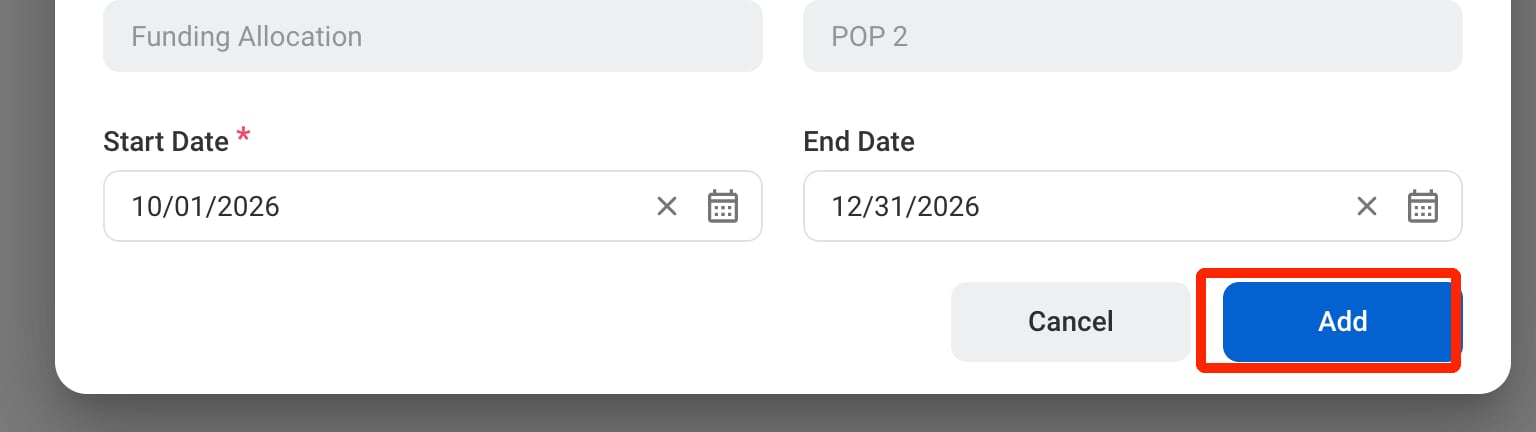 The request can be viewed in the Program Management, Request, and Accounting modules. After it is processed, the sub charge code is displayed on the POP and in **Accounting >** [Charge Code](/erp/accounting/charge-code) under the program.
## Review a Sub Charge Code Request
To review a submitted Sub Charge Code request and approve, reject, or discard it, see **Accounting >** [Request](/erp/accounting/request).
## Manage the Sub Charge Code Business Process
To manage the workflow for Sub Charge Code requests, see **Admin > Business Processes >** [Business Processes Overview](/erp/admin/business-process-overview).
The request can be viewed in the Program Management, Request, and Accounting modules. After it is processed, the sub charge code is displayed on the POP and in **Accounting >** [Charge Code](/erp/accounting/charge-code) under the program.
## Review a Sub Charge Code Request
To review a submitted Sub Charge Code request and approve, reject, or discard it, see **Accounting >** [Request](/erp/accounting/request).
## Manage the Sub Charge Code Business Process
To manage the workflow for Sub Charge Code requests, see **Admin > Business Processes >** [Business Processes Overview](/erp/admin/business-process-overview).