> ## Documentation Index
> Fetch the complete documentation index at: https://docs.bizbone.com/llms.txt
> Use this file to discover all available pages before exploring further.
# Request to Correct Request
> Request to reopen a submitted timesheet period so you can correct it, with the reason for the correction.
A Request to Correct asks to reopen a timesheet period you have already submitted so that you can correct it, for example when hours were charged to the wrong charge code. After you submit it, the request follows the configured approval workflow before being approved, rejected, or returned for revision.
## Create a Request to Correct Request
### Prerequisites
Before submitting a Request to Correct request:
* You must have an active employee account.
* The timesheet for the selected period must already be submitted. Only submitted periods are listed.
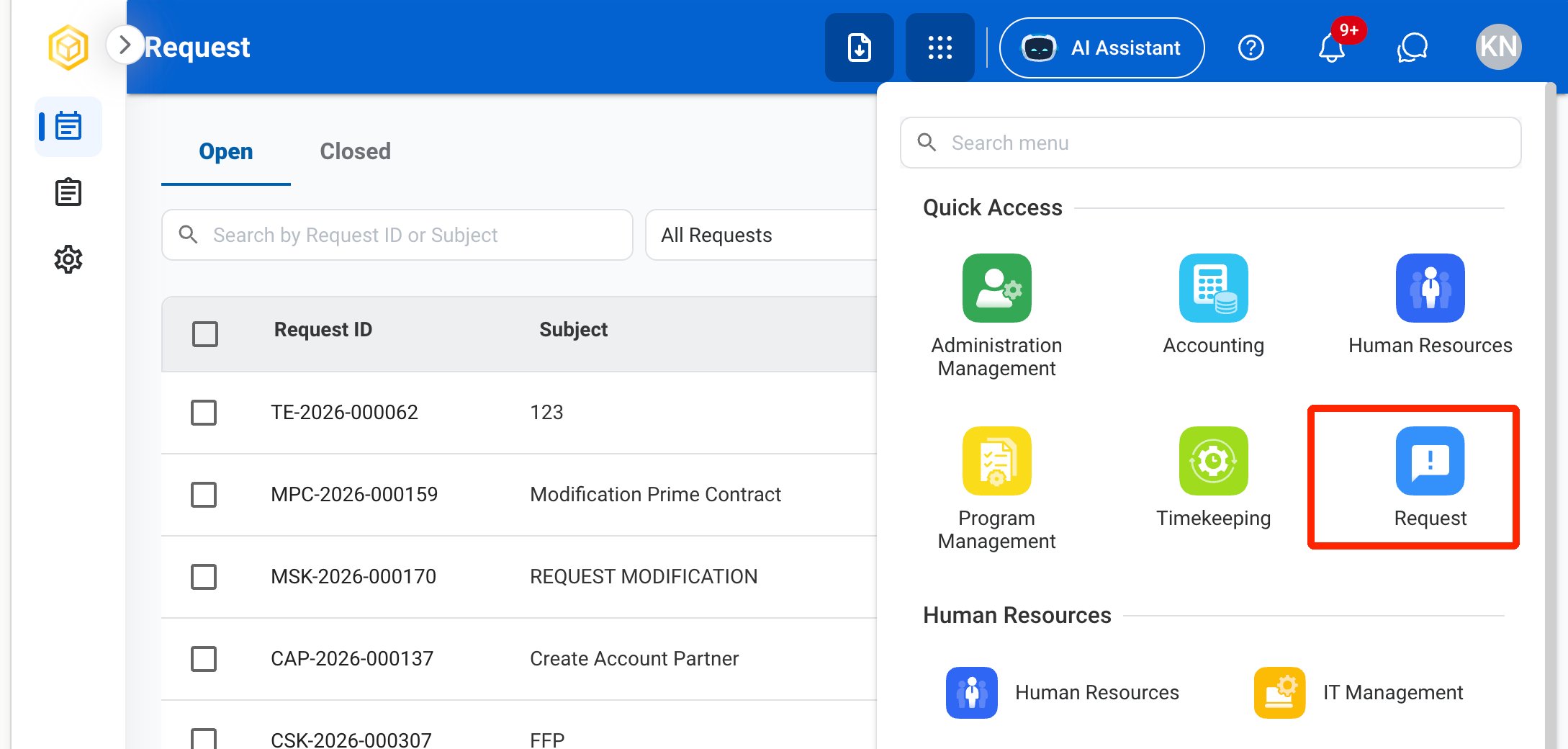
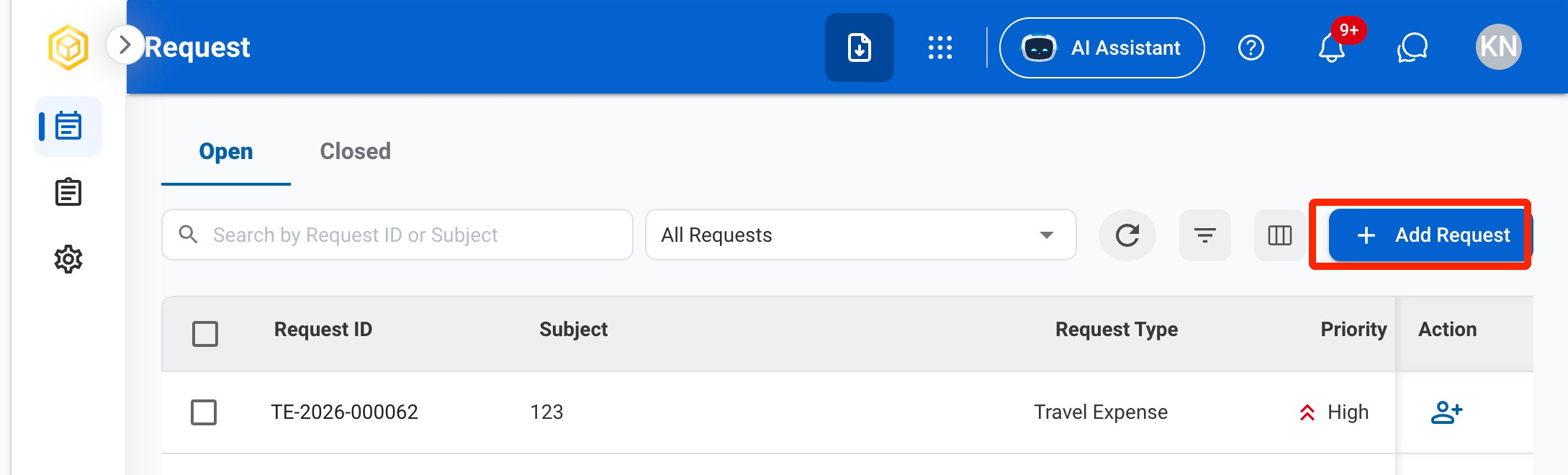

 ### Request Information
| Field | Description | Required | Example |
| :---------- | :------------------------------------------------------ | :------- | :-------------------------------------------------------------------- |
| Subject | A short title describing the request. | ✓ | Request to Correct - Timesheet Period 16 |
| Due Date | The expected completion or review date for the request. | ✓ | October 9, 2026 |
| Priority | Indicates the urgency of the request. | ✓ | Medium |
| Description | Additional details or reason for the request. | | Requesting to reopen my submitted timesheet to correct a charge code. |
### Request to Correct
| Field | Description | Required | Example |
| :---------------- | :------------------------------------ | :------- | :------------------------------------------------ |
| Year | Year of the timesheet. | ✓ | 2026 |
| Period | Submitted timesheet period to reopen. | ✓ | Period 16 (08/16/2026 - 08/31/2026) |
| Correction Reason | What needs to be corrected and why. | ✓ | Hours on 08/20 were charged to the wrong project. |
### Request Information
| Field | Description | Required | Example |
| :---------- | :------------------------------------------------------ | :------- | :-------------------------------------------------------------------- |
| Subject | A short title describing the request. | ✓ | Request to Correct - Timesheet Period 16 |
| Due Date | The expected completion or review date for the request. | ✓ | October 9, 2026 |
| Priority | Indicates the urgency of the request. | ✓ | Medium |
| Description | Additional details or reason for the request. | | Requesting to reopen my submitted timesheet to correct a charge code. |
### Request to Correct
| Field | Description | Required | Example |
| :---------------- | :------------------------------------ | :------- | :------------------------------------------------ |
| Year | Year of the timesheet. | ✓ | 2026 |
| Period | Submitted timesheet period to reopen. | ✓ | Period 16 (08/16/2026 - 08/31/2026) |
| Correction Reason | What needs to be corrected and why. | ✓ | Hours on 08/20 were charged to the wrong project. |
 The request is also displayed in **HR > Employees > Request History** for the employee.
## Review a Request to Correct Request
To review a submitted Request to Correct request and approve, reject, or discard it, see **Timekeeping >** [Request](/erp/timekeeping/request).
## Manage the Request to Correct Business Process
To manage the workflow for Request to Correct requests, see **Admin > Business Processes >** [Business Processes Overview](/erp/admin/business-process-overview).
The request is also displayed in **HR > Employees > Request History** for the employee.
## Review a Request to Correct Request
To review a submitted Request to Correct request and approve, reject, or discard it, see **Timekeeping >** [Request](/erp/timekeeping/request).
## Manage the Request to Correct Business Process
To manage the workflow for Request to Correct requests, see **Admin > Business Processes >** [Business Processes Overview](/erp/admin/business-process-overview).