> ## Documentation Index
> Fetch the complete documentation index at: https://docs.bizbone.com/llms.txt
> Use this file to discover all available pages before exploring further.
# Purchase Expense Request
> Report the actual cost of a purchase made under an approved Purchase Authorization and request reimbursement of the balance after any advance.
A Purchase Expense request reports what a purchase actually cost after an approved [Purchase Authorization](/erp/requests/purchase-authorization). Any advance payment is subtracted to calculate your reimbursement. After you submit it, the request follows the configured approval workflow before being approved, rejected, or returned for revision.
## Create a Purchase Expense Request
### Prerequisites
Before submitting a Purchase Expense request:
* You must have an active employee account.
* You must have an approved [Purchase Authorization](/erp/requests/purchase-authorization) request.
* Have your receipts ready.
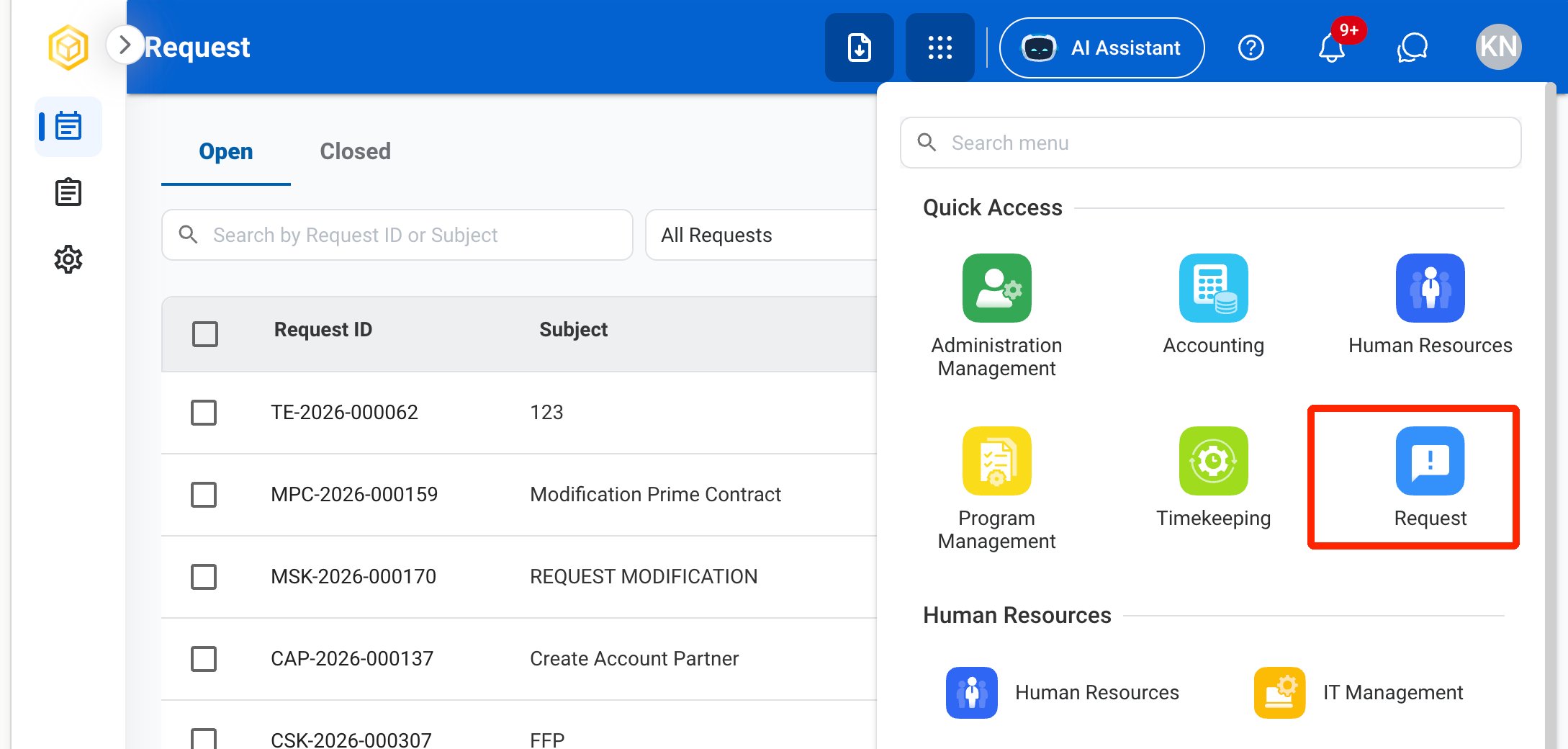
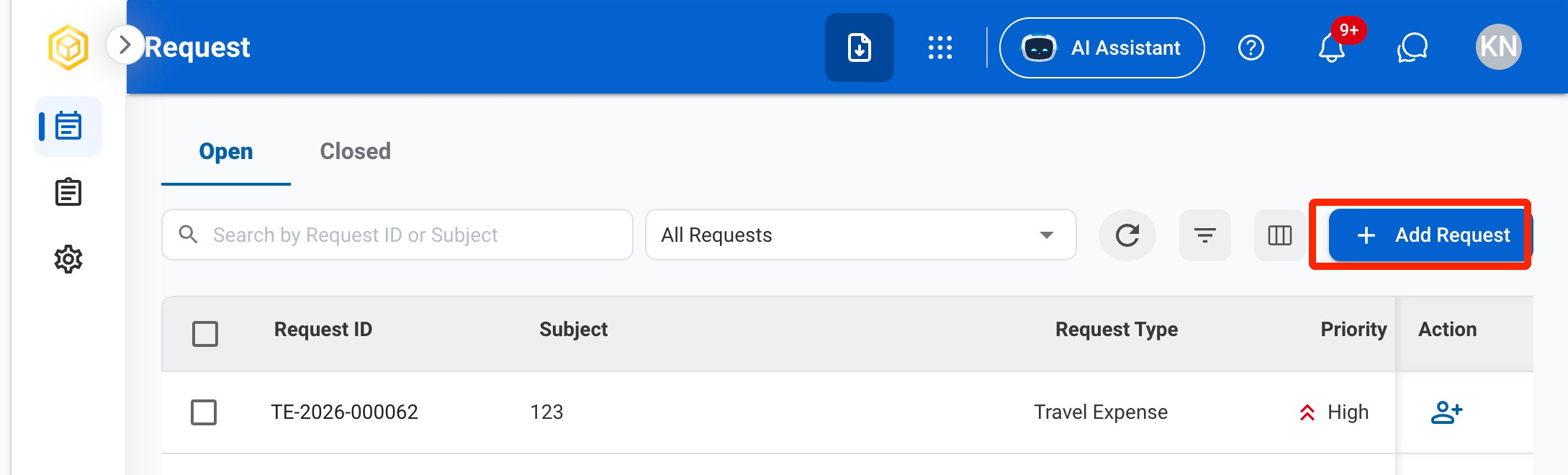
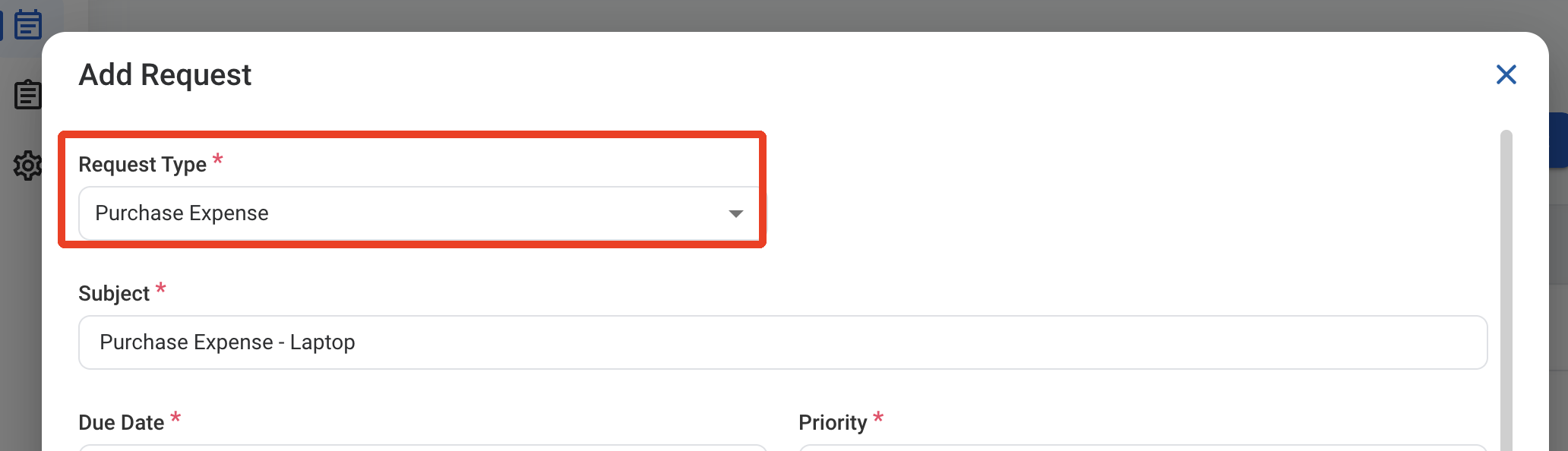
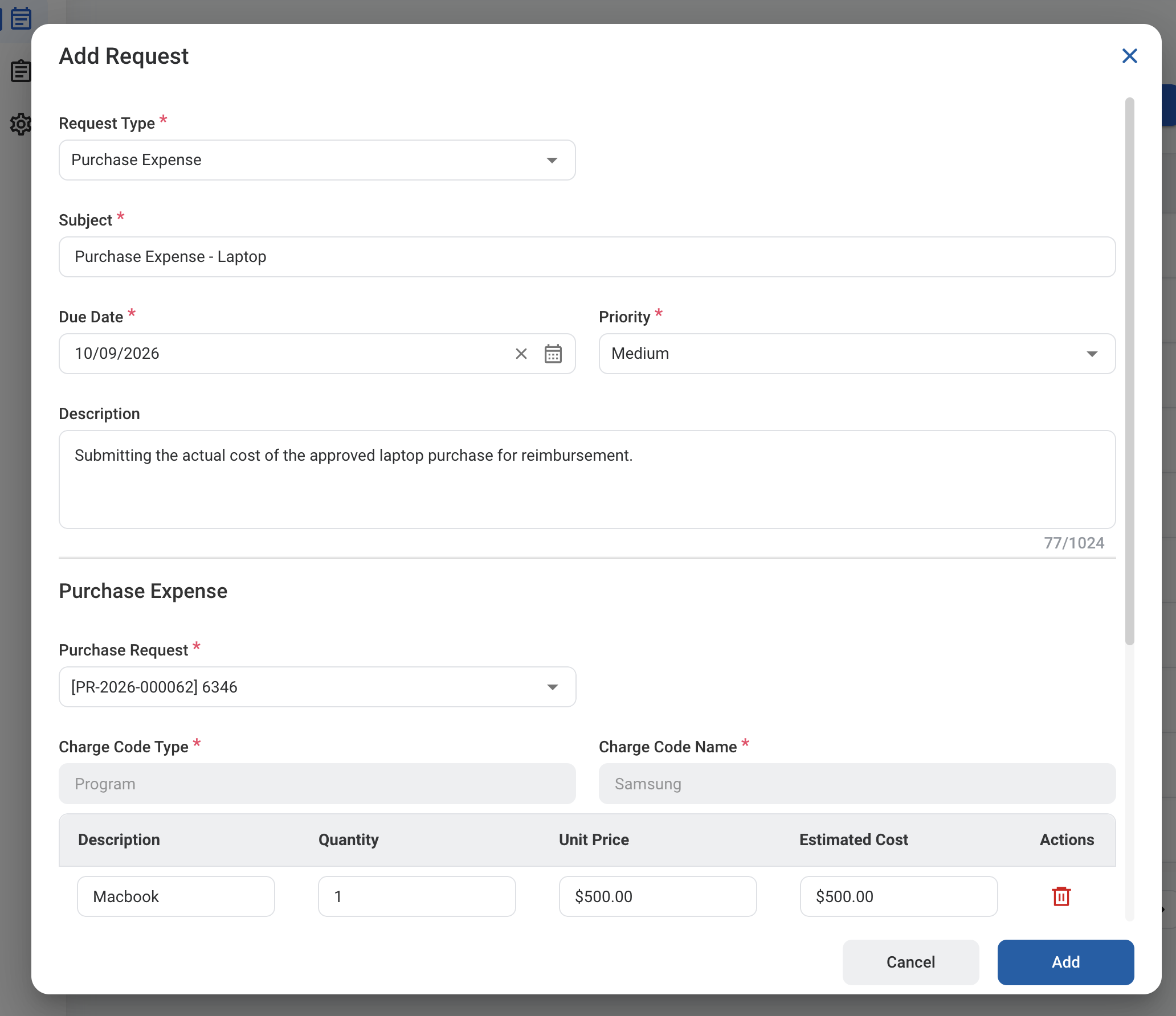 ### Request Information
| Field | Description | Required | Example |
| :---------- | :------------------------------------------------------ | :------- | :---------------------------------------------------------------------------- |
| Subject | A short title describing the request. | ✓ | Purchase Expense - Laptop |
| Due Date | The expected completion or review date for the request. | ✓ | October 9, 2026 |
| Priority | Indicates the urgency of the request. | ✓ | Medium |
| Description | Additional details or reason for the request. | | Submitting the actual cost of the approved laptop purchase for reimbursement. |
### Request Information
| Field | Description | Required | Example |
| :---------- | :------------------------------------------------------ | :------- | :---------------------------------------------------------------------------- |
| Subject | A short title describing the request. | ✓ | Purchase Expense - Laptop |
| Due Date | The expected completion or review date for the request. | ✓ | October 9, 2026 |
| Priority | Indicates the urgency of the request. | ✓ | Medium |
| Description | Additional details or reason for the request. | | Submitting the actual cost of the approved laptop purchase for reimbursement. |
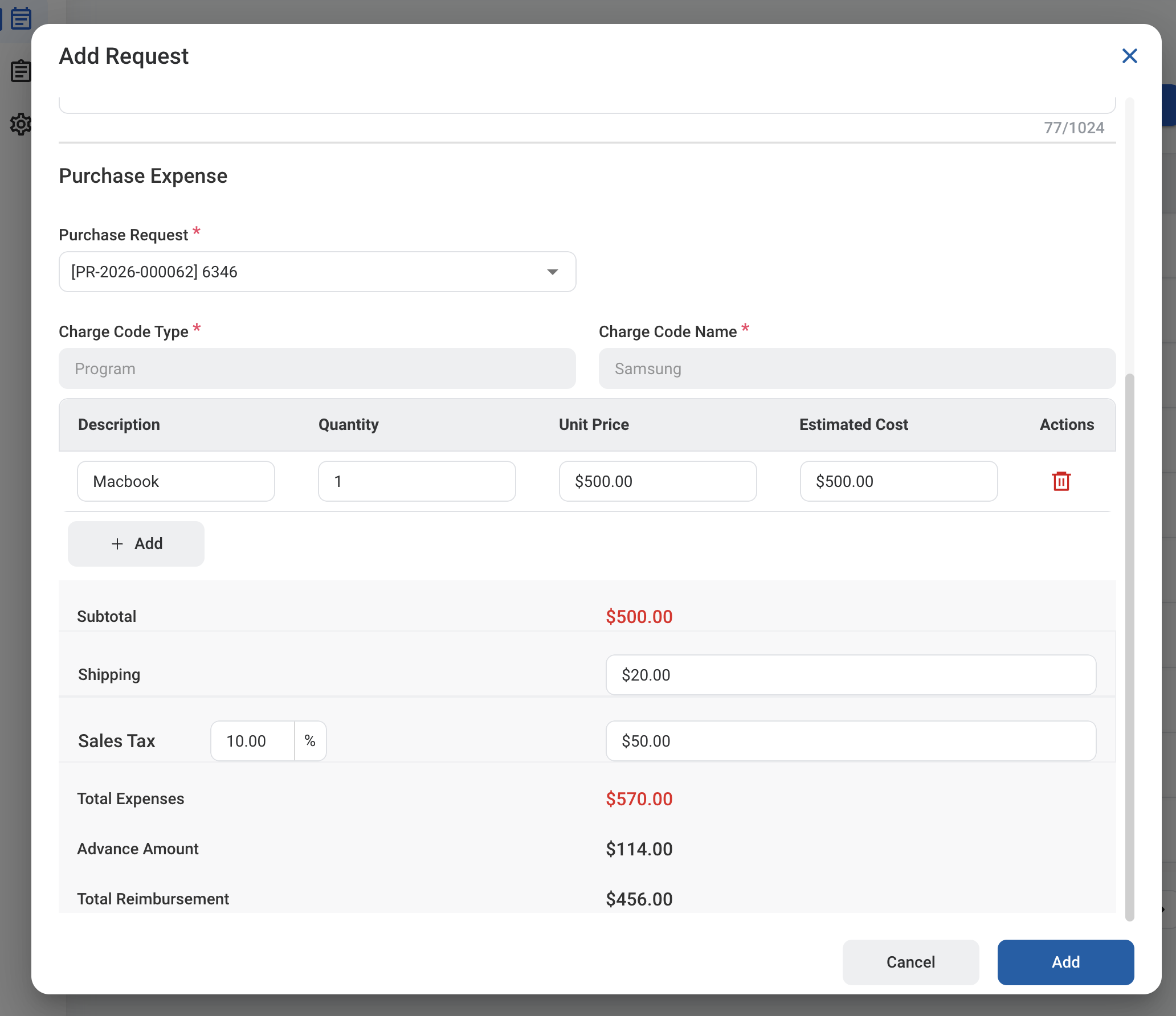 ### Purchase Expense
Selecting a Purchase Request fills in the charge code and the items from the authorization. Update the items to match what you actually paid.
| Field | Description | Required | Example |
| :---------------------------------- | :--------------------------------------------------- | :------- | :------------------- |
| Purchase Request | Approved Purchase Authorization this expense is for. | ✓ | \[PR-2026-000062] |
| Charge Code Type / Charge Code Name | Charge code from the Purchase Authorization. | Auto | Program / Samsung |
| Description / Quantity / Unit Price | Items purchased. Select **Add** to add a line. | | Macbook, 1, \$500.00 |
| Estimated Cost | Quantity multiplied by Unit Price. | Auto | \$500.00 |
| Subtotal | Sum of all item costs. | Auto | \$500.00 |
| Shipping | Actual shipping cost. | | \$20.00 |
| Sales Tax | Sales tax rate (%) and amount. | | 10% (\$50.00) |
| Total Expenses | Subtotal plus shipping and sales tax. | Auto | \$570.00 |
| Advance Amount | Advance paid under the Purchase Authorization. | Auto | \$114.00 |
| Total Reimbursement | Total Expenses minus the Advance Amount. | Auto | \$456.00 |
### Purchase Expense
Selecting a Purchase Request fills in the charge code and the items from the authorization. Update the items to match what you actually paid.
| Field | Description | Required | Example |
| :---------------------------------- | :--------------------------------------------------- | :------- | :------------------- |
| Purchase Request | Approved Purchase Authorization this expense is for. | ✓ | \[PR-2026-000062] |
| Charge Code Type / Charge Code Name | Charge code from the Purchase Authorization. | Auto | Program / Samsung |
| Description / Quantity / Unit Price | Items purchased. Select **Add** to add a line. | | Macbook, 1, \$500.00 |
| Estimated Cost | Quantity multiplied by Unit Price. | Auto | \$500.00 |
| Subtotal | Sum of all item costs. | Auto | \$500.00 |
| Shipping | Actual shipping cost. | | \$20.00 |
| Sales Tax | Sales tax rate (%) and amount. | | 10% (\$50.00) |
| Total Expenses | Subtotal plus shipping and sales tax. | Auto | \$570.00 |
| Advance Amount | Advance paid under the Purchase Authorization. | Auto | \$114.00 |
| Total Reimbursement | Total Expenses minus the Advance Amount. | Auto | \$456.00 |
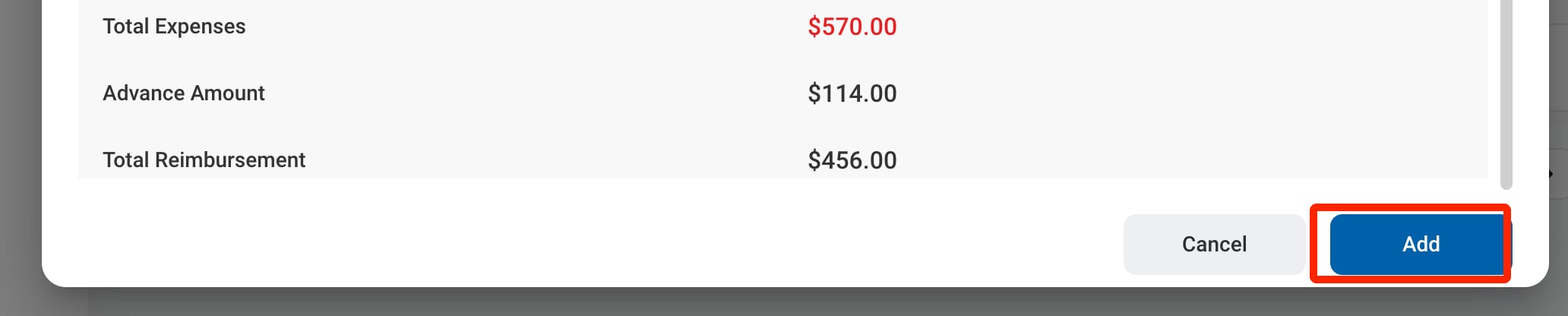 After a Purchase Expense is approved, the journal entry must be created and posted separately through **Accounting > Transaction >** [Journal Entry](/erp/accounting/journal-entry).
## Review a Purchase Expense Request
To review a submitted Purchase Expense request and approve, reject, or discard it, see **Accounting >** [Request](/erp/accounting/request).
## Manage the Purchase Expense Business Process
To manage the workflow for Purchase Expense requests, see **Admin > Business Processes >** [Business Processes Overview](/erp/admin/business-process-overview).
After a Purchase Expense is approved, the journal entry must be created and posted separately through **Accounting > Transaction >** [Journal Entry](/erp/accounting/journal-entry).
## Review a Purchase Expense Request
To review a submitted Purchase Expense request and approve, reject, or discard it, see **Accounting >** [Request](/erp/accounting/request).
## Manage the Purchase Expense Business Process
To manage the workflow for Purchase Expense requests, see **Admin > Business Processes >** [Business Processes Overview](/erp/admin/business-process-overview).