> ## Documentation Index
> Fetch the complete documentation index at: https://docs.bizbone.com/llms.txt
> Use this file to discover all available pages before exploring further.
# Leave Accrual Cashout Request
> Request to cash out unused accrued leave hours, such as PTO, based on your balance, the maximum cash-out, and the cash-out rate.
A Leave Accrual Cashout request asks to be paid for unused accrued leave hours, such as PTO, instead of taking them as time off. After you submit it, the request follows the configured approval workflow before being approved, rejected, or returned for revision.
## Create a Leave Accrual Cashout Request
### Prerequisites
Before submitting a Leave Accrual Cashout request:
* You must have an active employee account.
* You must have an accrued balance in the selected leave type.
* You cannot have another cash-out request that is not yet complete. If you do, a message is displayed and the request cannot be added.
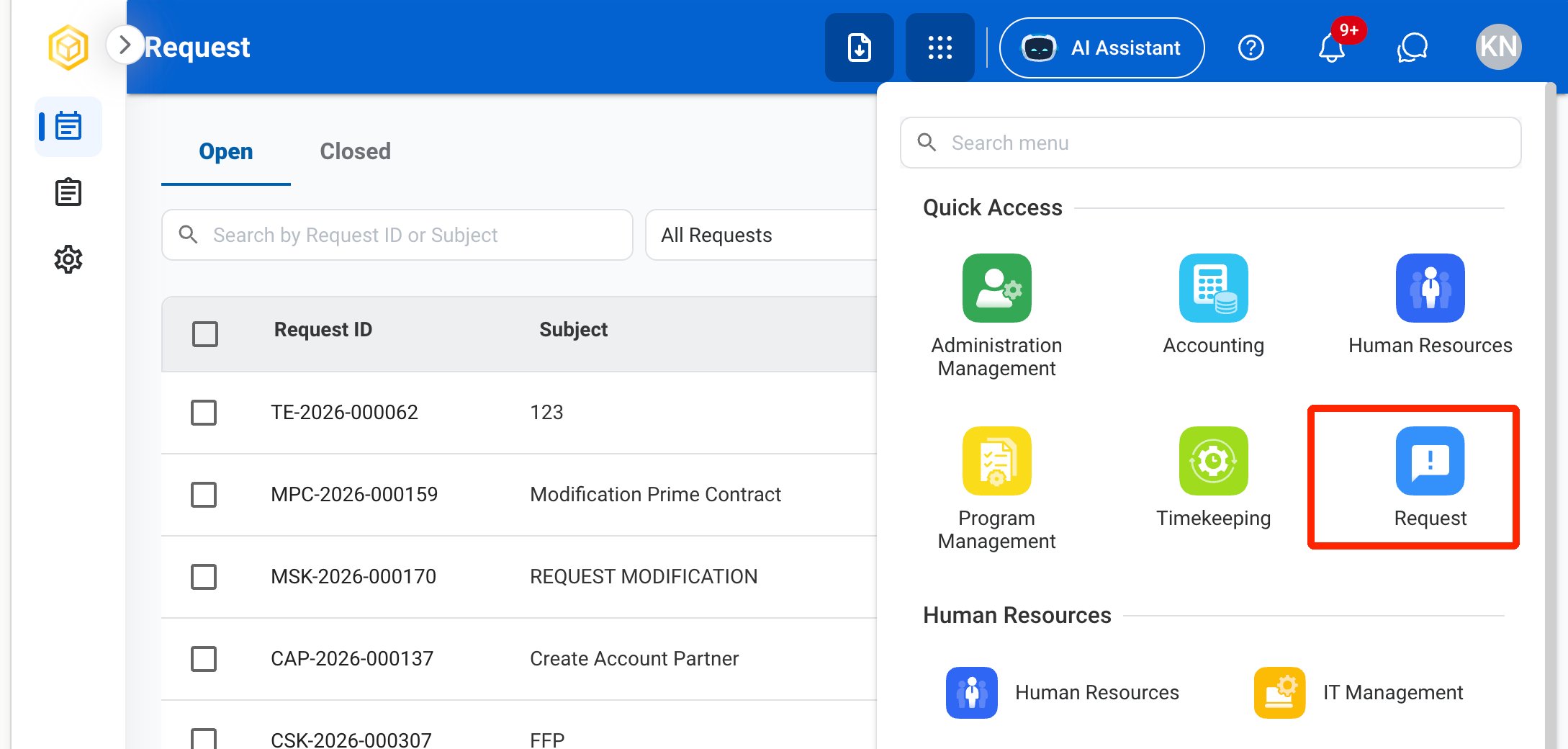
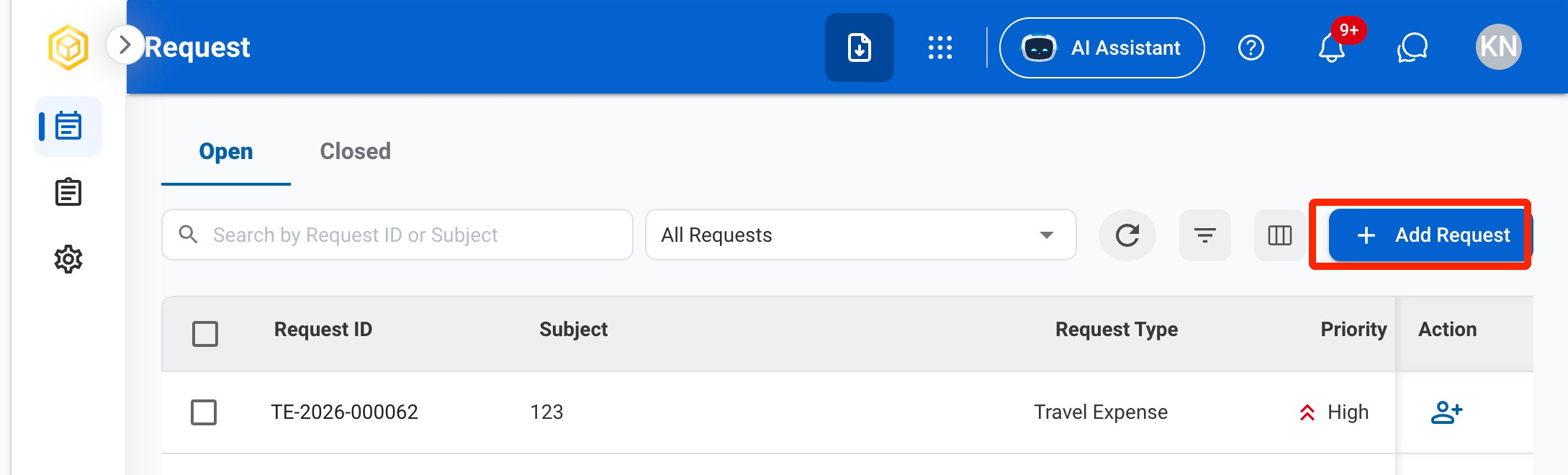
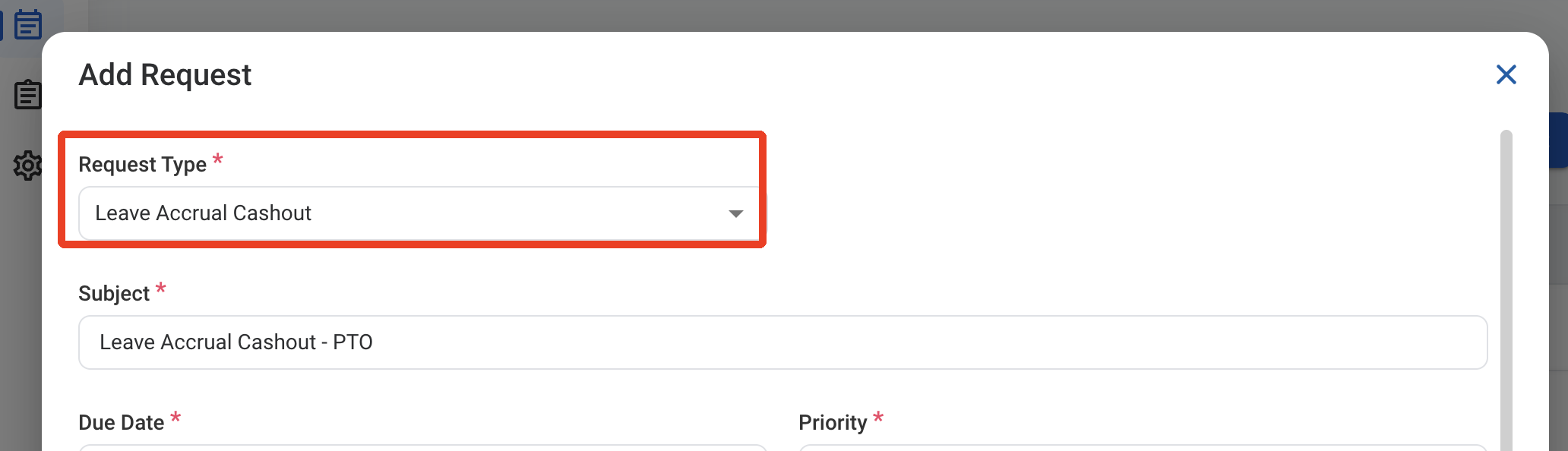
 ### Request Information
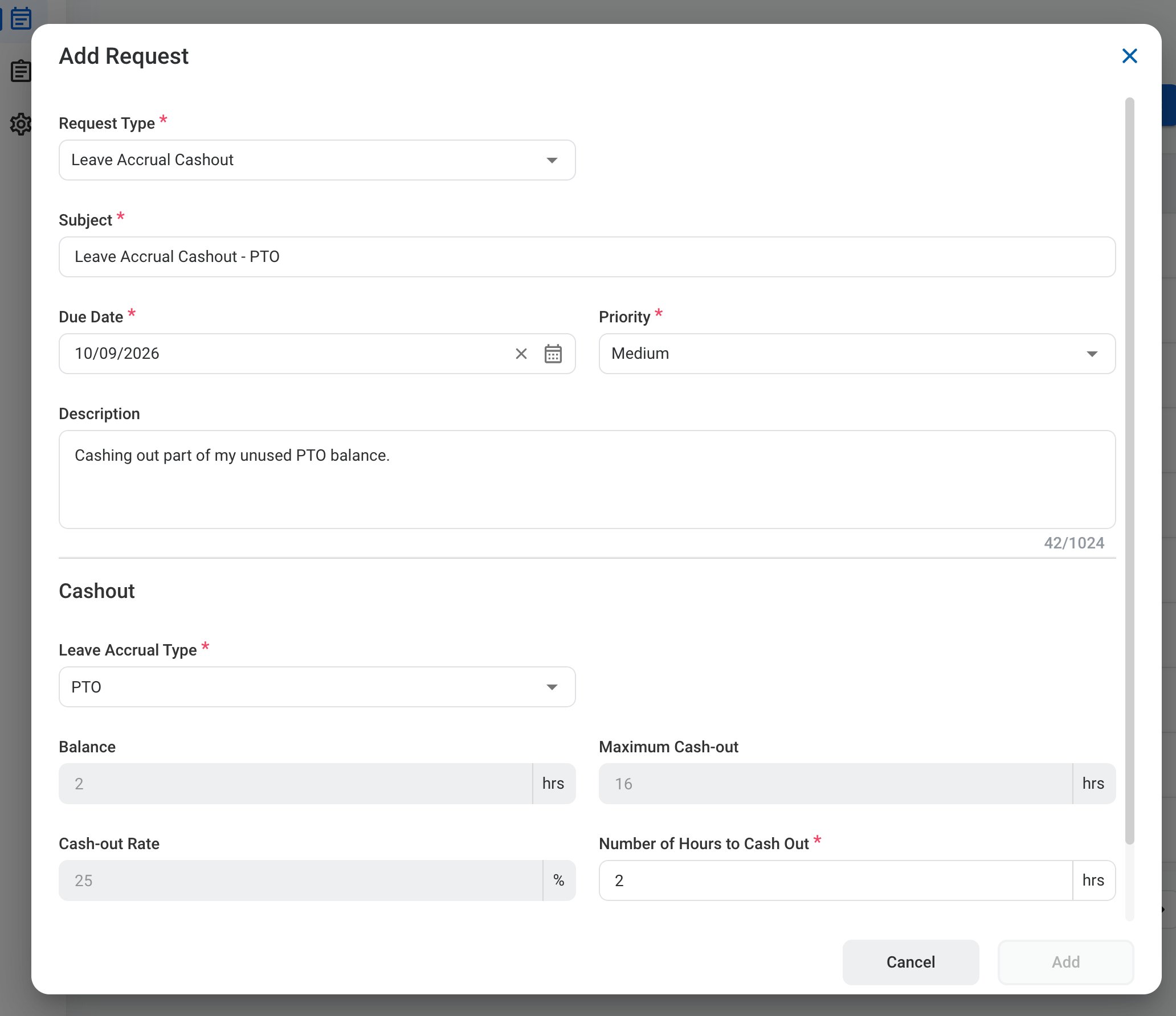
| Field | Description | Required | Example |
| :---------- | :------------------------------------------------------ | :------- | :----------------------------------------- |
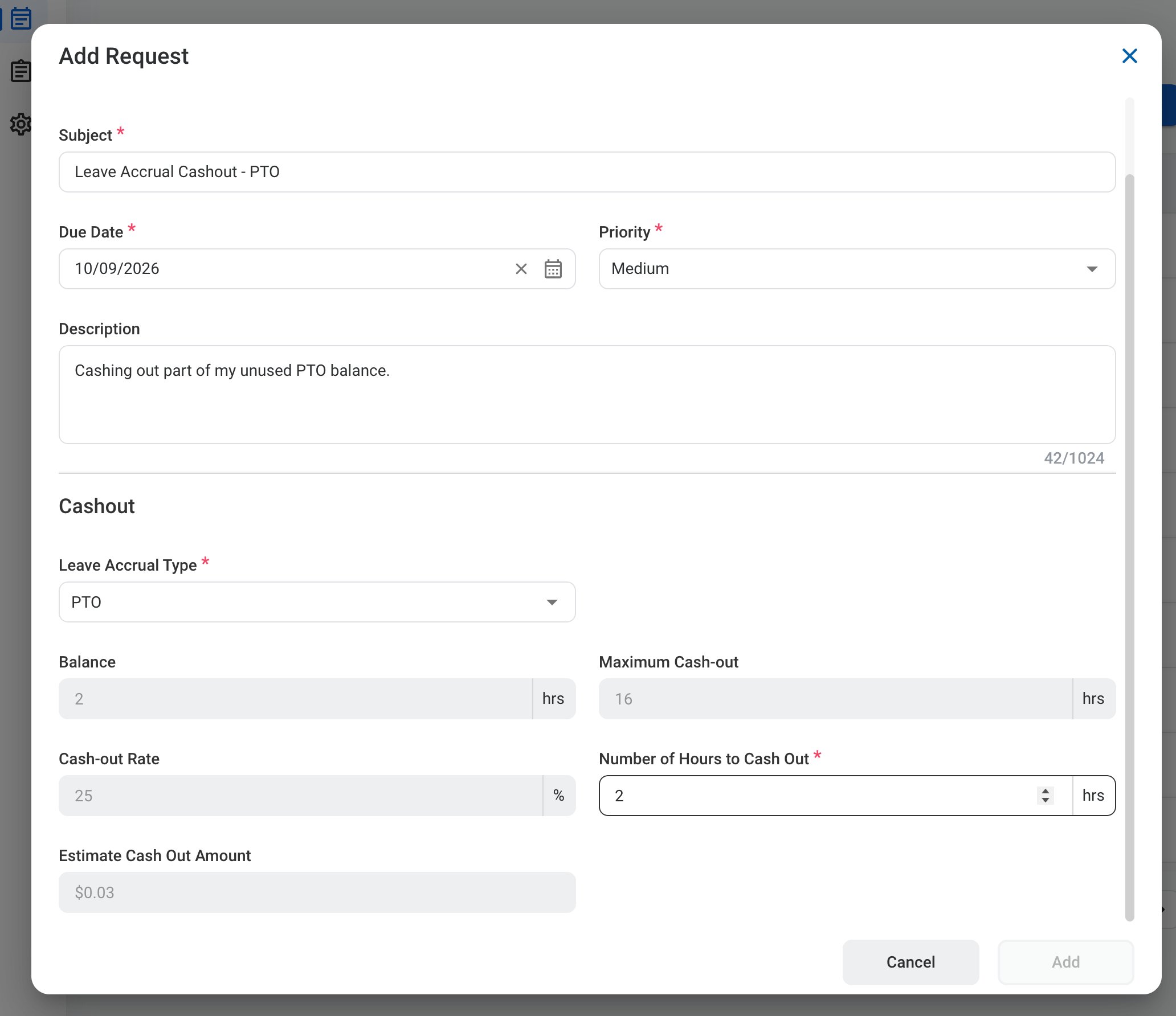
| Subject | A short title describing the request. | ✓ | Leave Accrual Cashout - PTO |
| Due Date | The expected completion or review date for the request. | ✓ | October 9, 2026 |
| Priority | Indicates the urgency of the request. | ✓ | Medium |
| Description | Additional details or reason for the request. | | Cashing out part of my unused PTO balance. |
### Request Information
| Field | Description | Required | Example |
| :---------- | :------------------------------------------------------ | :------- | :----------------------------------------- |
| Subject | A short title describing the request. | ✓ | Leave Accrual Cashout - PTO |
| Due Date | The expected completion or review date for the request. | ✓ | October 9, 2026 |
| Priority | Indicates the urgency of the request. | ✓ | Medium |
| Description | Additional details or reason for the request. | | Cashing out part of my unused PTO balance. |
 ### Cashout
| Field | Description | Required | Example |
| :-------------------------- | :--------------------------------------------------------------------- | :------- | :------ |
| Leave Accrual Type | Leave type to cash out, such as PTO. | ✓ | PTO |
| Balance | Your current balance for the leave type, in hours. | Auto | 2 hrs |
| Maximum Cash-out | Maximum hours you can cash out. | Auto | 16 hrs |
| Cash-out Rate | Percentage of your pay rate paid for each hour cashed out. | Auto | 25% |
| Number of Hours to Cash Out | Hours to cash out. Cannot exceed your balance or the maximum cash-out. | ✓ | 2 hrs |
| Estimate Cash Out Amount | Estimated payment for the hours cashed out. | Auto | \$0.03 |
### Cashout
| Field | Description | Required | Example |
| :-------------------------- | :--------------------------------------------------------------------- | :------- | :------ |
| Leave Accrual Type | Leave type to cash out, such as PTO. | ✓ | PTO |
| Balance | Your current balance for the leave type, in hours. | Auto | 2 hrs |
| Maximum Cash-out | Maximum hours you can cash out. | Auto | 16 hrs |
| Cash-out Rate | Percentage of your pay rate paid for each hour cashed out. | Auto | 25% |
| Number of Hours to Cash Out | Hours to cash out. Cannot exceed your balance or the maximum cash-out. | ✓ | 2 hrs |
| Estimate Cash Out Amount | Estimated payment for the hours cashed out. | Auto | \$0.03 |
 After the request is approved, the hours cashed out are added to the Taken Leave for the leave type in HR, and the Accounting manager creates the journal entry and processes the payment manually.
## Review a Leave Accrual Cashout Request
To review a submitted Leave Accrual Cashout request and approve, reject, or discard it, see **Payroll >** [Requests](/erp/payroll/requests).
## Manage the Leave Accrual Cashout Business Process
To manage the workflow for Leave Accrual Cashout requests, see **Admin > Business Processes >** [Business Processes Overview](/erp/admin/business-process-overview).
After the request is approved, the hours cashed out are added to the Taken Leave for the leave type in HR, and the Accounting manager creates the journal entry and processes the payment manually.
## Review a Leave Accrual Cashout Request
To review a submitted Leave Accrual Cashout request and approve, reject, or discard it, see **Payroll >** [Requests](/erp/payroll/requests).
## Manage the Leave Accrual Cashout Business Process
To manage the workflow for Leave Accrual Cashout requests, see **Admin > Business Processes >** [Business Processes Overview](/erp/admin/business-process-overview).