> ## Documentation Index
> Fetch the complete documentation index at: https://docs.bizbone.com/llms.txt
> Use this file to discover all available pages before exploring further.
# Create Account Request
> Request a BizBone system account for an employee, with the roles, account type, and status the account should have.
A Create Account request asks IT to create a BizBone account for an employee, such as a new hire, with the roles they need. After you submit it, the request follows the configured approval workflow before being approved, rejected, or returned for revision.
## Create a Create Account Request
### Prerequisites
Before submitting a Create Account request:
* You must have an active employee account.
* The employee must already exist in HR. Their name and emails are filled in from the employee record.
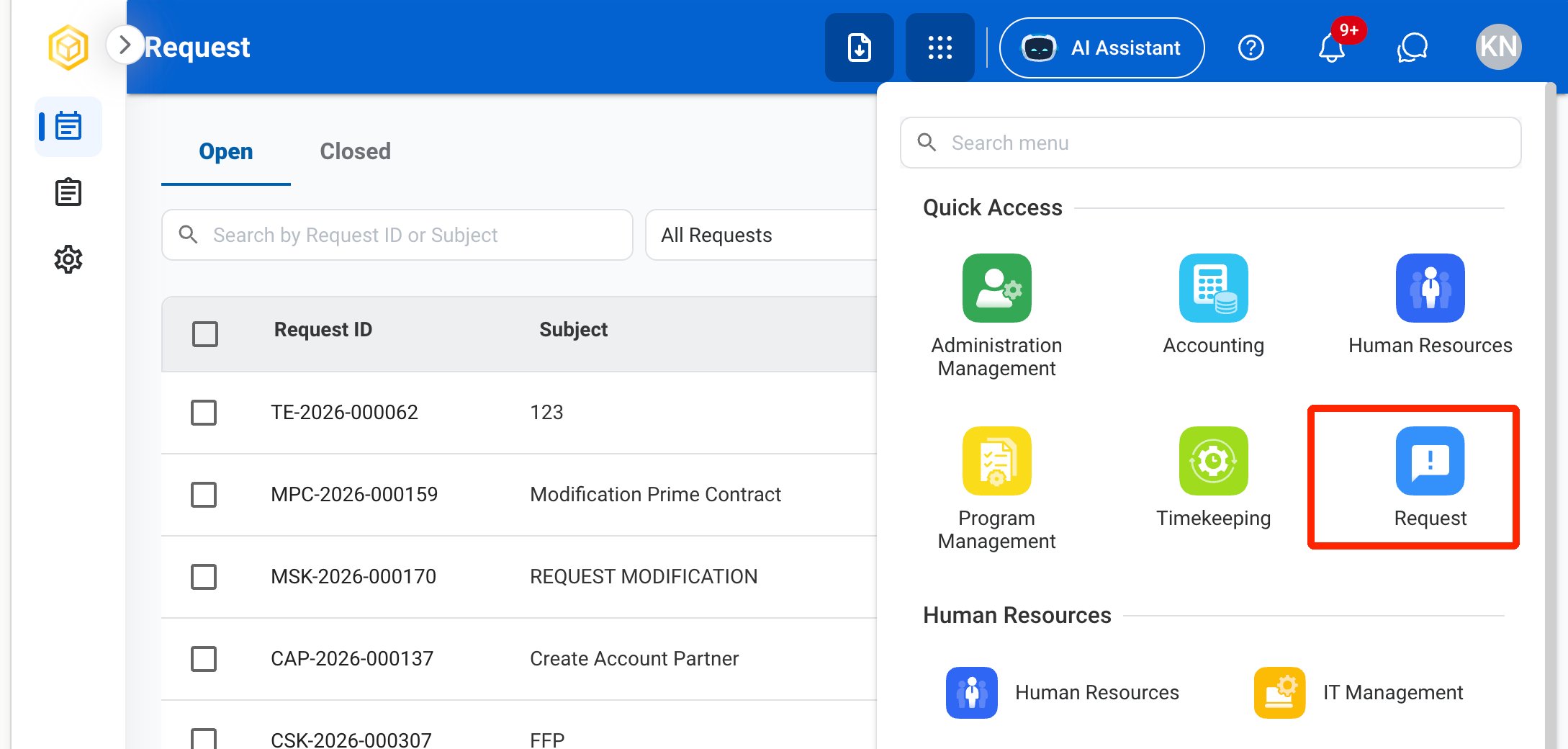
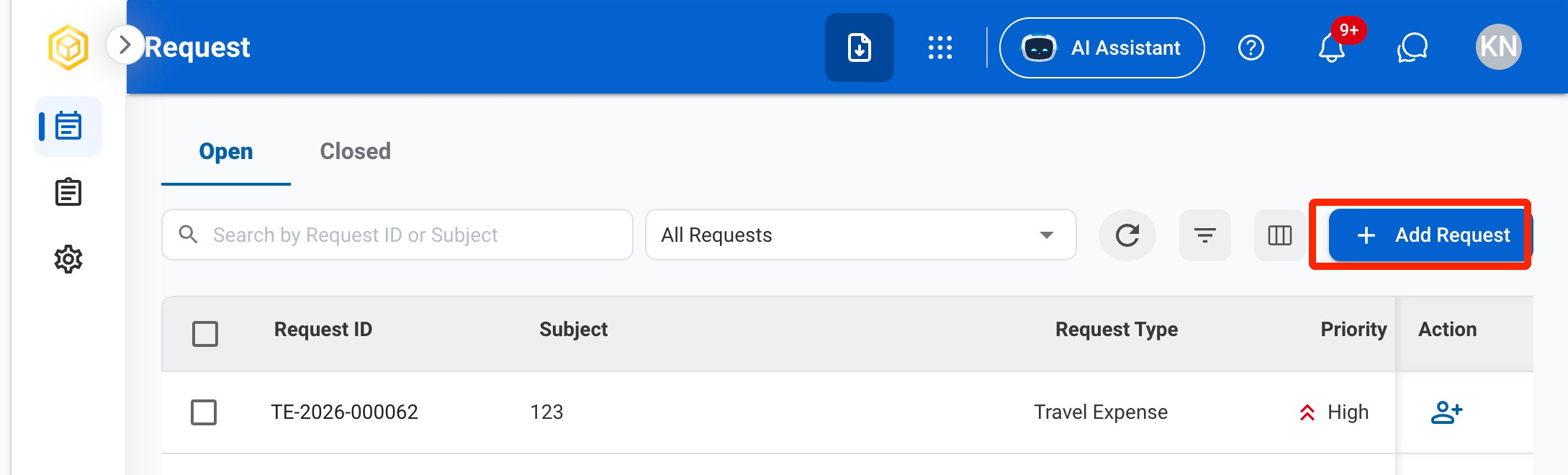

 ### Request Information
| Field | Description | Required | Example |
| :---------- | :------------------------------------------------------ | :------- | :--------------------------------------------------------- |
| Subject | A short title describing the request. | ✓ | Create Account - New Hire John Doe |
| Due Date | The expected completion or review date for the request. | ✓ | October 9, 2026 |
| Priority | Indicates the urgency of the request. | ✓ | Medium |
| Description | Additional details or reason for the request. | | Create a system account for a new hire starting next week. |
### Request Information
| Field | Description | Required | Example |
| :---------- | :------------------------------------------------------ | :------- | :--------------------------------------------------------- |
| Subject | A short title describing the request. | ✓ | Create Account - New Hire John Doe |
| Due Date | The expected completion or review date for the request. | ✓ | October 9, 2026 |
| Priority | Indicates the urgency of the request. | ✓ | Medium |
| Description | Additional details or reason for the request. | | Create a system account for a new hire starting next week. |
 ### Create Account
| Field | Description | Required | Example |
| :-------------------------------------- | :---------------------------------------------------------------------------------------------- | :------- | :-------------------------------------------------- |
| Employee Name | Employee who needs the account. | ✓ | John Doe |
| First Name / Middle Initial / Last Name | Employee's name from the employee record. | Auto | John Doe |
| Personal Email / Work Email | Employee's emails. The work email is used to sign in. | Auto | [john.doe@company.com](mailto:john.doe@company.com) |
| Role | One or more roles that set what the account can access. New Hire is included for new employees. | ✓ | HR Manager, New Hire |
| Account Type | Tenant, User, Partner, or Candidate. | ✓ | User |
| Status | Whether the account is Active or Inactive when created. | ✓ | Active |
### Create Account
| Field | Description | Required | Example |
| :-------------------------------------- | :---------------------------------------------------------------------------------------------- | :------- | :-------------------------------------------------- |
| Employee Name | Employee who needs the account. | ✓ | John Doe |
| First Name / Middle Initial / Last Name | Employee's name from the employee record. | Auto | John Doe |
| Personal Email / Work Email | Employee's emails. The work email is used to sign in. | Auto | [john.doe@company.com](mailto:john.doe@company.com) |
| Role | One or more roles that set what the account can access. New Hire is included for new employees. | ✓ | HR Manager, New Hire |
| Account Type | Tenant, User, Partner, or Candidate. | ✓ | User |
| Status | Whether the account is Active or Inactive when created. | ✓ | Active |
 After approval, the account is created in **Administration Management**. If the employee is onboarding, the account item in their onboarding checklist is checked off automatically.
## Review a Create Account Request
To review a submitted Create Account request and approve, reject, or discard it, see **IT Management >** [Requests](/erp/it/requests).
## Manage the Create Account Business Process
To manage the workflow for Create Account requests, see **Admin > Business Processes >** [Business Processes Overview](/erp/admin/business-process-overview).
After approval, the account is created in **Administration Management**. If the employee is onboarding, the account item in their onboarding checklist is checked off automatically.
## Review a Create Account Request
To review a submitted Create Account request and approve, reject, or discard it, see **IT Management >** [Requests](/erp/it/requests).
## Manage the Create Account Business Process
To manage the workflow for Create Account requests, see **Admin > Business Processes >** [Business Processes Overview](/erp/admin/business-process-overview).