> ## Documentation Index
> Fetch the complete documentation index at: https://docs.bizbone.com/llms.txt
> Use this file to discover all available pages before exploring further.
# Consultant Member for Internal Department Request
> Request to add consultant members to an active internal department consultant agreement, filling an opening under the agreement.
A Consultant Member for Internal Department request asks to add one or more consultant staff to an active consultant agreement for an internal department. After you submit it, the request follows the configured approval workflow before being approved, rejected, or returned for revision.
## Create a Consultant Member for Internal Department Request
### Prerequisites
Before submitting a Consultant Member for Internal Department request:
* You must have an active employee account.
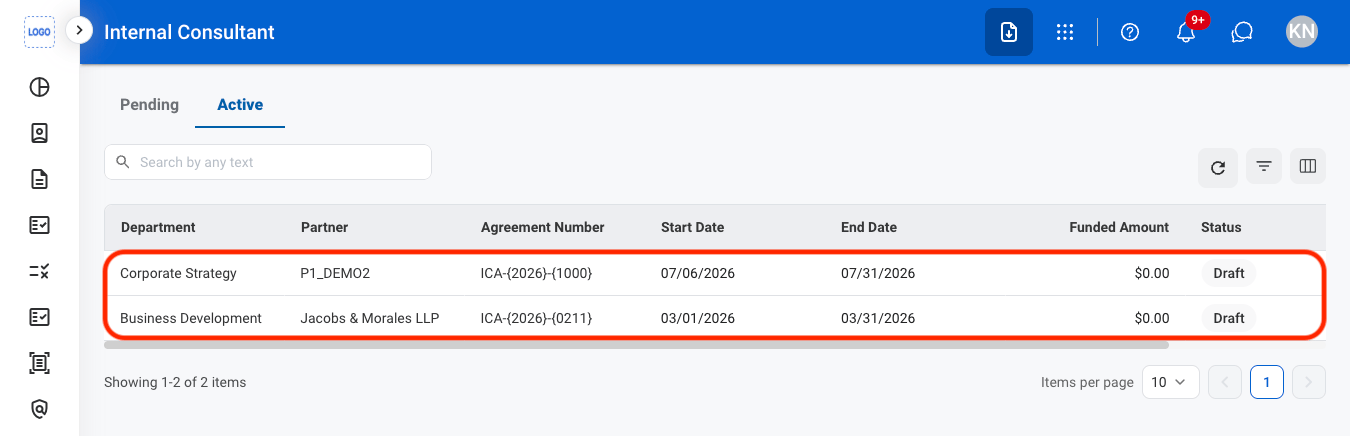
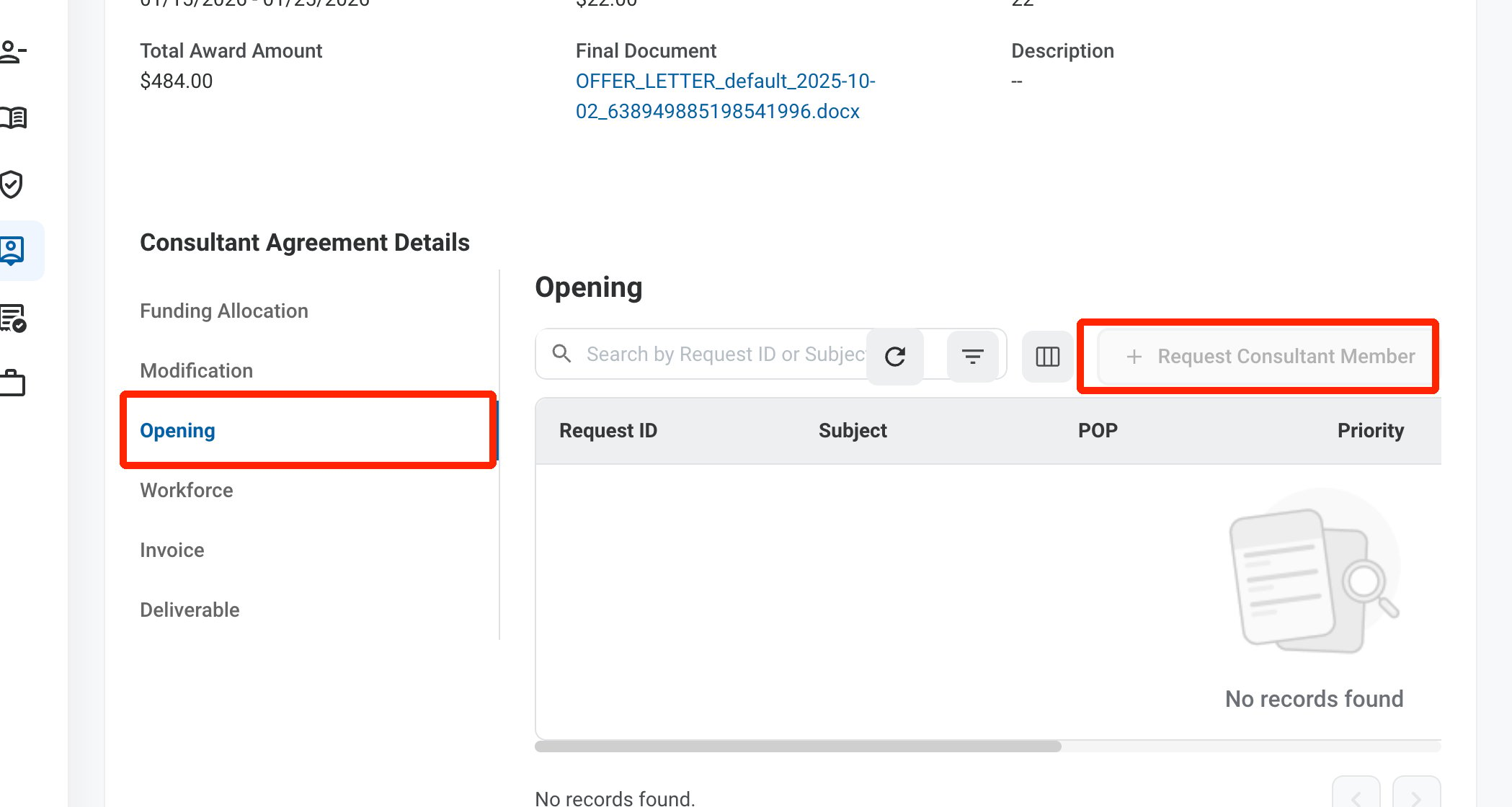
* The internal department consultant agreement must be active. The Request Consultant Member button is disabled for agreements in Draft. See [Consultant Agreement for Internal Department](/erp/requests/consultant-agreement-for-internal-department).
Consultant Member for Internal Department requests are created from the agreement in **Self Service >** [Internal Consultant](/erp/self-service/internal-consultant).
 ### Consultant Member
Enter the opening details and the consultant members to add, similar to a program [Consultant's Member](/erp/requests/consultants-member) request.
| Field | Description | Required | Example |
| :------------------------------------ | :---------------------------------------------------------- | :------- | :------ |
| POP | Period of Performance of the agreement the members are for. | ✓ | |
| Number of Positions / Projected Hours | How many members to add and their expected hours. | ✓ | |
| Consultant | Consultant member to add, with their labor rate. | ✓ | |
The request is displayed in the Request module and on the agreement's **Opening** tab. It is completed when the submitter completes it from Self Service.
## Review a Consultant Member for Internal Department Request
To review a submitted Consultant Member for Internal Department request and approve, reject, or discard it, see **Contracts >** [Requests](/erp/contract-management/requests).
## Manage the Consultant Member for Internal Department Business Process
To manage the workflow for Consultant Member for Internal Department requests, see **Admin > Business Processes >** [Business Processes Overview](/erp/admin/business-process-overview).
### Consultant Member
Enter the opening details and the consultant members to add, similar to a program [Consultant's Member](/erp/requests/consultants-member) request.
| Field | Description | Required | Example |
| :------------------------------------ | :---------------------------------------------------------- | :------- | :------ |
| POP | Period of Performance of the agreement the members are for. | ✓ | |
| Number of Positions / Projected Hours | How many members to add and their expected hours. | ✓ | |
| Consultant | Consultant member to add, with their labor rate. | ✓ | |
The request is displayed in the Request module and on the agreement's **Opening** tab. It is completed when the submitter completes it from Self Service.
## Review a Consultant Member for Internal Department Request
To review a submitted Consultant Member for Internal Department request and approve, reject, or discard it, see **Contracts >** [Requests](/erp/contract-management/requests).
## Manage the Consultant Member for Internal Department Business Process
To manage the workflow for Consultant Member for Internal Department requests, see **Admin > Business Processes >** [Business Processes Overview](/erp/admin/business-process-overview).