> ## Documentation Index
> Fetch the complete documentation index at: https://docs.bizbone.com/llms.txt
> Use this file to discover all available pages before exploring further.

# Onboarding

> Manages the transition of individuals from candidates to employees. Supports communication and tracking completion of pre-boarding and new hire activities.

**Profile:** Represents an individual in the hiring and onboarding process. A profile begins as a candidate and transition to an employee upon hiring.

## Edit Profile Details

<Steps>
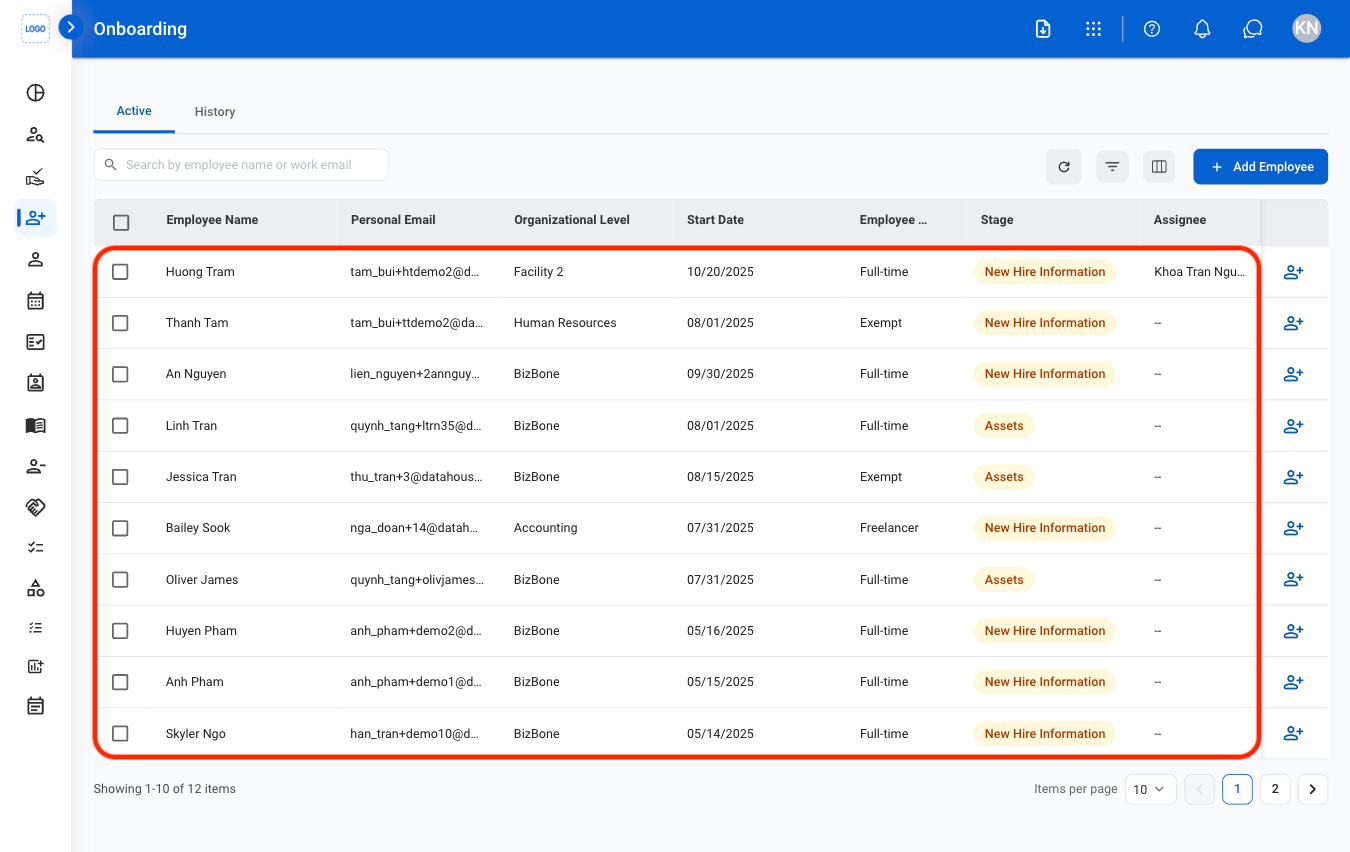
  <Step title="Navigate to Onboarding">
    <Frame>
      <img src="https://mintcdn.com/bizbone/hPsFjOPpqwmfInBf/images/HR-O-Nav.png?fit=max&auto=format&n=hPsFjOPpqwmfInBf&q=85&s=c4b8258d8c345cee34ff0e0867bc6a58" alt="HR O Nav" width="1350" height="852" data-path="images/HR-O-Nav.png" />
    </Frame>
  </Step>

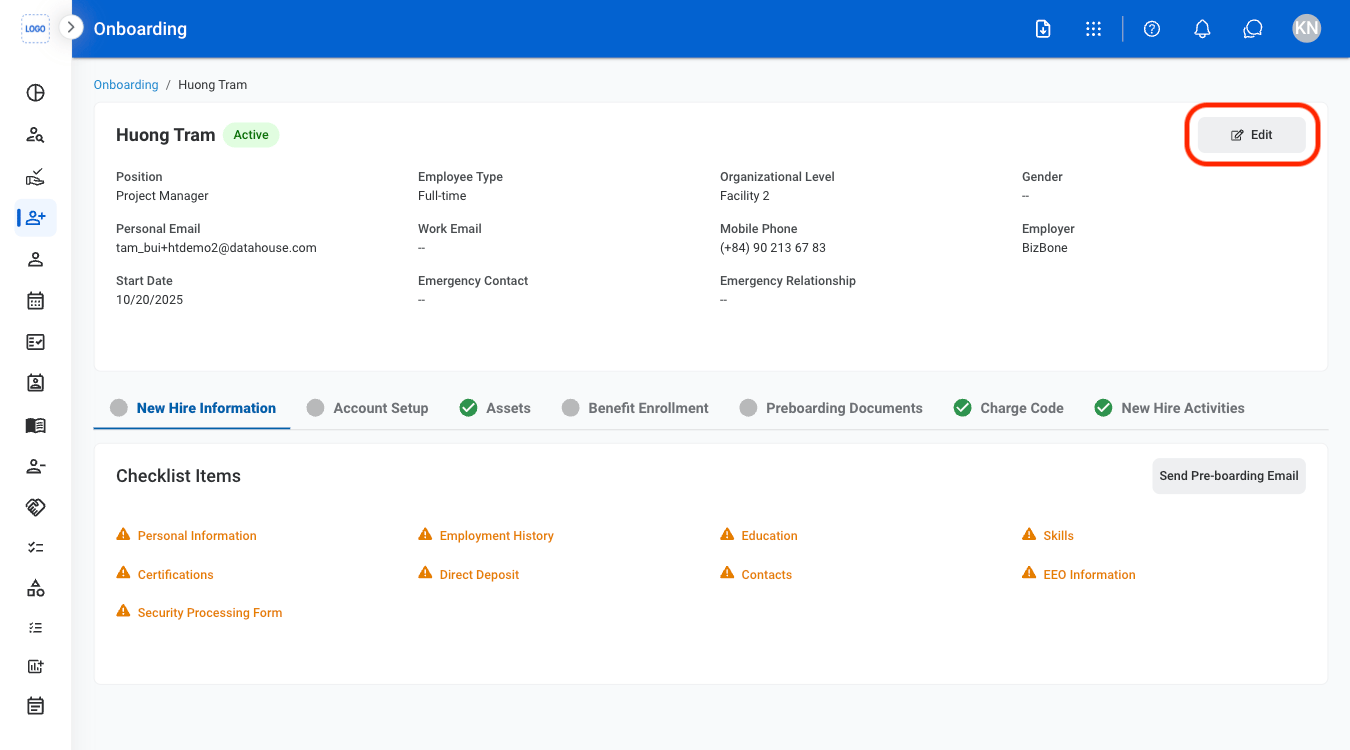
  <Step title="Select a profile">
    <Frame>
      <img src="https://mintcdn.com/bizbone/hPsFjOPpqwmfInBf/images/HR-O-Select.png?fit=max&auto=format&n=hPsFjOPpqwmfInBf&q=85&s=e0b475943c092aa2c0d9766ef201b5fa" alt="HR O Select" width="1350" height="852" data-path="images/HR-O-Select.png" />
    </Frame>
  </Step>

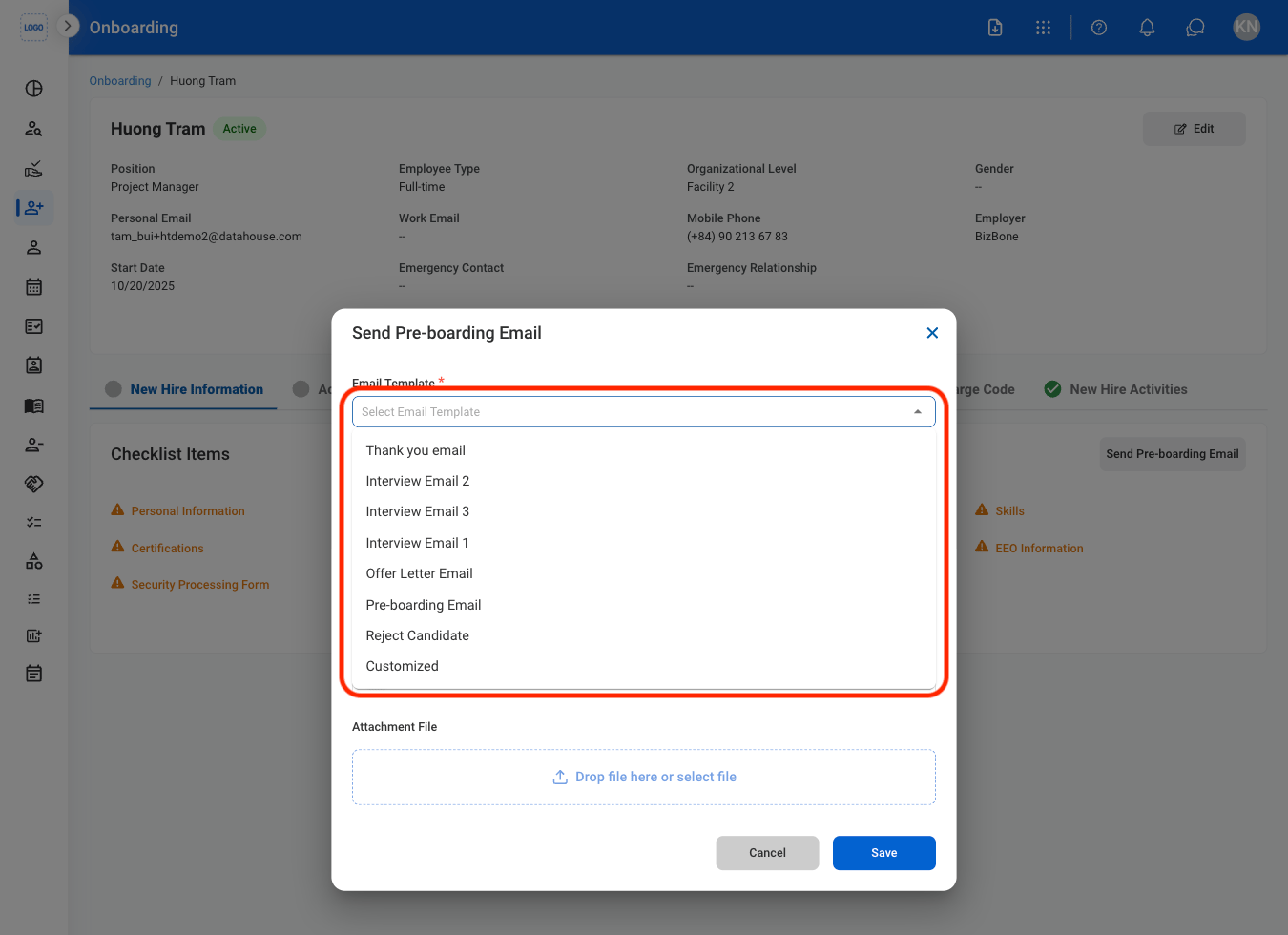
  <Step title="Select Edit">
    <Frame>
      <img src="https://mintcdn.com/bizbone/hPsFjOPpqwmfInBf/images/HR-O-Edit.png?fit=max&auto=format&n=hPsFjOPpqwmfInBf&q=85&s=2cf5797ccbeb84a2496f40676b9ba8dd" alt="HR O Edit" width="1350" height="750" data-path="images/HR-O-Edit.png" />
    </Frame>
  </Step>

  <Step title="Fill in the required information">
    <Frame>
      <img src="https://mintcdn.com/bizbone/hPsFjOPpqwmfInBf/images/HR-O-Edit-C.png?fit=max&auto=format&n=hPsFjOPpqwmfInBf&q=85&s=8c8c74a334cb108df74768f77ee3c0e2" alt="HR O Edit C" width="1350" height="1010" data-path="images/HR-O-Edit-C.png" />
    </Frame>

    Select **Save** to complete or **Cancel** to exit without saving changes. 
  </Step>
</Steps>

## Send Pre-Boarding Email

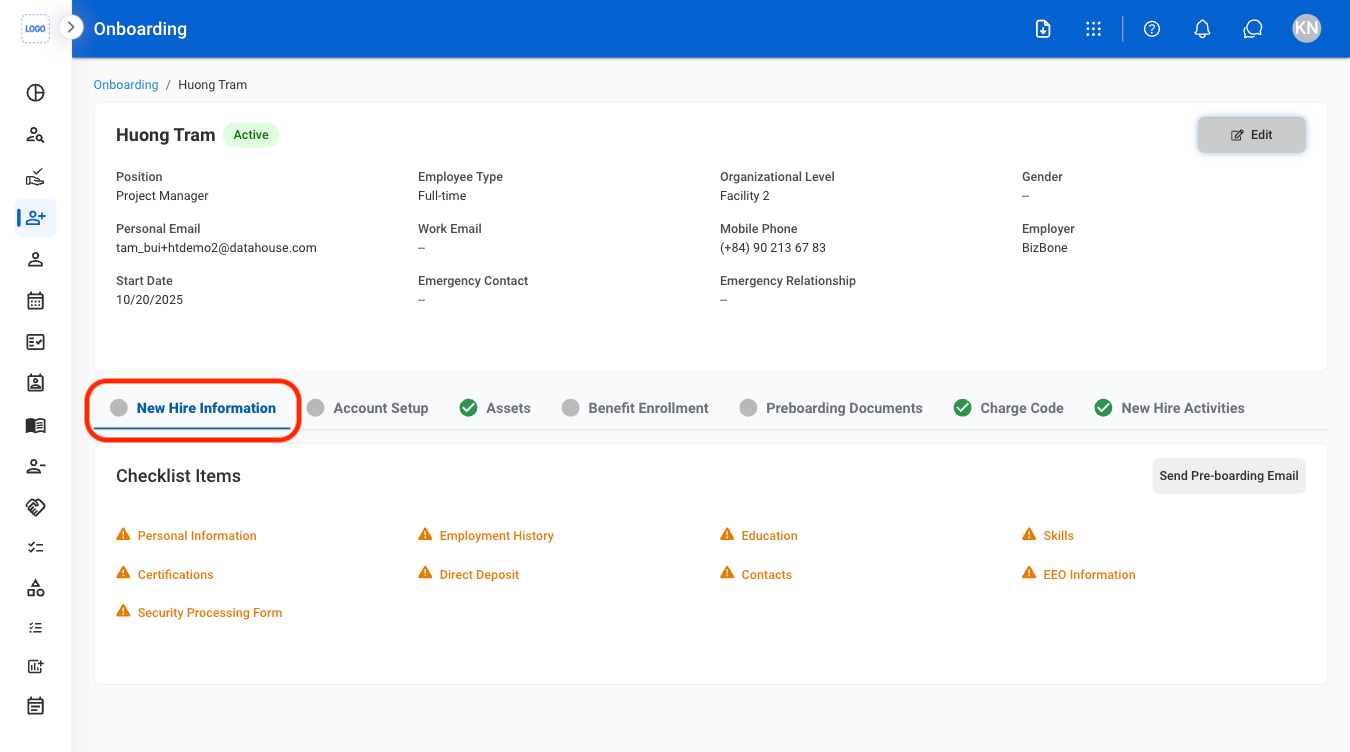
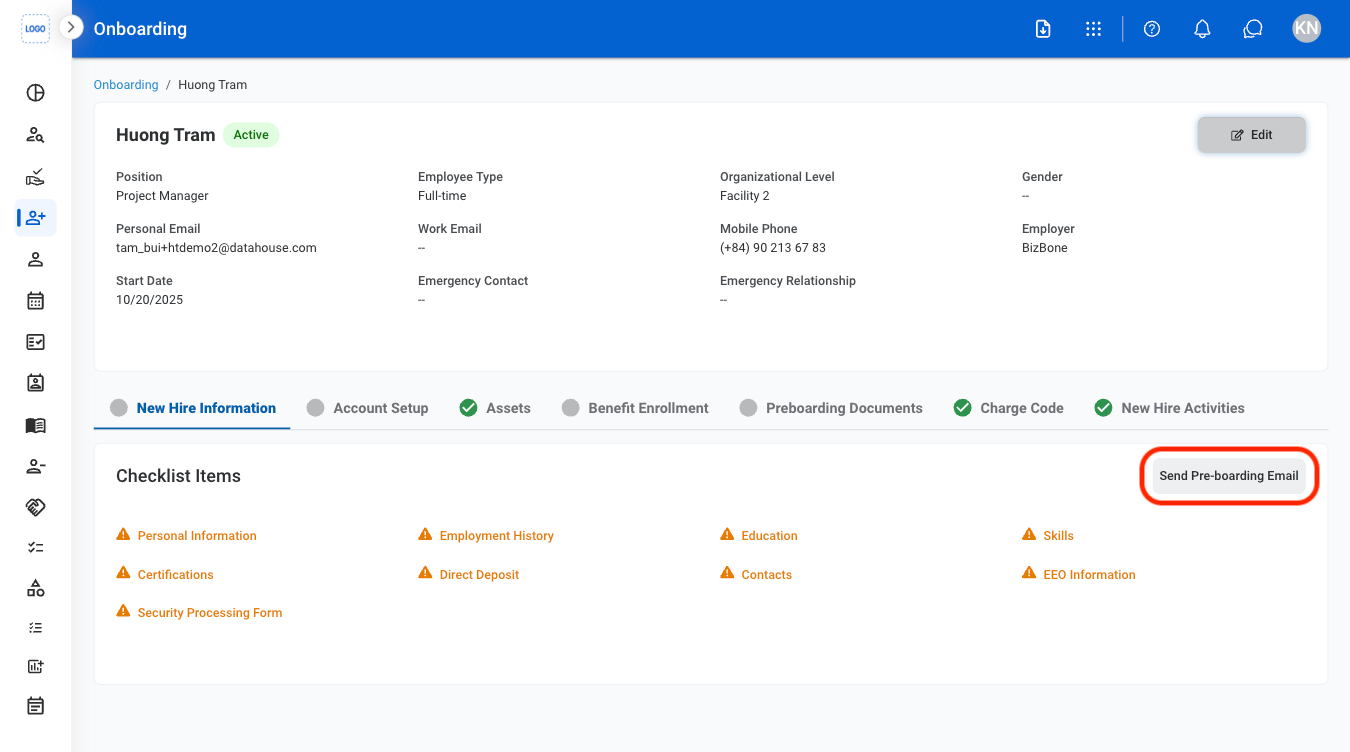
Welcome an accepted candidate and provide key information needed before their first day including start date, contact details, and required documents.
<Steps>
  <Step title="Navigate to New Hire Information">
    <Frame>
      <img src="https://mintcdn.com/bizbone/-O3uR8q6EMUEUh04/images/HR-O-NHI.png?fit=max&auto=format&n=-O3uR8q6EMUEUh04&q=85&s=565bccde306301e77d66138a7e5853b2" alt="HR O NHI" width="1350" height="752" data-path="images/HR-O-NHI.png" />
    </Frame>
  </Step>

  <Step title="Select Send Pre-Boarding Email">
    <Frame>
      <img src="https://mintcdn.com/bizbone/-O3uR8q6EMUEUh04/images/HR-O-SPE.png?fit=max&auto=format&n=-O3uR8q6EMUEUh04&q=85&s=6817d7374a85b44804e86fb90b3bbf05" alt="HR O SPE" width="1350" height="752" data-path="images/HR-O-SPE.png" />
    </Frame>
  </Step>

  <Step title="Select a template">
    <Frame>
      <img src="https://mintcdn.com/bizbone/-O3uR8q6EMUEUh04/images/HR-O-Template.png?fit=max&auto=format&n=-O3uR8q6EMUEUh04&q=85&s=23484359d015ab015c1f7b74b1f6ea86" alt="HR O Template" width="1350" height="980" data-path="images/HR-O-Template.png" />
    </Frame>

    Use the dropdown list to choose an existing template, or select **Customized** to write a custom message.

    <Info>
      To modify available email templates, navigate to the Admin Module
    </Info>
  </Step>

  <Step title="Save pre-boarding email">
    <Frame>
      <img src="https://mintcdn.com/bizbone/-O3uR8q6EMUEUh04/images/HR-O-Send-Email.png?fit=max&auto=format&n=-O3uR8q6EMUEUh04&q=85&s=564df8a67f339bb89bf466ebdd8eba5c" alt="HR O Send Email" width="1350" height="1258" data-path="images/HR-O-Send-Email.png" />
    </Frame>

    Select **Save** to send the email or **Cancel** to exit without saving changes
  </Step>
</Steps>

## Account Setup

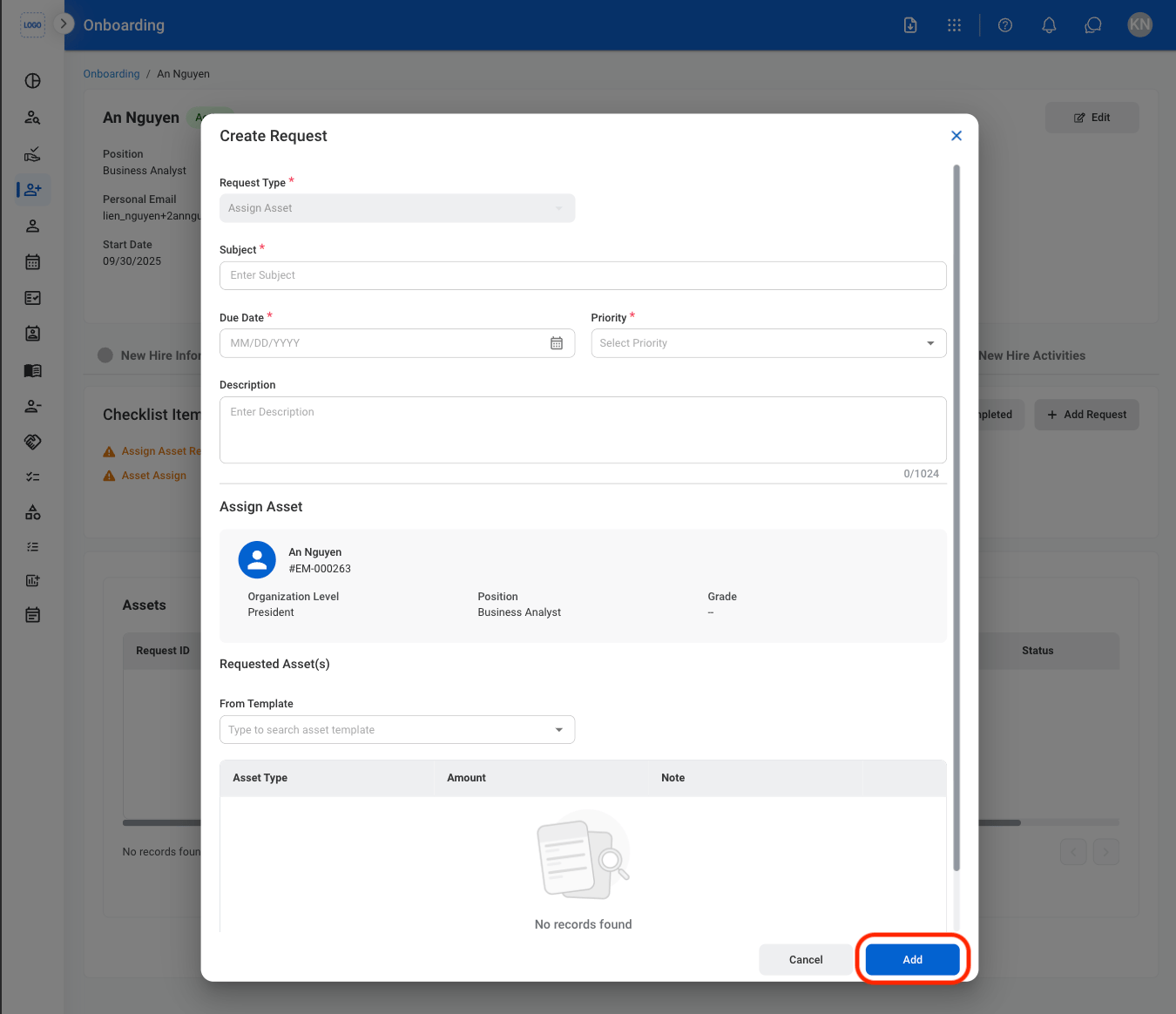
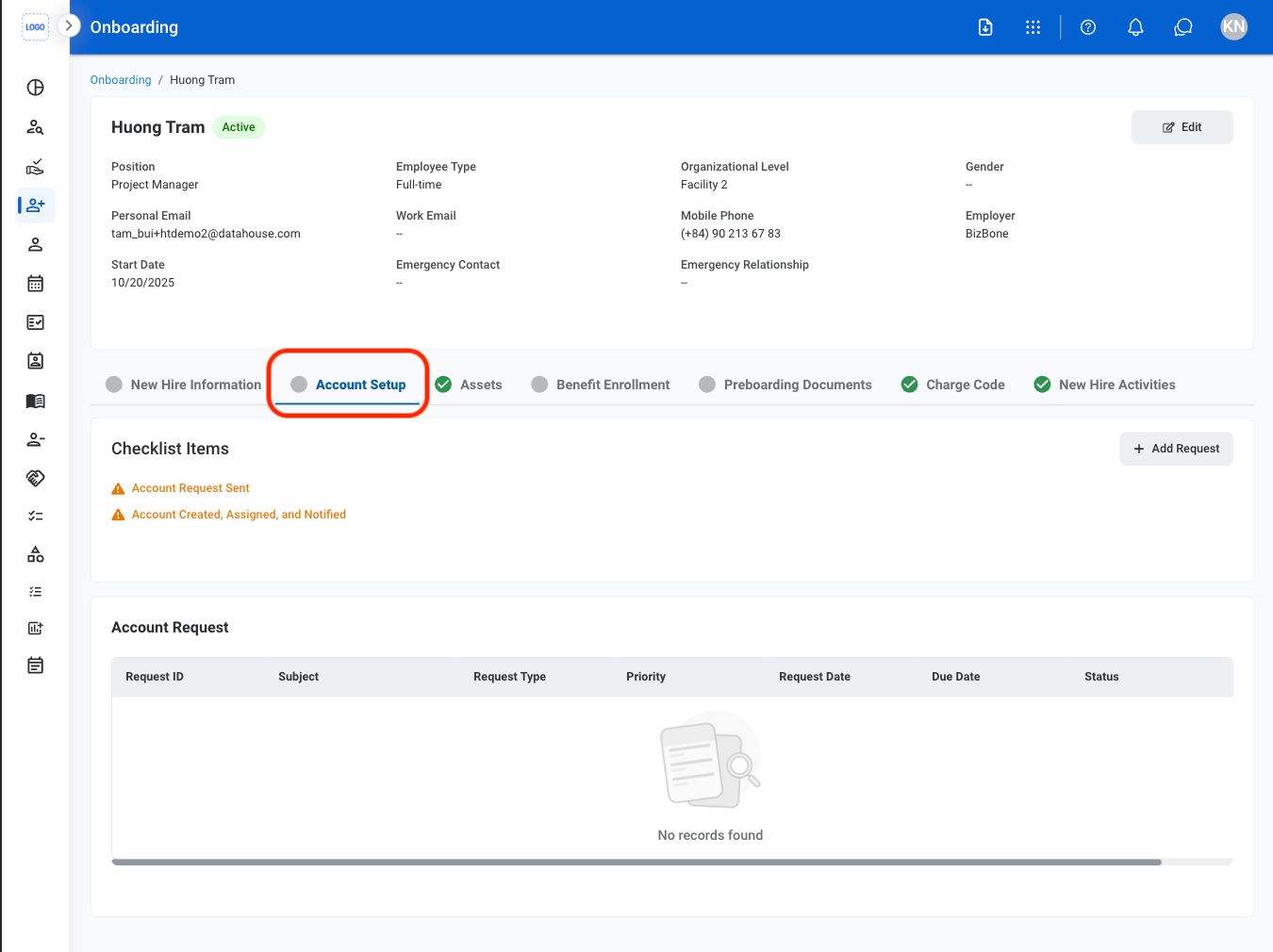
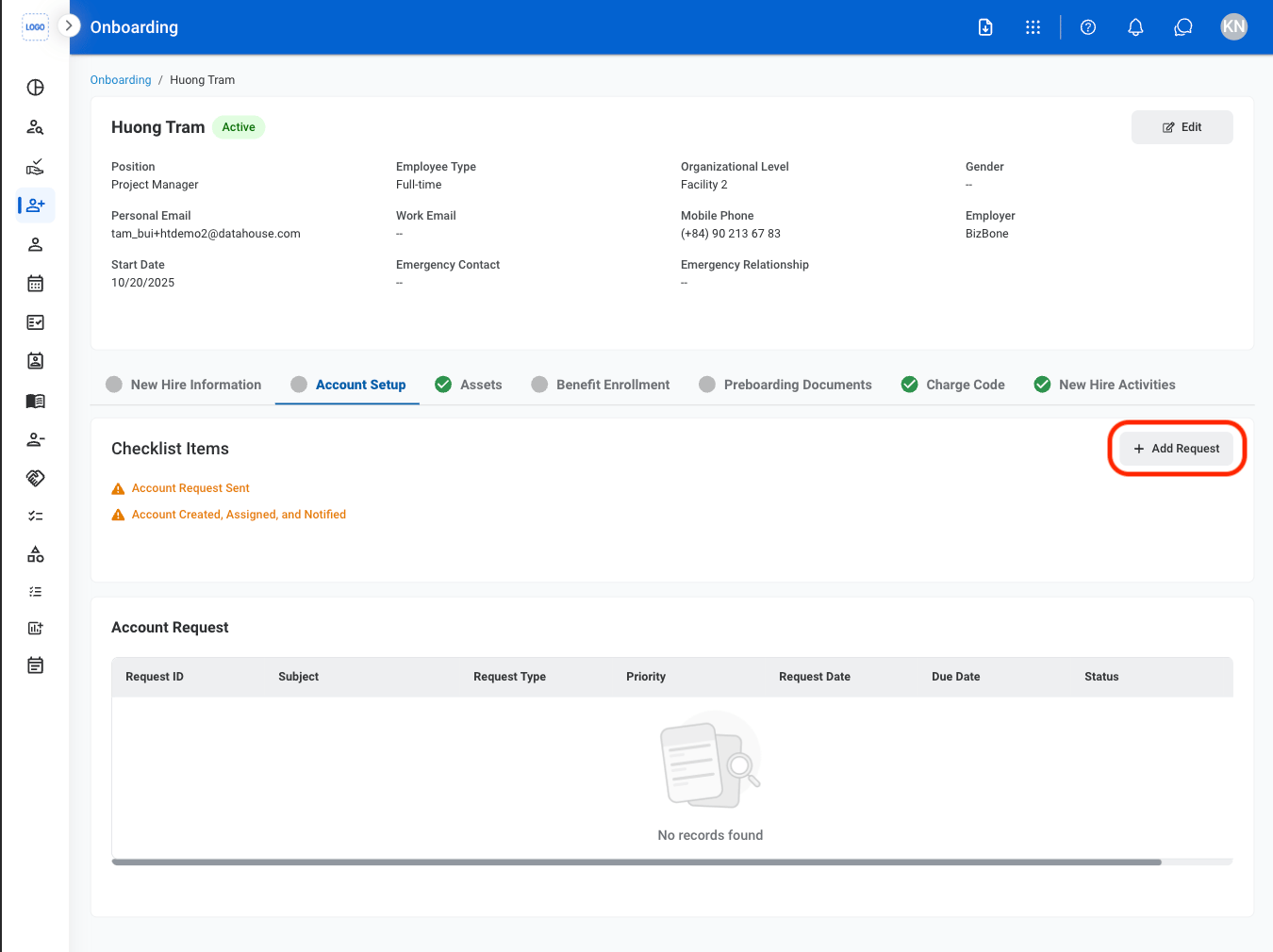
Create and track requests to set up employee system access. Account setup requests will be sent to IT for completion.
<Steps>
  <Step title="Select Account Setup">
    <Frame>
      <img src="https://mintcdn.com/bizbone/-O3uR8q6EMUEUh04/images/HR-O-Acct-Setup.png?fit=max&auto=format&n=-O3uR8q6EMUEUh04&q=85&s=c4fedddff5dfa5448395cb87a27a951f" alt="HR O Acct Setup" width="1350" height="1010" data-path="images/HR-O-Acct-Setup.png" />
    </Frame>
  </Step>

  <Step title="Select Add Request">
    <Frame>
      <img src="https://mintcdn.com/bizbone/-O3uR8q6EMUEUh04/images/HR-O-Add-Request.png?fit=max&auto=format&n=-O3uR8q6EMUEUh04&q=85&s=dc9129b1bd791444c1f8d18ec502d169" alt="HR O Add Request" width="1350" height="1010" data-path="images/HR-O-Add-Request.png" />
    </Frame>
  </Step>

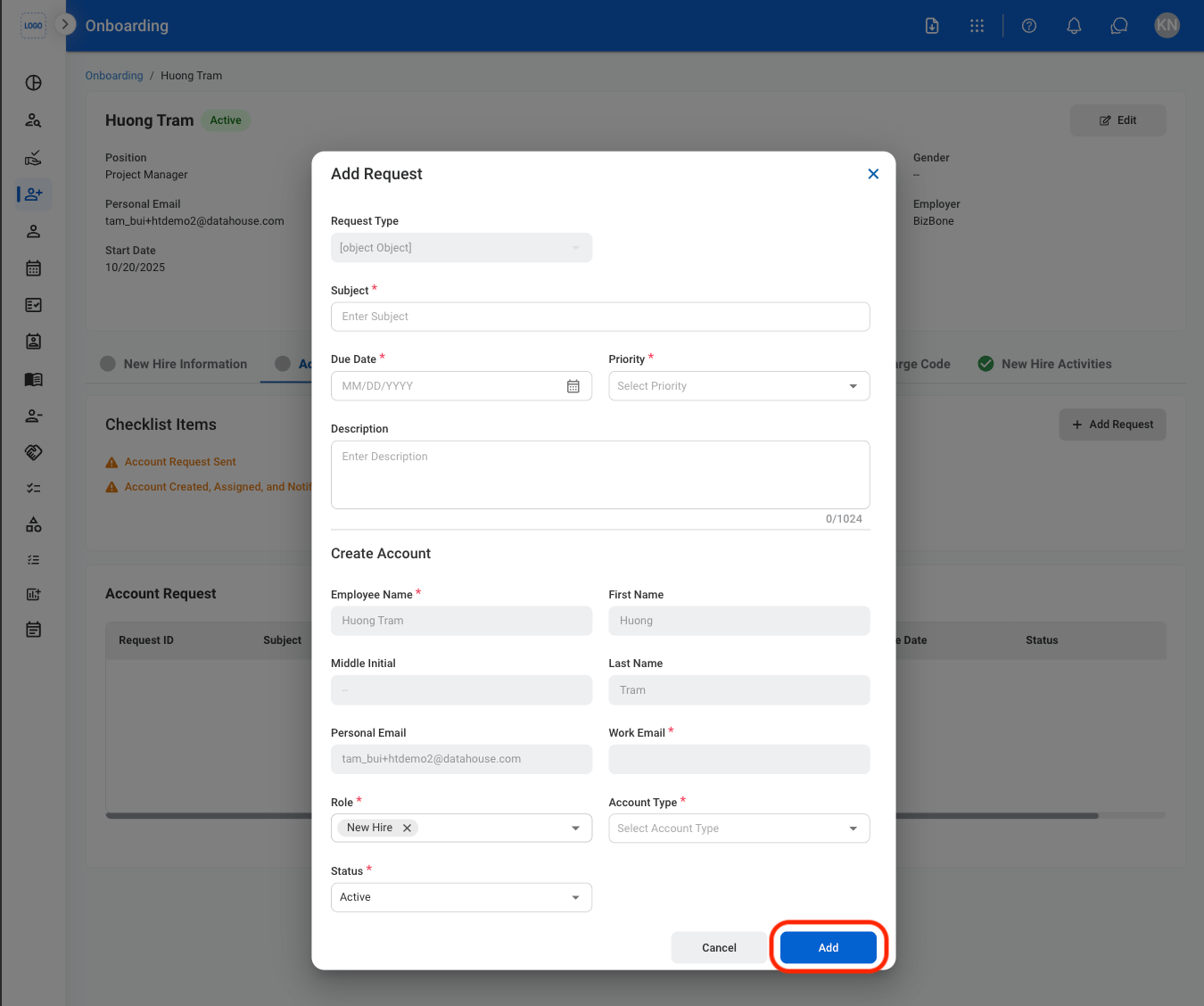
  <Step title="Fill in the required information">
    <Frame>
      <img src="https://mintcdn.com/bizbone/-O3uR8q6EMUEUh04/images/HR-O-ARequest-C.png?fit=max&auto=format&n=-O3uR8q6EMUEUh04&q=85&s=c89651fdb7f3f81ac2694f118ac3ae3a" alt="HR O A Request C" width="1350" height="1128" data-path="images/HR-O-ARequest-C.png" />
    </Frame>

    Select **Add** to complete or **Cancel** to exit withoug saving changes.
  </Step>

  <Step title="Await IT approval">
    At this stage, the request is sent to IT for completion. Once completed, checkmarks will appear in the corresponding areas. 
  </Step>
</Steps>

## Asset Request

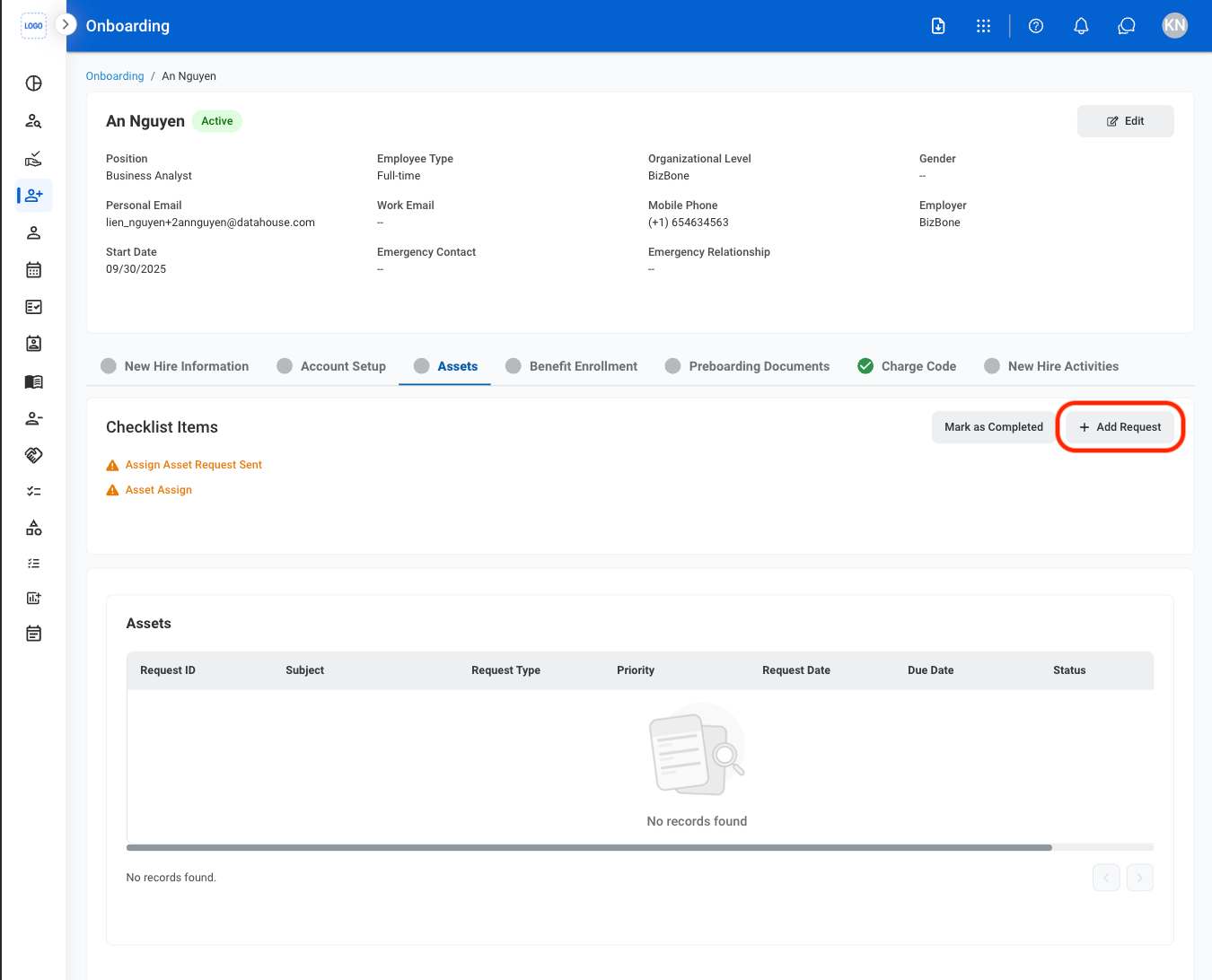
Create and track requests for employee equipment and work supplies. Asset requests are routed to approvers and IT for fulfillment, and completed assets will appear in the employee’s profile.

<Steps>
  <Step title="Navigate to Assets">
    <Frame>
      <img src="https://mintcdn.com/bizbone/-O3uR8q6EMUEUh04/images/HR-O-Assets.png?fit=max&auto=format&n=-O3uR8q6EMUEUh04&q=85&s=eb9d3db2795f0b92ff7cf5eafff9306a" alt="HR O Assets" width="1350" height="1092" data-path="images/HR-O-Assets.png" />
    </Frame>
  </Step>

  <Step title="Select Add Request">
    <Frame>
      <img src="https://mintcdn.com/bizbone/-O3uR8q6EMUEUh04/images/HR-O-AReq.png?fit=max&auto=format&n=-O3uR8q6EMUEUh04&q=85&s=620987f26b5bdcbf6735b6b1a594d3d2" alt="HR O A Req" width="1350" height="1092" data-path="images/HR-O-AReq.png" />
    </Frame>
  </Step>

  <Step title="Fill in the required information">
    <Frame>
      <img src="https://mintcdn.com/bizbone/-O3uR8q6EMUEUh04/images/HR-O-AReqC.png?fit=max&auto=format&n=-O3uR8q6EMUEUh04&q=85&s=9c7a0f2930246ef192fc6f517a29f815" alt="HR O A Req C" width="1350" height="1164" data-path="images/HR-O-AReqC.png" />
    </Frame>

    Select **Add** to submit the request or **Cancel** to exit without saving changes. A request will be created for review in the Requests Module. 
  </Step>

  <Step title="Approve asset request">
    To approve an asset request, see Requests Module > Asset Request (hyperlink will be added when Requests Module is published)
  </Step>

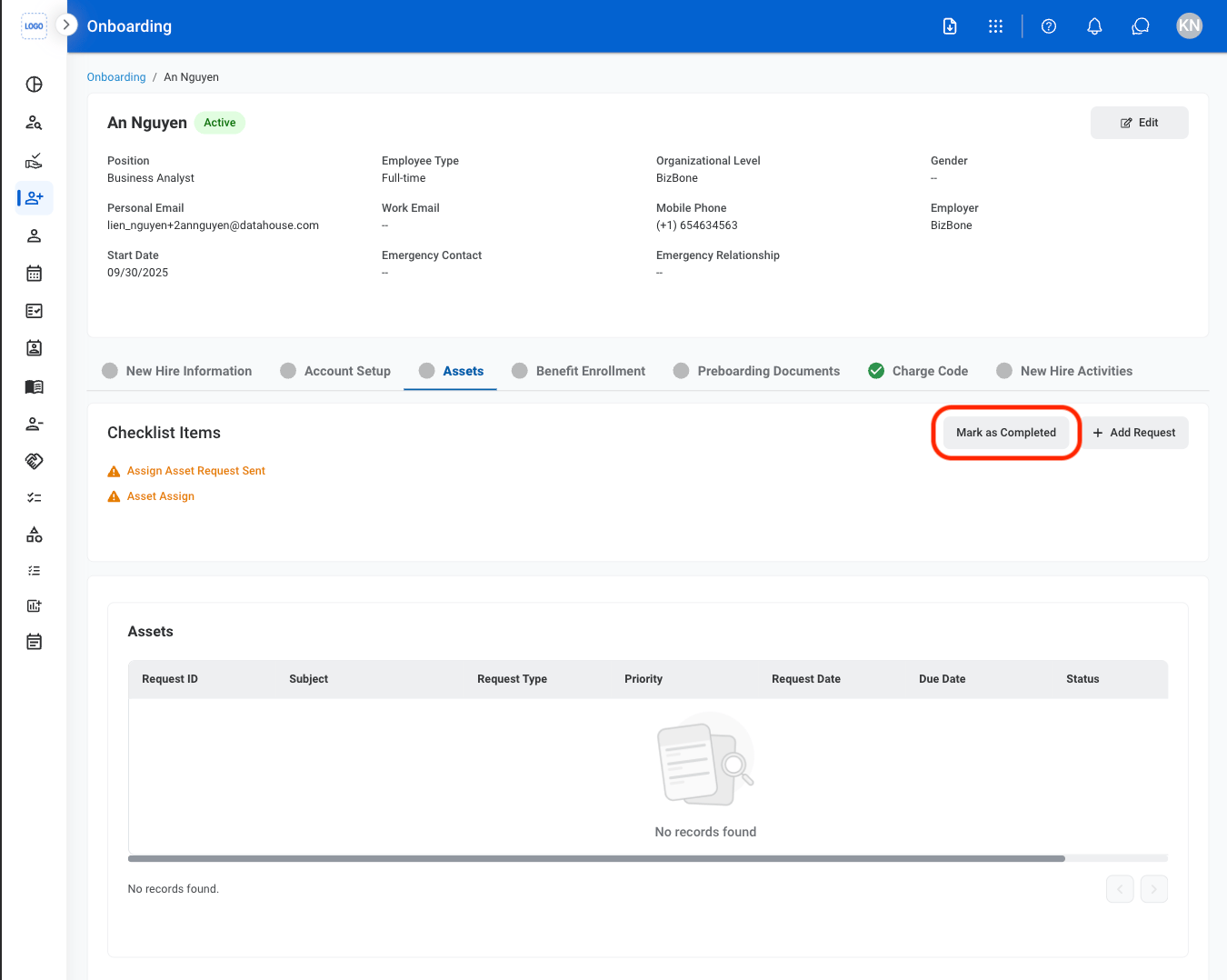
  <Step title="Once all asset requests are complete, select Mark as Complete">
    <Frame>
      <img src="https://mintcdn.com/bizbone/-O3uR8q6EMUEUh04/images/HR-O-MaC.png?fit=max&auto=format&n=-O3uR8q6EMUEUh04&q=85&s=335a08a165adbd0ecbc9a5711e16e6dc" alt="HR O Ma C" width="1350" height="1078" data-path="images/HR-O-MaC.png" />
    </Frame>
  </Step>
</Steps>

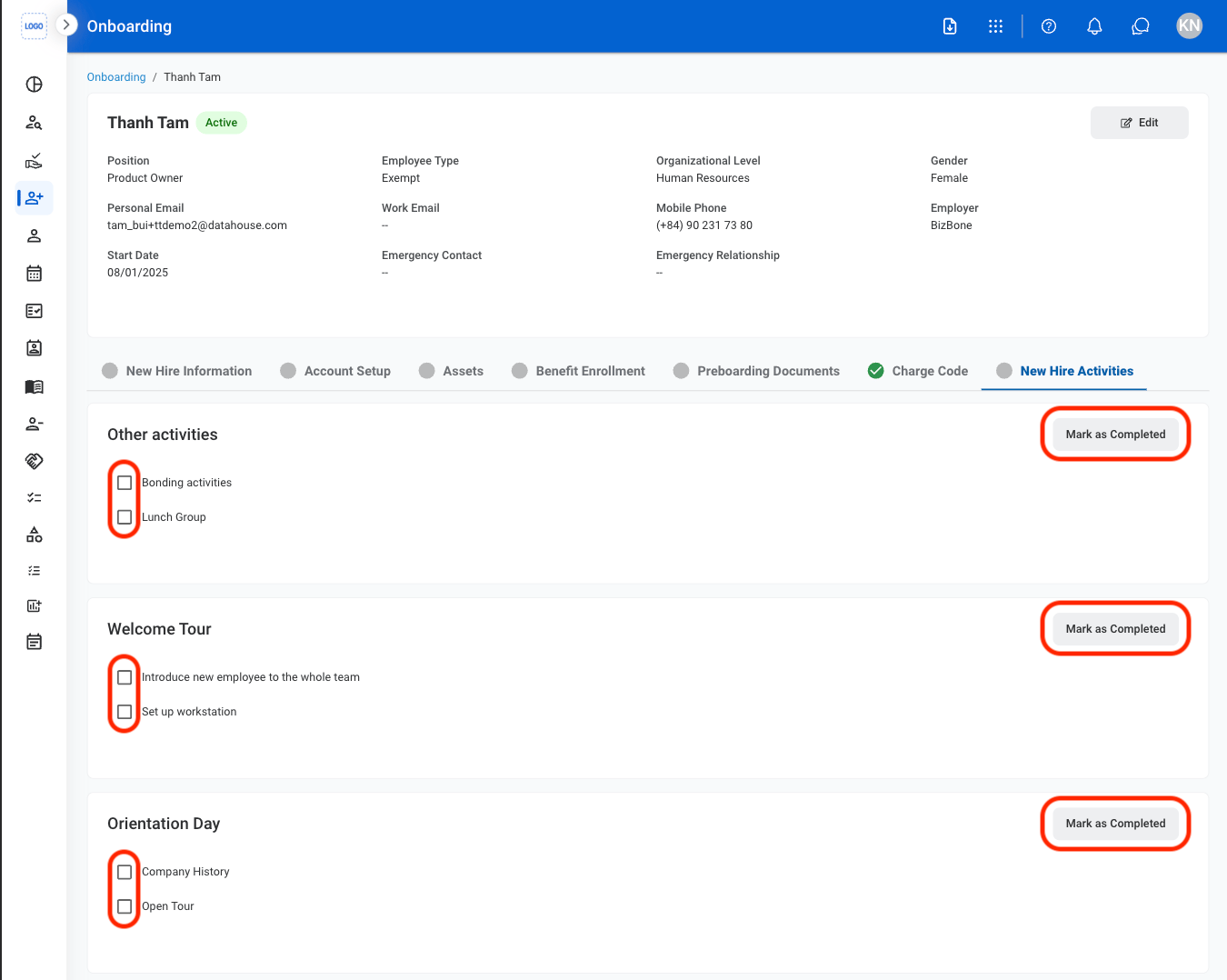
## New Hire Activities

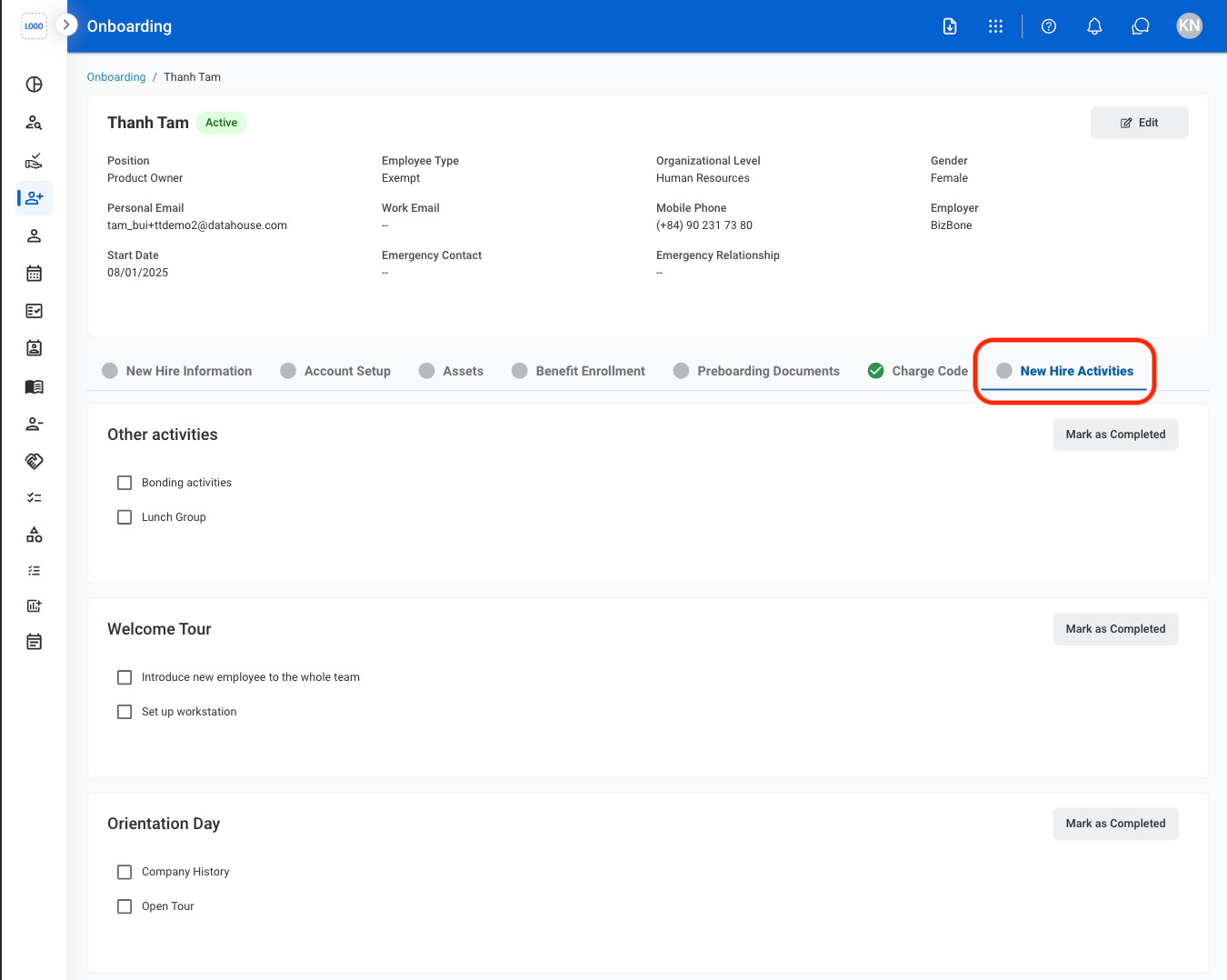
Track a new hire's progress through welcome and onboarding activities
<Steps>
  <Step title="Navigate to New Hire Activities ">
    <Frame>
      <img src="https://mintcdn.com/bizbone/s1ctpcTiSLaqxK4x/images/HR-O-NHA.png?fit=max&auto=format&n=s1ctpcTiSLaqxK4x&q=85&s=3ea4e44150b8876962c1149850ff4f68" alt="HR O NHA" width="1350" height="1078" data-path="images/HR-O-NHA.png" />
    </Frame>

    <Info>
      To modify New Hire Activites, navigate to the Admin Module
    </Info>
  </Step>

  <Step title="Mark the employee's progress">
    <Frame>
      <img src="https://mintcdn.com/bizbone/s1ctpcTiSLaqxK4x/images/HR-O-NHA-S.png?fit=max&auto=format&n=s1ctpcTiSLaqxK4x&q=85&s=274ec82169b8c74cc4b95ce6a00d7c12" alt="HR O NHA S" width="1350" height="1078" data-path="images/HR-O-NHA-S.png" />
    </Frame>

    Select the checkboxes to mark individual items or **Mark as Completed** to mark groups of items.
  </Step>
</Steps>