> ## Documentation Index
> Fetch the complete documentation index at: https://docs.bizbone.com/llms.txt
> Use this file to discover all available pages before exploring further.
# Employees
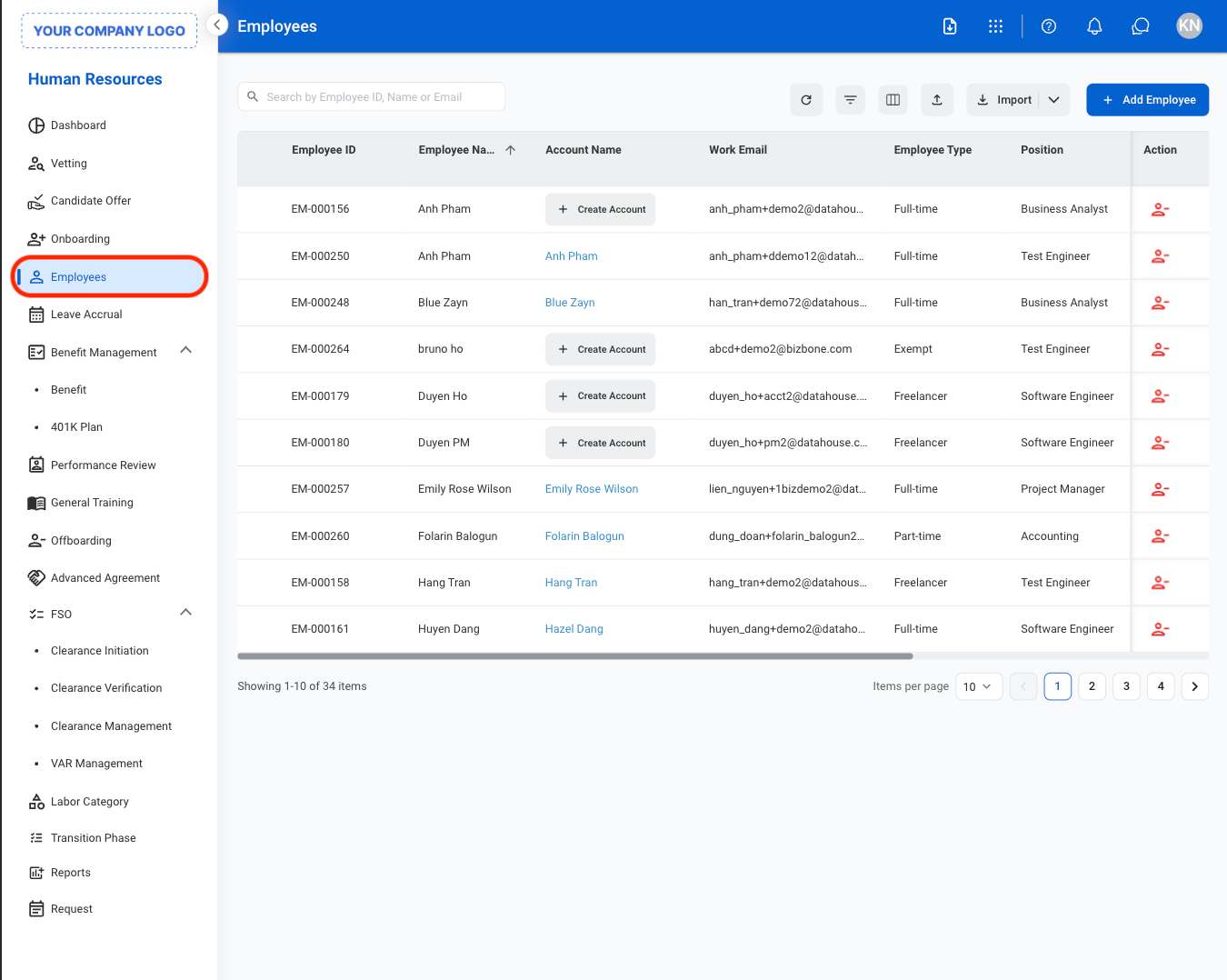
> Serves as the central repository for employee records. Store, view, and manage essential employee information throughout the employment lifecycle.
## Add a New Employee
Create a new employee profile by entering required personal, employment, and organizational information to initiate the employee record in the system.
This process is typically used to add existing employees into the system. New hires generally progress through the vetting workflow before transitioning to **Employees**.
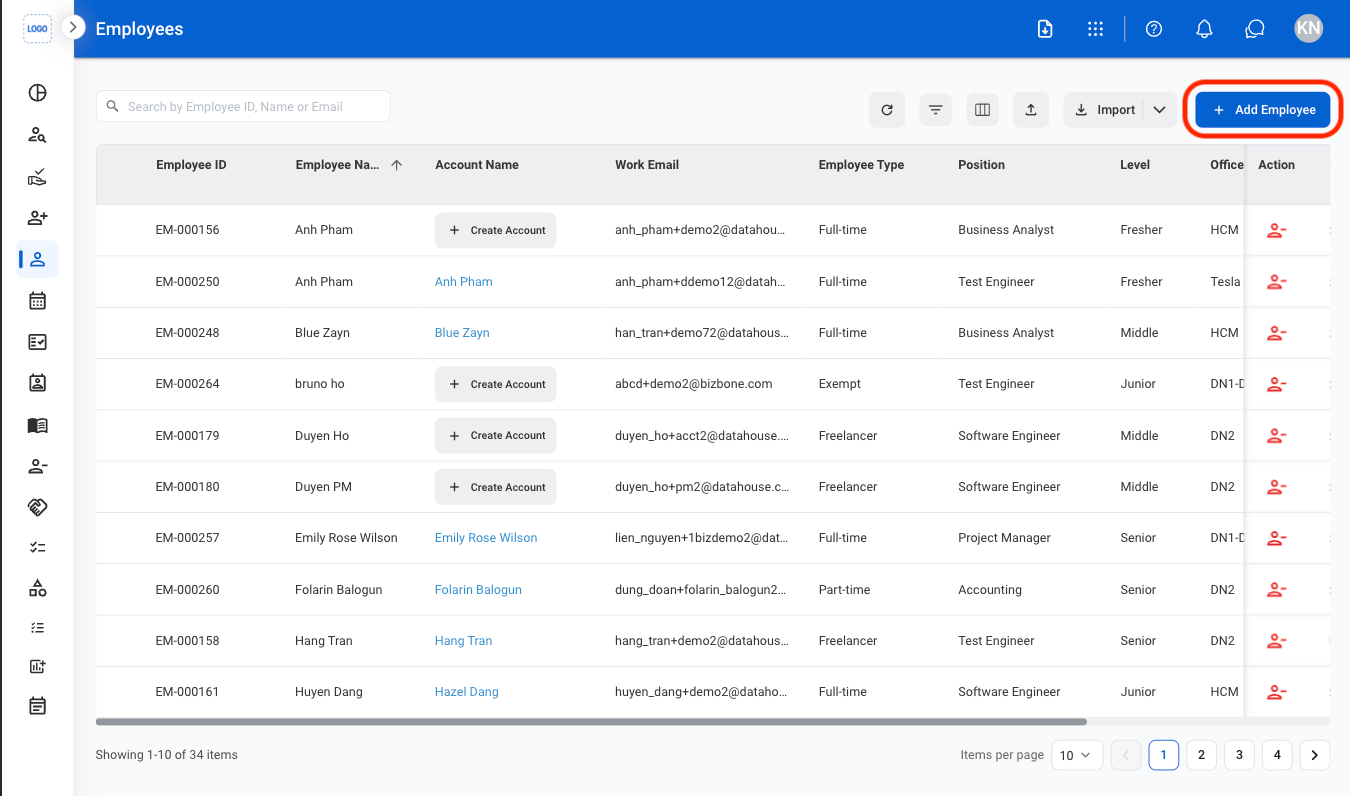
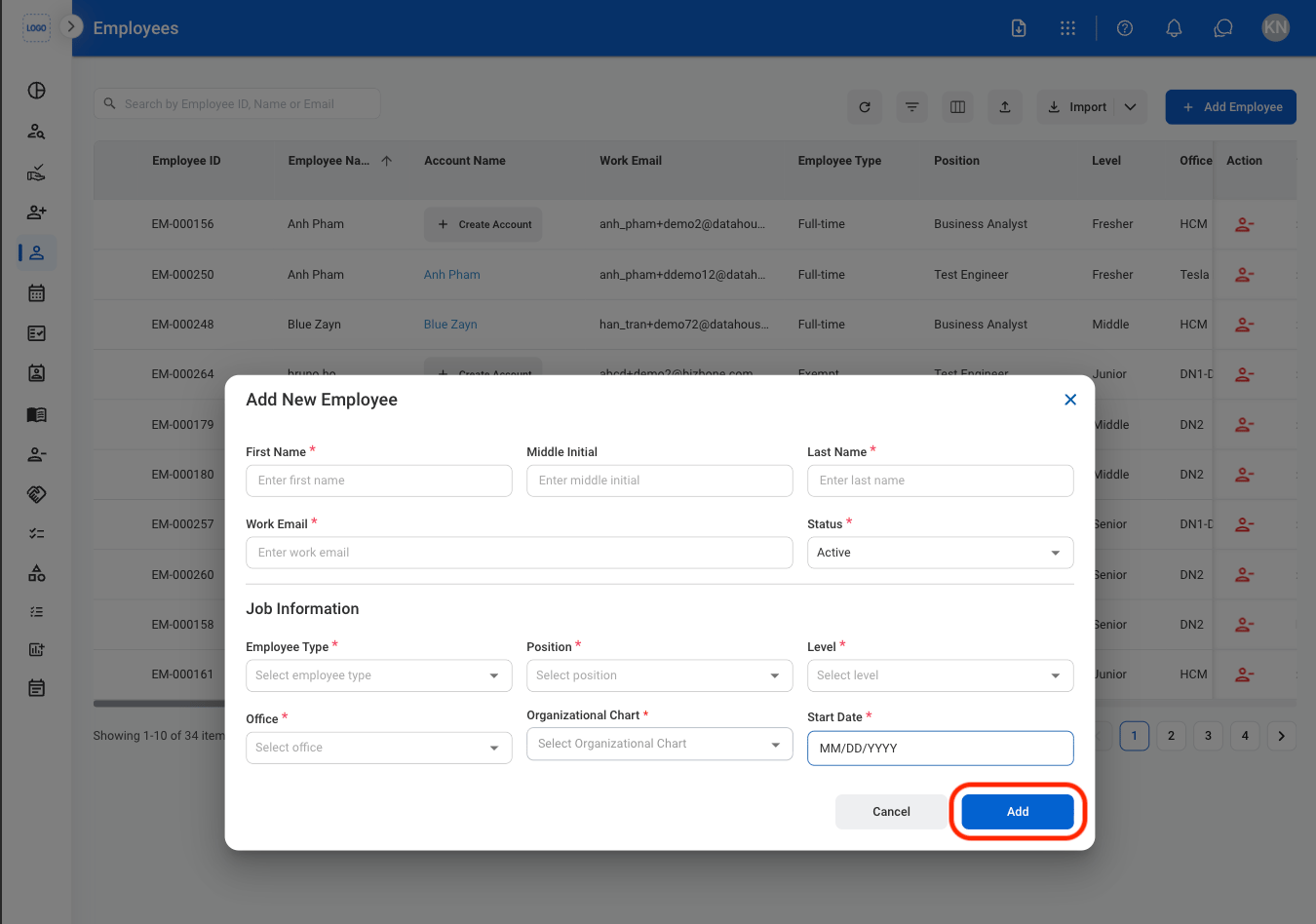 Select **Add** to complete or **Cancel** to exit without saving changes.
## Request to Create an Account
Create and submit a request for employee system account setup. Submitted requests are routed to the **Requests** module for review and approval.
Select **Add** to complete or **Cancel** to exit without saving changes.
## Request to Create an Account
Create and submit a request for employee system account setup. Submitted requests are routed to the **Requests** module for review and approval.

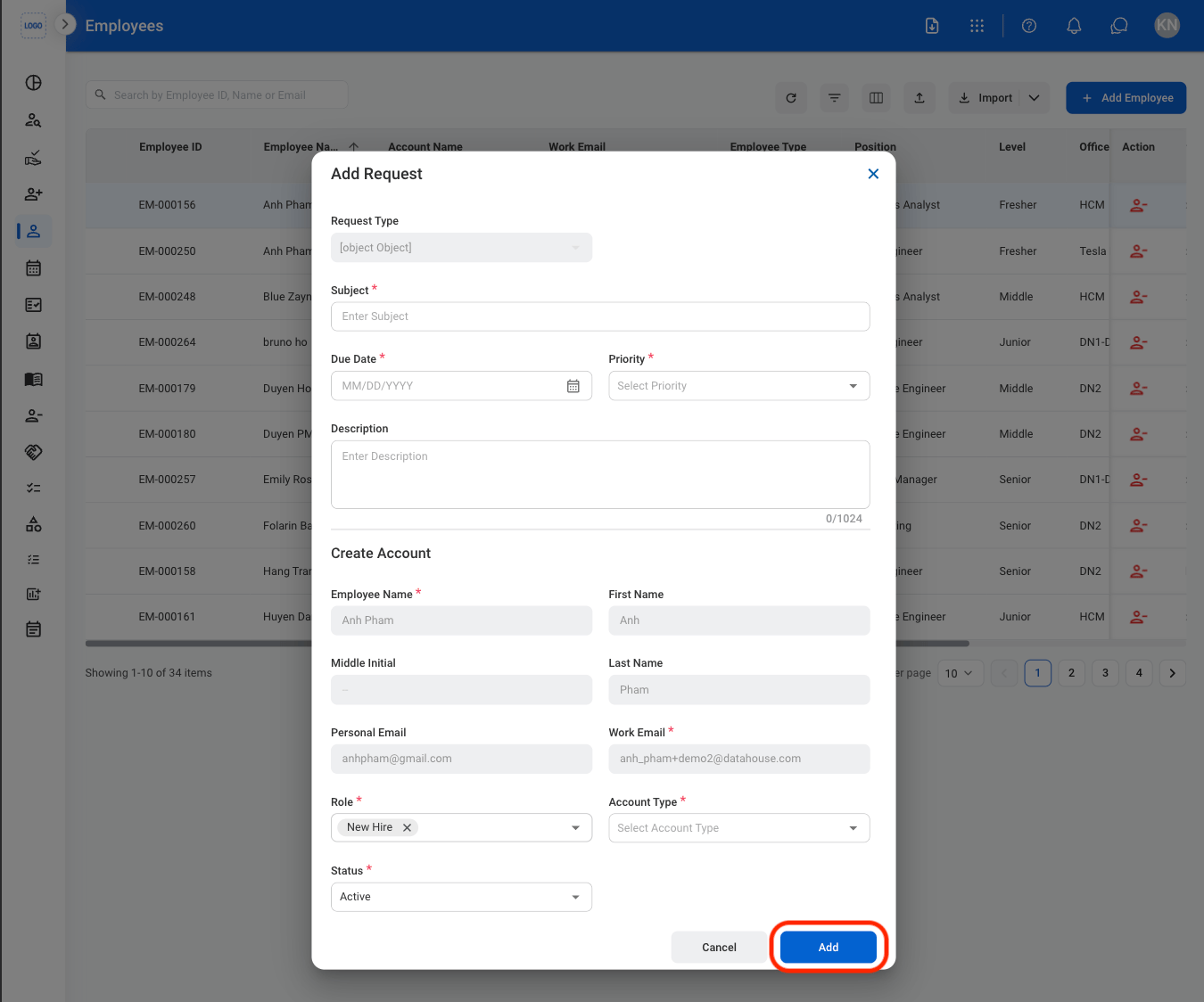 Select **Add** to complete request submission or **Cancel** to exit without saving changes.
Submitted requests are routed to the **Requests** module for review, approval, and account provisioning.
## Deactivate
Deactivate an employee account to initiate the offboarding process. The employee will be moved to the Offboarding section and will no longer appear in the active employee list.
Select **Add** to complete request submission or **Cancel** to exit without saving changes.
Submitted requests are routed to the **Requests** module for review, approval, and account provisioning.
## Deactivate
Deactivate an employee account to initiate the offboarding process. The employee will be moved to the Offboarding section and will no longer appear in the active employee list.
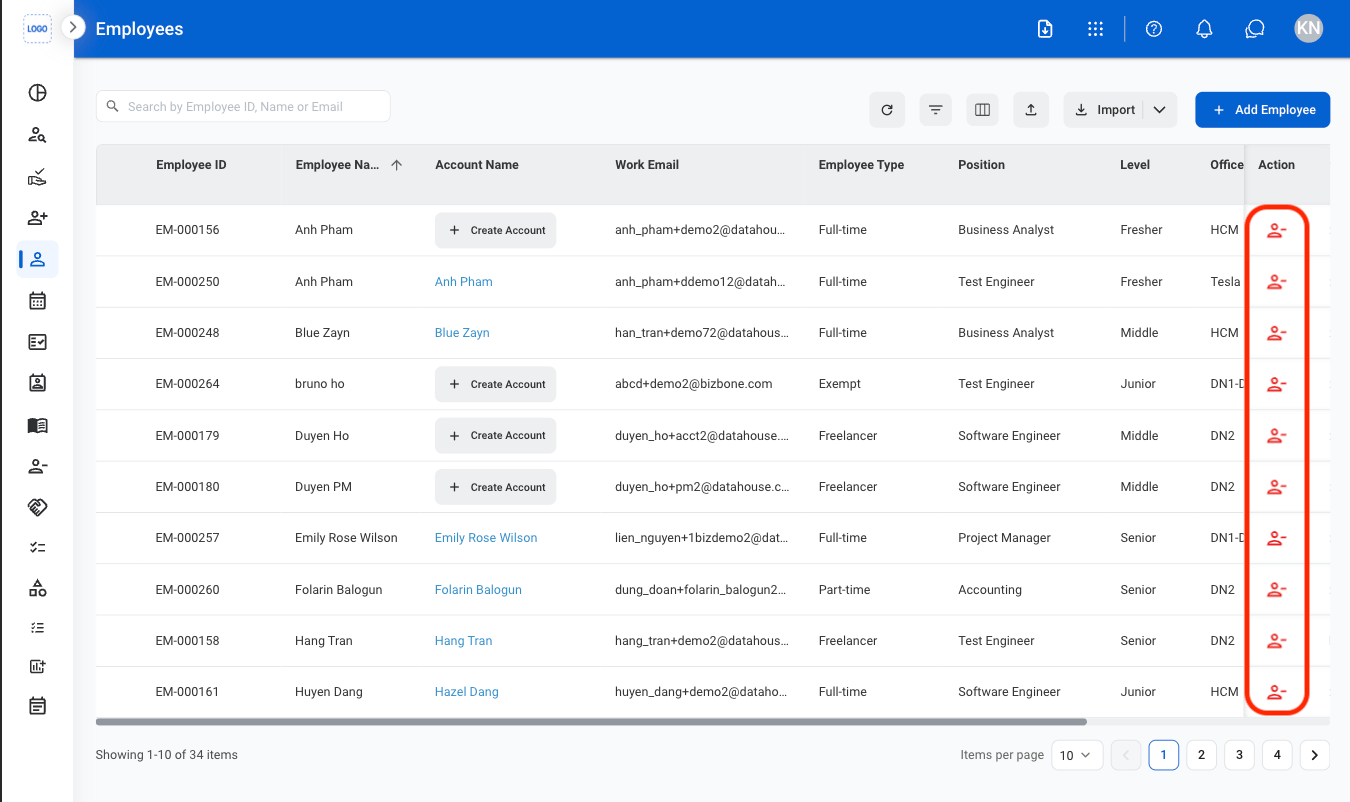
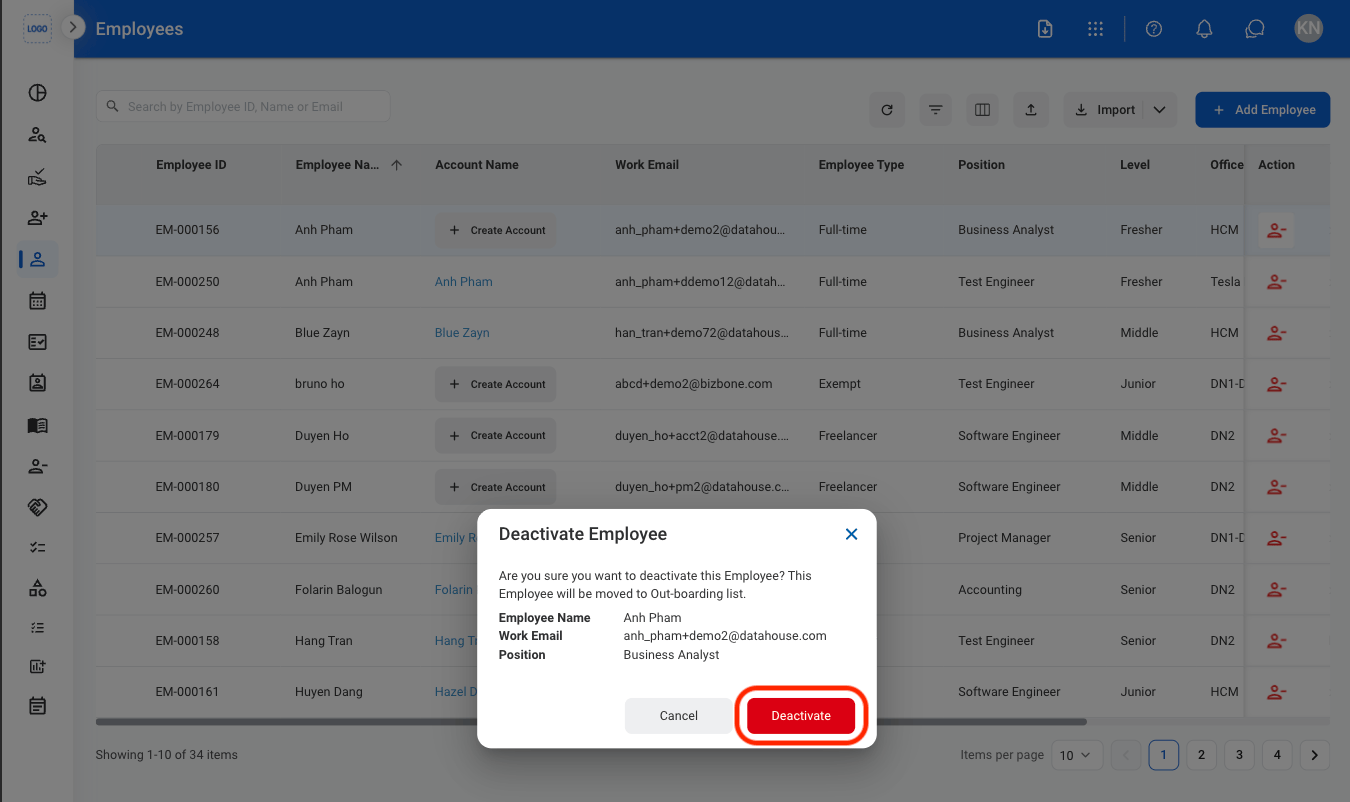 Deactivated profiles appear in Offboarding for task tracking and archival purposes.
## Update Employee Information
### General Information
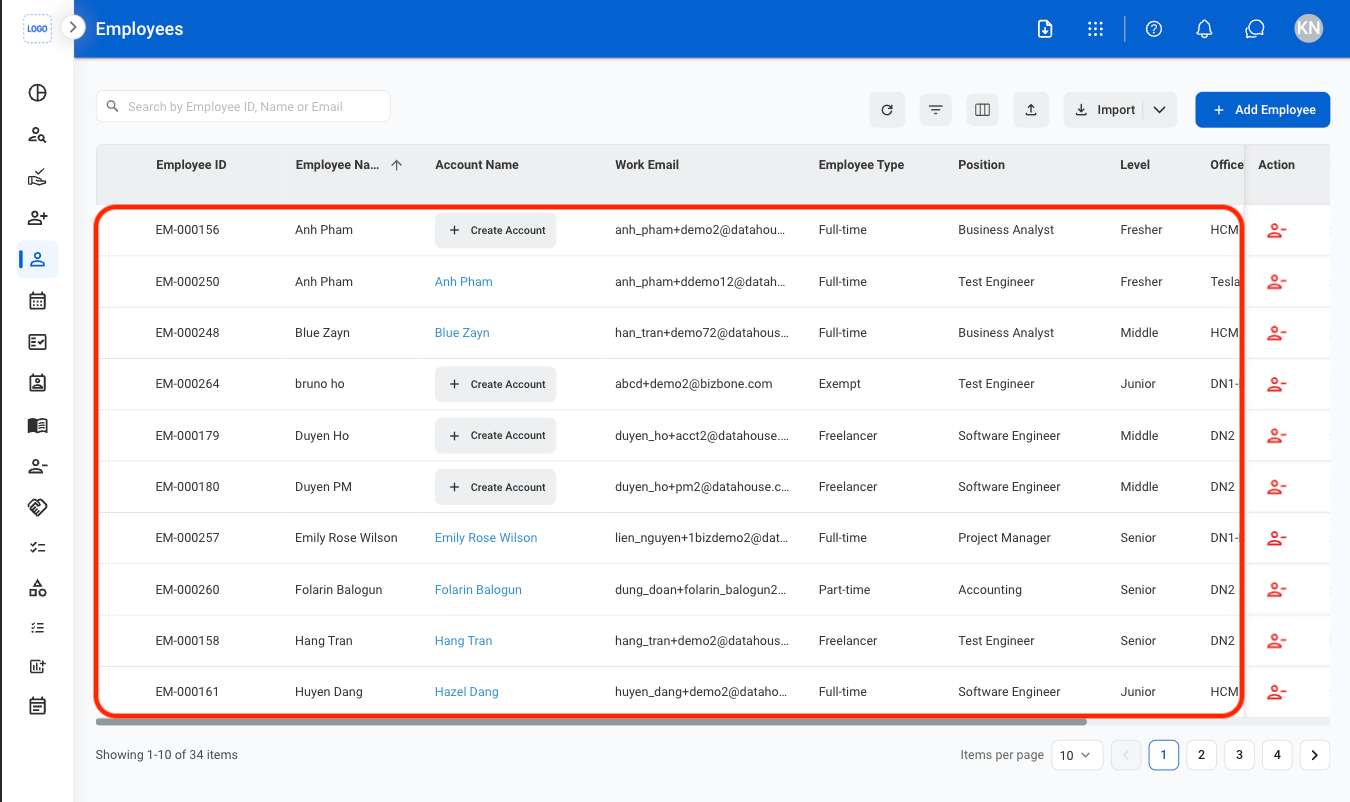
Update employee's basic profile details.
Deactivated profiles appear in Offboarding for task tracking and archival purposes.
## Update Employee Information
### General Information
Update employee's basic profile details.

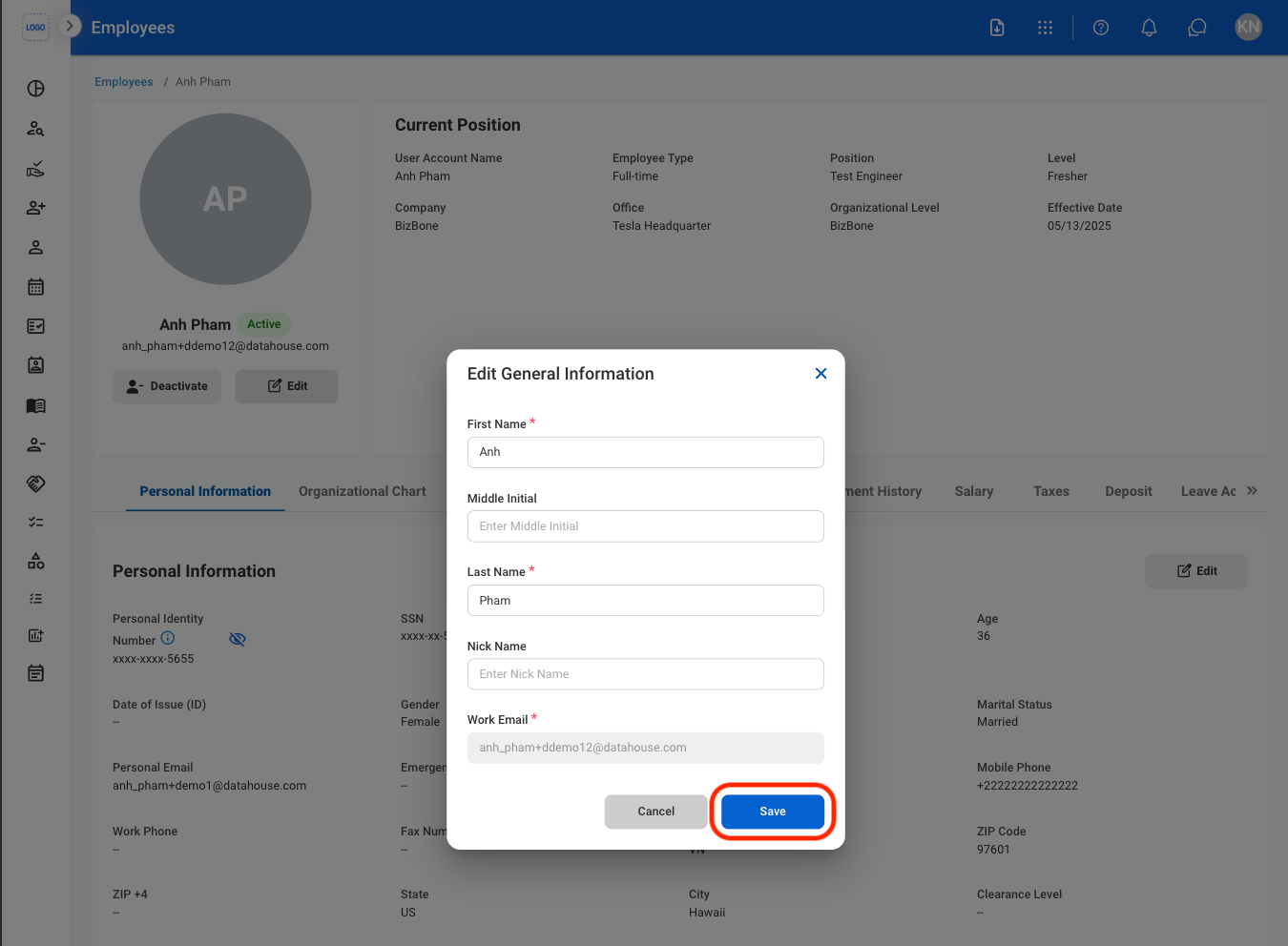 Select **Save** to complete or **Cancel** to exit without saving changes.
### Personal Information
Manage employee's confidential personal details for records and compliance.
#### Edit Personal Information
Select **Save** to complete or **Cancel** to exit without saving changes.
### Personal Information
Manage employee's confidential personal details for records and compliance.
#### Edit Personal Information

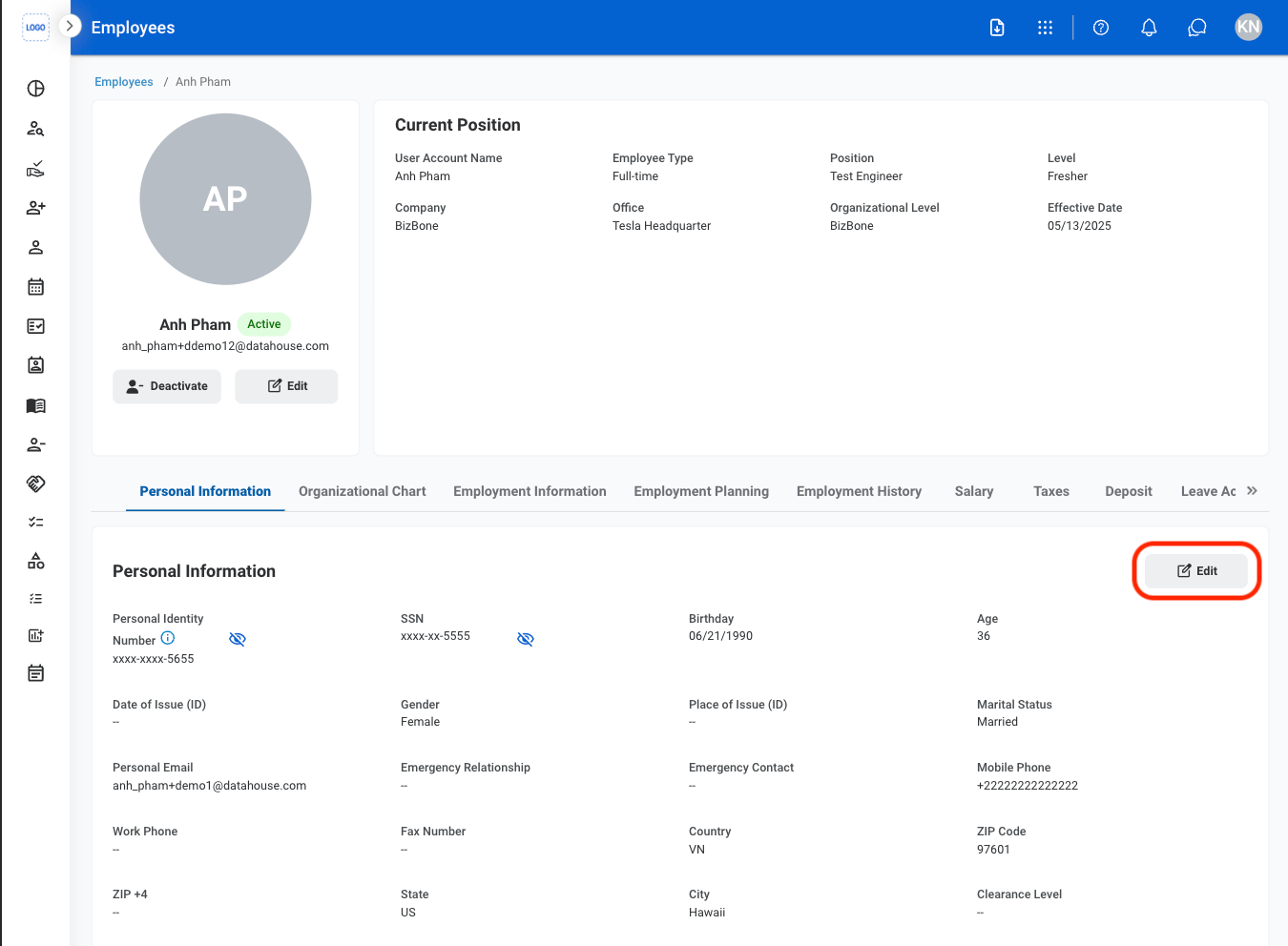
 Select **Save** to complete or **Cancel** to exit without saving changes.
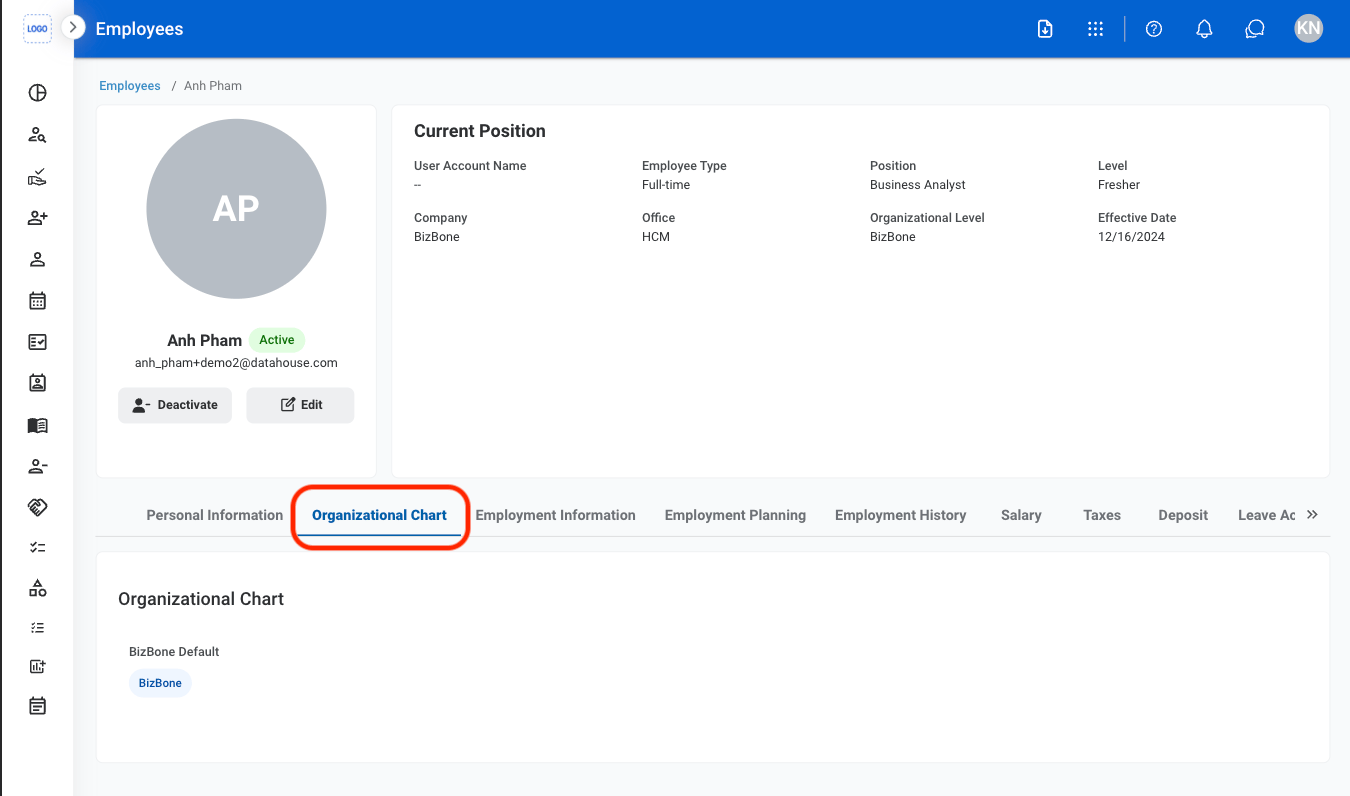
### Organizational Chart
View an employee's organizational chart.
Select **Save** to complete or **Cancel** to exit without saving changes.
### Organizational Chart
View an employee's organizational chart.
 ### Employment Information
Manage employment-related details such as hire date, reporting manager, and other information used for internal records.
#### Edit Employment Information
### Employment Information
Manage employment-related details such as hire date, reporting manager, and other information used for internal records.
#### Edit Employment Information

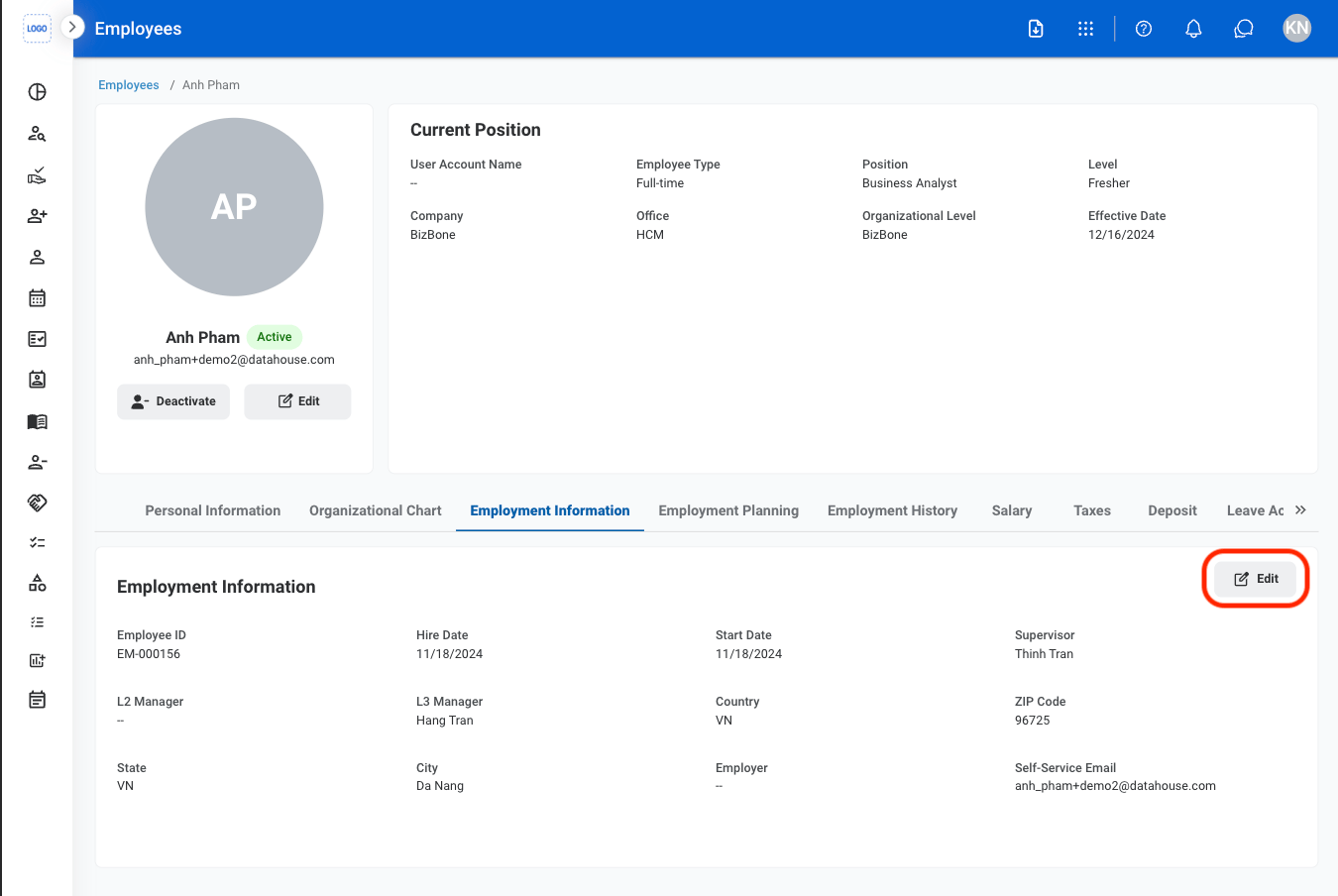
 Select **Save** to complete or **Cancel** to exit without saving changes.
### Employment Planning
Manage internal job changes such as role updates, transfers, and promotions. Changes made in this section are reflected in the organizational chart.
#### Plan a New Employee Position
Select **Save** to complete or **Cancel** to exit without saving changes.
### Employment Planning
Manage internal job changes such as role updates, transfers, and promotions. Changes made in this section are reflected in the organizational chart.
#### Plan a New Employee Position
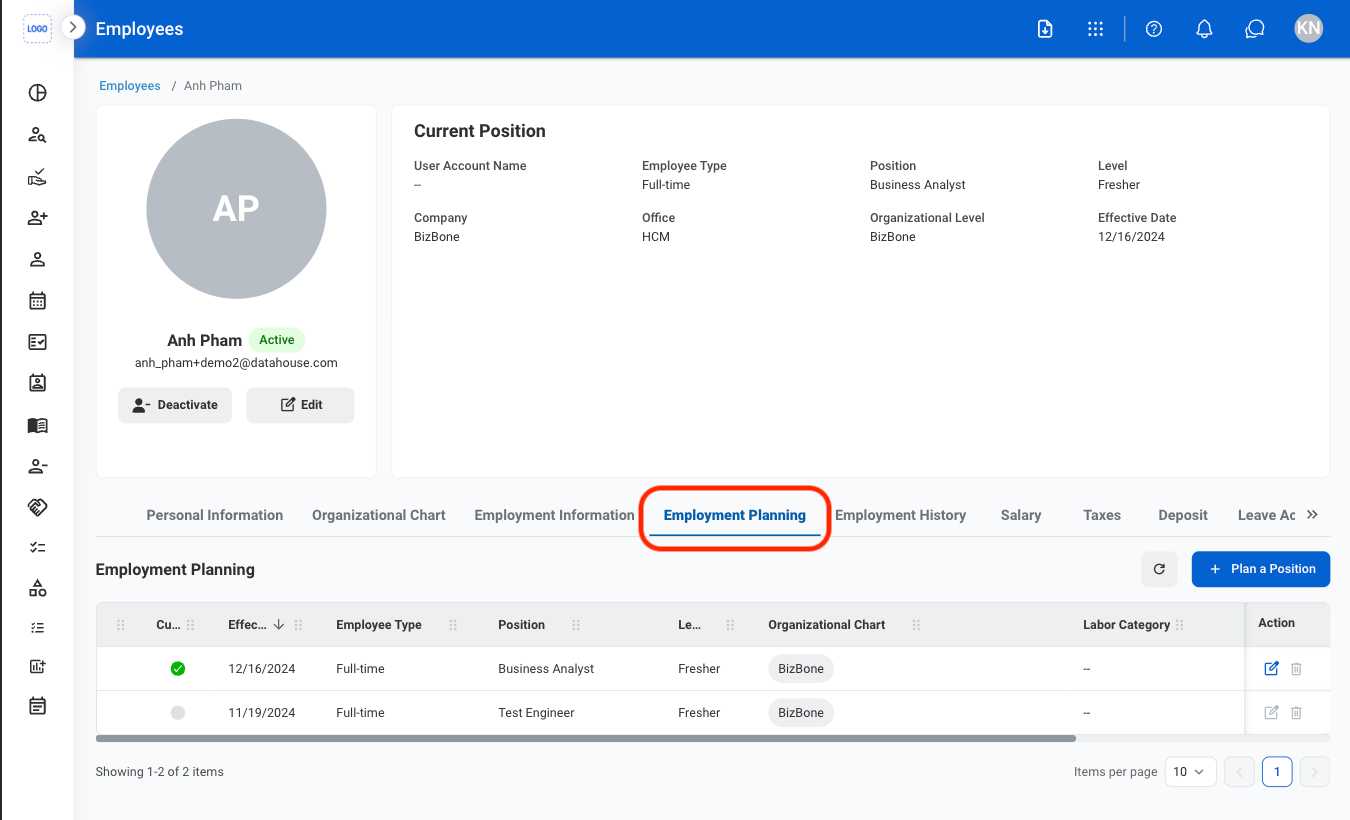
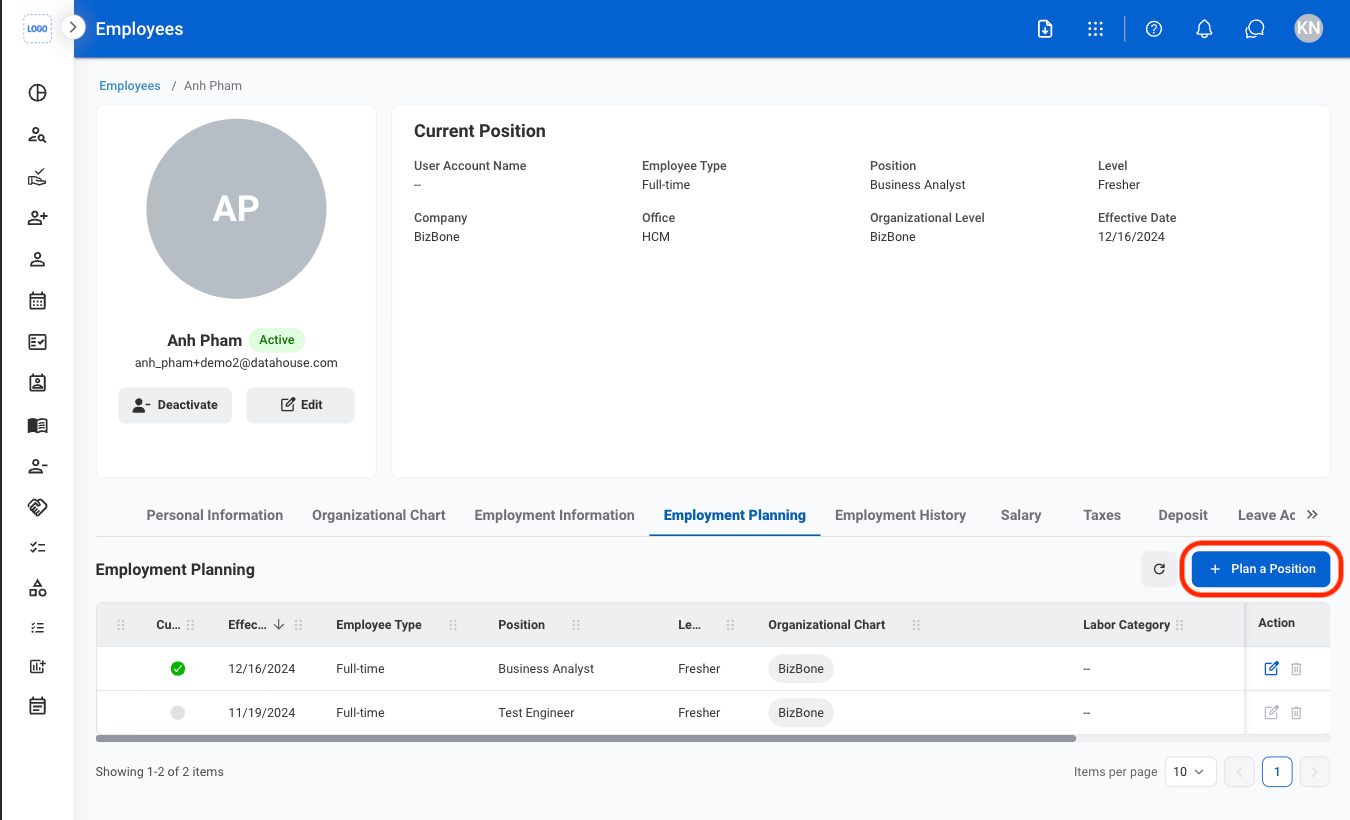
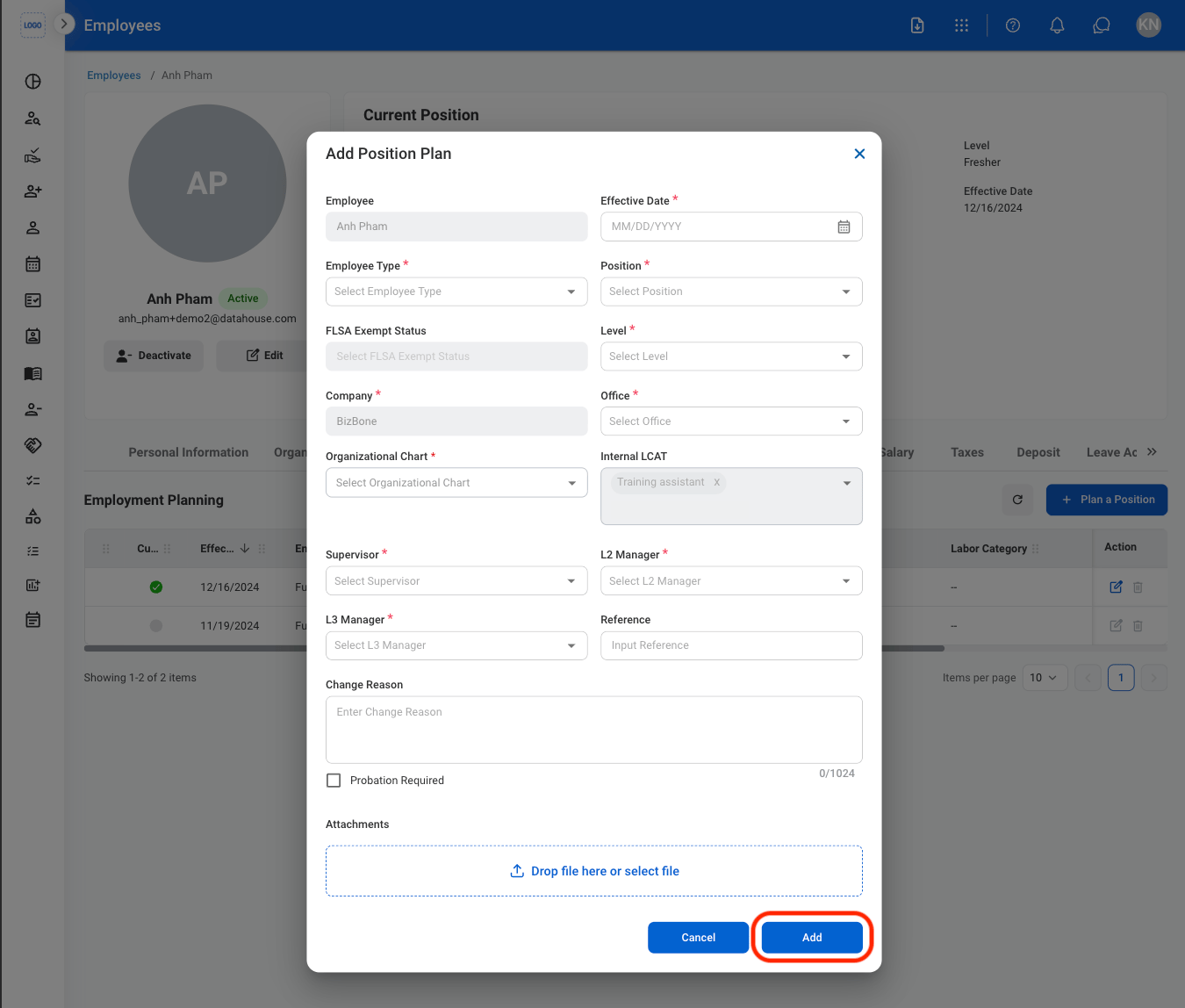 Select **Add** to complete or **Cancel** to exit without saving changes.
#### Modify an Employee Position
An employee's current position cannot be deleted. To remove or replace the current position, update the employment plan with the appropriate position.
Select **Add** to complete or **Cancel** to exit without saving changes.
#### Modify an Employee Position
An employee's current position cannot be deleted. To remove or replace the current position, update the employment plan with the appropriate position.
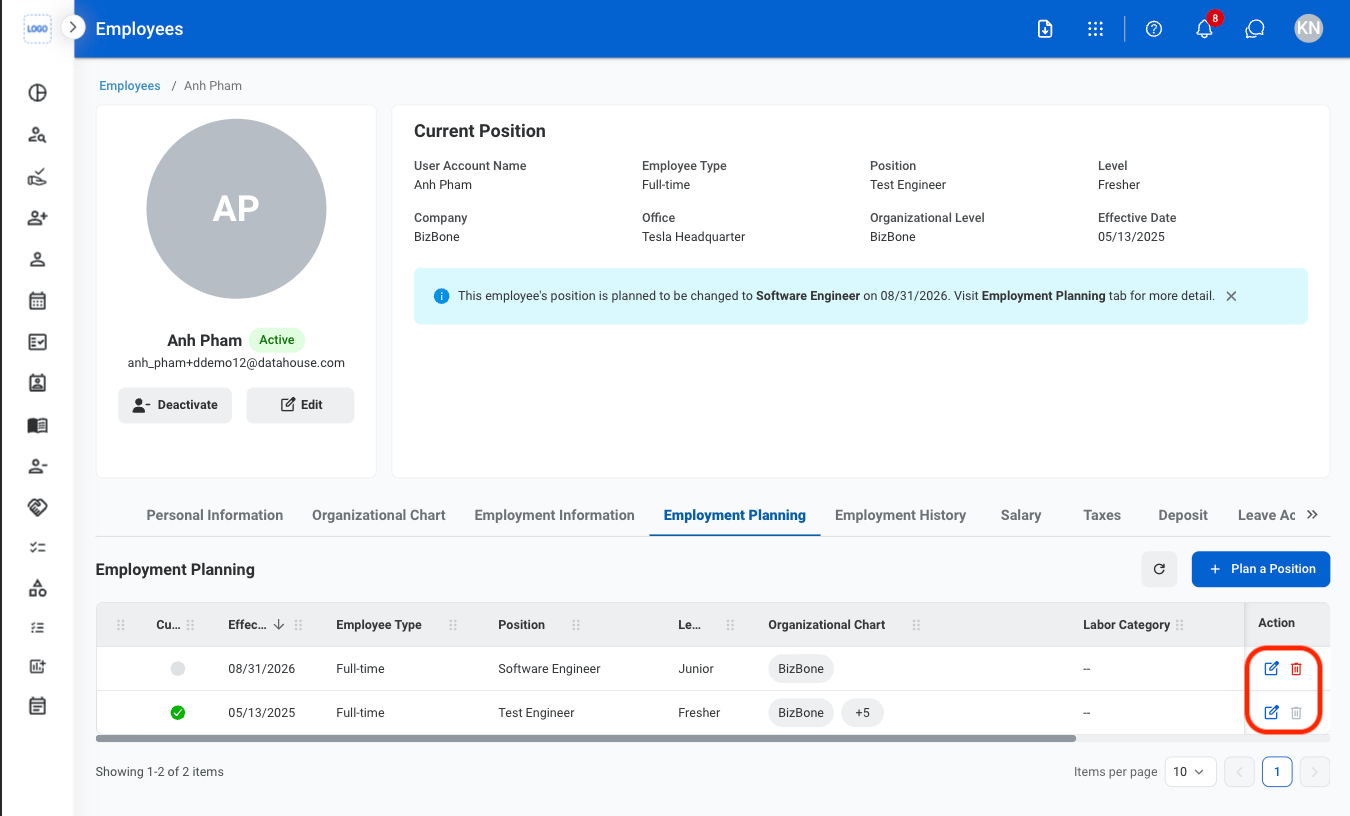 * **Edit**: Select the **edit icon** to update an existing entry
* **Delete**: Select the **trash icon** to delete an existing entry.
* **Edit:** Fill in the required information. Select **Update** to complete or **Cancel** to exit without saving changes.
* **Delete:** Select **Delete** to complete or **Cancel** to exit without saving changes.
### Employment History
Record previous roles and employment details to track employee history.
#### Add Employment History
* **Edit**: Select the **edit icon** to update an existing entry
* **Delete**: Select the **trash icon** to delete an existing entry.
* **Edit:** Fill in the required information. Select **Update** to complete or **Cancel** to exit without saving changes.
* **Delete:** Select **Delete** to complete or **Cancel** to exit without saving changes.
### Employment History
Record previous roles and employment details to track employee history.
#### Add Employment History
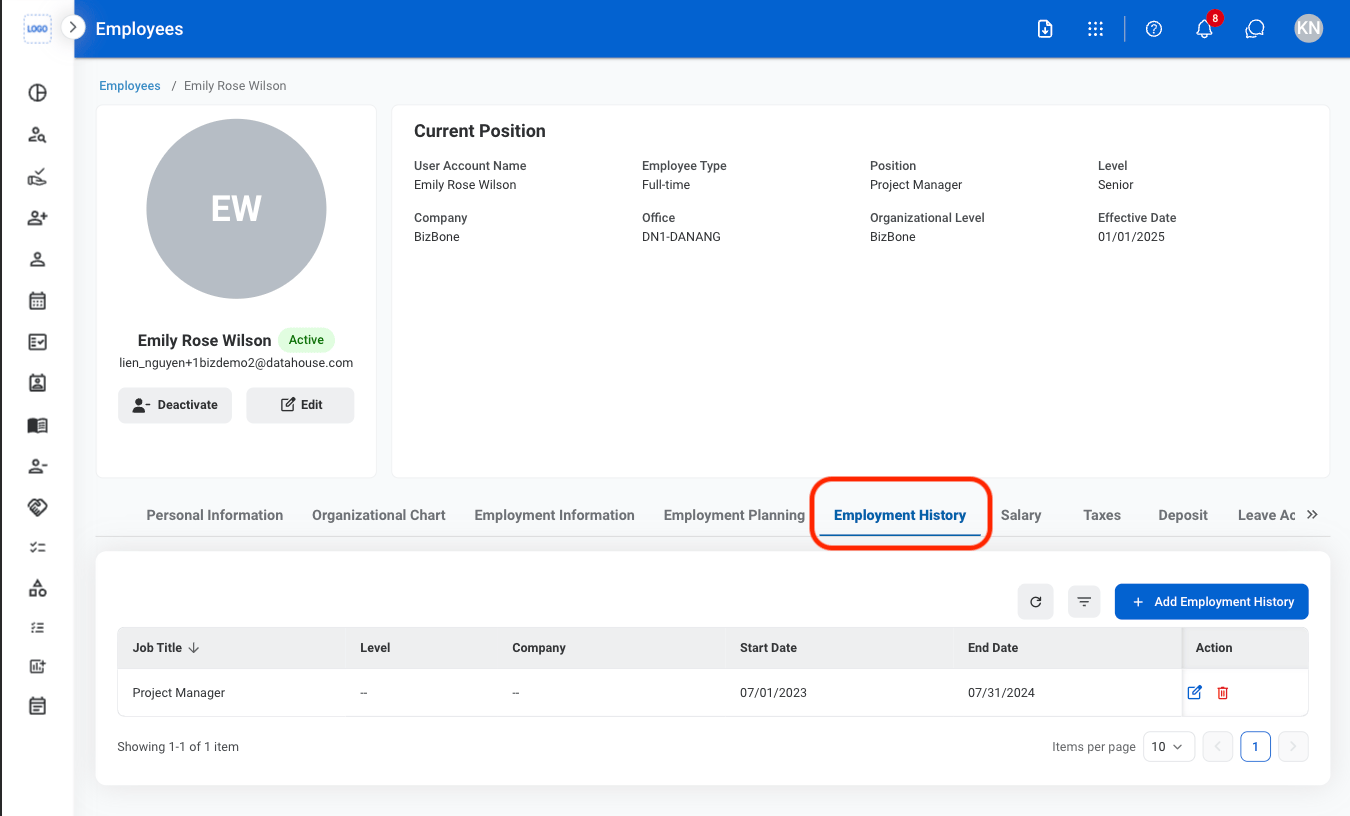
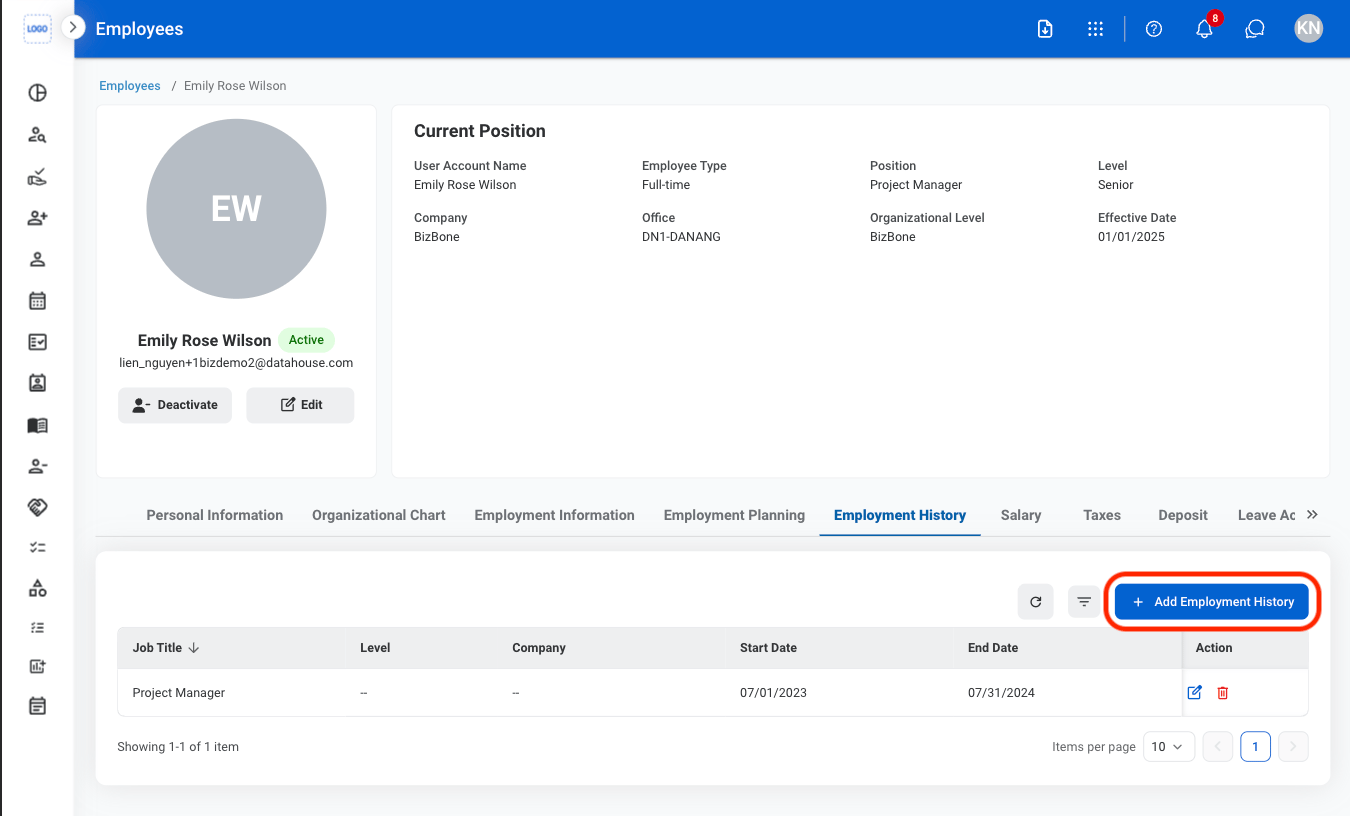
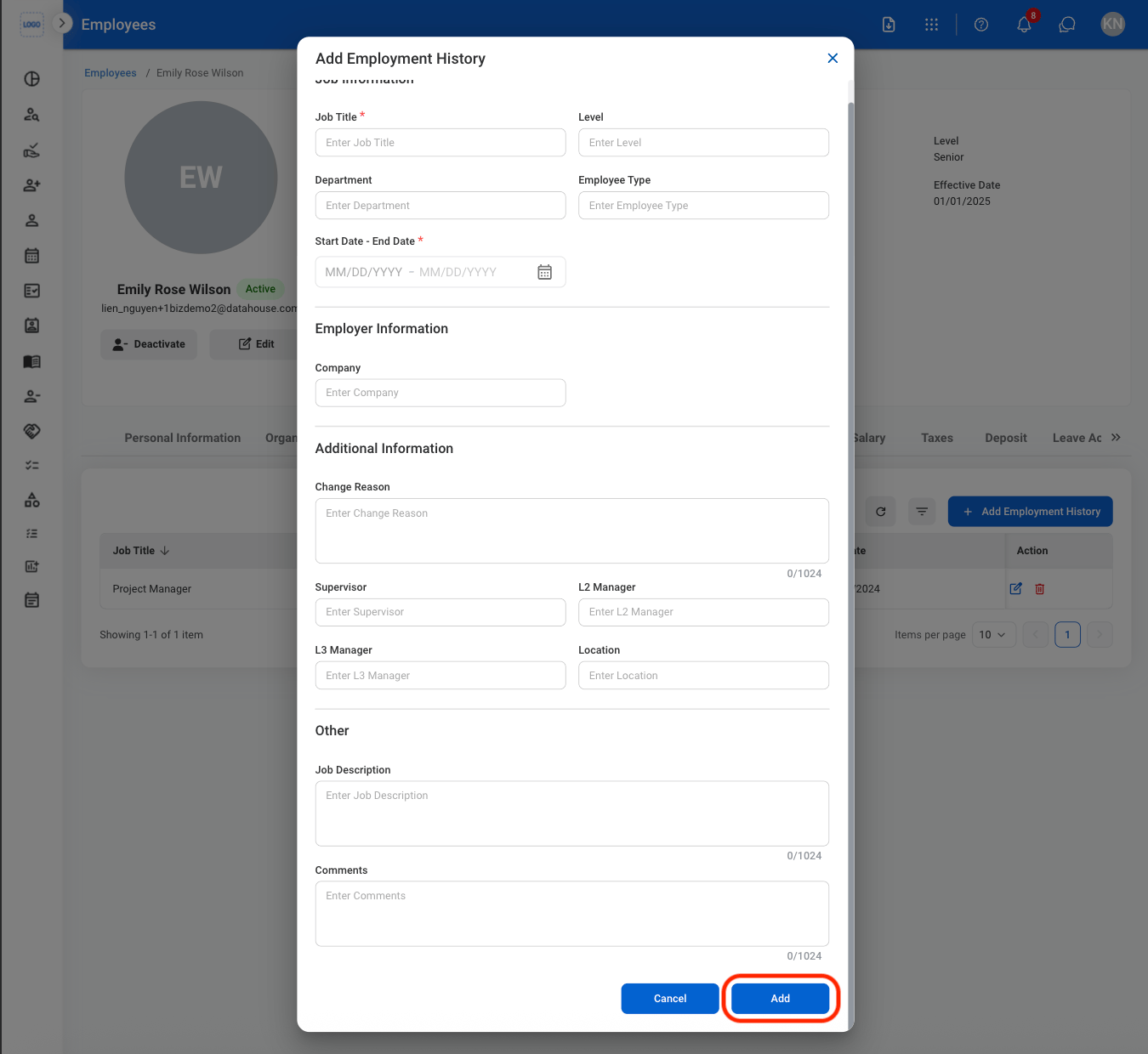 Select **Add** to complete or **Cancel** to exit without saving.
#### Modify Employment History
Select **Add** to complete or **Cancel** to exit without saving.
#### Modify Employment History
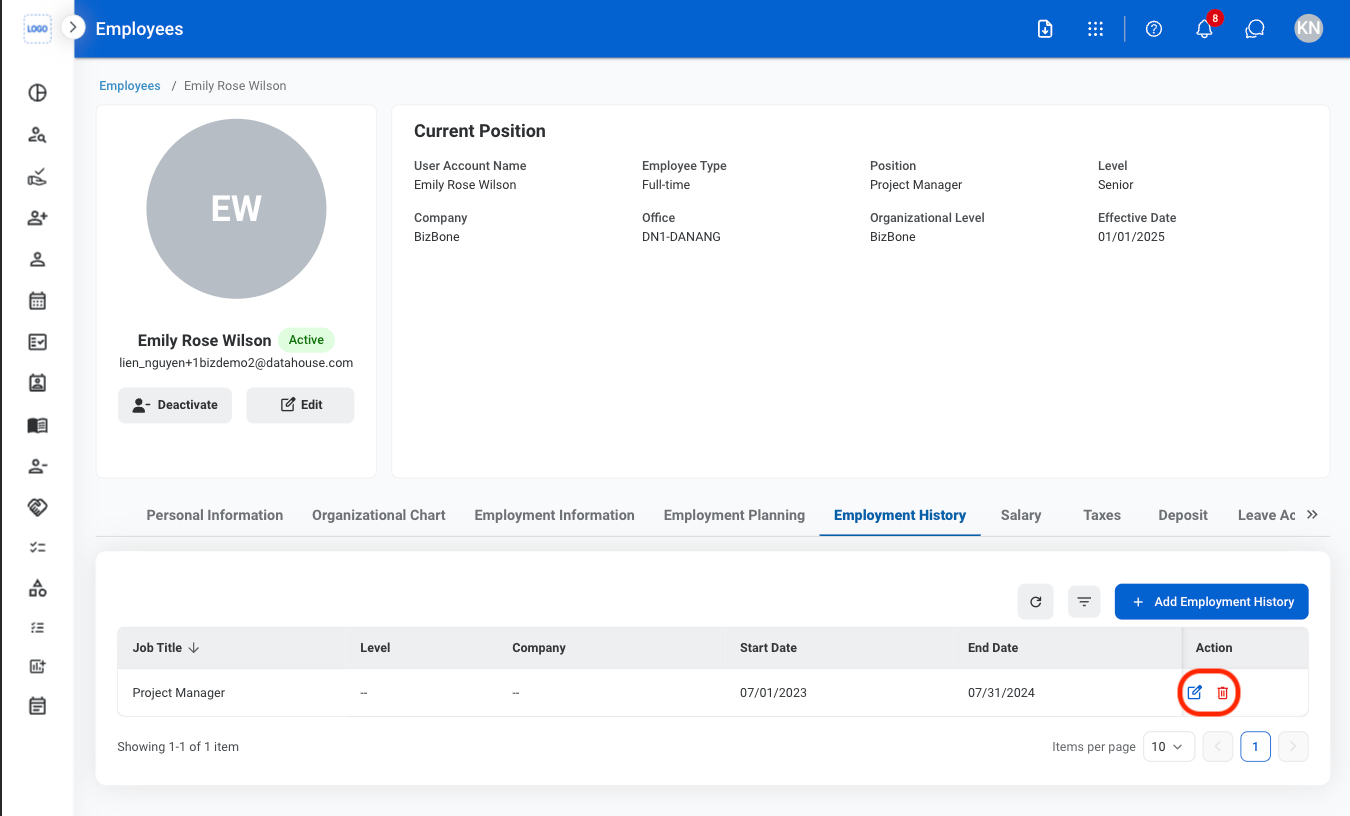 * **Edit**: Select the **edit icon** to update an existing entry
* **Delete**: Select the **trash icon** to delete an existing entry.
* **Edit:** Fill in the required information. Select **Update** to complete or **Cancel** to exit without saving changes.
* **Delete:** Select **Delete** to complete or **Cancel** to exit without saving changes.
### Salary
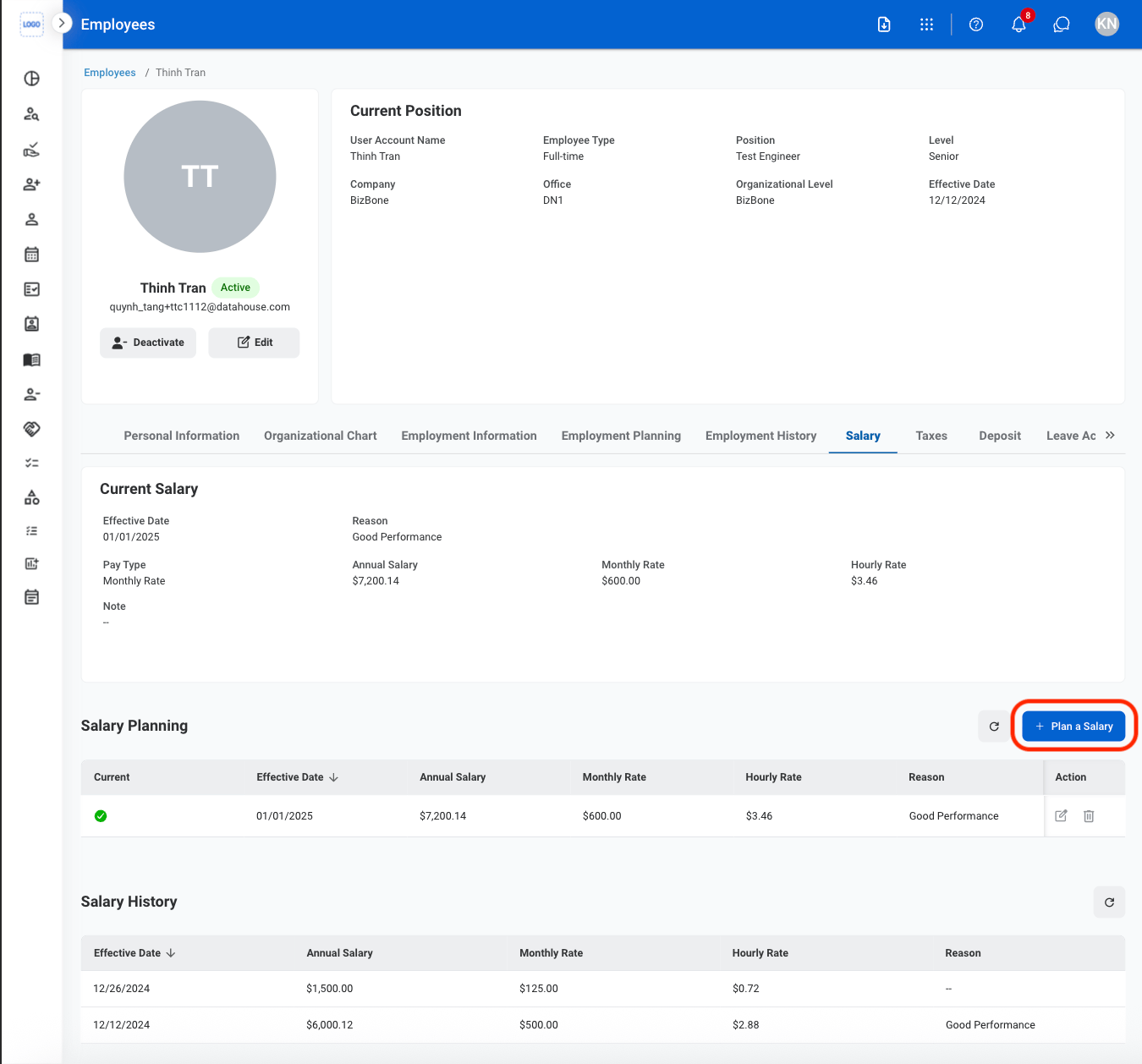
Manage employee salary information, record planned salary changes, and track salary history.
#### Plan a Salary
* **Edit**: Select the **edit icon** to update an existing entry
* **Delete**: Select the **trash icon** to delete an existing entry.
* **Edit:** Fill in the required information. Select **Update** to complete or **Cancel** to exit without saving changes.
* **Delete:** Select **Delete** to complete or **Cancel** to exit without saving changes.
### Salary
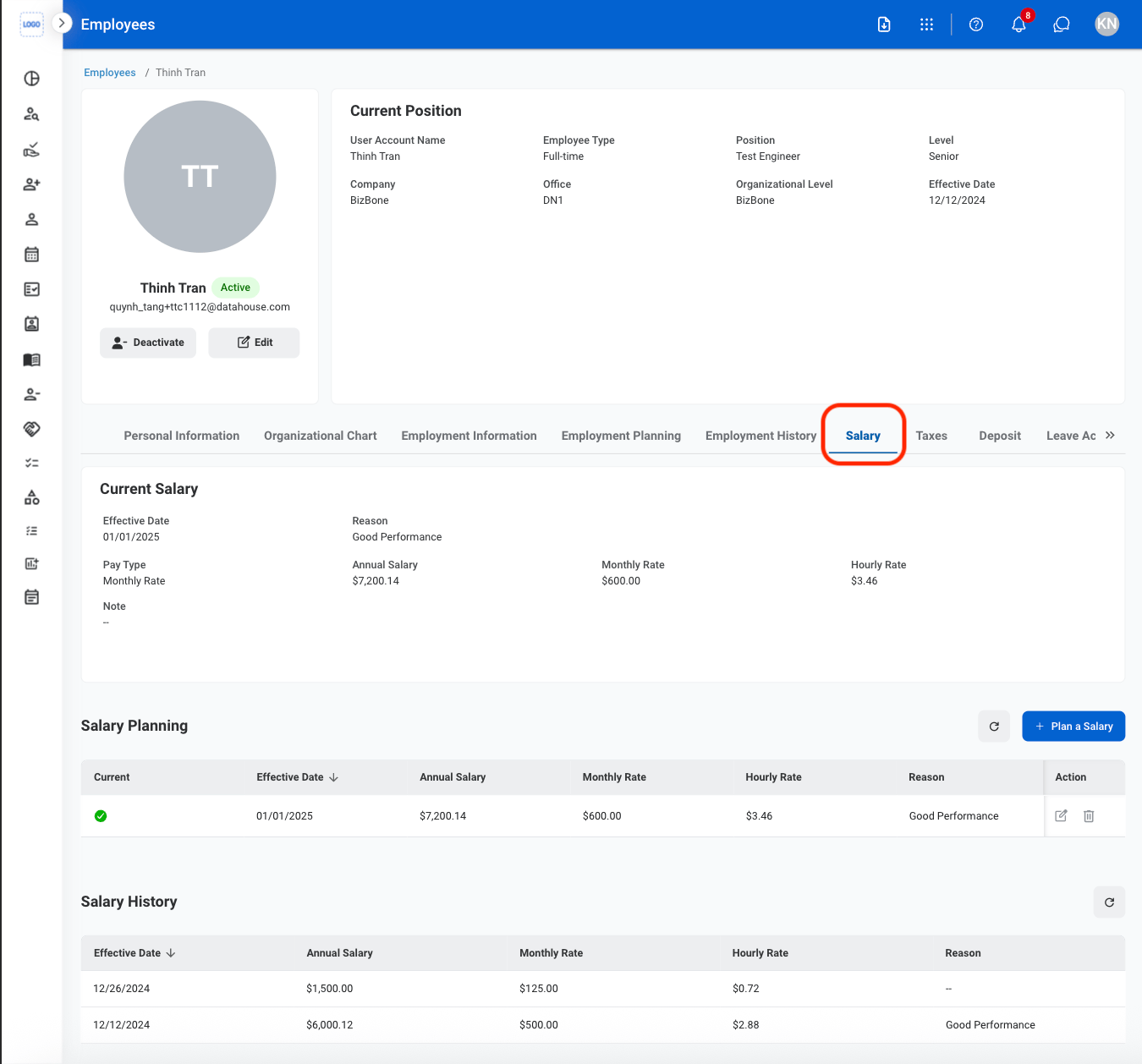
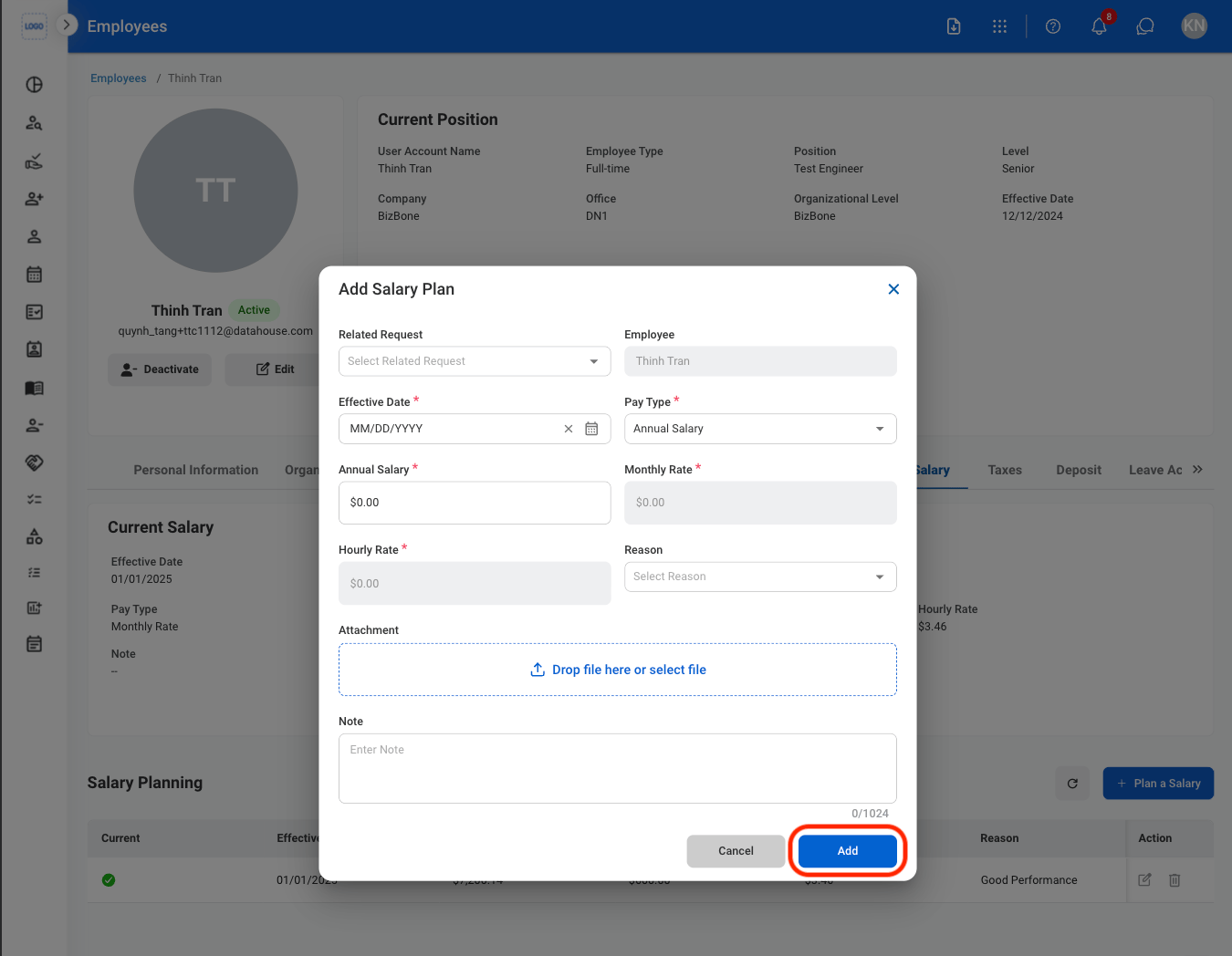
Manage employee salary information, record planned salary changes, and track salary history.
#### Plan a Salary
 #### Modify a Salary Plan
An employee's current salary cannot be modified. To replace the current salary, update the salary plan with the appropriate salary.
#### Modify a Salary Plan
An employee's current salary cannot be modified. To replace the current salary, update the salary plan with the appropriate salary.
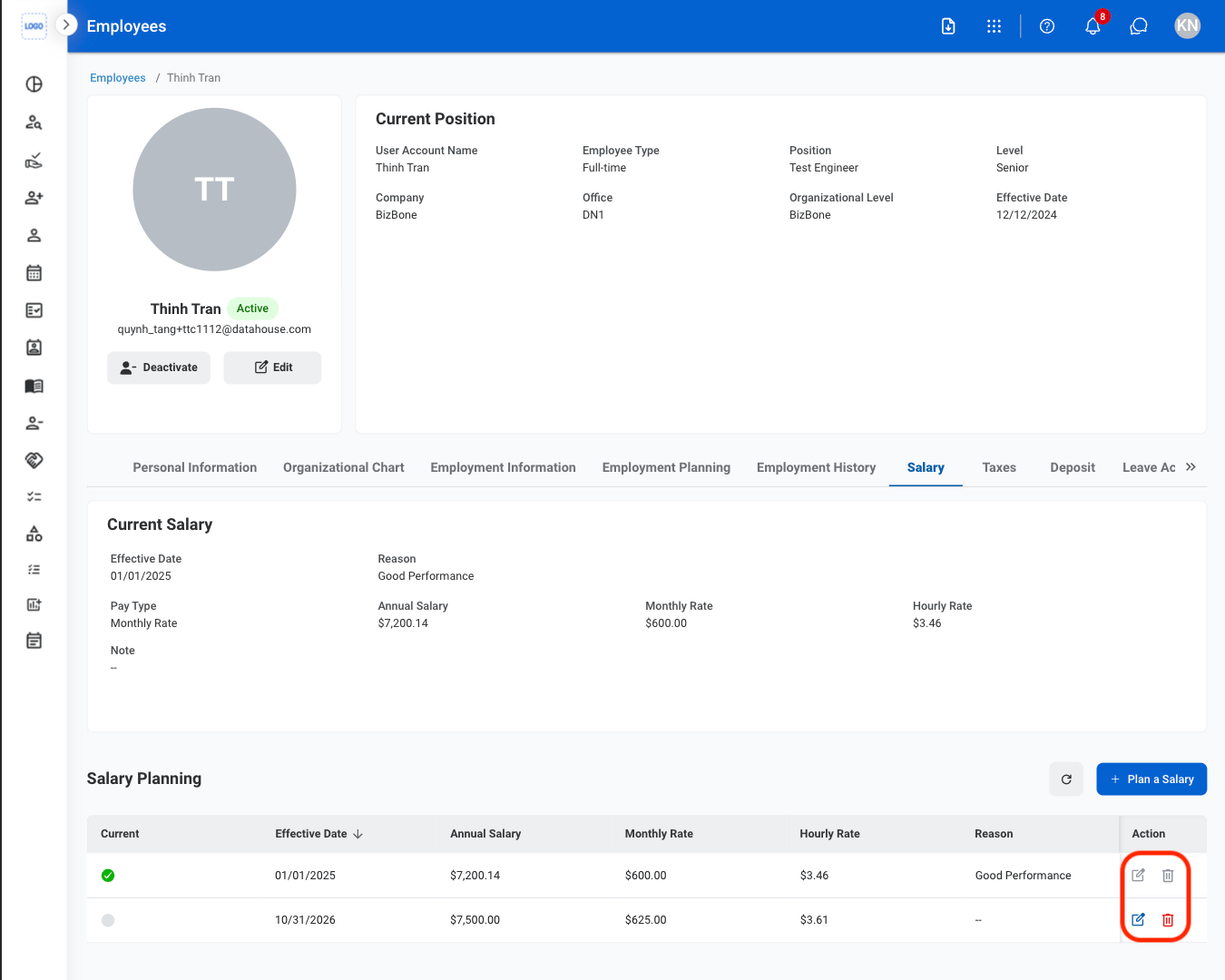 * **Edit**: Select the **edit icon** to update an existing entry.
* **Delete**: Select the **trash icon** to delete an existing entry.
* **Edit:** Fill in the required information. Select **Update** to complete or **Cancel** to exit without saving changes.
* **Delete:** Select **Delete** to complete or **Cancel** to exit without saving changes.
### Taxes
View employee tax certificates, exemptions, and uploaded tax documents. Tax information and forms are self-submitted by employees.
#### View Current Tax Records
* **Edit**: Select the **edit icon** to update an existing entry.
* **Delete**: Select the **trash icon** to delete an existing entry.
* **Edit:** Fill in the required information. Select **Update** to complete or **Cancel** to exit without saving changes.
* **Delete:** Select **Delete** to complete or **Cancel** to exit without saving changes.
### Taxes
View employee tax certificates, exemptions, and uploaded tax documents. Tax information and forms are self-submitted by employees.
#### View Current Tax Records
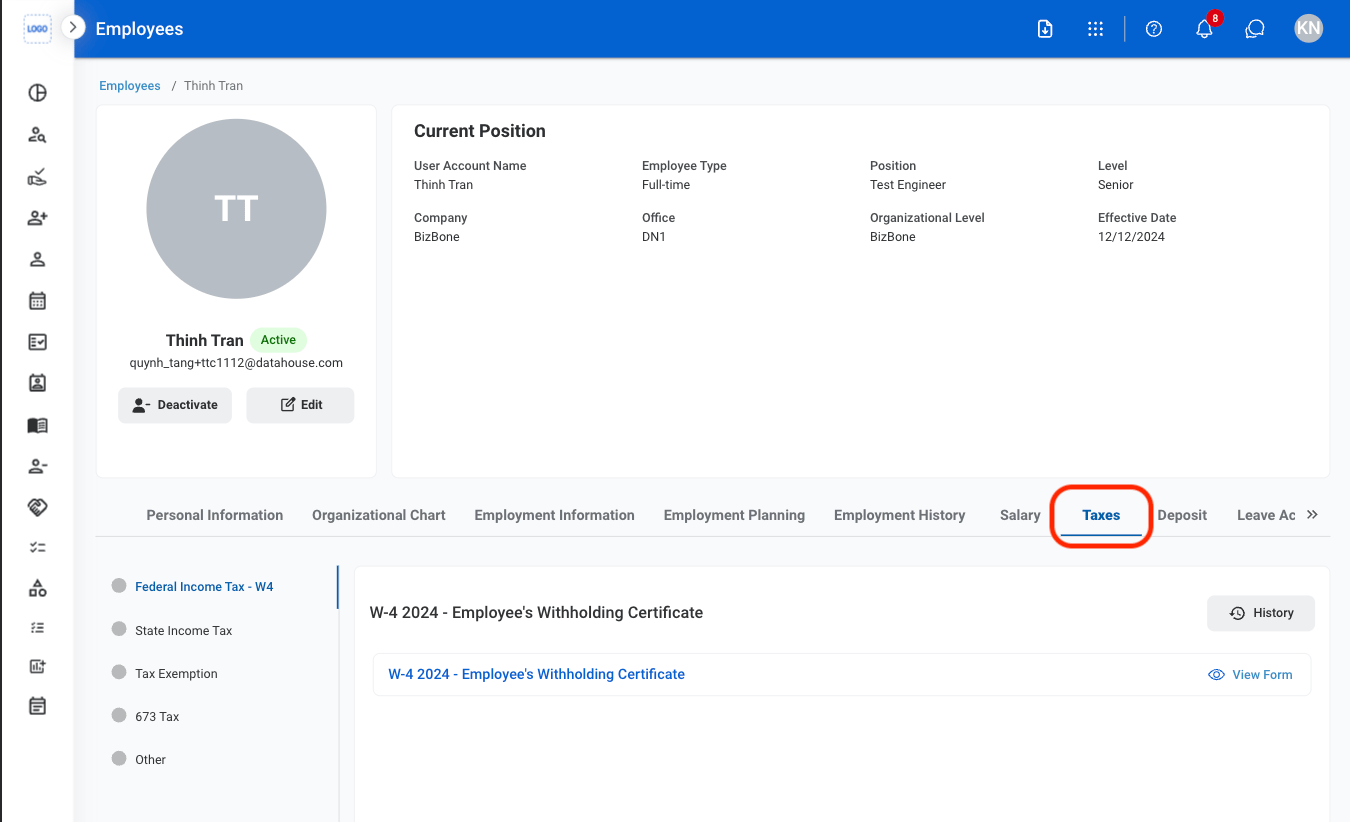
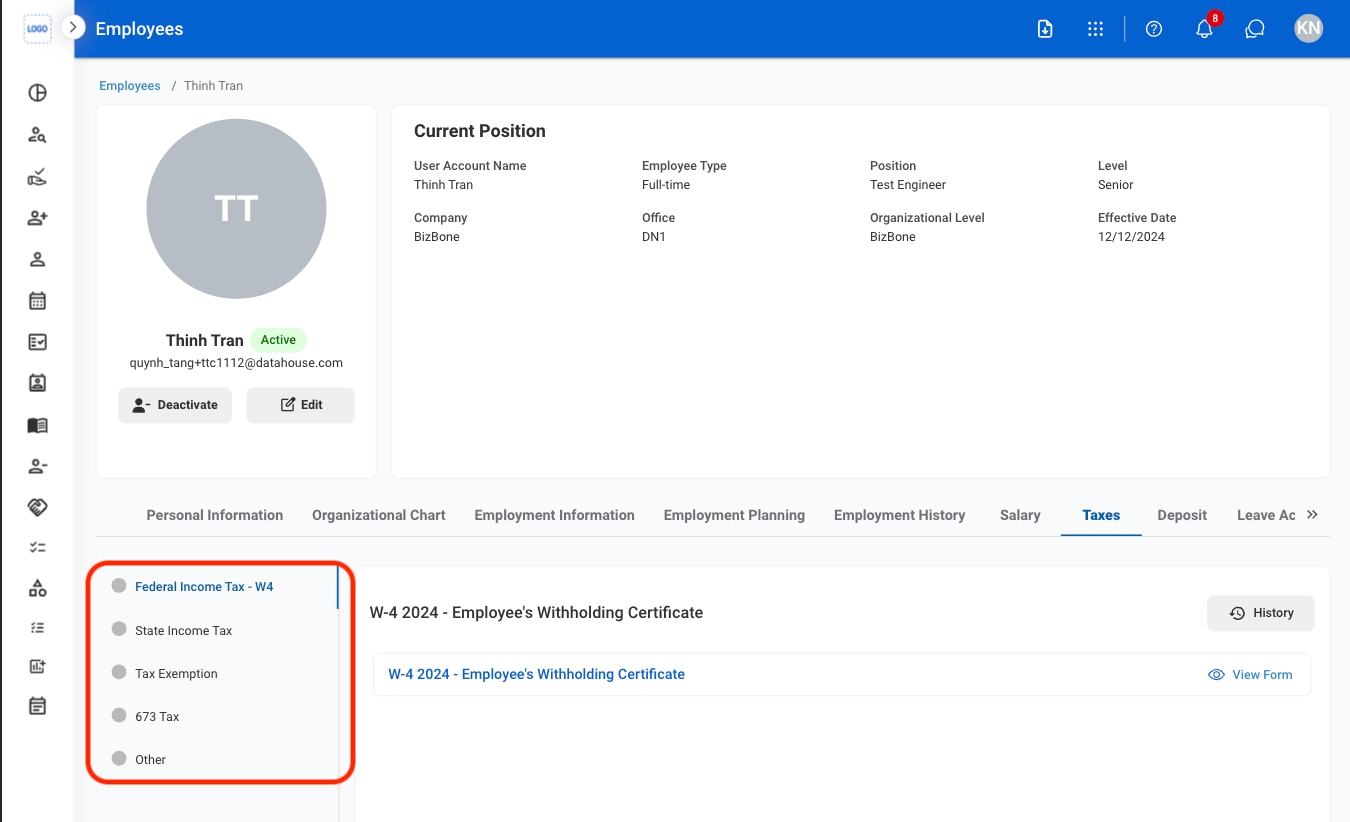 Select **Federal Income Tax**, **State Income Tax**, **Tax Exemption**, **673 Tax**, or **Other** to view the corresponding tax information and uploaded documents.
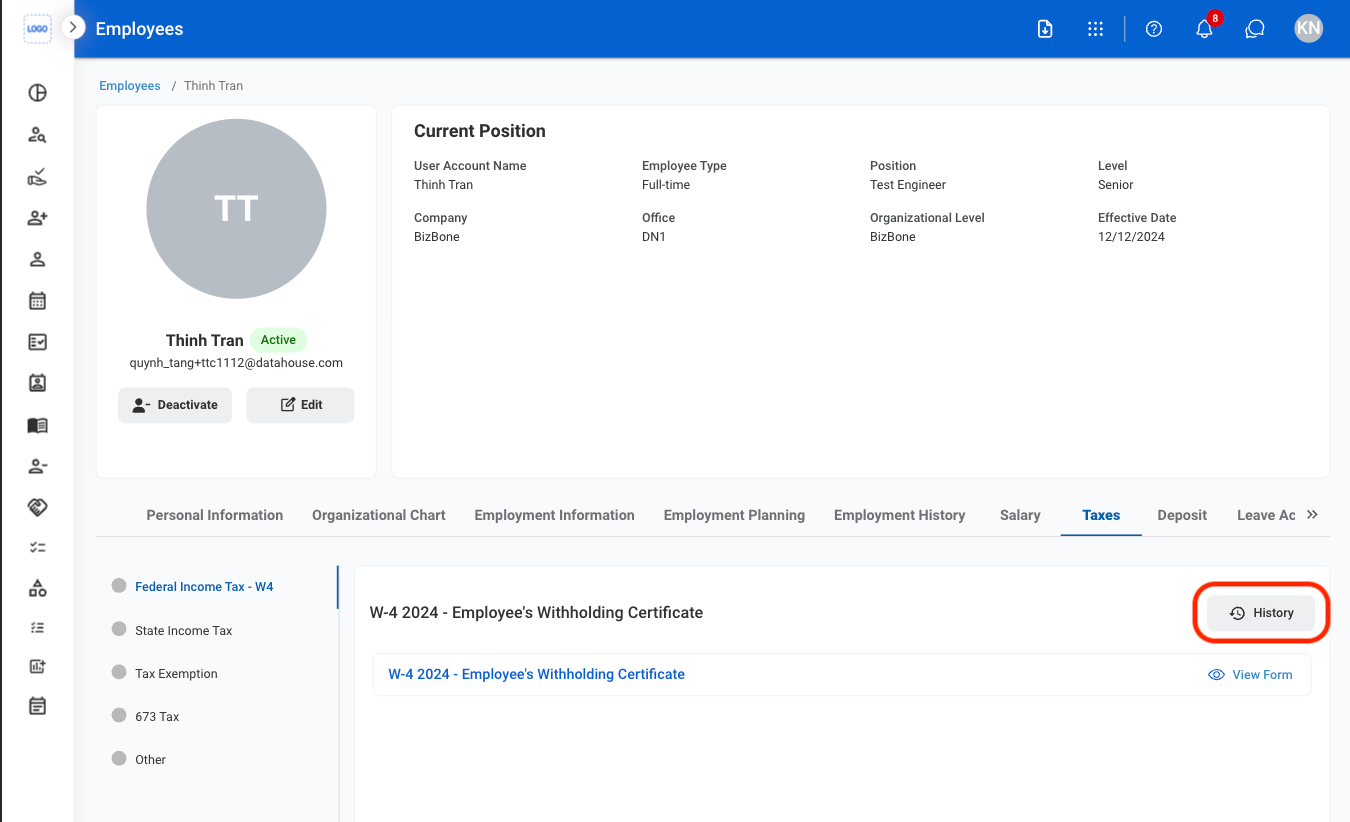
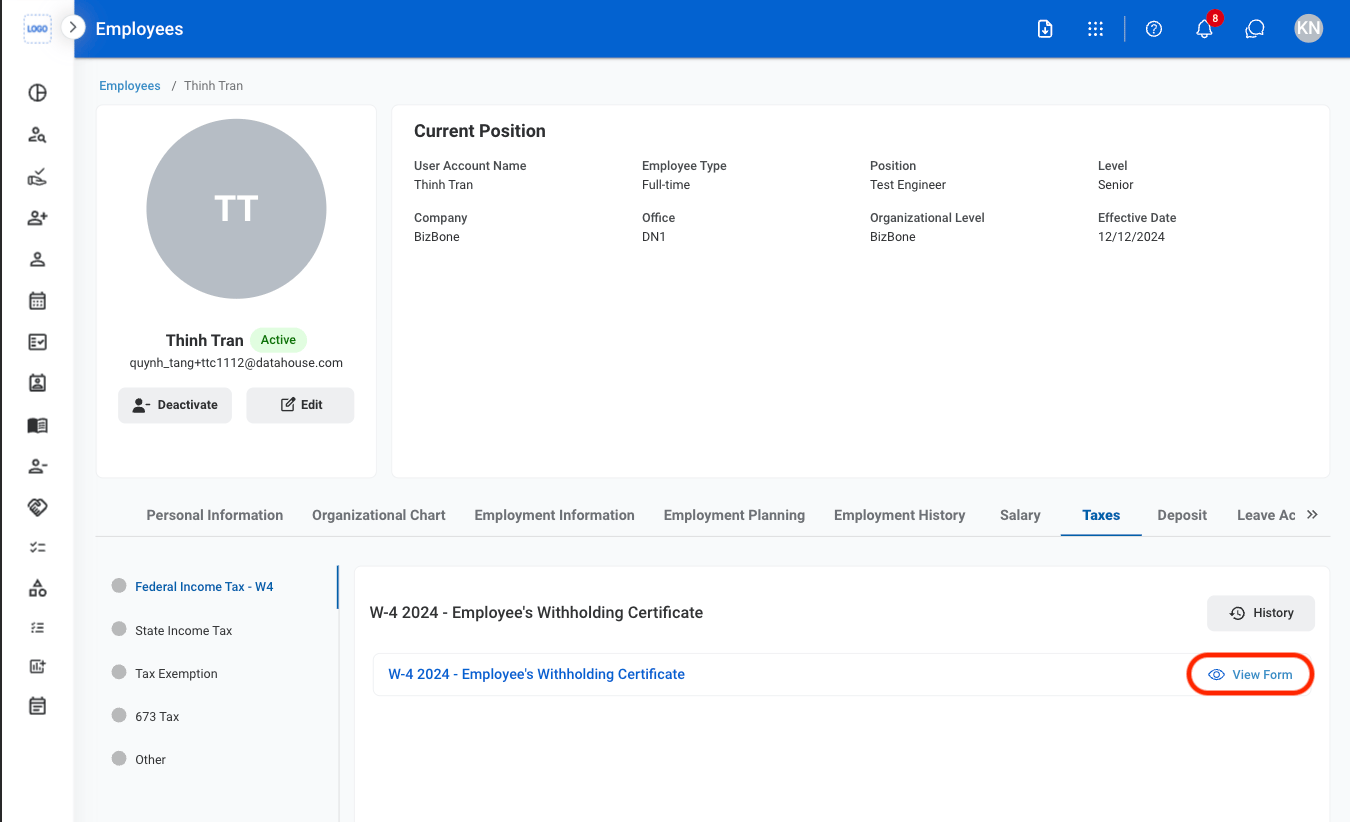 Select **View Form** to view the employee's most recent tax record. Select History to view previous tax records.
#### View Tax Record History
Select **View Form** to view the employee's most recent tax record. Select History to view previous tax records.
#### View Tax Record History
 ### Deposit
Add employee direct deposit information for payroll processing.
### Deposit
Add employee direct deposit information for payroll processing.
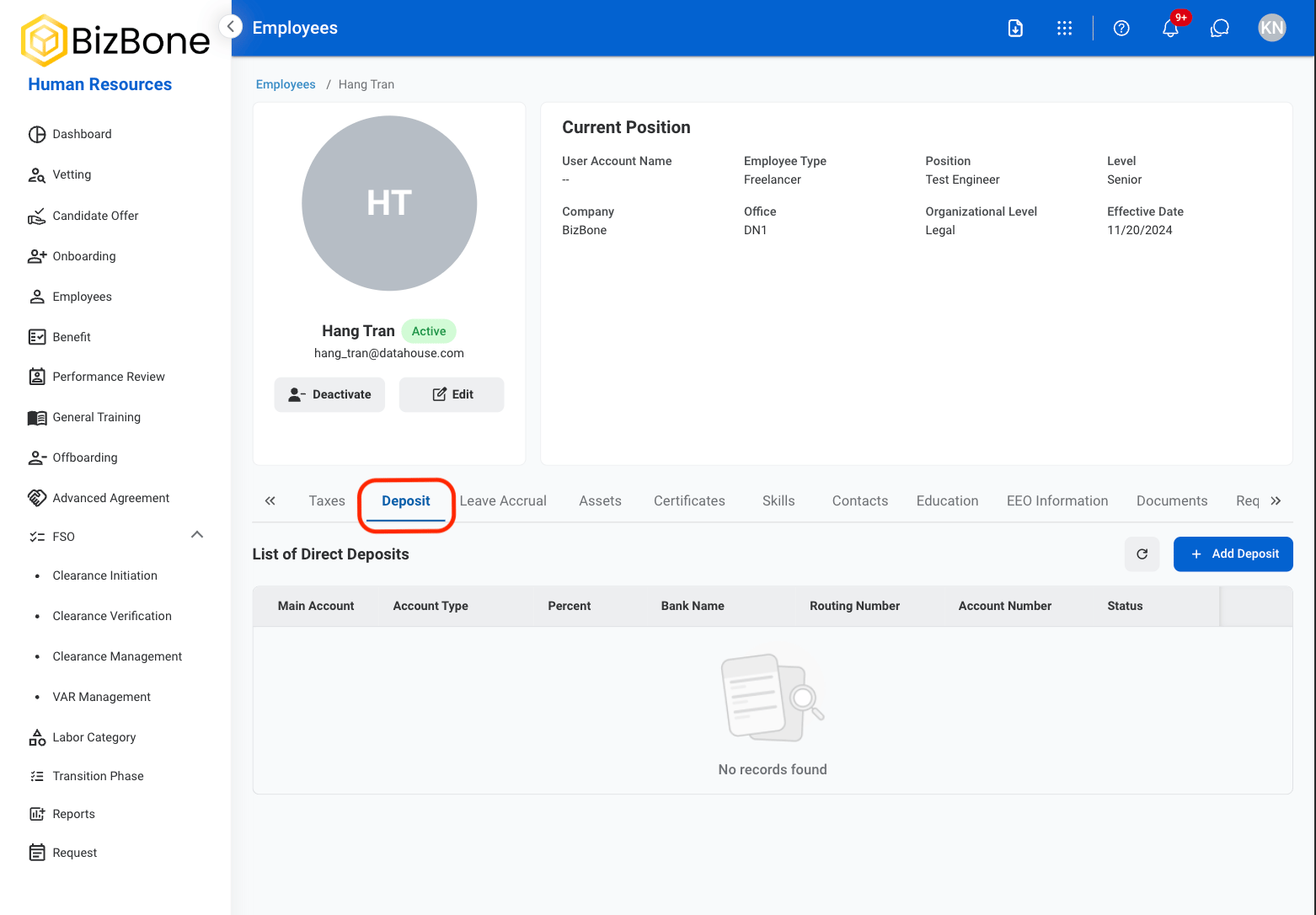
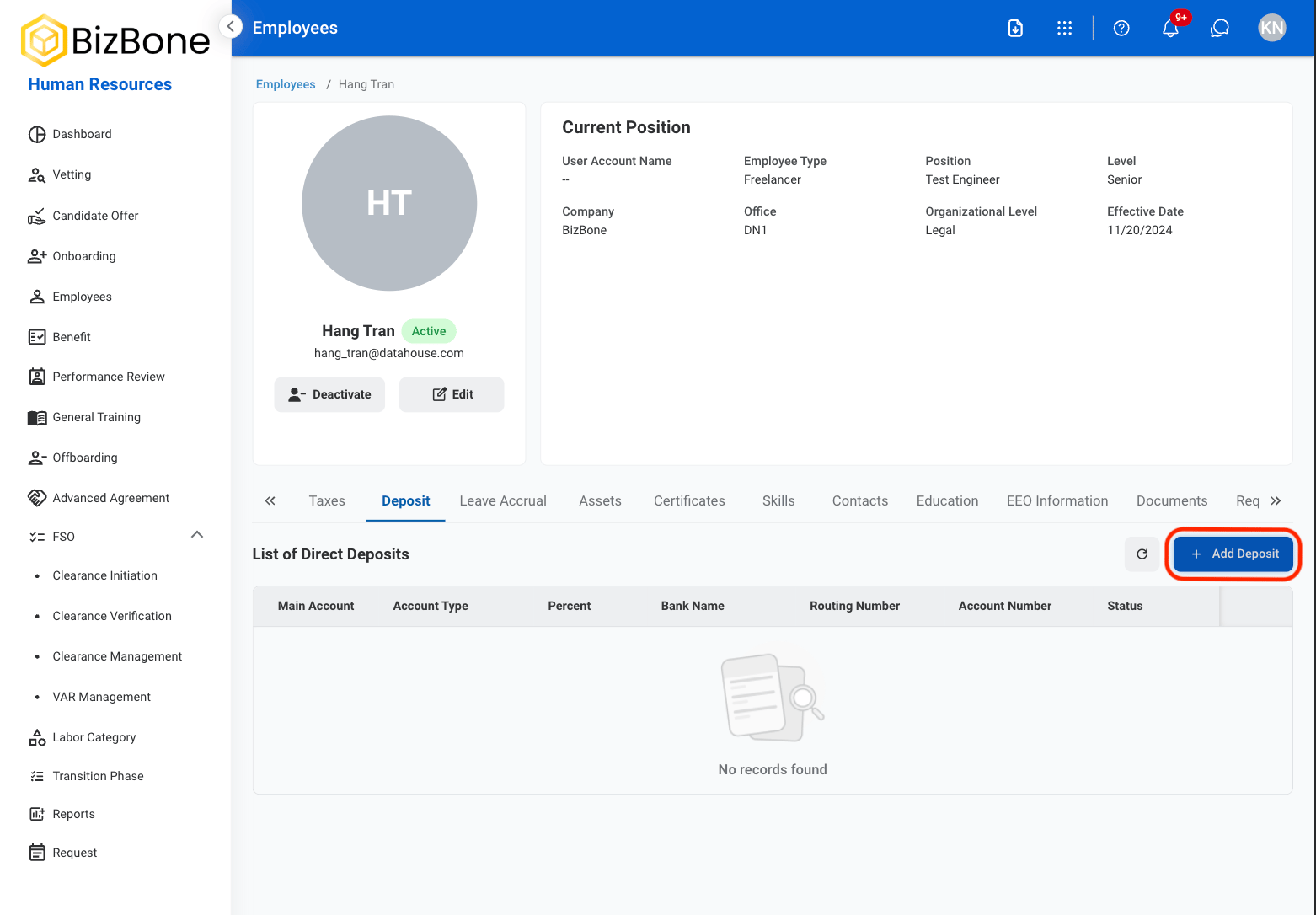
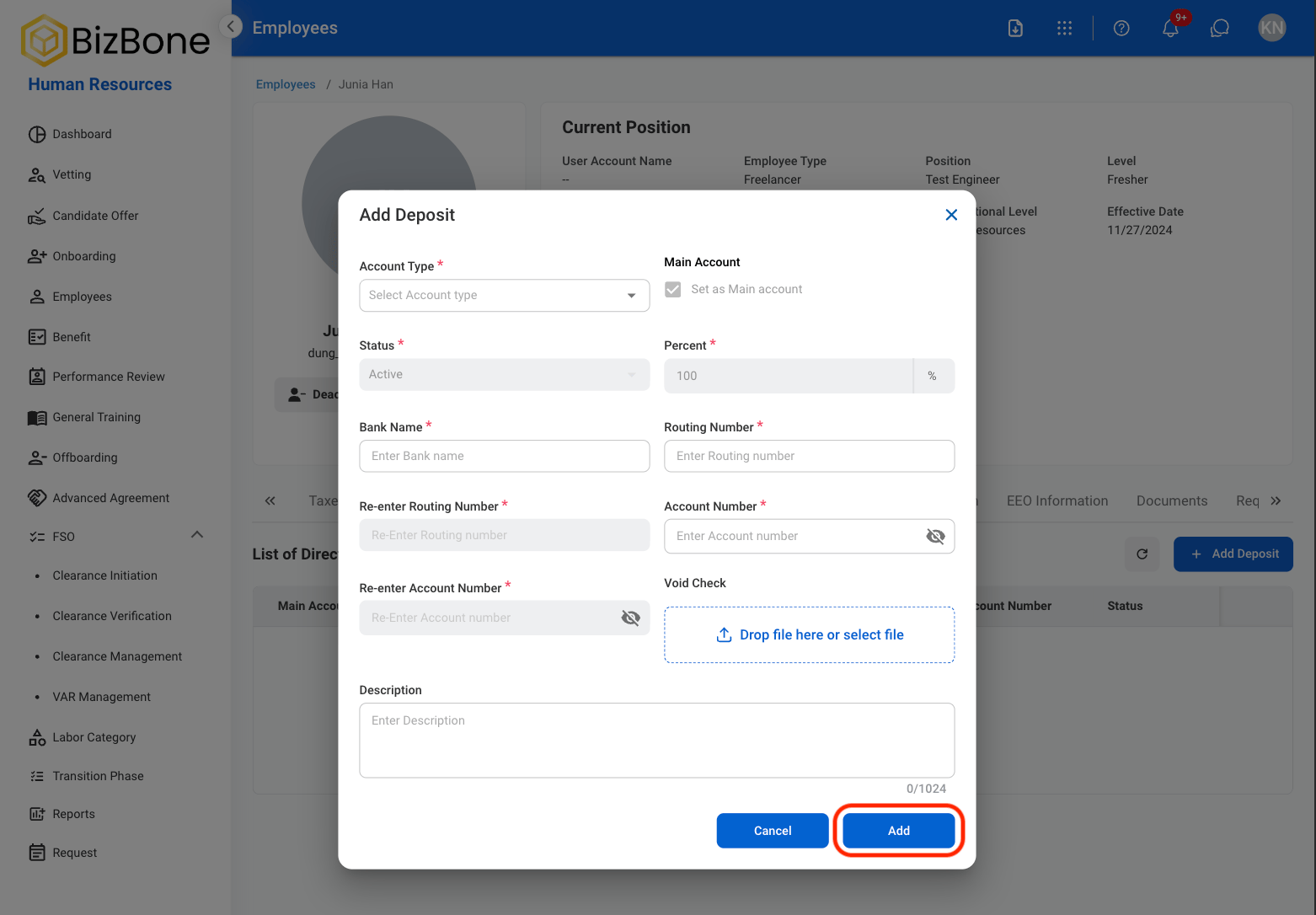 Select **Add** to complete or **Cancel** to exit without saving changes.
### Leave Accrual
Track and manage employee leave balances, including accrued leave, carryover amounts, and usage within the current period.
**Carryover Balance**: The amount of unused leave from the previous period that is carried into the current period
**Taken Carryover Leaves**: The number of leave days used from the carryover balance during the current period
**Remaining Carryover Balance**: The remaining carryover leave after usage. Calculated as: Carryover Balance − Taken Carryover Leaves. Expired carryover leave will be lost.
**Negative Carryover**: A negative leave balance carried over from the previous period.
**Leave Entitlement**: The total leave allocated to the employee for the current period based on company policy.
**Taken Leaves**: The number of leave days used from the current period’s entitlement.
**Remaining Balance**: The remaining leave available. Calculated as: Leave Entitlement − Negative Carryover − Taken Leaves.
#### Edit Leave Accrual
Select **Add** to complete or **Cancel** to exit without saving changes.
### Leave Accrual
Track and manage employee leave balances, including accrued leave, carryover amounts, and usage within the current period.
**Carryover Balance**: The amount of unused leave from the previous period that is carried into the current period
**Taken Carryover Leaves**: The number of leave days used from the carryover balance during the current period
**Remaining Carryover Balance**: The remaining carryover leave after usage. Calculated as: Carryover Balance − Taken Carryover Leaves. Expired carryover leave will be lost.
**Negative Carryover**: A negative leave balance carried over from the previous period.
**Leave Entitlement**: The total leave allocated to the employee for the current period based on company policy.
**Taken Leaves**: The number of leave days used from the current period’s entitlement.
**Remaining Balance**: The remaining leave available. Calculated as: Leave Entitlement − Negative Carryover − Taken Leaves.
#### Edit Leave Accrual
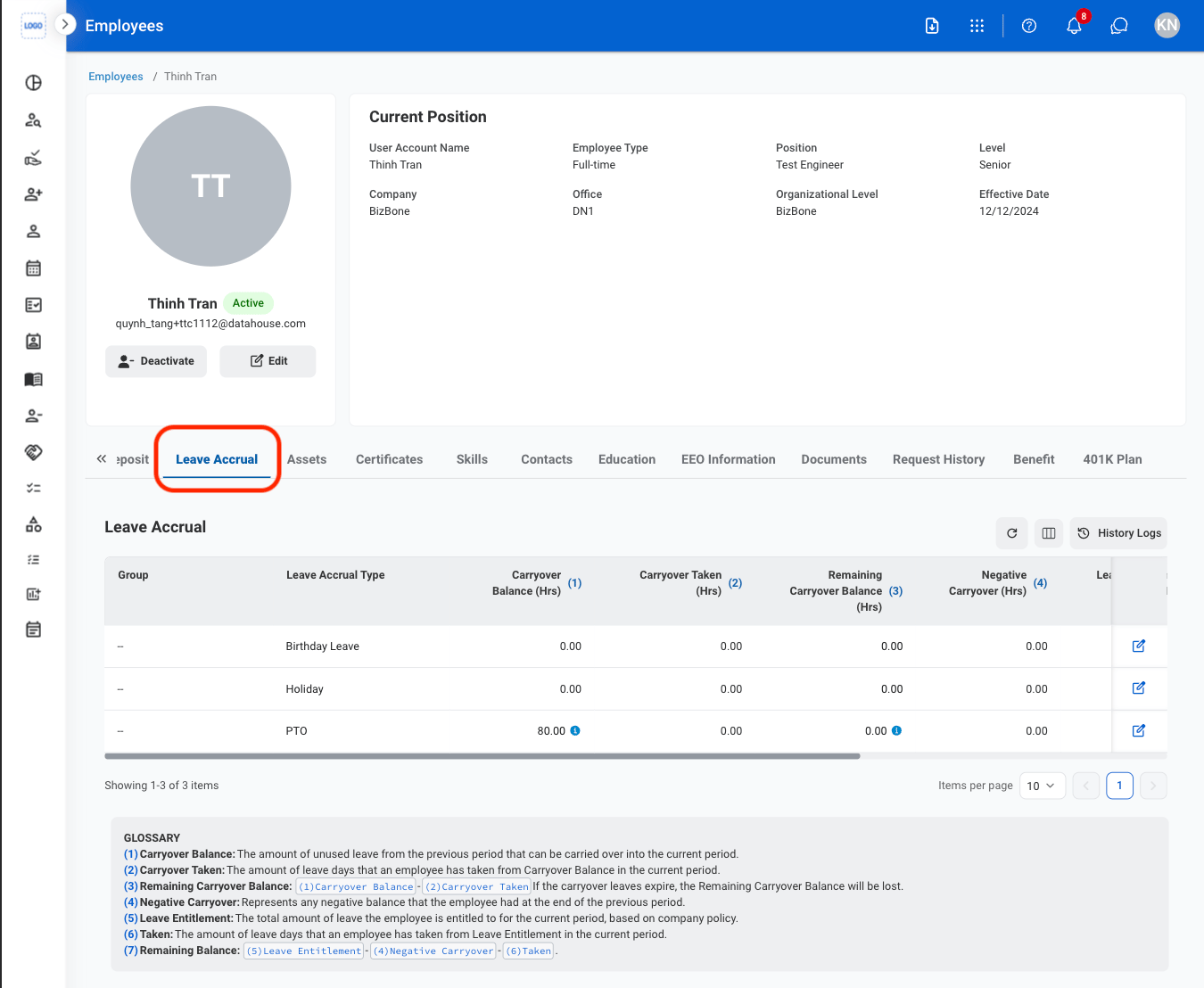

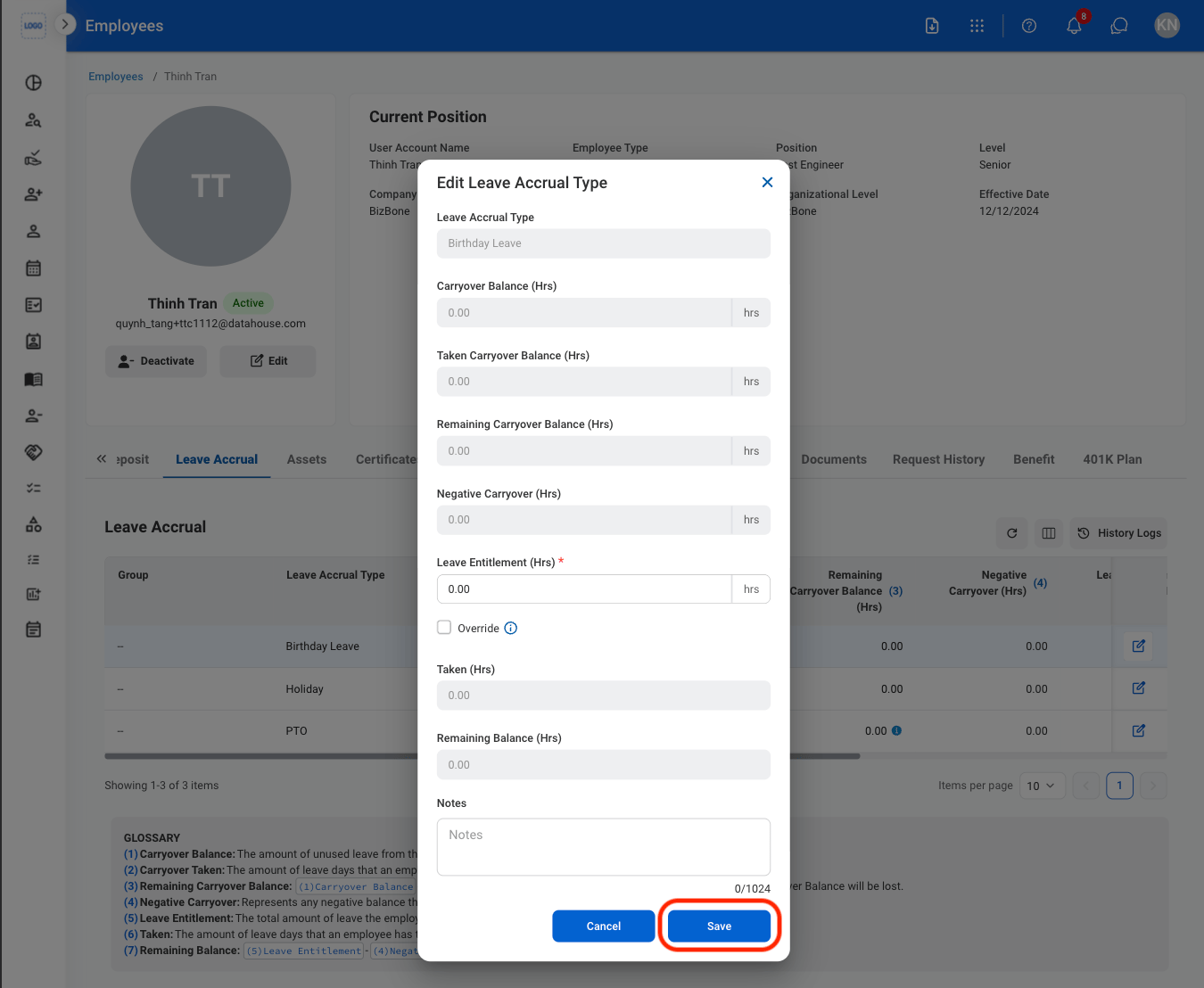 Select **Save** to complete or **Cancel** to exit without saving changes.
### Assets
Create requests to assign employee work assets, including new assignments, loans, returns, and software installations.
Select **Save** to complete or **Cancel** to exit without saving changes.
### Assets
Create requests to assign employee work assets, including new assignments, loans, returns, and software installations.

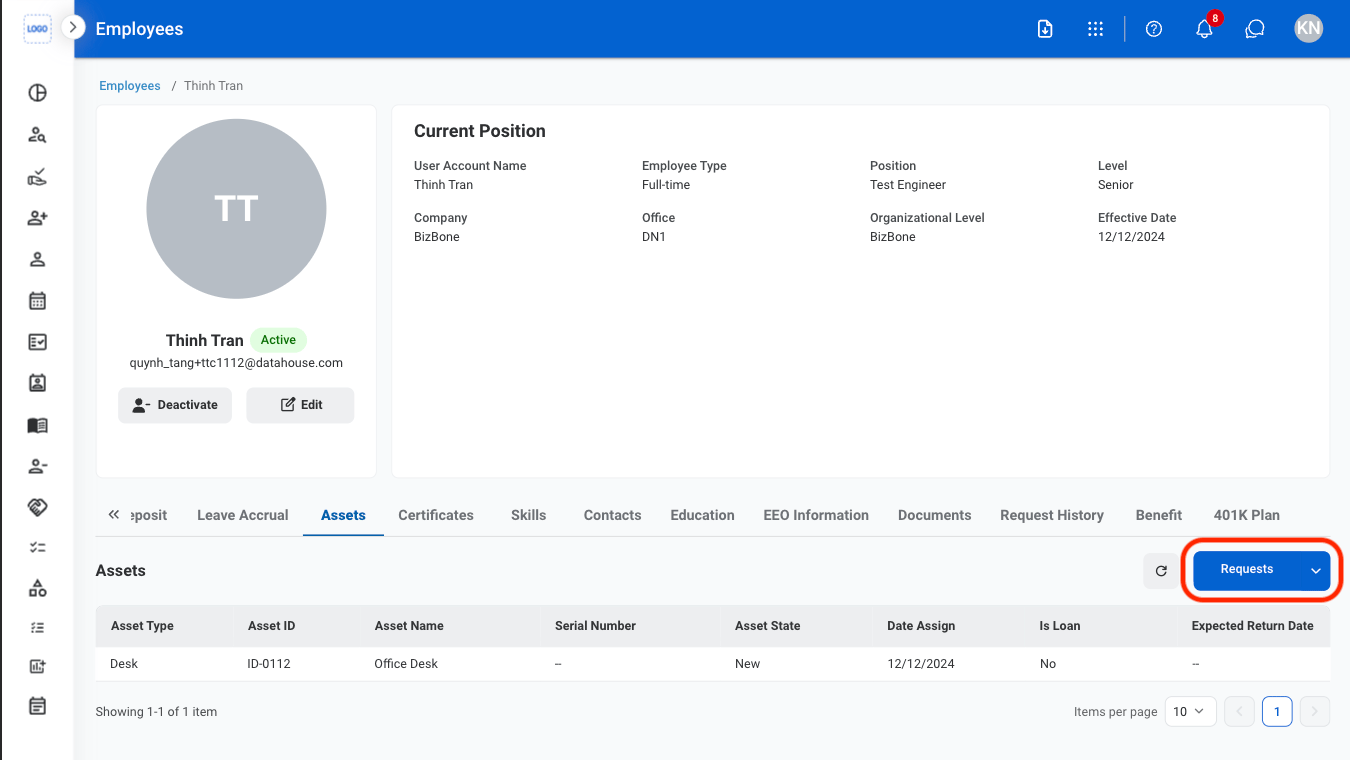

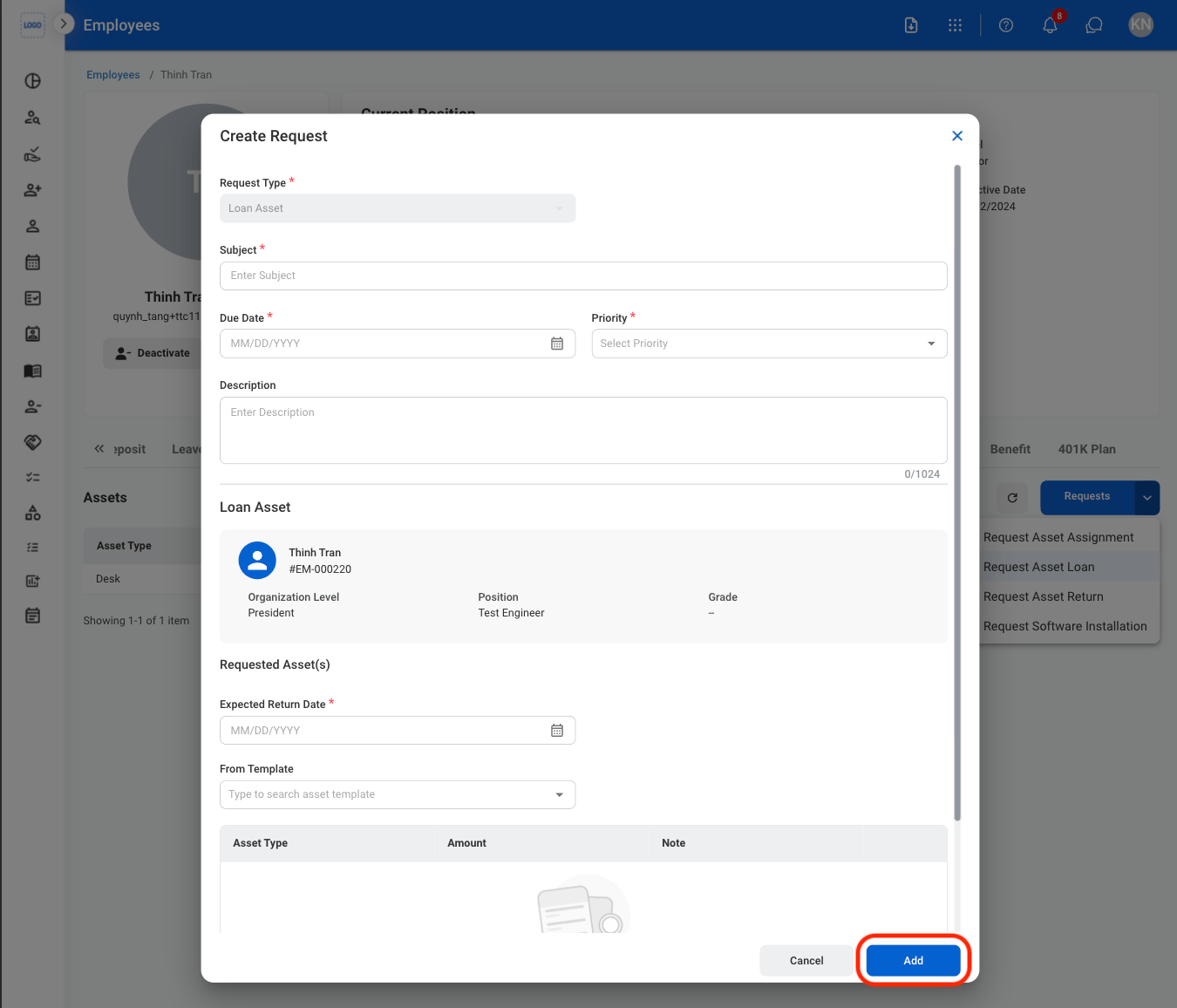 Select **Add** to complete or **Cancel** to exit without saving changes
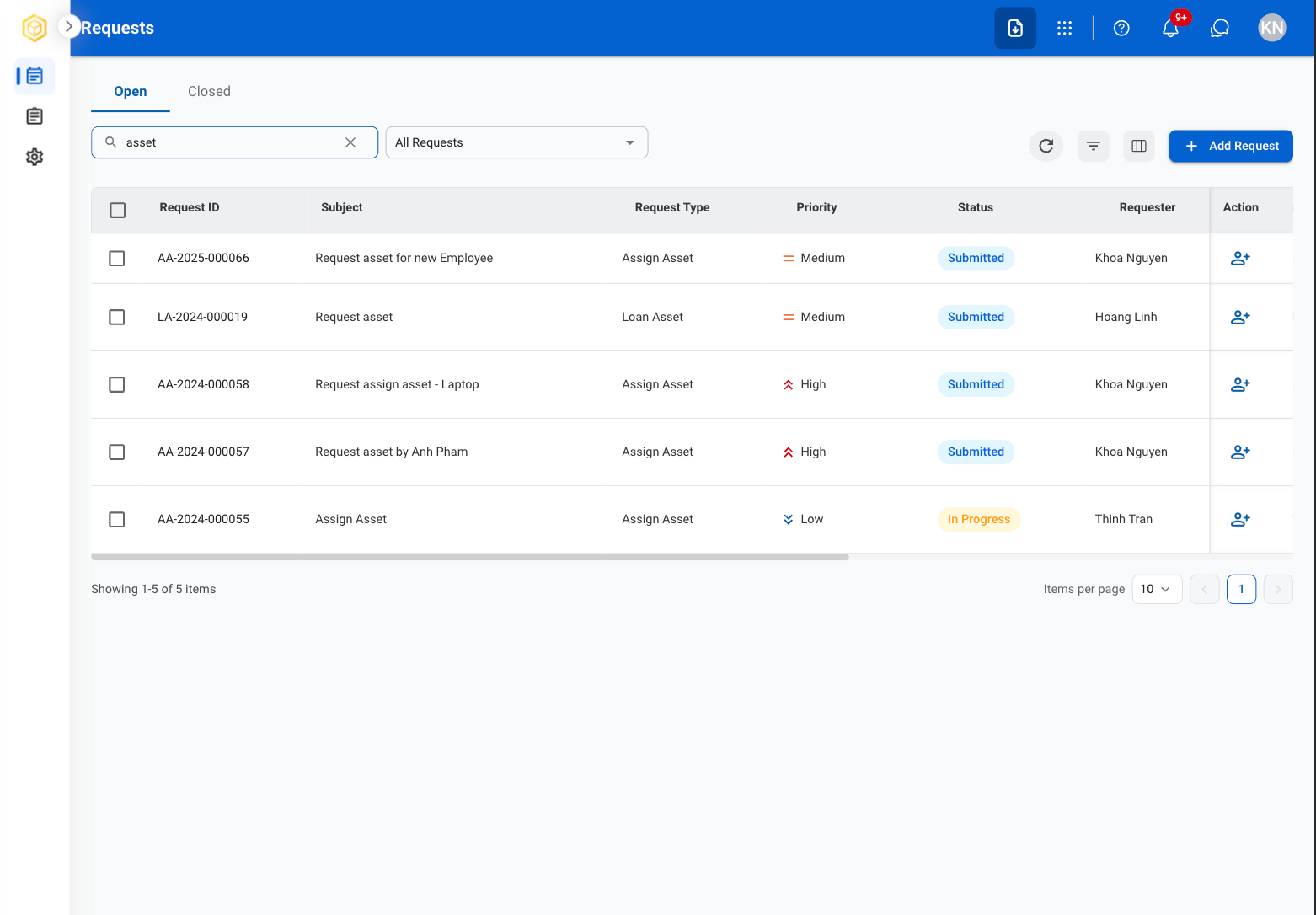 The request is sent to the assigned approver(s), typically the employee’s manager(s), for review. HR may track progress of the request in the **Requests** module. Once approved, it is forwarded to IT for fulfillment.
Upon completion, the requested asset will appear in the **Assets** tab of the employee's profile.
### Certificates
#### Add a Certificate
The request is sent to the assigned approver(s), typically the employee’s manager(s), for review. HR may track progress of the request in the **Requests** module. Once approved, it is forwarded to IT for fulfillment.
Upon completion, the requested asset will appear in the **Assets** tab of the employee's profile.
### Certificates
#### Add a Certificate
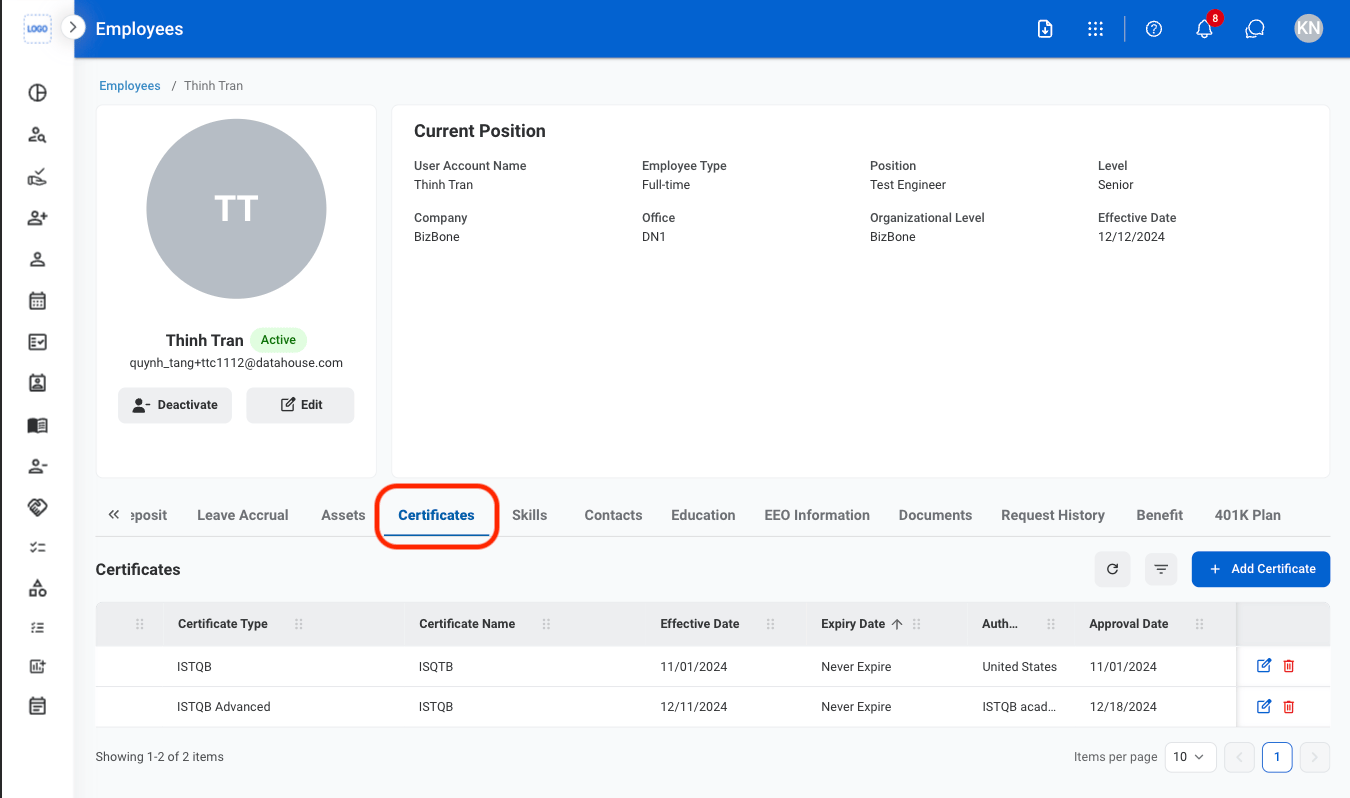

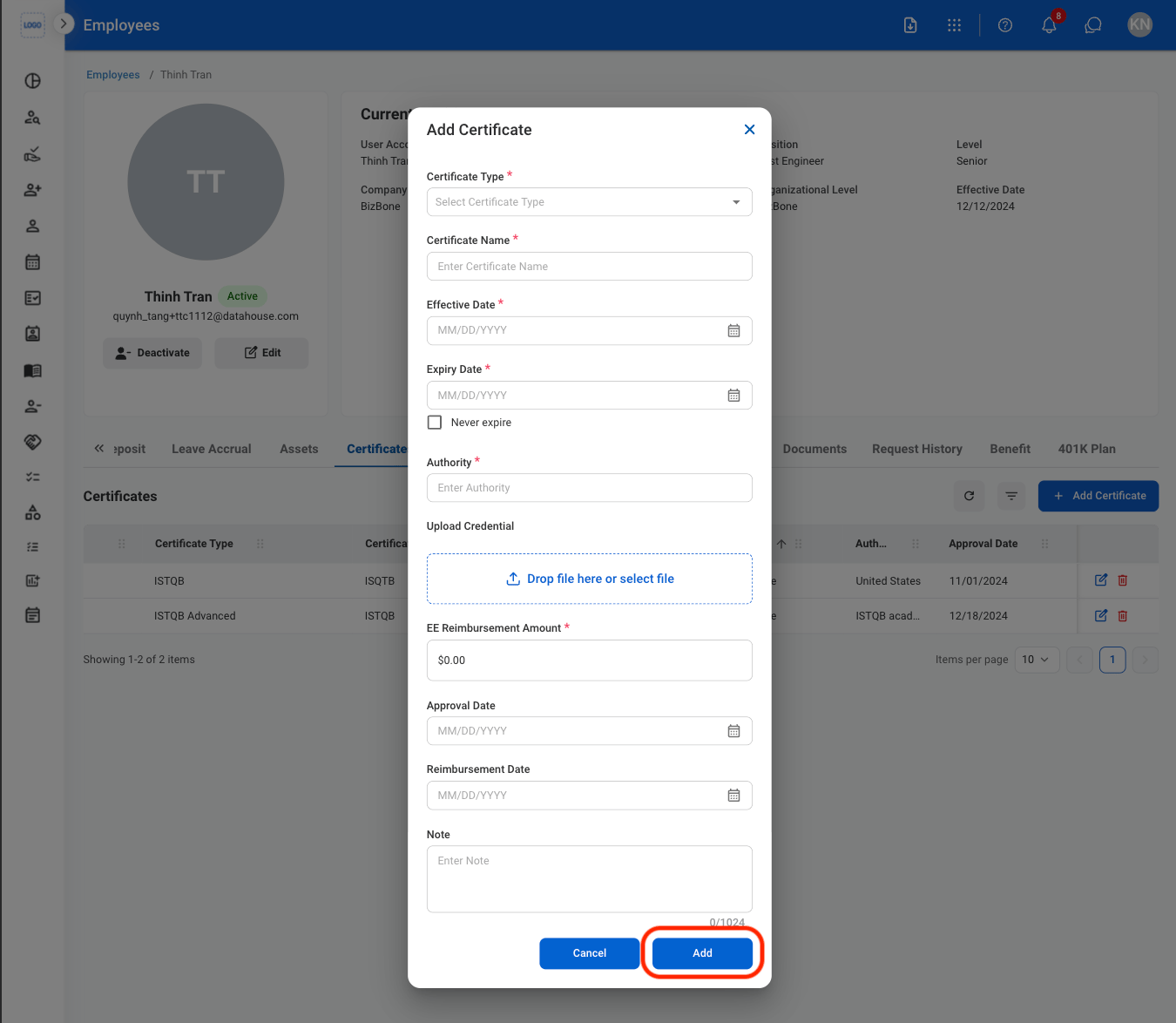 Select **Add** to complete or **Cancel** to exit without saving changes
#### Modify a Certificate
Select **Add** to complete or **Cancel** to exit without saving changes
#### Modify a Certificate
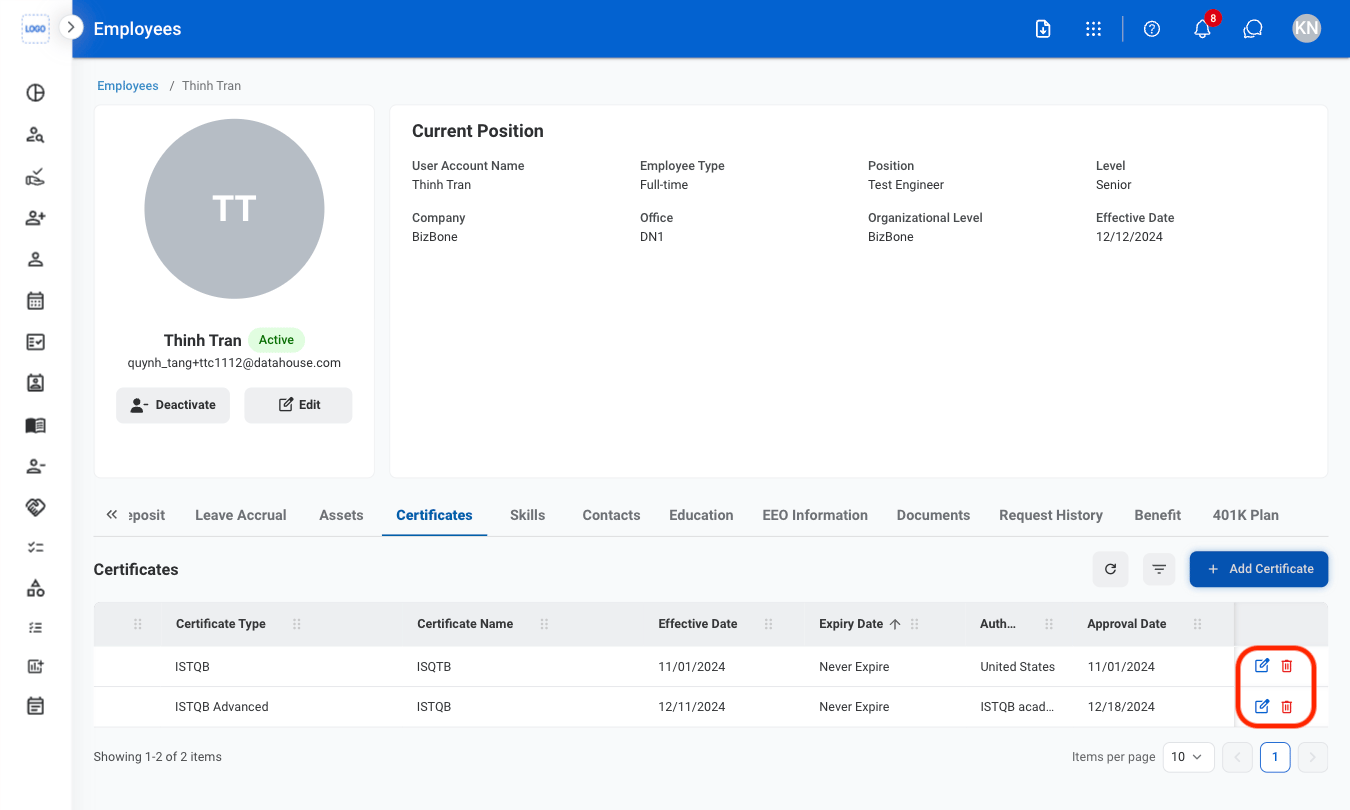 * **Edit**: Select the **edit icon** to update an existing entry.
* **Delete**: Select the **trash icon** to delete an existing entry.
* **Edit:** Fill in the required information. Select **Update** to complete or **Cancel** to exit without saving changes.
* **Delete:** Select **Delete** to complete or **Cancel** to exit without saving changes.
### Skills
#### Add a Skill
* **Edit**: Select the **edit icon** to update an existing entry.
* **Delete**: Select the **trash icon** to delete an existing entry.
* **Edit:** Fill in the required information. Select **Update** to complete or **Cancel** to exit without saving changes.
* **Delete:** Select **Delete** to complete or **Cancel** to exit without saving changes.
### Skills
#### Add a Skill
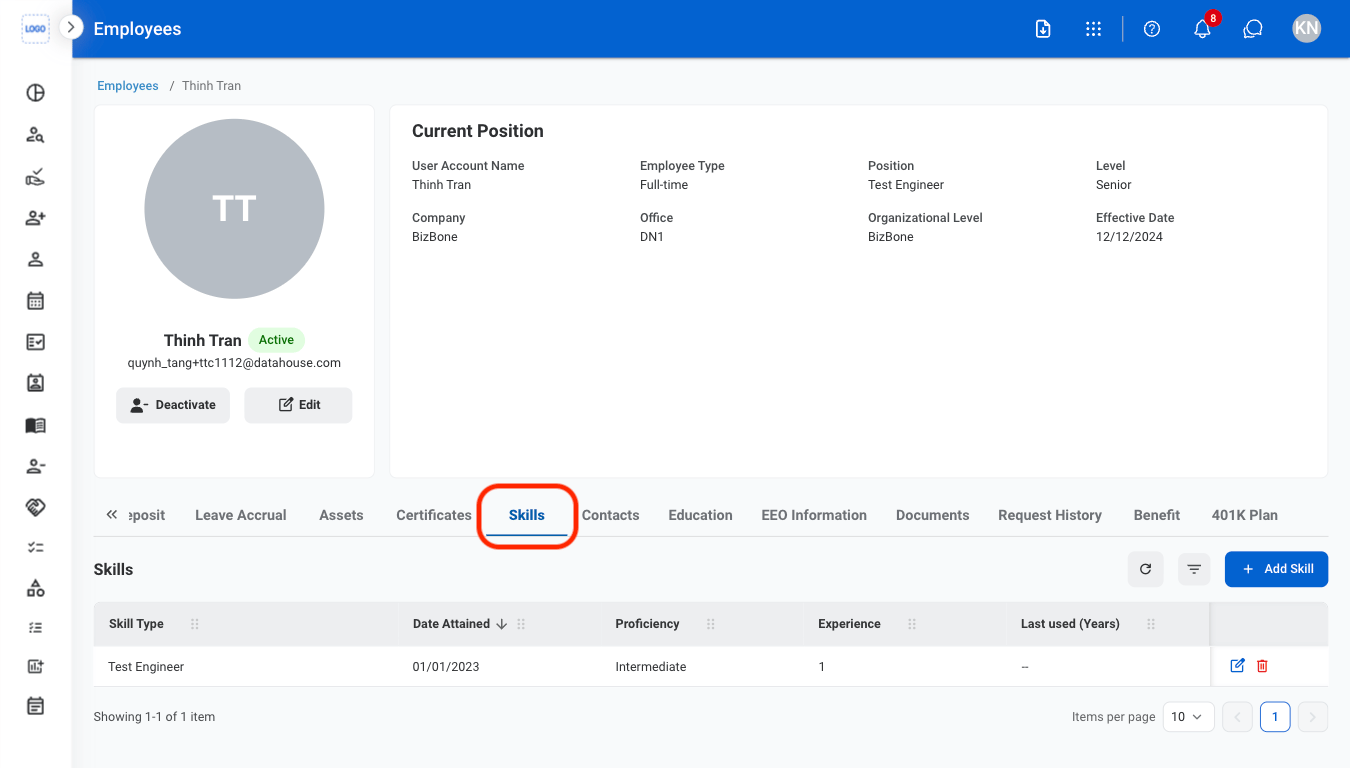
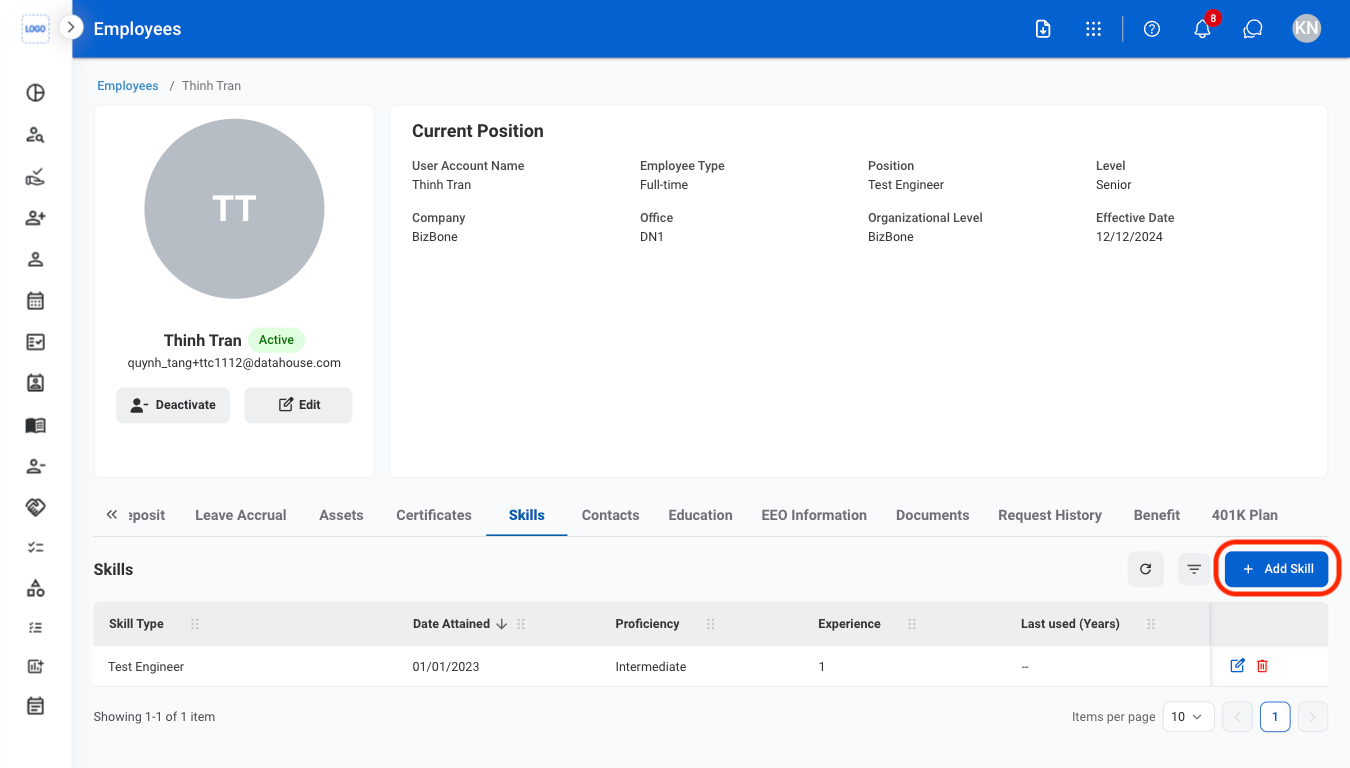
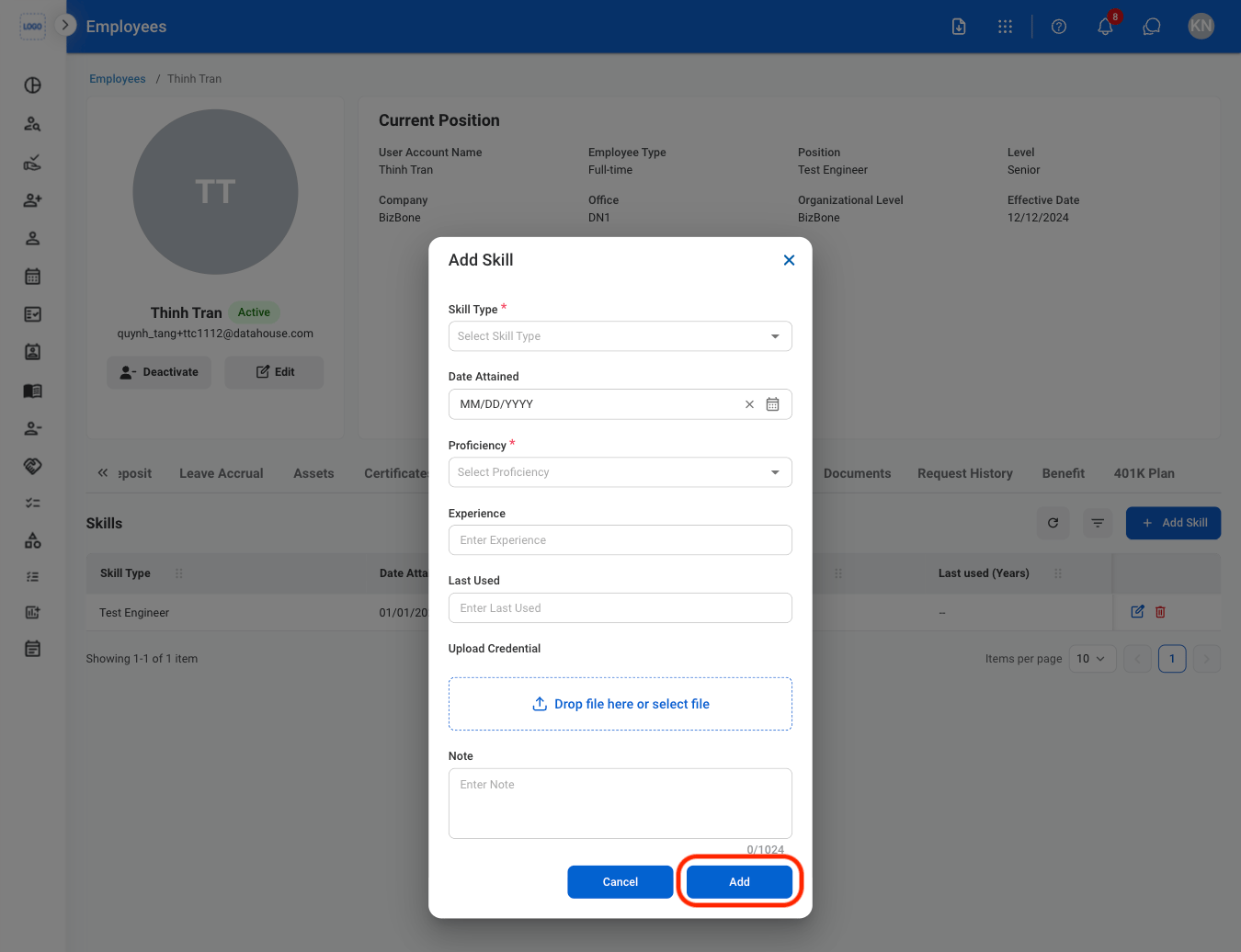 Select **Add** to complete or **Cancel** to exit without saving changes.
#### Modify a Skill
Select **Add** to complete or **Cancel** to exit without saving changes.
#### Modify a Skill
 * **Edit**: Select the **edit icon** to update an existing entry.
* **Delete**: Select the **trash icon** to delete an existing entry.
* **Edit:** Fill in the required information. Select **Update** to complete or **Cancel** to exit without saving changes.
* **Delete:** Select **Delete** to complete or **Cancel** to exit without saving changes.
### Contacts
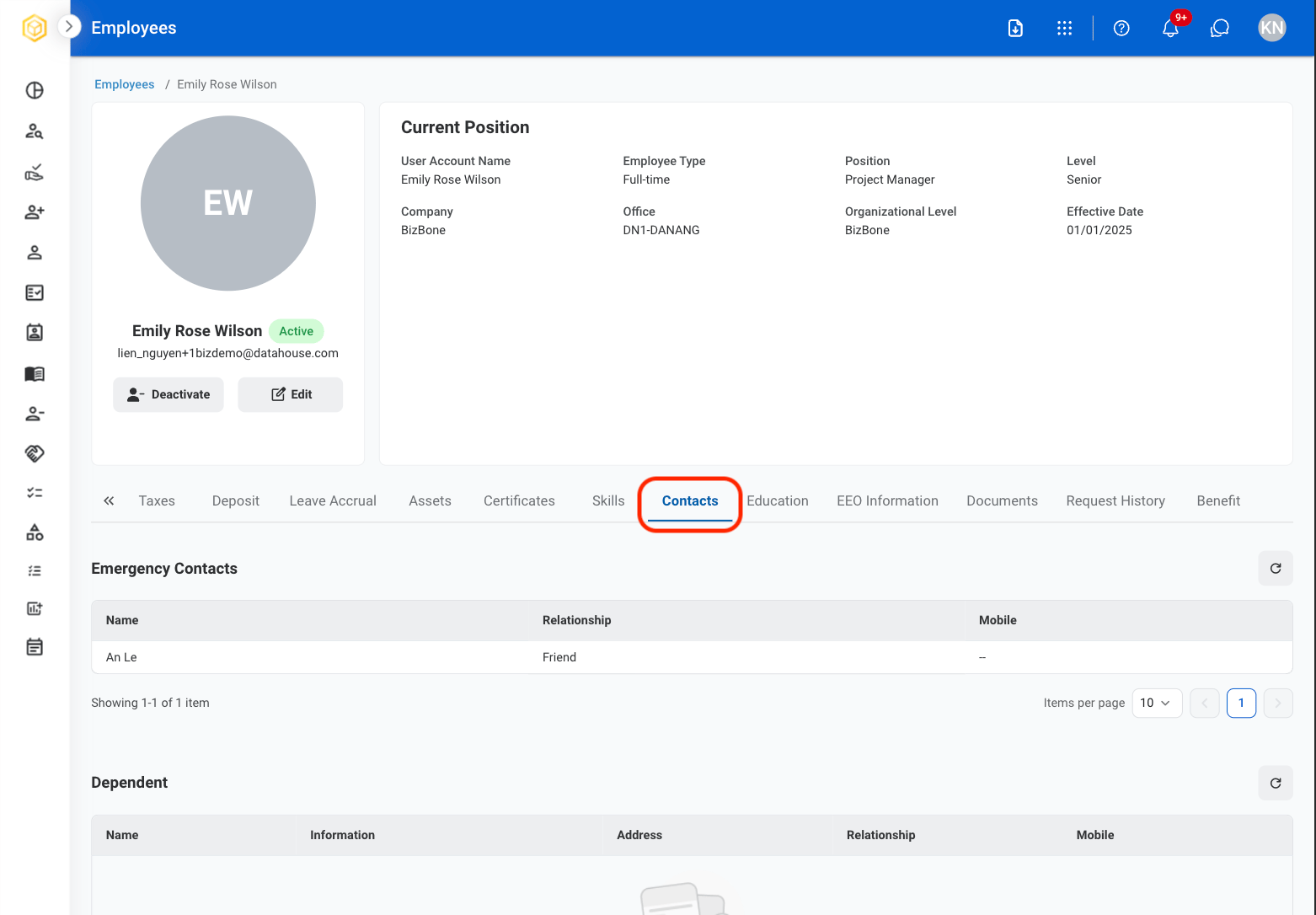
View an employee's emergency contacts, dependents, and beneficiaries. Contacts are self-submitted by employees.
* **Edit**: Select the **edit icon** to update an existing entry.
* **Delete**: Select the **trash icon** to delete an existing entry.
* **Edit:** Fill in the required information. Select **Update** to complete or **Cancel** to exit without saving changes.
* **Delete:** Select **Delete** to complete or **Cancel** to exit without saving changes.
### Contacts
View an employee's emergency contacts, dependents, and beneficiaries. Contacts are self-submitted by employees.
 ### Education
#### Add Education
### Education
#### Add Education
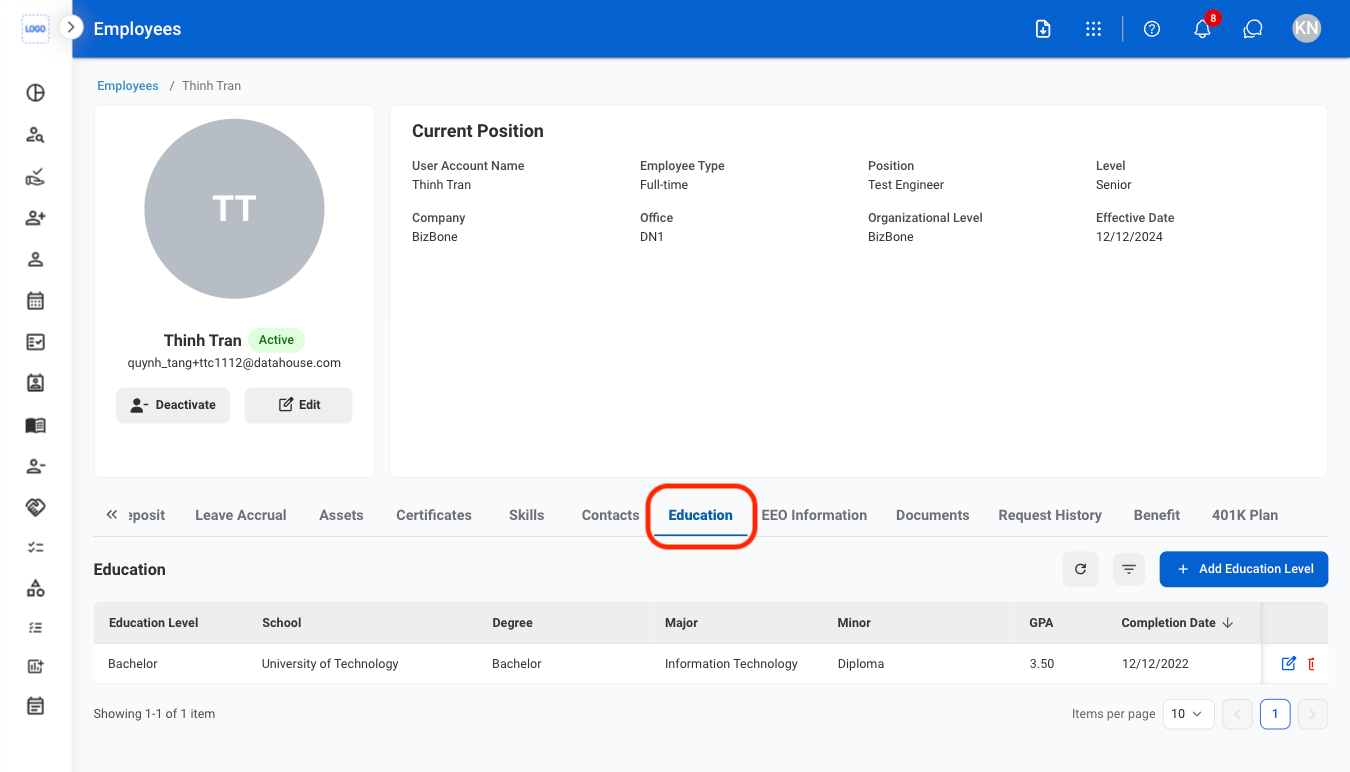
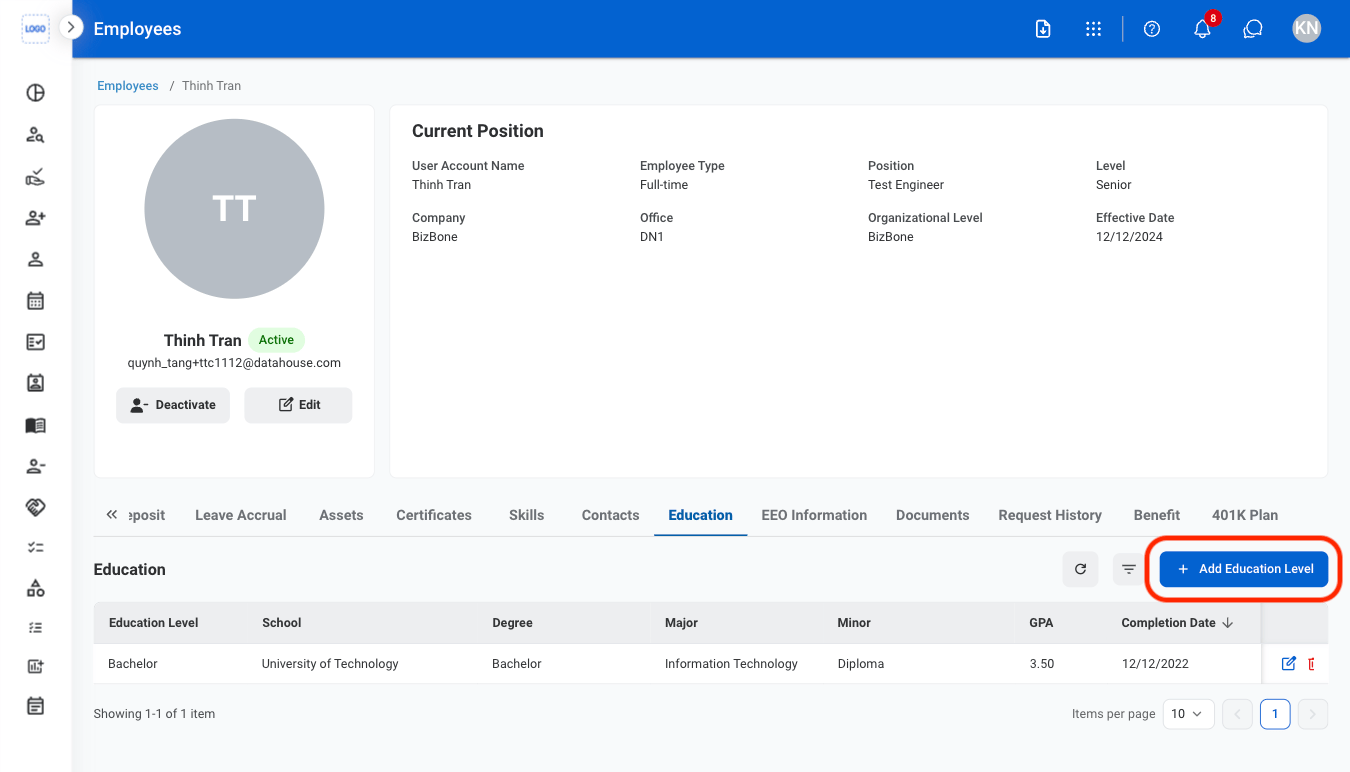
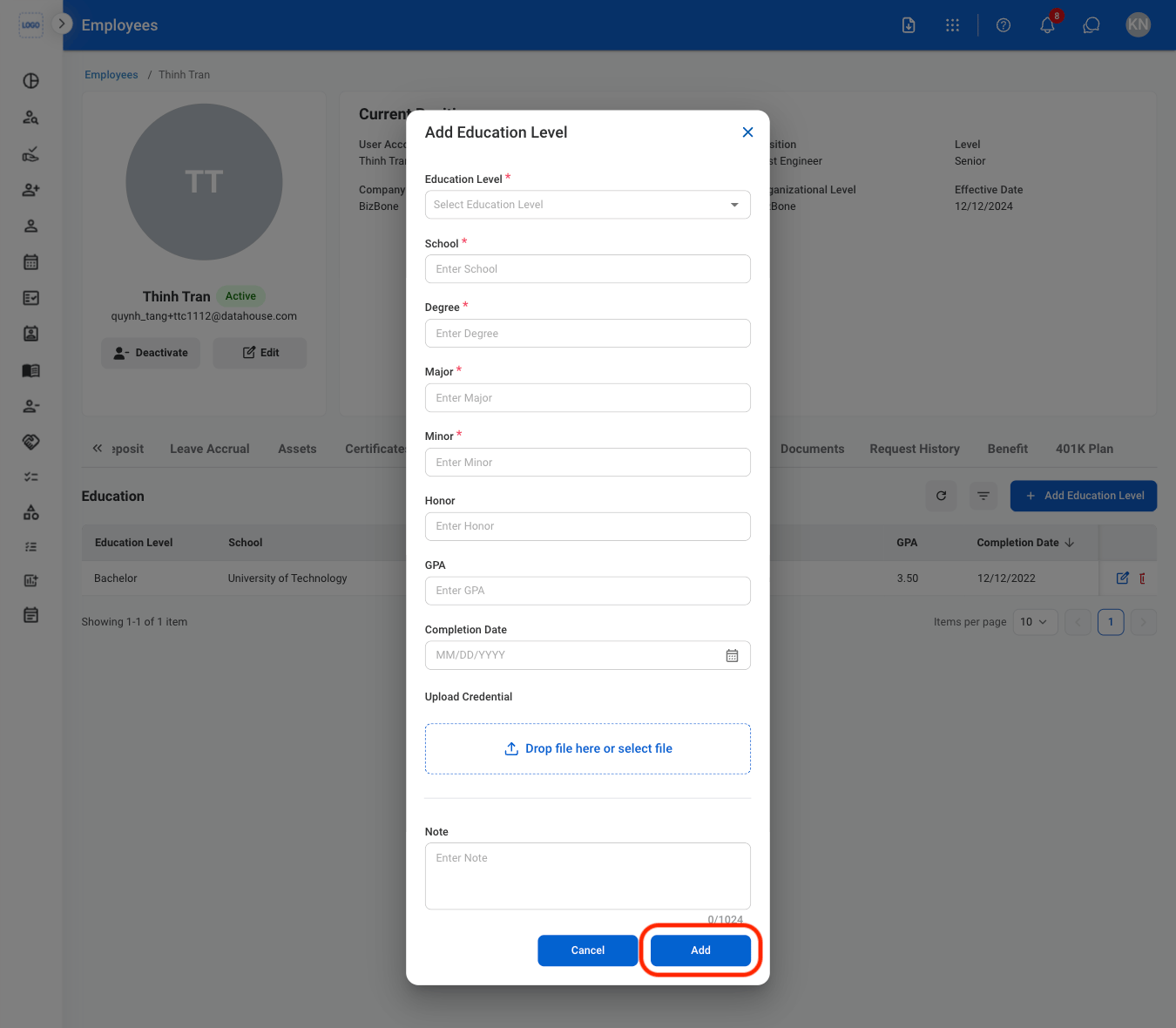 Select **Add** to complete or **Cancel** to exit withouth saving changes.
#### Modify an Education Entry
Select **Add** to complete or **Cancel** to exit withouth saving changes.
#### Modify an Education Entry
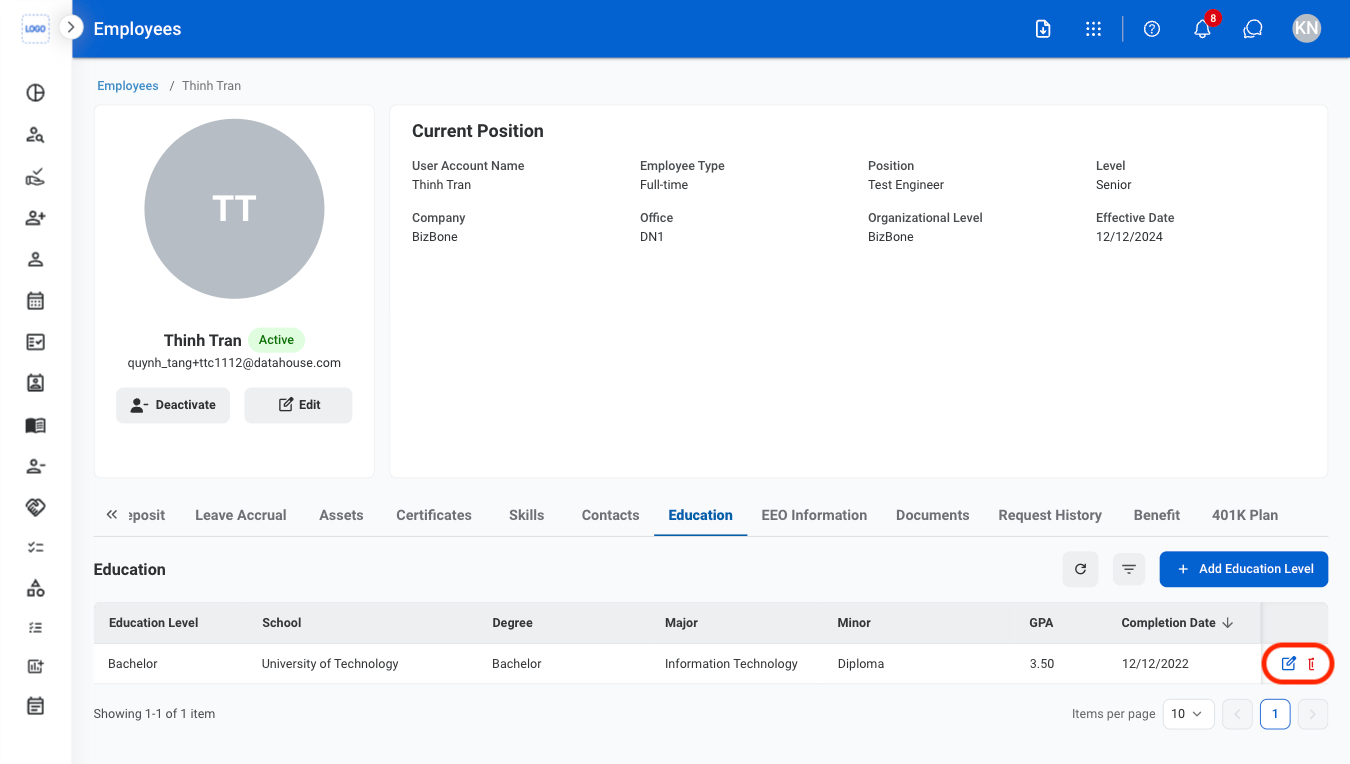 * **Edit**: Select the **edit icon** to update an existing entry.
* **Delete**: Select the **trash icon** to delete an existing entry.
* **Edit:** Fill in the required information. Select **Update** to complete or **Cancel** to exit without saving changes.
* **Delete:** Select **Delete** to complete or **Cancel** to exit without saving changes.
### EEO Information
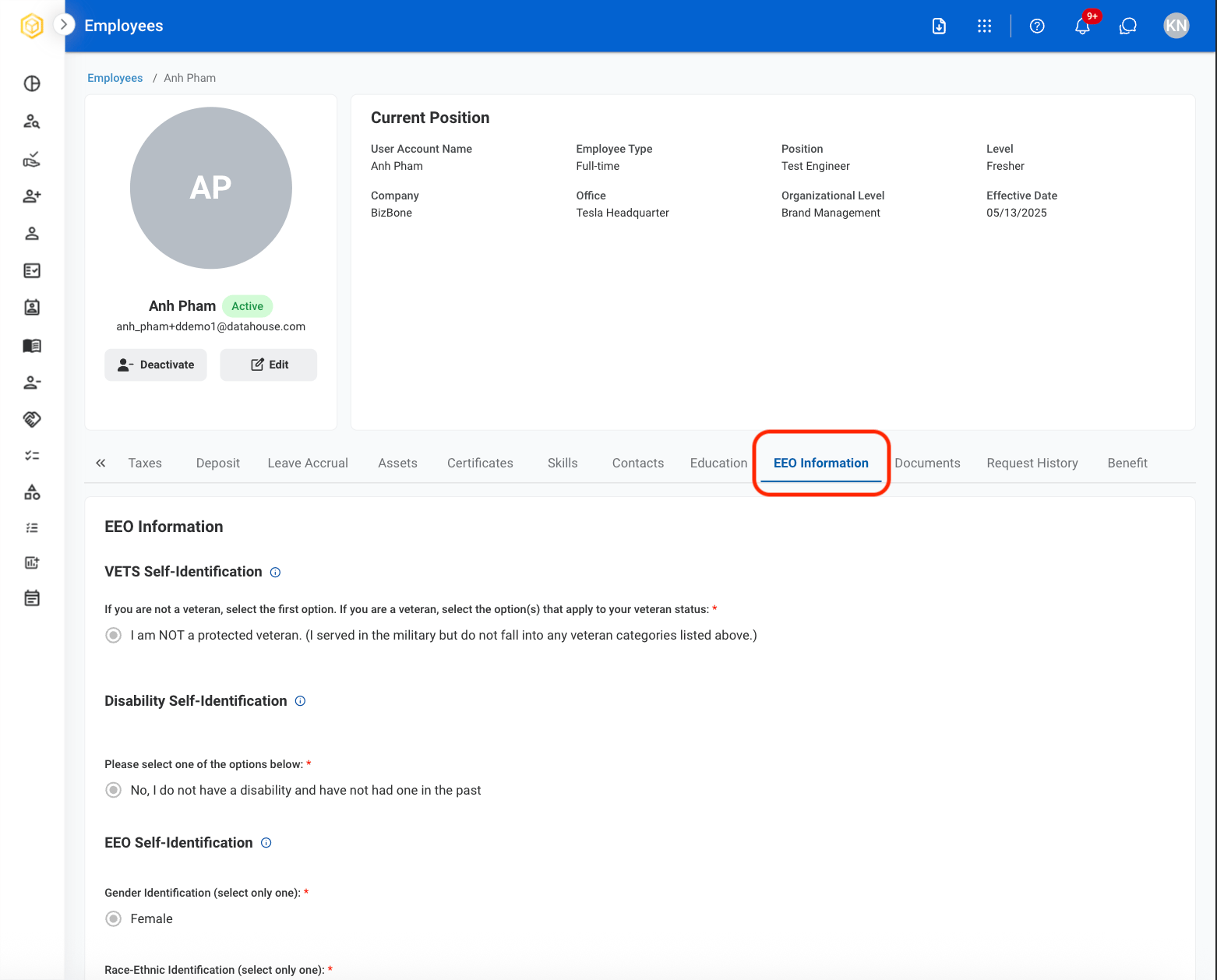
View an employee's EEO Information. Self-identification is self-submitted by employees.
* **Edit**: Select the **edit icon** to update an existing entry.
* **Delete**: Select the **trash icon** to delete an existing entry.
* **Edit:** Fill in the required information. Select **Update** to complete or **Cancel** to exit without saving changes.
* **Delete:** Select **Delete** to complete or **Cancel** to exit without saving changes.
### EEO Information
View an employee's EEO Information. Self-identification is self-submitted by employees.
 ### Documents
View and manage employee's related documents.
#### Add a Document
### Documents
View and manage employee's related documents.
#### Add a Document
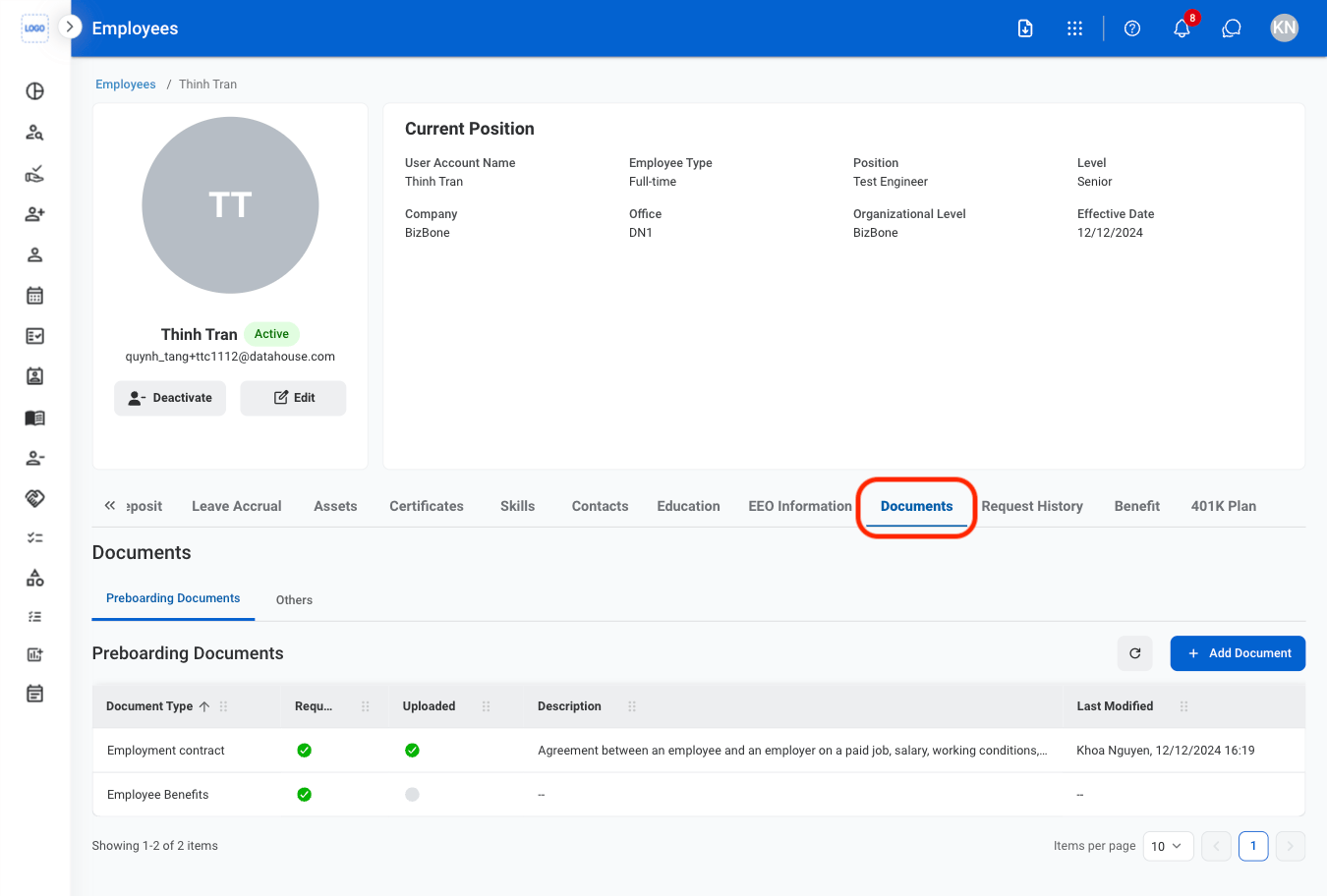


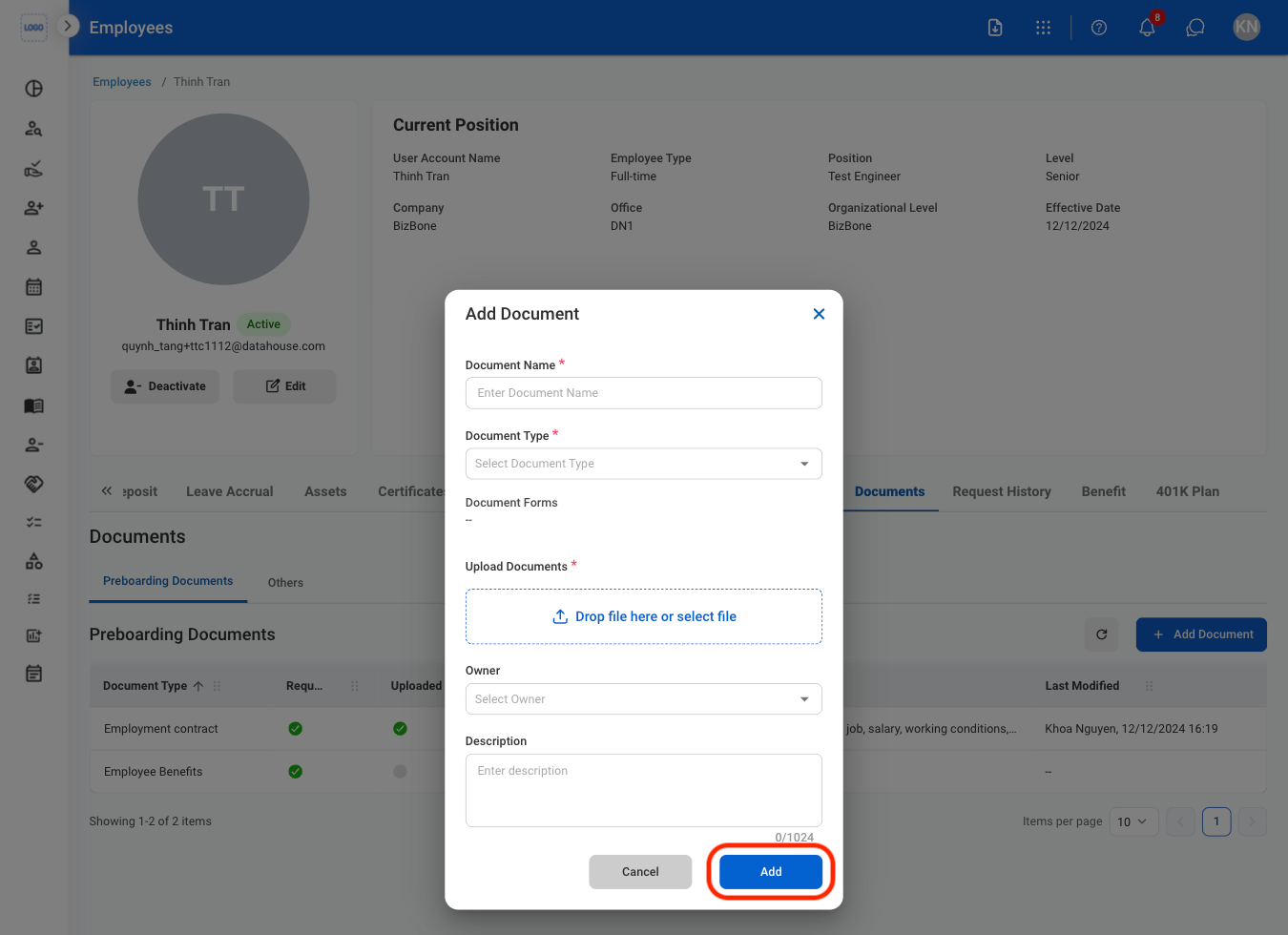 Select **Add** to complete or **Cancel** to exit withouth saving changes.
### Request History
View an employee's request history.
Select **Add** to complete or **Cancel** to exit withouth saving changes.
### Request History
View an employee's request history.
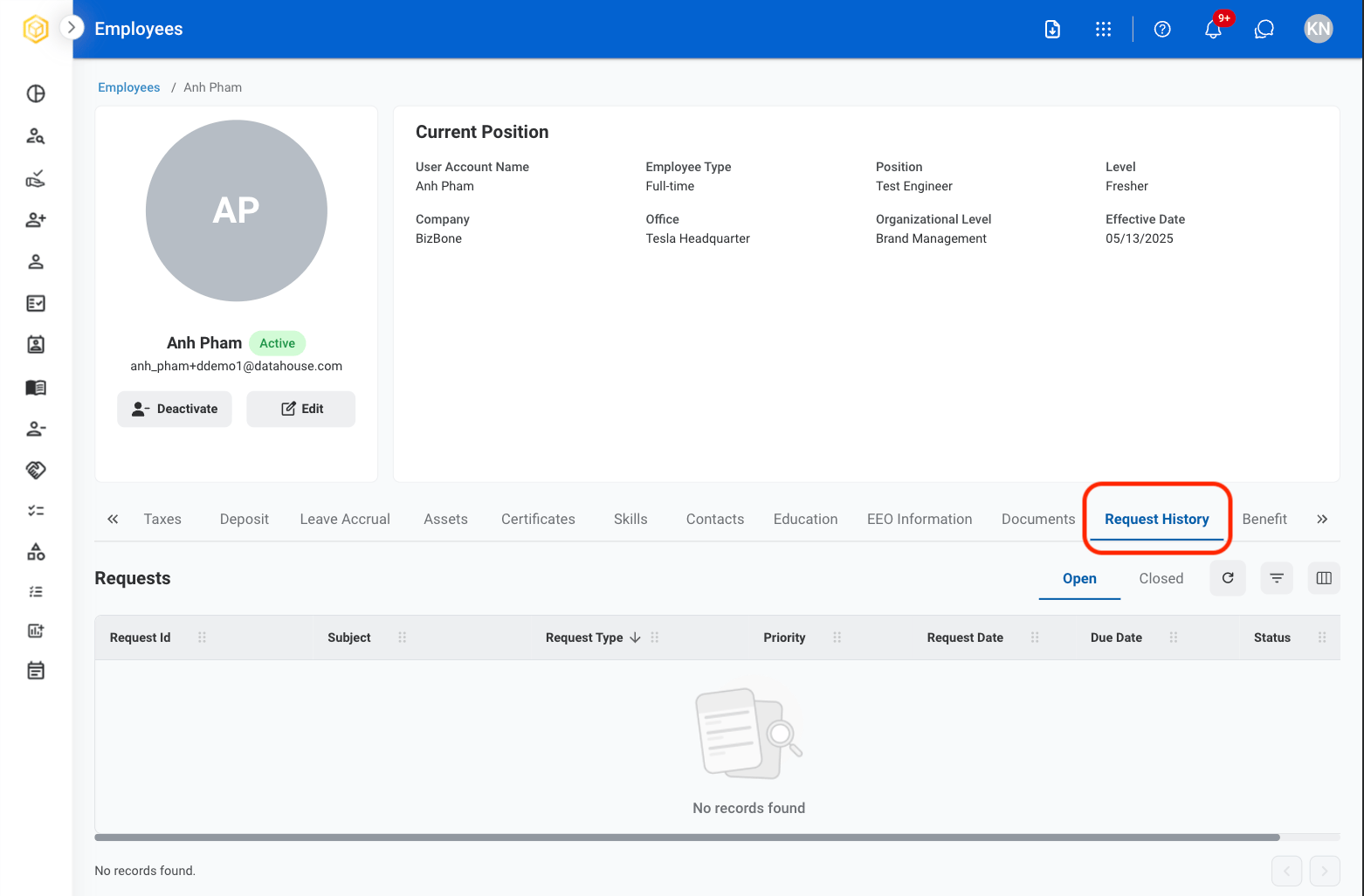
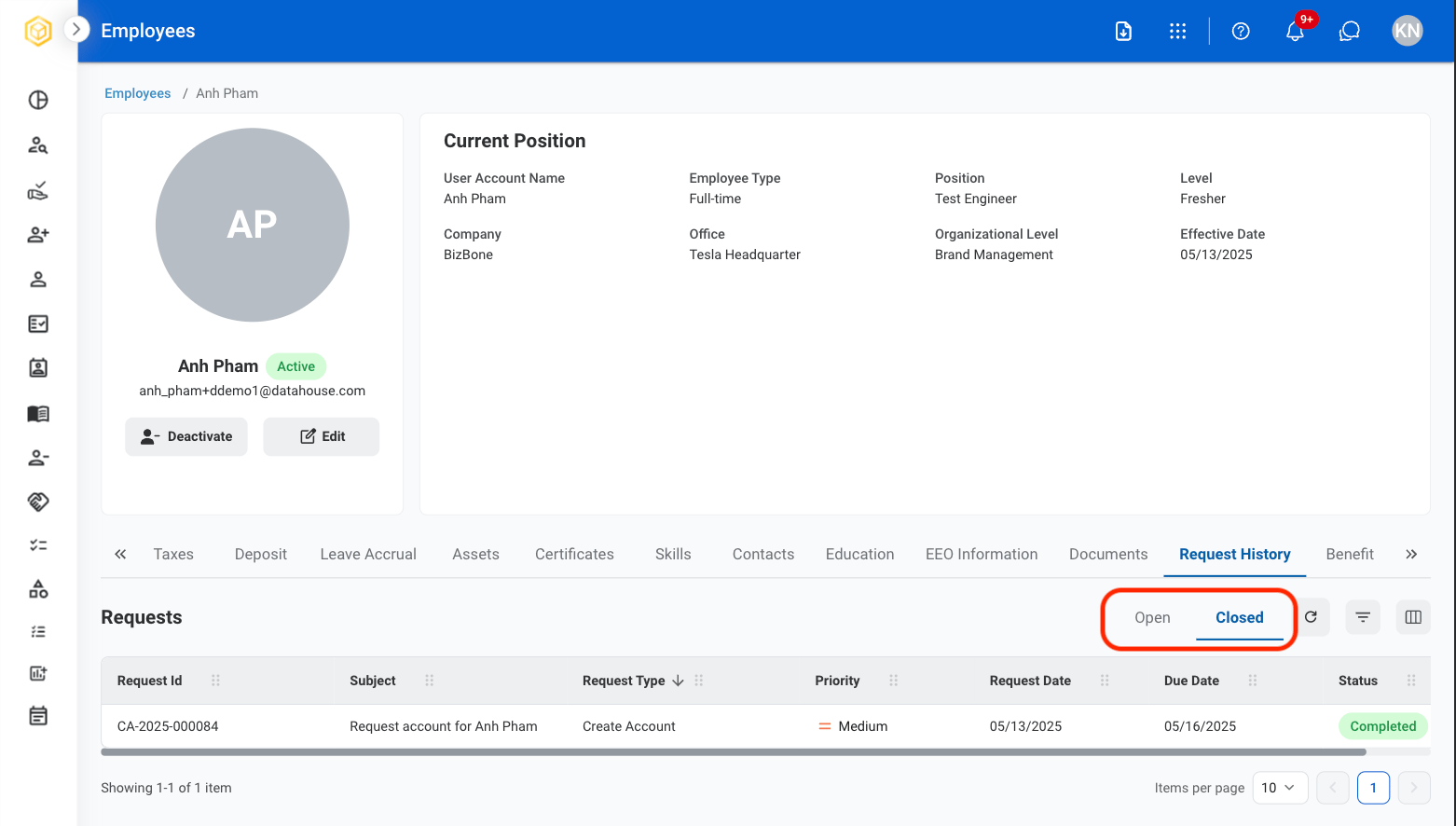 Select **Open** to view ongoing requests or **Closed** to view completed requests.
 **Refresh**: Reload content to show the most current information.
**Filter**: Only show results according to categories such as request type, priority, request date, due date, and status.
**Column options**: Show or hide request details such as request ID, subject, request type, priority, request date, due date, and status.
### Benefits
View assigned benefits for the employee.
**Refresh**: Reload content to show the most current information.
**Filter**: Only show results according to categories such as request type, priority, request date, due date, and status.
**Column options**: Show or hide request details such as request ID, subject, request type, priority, request date, due date, and status.
### Benefits
View assigned benefits for the employee.
 To make changes, navigate to the **Benefits** section from the navigation panel.