> ## Documentation Index
> Fetch the complete documentation index at: https://docs.bizbone.com/llms.txt
> Use this file to discover all available pages before exploring further.
# Dashboard
> Provides an overview of key workforce metrics, employee data, and Human Resources activities. Customize dashboard views to monitor organizational trends, workforce management, and HR operations.
## Create a Dashboard
 Use the Caret to open and close the left navigation menu


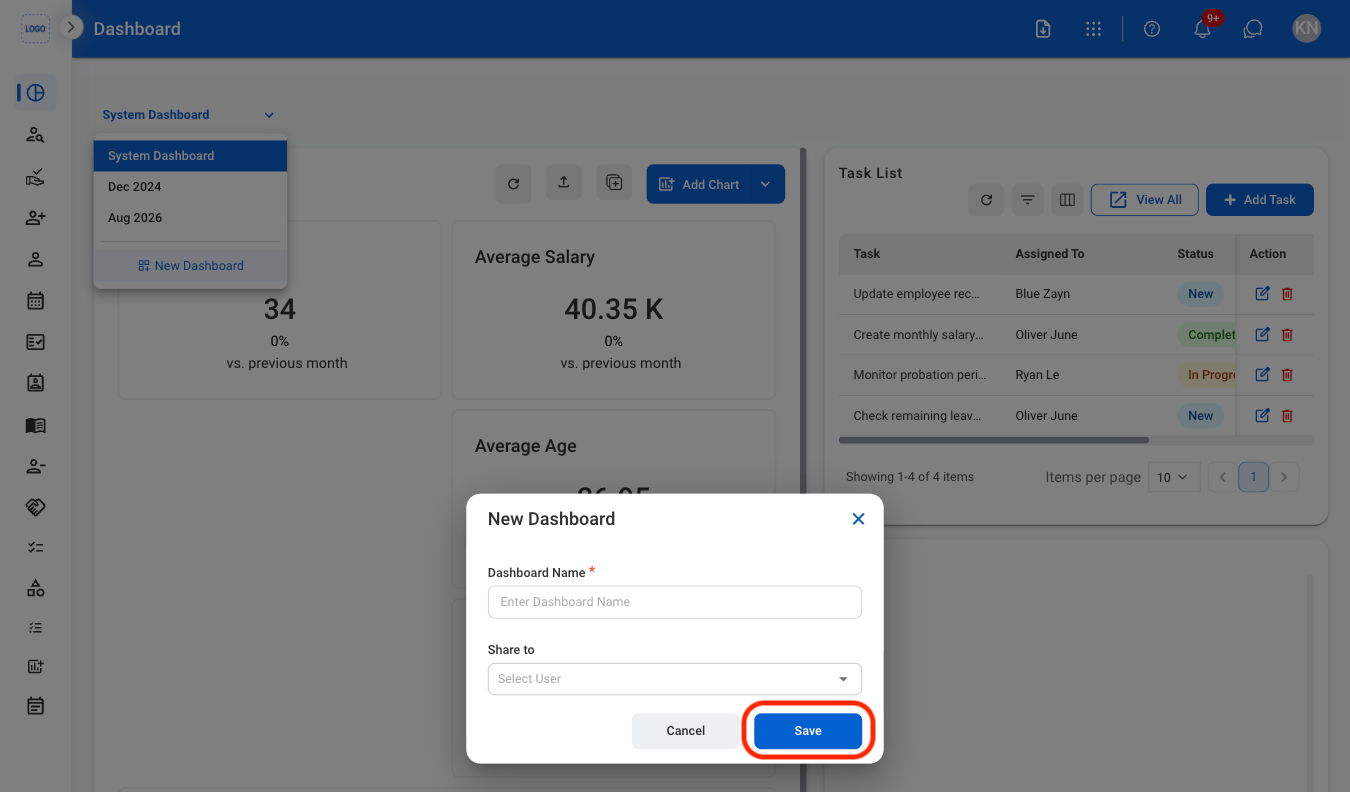 Select **Save** to complete or **Cancel** to exit without saving changes.
### Dashboard Actions
Select **Save** to complete or **Cancel** to exit without saving changes.
### Dashboard Actions
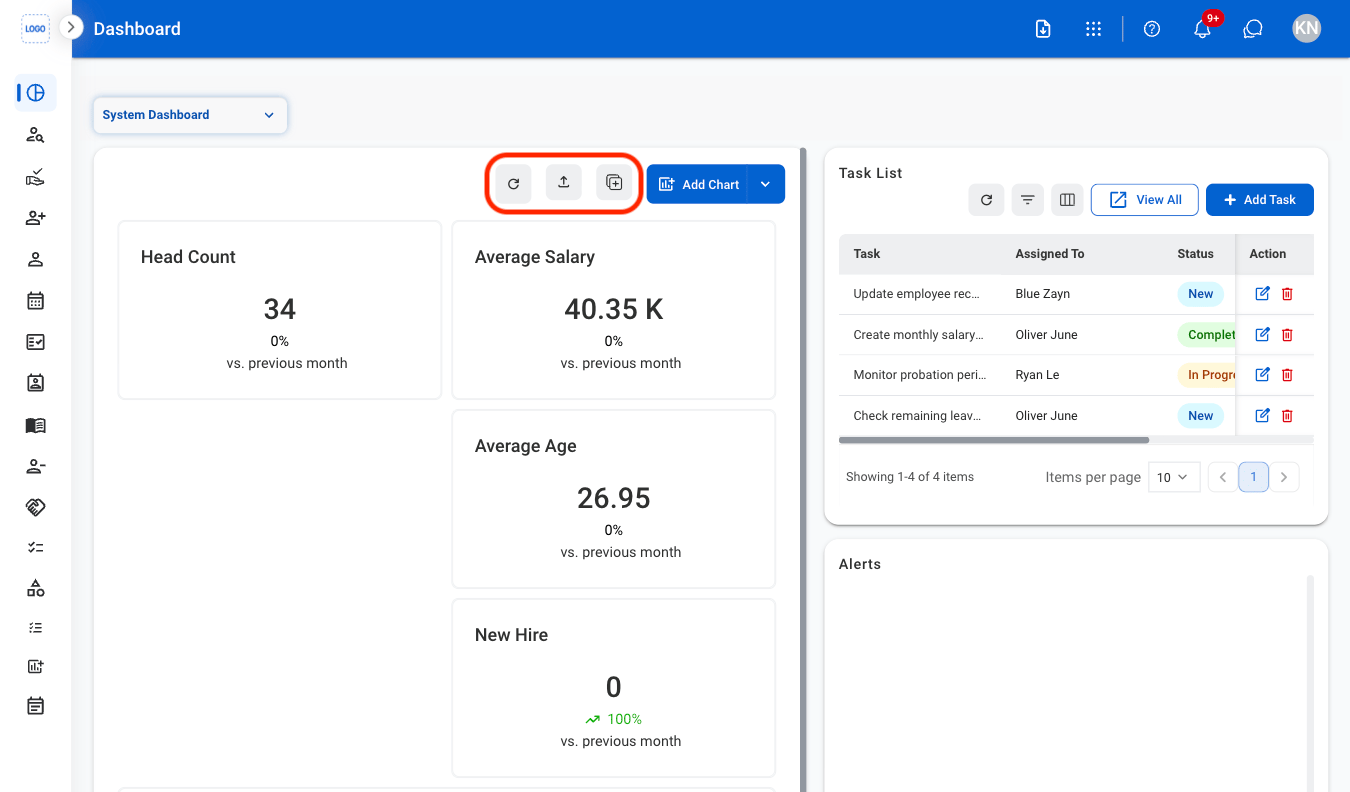 * **Refresh icon**: Refresh the information of the dashboard
* **Export icon**: Export the data
* **Duplicate icon**: Duplicate the dashboard
## Create a Chart
* **Refresh icon**: Refresh the information of the dashboard
* **Export icon**: Export the data
* **Duplicate icon**: Duplicate the dashboard
## Create a Chart
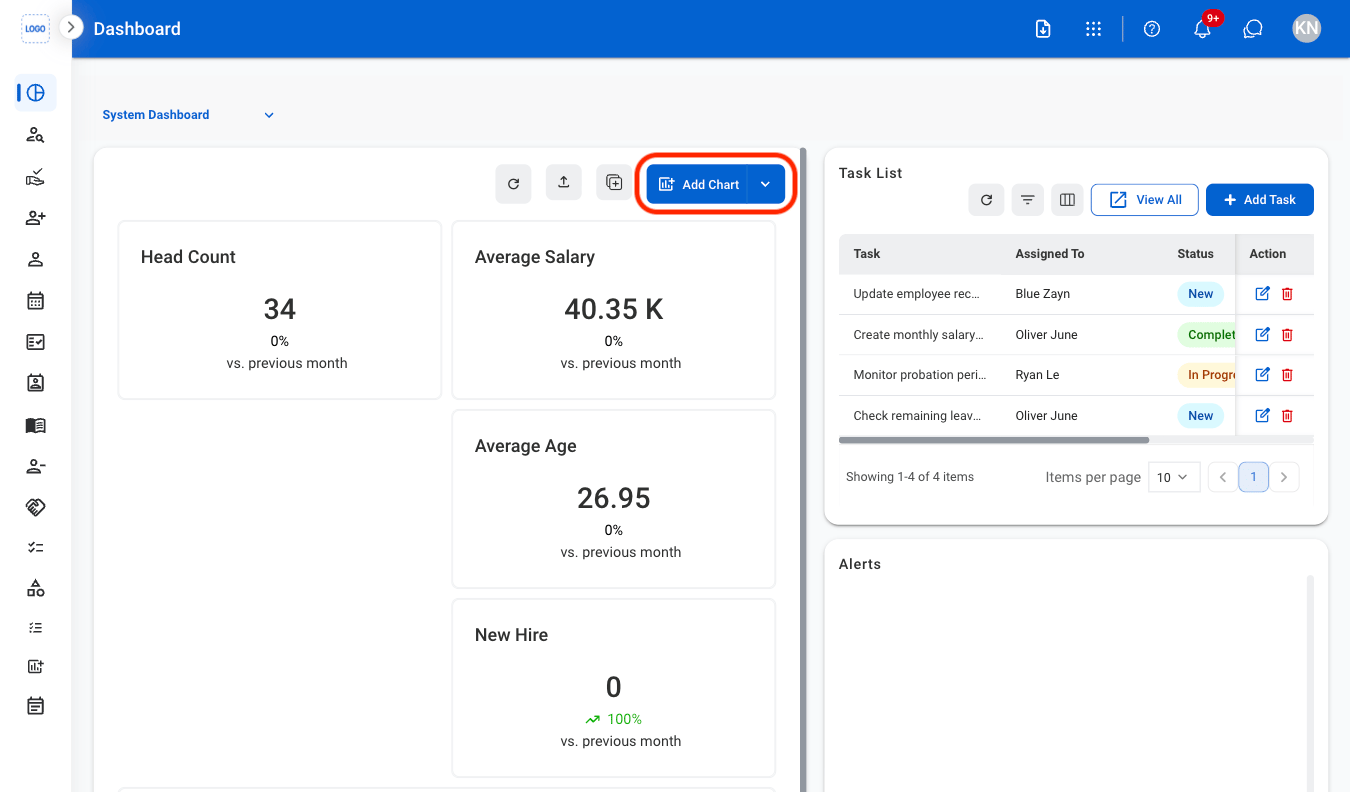
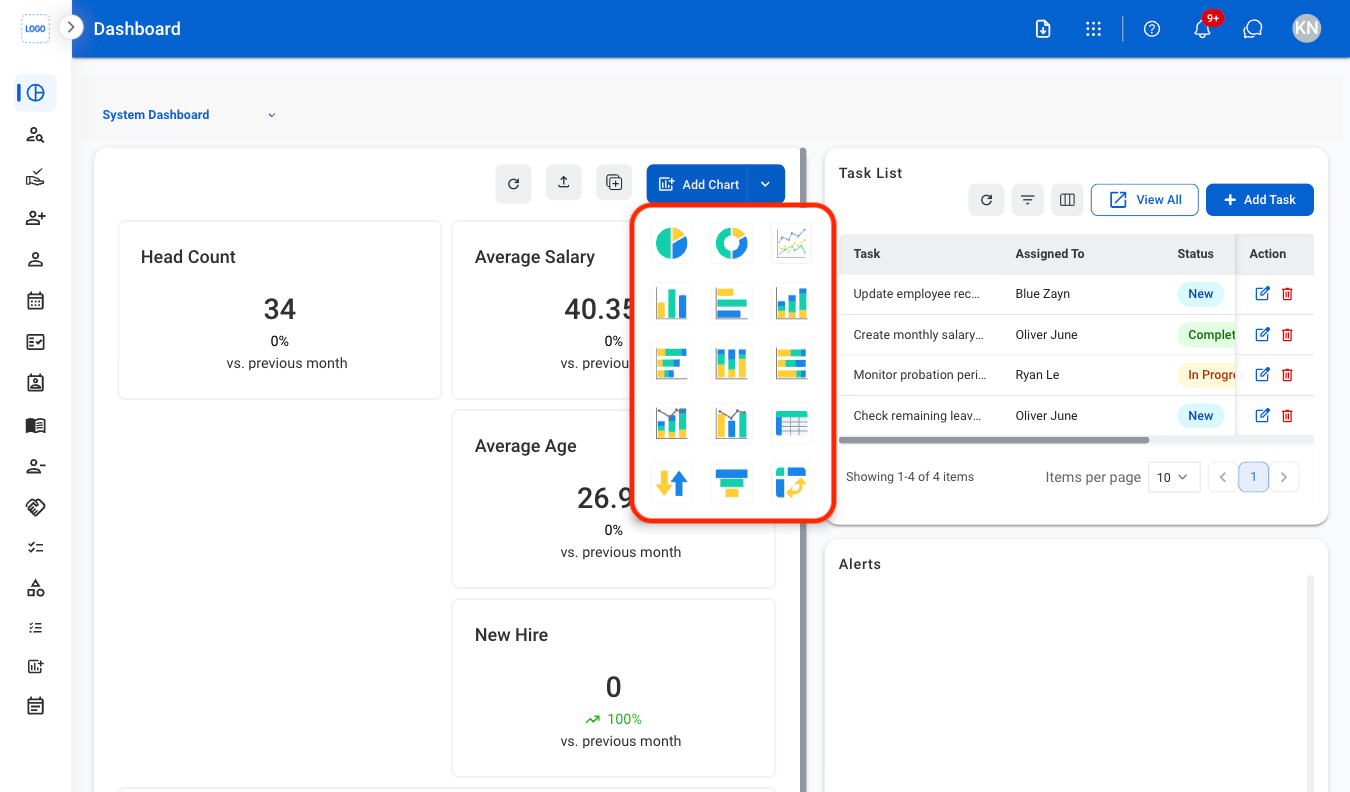
 Select **Save** to complete the chart or **Cancel** to exit without saving.
### Chart Functions
Select a chart to interact with its functions using the following icons.
#### Refresh
Select **Save** to complete the chart or **Cancel** to exit without saving.
### Chart Functions
Select a chart to interact with its functions using the following icons.
#### Refresh
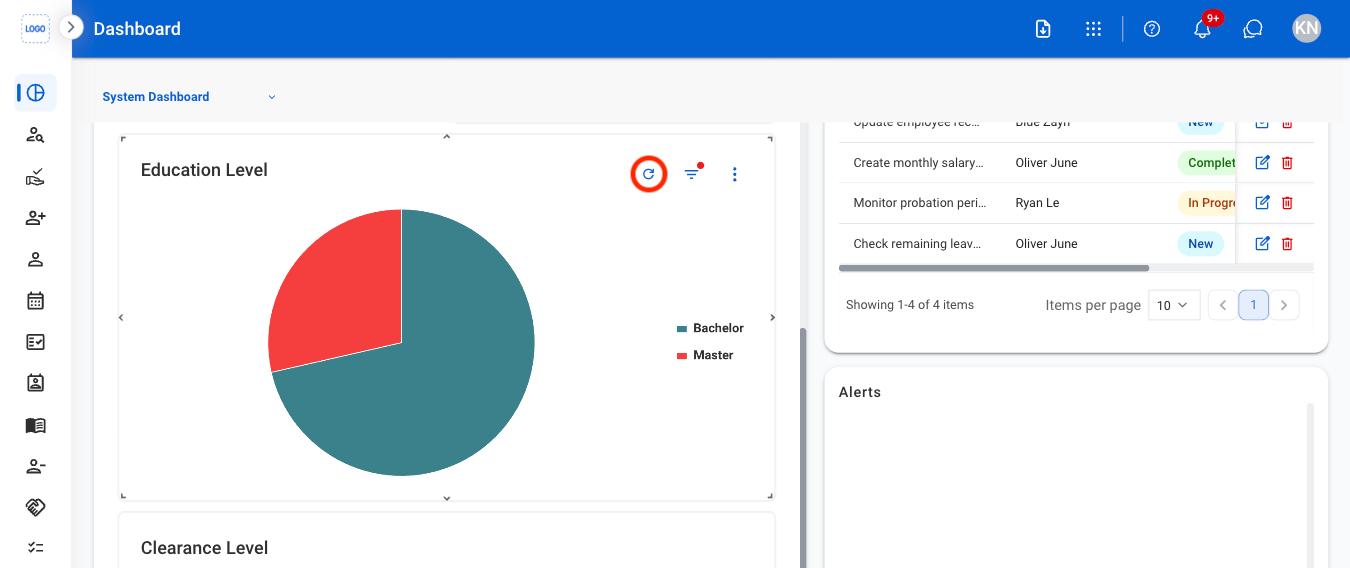 Select the **Refresh** icon to update the dashboard with the latest data.
#### Filter
Select the **Refresh** icon to update the dashboard with the latest data.
#### Filter
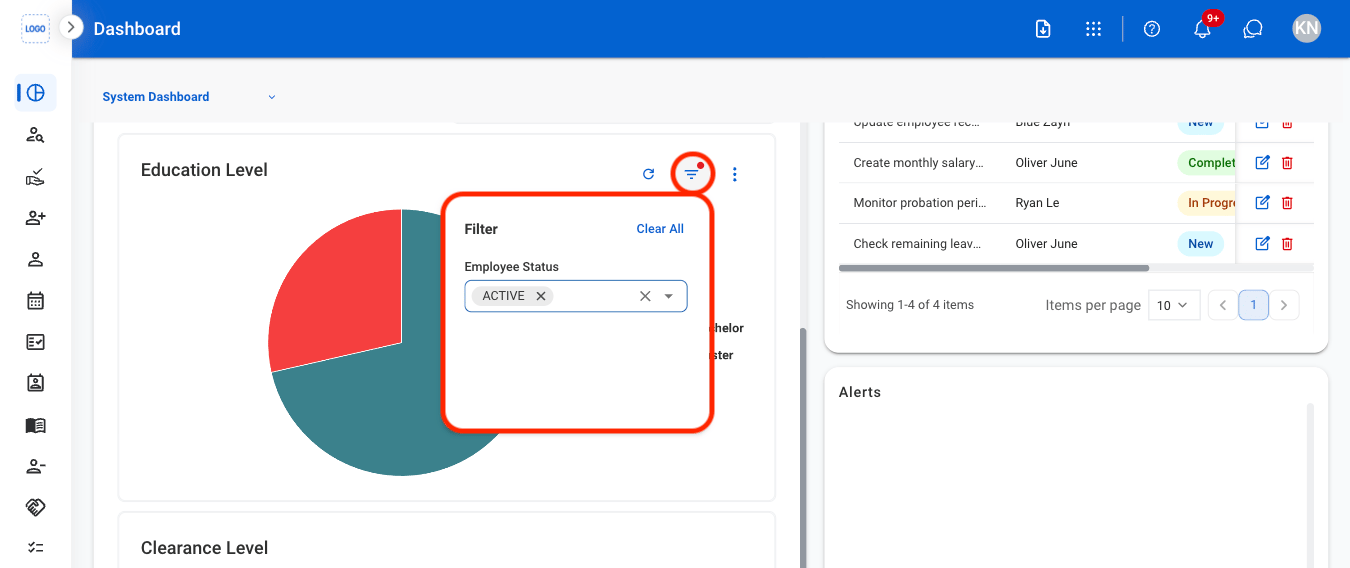 Use the **Filter** icon to filter chart data by category. Select a category to apply or remove it.
#### Additional Functions
Use the **Filter** icon to filter chart data by category. Select a category to apply or remove it.
#### Additional Functions
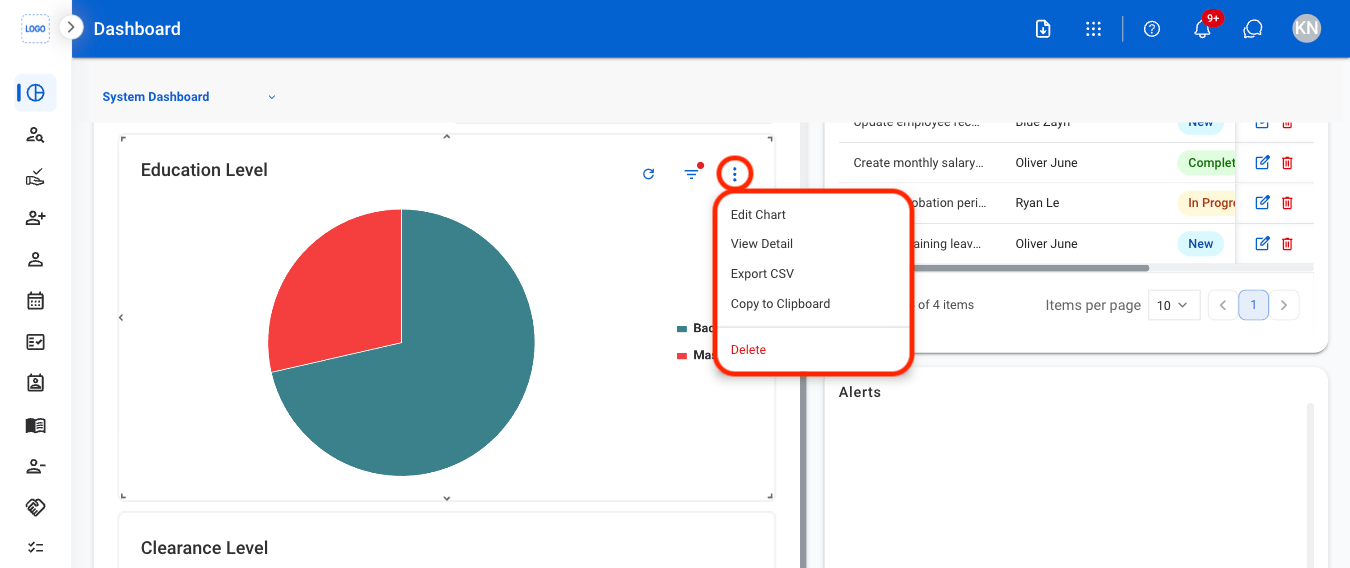 Select the dotted icon to view additional functions.
* **Edit Chart:** Modify chart settings, data, or display options.
* **View Detail:** View the underlying data used to generate the chart.
* **Export CSV:** Export the chart data as a CSV file.
* **Copy to Clipboard:** Copy an image of the chart to the clipboard.
* **Delete**: Remove the selected chart from the dashboard
## Task List
A centralized location to assign, track status, and monitor progress of tasks.
### Add Task
Create and assign new tasks for tracking and completion.
Select the dotted icon to view additional functions.
* **Edit Chart:** Modify chart settings, data, or display options.
* **View Detail:** View the underlying data used to generate the chart.
* **Export CSV:** Export the chart data as a CSV file.
* **Copy to Clipboard:** Copy an image of the chart to the clipboard.
* **Delete**: Remove the selected chart from the dashboard
## Task List
A centralized location to assign, track status, and monitor progress of tasks.
### Add Task
Create and assign new tasks for tracking and completion.

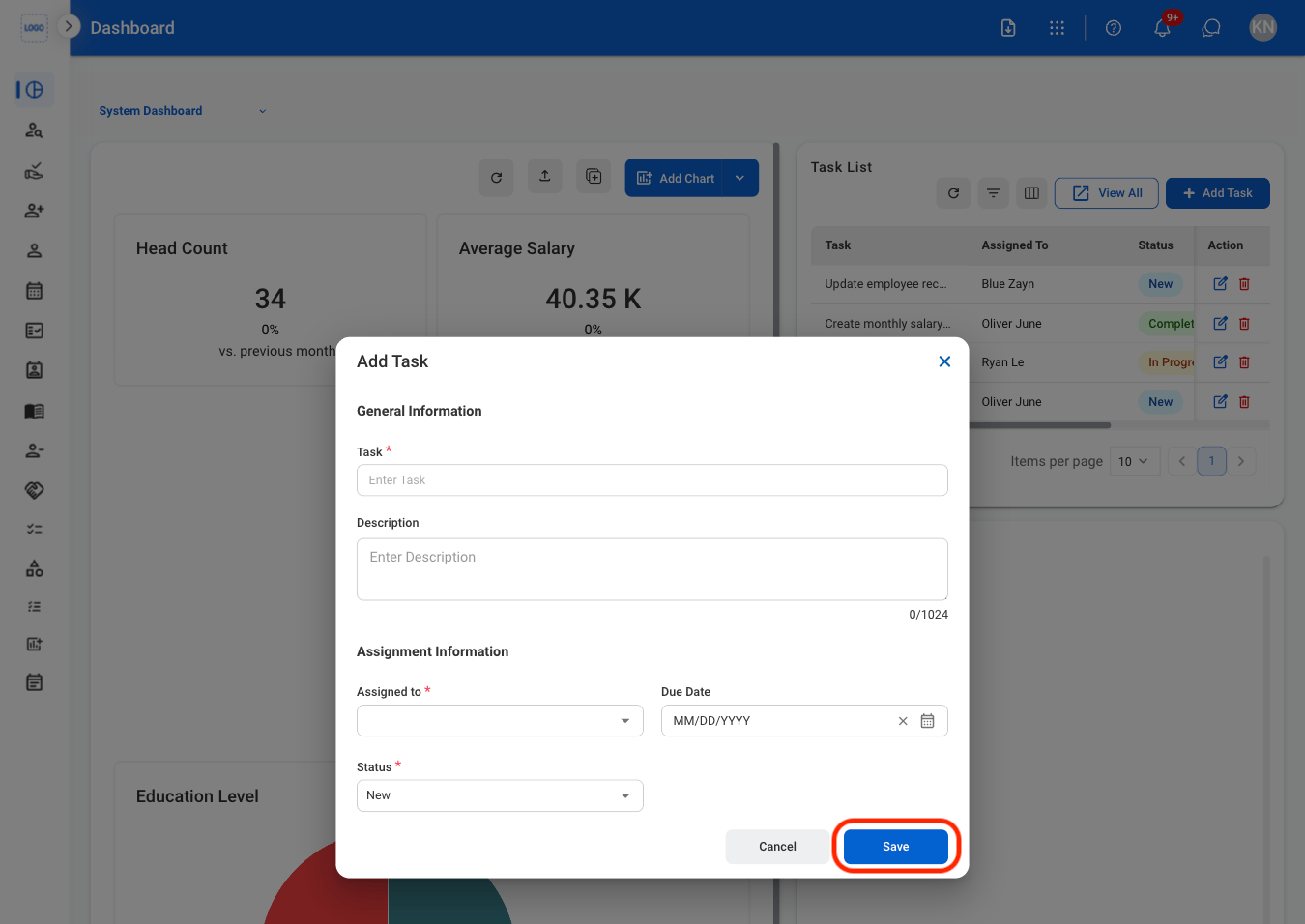 Select **Save** to complete or **Cancel** to exit without saving changes.
### Task List Functions
#### Refresh
Select **Save** to complete or **Cancel** to exit without saving changes.
### Task List Functions
#### Refresh
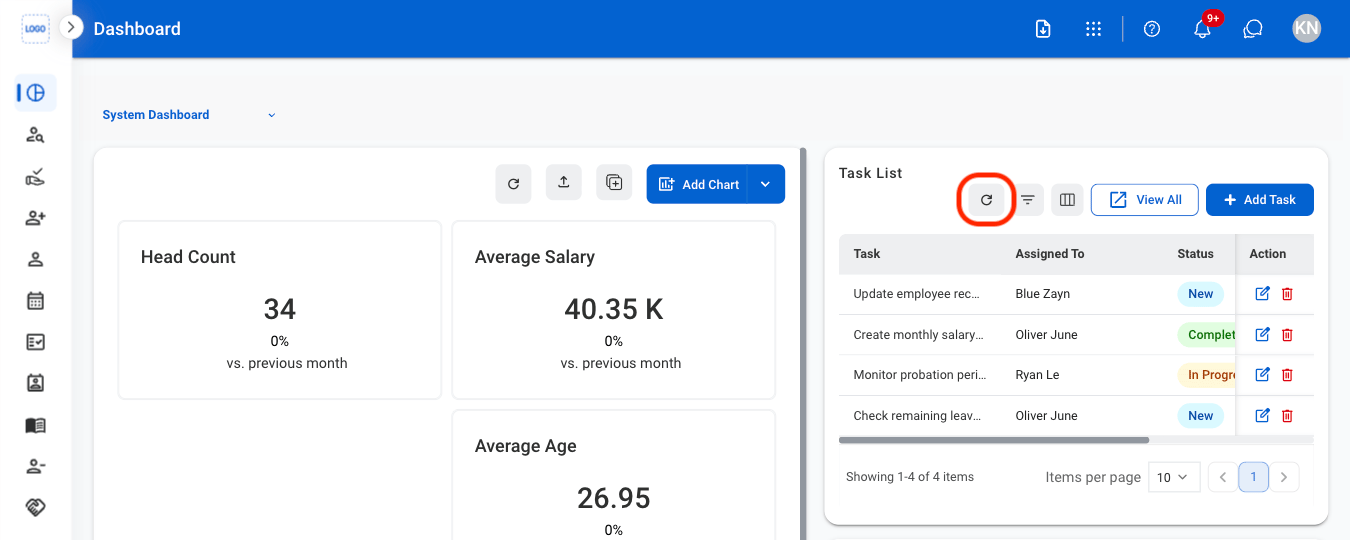 Select the **Refresh** icon to update the task list.
#### Filter
Select the **Refresh** icon to update the task list.
#### Filter
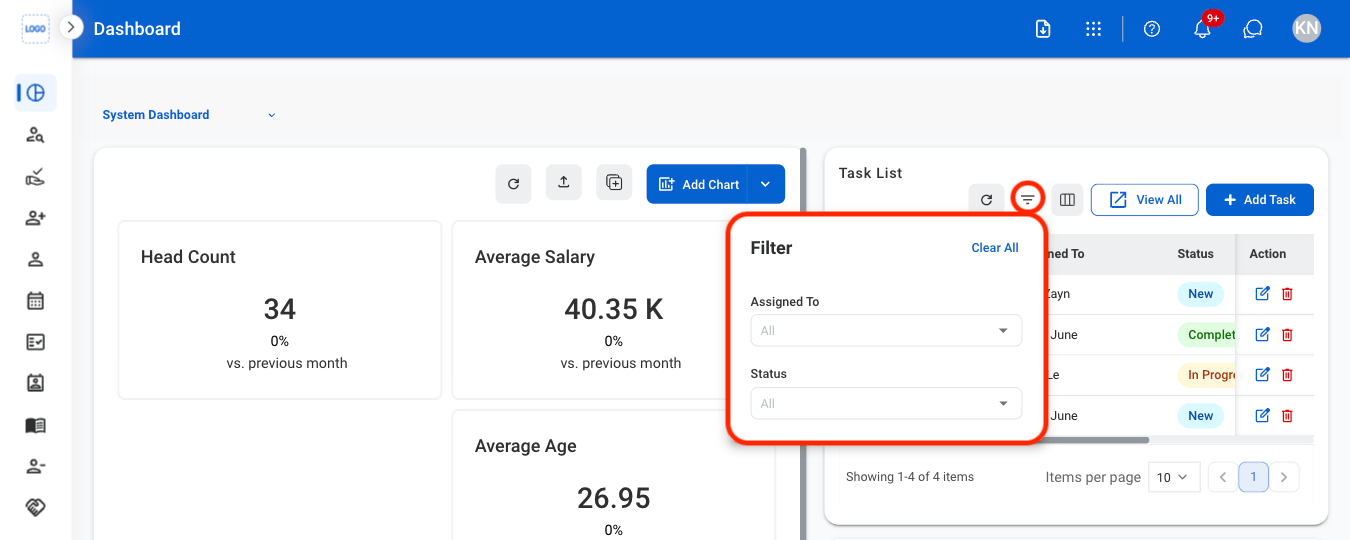 Select the **Filter** icon to filter results by assignee and status.
#### Column
Select the **Filter** icon to filter results by assignee and status.
#### Column
 Select the **Column** icon to toggle view of desired columns in task list. Select **Show All** to select all columns at once.
## View Alerts
View system-generated alerts and notifications related to module activities, requests, approvals, and pending actions.
Select the **Column** icon to toggle view of desired columns in task list. Select **Show All** to select all columns at once.
## View Alerts
View system-generated alerts and notifications related to module activities, requests, approvals, and pending actions.
 Alerts can be accessed from the dashboard **Alerts** section or the **Notifications** icon in the application header.