> ## Documentation Index
> Fetch the complete documentation index at: https://docs.bizbone.com/llms.txt
> Use this file to discover all available pages before exploring further.

# Clearance Verification

> Manage employee security clearance records for government-related work. Track clearance requirements, submission details, and approval status for employees requiring authorized access.

## View Clearance Candidates
<Steps>
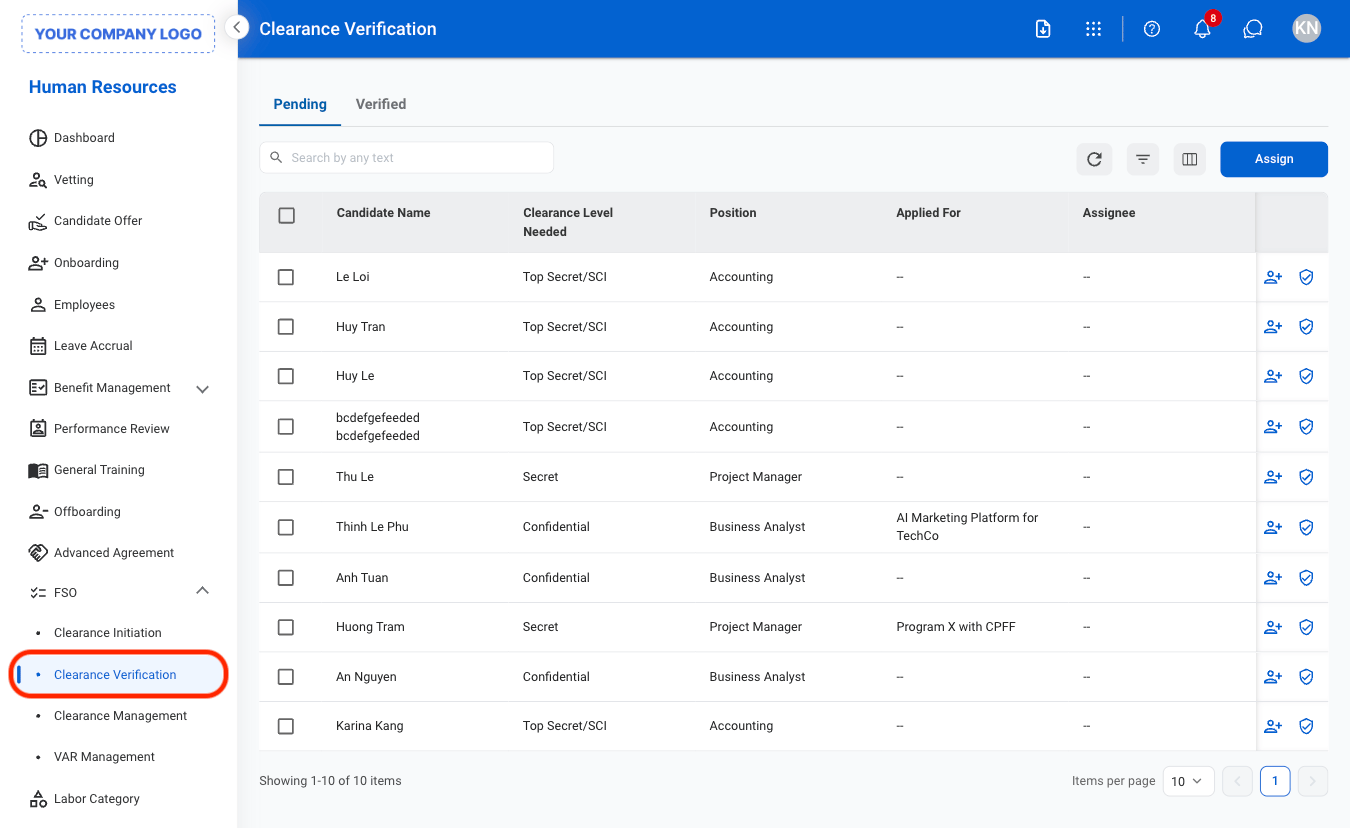
  <Step title="Navigate to Clearance Verification">
    <Frame>
      <img src="https://mintcdn.com/bizbone/ojO_5WnvwnH5JUAe/images/HR-CV-Nav.png?fit=max&auto=format&n=ojO_5WnvwnH5JUAe&q=85&s=92d841da5bdc590d0cca4536c6f745ac" alt="HR CV Nav" width="1350" height="828" data-path="images/HR-CV-Nav.png" />
    </Frame>
  </Step>

  <Step title="Select a tab">
    <Frame>
      <img src="https://mintcdn.com/bizbone/ojO_5WnvwnH5JUAe/images/HR-CV-Tab.png?fit=max&auto=format&n=ojO_5WnvwnH5JUAe&q=85&s=8e19bbe9d32b82eb5eea3c9fa9211dbe" alt="HR CV Tab" width="1350" height="810" data-path="images/HR-CV-Tab.png" />
    </Frame>

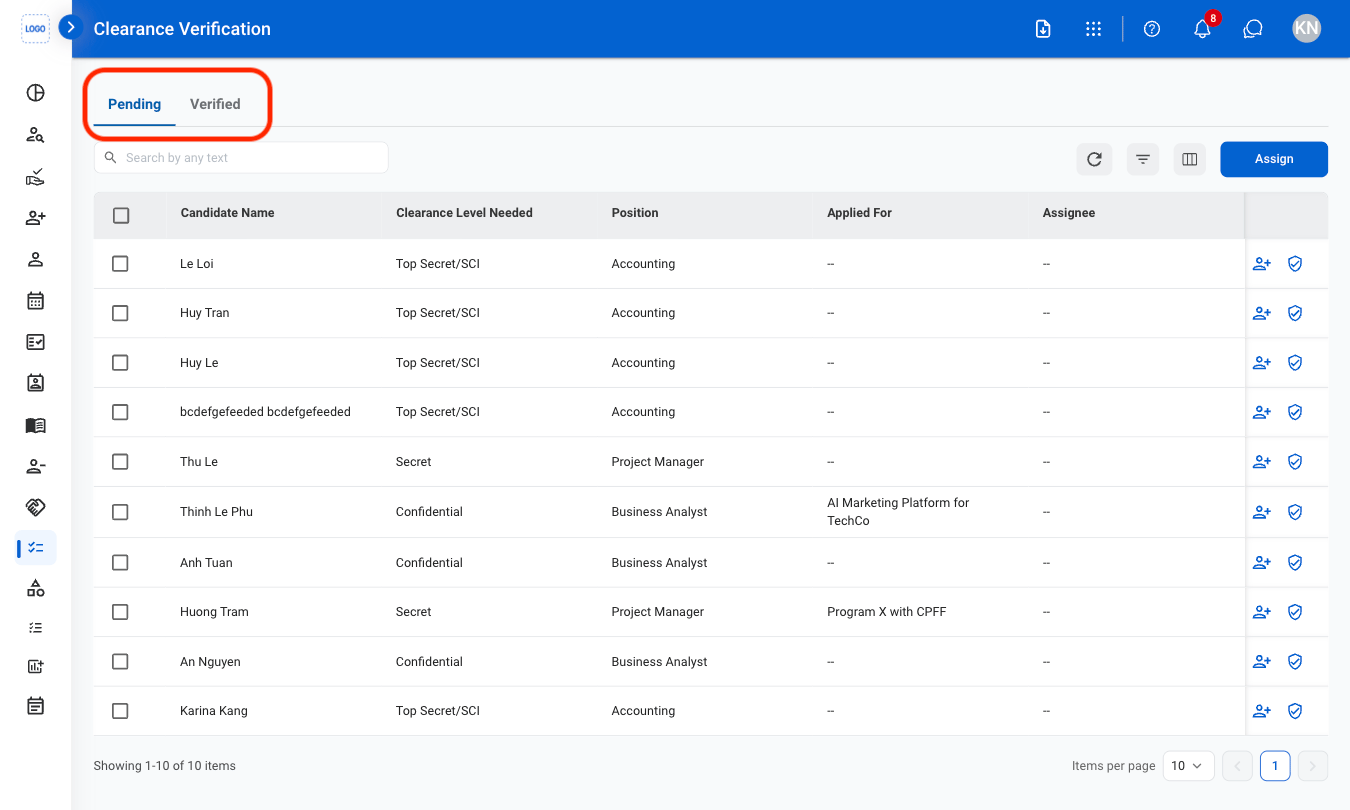
    * **Pending:** View  records that are currently active or awaiting further action.
    * **Verified**: View completed  records.
  </Step>

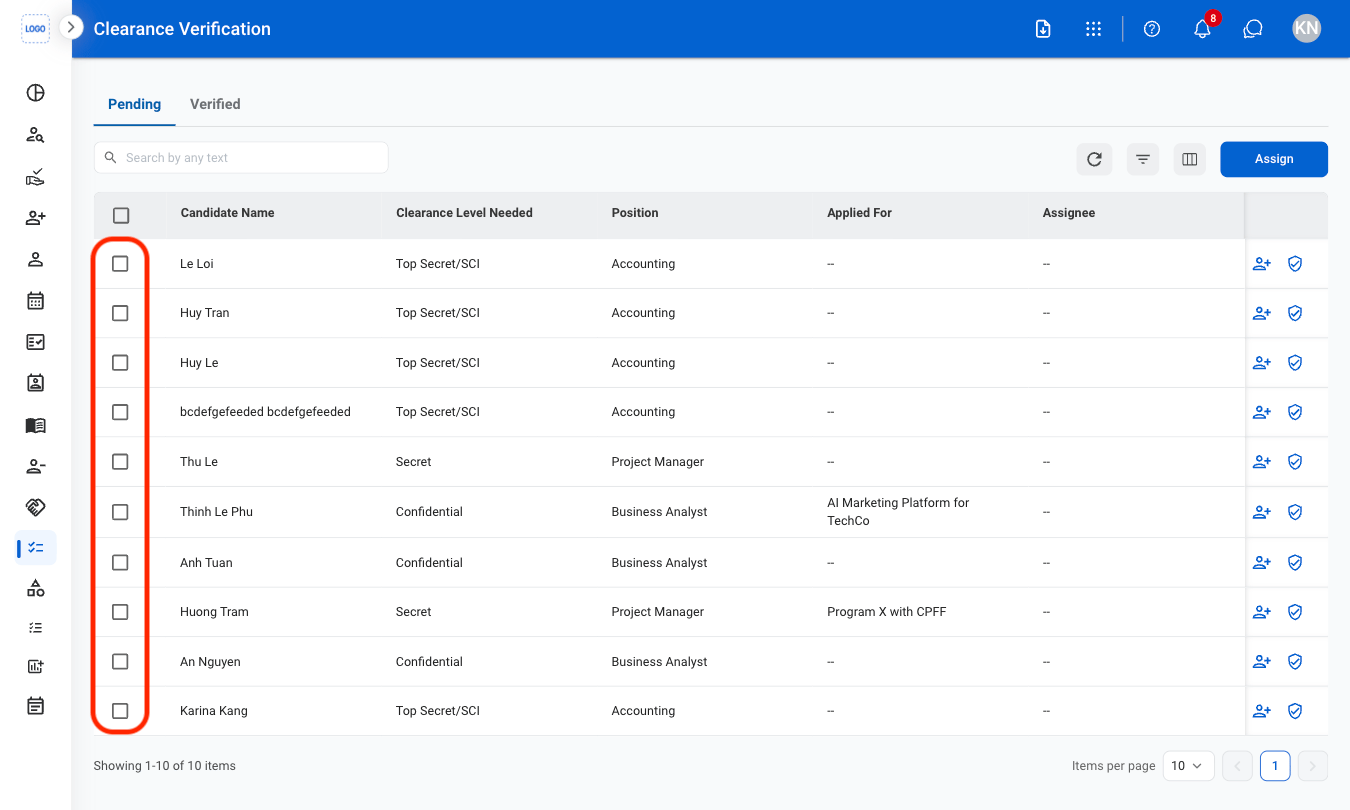
  <Step title="Select a candidate">
    <Frame>
      <img src="https://mintlify.s3.us-west-1.amazonaws.com/bizbone/images/HR-CV-Select.png" alt="HR CV Select" />
    </Frame>
  </Step>
</Steps>

## Assign a Candidate

<Steps>
  <Step title="Select profile(s) to assign">
    <Frame>
      <img src="https://mintcdn.com/bizbone/ojO_5WnvwnH5JUAe/images/HR-CV-Check.png?fit=max&auto=format&n=ojO_5WnvwnH5JUAe&q=85&s=3a2a5df093bbcea4cde19d6dceec84bf" alt="HR CV Check" width="1350" height="810" data-path="images/HR-CV-Check.png" />
    </Frame>
  </Step>

  <Step title="Select Assign">
    <Frame>
      <img src="https://mintcdn.com/bizbone/ojO_5WnvwnH5JUAe/images/HR-CV-Assign.png?fit=max&auto=format&n=ojO_5WnvwnH5JUAe&q=85&s=336b76c9028d29693a848659535d716c" alt="HR CV Assign" width="1350" height="836" data-path="images/HR-CV-Assign.png" />
    </Frame>

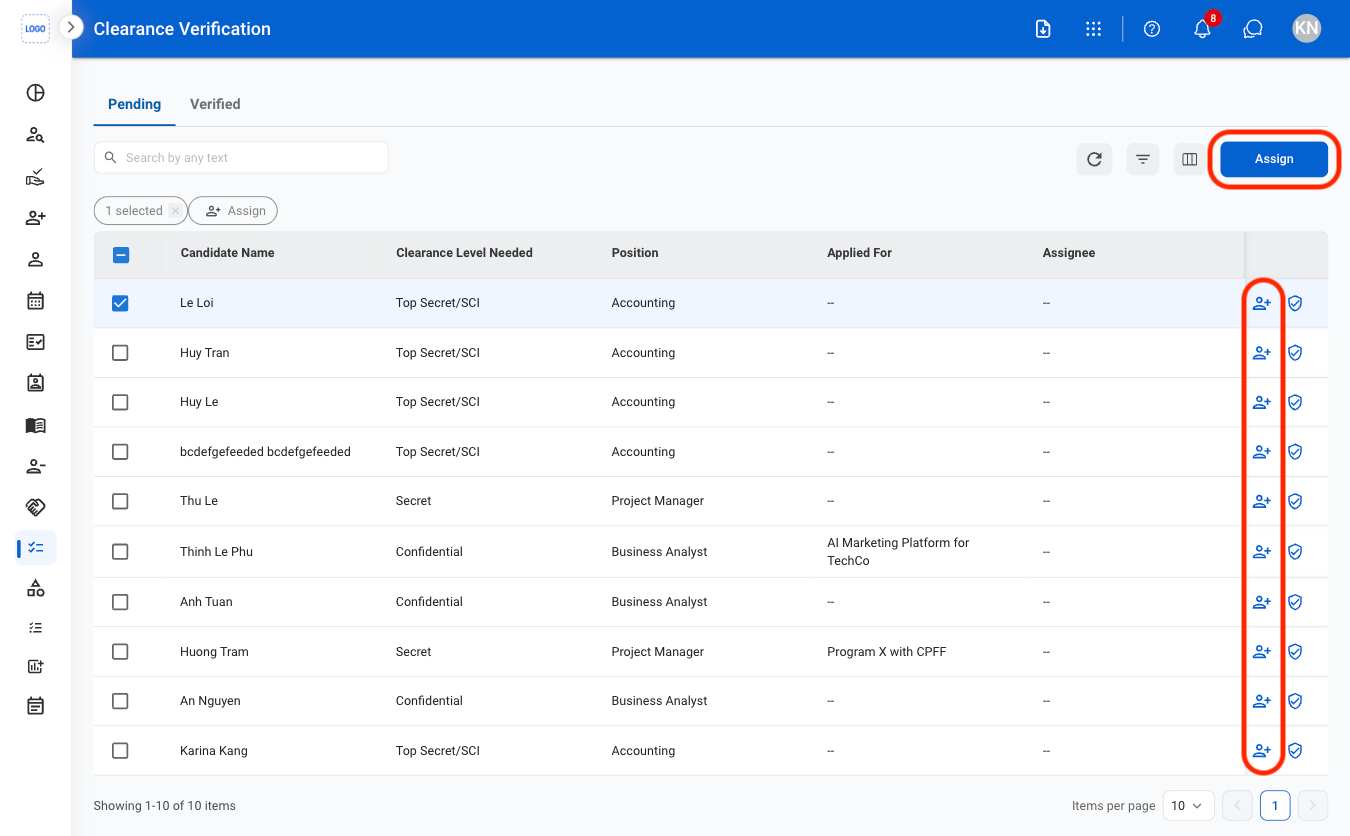
    * **Single profile:** Select the assign icon next to the profile.
    * **Multiple profiles:** Select multiple profiles, then select the **Assign** button. 
  </Step>

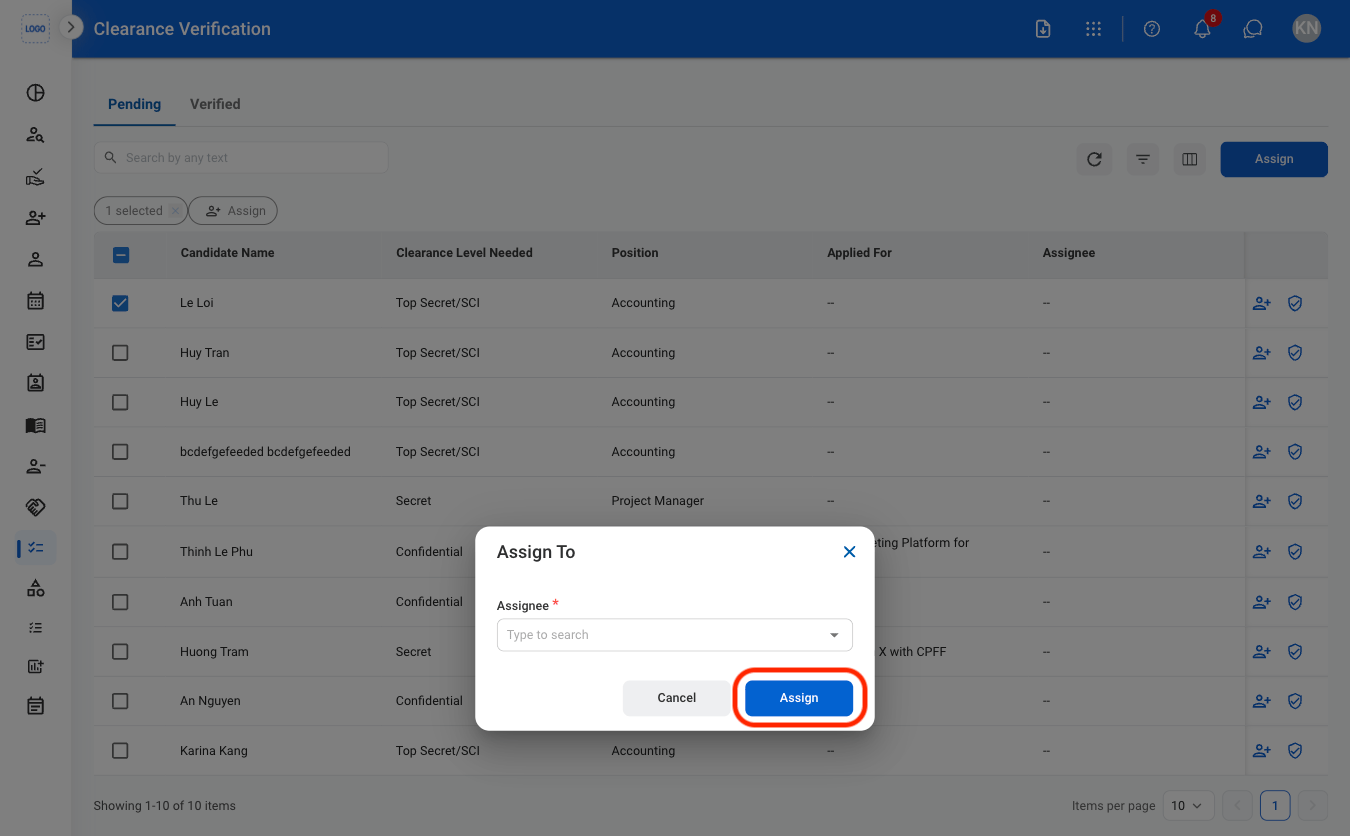
  <Step title="Fill in the required information ">
    <Frame>
      <img src="https://mintcdn.com/bizbone/ojO_5WnvwnH5JUAe/images/HR-CV-CAssign.png?fit=max&auto=format&n=ojO_5WnvwnH5JUAe&q=85&s=ba0708877b8751ef560126032d28c35a" alt="HR CV C Assign" width="1350" height="836" data-path="images/HR-CV-CAssign.png" />
    </Frame>

    Select **Assign** to complete or **Cancel** to exit without saving changes. 
  </Step>
</Steps>

## Verify Clearance

<Steps>
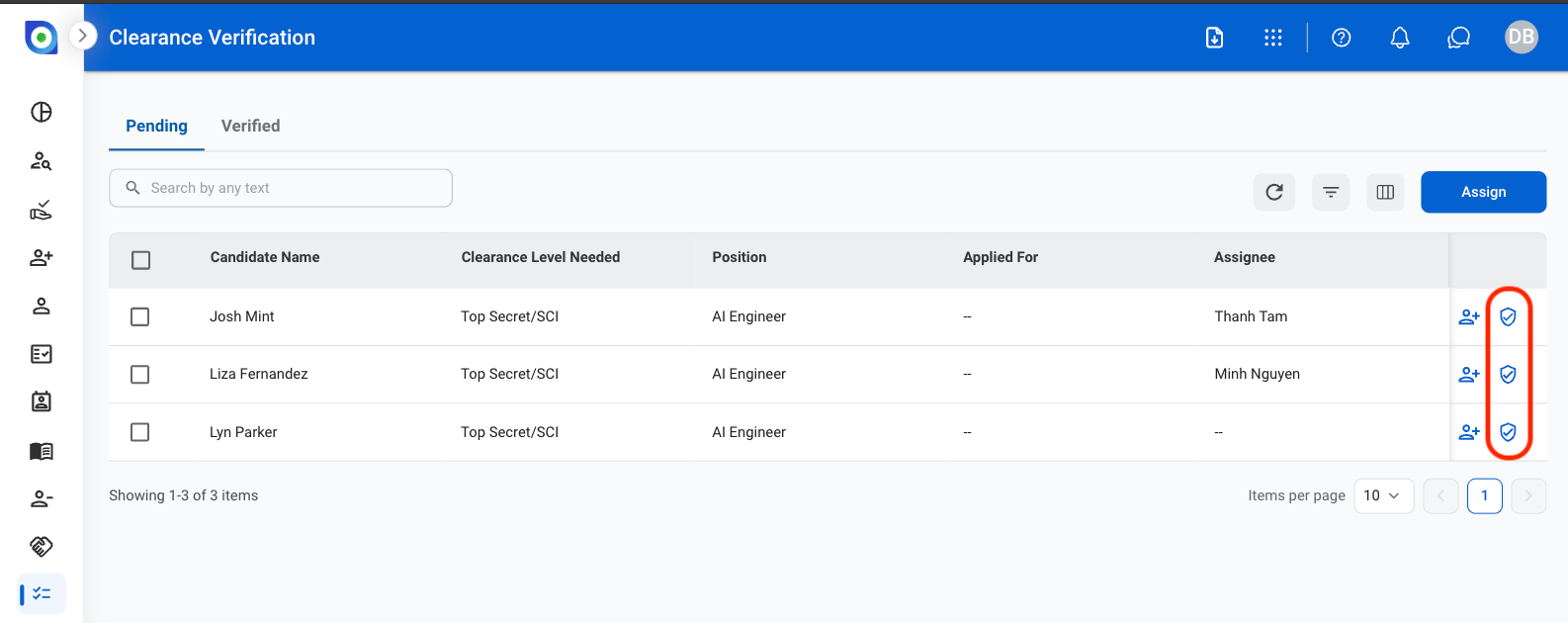
  <Step title="Select the verification icon to the right of the profile">
    <Frame>
      <img src="https://mintcdn.com/bizbone/EQMH50CXltJa58cr/images/CV-Verify.png?fit=max&auto=format&n=EQMH50CXltJa58cr&q=85&s=8d802c5373e2ef649d66c119d6db4e05" alt="CV Verify" width="1586" height="630" data-path="images/CV-Verify.png" />
    </Frame>
  </Step>

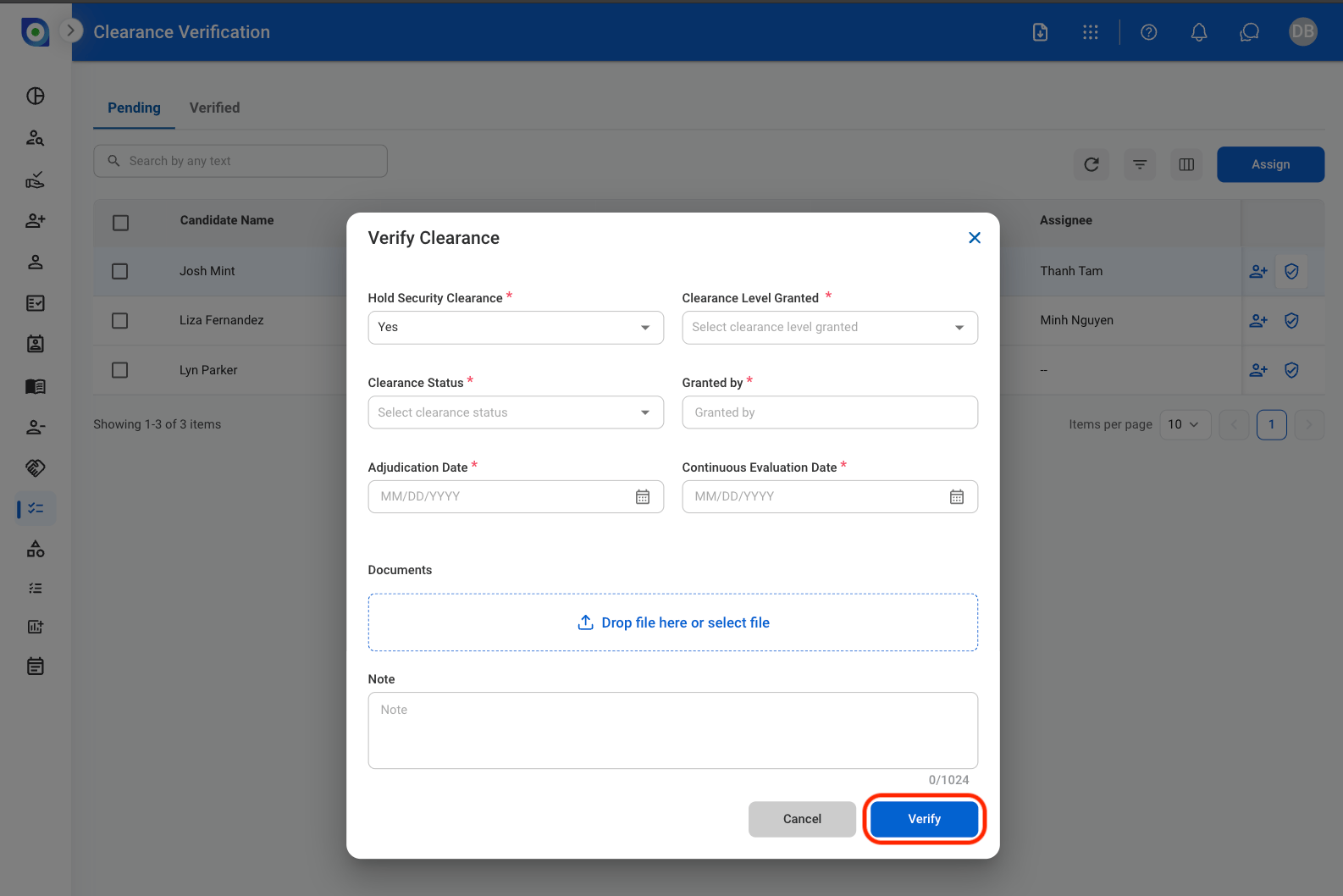
  <Step title="Fill in the required information">
    <Frame>
      <img src="https://mintcdn.com/bizbone/EQMH50CXltJa58cr/images/CV-CVer.png?fit=max&auto=format&n=EQMH50CXltJa58cr&q=85&s=f249bf03487fc6b34aa1709c5bf71bab" alt="CV C Ver" width="1586" height="1058" data-path="images/CV-CVer.png" />
    </Frame>

    Select **Verify** to complete or **Cancel** to exit without saving changes
  </Step>
</Steps>