> ## Documentation Index
> Fetch the complete documentation index at: https://docs.bizbone.com/llms.txt
> Use this file to discover all available pages before exploring further.
# Request
View and manage Accounting requests, including active and completed requests, assign responsible parties, and review request details for processing and approval.
## View a Request
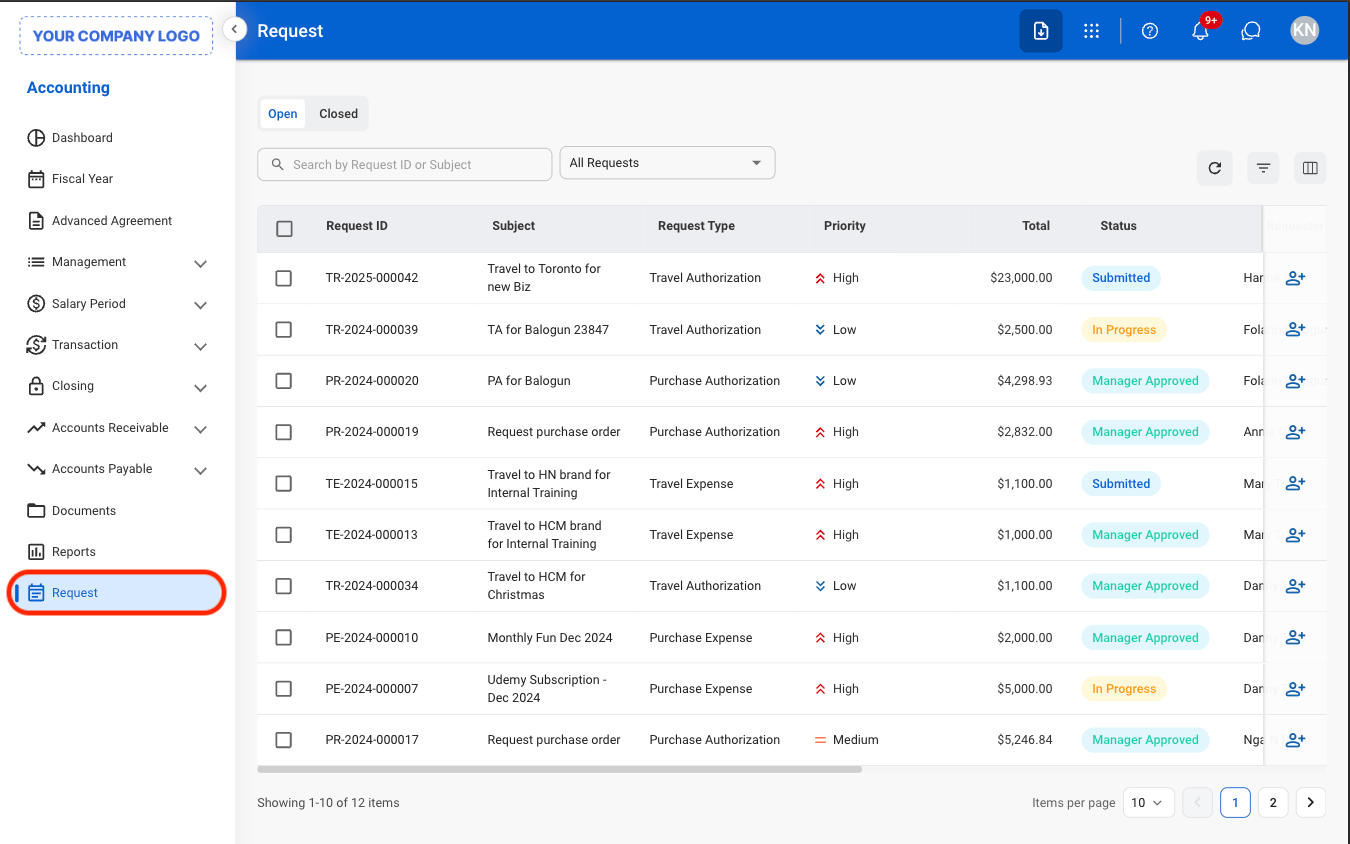
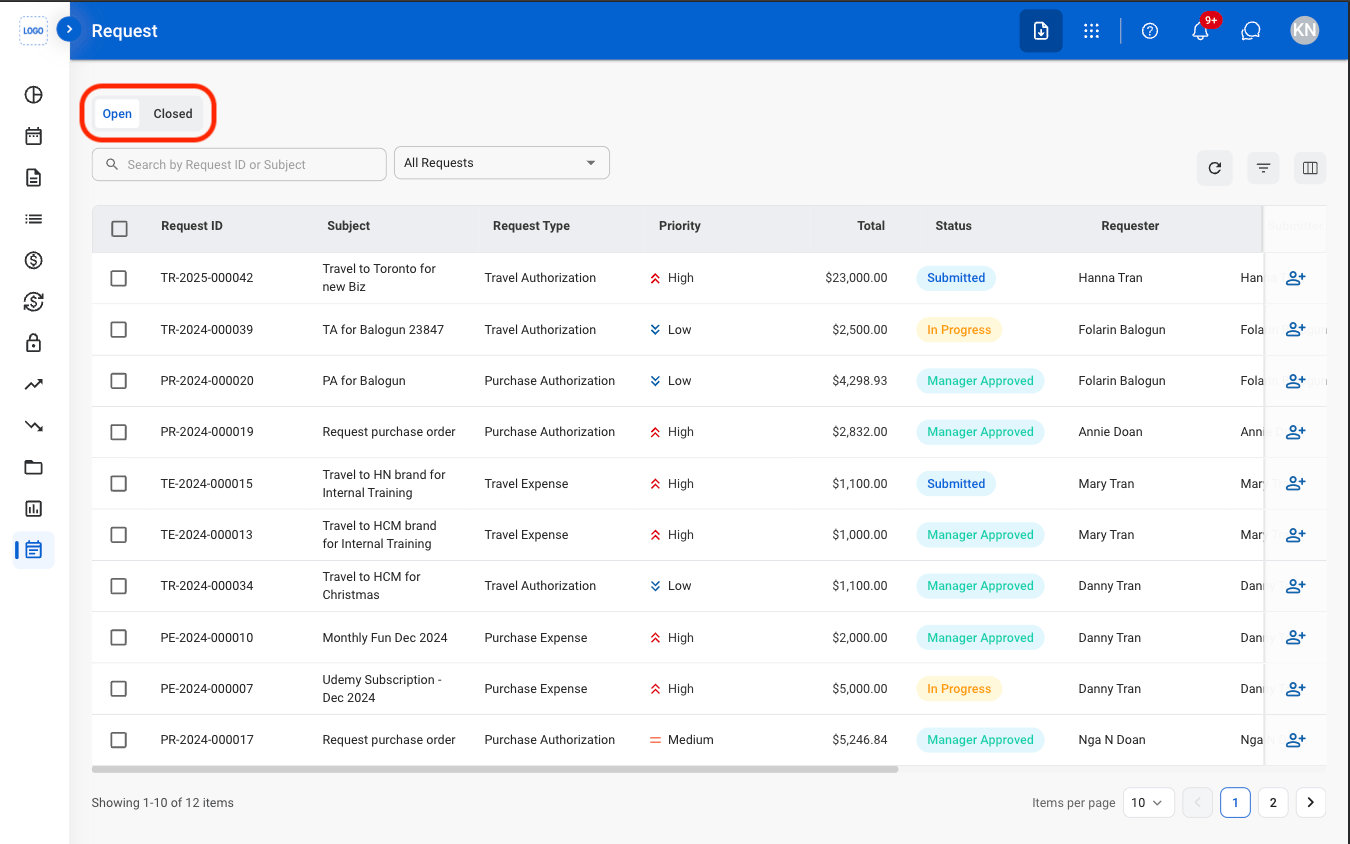 * **Open:** Ongoing requests.
* **Closed:** Resolved requests.
* **Open:** Ongoing requests.
* **Closed:** Resolved requests.
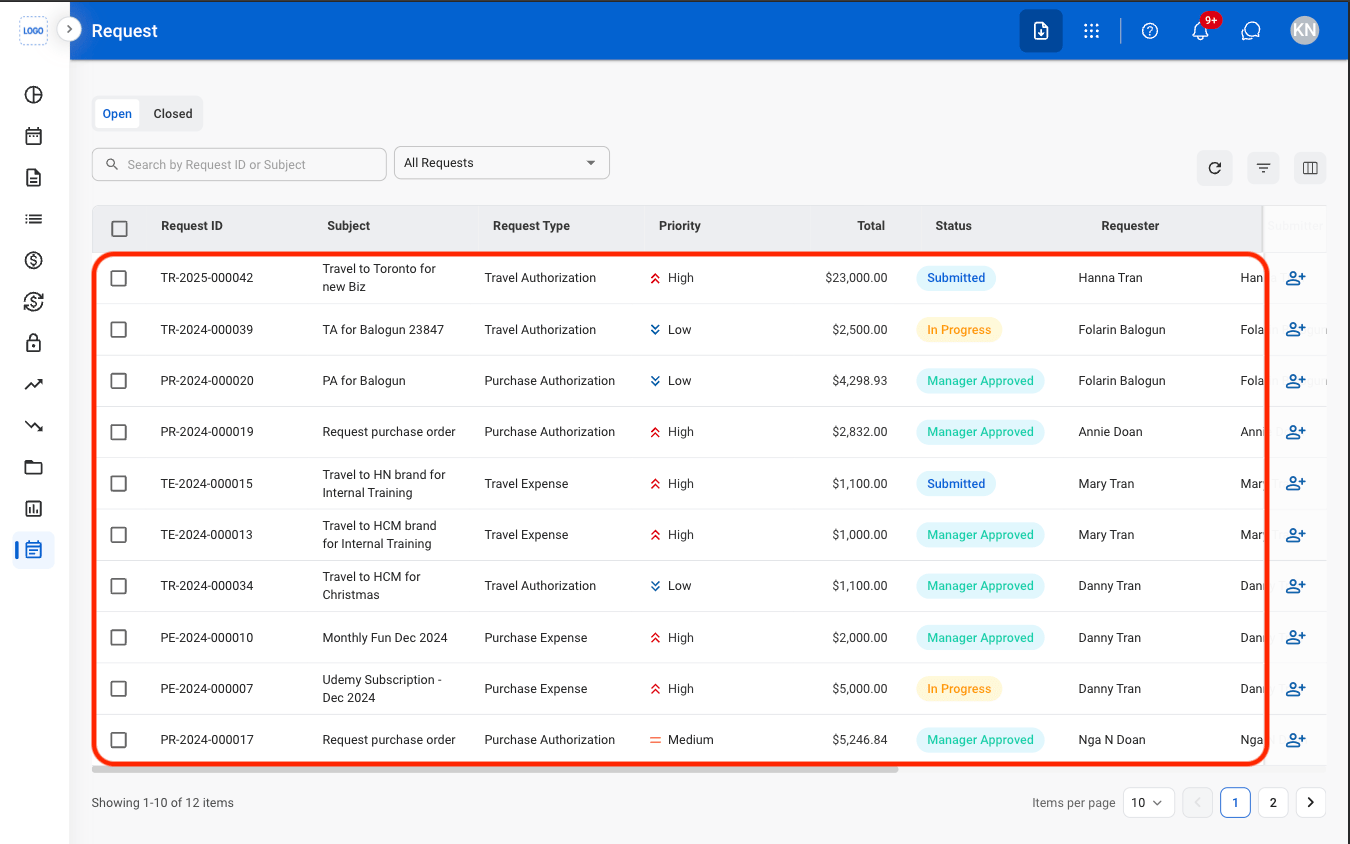
 * Use the Search bar to find requests by Request ID or subject.
* Use the filter to sort request results.
* **All Requests:** Requests assigned to or created by the current account.
* **Assigned Requests:** Requests assigned for action and processing.
* **My Requests:** Requests created by the current account.
* Use the Search bar to find requests by Request ID or subject.
* Use the filter to sort request results.
* **All Requests:** Requests assigned to or created by the current account.
* **Assigned Requests:** Requests assigned for action and processing.
* **My Requests:** Requests created by the current account.
 ## Assign a Request
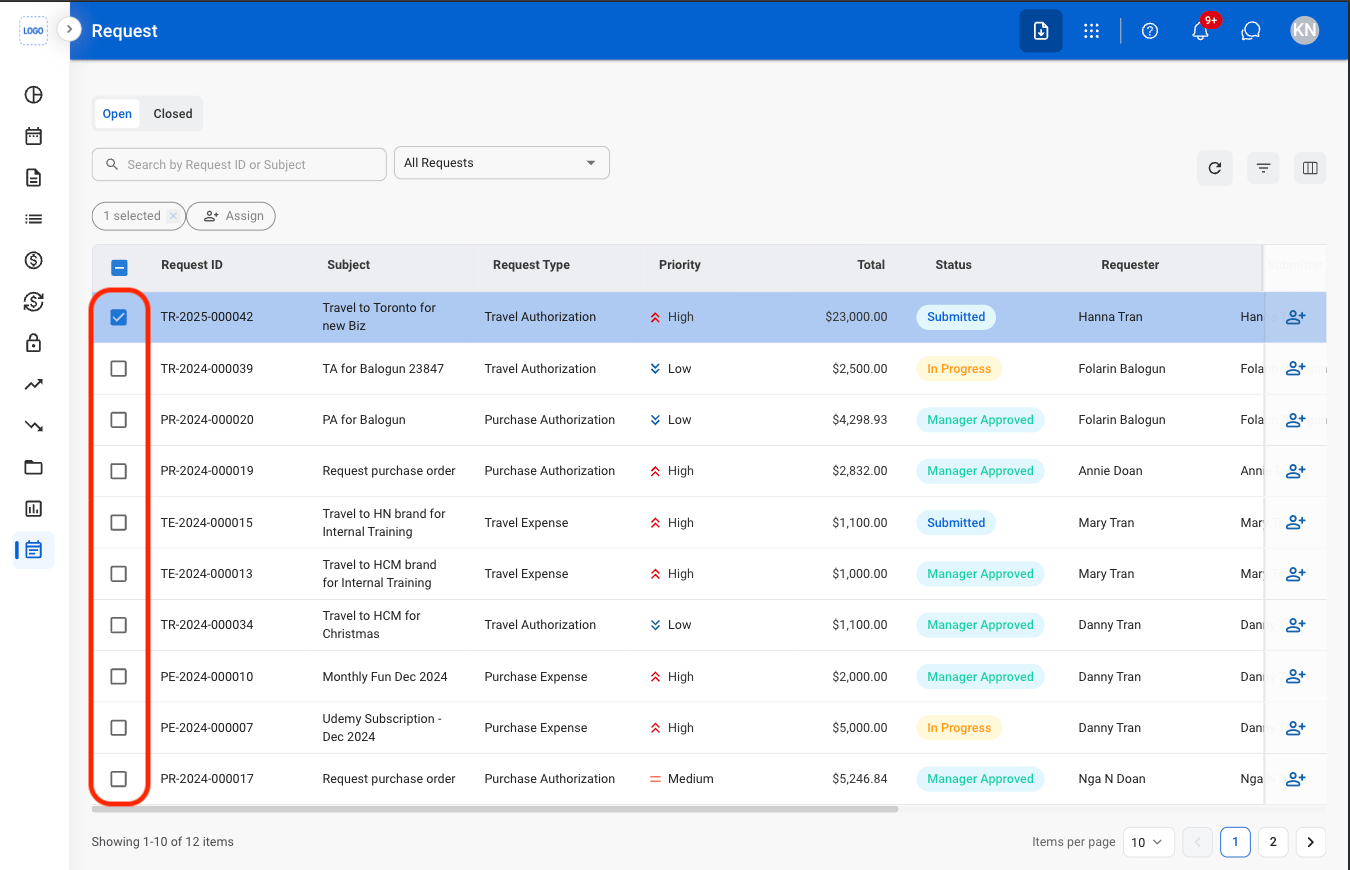

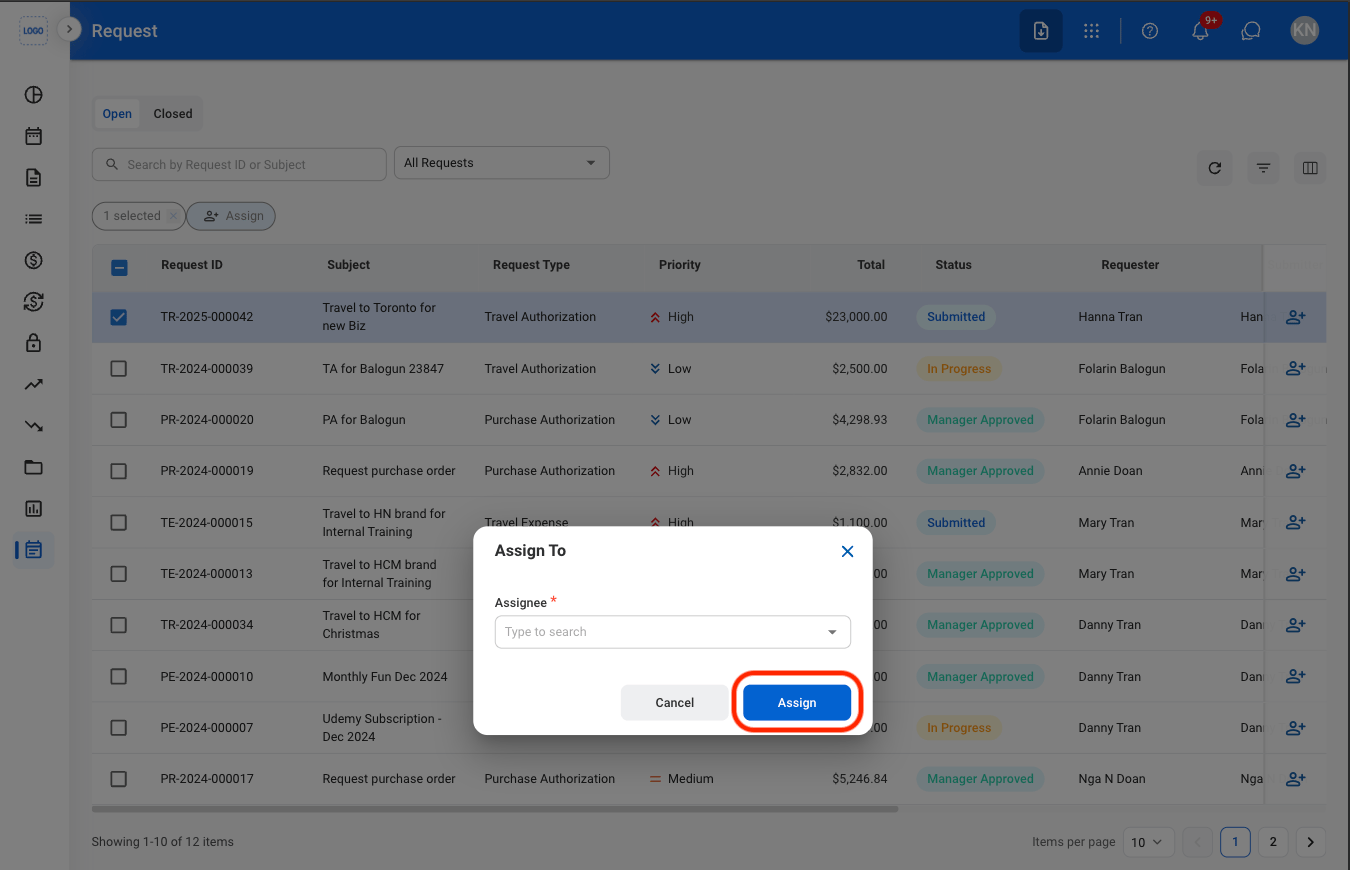 Select **Save** to complete or **Cancel** to exit without saving changes.
## Review a Request
Requests must be open in order to be reviewed.
* Use the Search bar to find requests by keyword.
* Review the request information and supporting documentation before processing.
* **Approve:** Approve the request for further processing.
* **Reject:** Reject the request.
* **Discard:** Permanently remove the request from the system.
* **Edit:** Modify the request information before continuing processing.
* **Approve:** Select **Approve** to complete or **Cancel** to exit without saving changes.
* **Reject:** Provide a reason for the decision and select **Reject** to complete or **Cancel** to exit without saving changes.
* **Discard:** Select **Discard** to complete or **Cancel** to exit without saving changes.
* **Edit:** Fill the required information and select **Save** to complete or **Cancel** to exit without saving changes.
For Purchase Authorization, Purchase Expense, and Travel Expense requests, journal entries must be created and posted separately through **Transaction > Journal Entry**.
Select **Save** to complete or **Cancel** to exit without saving changes.
## Review a Request
Requests must be open in order to be reviewed.
* Use the Search bar to find requests by keyword.
* Review the request information and supporting documentation before processing.
* **Approve:** Approve the request for further processing.
* **Reject:** Reject the request.
* **Discard:** Permanently remove the request from the system.
* **Edit:** Modify the request information before continuing processing.
* **Approve:** Select **Approve** to complete or **Cancel** to exit without saving changes.
* **Reject:** Provide a reason for the decision and select **Reject** to complete or **Cancel** to exit without saving changes.
* **Discard:** Select **Discard** to complete or **Cancel** to exit without saving changes.
* **Edit:** Fill the required information and select **Save** to complete or **Cancel** to exit without saving changes.
For Purchase Authorization, Purchase Expense, and Travel Expense requests, journal entries must be created and posted separately through **Transaction > Journal Entry**.