> ## Documentation Index
> Fetch the complete documentation index at: https://docs.bizbone.com/llms.txt
> Use this file to discover all available pages before exploring further.

# Chart of Accounts

Manage the Chart of Accounts (COA) used for financial reporting and transaction tracking. Supports creation and maintenance of account types, account categories, and general ledger accounts within the organization's accounting structure.

## Create Account Type

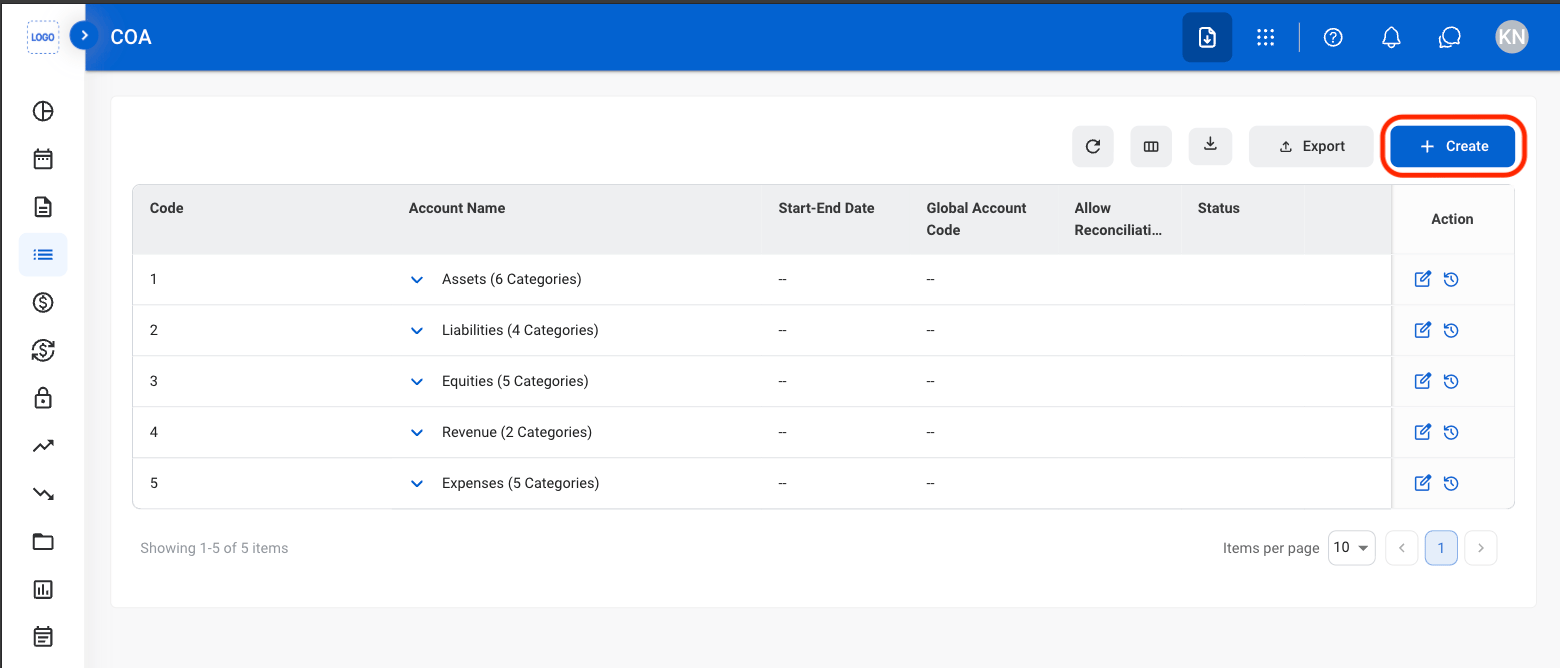
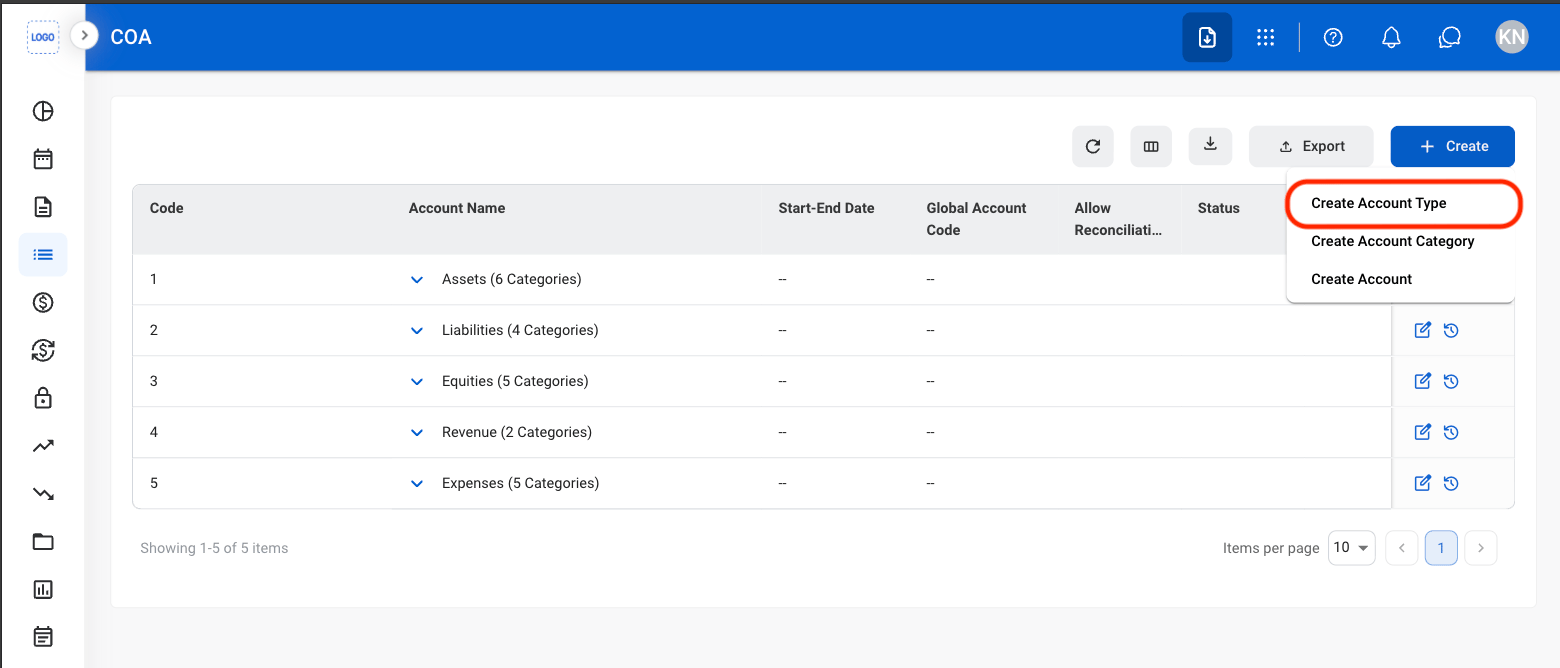
Create an Account Type to define a top-level category within the Chart of Accounts structure. Account Types are used to organize account categories and general ledger accounts.

<Info>
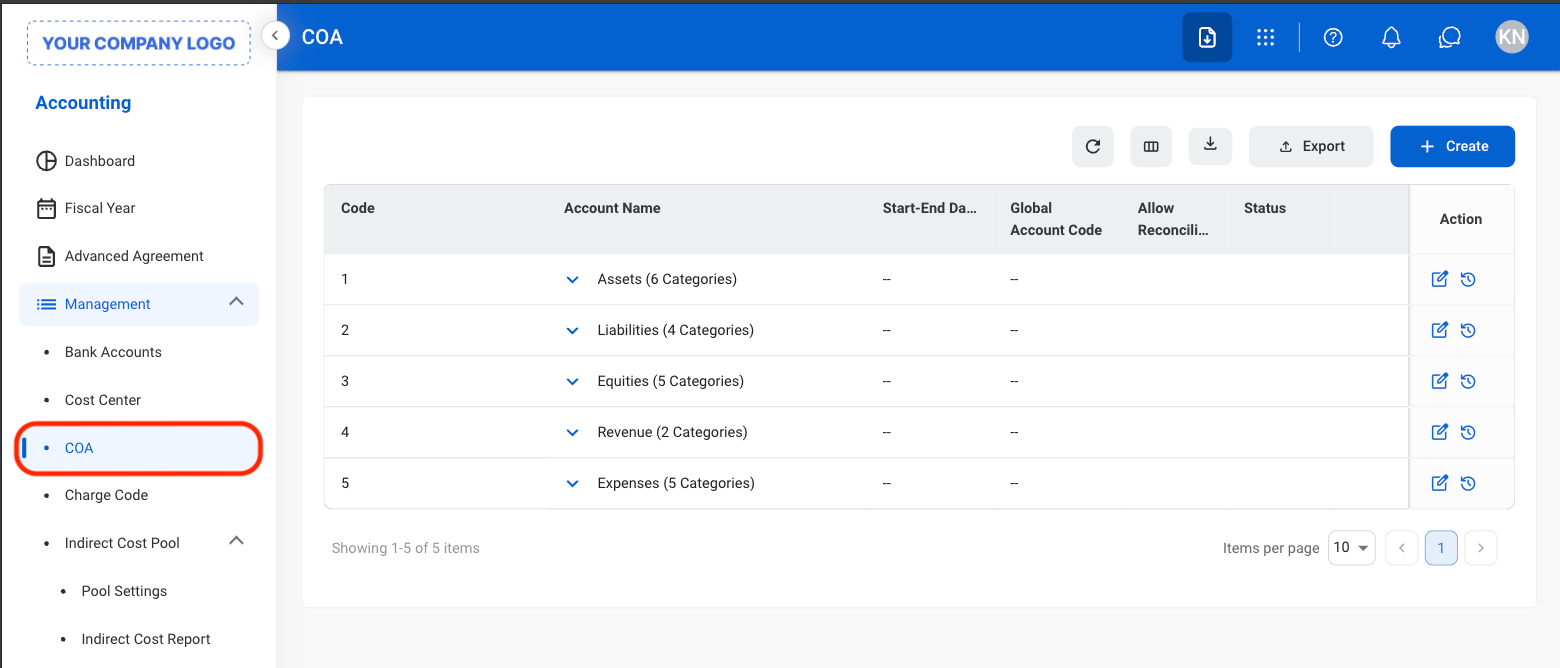
  The system includes five default Account Types: Assets, Liabilities, Equities, Revenues, and Expenses.
</Info>

<Steps>
  <Step title="Navigate to Chart of Accounts">
    <Frame>
      <img src="https://mintcdn.com/bizbone/e1cqGEFCIODj8CuR/images/A-M-COA-Nav.png?fit=max&auto=format&n=e1cqGEFCIODj8CuR&q=85&s=192f778537ddd97af053b9524b11b733" alt="A M COA Nav" width="1560" height="668" data-path="images/A-M-COA-Nav.png" />
    </Frame>
  </Step>

  <Step title="Select Create">
    <Frame>
      <img src="https://mintcdn.com/bizbone/Jsy5oFRS7gkIoPr-/images/A-M-COA-Create.png?fit=max&auto=format&n=Jsy5oFRS7gkIoPr-&q=85&s=b4e2730d6b9f93db2b9bea48fc6c4ec4" alt="A M COA Create" width="1560" height="668" data-path="images/A-M-COA-Create.png" />
    </Frame>
  </Step>

  <Step title="Select Create Account Type">
    <Frame>
      <img src="https://mintcdn.com/bizbone/Jsy5oFRS7gkIoPr-/images/A-M-COA-Create-Acct-Type.png?fit=max&auto=format&n=Jsy5oFRS7gkIoPr-&q=85&s=7abba746f9305067b701f35d56535fa6" alt="A M COA Create Acct Type" width="1560" height="668" data-path="images/A-M-COA-Create-Acct-Type.png" />
    </Frame>
  </Step>

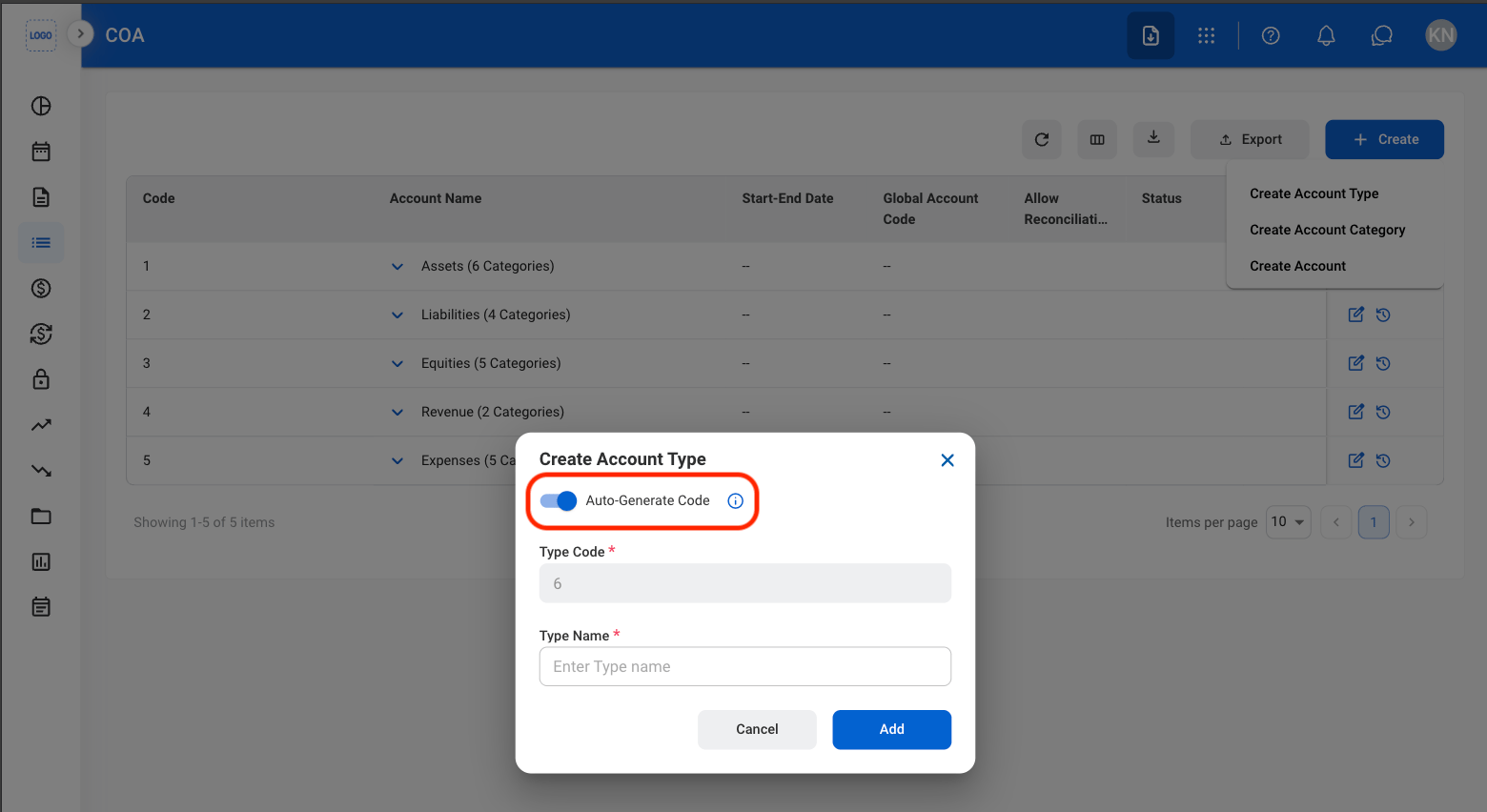
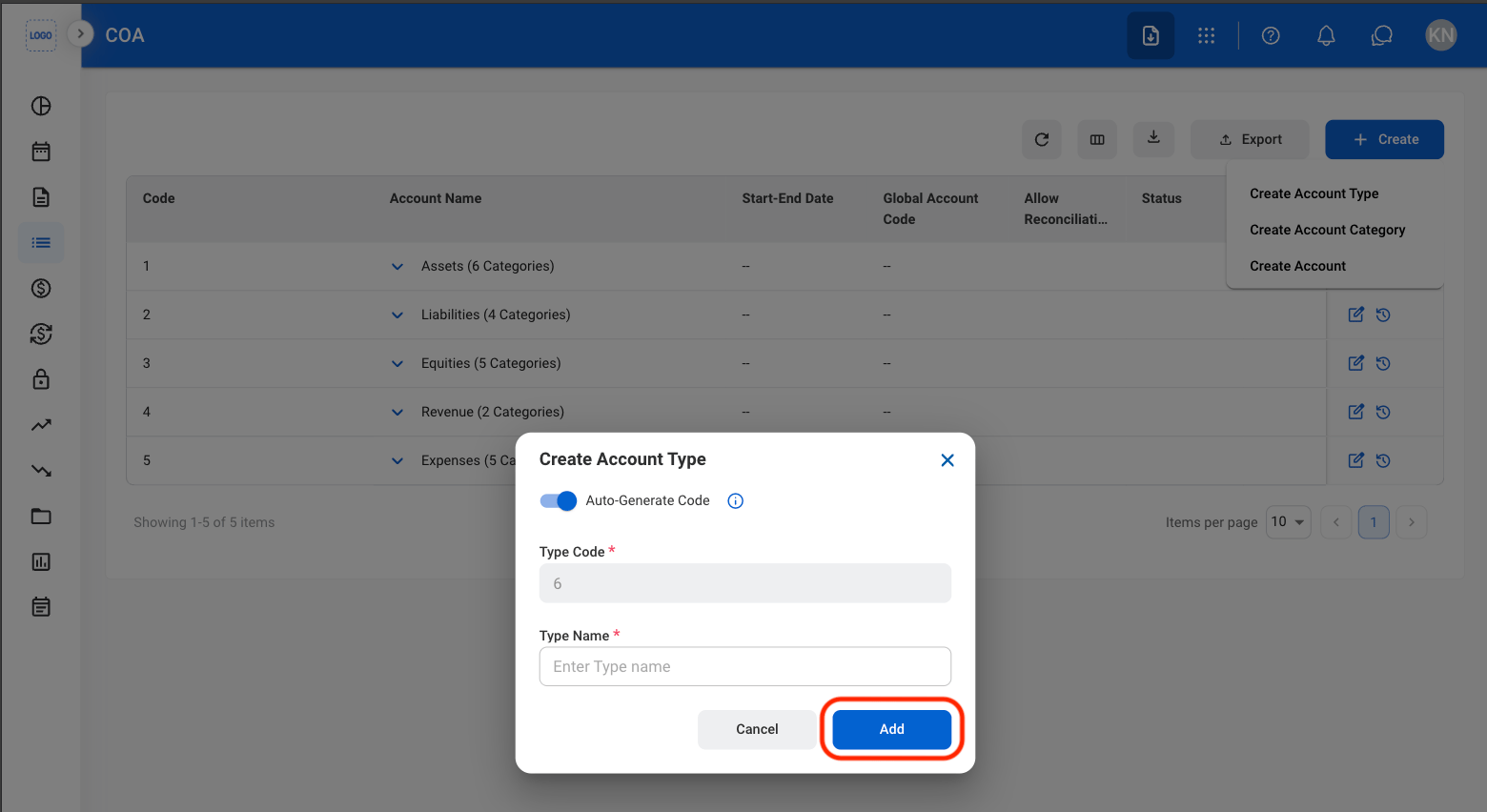
  <Step title="Toggle Auto-Generate Code">
    <Frame>
      <img src="https://mintcdn.com/bizbone/e1cqGEFCIODj8CuR/images/A-M-COA-Toggle.png?fit=max&auto=format&n=e1cqGEFCIODj8CuR&q=85&s=97576f738668b9df15fa7326d7ba907a" alt="A M COA Toggle" width="1560" height="852" data-path="images/A-M-COA-Toggle.png" />
    </Frame>

    * **On:** Automatically generates the next available Type Code.

    <Info>
      When Auto-Generate Code is enabled, the system automatically assigns the next available Type Code.
    </Info>

    * **Off:** Enter a unique numeric Type Code manually.

    <Info>
      Manually entered Type Codes must be unique numeric values and can contain up to 8 digits.
    </Info>
  </Step>

  <Step title="Fill in the required information ">
    <Frame>
      <img src="https://mintcdn.com/bizbone/Jsy5oFRS7gkIoPr-/images/A-M-COA-Add.png?fit=max&auto=format&n=Jsy5oFRS7gkIoPr-&q=85&s=62325b15e8a0a50806cf5473f6e75921" alt="A M COA Add" width="1560" height="852" data-path="images/A-M-COA-Add.png" />
    </Frame>

    Select **Add** to complete or **Cancel** to exit without saving changes. 
  </Step>
</Steps>

## Edit Account Type

<Steps>
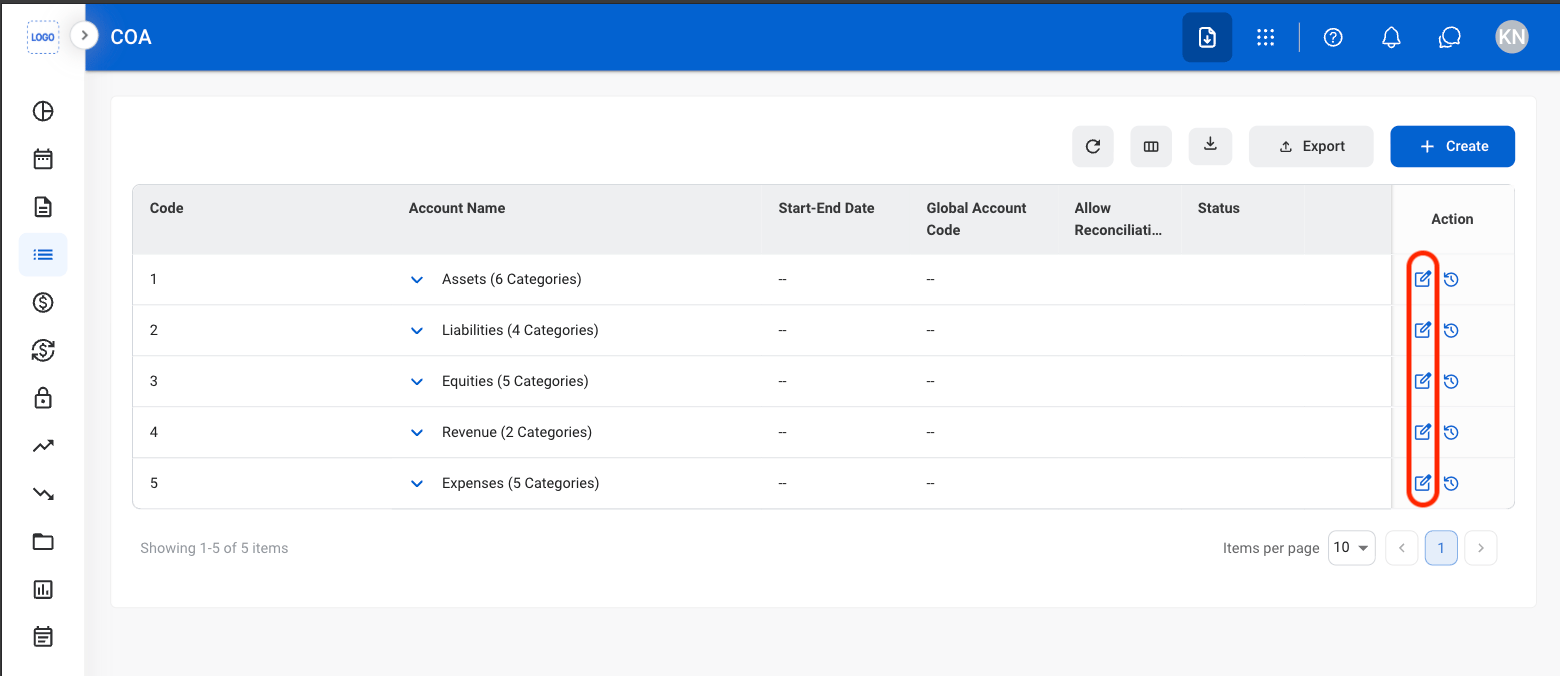
  <Step title="Select the Edit icon">
    <Frame>
      <img src="https://mintcdn.com/bizbone/Jsy5oFRS7gkIoPr-/images/A-M-COA-Edit.png?fit=max&auto=format&n=Jsy5oFRS7gkIoPr-&q=85&s=95c9f6164f5a575c97b0deec3dd5b85f" alt="A M COA Edit" width="1560" height="676" data-path="images/A-M-COA-Edit.png" />
    </Frame>
  </Step>

  <Step title="Fill in the required information">
    <Frame>
      <img src="https://mintcdn.com/bizbone/Jsy5oFRS7gkIoPr-/images/A-M-COA-Edit-C.png?fit=max&auto=format&n=Jsy5oFRS7gkIoPr-&q=85&s=e01e4a3908977bd72b659a1d8c0dab6e" alt="A M COA Edit C" width="1560" height="856" data-path="images/A-M-COA-Edit-C.png" />
    </Frame>

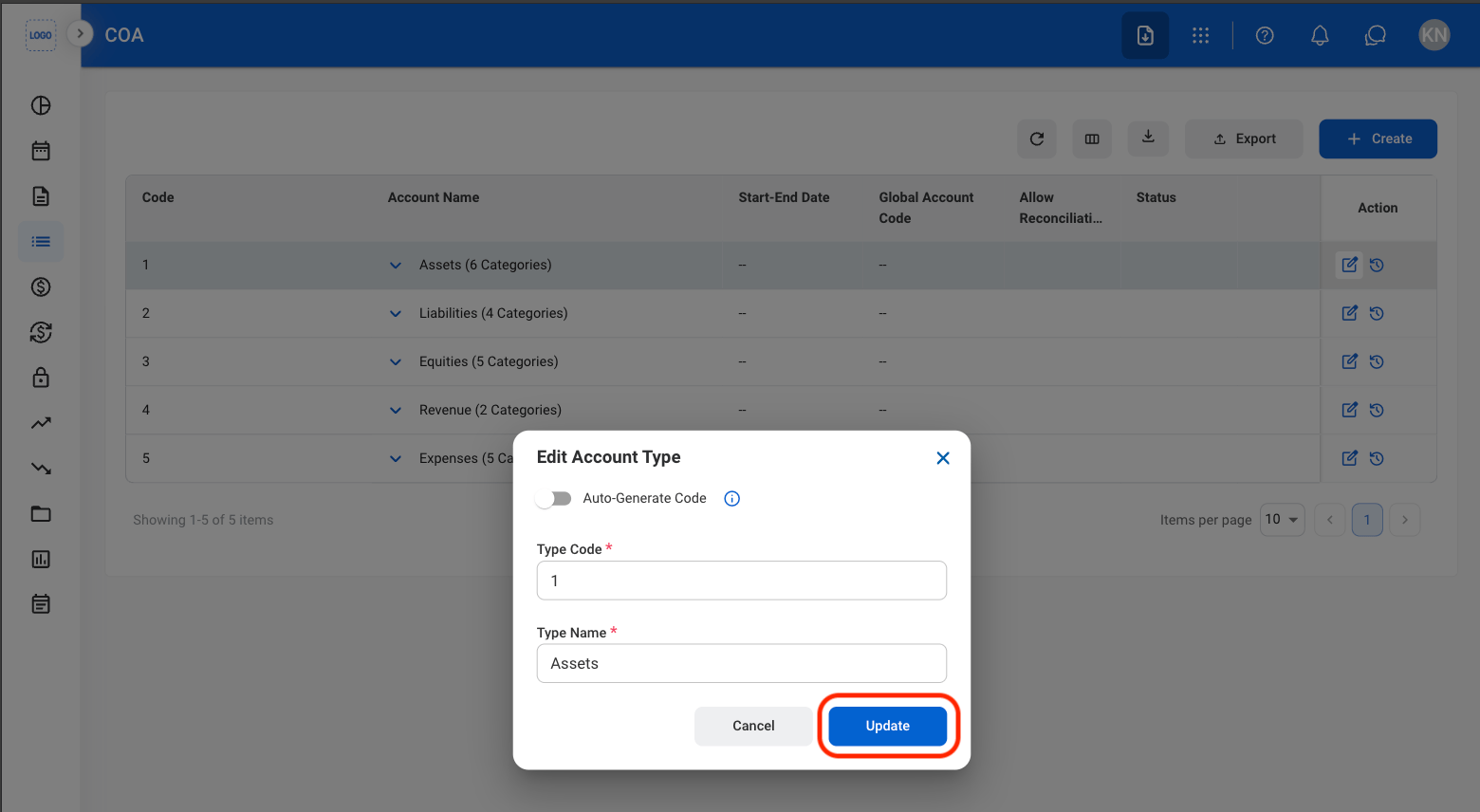
    Select **Update** to complete or **Cancel** to exit without saving changes. 
  </Step>
</Steps>

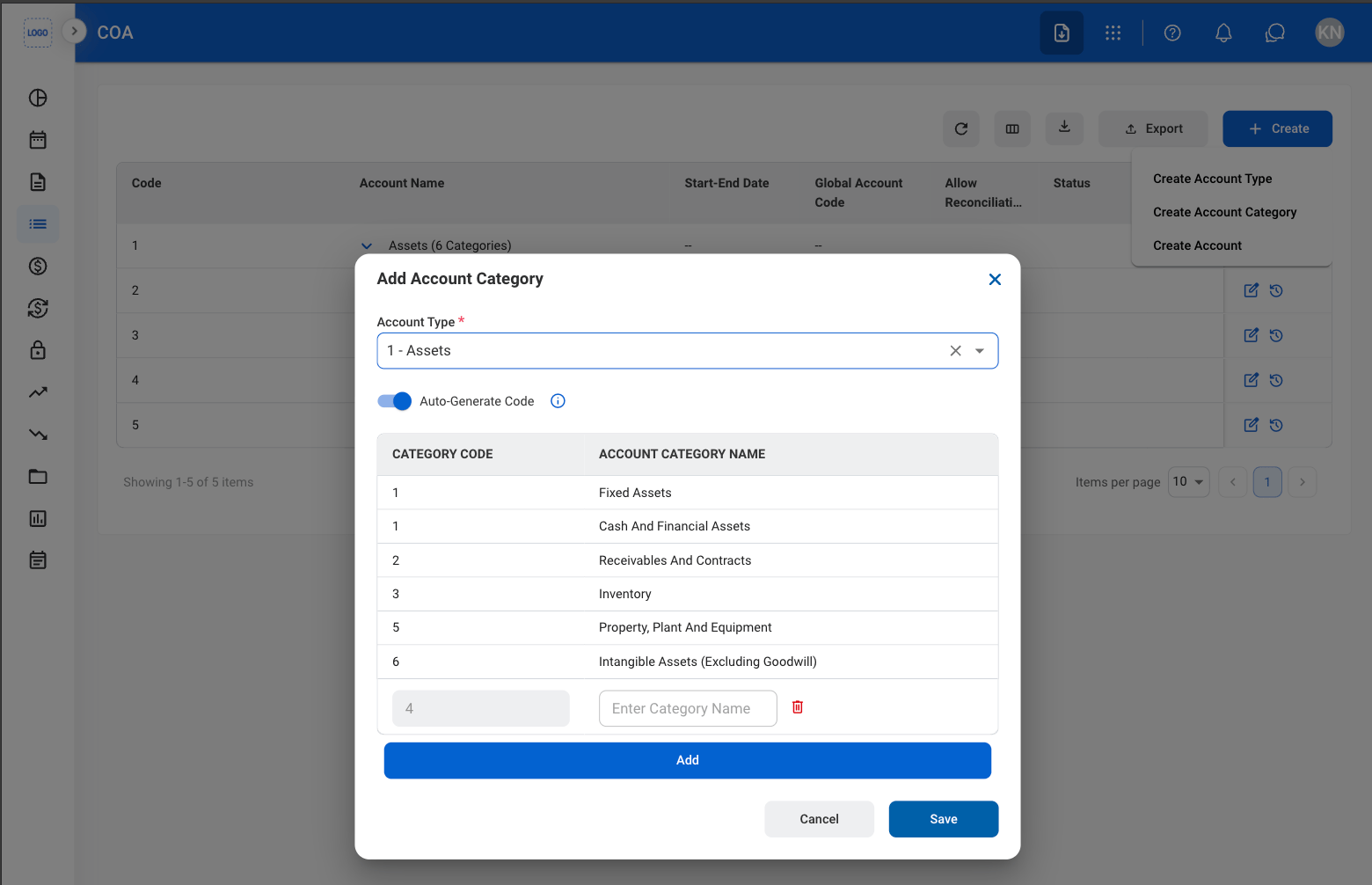
## Create Account Category

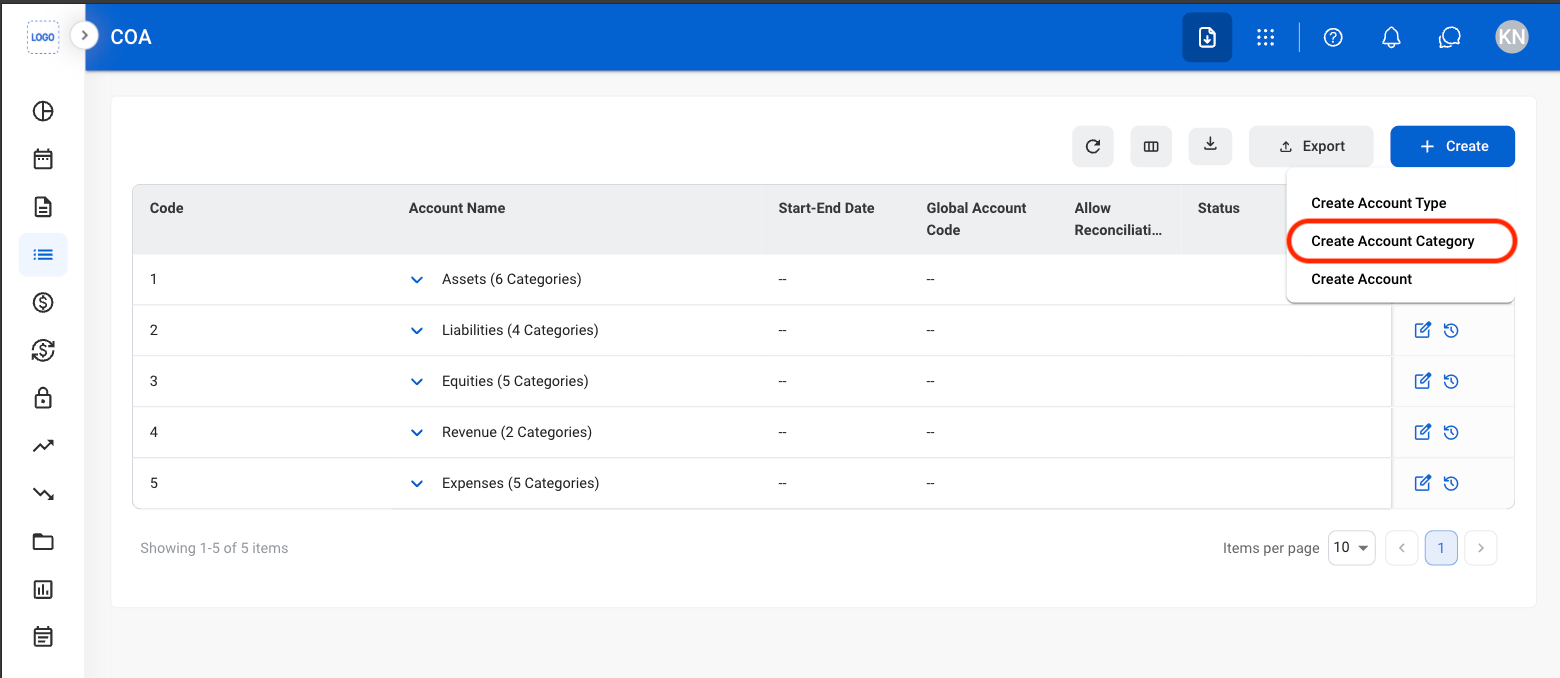
Create Account Categories within an Account Type to further organize the Chart of Accounts structure.
<Steps>
  <Step title="Select Create">
    <Frame>
      <img src="https://mintcdn.com/bizbone/Jsy5oFRS7gkIoPr-/images/A-M-COA-Create.png?fit=max&auto=format&n=Jsy5oFRS7gkIoPr-&q=85&s=b4e2730d6b9f93db2b9bea48fc6c4ec4" alt="A M COA Create" width="1560" height="668" data-path="images/A-M-COA-Create.png" />
    </Frame>
  </Step>

  <Step title="Select Create Account Category">
    <Frame>
      <img src="https://mintcdn.com/bizbone/Jsy5oFRS7gkIoPr-/images/A-M-COA-Category.png?fit=max&auto=format&n=Jsy5oFRS7gkIoPr-&q=85&s=ddd2c846a804d6c1749605fd4caaaddf" alt="A M COA Category" width="1560" height="678" data-path="images/A-M-COA-Category.png" />
    </Frame>
  </Step>

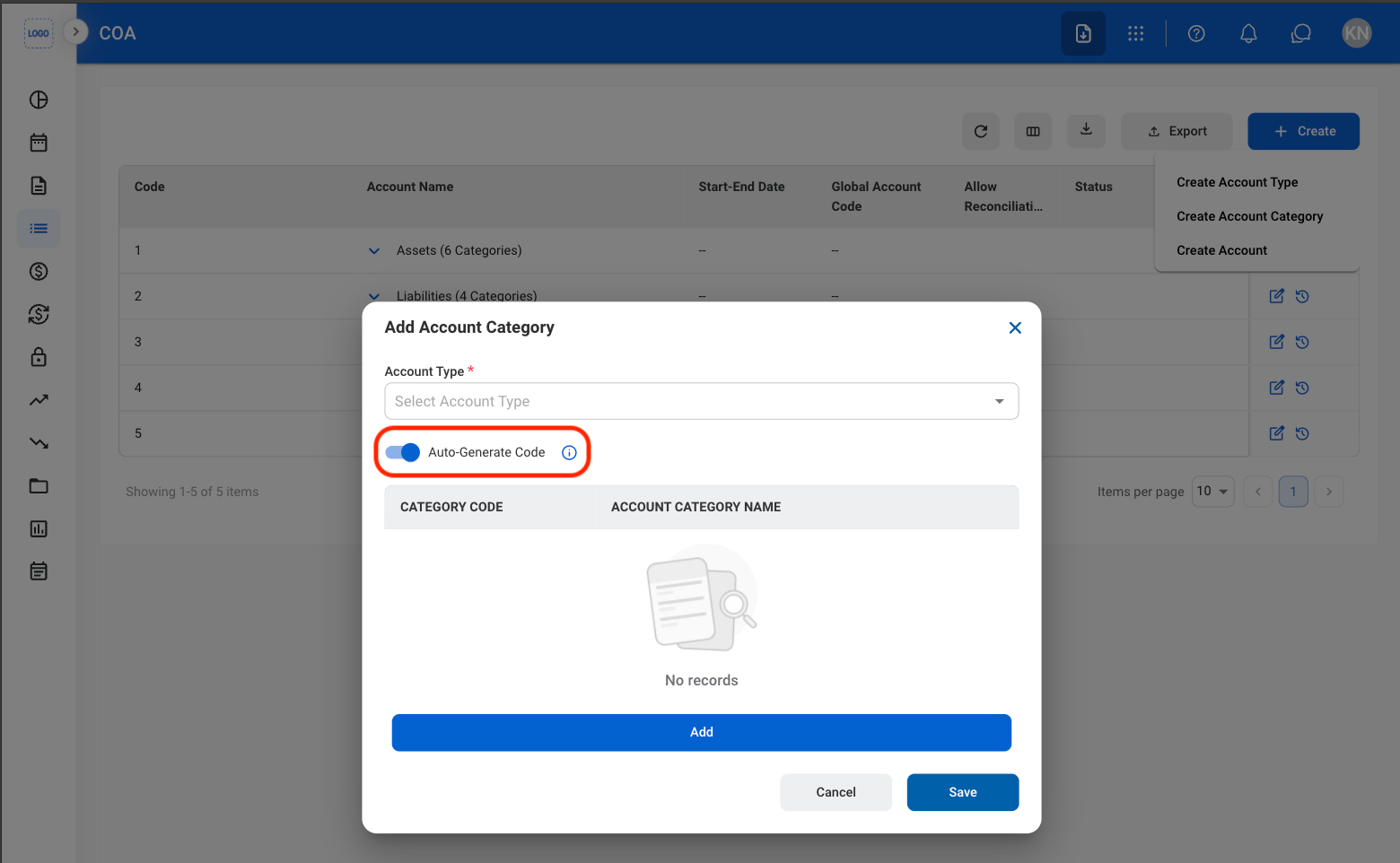
  <Step title="Toggle Auto-Generate Code">
    <Frame>
      <img src="https://mintcdn.com/bizbone/e1cqGEFCIODj8CuR/images/A-M-COA-Gen-Code.png?fit=max&auto=format&n=e1cqGEFCIODj8CuR&q=85&s=5a3e3cb7380fc99dd6eba603cf8c9657" alt="A M COA Gen Code" width="1560" height="962" data-path="images/A-M-COA-Gen-Code.png" />
    </Frame>

    * **On:** Automatically generates the next available Type Code.

    <Info>
      When Auto-Generate Code is enabled, the system automatically assigns the next available Type Code.
    </Info>

    * **Off:** Enter a unique numeric Type Code manually.

    <Info>
      Manually entered Type Codes must be unique numeric values and can contain up to 8 digits.
    </Info>
  </Step>

  <Step title="Fill in the required information ">
    <Frame>
      <img src="https://mintcdn.com/bizbone/Jsy5oFRS7gkIoPr-/images/A-M-COA-Category-C.png?fit=max&auto=format&n=Jsy5oFRS7gkIoPr-&q=85&s=ac60d75ddcd2f655d0ad3d02a5fbdc4f" alt="A M COA Category C" width="1560" height="1006" data-path="images/A-M-COA-Category-C.png" />
    </Frame>

    Select **Save** to complete or **Cancel** to exit without saving changes. 
  </Step>
</Steps>

## Edit Account Category

<Steps>
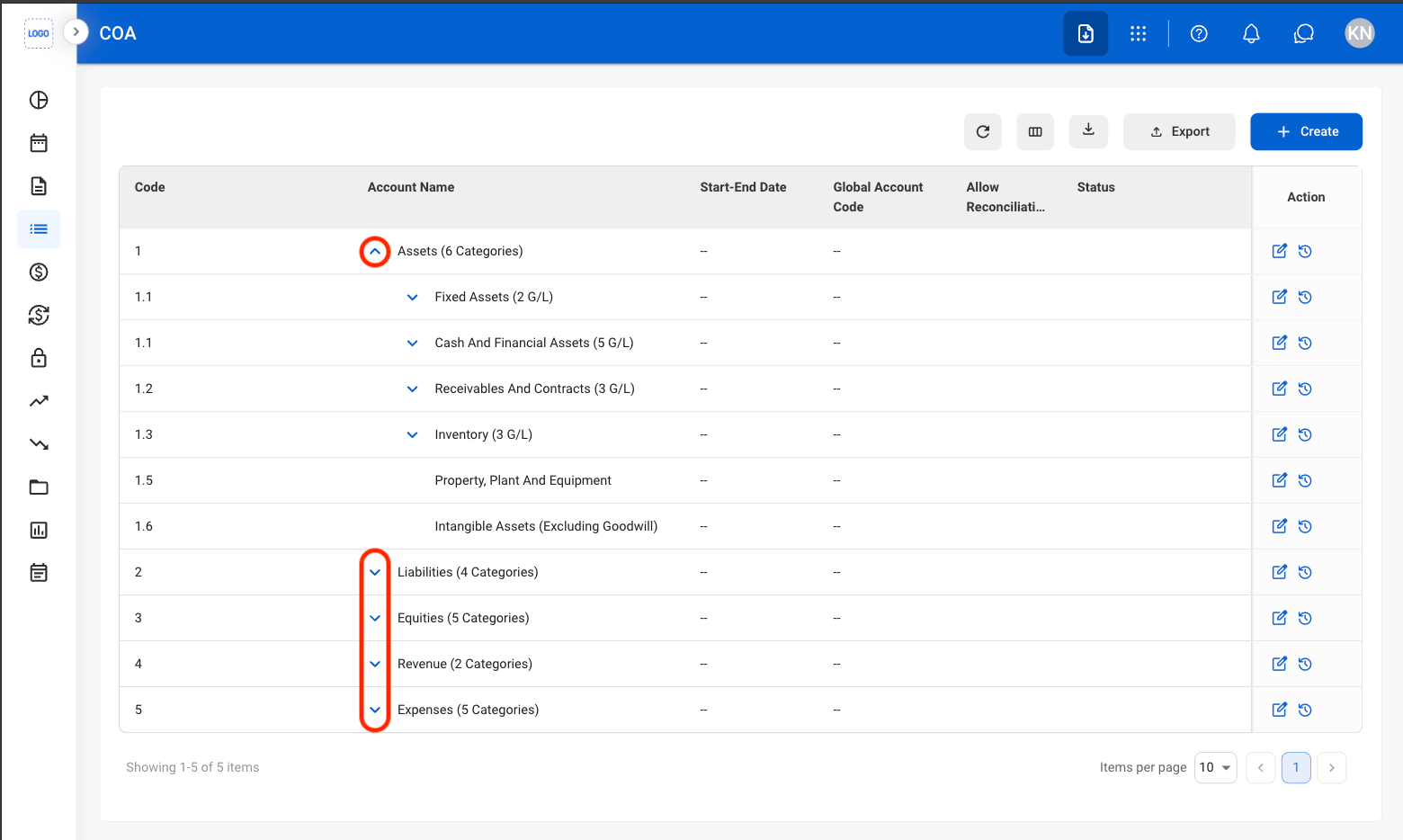
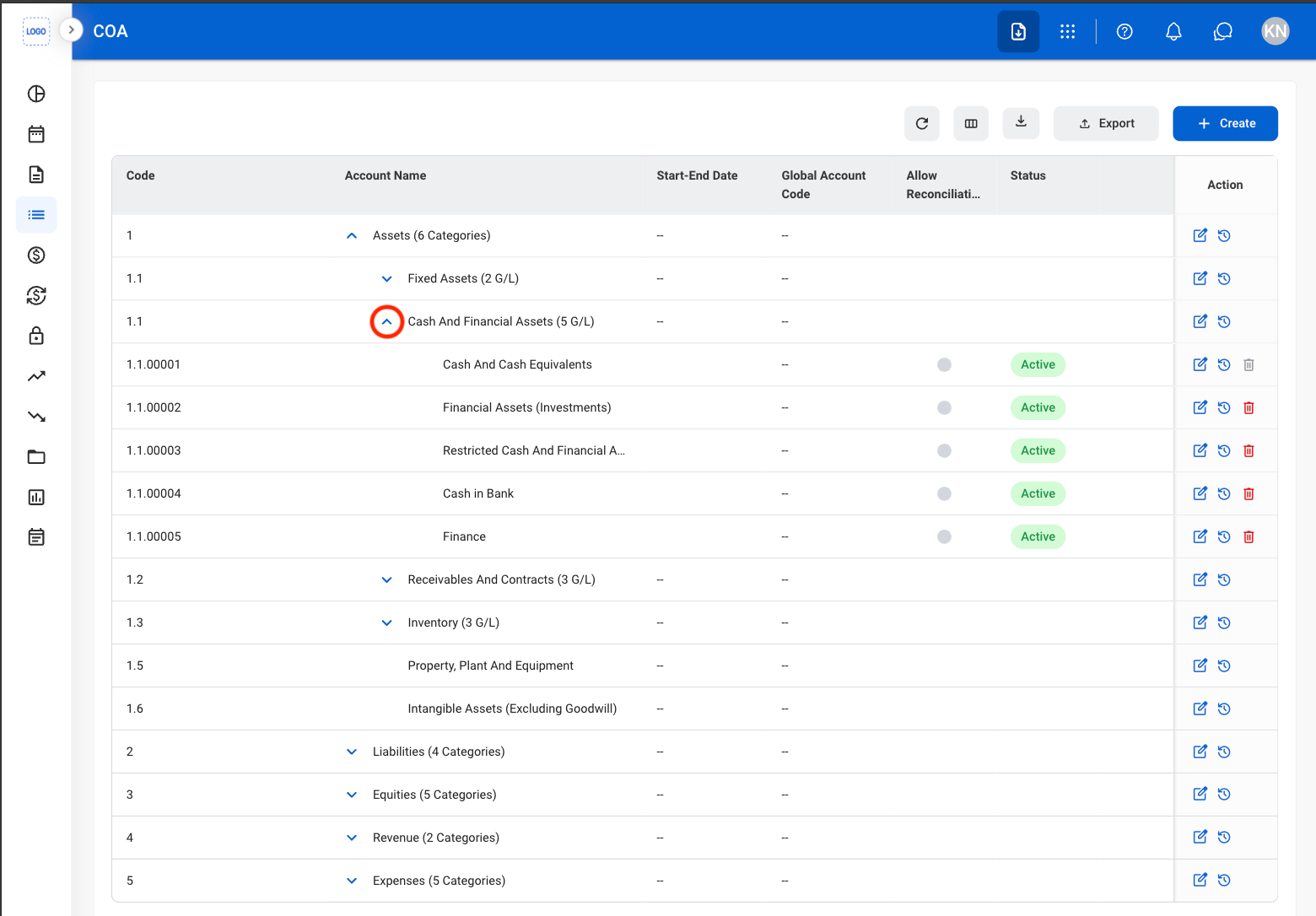
  <Step title="Open an Account Category">
    <Frame>
      <img src="https://mintcdn.com/bizbone/Jsy5oFRS7gkIoPr-/images/A-M-COA-AC-E.png?fit=max&auto=format&n=Jsy5oFRS7gkIoPr-&q=85&s=a888884f7c16ac86958c1873dab782cb" alt="A M COA AC E" width="1560" height="934" data-path="images/A-M-COA-AC-E.png" />
    </Frame>
  </Step>

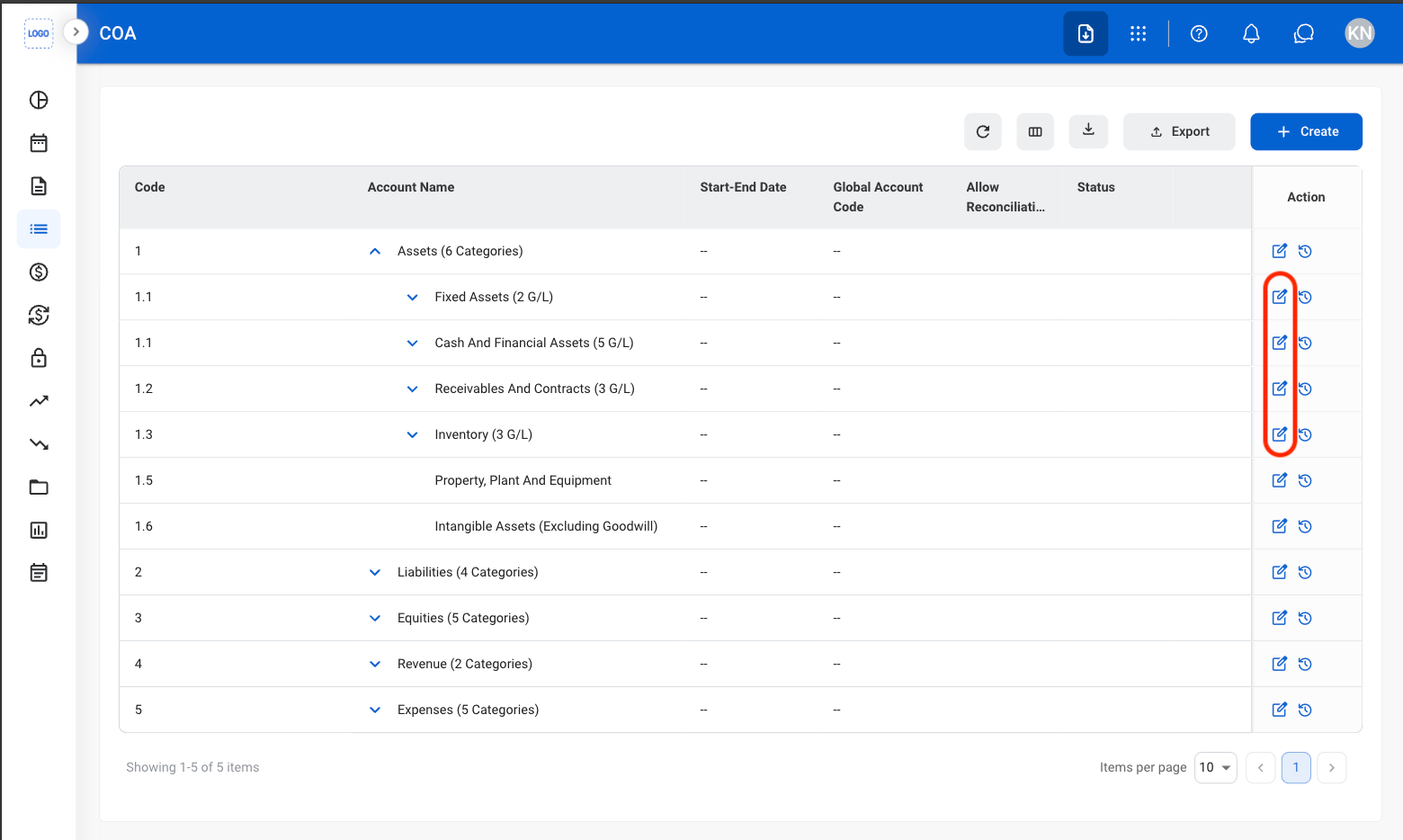
  <Step title="Select the Edit icon">
    <Frame>
      <img src="https://mintcdn.com/bizbone/Jsy5oFRS7gkIoPr-/images/A-M-COA-AC-E-Icon.png?fit=max&auto=format&n=Jsy5oFRS7gkIoPr-&q=85&s=36c475a680e4d7e5fedb8d2185b47ec4" alt="A M COA AC E Icon" width="1560" height="934" data-path="images/A-M-COA-AC-E-Icon.png" />
    </Frame>
  </Step>

  <Step title="Fill in the required information">
    <Frame>
      <img src="https://mintcdn.com/bizbone/Jsy5oFRS7gkIoPr-/images/A-M-COA-AC-Edit-C.png?fit=max&auto=format&n=Jsy5oFRS7gkIoPr-&q=85&s=bd0130b3fee6f965ef27002dfc6bcb33" alt="A M COA AC Edit C" width="1560" height="934" data-path="images/A-M-COA-AC-Edit-C.png" />
    </Frame>

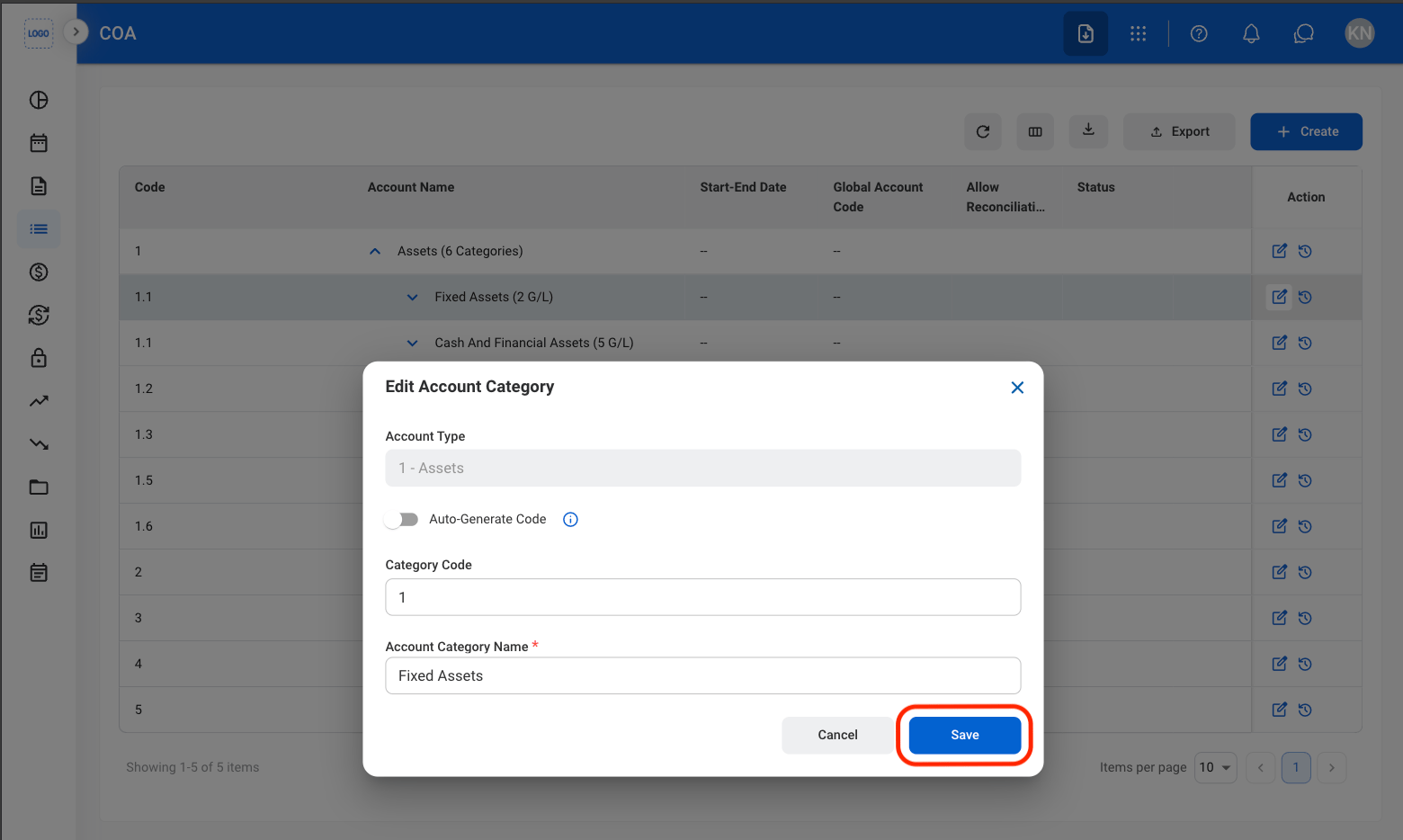
    Select **Save** to complete or **Cancel** to exit without saving changes. 
  </Step>
</Steps>

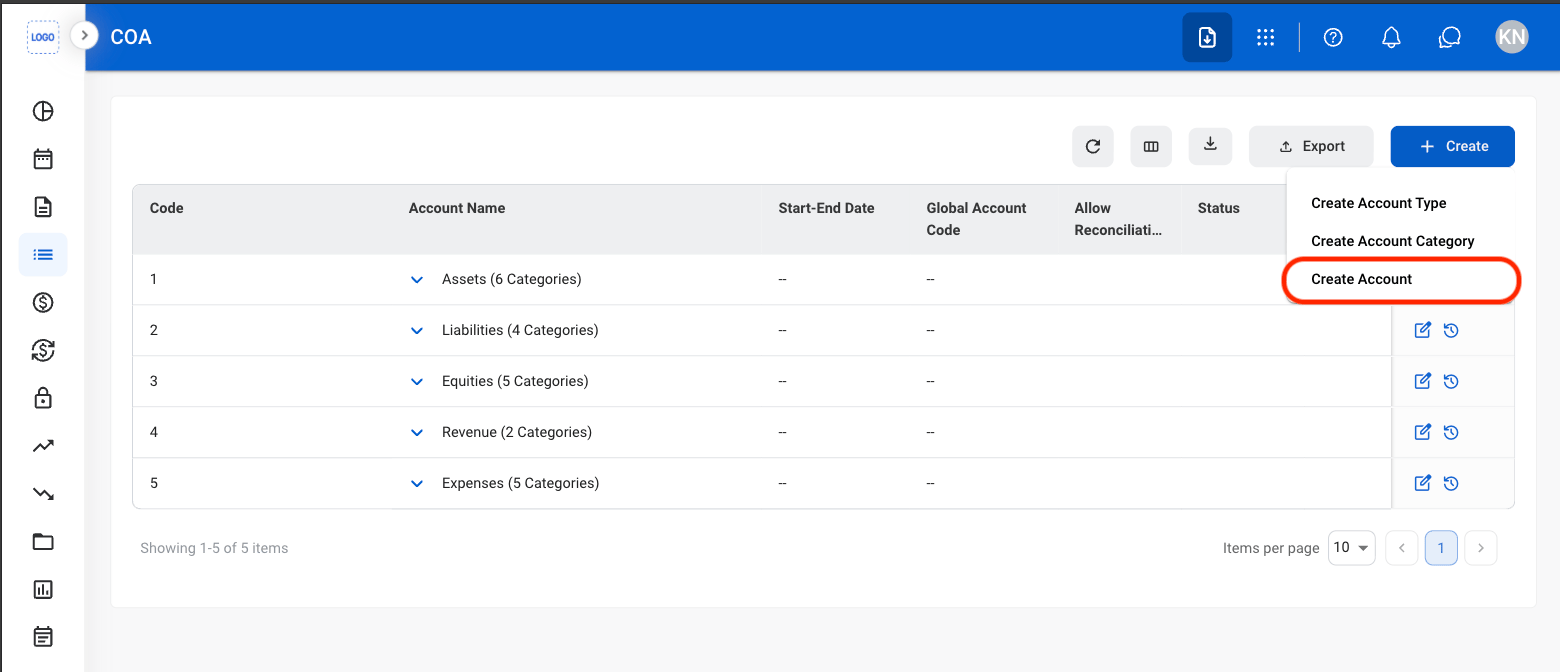
## Create General Ledger Account

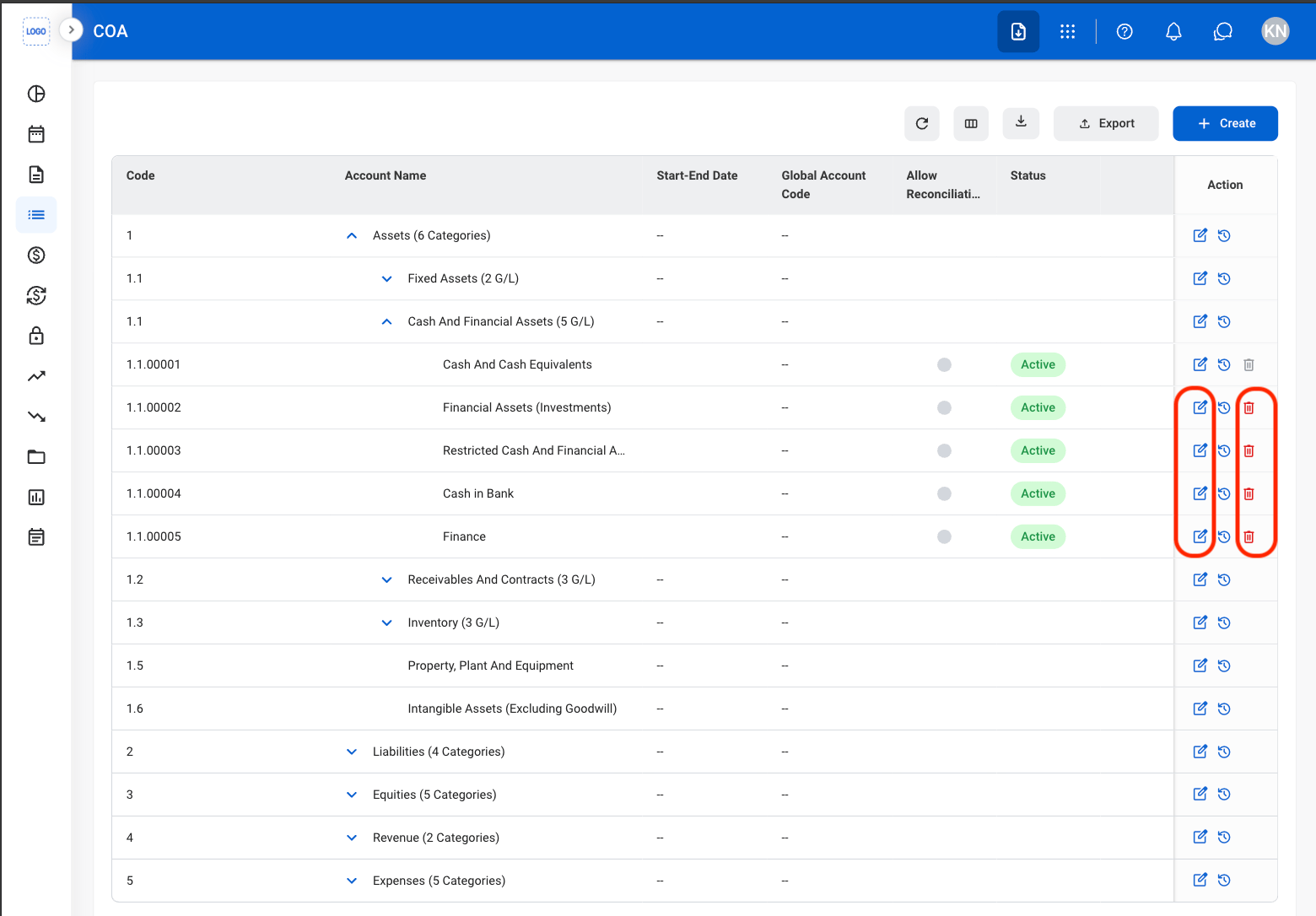
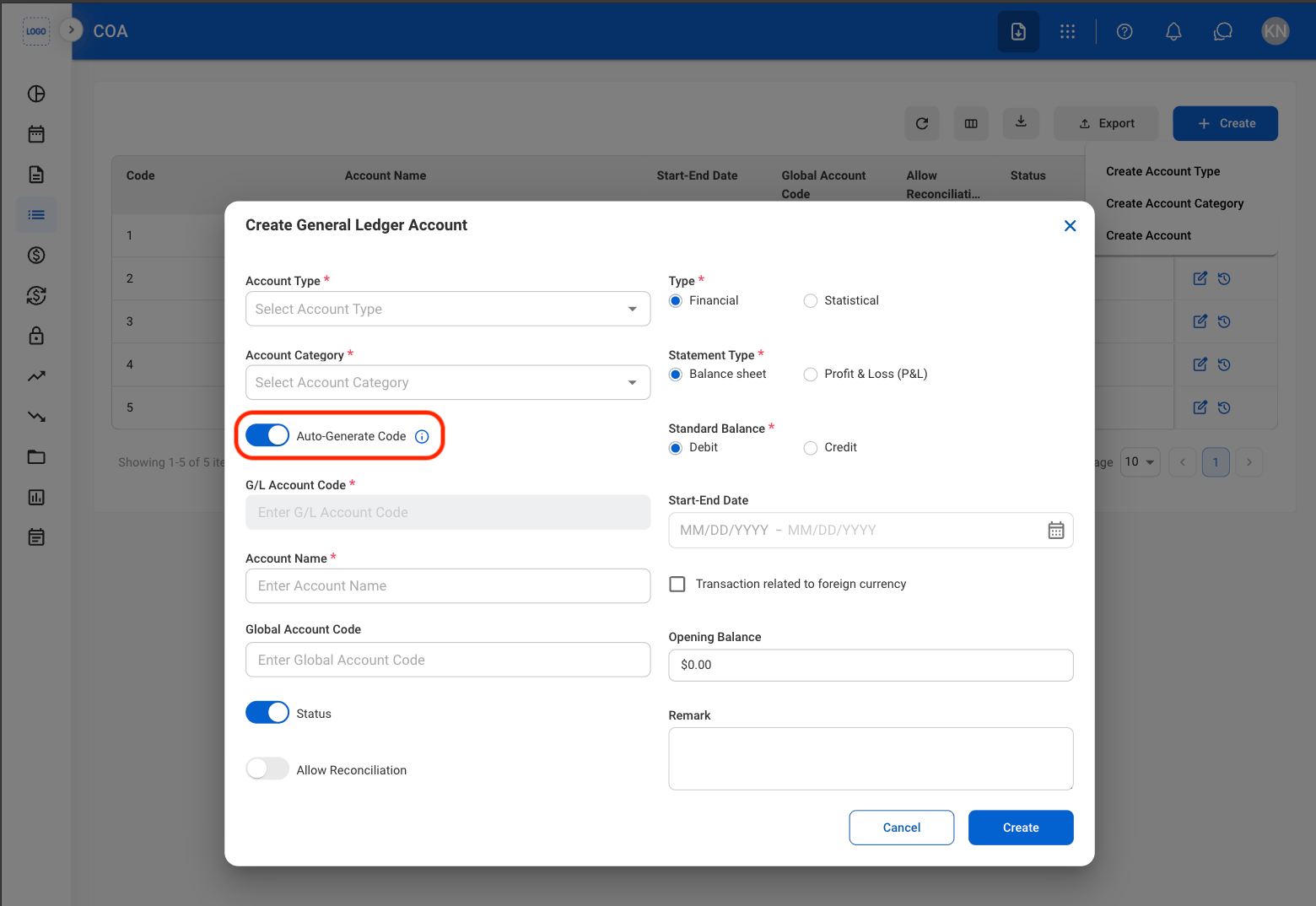
Create a General Ledger (G/L) Account to record financial transactions within the Chart of Accounts. Configure account settings and classifications to support financial tracking and reporting.
<Steps>
  <Step title="Select Create">
    <Frame>
      <img src="https://mintcdn.com/bizbone/Jsy5oFRS7gkIoPr-/images/A-M-COA-Create.png?fit=max&auto=format&n=Jsy5oFRS7gkIoPr-&q=85&s=b4e2730d6b9f93db2b9bea48fc6c4ec4" alt="A M COA Create" width="1560" height="668" data-path="images/A-M-COA-Create.png" />
    </Frame>
  </Step>

  <Step title="Select Create Account">
    <Frame>
      <img src="https://mintcdn.com/bizbone/Jsy5oFRS7gkIoPr-/images/A-M-COA-Create-GL.png?fit=max&auto=format&n=Jsy5oFRS7gkIoPr-&q=85&s=00ecc4060f86eb68b9da80c16f840afc" alt="A M COA Create GL" width="1560" height="672" data-path="images/A-M-COA-Create-GL.png" />
    </Frame>
  </Step>

  <Step title="Toggle Auto-Generate Code">
    <Frame>
      <img src="https://mintcdn.com/bizbone/e1cqGEFCIODj8CuR/images/A-M-COA-GL-Toggle.png?fit=max&auto=format&n=e1cqGEFCIODj8CuR&q=85&s=13174ffc9c27688590246238a8a4fbe0" alt="A M COA GL Toggle" width="1560" height="1074" data-path="images/A-M-COA-GL-Toggle.png" />
    </Frame>

    * **On:** Automatically generates the next available Type Code.

    <Info>
      When Auto-Generate Code is enabled, the system automatically assigns the next available Type Code.
    </Info>

    * **Off:** Enter a unique numeric Type Code manually.

    <Info>
      Manually entered Type Codes must be unique numeric values and can contain up to 8 digits.
    </Info>
  </Step>

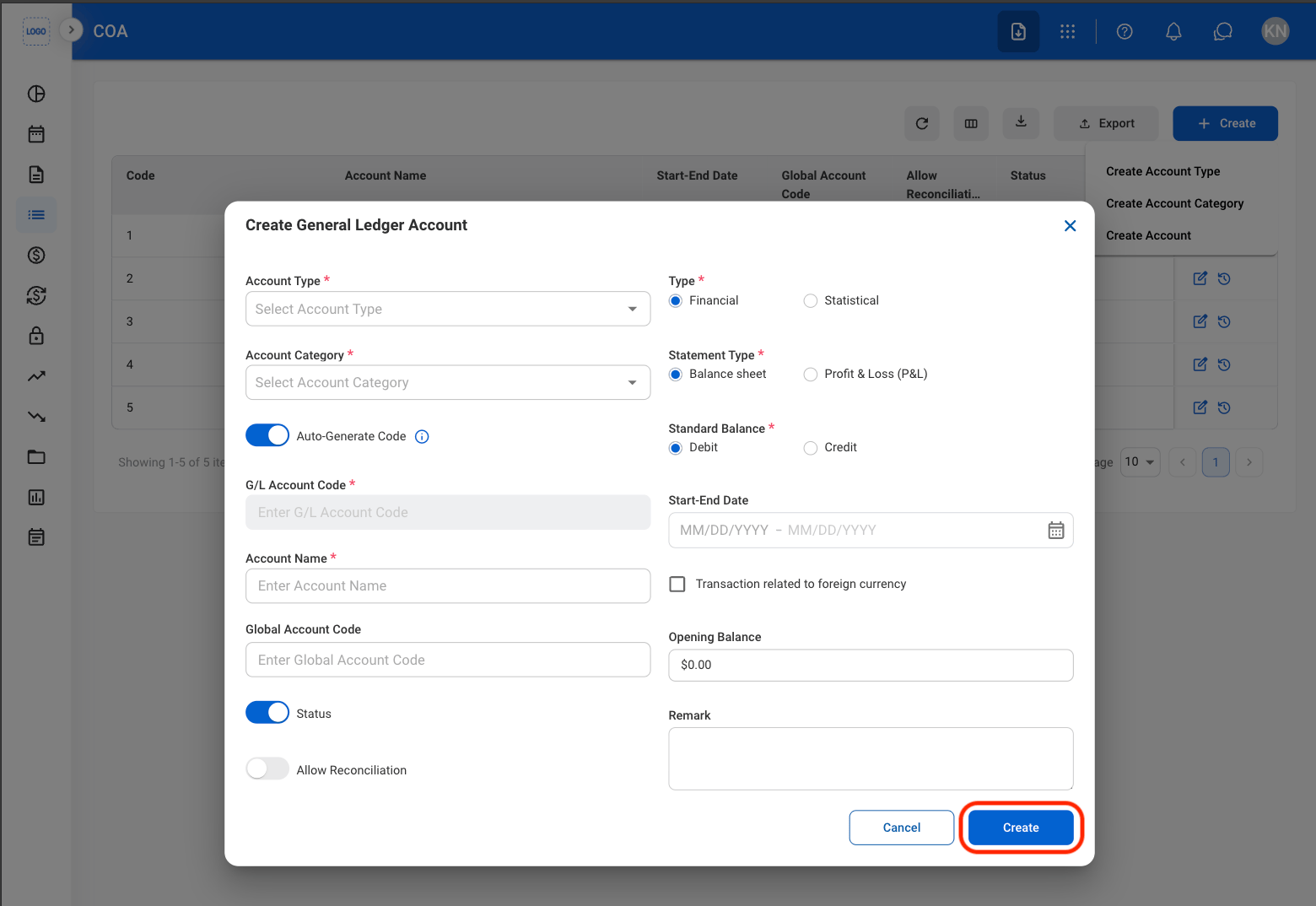
  <Step title="Fill in the required information ">
    <Frame>
      <img src="https://mintcdn.com/bizbone/Jsy5oFRS7gkIoPr-/images/A-M-COA-C.png?fit=max&auto=format&n=Jsy5oFRS7gkIoPr-&q=85&s=7cb97002f15726856116ce5b1e9b8abd" alt="A M COA C" width="1560" height="1074" data-path="images/A-M-COA-C.png" />
    </Frame>

    Select **Create** to complete or **Cancel** to exit without saving changes. 
  </Step>
</Steps>

## Modify General Ledger Account

<Steps>
  <Step title="Open a General Ledger Account">
    <Frame>
      <img src="https://mintcdn.com/bizbone/e1cqGEFCIODj8CuR/images/A-M-COA-GL-Open.png?fit=max&auto=format&n=e1cqGEFCIODj8CuR&q=85&s=ffb0a0b8a52cc5254bb16de99432ddd8" alt="A M COA GL Open" width="1560" height="1086" data-path="images/A-M-COA-GL-Open.png" />
    </Frame>
  </Step>

  <Step title="Select the Edit or Delete icon">
    <Frame>
      <img src="https://mintcdn.com/bizbone/Jsy5oFRS7gkIoPr-/images/A-M-COA-GL-Mod.png?fit=max&auto=format&n=Jsy5oFRS7gkIoPr-&q=85&s=73699f73ad64a2b29b0b57a752475f47" alt="A M COA GL Mod" width="1560" height="1086" data-path="images/A-M-COA-GL-Mod.png" />
    </Frame>
  </Step>

  <Step title="Fill in the required information">
    * **Edit**: Select **Save** to complete or **Cancel** to exit without saving changes. 
    * **Delete**: Select \*\*Delete \*\*to complete or **Cancel** to exit without saving changes. 
  </Step>
</Steps>

## View Account Version History

<Steps>
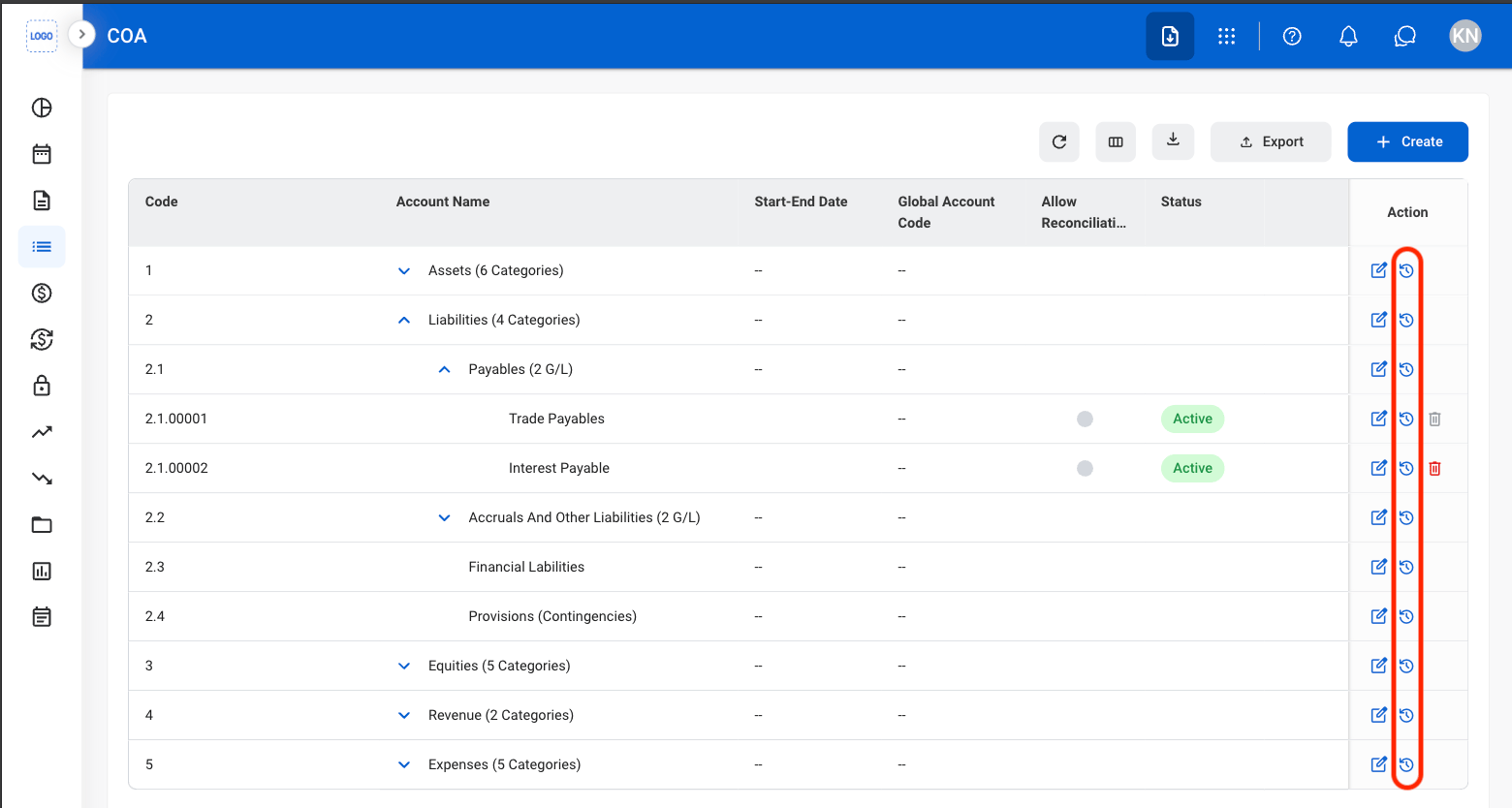
  <Step title="Select the History icon">
    <Frame>
      <img src="https://mintcdn.com/bizbone/e1cqGEFCIODj8CuR/images/A-M-COA-History.png?fit=max&auto=format&n=e1cqGEFCIODj8CuR&q=85&s=9af3ce7dd1ab4cc3787db8b8c1c3f960" alt="A M COA History" width="1560" height="834" data-path="images/A-M-COA-History.png" />
    </Frame>
  </Step>
</Steps>

## Export Chart of Accounts

<Steps>
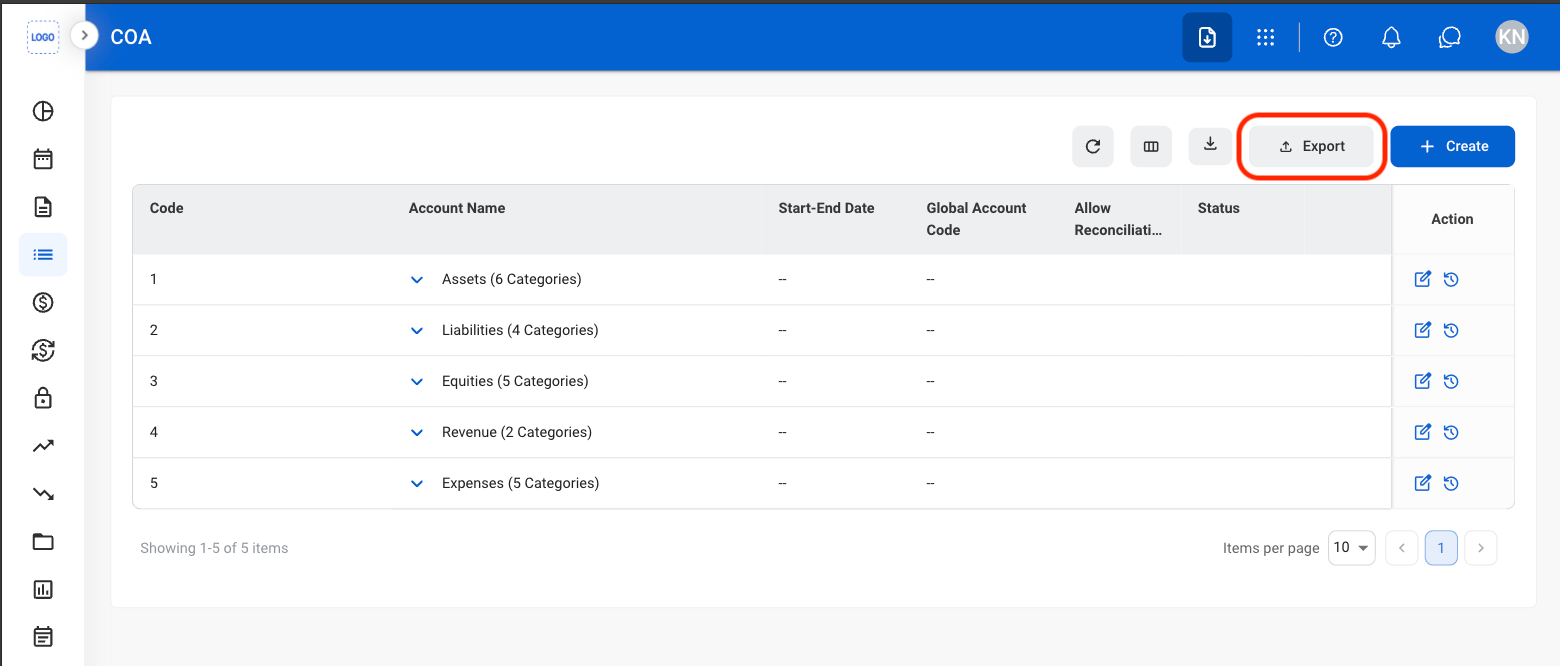
  <Step title="Select Export ">
    <Frame>
      <img src="https://mintcdn.com/bizbone/Jsy5oFRS7gkIoPr-/images/A-M-COA-Export.png?fit=max&auto=format&n=Jsy5oFRS7gkIoPr-&q=85&s=7a013e0b8fd6067f4cf3dd59336d3ea4" alt="A M COA Export" width="1560" height="666" data-path="images/A-M-COA-Export.png" />
    </Frame>

    Download the Chart of Accounts as an xlsx file.\\
  </Step>
</Steps>