> ## Documentation Index
> Fetch the complete documentation index at: https://docs.bizbone.com/llms.txt
> Use this file to discover all available pages before exploring further.

# Charge Code

Manage charge codes used to categorize and track costs throughout the organization.

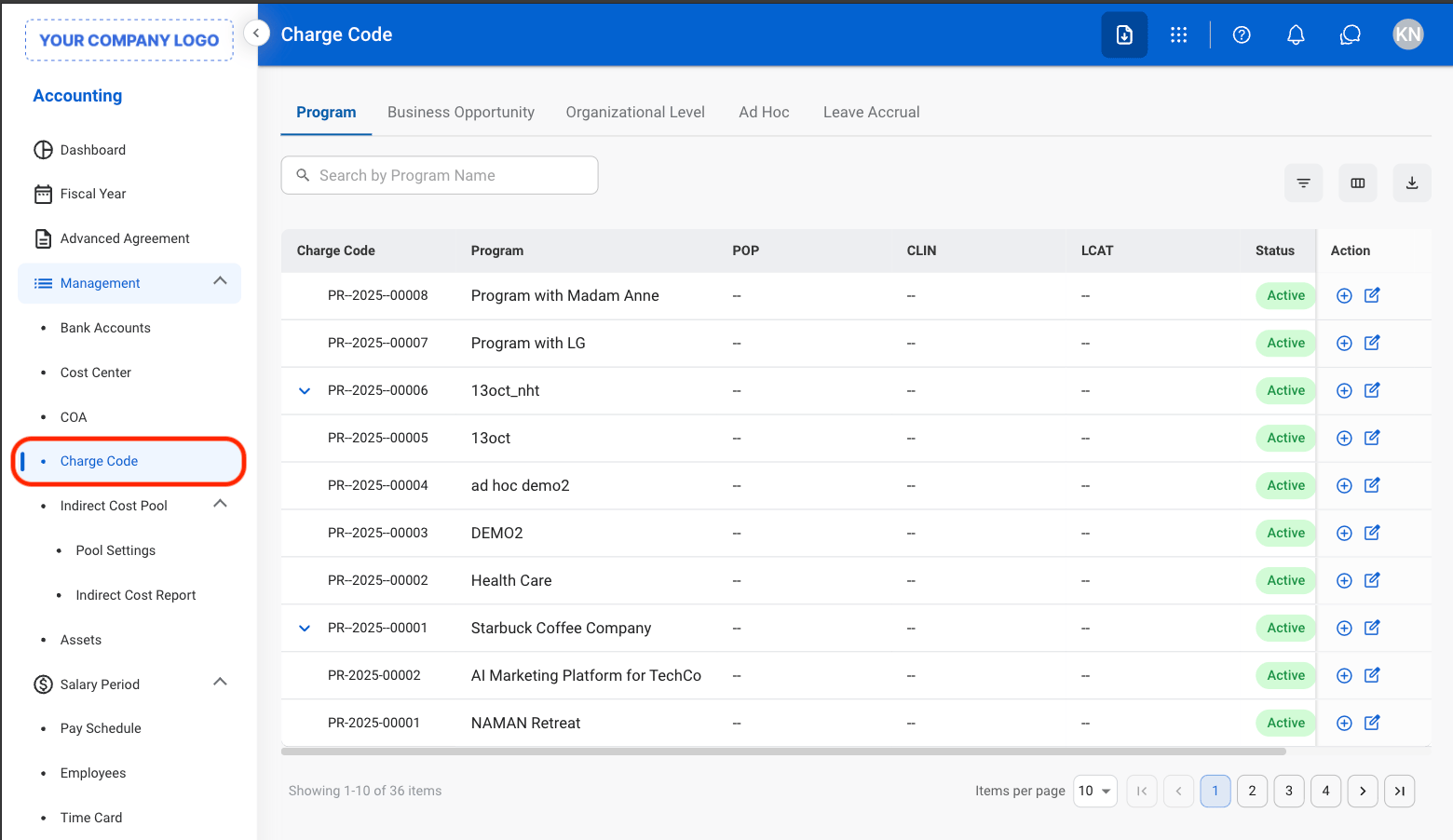
## Edit a Charge Code
<Steps>
  <Step title="Navigate to Charge Code">
    <Frame>
      <img src="https://mintcdn.com/bizbone/Jsy5oFRS7gkIoPr-/images/A-M-CC-Navigate.png?fit=max&auto=format&n=Jsy5oFRS7gkIoPr-&q=85&s=fe8a2b0b26f7f80b674cabdd05e0a9ce" alt="A M CC Navigate" width="1560" height="902" data-path="images/A-M-CC-Navigate.png" />
    </Frame>
  </Step>

  <Step title="Select a tab">
    <Frame>
      <img src="https://mintcdn.com/bizbone/Jsy5oFRS7gkIoPr-/images/A-M-CC-View.png?fit=max&auto=format&n=Jsy5oFRS7gkIoPr-&q=85&s=e93b3789e22213f6d73ef81637cf93ec" alt="A M CC View" width="1560" height="902" data-path="images/A-M-CC-View.png" />
    </Frame>
  </Step>

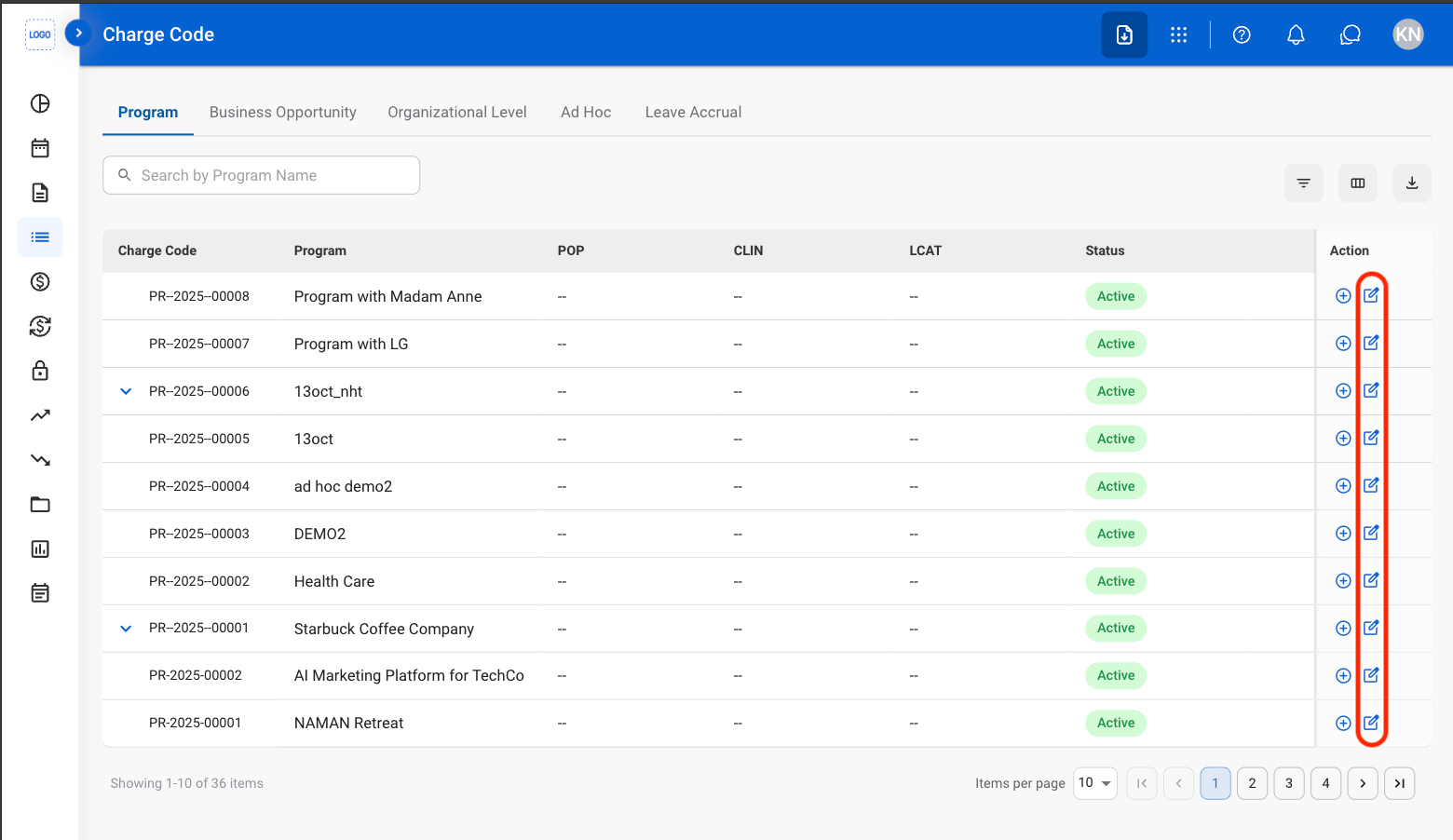
  <Step title="Select the Edit icon">
    <Frame>
      <img src="https://mintcdn.com/bizbone/Jsy5oFRS7gkIoPr-/images/A-M-CC-Edit-Icon.png?fit=max&auto=format&n=Jsy5oFRS7gkIoPr-&q=85&s=4d405499cc9bfbb1833b5f2a7b4acbf6" alt="A M CC Edit Icon" width="1560" height="902" data-path="images/A-M-CC-Edit-Icon.png" />
    </Frame>
  </Step>

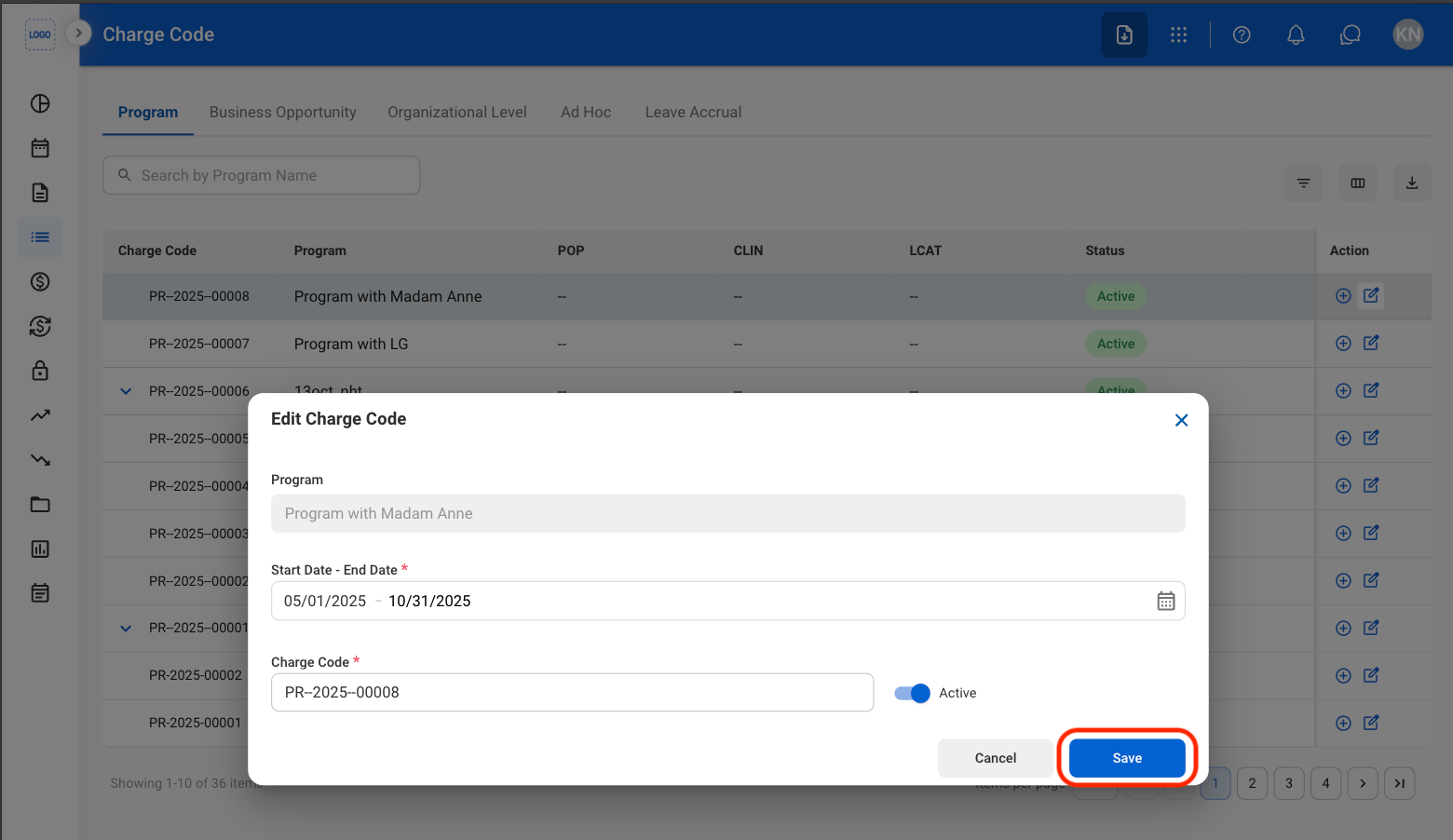
  <Step title="Fill in the required information ">
    <Frame>
      <img src="https://mintcdn.com/bizbone/Jsy5oFRS7gkIoPr-/images/A-M-CC-Edit-Conf.png?fit=max&auto=format&n=Jsy5oFRS7gkIoPr-&q=85&s=85e00fb080cd0112d59ffa3d4ea202df" alt="A M CC Edit Conf" width="1560" height="902" data-path="images/A-M-CC-Edit-Conf.png" />
    </Frame>
  </Step>
</Steps>

## Create a Charge Code

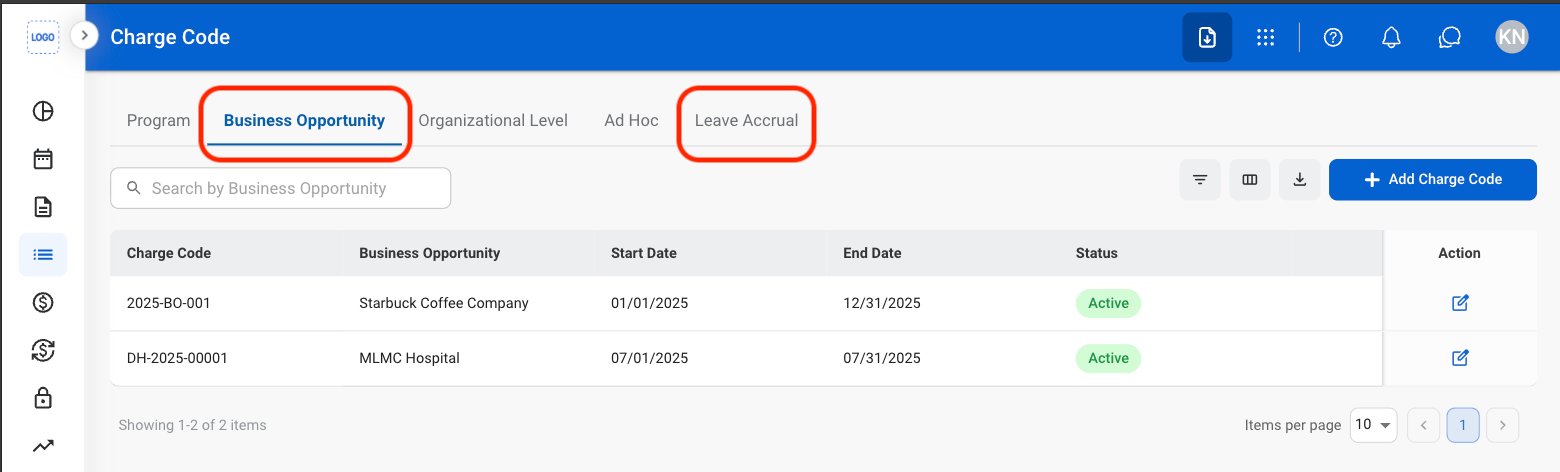
<Info>
  Charge Codes can only be created from the Business Opportunity and Ad Hoc tabs.
</Info>

<Steps>
  <Step title="Select a tab">
    <Frame>
      <img src="https://mintcdn.com/bizbone/Jsy5oFRS7gkIoPr-/images/A-M-CC-Create-Tab.png?fit=max&auto=format&n=Jsy5oFRS7gkIoPr-&q=85&s=e87d38df8d7f85dd2ca482a4f055d227" alt="A M CC Create Tab" width="1560" height="472" data-path="images/A-M-CC-Create-Tab.png" />
    </Frame>
  </Step>

  <Step title="Select Add Charge Code">
    <Frame>
      <img src="https://mintcdn.com/bizbone/Jsy5oFRS7gkIoPr-/images/A-M-CC-Add-CC.png?fit=max&auto=format&n=Jsy5oFRS7gkIoPr-&q=85&s=e3aea1884b2aa63db8d76e09b7b8c60e" alt="A M CC Add CC" width="1560" height="472" data-path="images/A-M-CC-Add-CC.png" />
    </Frame>
  </Step>

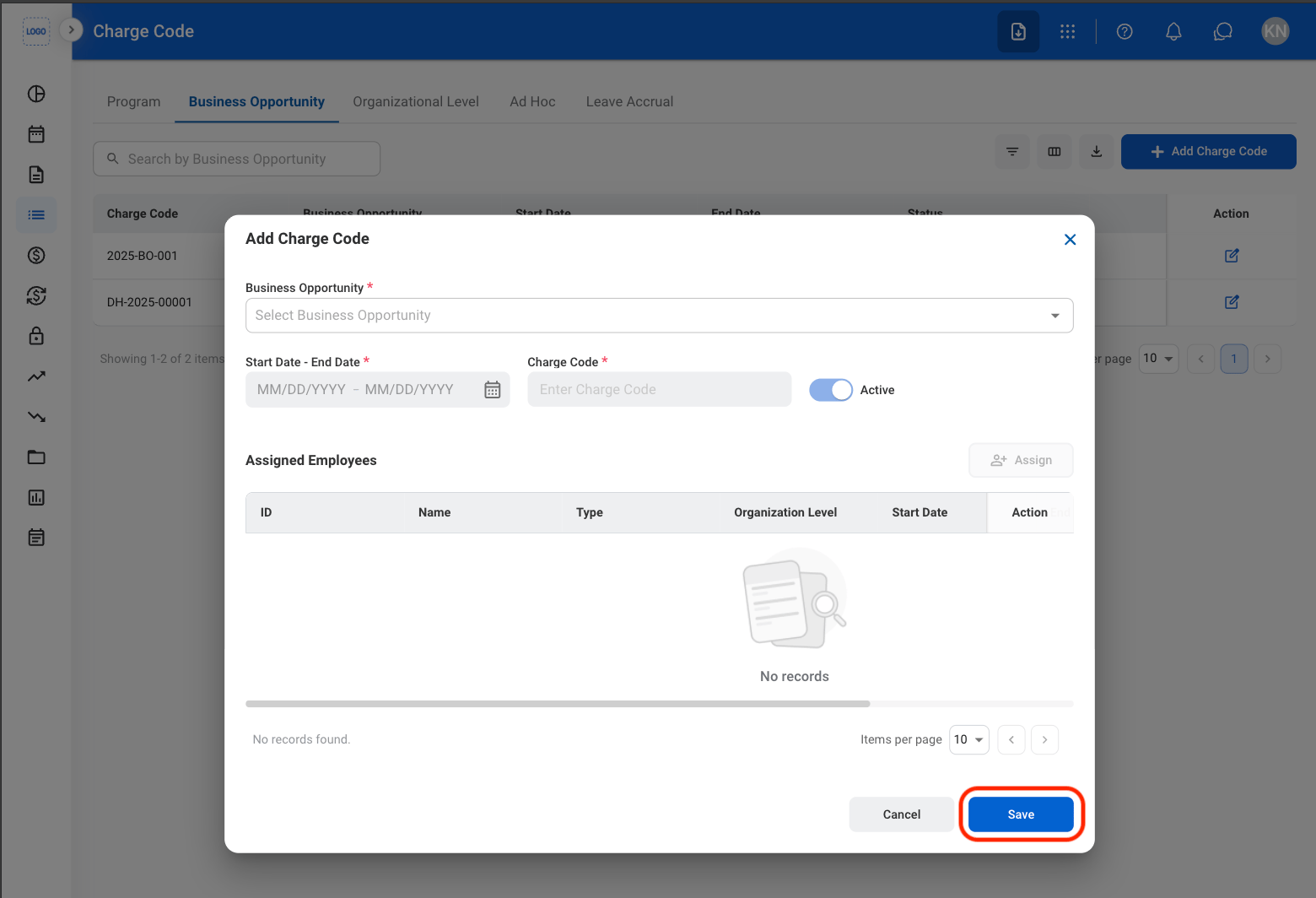
  <Step title="Fill in the required information">
    <Frame>
      <img src="https://mintcdn.com/bizbone/Jsy5oFRS7gkIoPr-/images/A-M-CC-Conf-Add-CC.png?fit=max&auto=format&n=Jsy5oFRS7gkIoPr-&q=85&s=f23e2f25d96cd12ce333f6bc7f592b99" alt="A M CC Conf Add CC" width="1560" height="1064" data-path="images/A-M-CC-Conf-Add-CC.png" />
    </Frame>
  </Step>
</Steps>

## Create a Sub Charge Code

<Info>
  Sub Charge Codes can only be created from the Program tab.
</Info>

<Steps>
  <Step title="Select the Program tab">
    <Frame>
      <img src="https://mintcdn.com/bizbone/Jsy5oFRS7gkIoPr-/images/A-M-CC-Program.png?fit=max&auto=format&n=Jsy5oFRS7gkIoPr-&q=85&s=0d8f388da3760e3080e61f733860ff00" alt="A M CC Program" width="1560" height="880" data-path="images/A-M-CC-Program.png" />
    </Frame>
  </Step>

  <Step title="Select the Add icon">
    <Frame>
      <img src="https://mintcdn.com/bizbone/Jsy5oFRS7gkIoPr-/images/A-M-CC-Add-Sub-CC.png?fit=max&auto=format&n=Jsy5oFRS7gkIoPr-&q=85&s=d6211ab019f6234dff6c636793b4273c" alt="A M CC Add Sub CC" width="1560" height="880" data-path="images/A-M-CC-Add-Sub-CC.png" />
    </Frame>
  </Step>

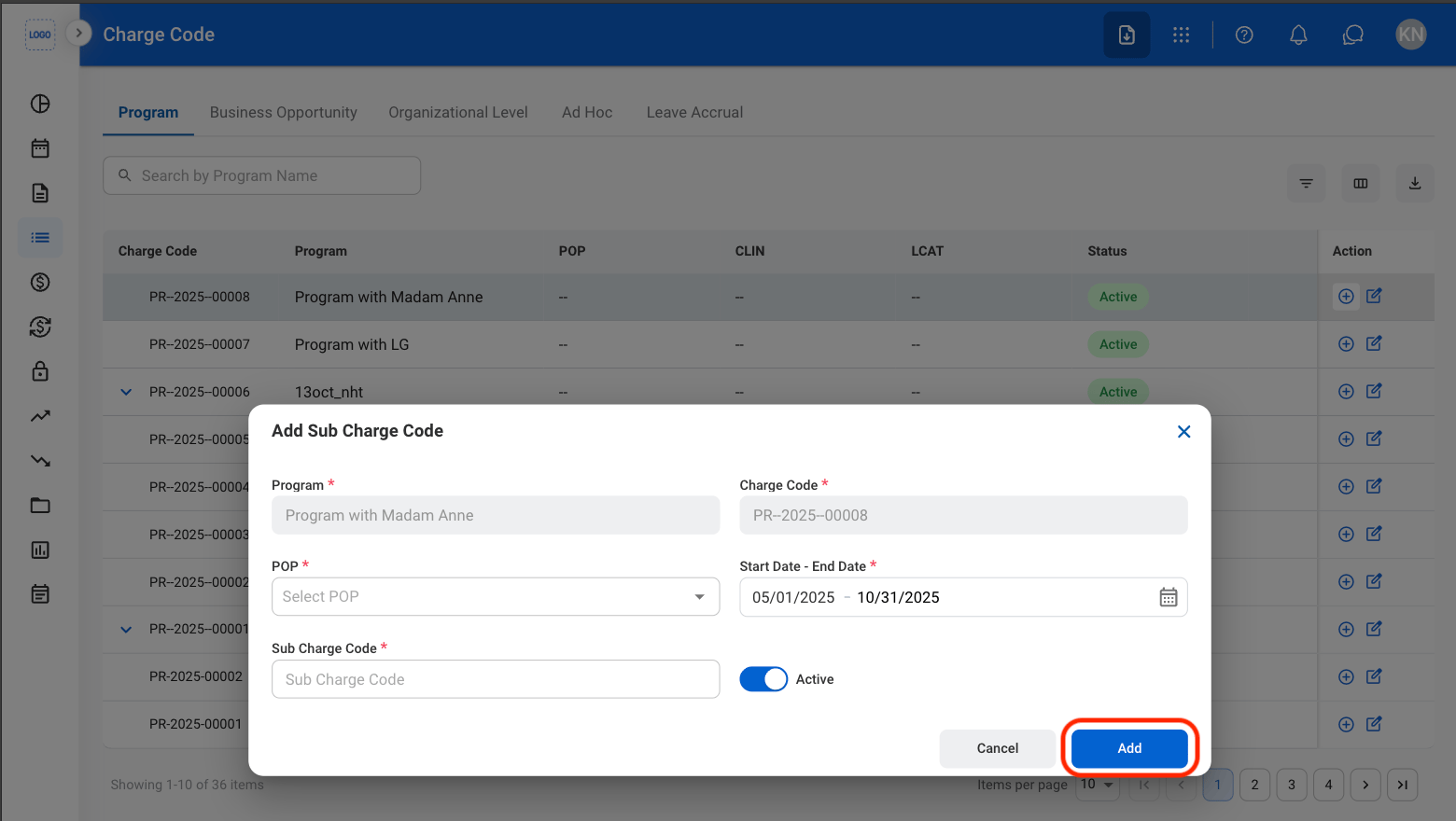
  <Step title="Fill in the required information">
    <Frame>
      <img src="https://mintcdn.com/bizbone/Jsy5oFRS7gkIoPr-/images/A-M-CC-Sub-C.png?fit=max&auto=format&n=Jsy5oFRS7gkIoPr-&q=85&s=de15902b813be63289a92f4a62b27824" alt="A M CC Sub C" width="1560" height="880" data-path="images/A-M-CC-Sub-C.png" />
    </Frame>

    Select **Add** to complete or **Cancel** to exit without saving changes. 
  </Step>
</Steps>

## Request to Create a Charge Code

<Steps>
  <Step title="Select the Request tab" />

  <Step title="Select the Add icon" />

  <Step title="Fill in the required information" />
</Steps>