> ## Documentation Index
> Fetch the complete documentation index at: https://docs.bizbone.com/llms.txt
> Use this file to discover all available pages before exploring further.
# Cash Receipt
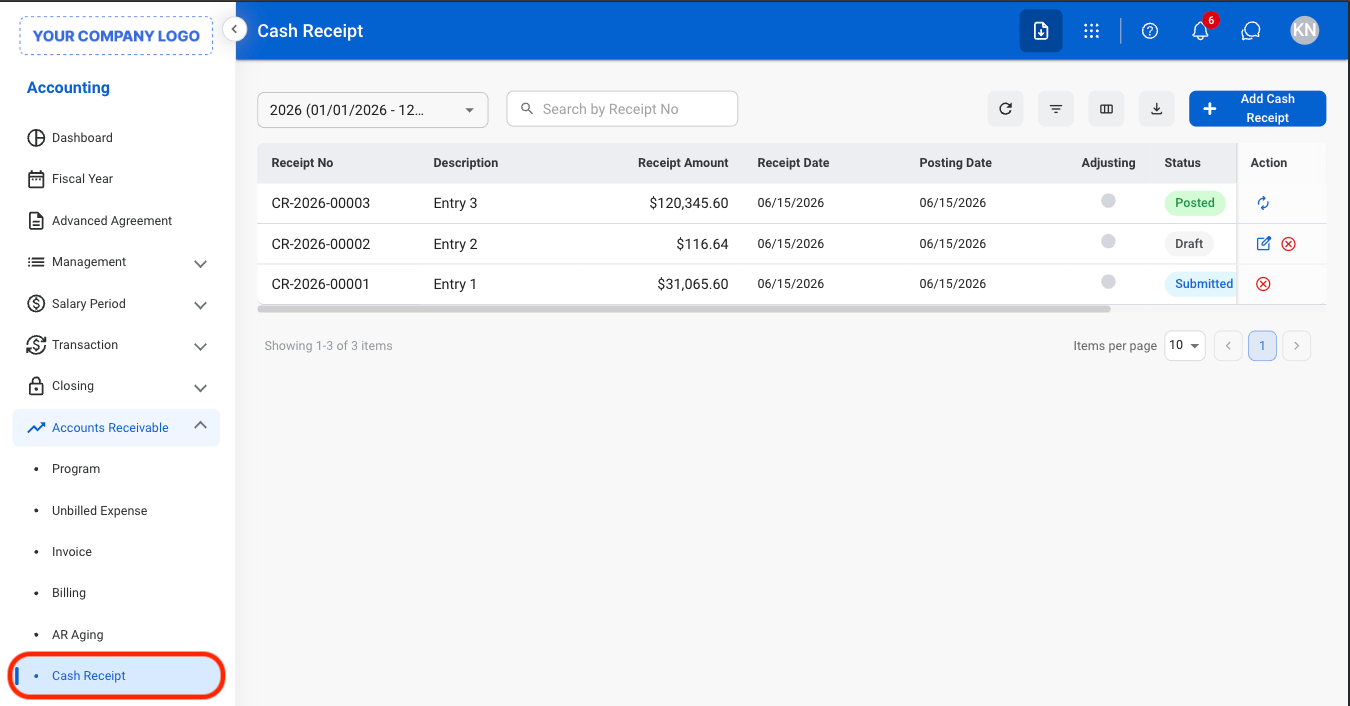
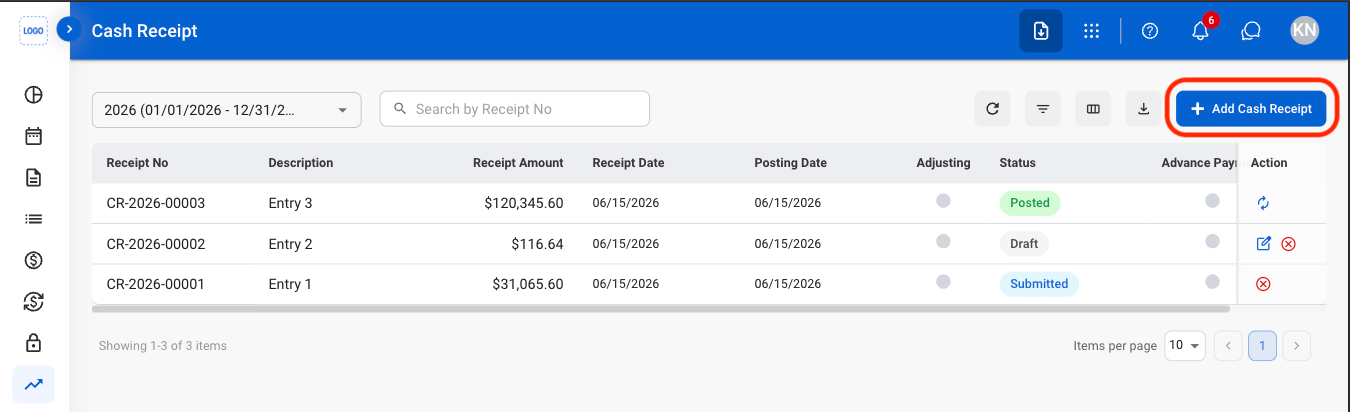
Record and manage payments received from clients against invoices or billings. Supports tracking of receipt details, payment history, and change logs.
## Add Cash Receipt
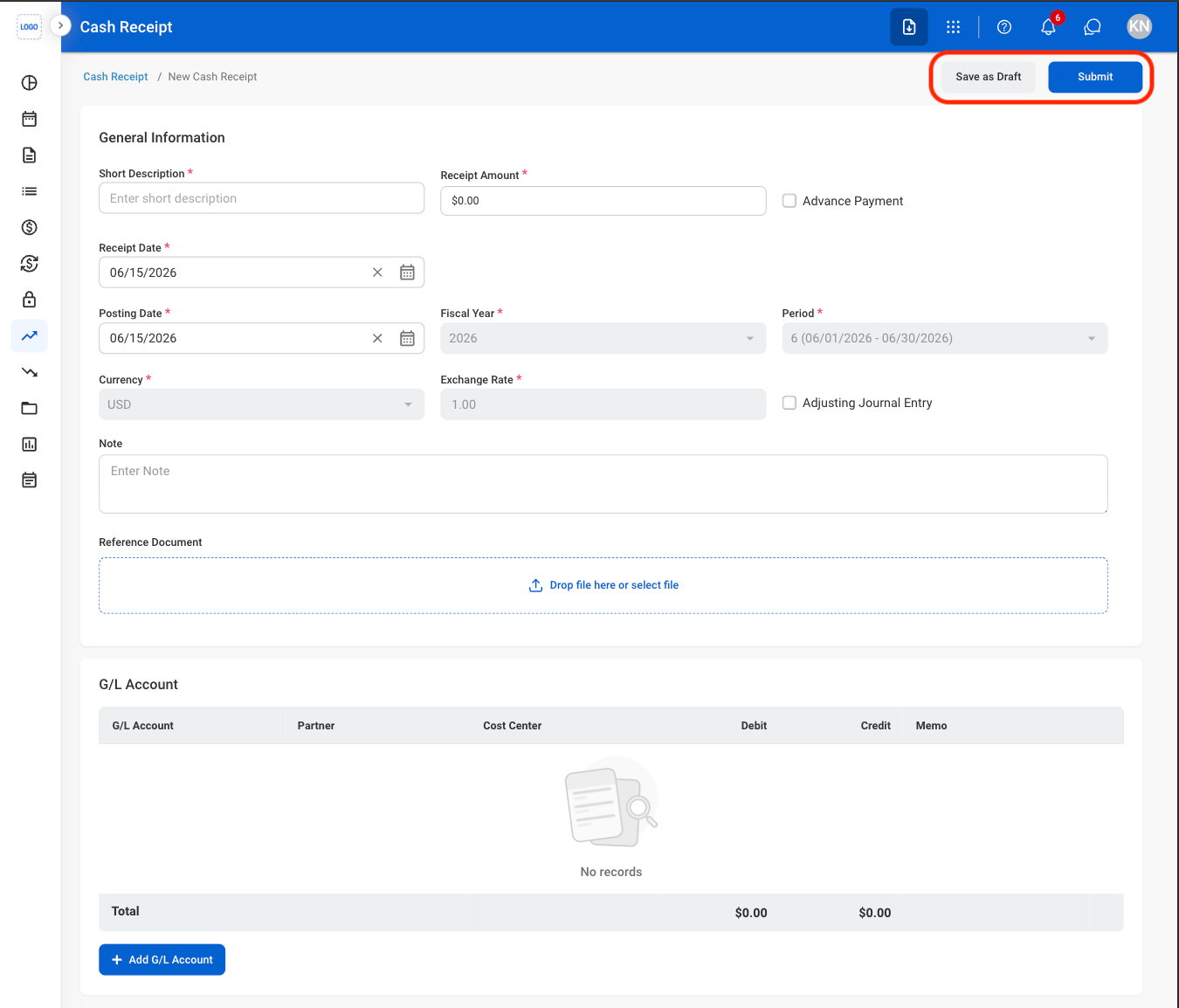 Select **Submit** to complete or **Save as Draft** to save the record without submitting.
## Modify a Cash Receipt
Select **Submit** to complete or **Save as Draft** to save the record without submitting.
## Modify a Cash Receipt
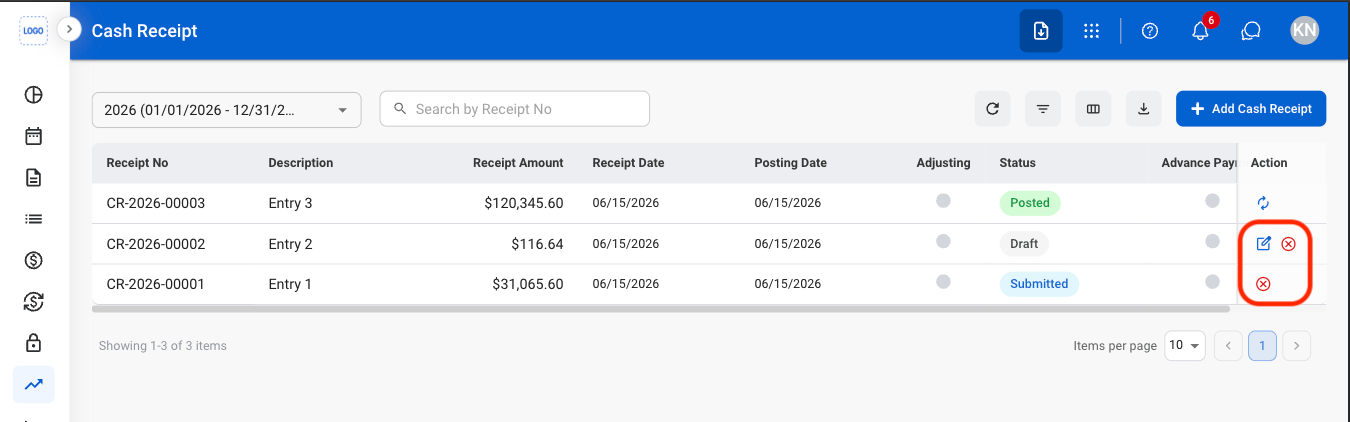 * **Edit:** Update cash receipt details before it is finalized or processed in the billing workflow.
* **Delete:** Permanently remove a draft cash receipt that has not been submitted for processing.
* **Cancel:** Cancel a submitted cash receipt and remove it from the billing workflow while preserving its record for audit purposes.
* **Edit:** Fill in the required information. Select **Submit** to complete or **Save** to exit and save as draft.
* **Delete:** Select **Delete** to complete or **Cancel** to exit without saving changes.
* **Cancel**: Select **Confirm** to complete or **Cancel** to exit without saving changes.
## Review a Cash Receipt
Cash receipts must be in Submitted status before they can be reviewed.
* **Edit:** Update cash receipt details before it is finalized or processed in the billing workflow.
* **Delete:** Permanently remove a draft cash receipt that has not been submitted for processing.
* **Cancel:** Cancel a submitted cash receipt and remove it from the billing workflow while preserving its record for audit purposes.
* **Edit:** Fill in the required information. Select **Submit** to complete or **Save** to exit and save as draft.
* **Delete:** Select **Delete** to complete or **Cancel** to exit without saving changes.
* **Cancel**: Select **Confirm** to complete or **Cancel** to exit without saving changes.
## Review a Cash Receipt
Cash receipts must be in Submitted status before they can be reviewed.
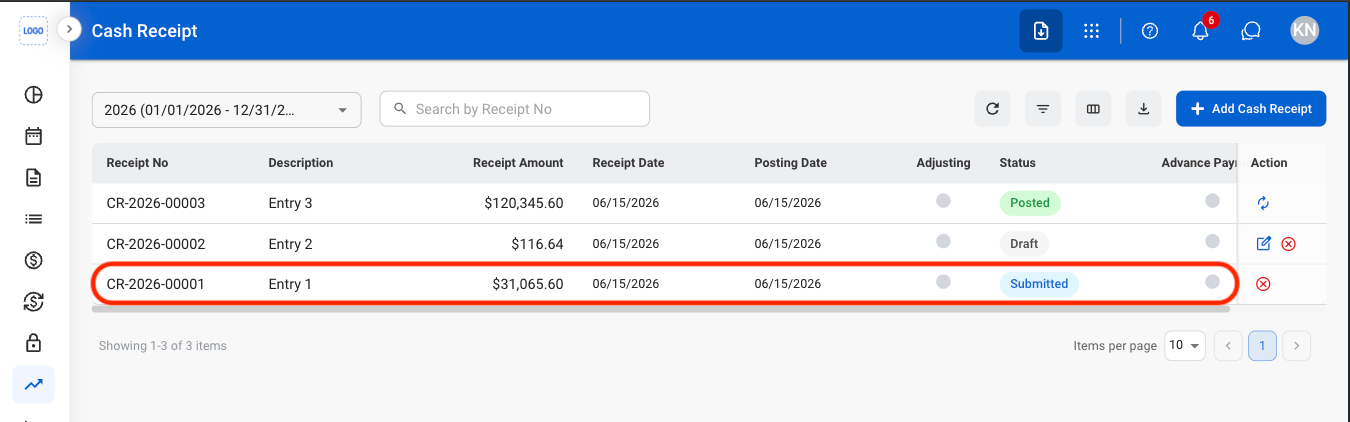
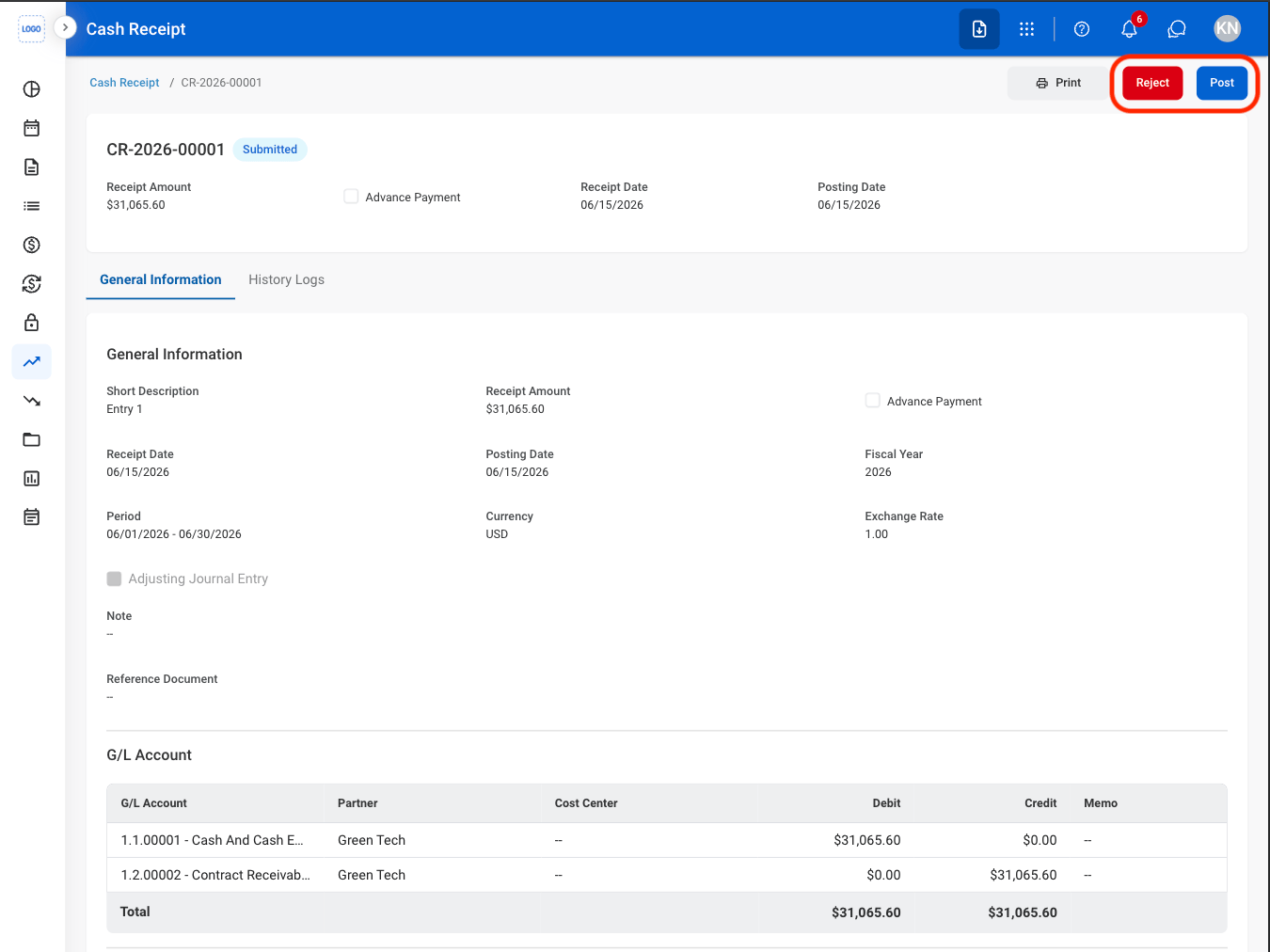 * **Reject:** The status changes to Rejected and the cash receipt is not posted to the General Ledger.
* **Post**: The status changes to Posted and the cash receipt is recorded in the General Ledger.
* **Reject:** Enter a rejection reason. Select **Reject** to complete or **Cancel** to exit without saving changes.
* **Post**: Select **Confirm** to complete or **Cancel** to exit without saving changes.
## Reverse a Cash Receipt
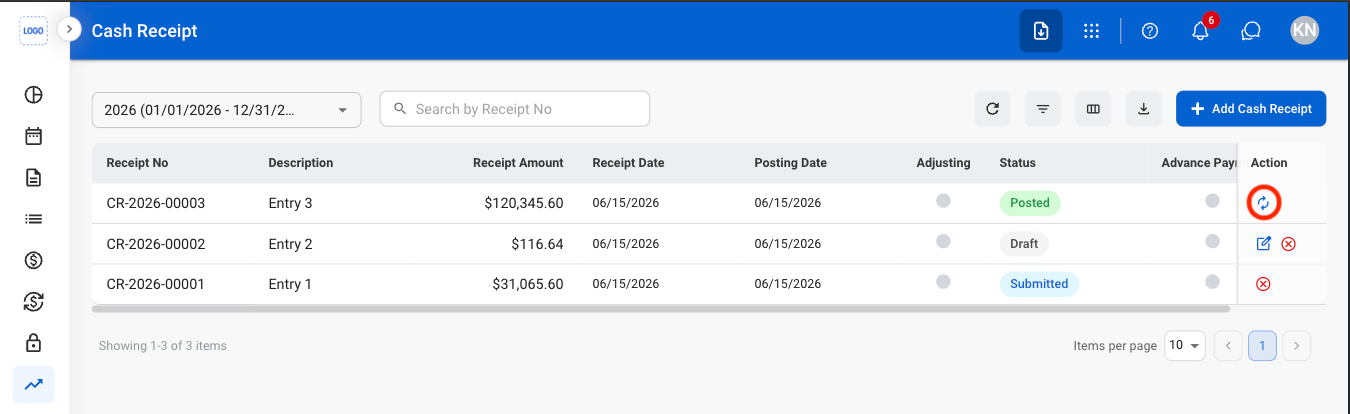
Reverse the cash receipt by creating an offsetting transaction. The original cash receipt record remains in the system and a reversing entry is recorded in the General Ledger.
The Reverse action is only available for posted cash receipts.
* **Reject:** The status changes to Rejected and the cash receipt is not posted to the General Ledger.
* **Post**: The status changes to Posted and the cash receipt is recorded in the General Ledger.
* **Reject:** Enter a rejection reason. Select **Reject** to complete or **Cancel** to exit without saving changes.
* **Post**: Select **Confirm** to complete or **Cancel** to exit without saving changes.
## Reverse a Cash Receipt
Reverse the cash receipt by creating an offsetting transaction. The original cash receipt record remains in the system and a reversing entry is recorded in the General Ledger.
The Reverse action is only available for posted cash receipts.
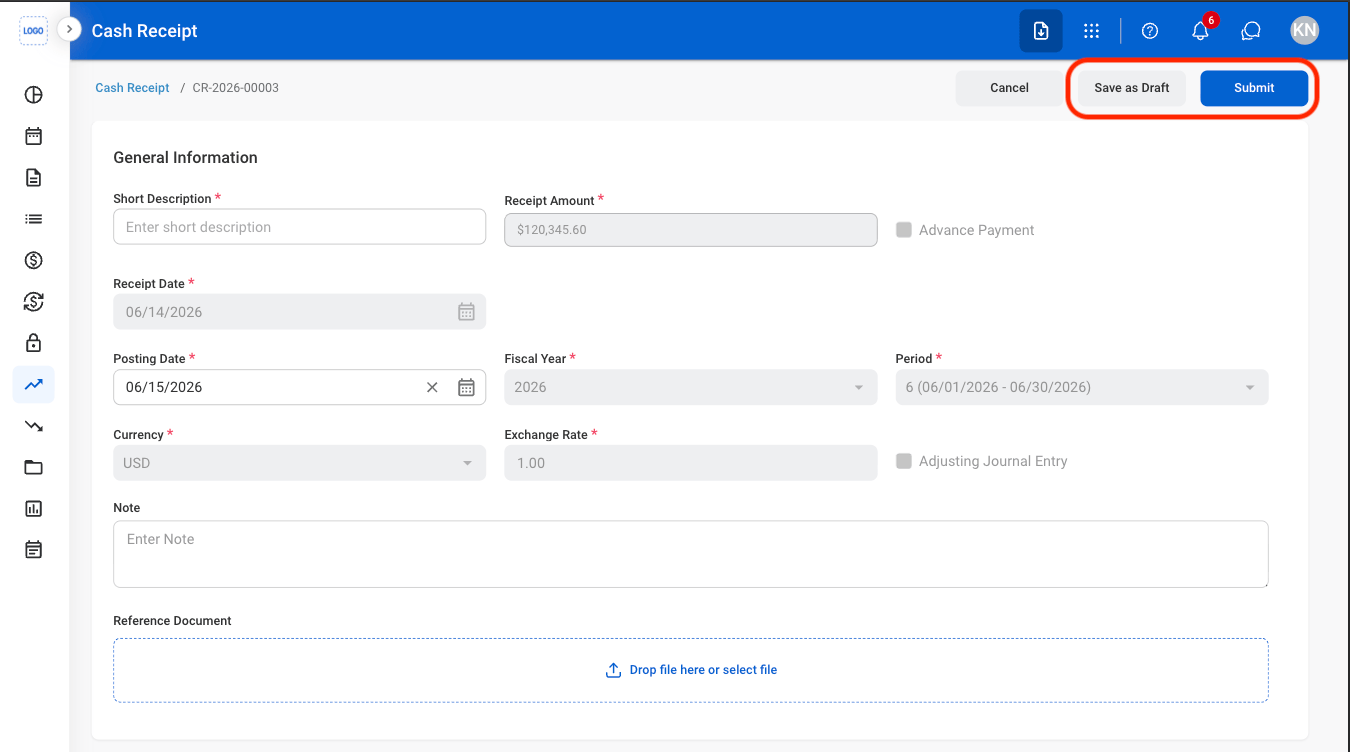 Select **Submit** to complete or **Save as Draft** to save the record without submitting.