> ## Documentation Index
> Fetch the complete documentation index at: https://docs.bizbone.com/llms.txt
> Use this file to discover all available pages before exploring further.

# Invoice

Manage invoices received from subcontractors, consultants, and vendors. Supports invoice creation, review, approval, and processing as part of the accounts payable workflow.

## Create an Invoice: Manual Entry
<Steps>
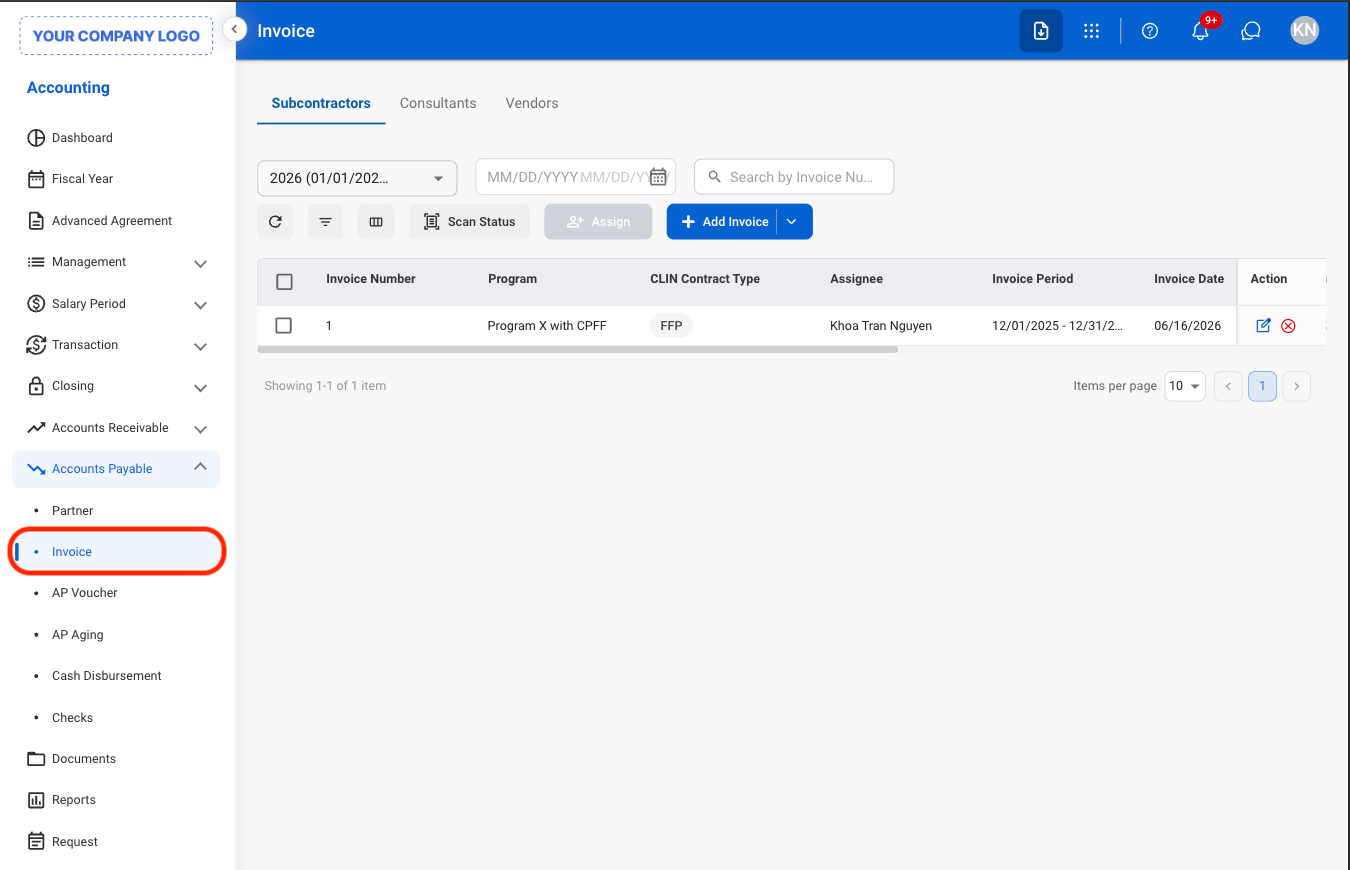
  <Step title="Navigate to Invoice">
    <Frame>
      <img src="https://mintcdn.com/bizbone/0ql_iPMXm4wX7du4/images/A-AP-I-Nav.png?fit=max&auto=format&n=0ql_iPMXm4wX7du4&q=85&s=b0e70741d97db7dd1f1509dcb8bf3e85" alt="A AP I Nav" width="1350" height="870" data-path="images/A-AP-I-Nav.png" />
    </Frame>
  </Step>

  <Step title="Select a tab">
    <Frame>
      <img src="https://mintcdn.com/bizbone/0ql_iPMXm4wX7du4/images/A-AP-I-Tab.png?fit=max&auto=format&n=0ql_iPMXm4wX7du4&q=85&s=7815669d8ff929c321e164e9746ea1bc" alt="A AP I Tab" width="1350" height="456" data-path="images/A-AP-I-Tab.png" />
    </Frame>
  </Step>

  <Step title="Select Add Invoice">
    <Frame>
      <img src="https://mintcdn.com/bizbone/0ql_iPMXm4wX7du4/images/A-AP-I-Add.png?fit=max&auto=format&n=0ql_iPMXm4wX7du4&q=85&s=310d6baea4e0e145adf9bd0d6a514a93" alt="A AP I Add" width="1350" height="456" data-path="images/A-AP-I-Add.png" />
    </Frame>
  </Step>

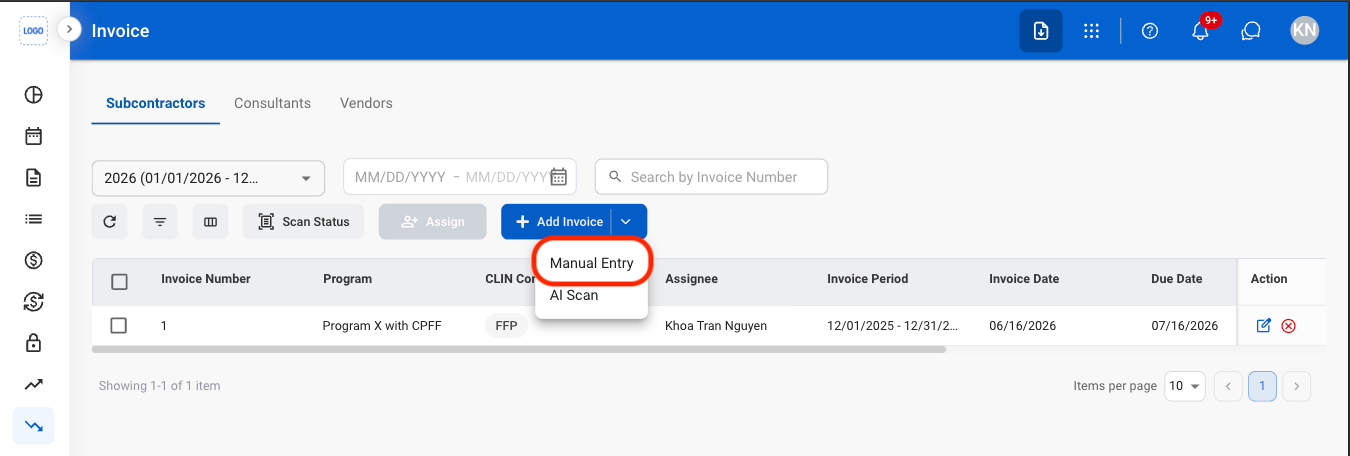
  <Step title="Select Manual Entry">
    <Frame>
      <img src="https://mintcdn.com/bizbone/0ql_iPMXm4wX7du4/images/A-AP-I-Manual.png?fit=max&auto=format&n=0ql_iPMXm4wX7du4&q=85&s=2e4960d20a5a7f00fc7e3df3cf4bb8ad" alt="A AP I Manual" width="1350" height="456" data-path="images/A-AP-I-Manual.png" />
    </Frame>
  </Step>

  <Step title="Fill in the required information">
    <Frame>
      <img src="https://mintcdn.com/bizbone/0ql_iPMXm4wX7du4/images/A-AP-I-Manual-C.png?fit=max&auto=format&n=0ql_iPMXm4wX7du4&q=85&s=2be66bb1fe7ffc95a620254a376b084f" alt="A AP I Manual C" width="1350" height="830" data-path="images/A-AP-I-Manual-C.png" />
    </Frame>

    Select **Submit** to complete or **Save as Draft** to save the record without submitting. 
  </Step>
</Steps>

## Create an Invoice: AI Scan

<Steps>
  <Step title="Select a tab">
    <Frame>
      <img src="https://mintcdn.com/bizbone/0ql_iPMXm4wX7du4/images/A-AP-I-Tab.png?fit=max&auto=format&n=0ql_iPMXm4wX7du4&q=85&s=7815669d8ff929c321e164e9746ea1bc" alt="A AP I Tab" width="1350" height="456" data-path="images/A-AP-I-Tab.png" />
    </Frame>
  </Step>

  <Step title="Select Add Invoice">
    <Frame>
      <img src="https://mintcdn.com/bizbone/0ql_iPMXm4wX7du4/images/A-AP-I-Add.png?fit=max&auto=format&n=0ql_iPMXm4wX7du4&q=85&s=310d6baea4e0e145adf9bd0d6a514a93" alt="A AP I Add" width="1350" height="456" data-path="images/A-AP-I-Add.png" />
    </Frame>
  </Step>

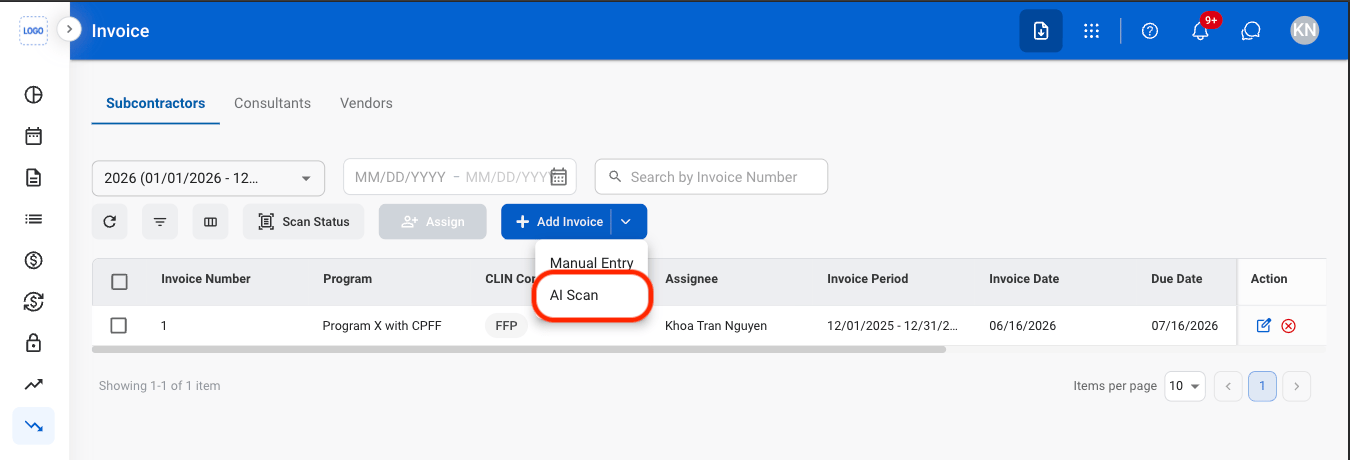
  <Step title="Select AI Scan">
    <Frame>
      <img src="https://mintcdn.com/bizbone/0ql_iPMXm4wX7du4/images/A-AP-I-Scan.png?fit=max&auto=format&n=0ql_iPMXm4wX7du4&q=85&s=96d276b42d29e0674188017fee4d55fd" alt="A AP I Scan" width="1350" height="460" data-path="images/A-AP-I-Scan.png" />
    </Frame>
  </Step>

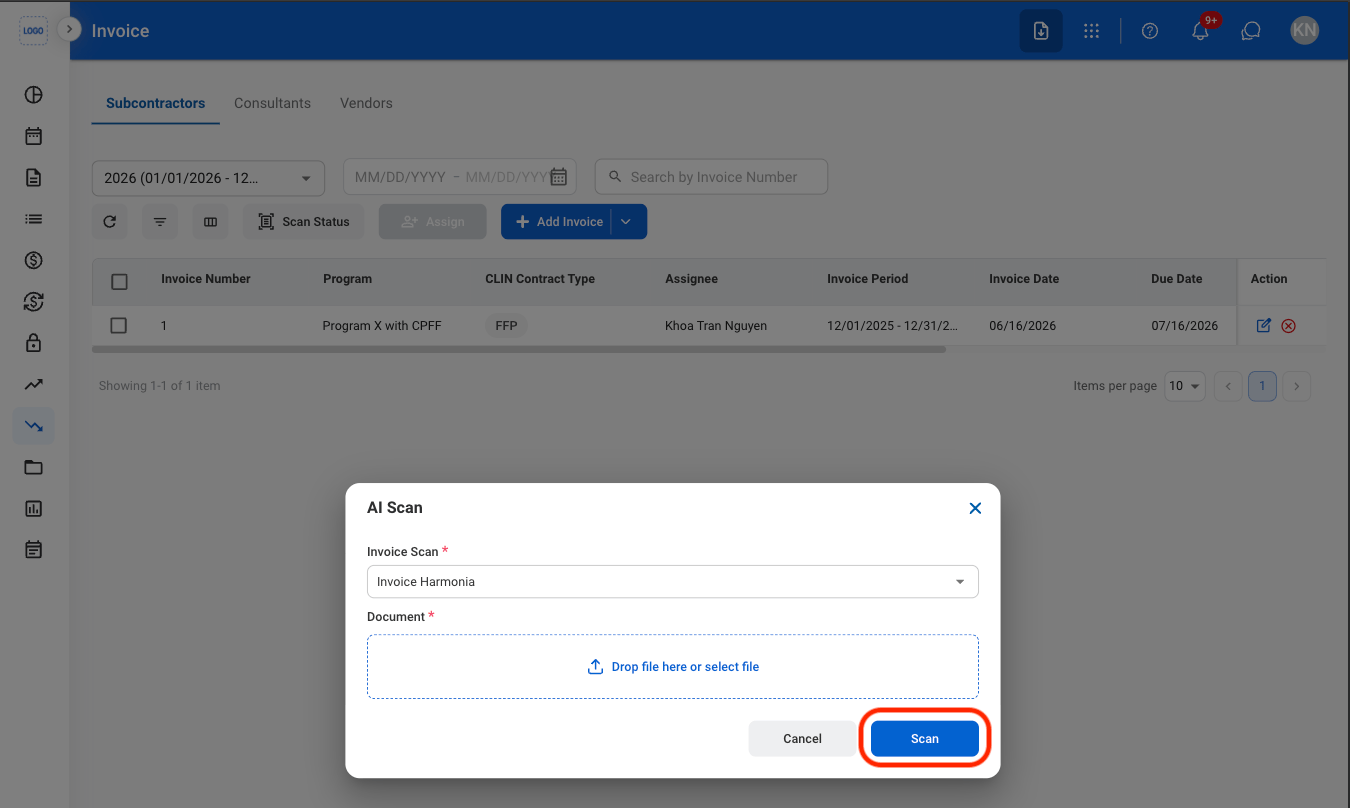
  <Step title="Upload an invoice">
    <Frame>
      <img src="https://mintcdn.com/bizbone/0ql_iPMXm4wX7du4/images/A-AP-I-Upload.png?fit=max&auto=format&n=0ql_iPMXm4wX7du4&q=85&s=03bd145f6eba26d0c95aca88c0125c37" alt="A AP I Upload" width="1350" height="808" data-path="images/A-AP-I-Upload.png" />
    </Frame>

    <Info>
      Only PDF files are supported for OCR scanning. If required information cannot be matched to existing system records, the message "Data could not be extracted" is displayed.
    </Info>

    Select **Scan** to complete or Cancel to exit without saving changes. 
  </Step>

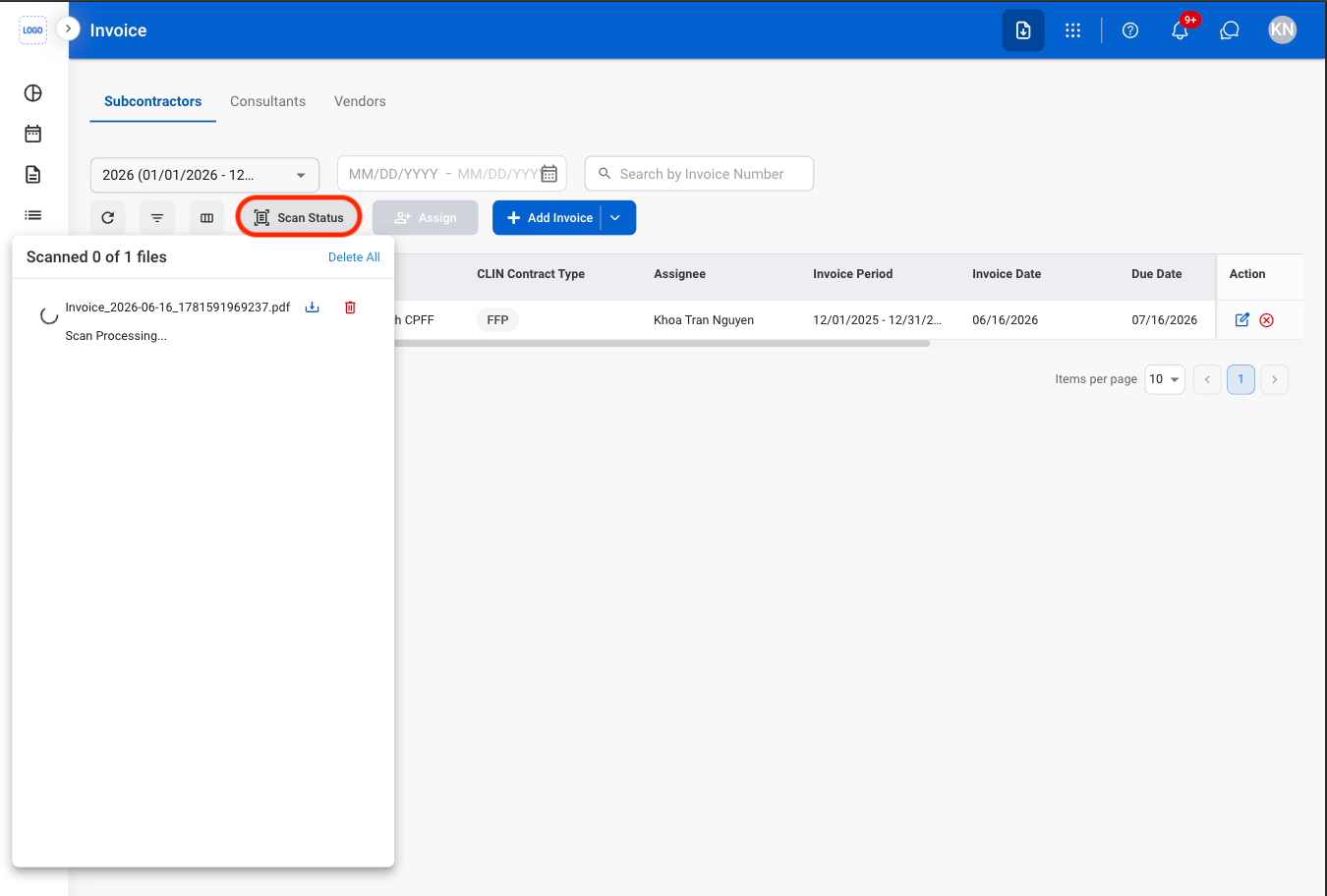
  <Step title="Select Scan Status to monitor progress">
    <Frame>
      <img src="https://mintcdn.com/bizbone/0ql_iPMXm4wX7du4/images/A-AP-I-Scan-Status.png?fit=max&auto=format&n=0ql_iPMXm4wX7du4&q=85&s=1a0f79859a41e5ae150d824050d7752e" alt="A AP I Scan Status" width="1350" height="912" data-path="images/A-AP-I-Scan-Status.png" />
    </Frame>

    <Info>
      If OCR scanning fails, select **Retry** to scan the file again or use **Manual Entry** to enter the invoice information manually.
    </Info>
  </Step>

  <Step title="Select the file to open the Add Invoice page">
    <Frame>
      <img src="https://mintcdn.com/bizbone/0ql_iPMXm4wX7du4/images/A-AP-I-Scan-File.png?fit=max&auto=format&n=0ql_iPMXm4wX7du4&q=85&s=0ee97c3bba7896bca2b5337f59c8957f" alt="A AP I Scan File" width="1350" height="908" data-path="images/A-AP-I-Scan-File.png" />
    </Frame>
  </Step>

  <Step title="Review the scanned information">
    <Frame>
      <img src="https://mintcdn.com/bizbone/0ql_iPMXm4wX7du4/images/A-AP-I-Scan-C.png?fit=max&auto=format&n=0ql_iPMXm4wX7du4&q=85&s=3c2ef75cbf67278c1eec5910e45396af" alt="A AP I Scan C" width="1350" height="938" data-path="images/A-AP-I-Scan-C.png" />
    </Frame>

    Select **Submit** to complete or **Save as Draft** to save the record without submitting. 
  </Step>
</Steps>

## Modify an Invoice

<Steps>
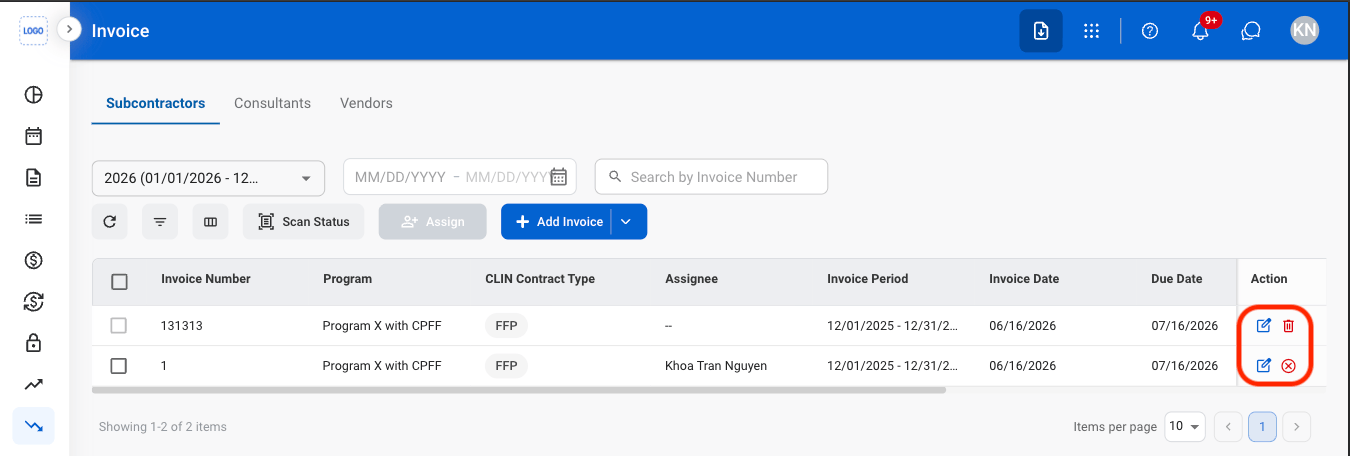
  <Step title="Select an action">
    <Frame>
      <img src="https://mintcdn.com/bizbone/0ql_iPMXm4wX7du4/images/A-AP-I-Modify.png?fit=max&auto=format&n=0ql_iPMXm4wX7du4&q=85&s=06c0778afd9fa6442f7fd85a3d124835" alt="A AP I Modify" width="1350" height="456" data-path="images/A-AP-I-Modify.png" />
    </Frame>

    * Edit: Update invoice details before it is finalized or processed in the billing workflow.
    * Delete: Permanently remove a draft invoice that has not been submitted for processing.
    * Cancel: Cancel a submitted invoice and remove it from the billing workflow while preserving its record for audit purposes.
  </Step>

  <Step title="Confirm the action">
    * **Edit:** Fill in the required information. Select **Submit** to complete, **Save as Draft** to save the record without submitting, or **Cancel** to exit without saving changes. 
    * **Delete:** Select **Delete** to complete or **Cancel** to exit without saving changes. 
    * **Cancel**: Select **Confirm** to complete or **Cancel** to exit without saving changes. 
  </Step>
</Steps>

## Assign an Invoice

<Steps>
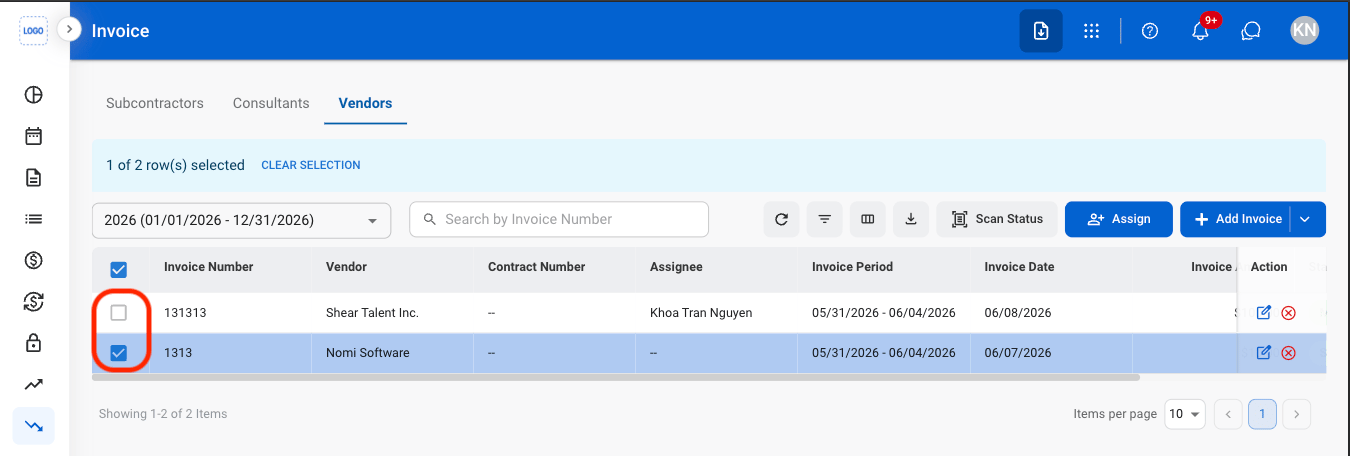
  <Step title="Select an invoice checkbox">
    <Frame>
      <img src="https://mintcdn.com/bizbone/0ql_iPMXm4wX7du4/images/A-AP-I-Check.png?fit=max&auto=format&n=0ql_iPMXm4wX7du4&q=85&s=a206e5ee49d859f3c7eaee21a7aa3090" alt="A AP I Check" width="1350" height="456" data-path="images/A-AP-I-Check.png" />
    </Frame>
  </Step>

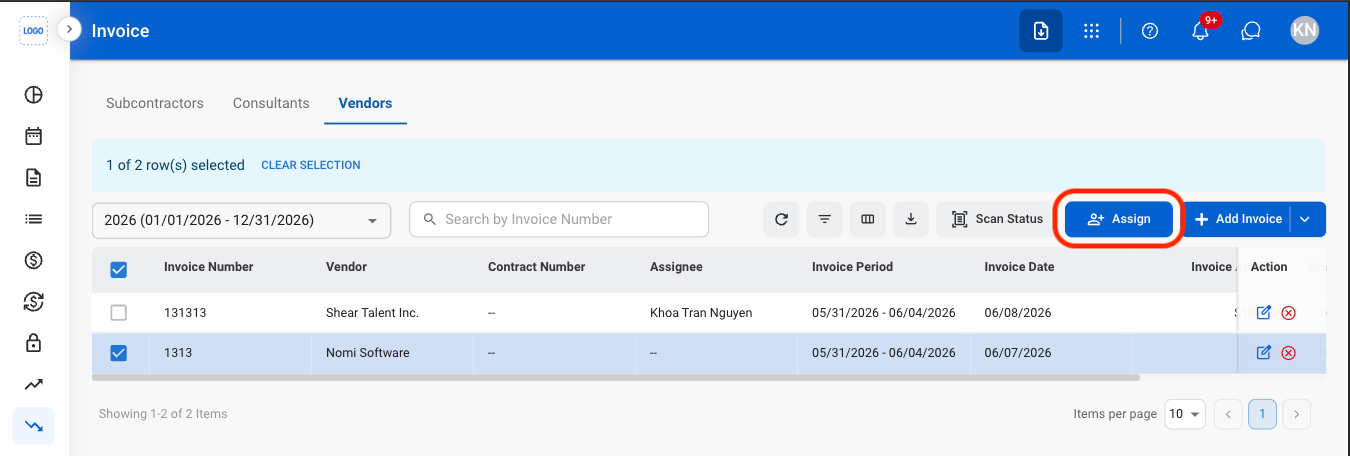
  <Step title="Select Assign">
    <Frame>
      <img src="https://mintcdn.com/bizbone/0ql_iPMXm4wX7du4/images/A-AP-I-Assign.png?fit=max&auto=format&n=0ql_iPMXm4wX7du4&q=85&s=4de839bf5bb128861be1d0ceb764ae2b" alt="A AP I Assign" width="1350" height="456" data-path="images/A-AP-I-Assign.png" />
    </Frame>
  </Step>

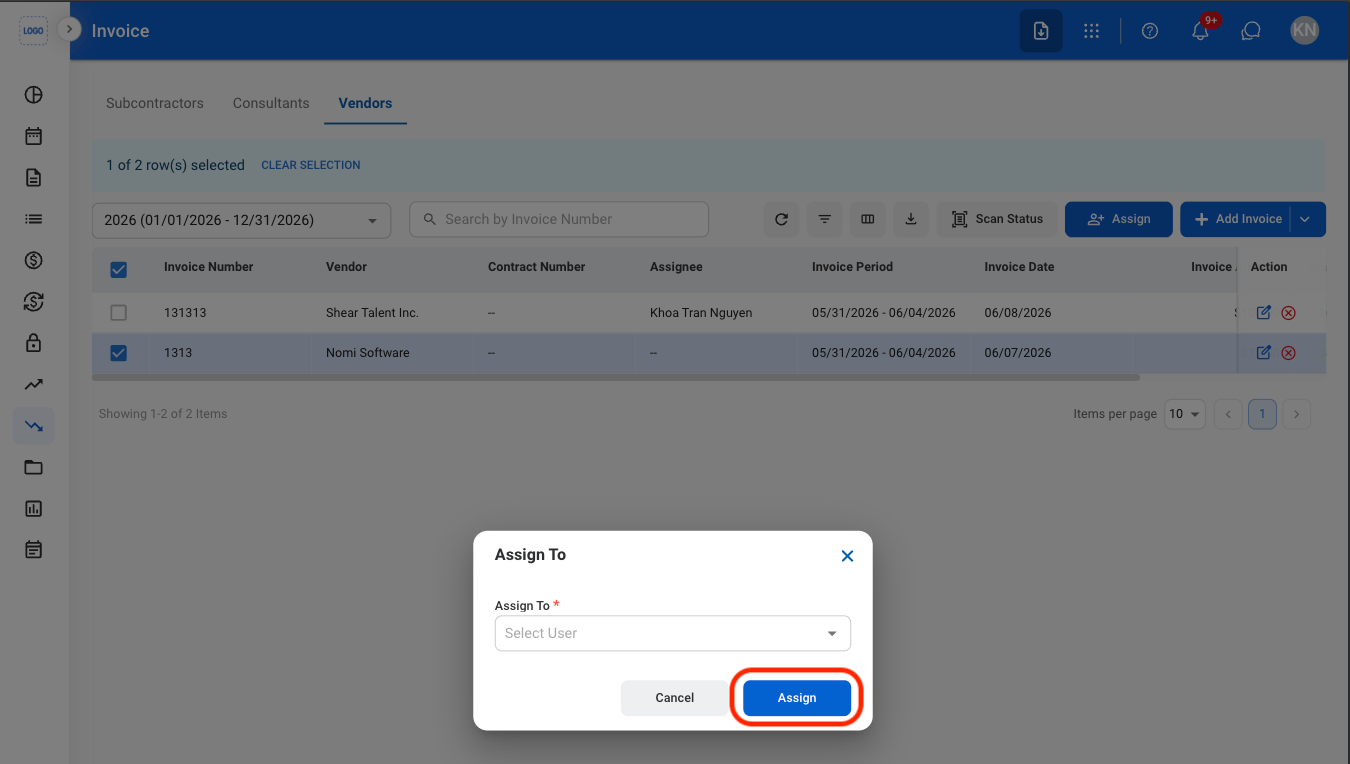
  <Step title="Assign a user">
    <Frame>
      <img src="https://mintcdn.com/bizbone/0ql_iPMXm4wX7du4/images/A-AP-I-Assign-C.png?fit=max&auto=format&n=0ql_iPMXm4wX7du4&q=85&s=88617d565cb93ebf29da186c6812f8a9" alt="A AP I Assign C" width="1350" height="764" data-path="images/A-AP-I-Assign-C.png" />
    </Frame>

    Select **Assign** to confirm or **Cancel** to exit without saving changes. 
  </Step>
</Steps>

## Review an Invoice

<Steps>
  <Step title="Select a submitted invoice">
    <Frame>
      <img src="https://mintcdn.com/bizbone/0ql_iPMXm4wX7du4/images/A-AP-I-Select-R.png?fit=max&auto=format&n=0ql_iPMXm4wX7du4&q=85&s=87ea3ba99aef8f4306882c78a1e4baa7" alt="A AP I Select R" width="1350" height="456" data-path="images/A-AP-I-Select-R.png" />
    </Frame>
  </Step>

  <Step title="Review and process the record">
    <Frame>
      <img src="https://mintcdn.com/bizbone/0ql_iPMXm4wX7du4/images/A-AP-I-Review.png?fit=max&auto=format&n=0ql_iPMXm4wX7du4&q=85&s=3d761b134ea9f8f3741009d9b34c0cb8" alt="A AP I Review" width="1350" height="1104" data-path="images/A-AP-I-Review.png" />
    </Frame>

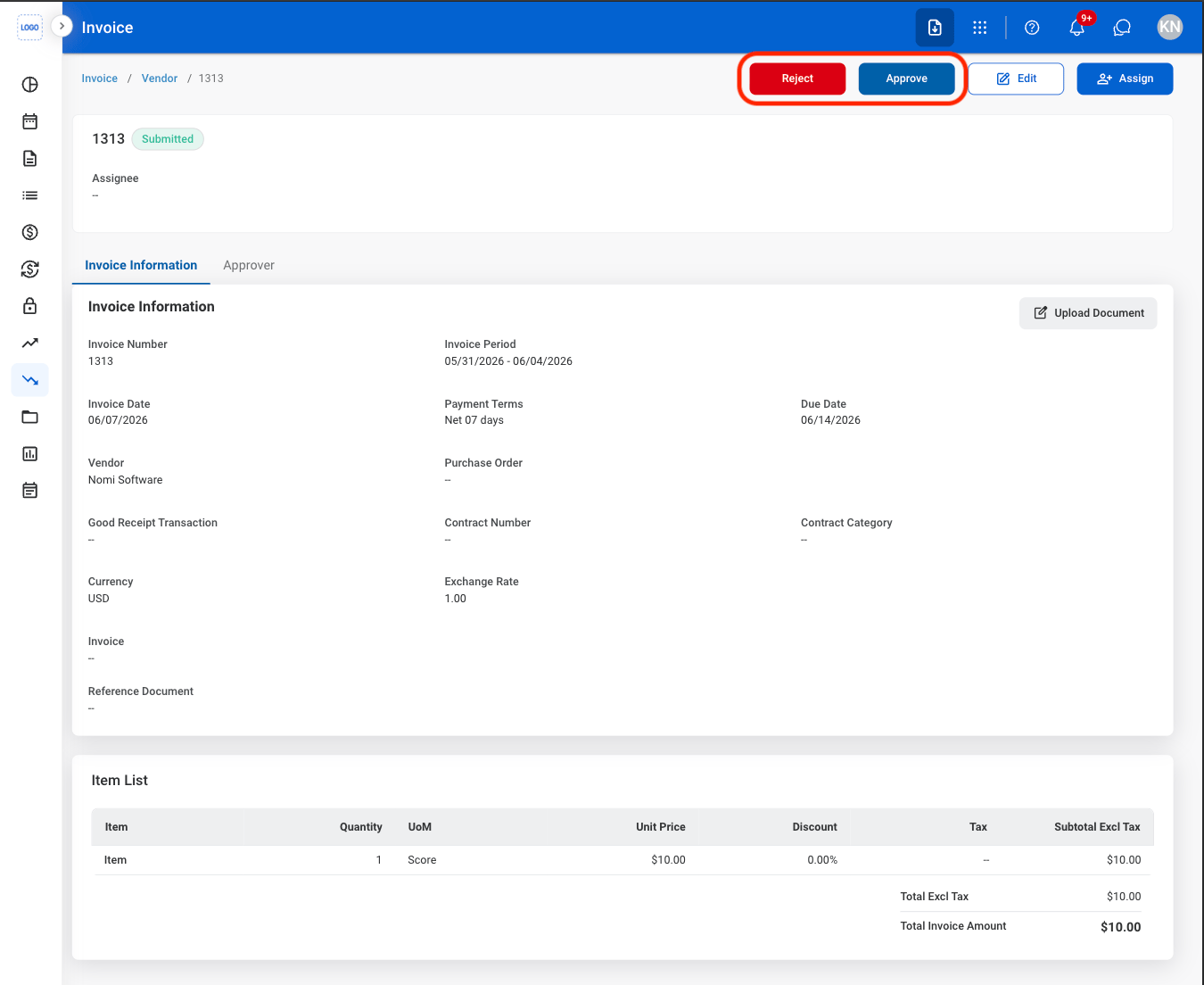
    * **Reject:** The status changes to Rejected and the cash receipt is not posted to the General Ledger.
    * **Post**: The status changes to Posted and the cash receipt is recorded in the General Ledger.
  </Step>
</Steps>